
Appearance
Product Updates: October 30, 2025
Overview
This upgrade focuses on the product concept of "smarter, more efficient, and more flexible" enhancing the autonomous decision-making ability of AI Agent and improving the asynchronous collaboration efficiency of Live Chat. It covers multiple core modules such as Voice, Ticketing, and Knowledge Center, helping enterprises build a new generation of agent systems that respond more quickly, handle issues more smoothly, and offer a more user-friendly experience.
- Enhance Intelligent Decision-Making, and Make Agent-Robot Interaction More Accurate
Autonomous Decision-Making Mode: The AI Agent can flexibly call the knowledge base, tools, or execute specific actions based on natural language instructions, without being restricted by fixed processes. It efficiently handles complex, non-standard business needs that involve judgment first and decision-making afterward.
Multi-Dimensional Data Integration: Supports incorporating information such as CRM, browsing history, and card data into conversation variables, providing comprehensive context for personalized responses.
Proactive Guidance and Action Completion: Added a function to generate recommended questions, guiding customers to ask precise questions. Also completed practical actions such as sending SMS and querying tickets, achieving service closure.
Operation Experience Optimization: Introduce draft/published status to ensure configuration security, support one-click jump from reception records to business sessions for easy effect tracking and analysis.
- Strengthen Asynchronous Collaboration to Handle Issues More Efficiently
Always On Mode: Designed for non-real-time, cross-period scenarios such as gaming, it supports efficient transfer and relay handling of conversations between agents. Equipped with "Snoozed Conversations" and "Pending Assignment Conversation Pool" mechanisms, it improves resource utilization.
Internal Collaboration Enhanced: New internal notes and @ function added. This supports agent to @ relevant colleagues for collaboration during conversations, ensuring key information gets timely attention and handling. This speeds up problem resolution and improves team cooperation efficiency.
Controllable Service Process: Introduce an online Service Level Agreement (SLA) to establish a full-process time standard for enterprises from the initial response to the final resolution; unify alarm and notification mechanisms to achieve effective monitoring of service anomalies and sudden traffic.
- Optimize Customer Experience, Make the Whole Chain Operation Smoother
Visitor Experience Upgrade: V7 version fully updates the visual style, supports dark mode, full-screen web pages, and highly customizable preview and integration methods, comprehensively enhancing customer interaction experience.
System Control Optimization: Reconstruct the menu structure of the Admin Center, make business classification clearer, and permission management more detailed, helping enterprises better manage internal control and collaboration.
Sobot is committed to empowering global enterprises with intelligent products, activating new service efficiency, and leading the new future of customer interaction.
Note: =Addition
 =Optimization
=Addition =OptimizationLive Chat
Live Chat Adds Always On Mode
Function Background
In customer service scenarios in industries like gaming, customer inquiries often occur outside of working hours, and the issues usually require collaboration among multiple roles to resolve:
For example:
The player initiated a consultation in the game at 23:15: "Why is my account blocked and I cannot log in?"
Agent will handle it after coming online at 8:00 on the second day, add a note "@Second-line Agent", and set the session to "Waiting".
The second-line agent replied the reason for the account ban at 13:00.
The first-line agent replied to the customer at 13:05 to explain the result, and the system notified the customer through the game app.
This type of "non-real-time consultation + cross-period handling" business is very common. To improve the experience of such services, the system has added an "Always On Mode".
Feature Description
Add Business Model Settings
i. You can choose Real-Time Reception mode or Always On mode.
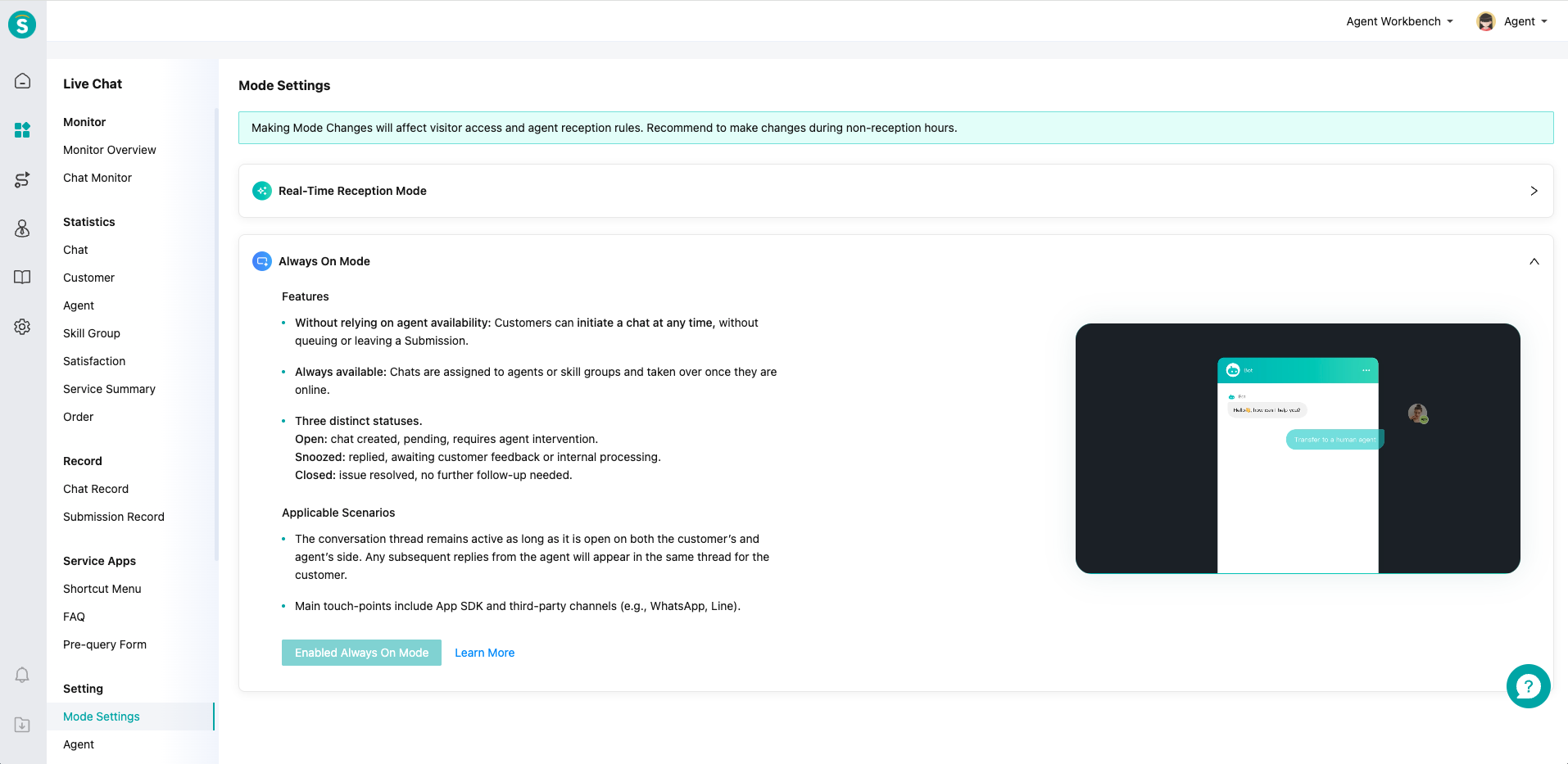
Under the Always On processing mechanism, add new agent allocation rules
i. Assign Object
Assign to all agent representatives
i. Assign to online agent first. When online agents reach full capacity, distribute among busy > offline statuses.
ii. All agent reception statuses are saturated, and the remaining conversations enter the pending assignment list.
Assign to online agent
i. After a customer initiates a consultation, it is assigned to a agent representative who is online. Once the online agent representatives are fully occupied, the remaining conversations will enter the pending assignment list.
ii. After entering the pending assignment session pool, the customer-specified agent and skill group information are clearly retained to ensure accurate subsequent allocation.
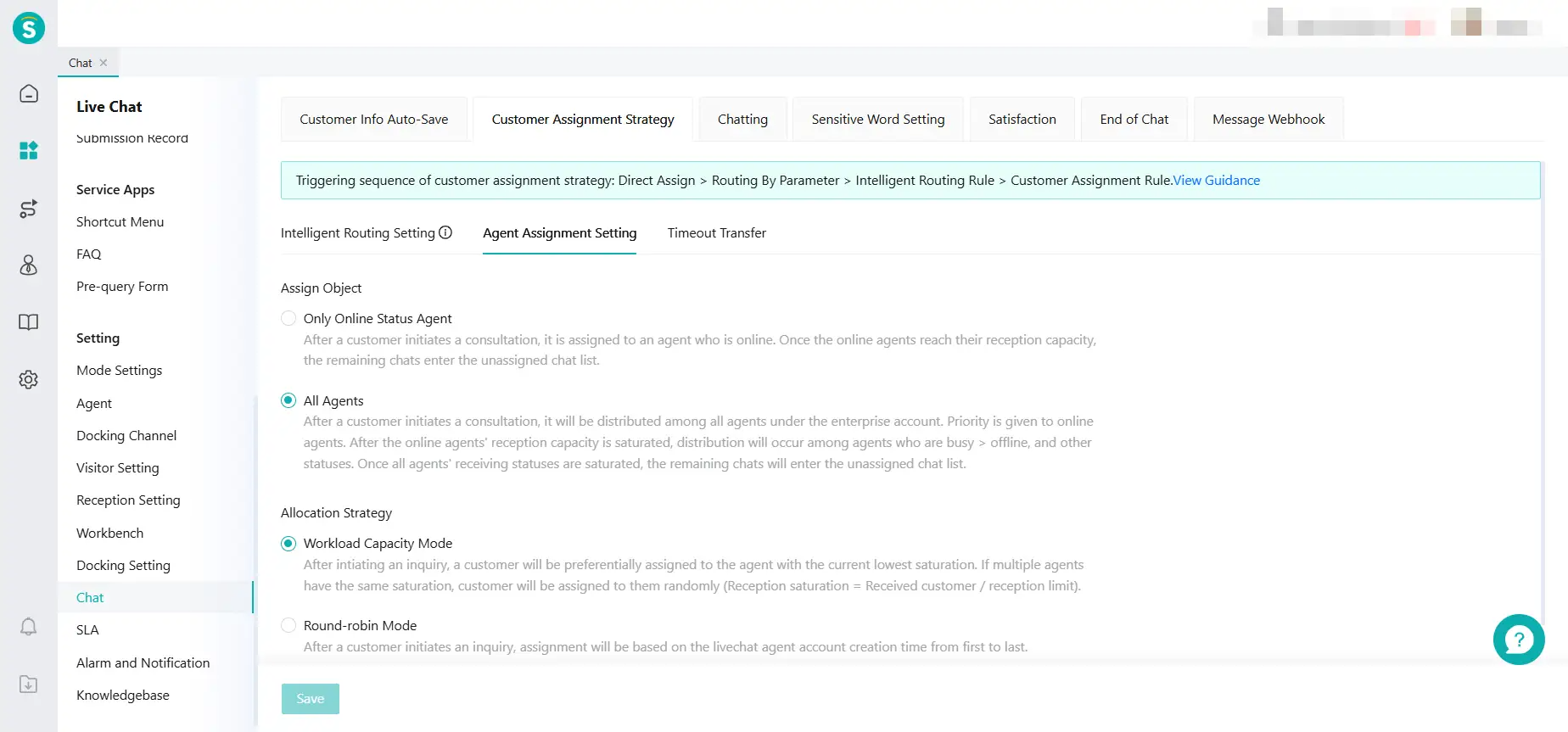
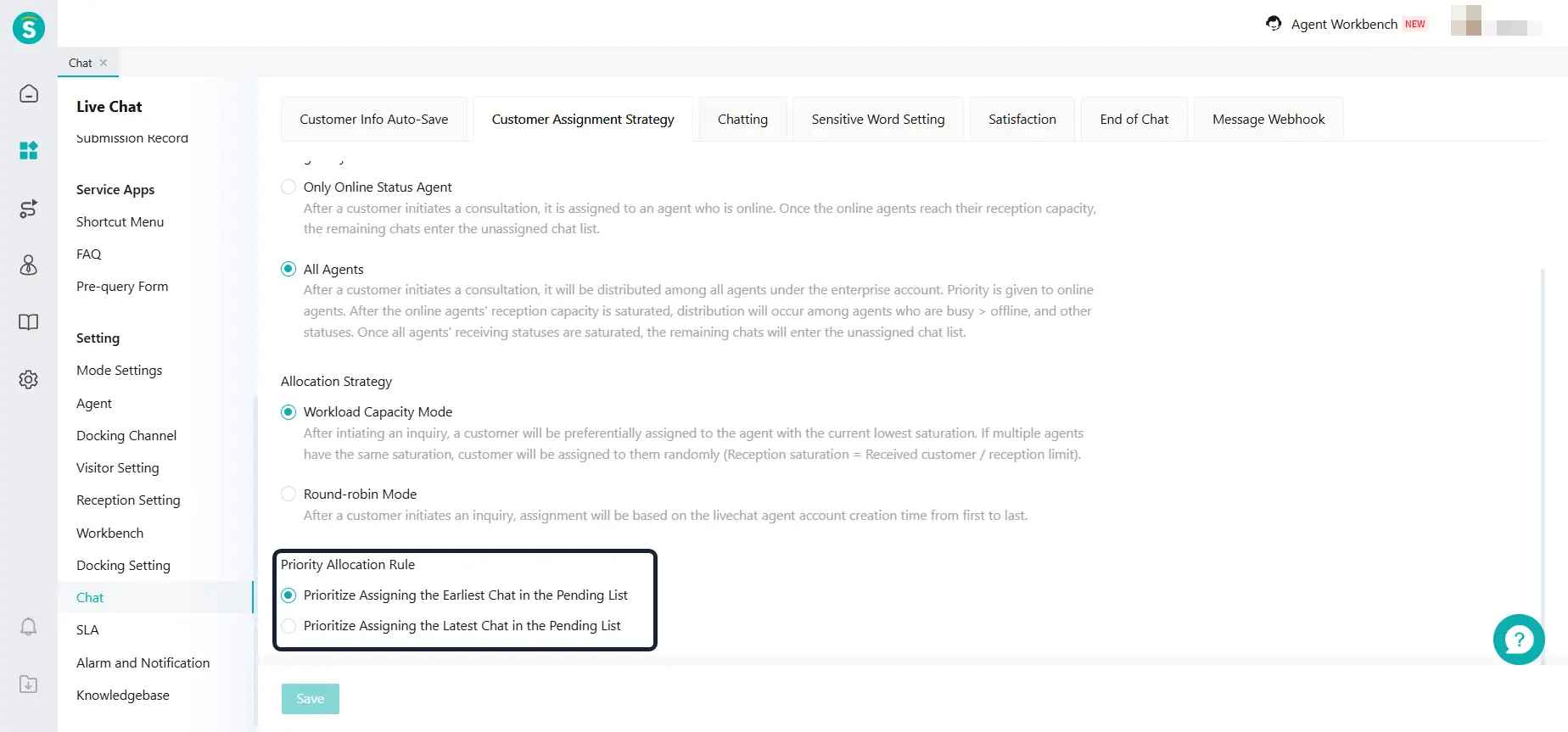
iii. Add priority allocation rules, effective for the pending session pool, and simplify the configuration for assigning to all agents.
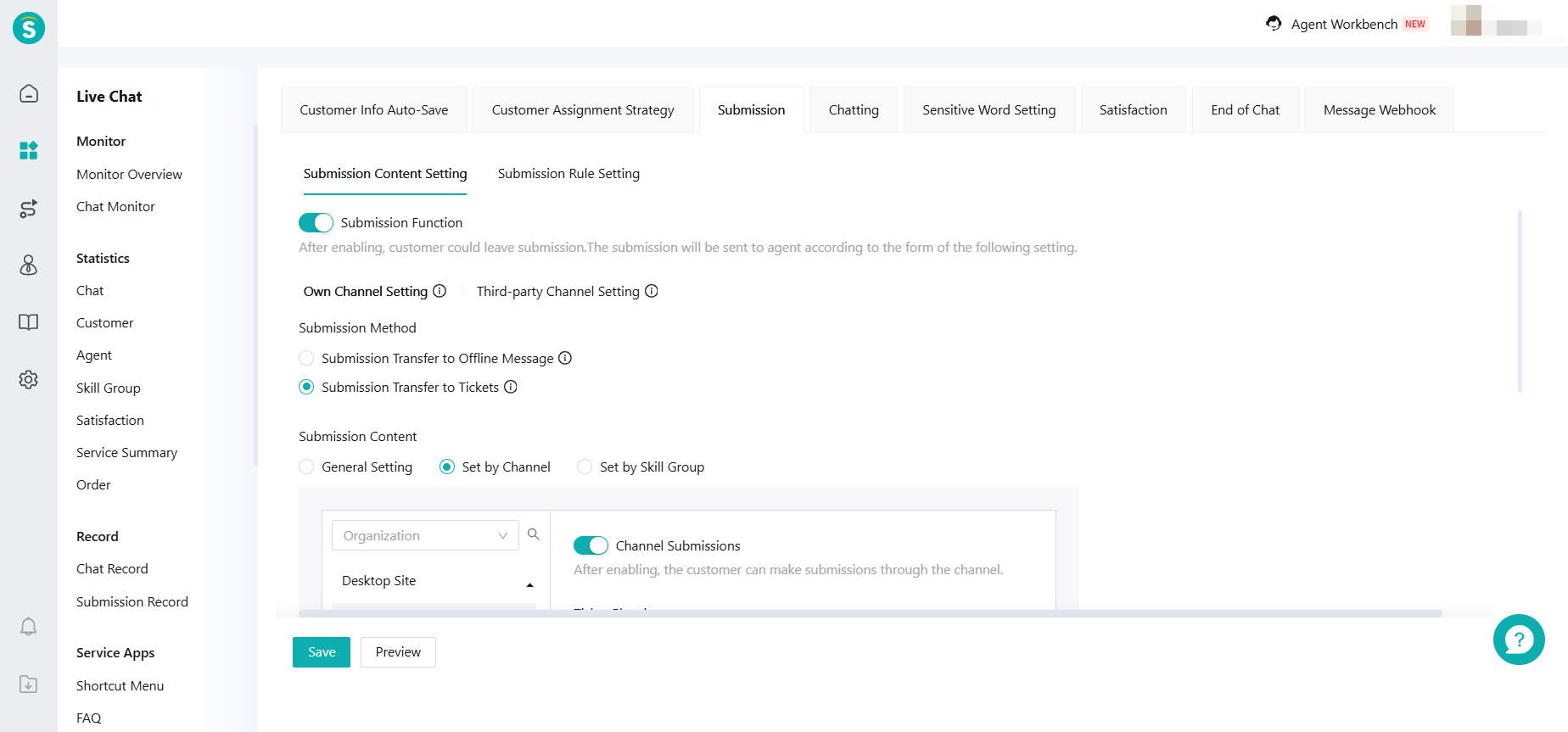
Submission Moved to Chat Settings
Feature Description
Note: In Always On mode, the Submission will be hidden and no longer displayed. Also, the related settings for visitor messages will no longer take effect.
Agent Workbench: Online Sessions Support Internal Notes and Collaboration Features
Function Background
When agent encounters complex issues that cannot be resolved independently (such as those involving cross-departmental policies), the current system lacks a channel for relevant agent staff (non-receiving personnel) to "listen in and intervene." Relevant agent staff cannot see the full conversation context, nor can they directly provide guidance or notes in the session. This leads to information distortion during multiple retellings and results in low collaboration efficiency.
Feature Description
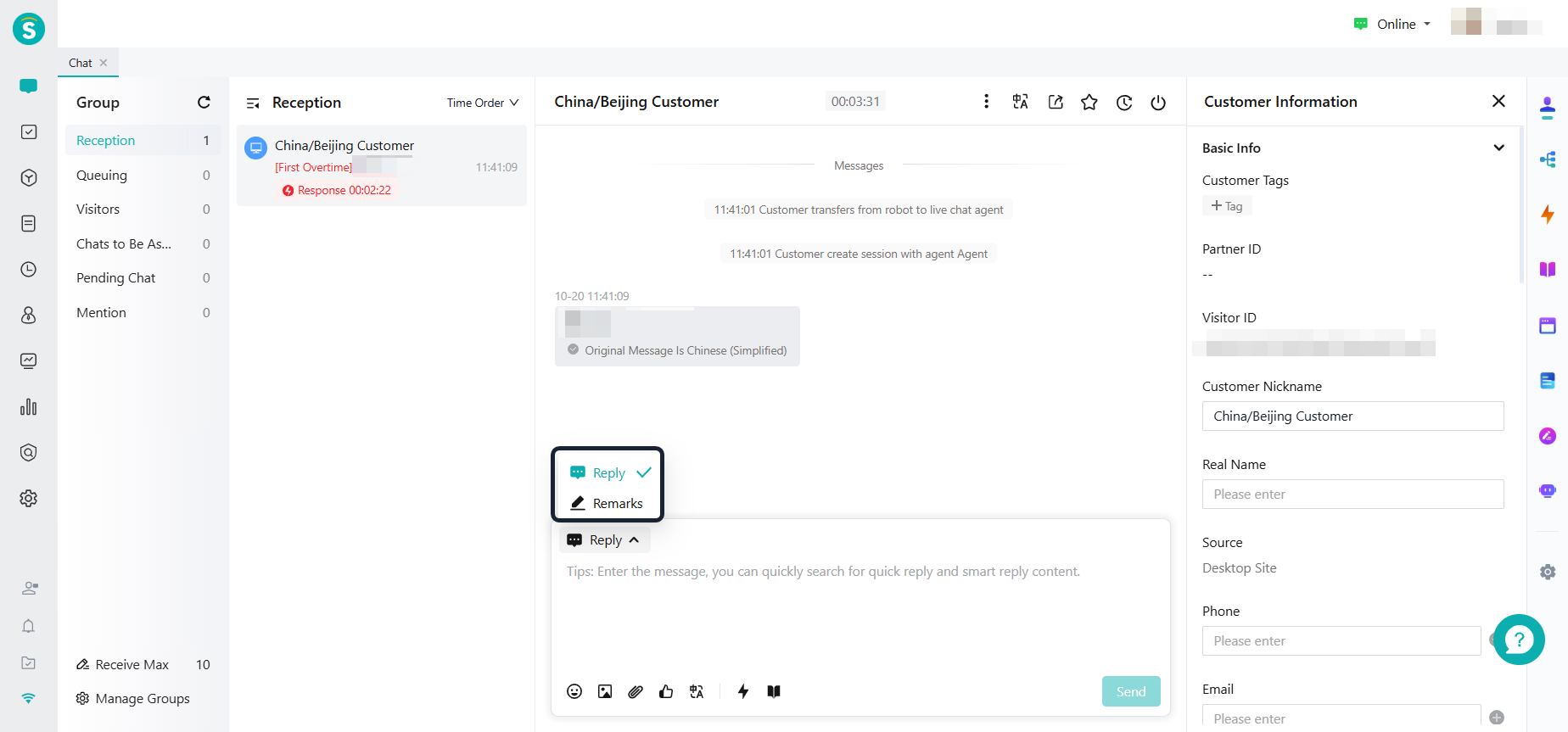
Internal Note
i. Basic functions: Consistent with the current publicly supported message body for replies, including quick replies and smart replies (robot knowledge base, knowledge center).
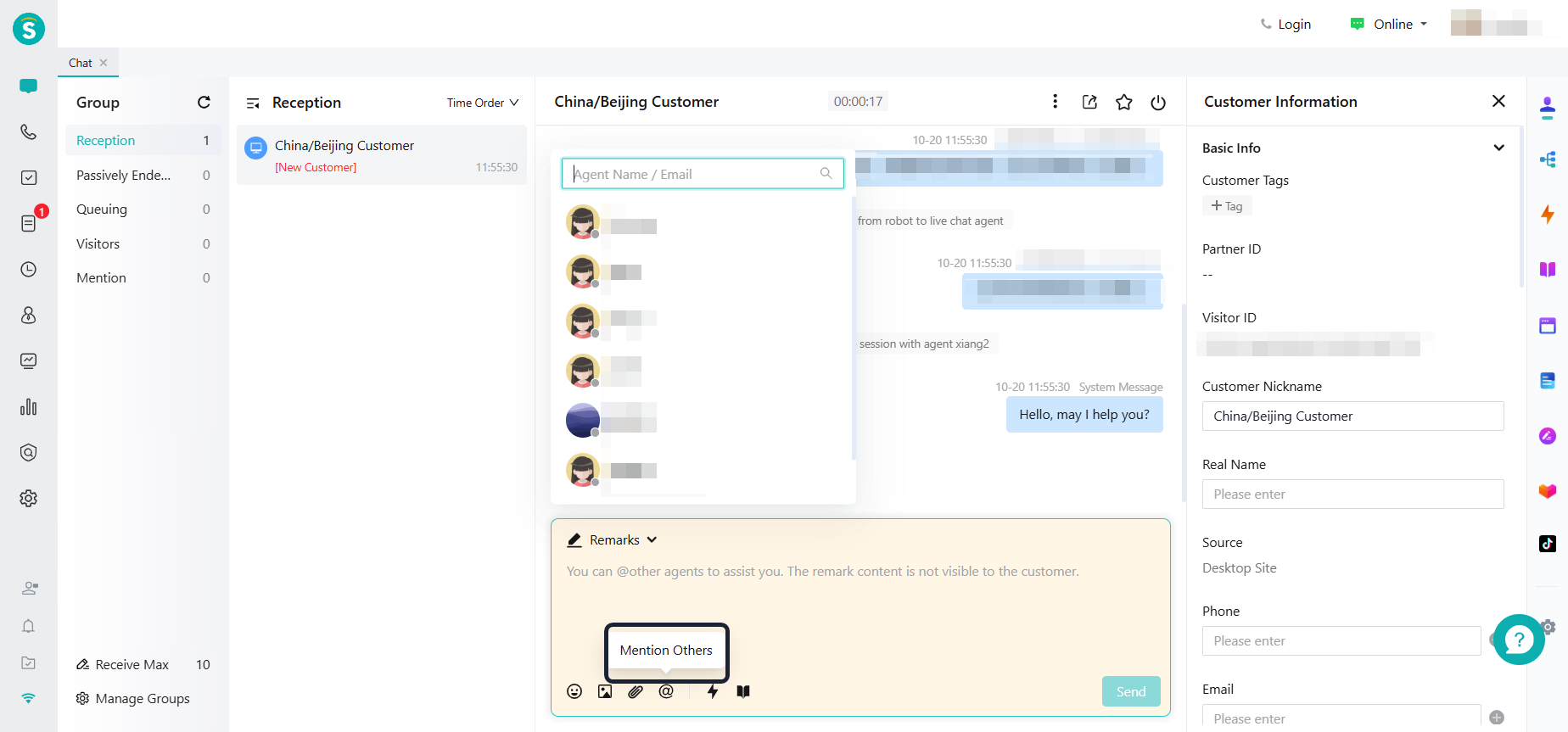
ii. Supports the "@" function:
@List: The list includes all Live Chat representatives (regardless of whether the "online" agent status is online, offline, or on a short break).
Does not support @everyone. You need to @ each person individually.
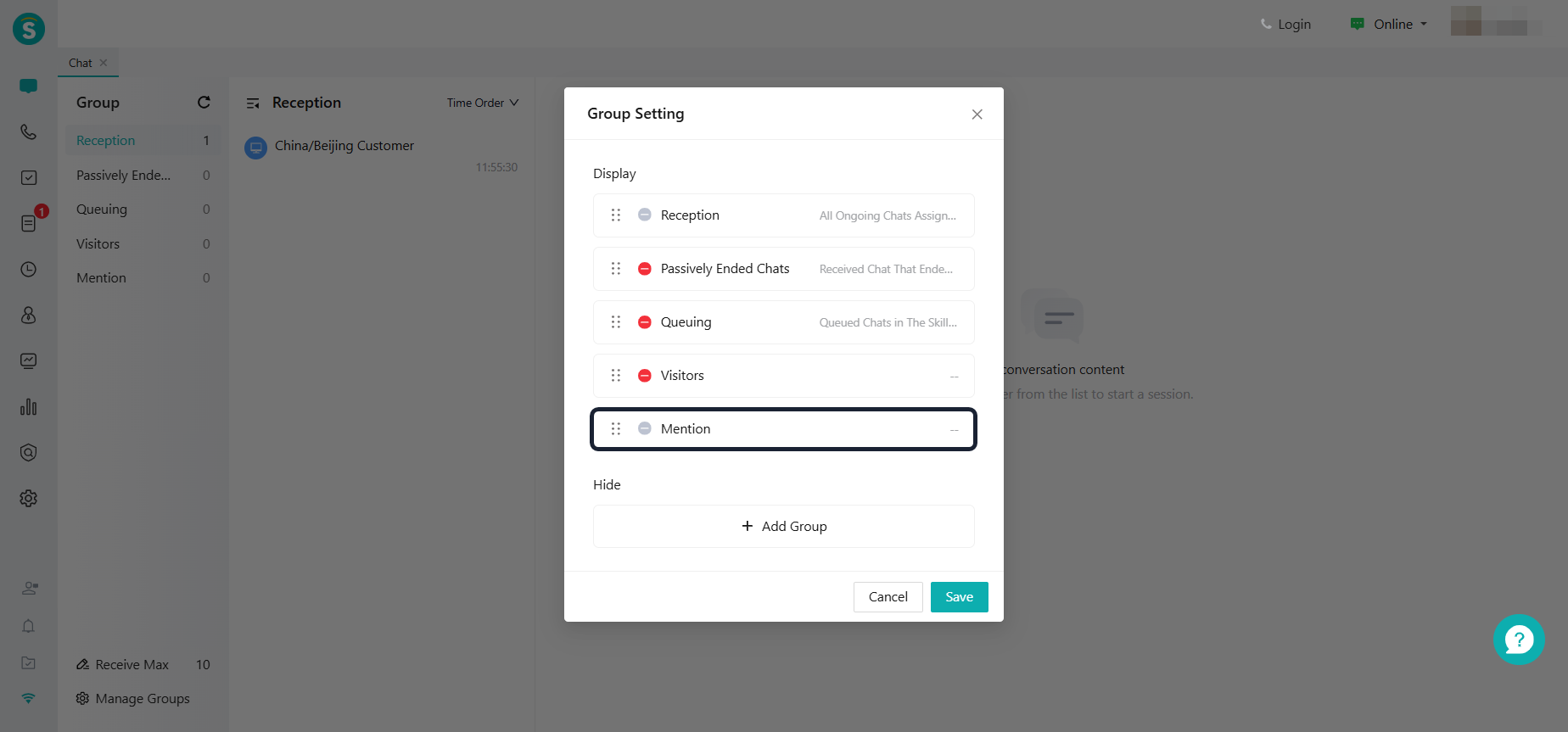
- At the same time, a new grouping condition "@Me" is added.
Internal notes for non-reception staff
Non-reception agent only supports internal notes.
Agent Workbench:Add a Snooze Feature to My Reception Conversations
Function Background
In the Always On Mode, a snooze feature has been added to support long-term conversation handling.
When a conversation requires the customer or internal team to respond later, it can be set to “Snoozed.” The system will temporarily release the agent’s active session slot, allowing them to focus on other conversations.
Once the snooze period expires or the customer replies, the system will automatically remind the agent to follow up, preventing missed conversations.
Feature Description
- After adding the Snooze action in My Conversations, once a conversation is successfully snoozed, it will disappear from the My Conversations list.
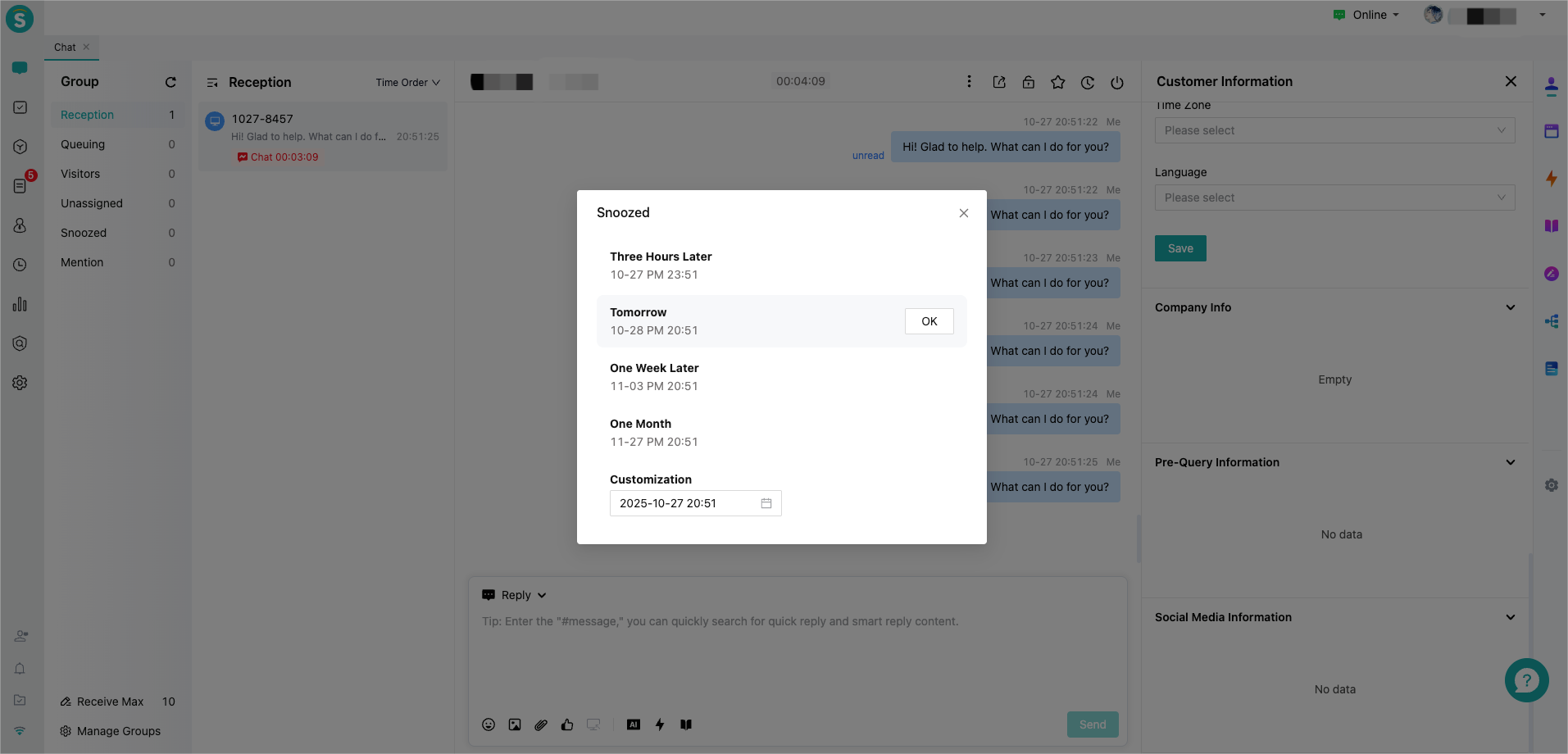
- Add a Snoozed group.
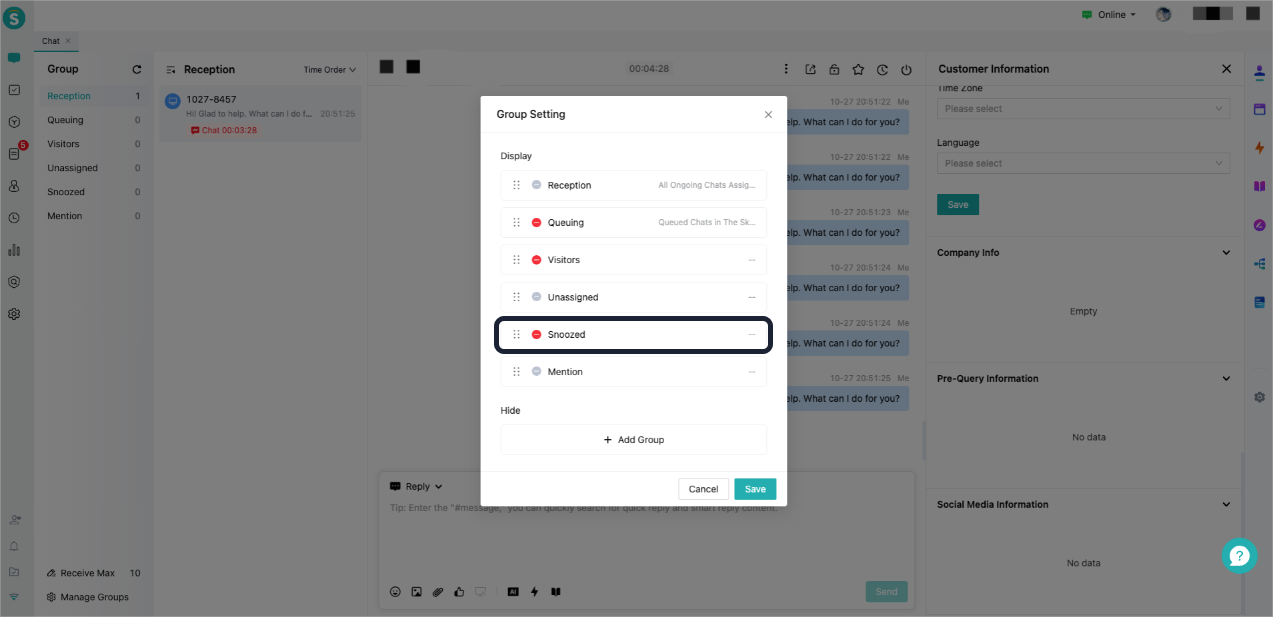
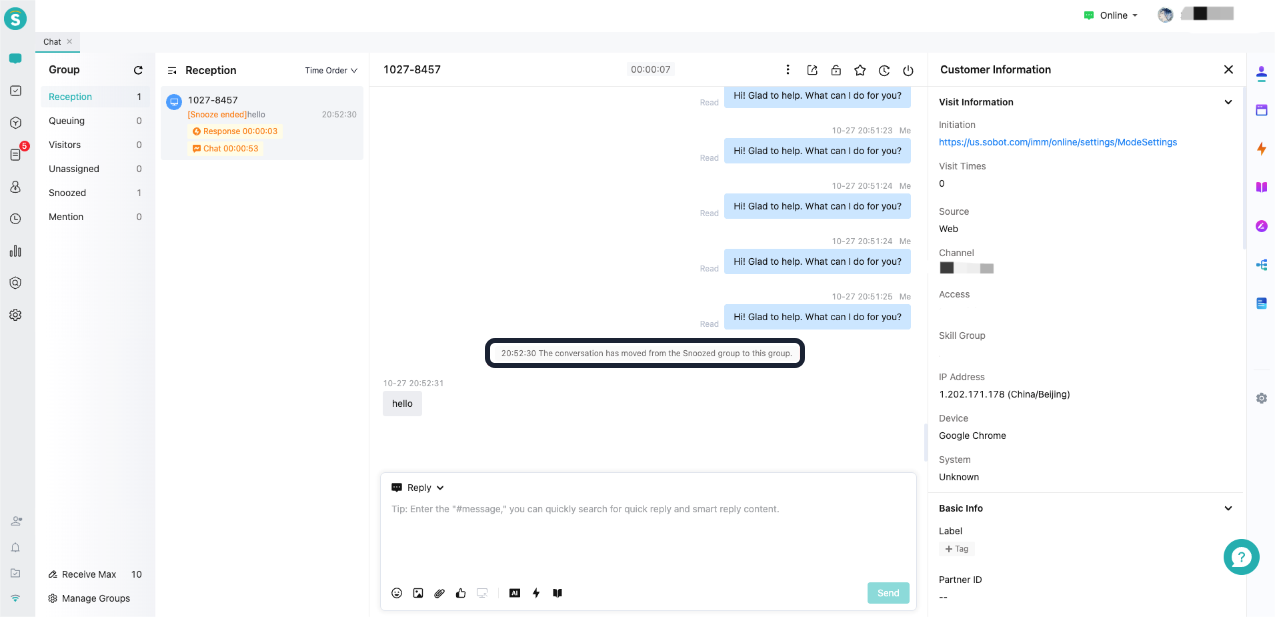
- Snoozed conversations will be automatically reactivated and moved back to Reception once either the agent or the customer sends a reply.
Agent Workbench: Add Unassigned Sessions
Function Background
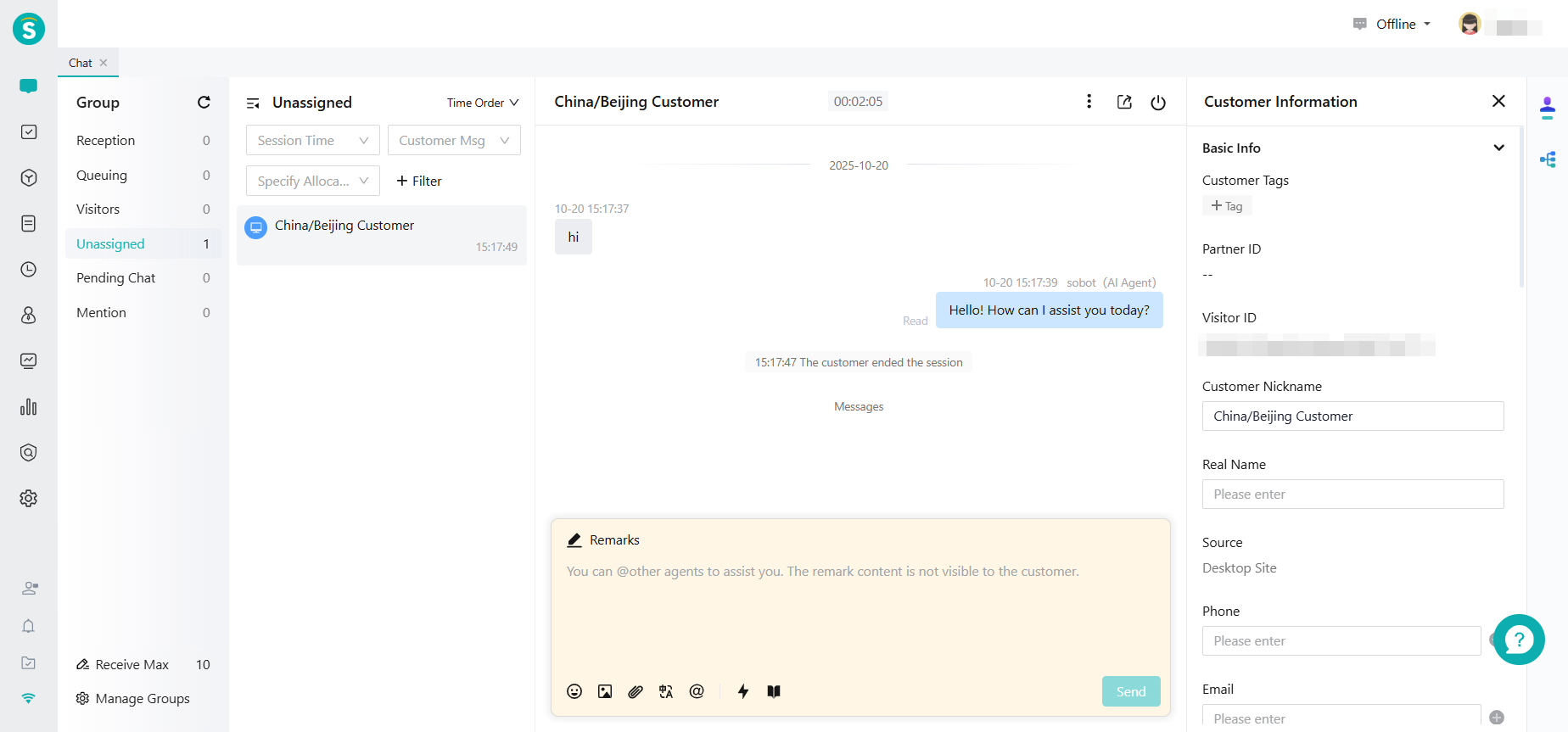
In always on mode, when no agent is available, the conversation automatically enters the waiting queue. The system supports both automatic assignment and manual assignment by the administrator.
Feature Description
- For administrators, the default is to add unassigned session grouping.
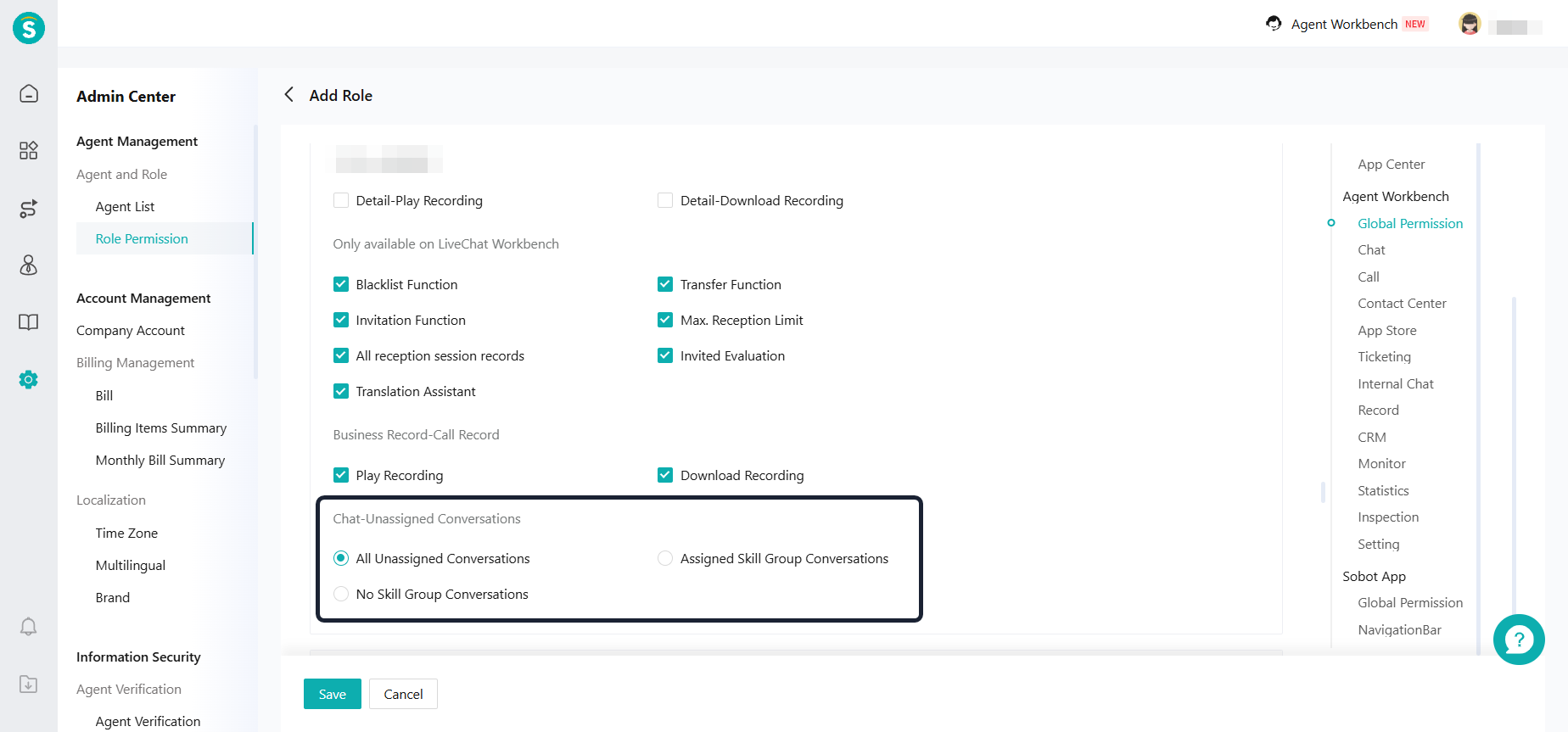
- Admin Center - Role Permission Management adds customizable administrator data permissions for viewing unassigned session groups, location:
SLA
Function Background
Customers do not know when they will receive a response after making an inquiry. They also have no idea about the status of their issue, which makes them feel neglected. This can easily lead to a lack of transparency in the service process. The SLA policy establishes a full-process time standard for enterprises from the initial response to final resolution, making the service process predictable and trackable. It improves service quality, enhances service efficiency, increases satisfaction, and quantifies agent evaluations.
Feature Description
Live Chat adds SLA. There are two triggers for the SLA: session assignment and session transfer.
Enterprises can customize trigger conditions, SLA targets (support setting targets for first response time, response time, and chat time), and notification alerts.
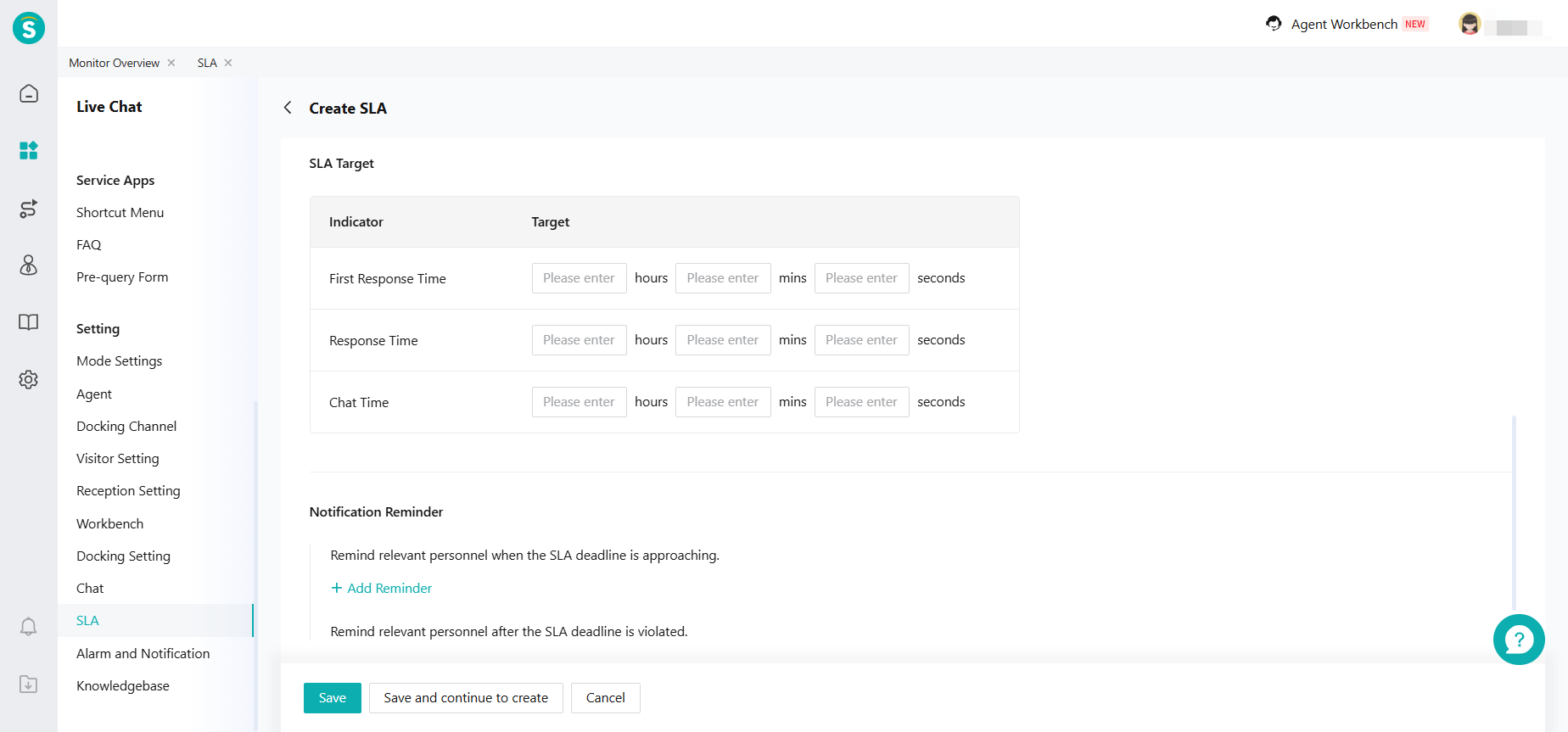
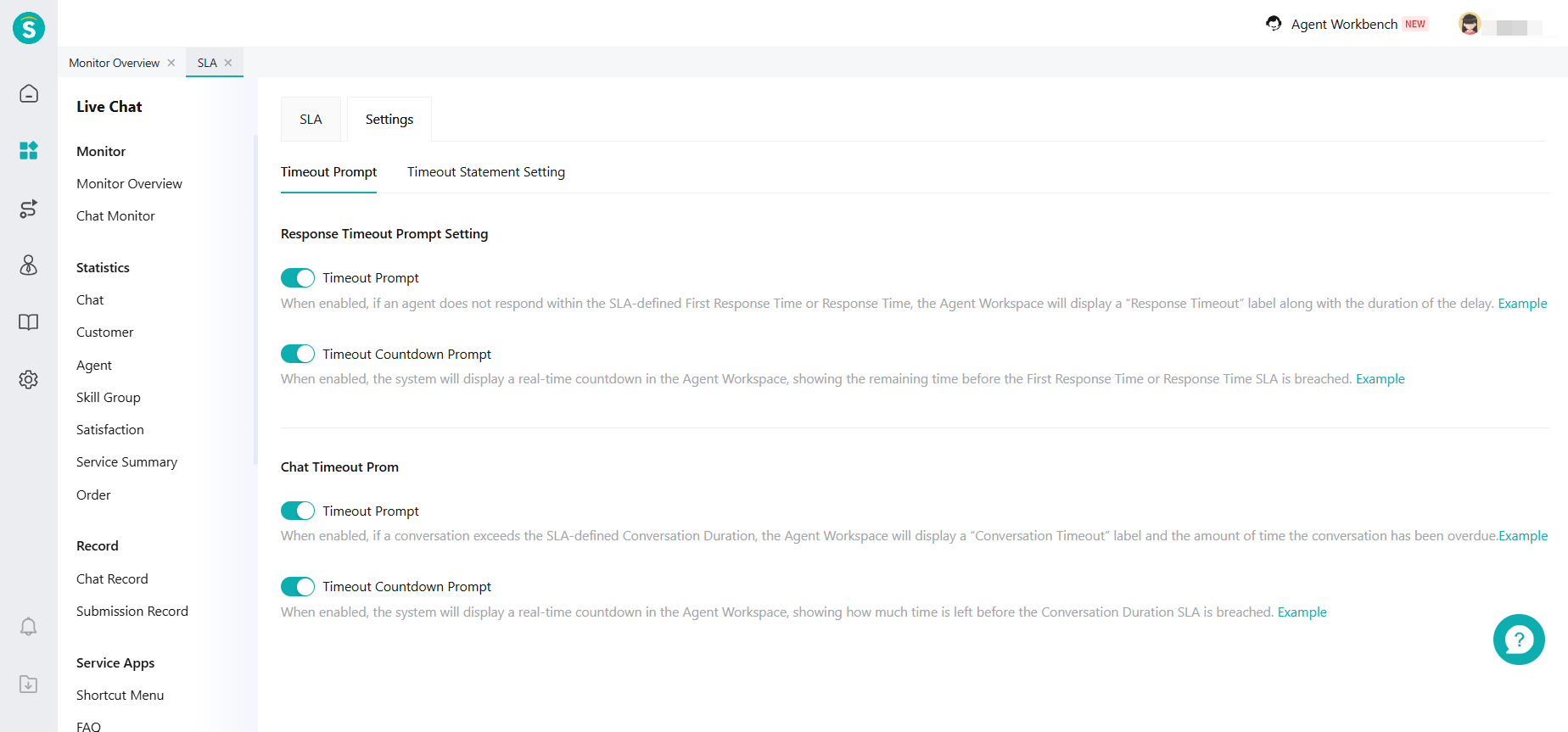
- The relevant alarm duration settings for original "Chat Alert" and the "Timeout Setting" have been migrated to the new feature "SLA".
Alarm and Notification
Function Background
For the gaming industry, after the game content is released, there may be some serious bugs, such as inability to log in, sudden crashes, or payment not being credited. These issues can lead to a large number of customers flooding in within a short period. Enterprises need to monitor this kind of situation and take necessary actions promptly. The current monitoring only shows the status quo and does not reflect problems. Enterprises need to manage notification-related functions in a unified way, supporting alarms and notifications for various scenarios.
Feature Description
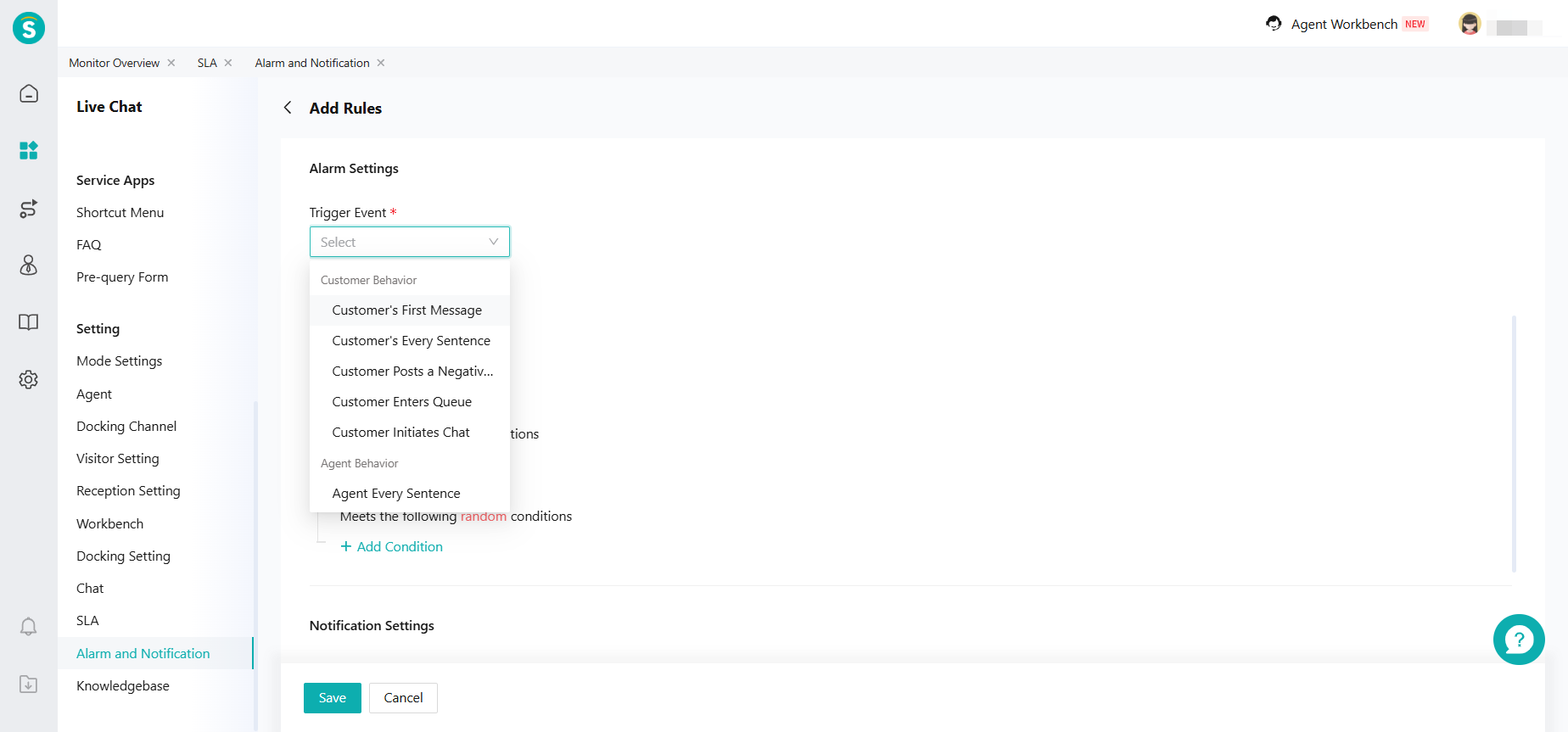
- Trigger Event: Alarm and notify based on the triggering of events related to customer actions and agent actions.
Alarm Threshold:
i. Each time: Send alarm notifications according to the "each time" frequency.
ii. Cumulative: You can set rules for the number of triggers and the monitoring time period.
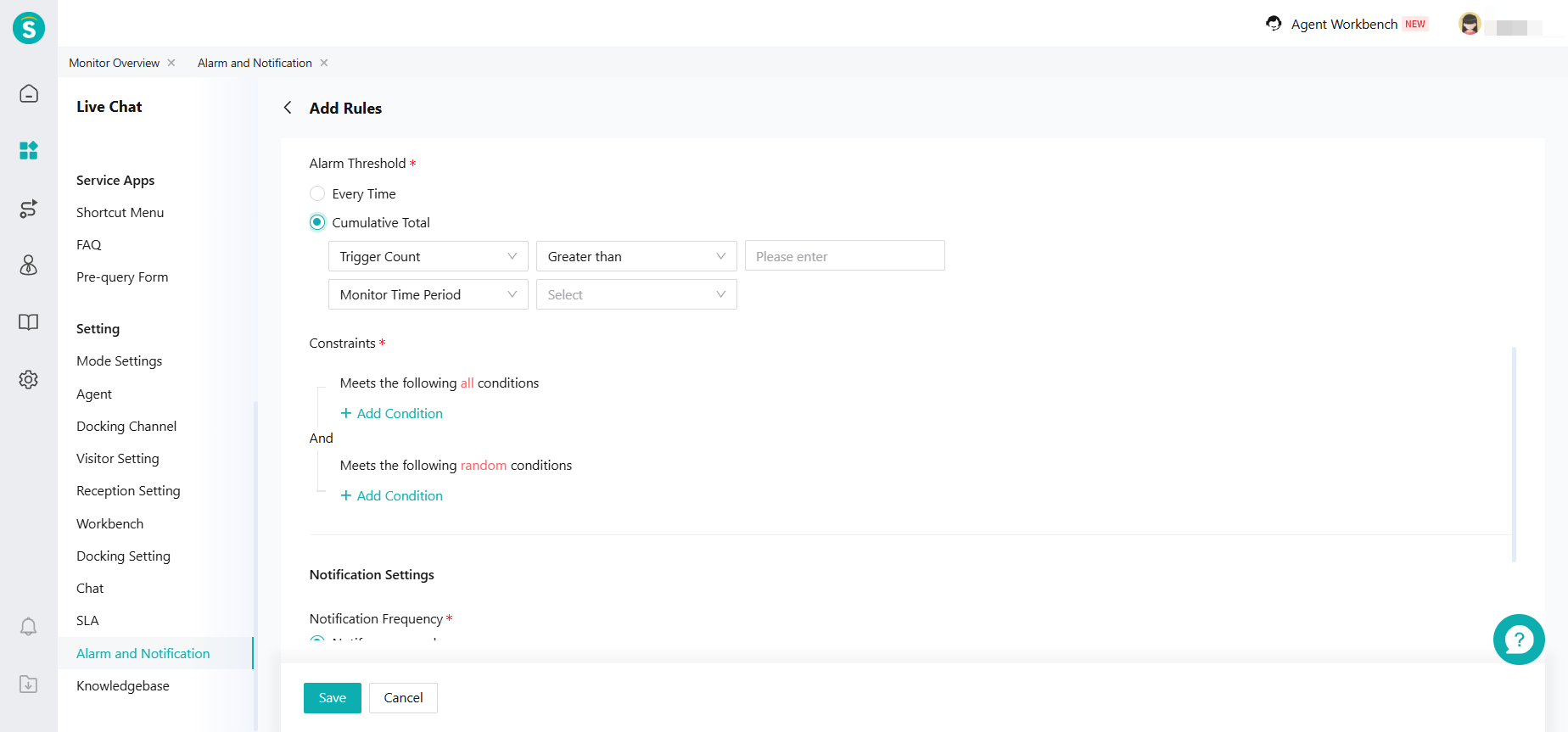
- Constraints: Defined based on customer attributes and service attributes.
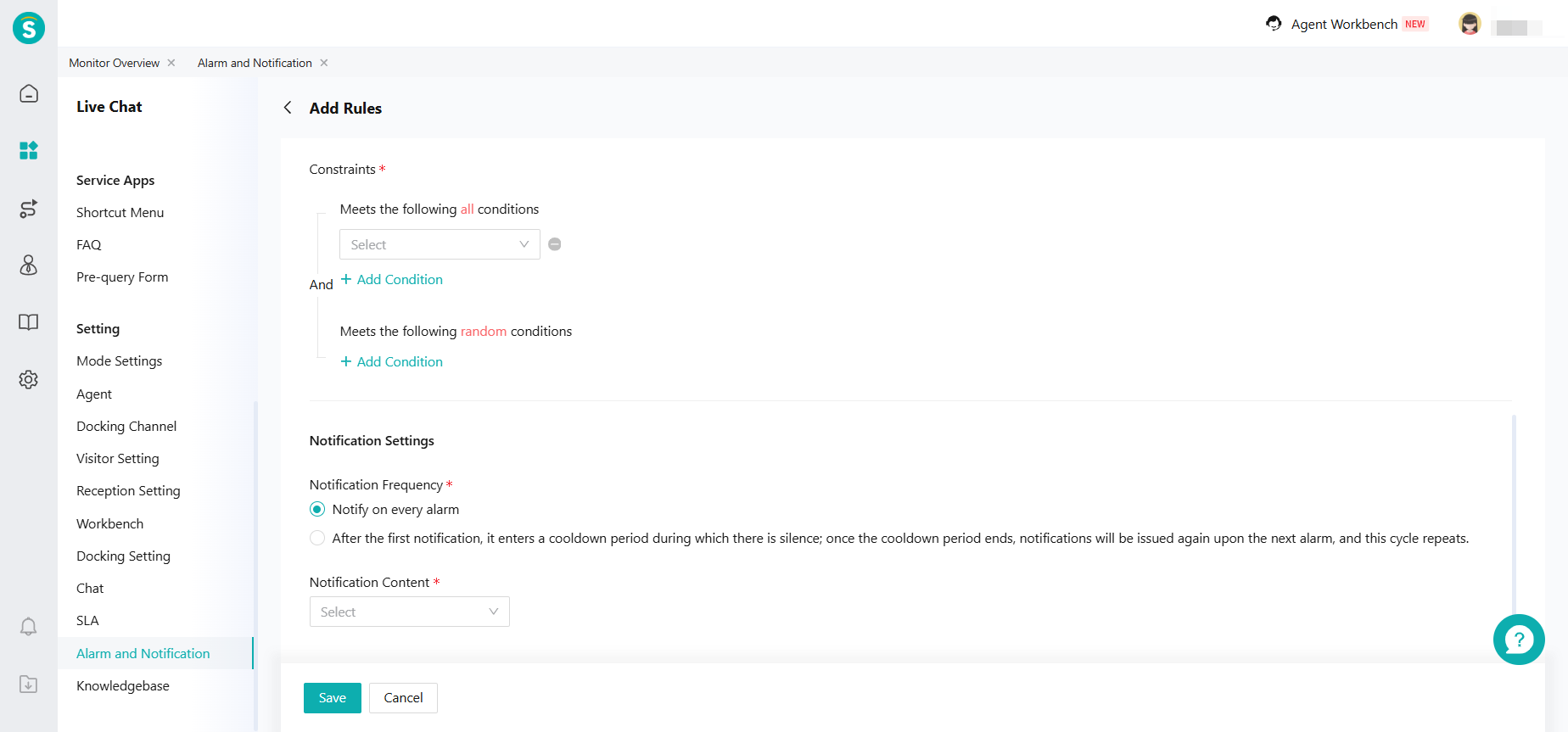
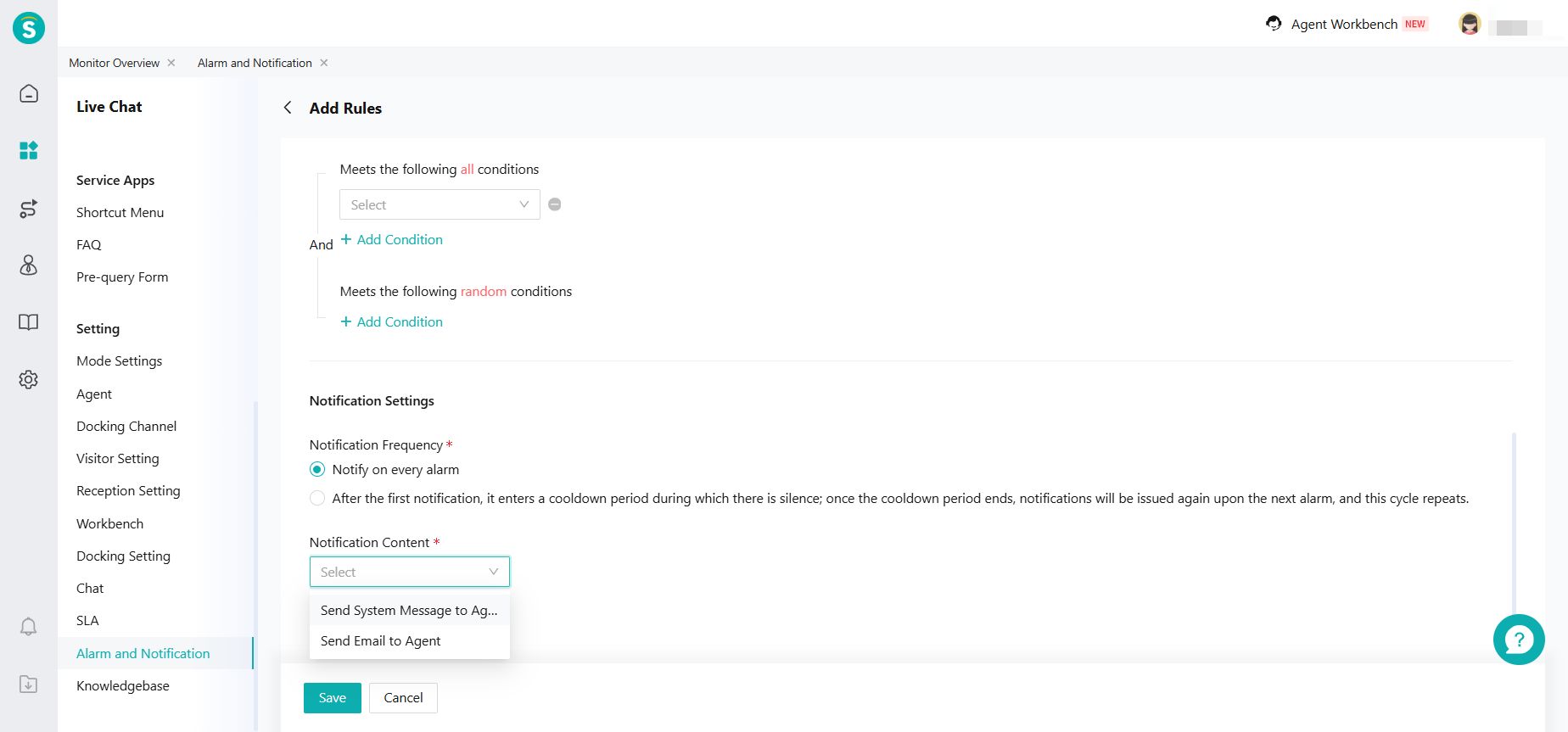
Notification Settings:
i. Notification frequency: Divided into each alarm and cooldown period rules.
ii. Notification content: Divided into two methods, system messages and emails sent to the agent.
Visitor Side V7
Function Background
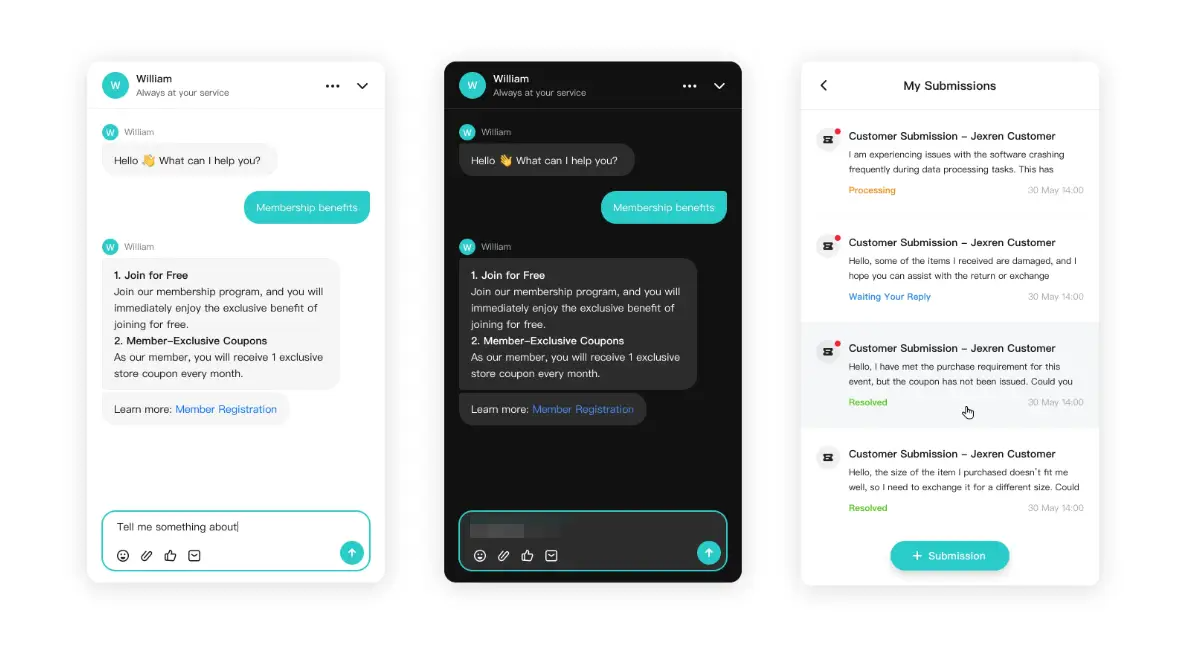
V7 version fully updates the visual style of the visitor client, optimizes the conversation interaction experience, and supports dark mode, greatly improving the customer experience. Newly registered companies can directly use the V7 version visitor client, while historically registered companies need to manually upgrade.
At the same time, version V7 has also updated a series of new features. The relevant feature update content is described as follows:
Feature Description
Live Chat - Settings - Visitor Setting Function Update:
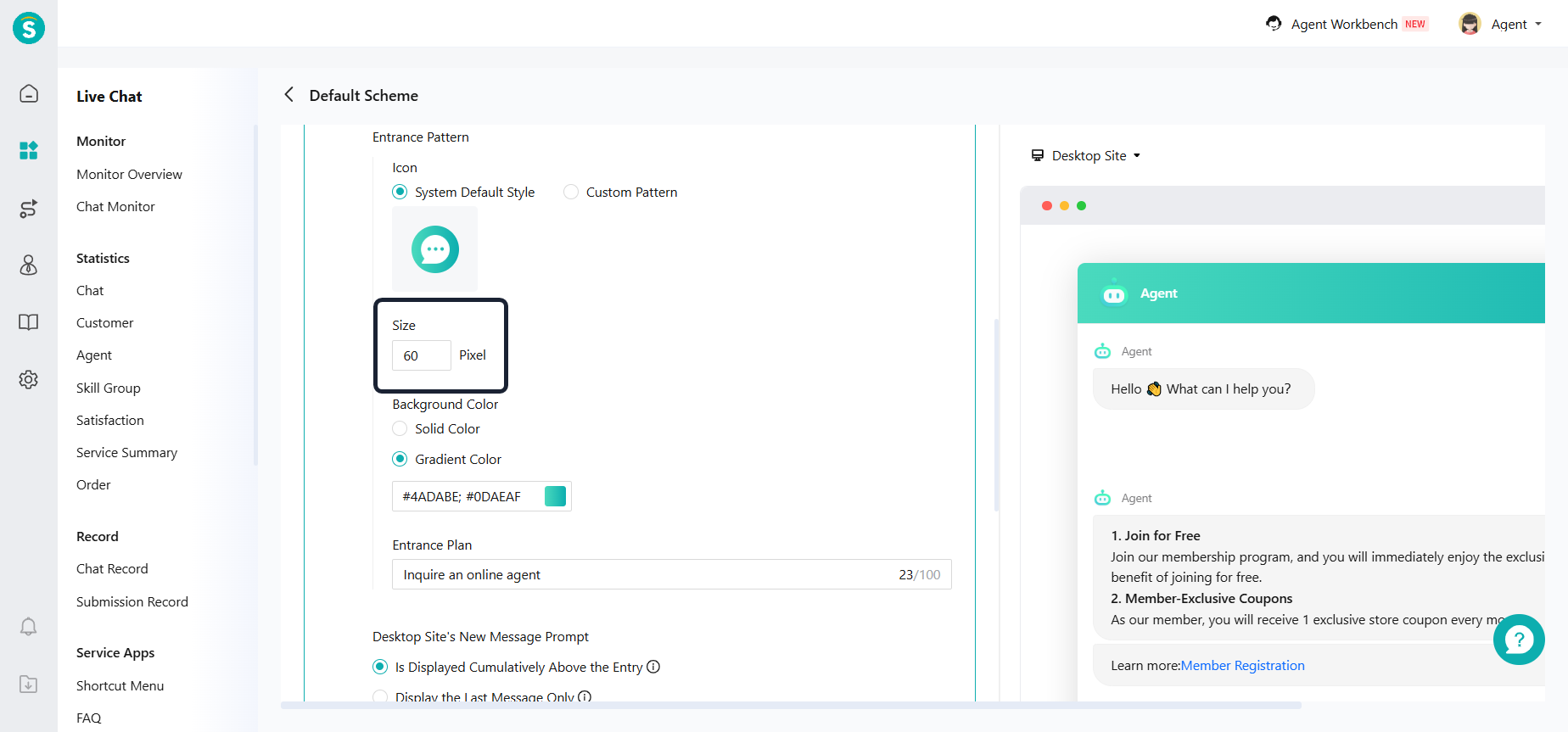
- Inquiry Entry Setting supports custom size.
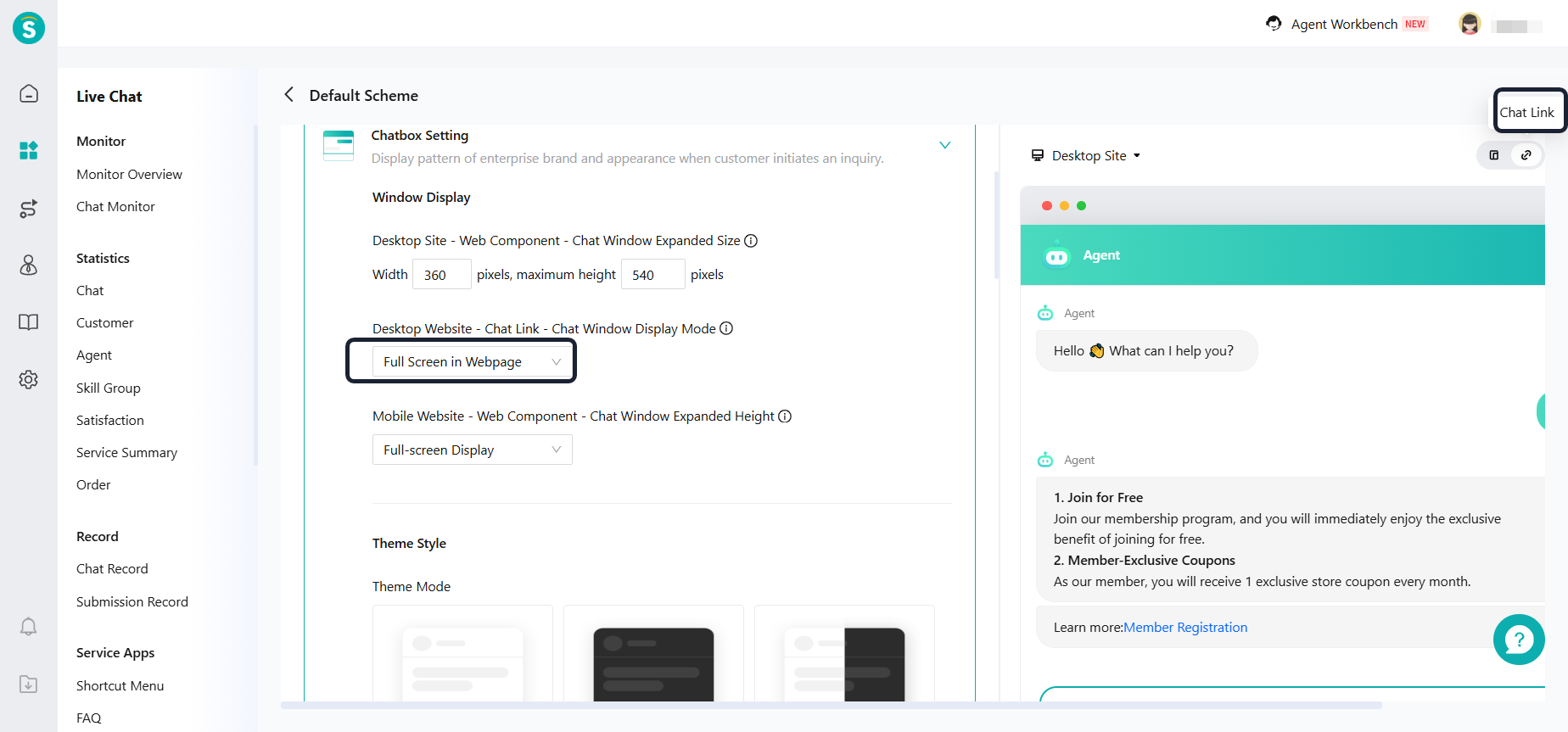
- The chat link now includes a "Full Screen Webpage" opening mode. In this mode, the chat page automatically fills the entire docking area to avoid wasting space.
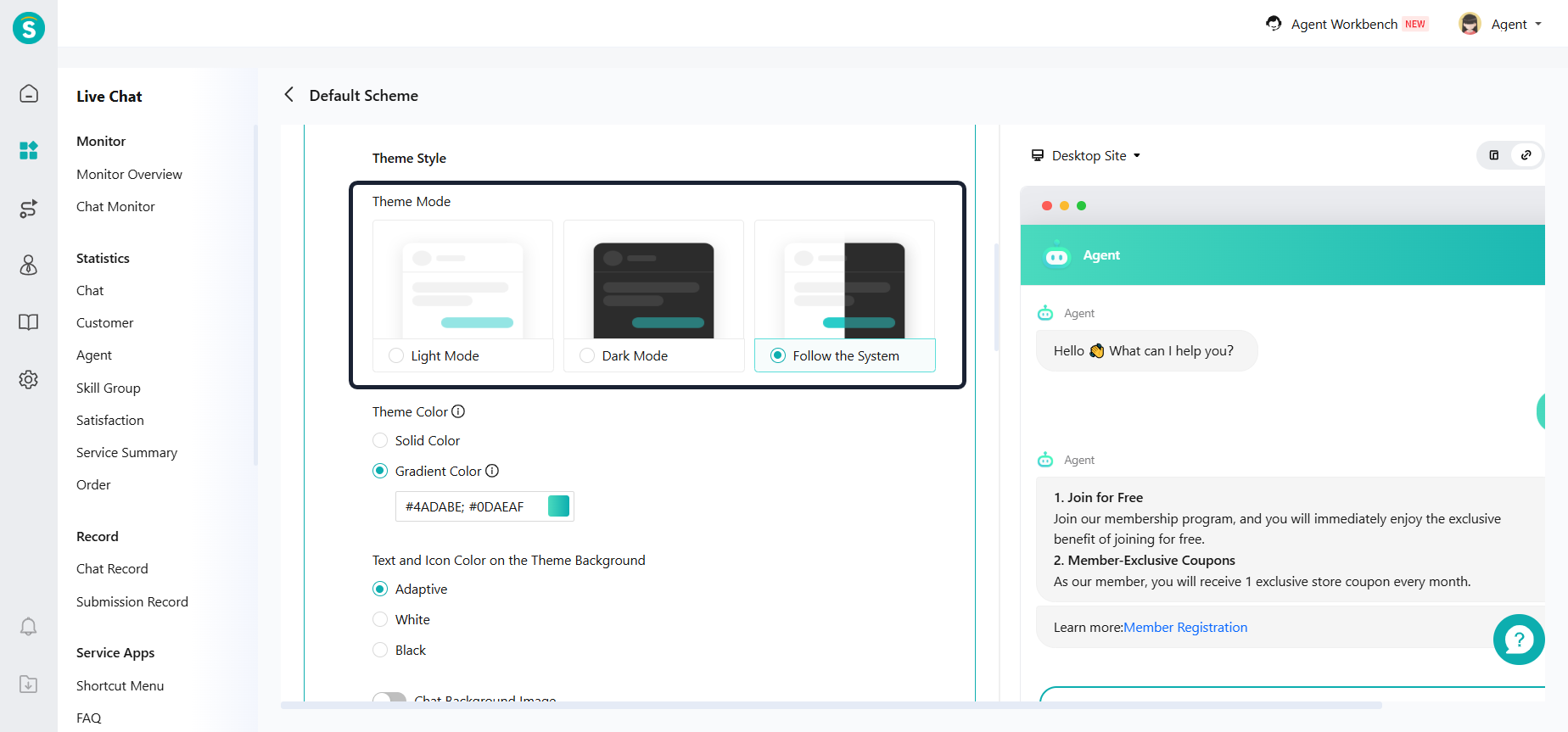
- Support setting theme mode. Support light, dark, and adaptive modes.
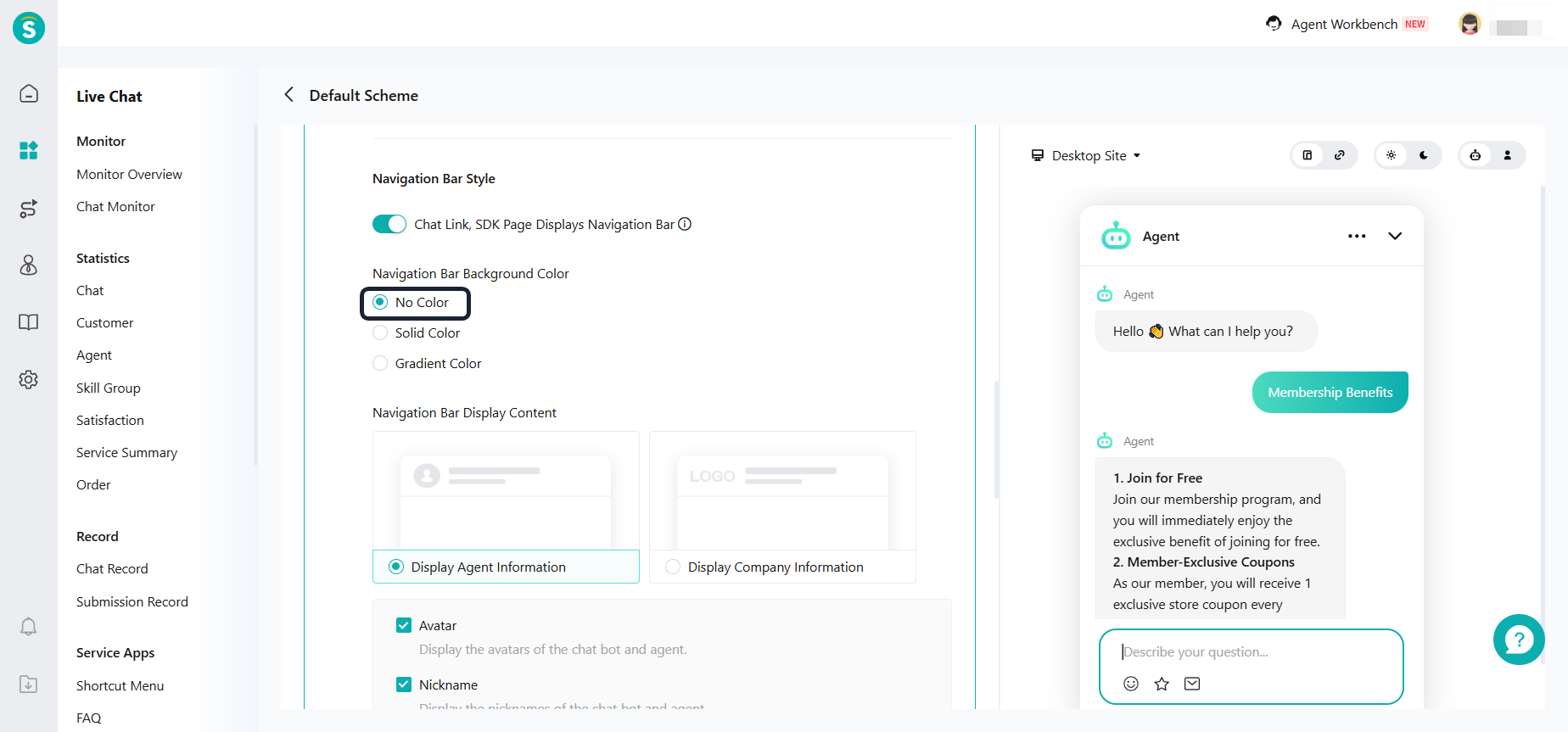
- The navigation bar style supports using the "no color" mode.
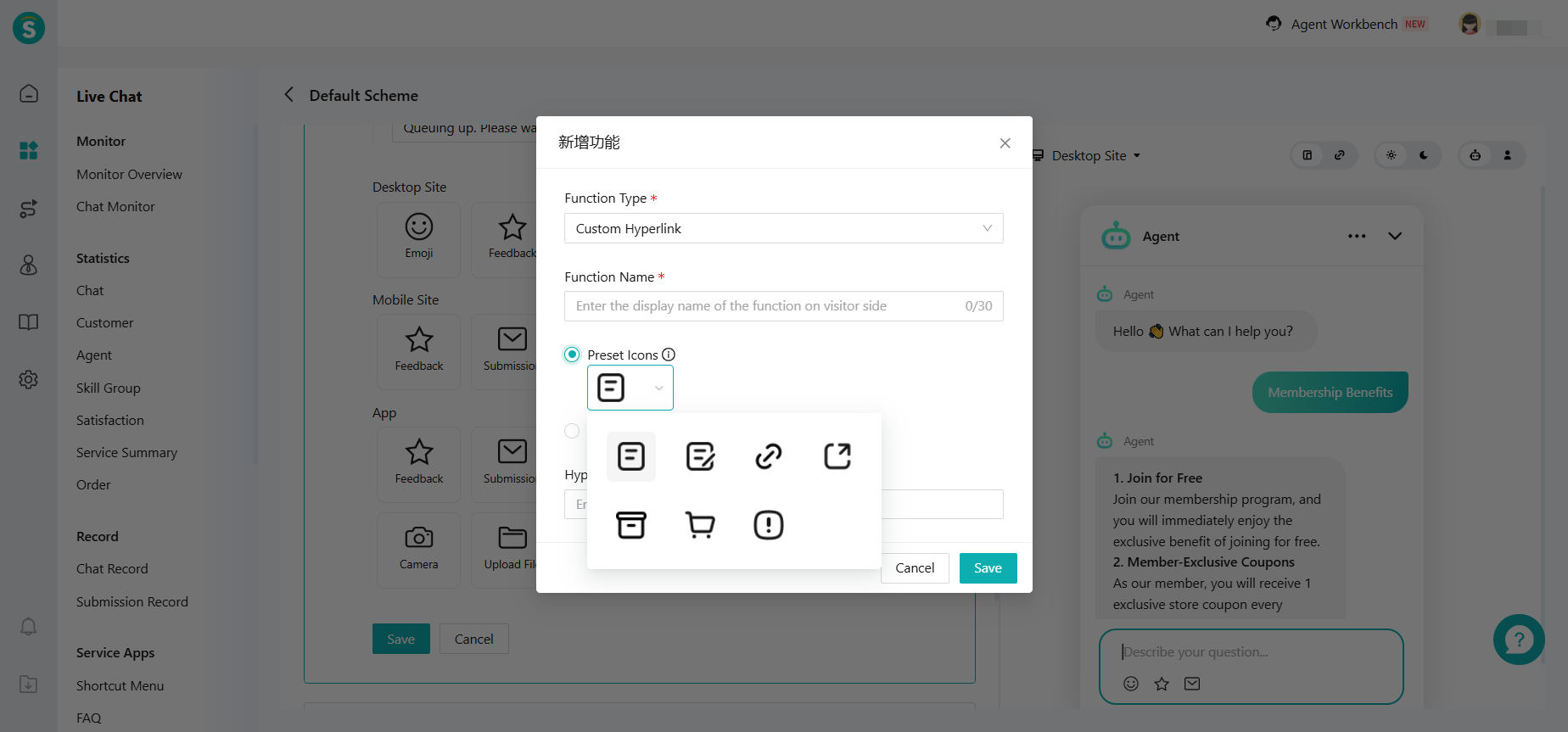
- Add preset icons to the input box icon. Custom icons support uploading dark mode icons.
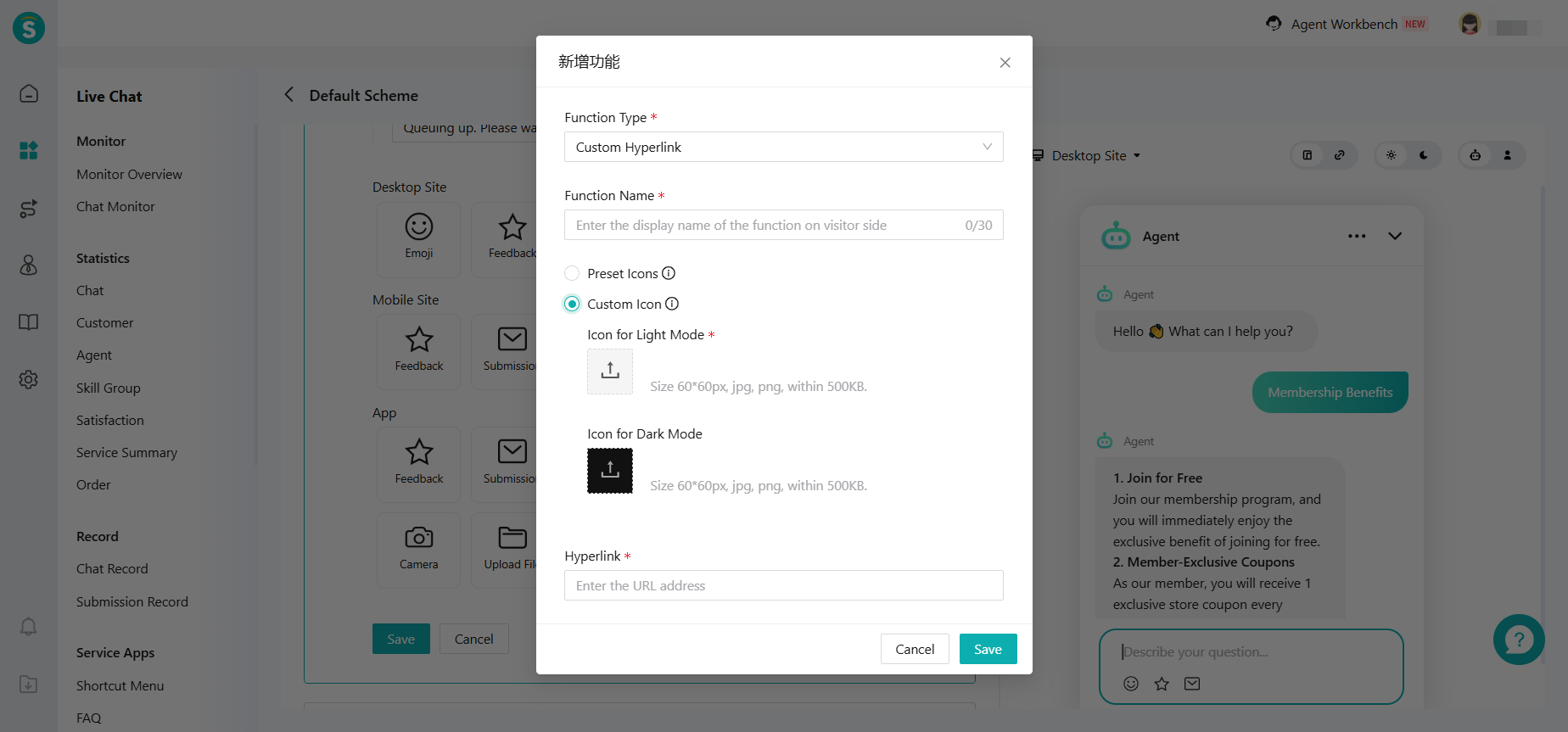
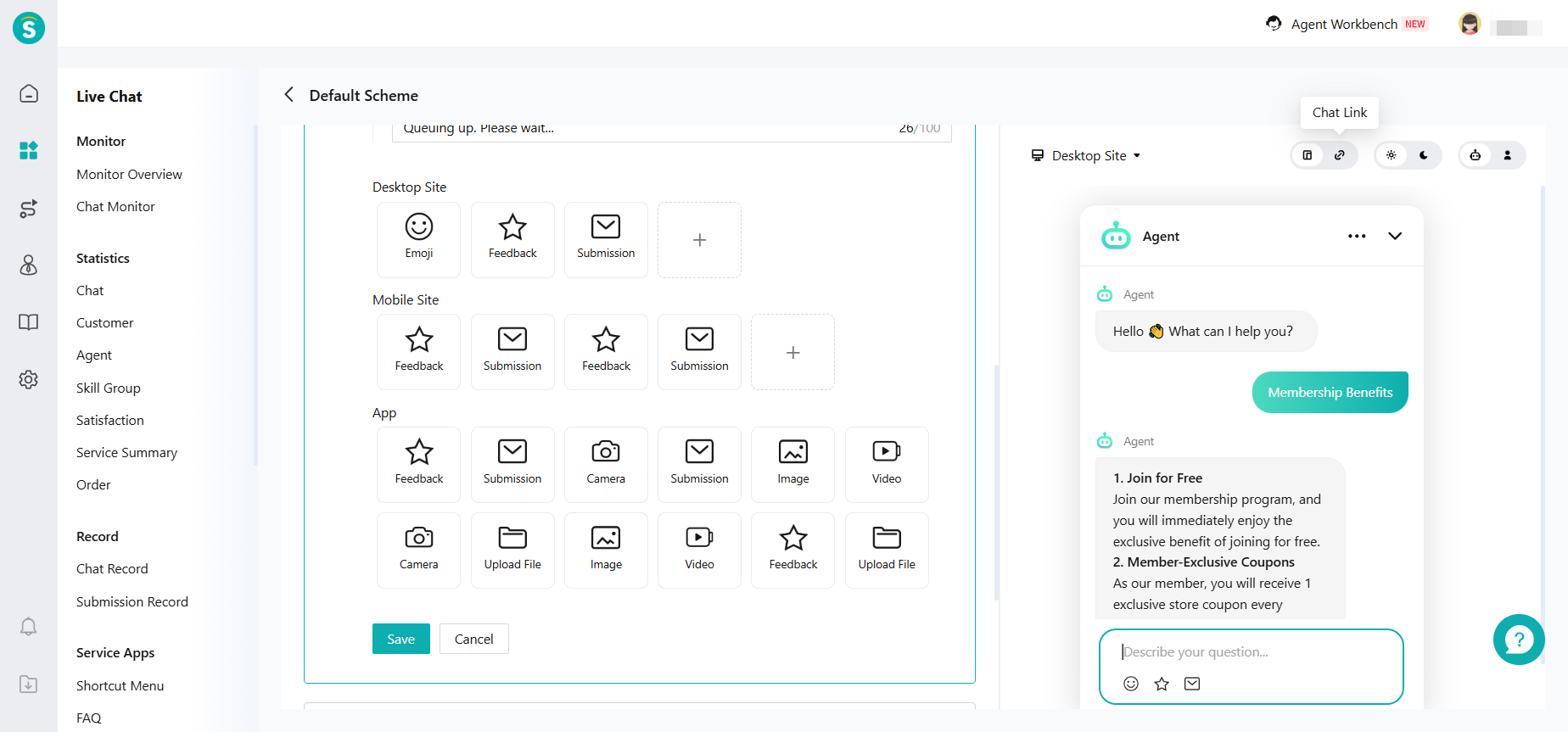
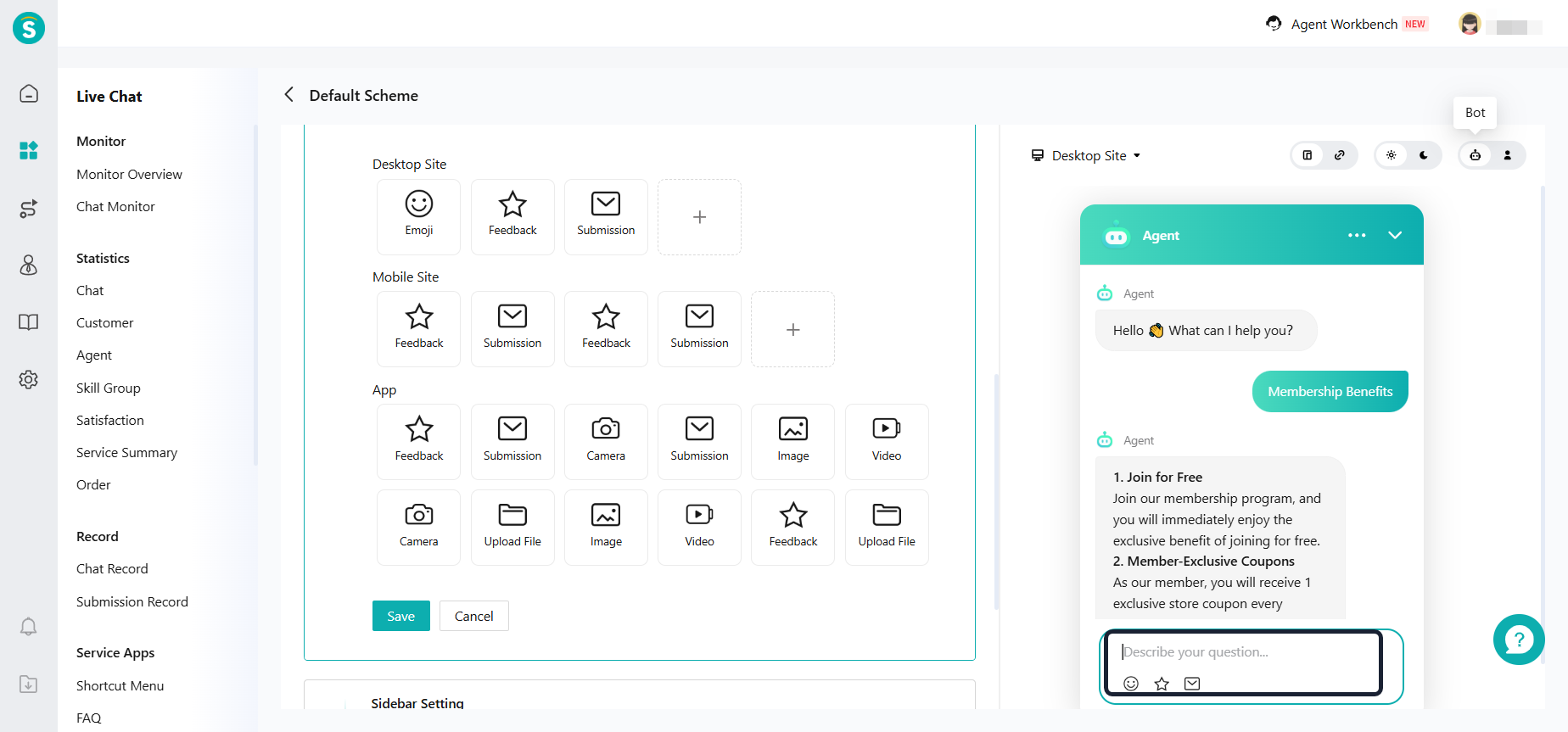
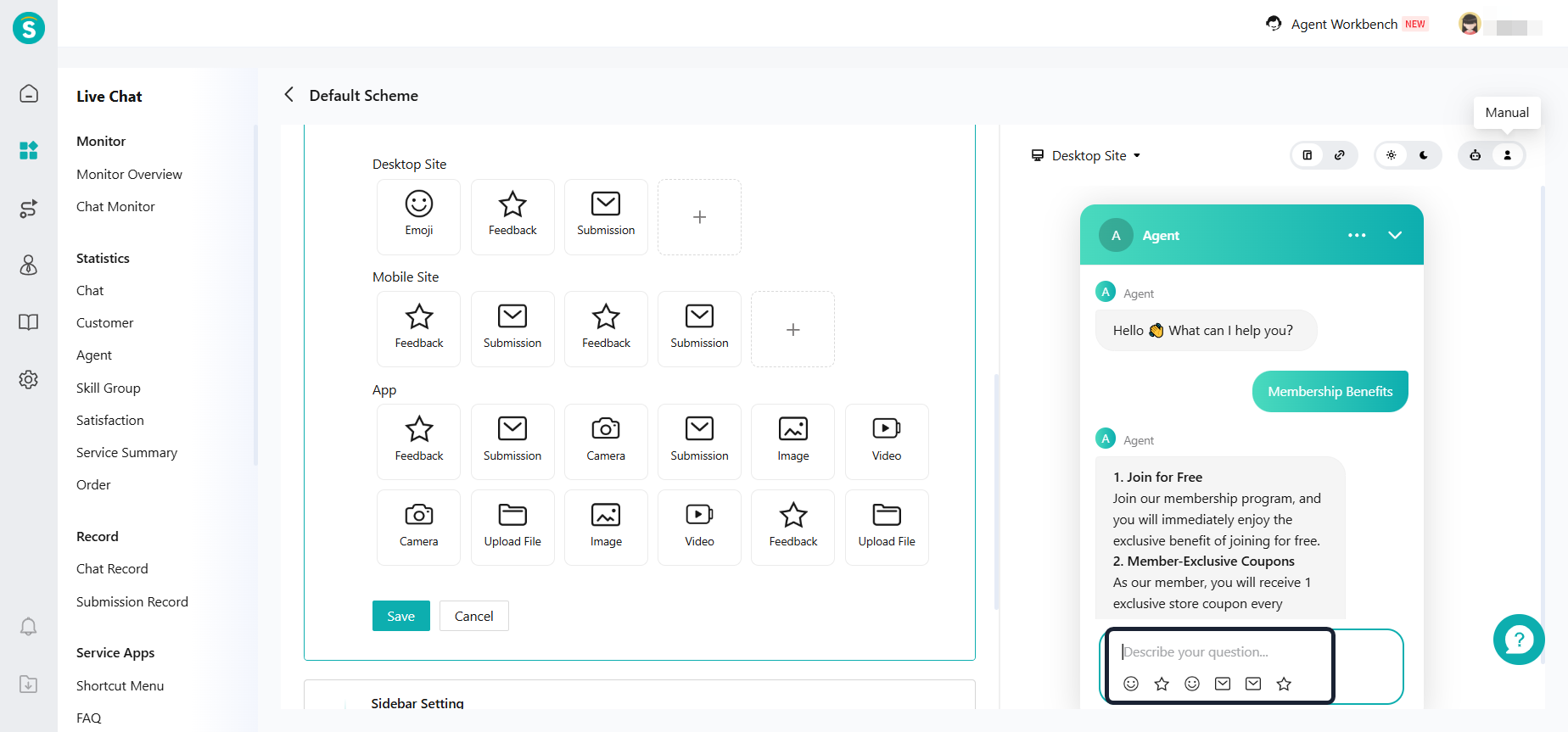
- Preview style update supports previewing the integration effect of each scenario by "Channel" (Desktop website, Mobile website, App.), "Integration method" (Web component, Chat link), "Theme mode" (Light, Dark), and "Bot/Agent" (Bot, Human).
Method for historically registered enterprises to upgrade to V7 Visitor Side
i. Historically registered companies can find the upgrade entry at "Live Chat - Settings - Visitor Setting".
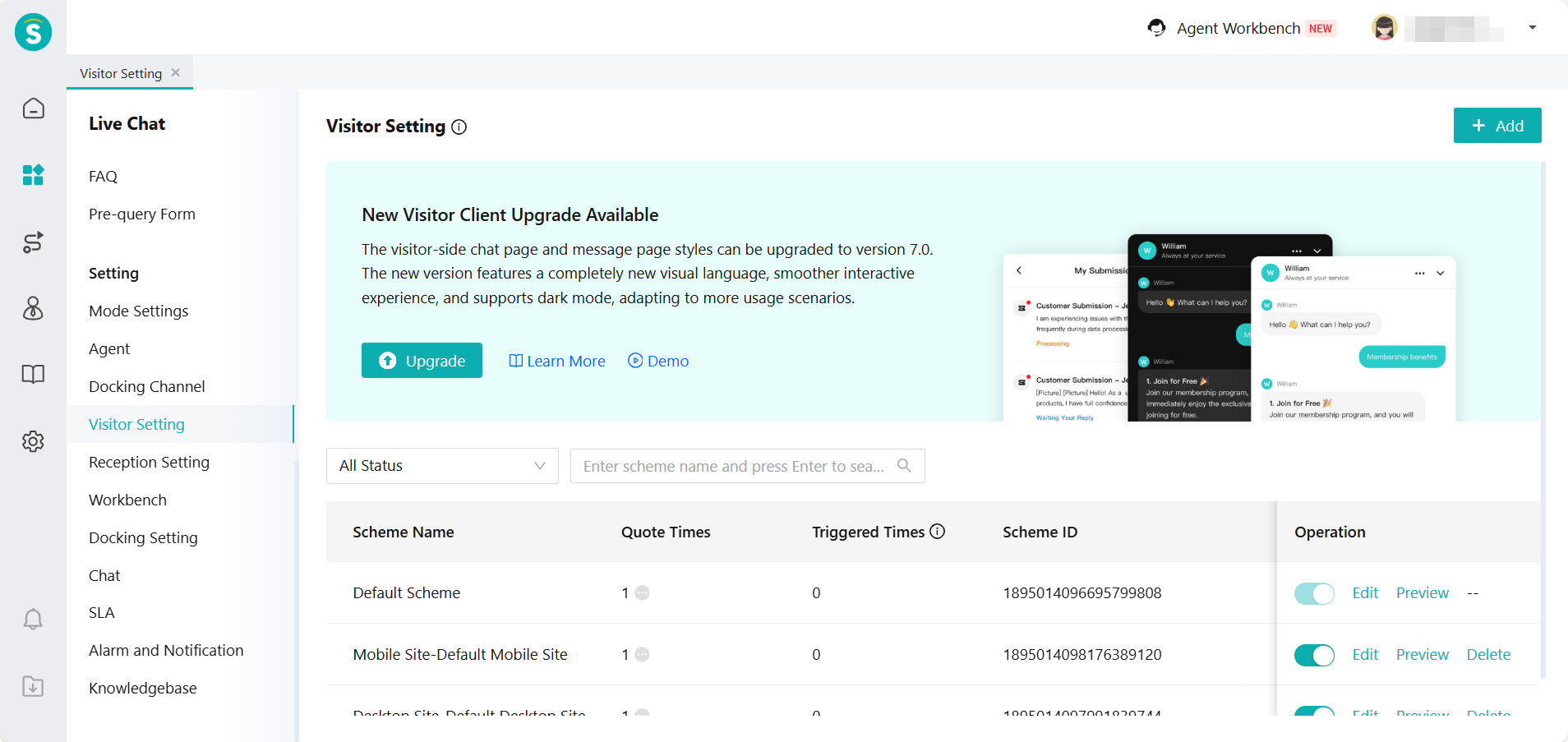
ii. Click "Upgrade" will pop up the upgrade confirmation window. After confirming the upgrade, the visitor client settings will be updated to V7. Note: This operation is only available for super administrators, and the operation does not support rollback.
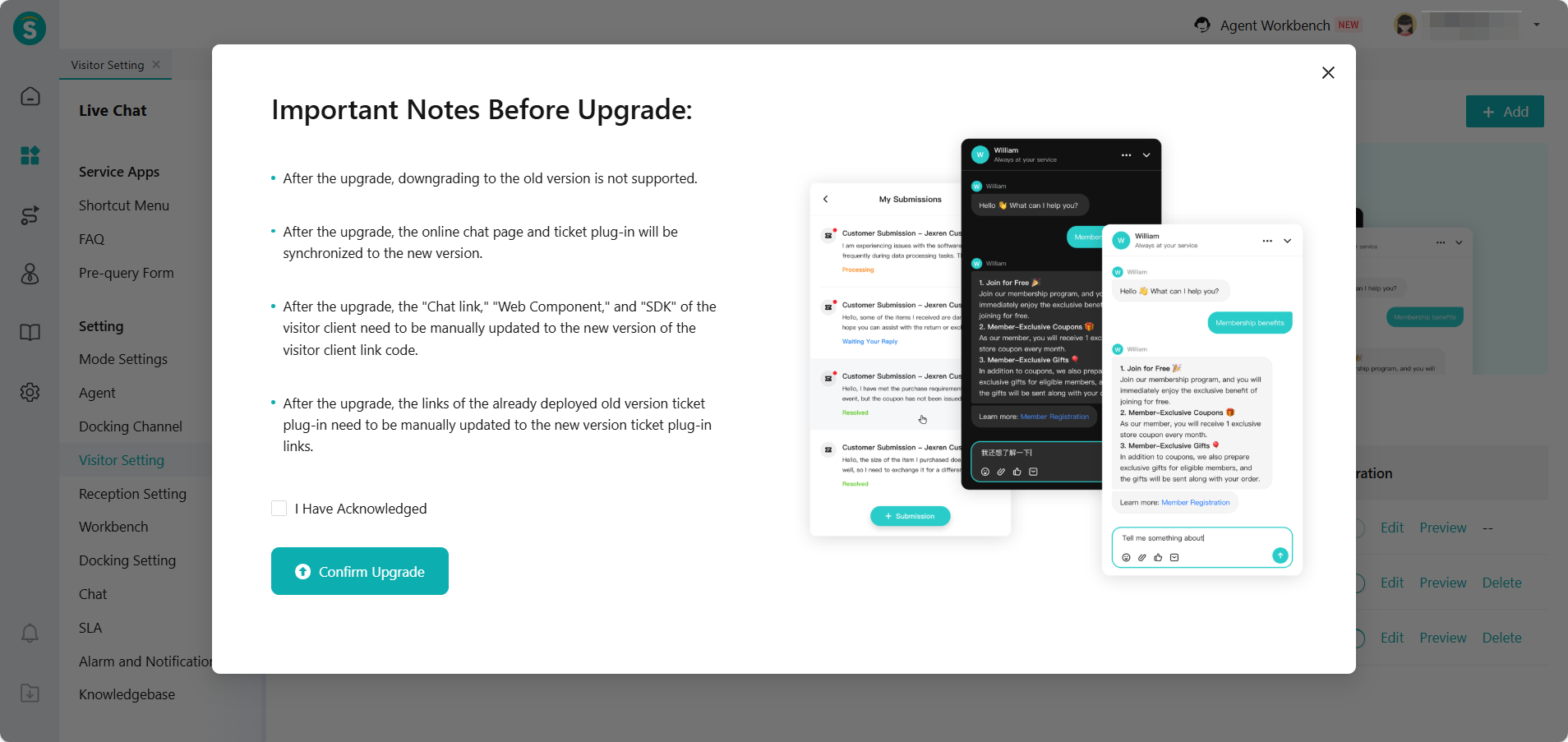
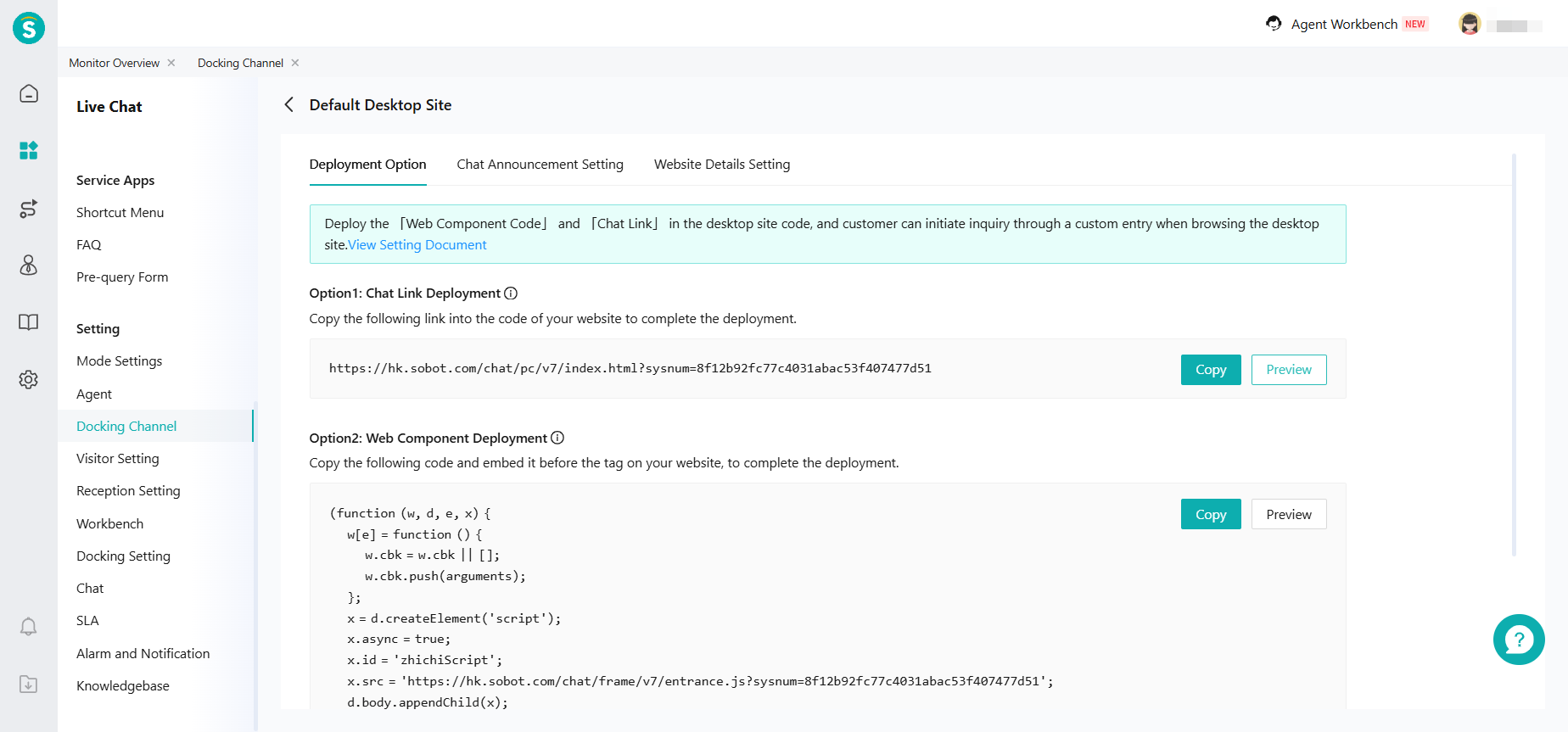
iii. i. After the upgrade, you need to manually replace the old versions of "Chat Widget", "Chat Link", "Ticket Plugin", and "SDK" that you have already deployed with the new V7 link code. (Note: The old V6 links will still work, but any changes made in V7 will not be reflected in V6.)
V7 Chat Component, Chat Link Location: Live Chat - Setting - Docking Channel
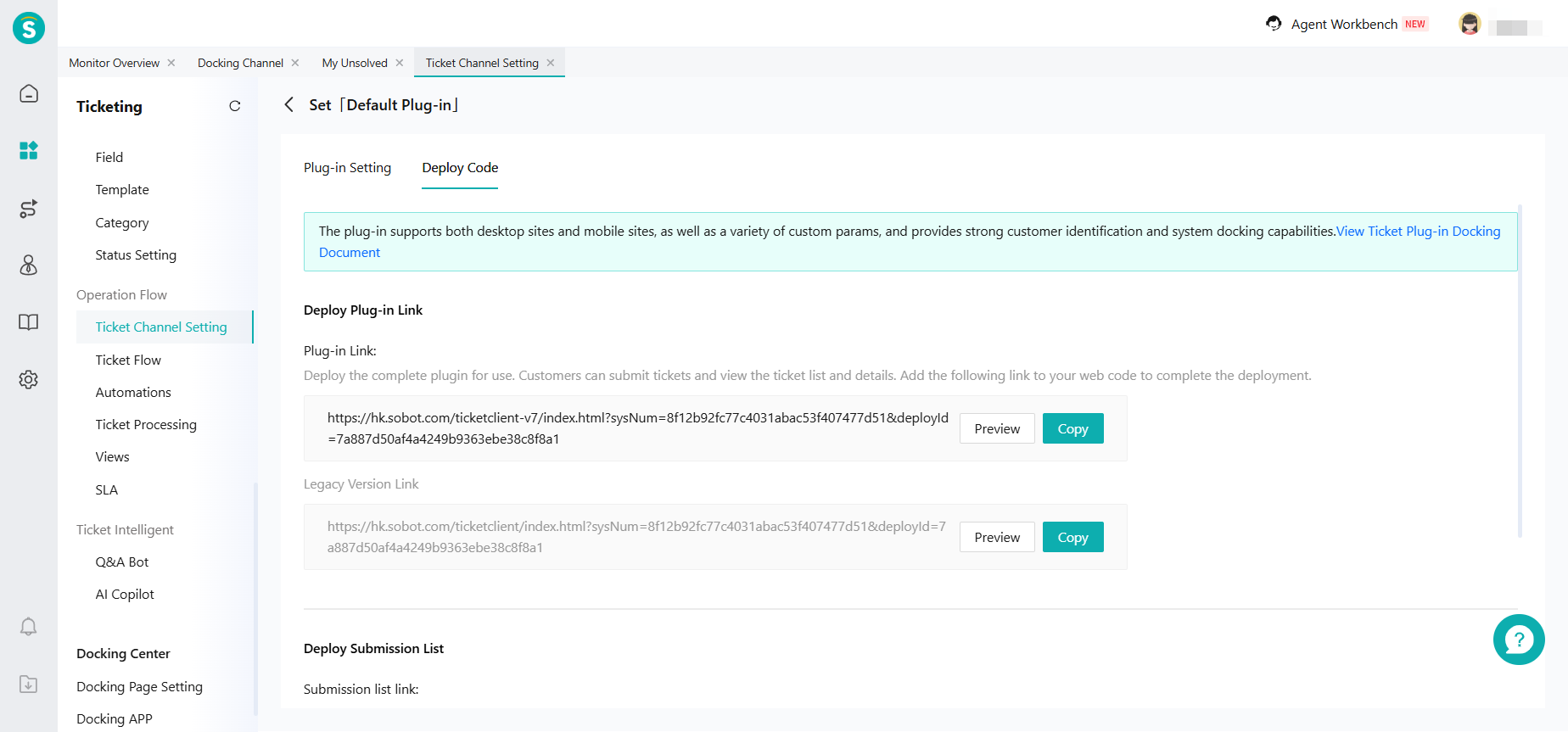
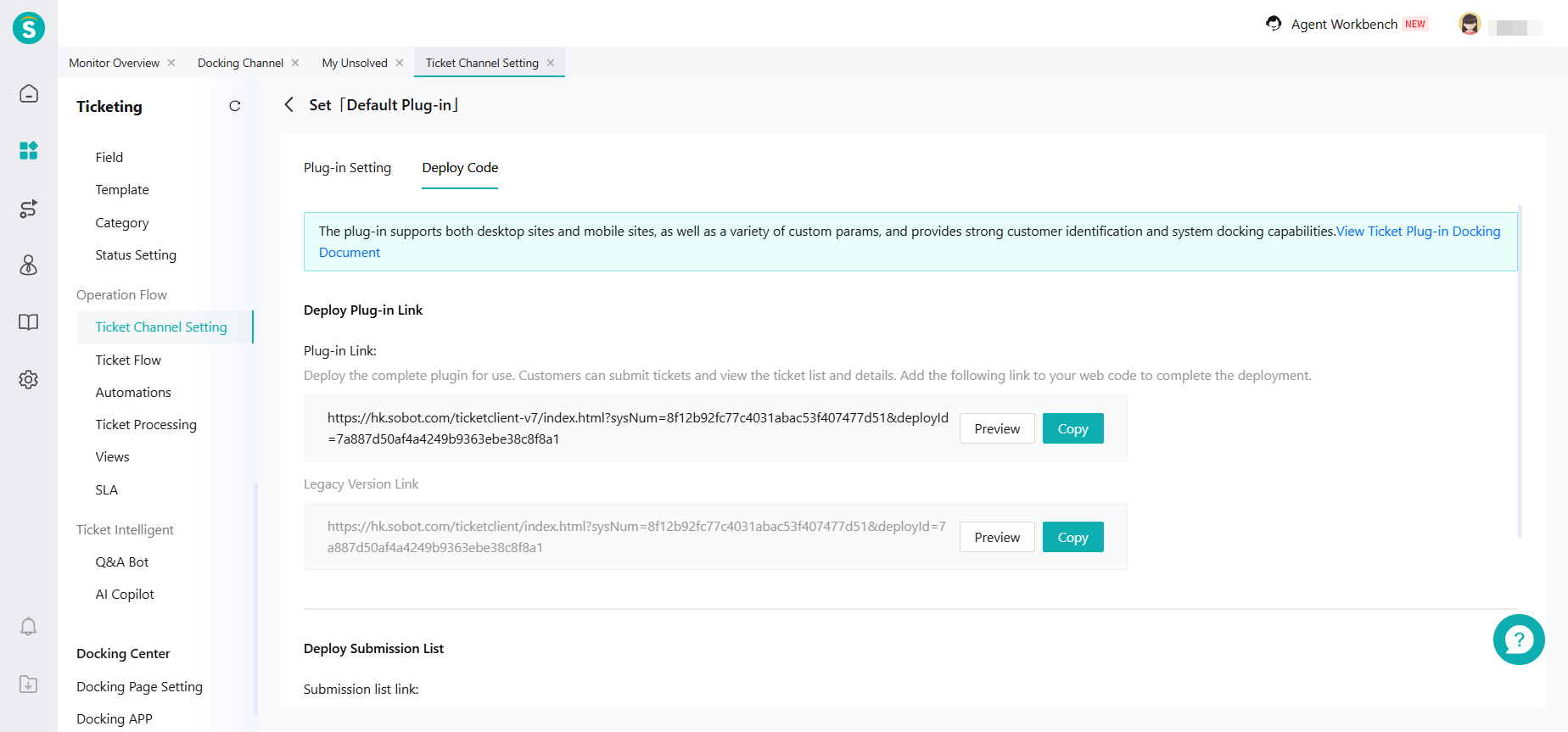
V7 Ticket Plugin Link Location: Ticketing - Business Rules - Operation Flow - Ticket Channel Setting - Ticket Plug-in.
V7 SDK Location: Official Website - Developer Documentation - Text Products API - Channel Integration - Android SDK V7, iOS SDK V7.
Live Chat - Service Apps - FAQ Function Update:
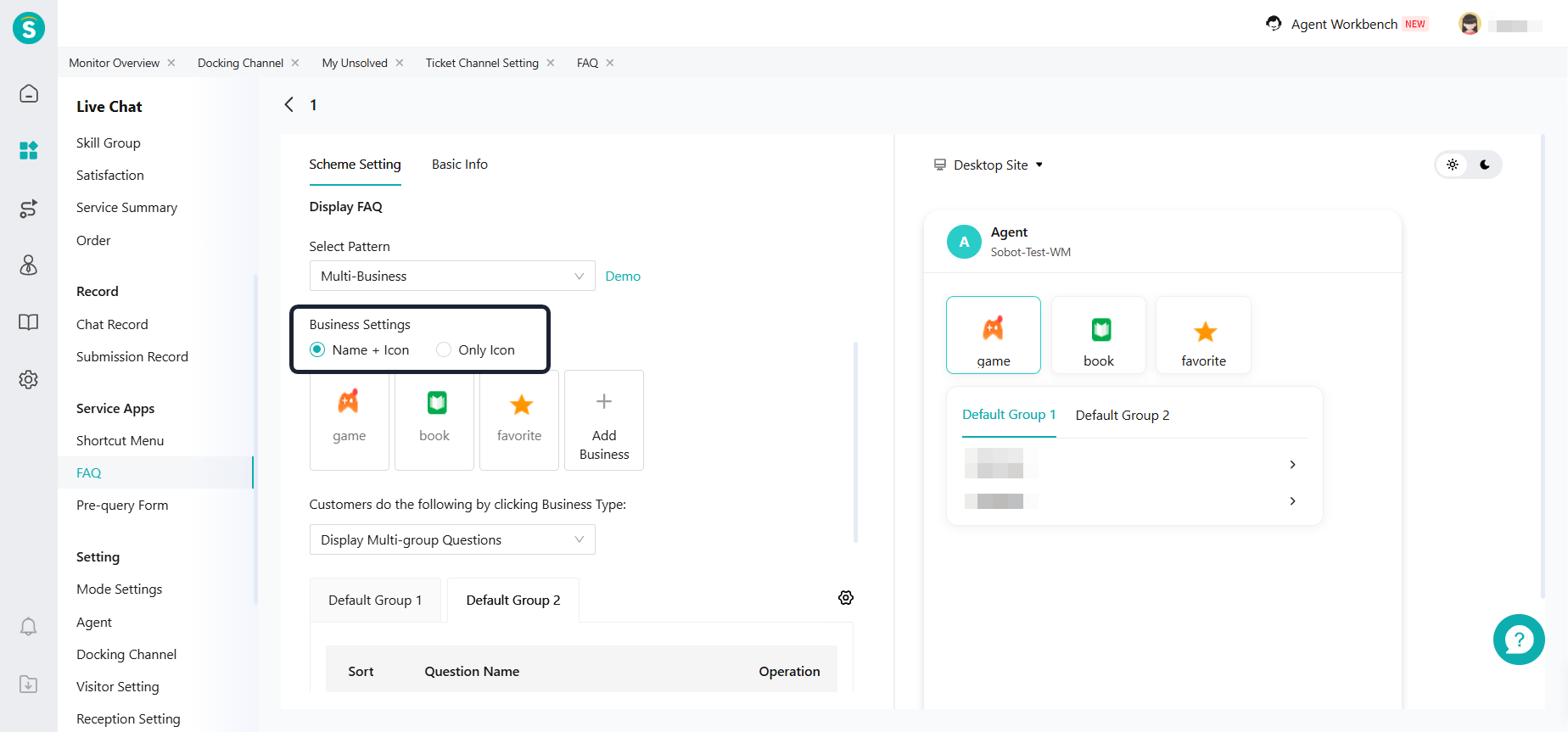
When the message body style is "Multi-Business", it supports setting the service entry style to "Name+Icon " or "Only Icon". Only supported by the V7 version visitor client.
Live Chat Welcome Message Allows Adding Images
Feature Description
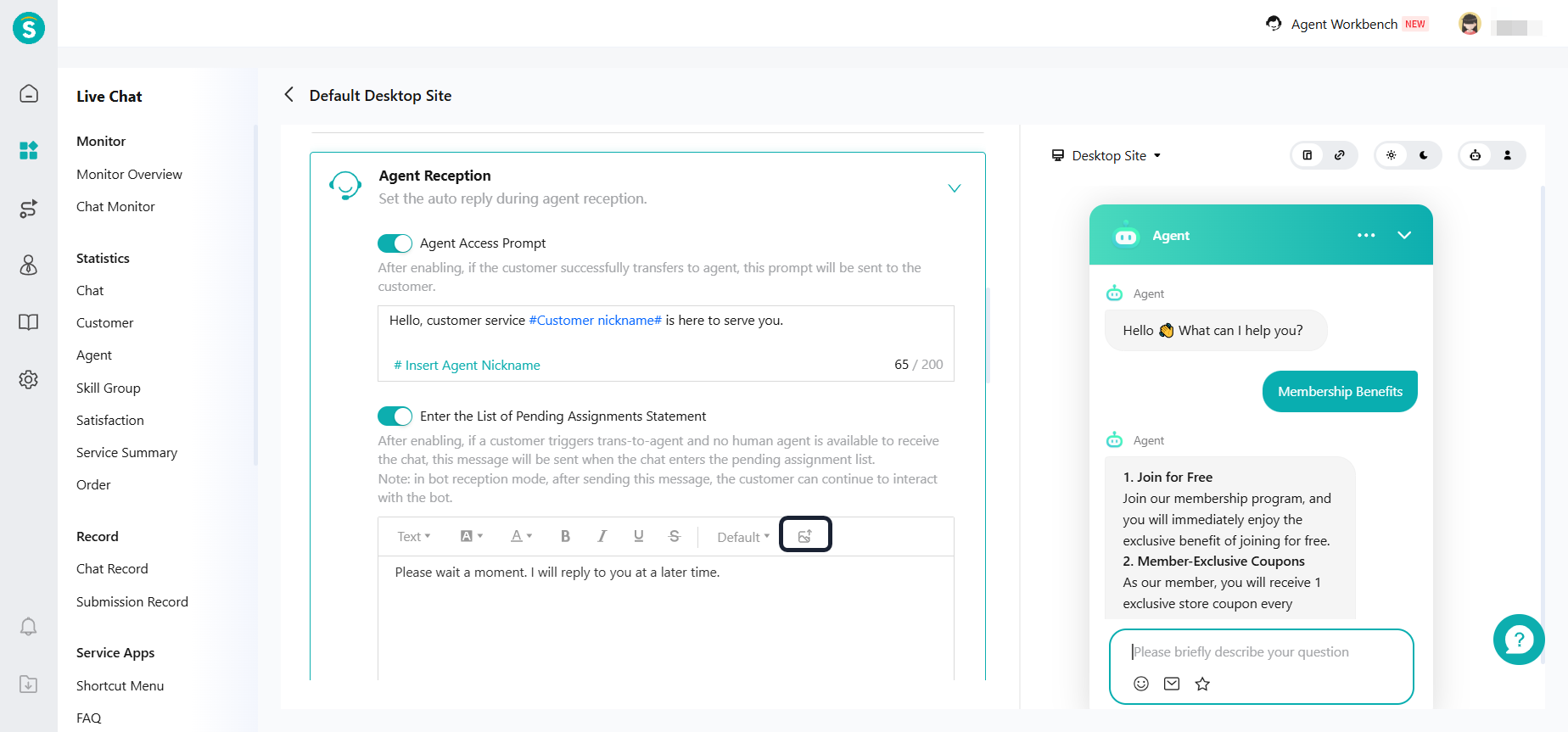
- Live Chat - Reception Setting - Agent Reception - Agent Greeting, images can be added.
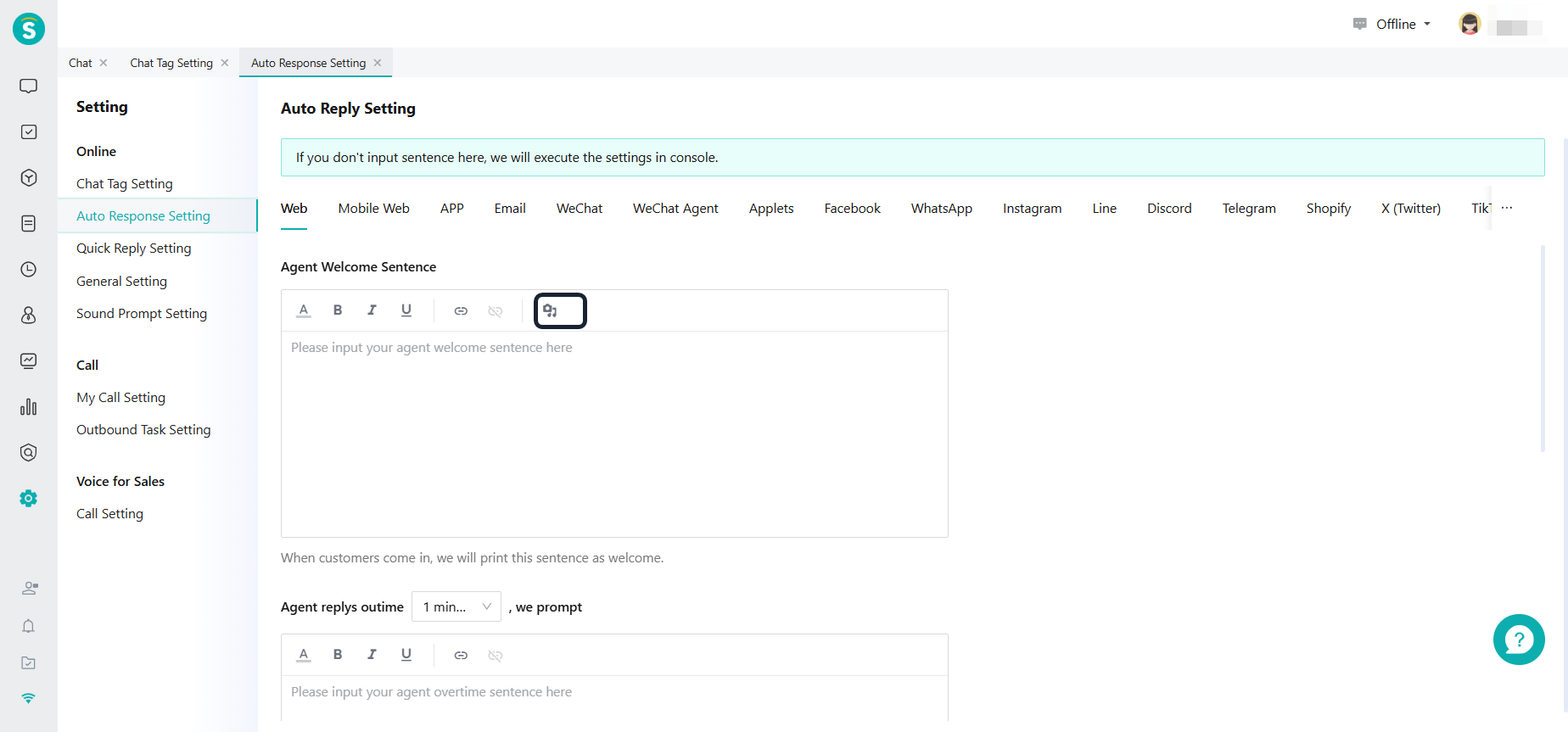
- Agent Workbench - Auto Response Setting - Agent Greeting, allows adding images.
Sobot App Online Sessions Add "Grouping" Capability
Feature Description
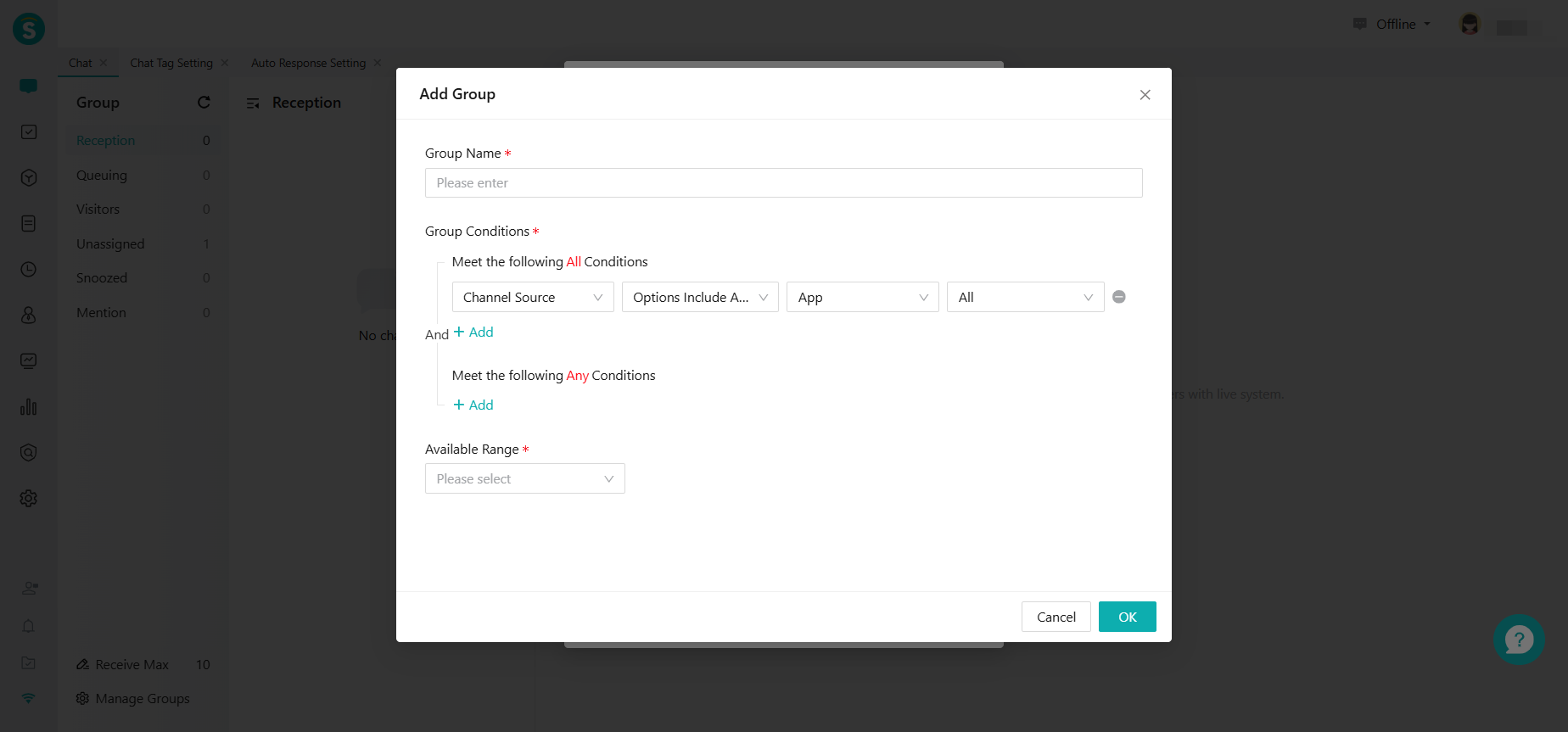
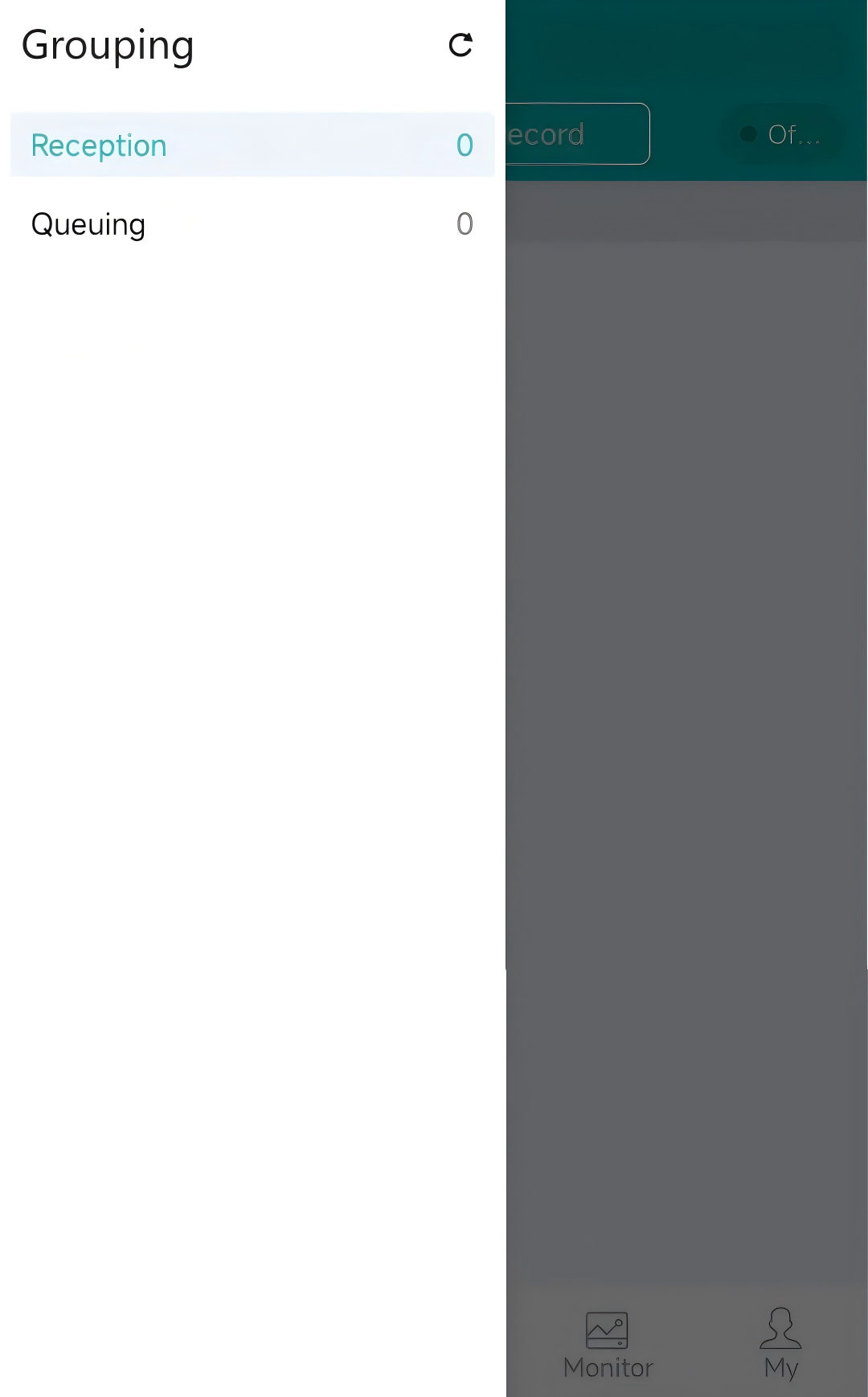
- Group Settings: Create session groups based on customer source channels at Agent Workbench - Chat - Manage Groups.
- App End:
Display according to the created groups, and you can switch groups.
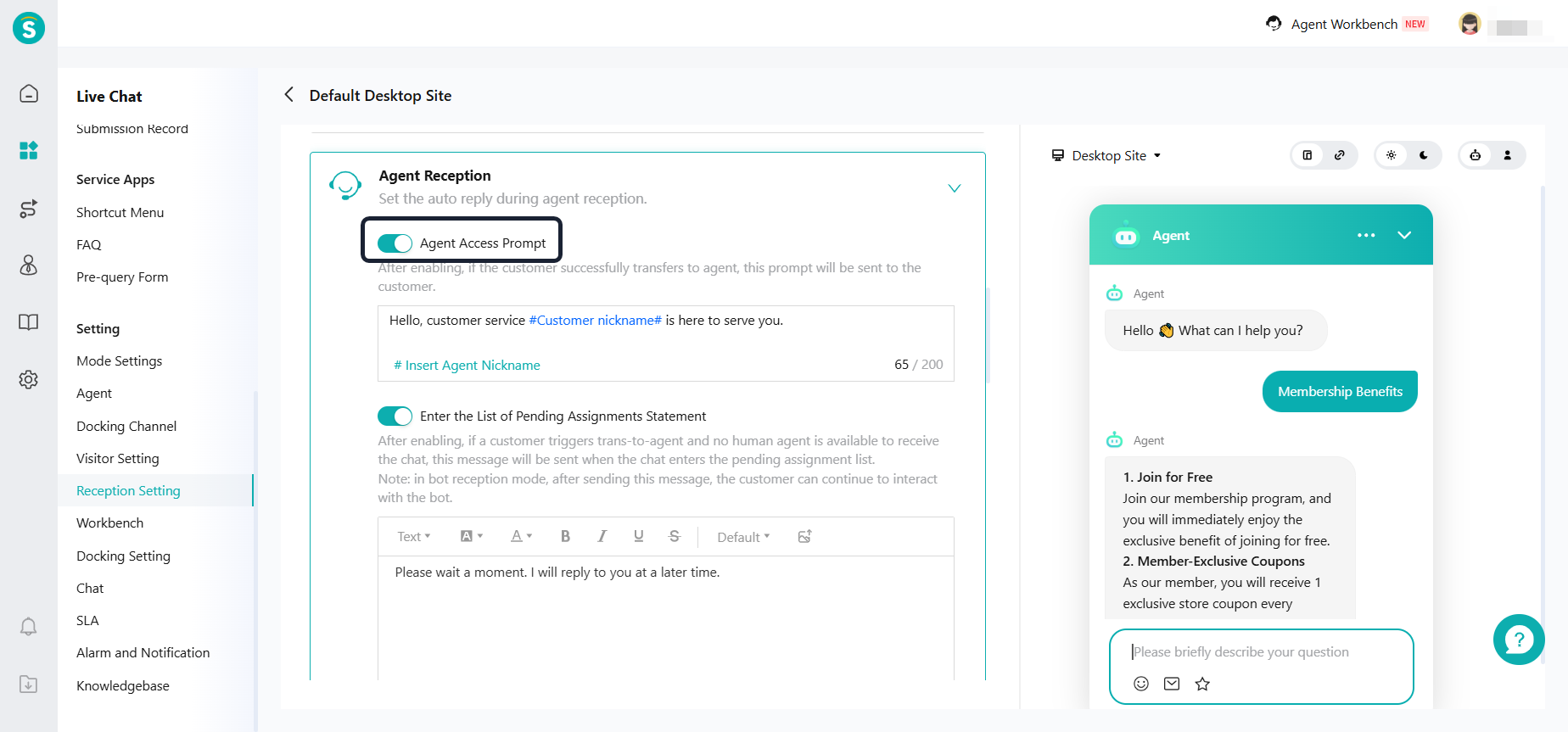
Optimize the Entrance for Setting up Agent Access Prompt
Feature Description
The prompt for connecting to human support is moved from the "Trans-to-Agent Rules" to " Agent Reception".
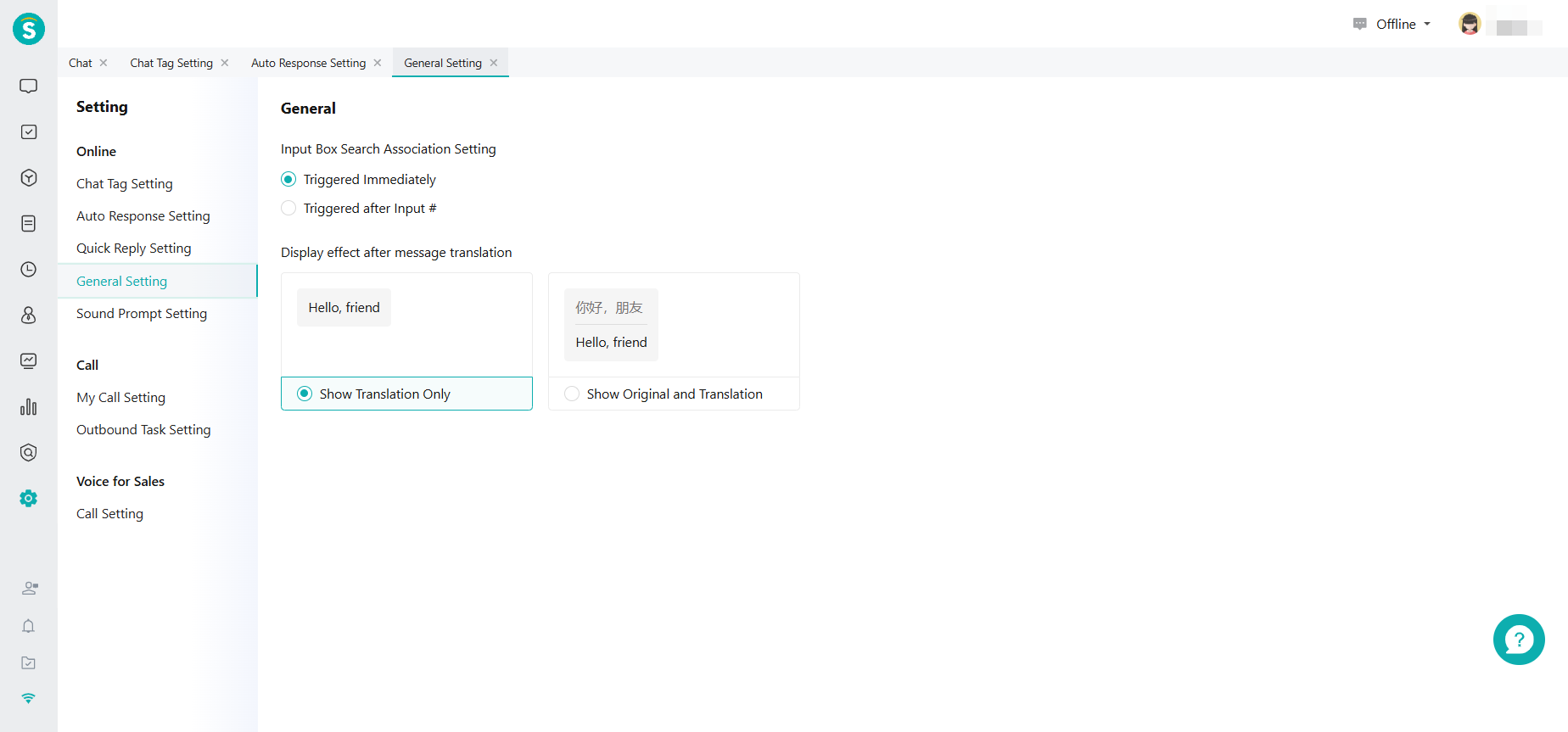
Agent Workbench Translation Function Adds Original Text Display Configuration
Function Background
After the automatic translation function is launched, enterprises expect to display both the original text and the translated text in the conversation message area of the agent workbench. This allows them to check the translation results and better understand the intent of customer inquiries.
Feature Description
Add the "Display effect after message translation" configuration at Agent Workbench - Settings - General Setting. If the "Show Original and Translation" mode is selected, both the original and translated messages will be displayed in the conversation message area of the agent workbench for messages sent by the agent and messages received from customers. The system defaults to showing only the translation.
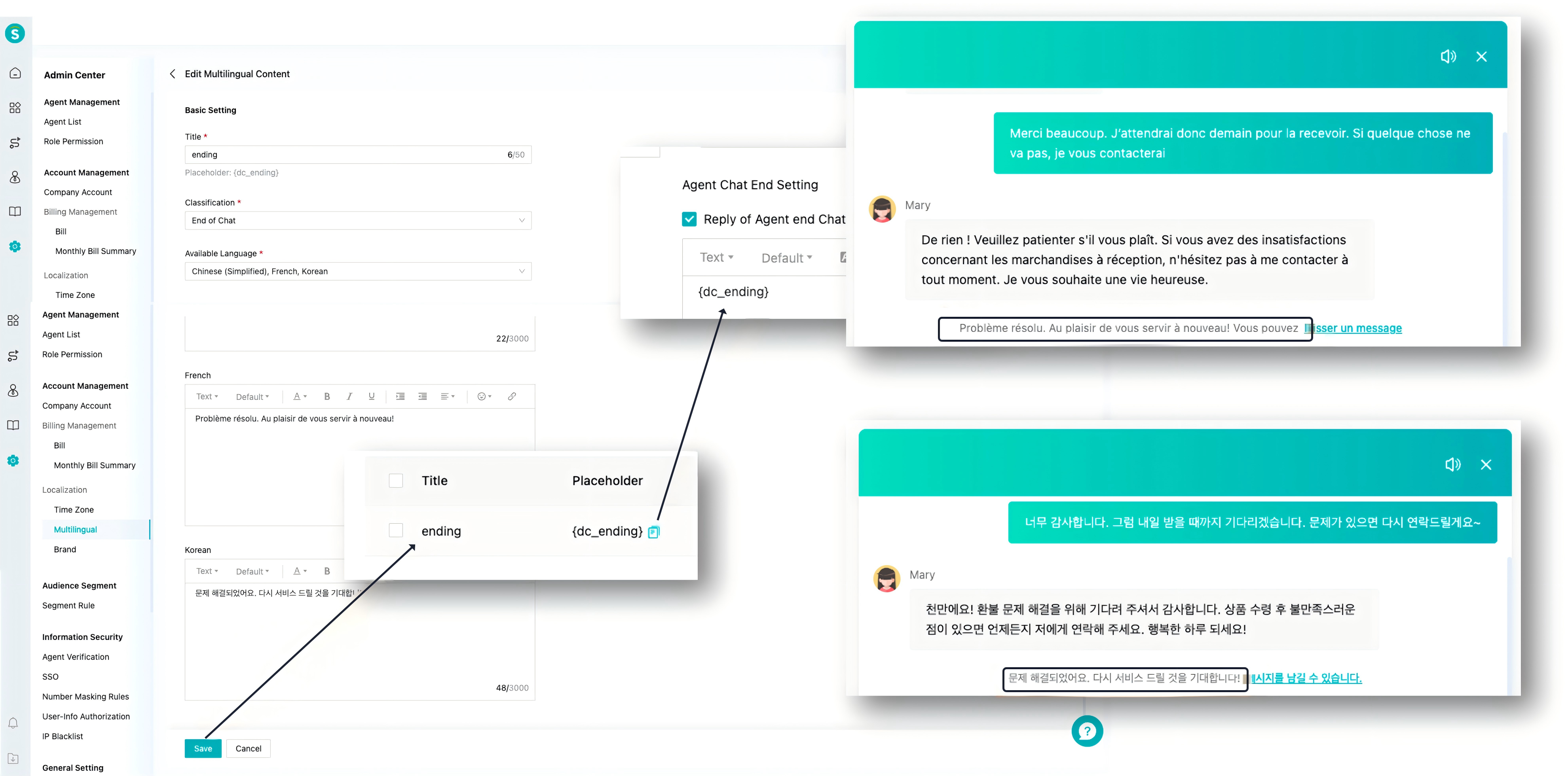
Multilingual Configuration
Function Background
Some enterprises' international business involves serving customers in multiple languages. Previously, our multilingual configuration only covered a small number of configuration items. In this update, we have improved other configuration items on the management console and adapted them for third-party channels. This enhances the efficiency of agent and reduces the configuration cost for enterprise staff.
Feature Description
Live Chat supports referencing Admin Center - Localization - Multilingual - Multilingual Content. It supports automatically sending configured content in the customer's language when the customer contacts based on their language.
This phase has improved the configuration of other items on the management console and adapted to third-party channels.
HarmonyOS SDK Supports Automatic Parameter Forwarding
Function Description
When customers enter the consultation page of the App, the HarmonyOS SDK can support automatically sending the parameters they carry when entering (such as customer ID, product number, source channel, etc.) to agent or robot. This helps agent understand customer information and needs in advance.
AI Agent
The Robot Adds Autonomous Decision-Making Mode
Function Background
The current standard robot follows a fixed Q&A process (such as: first matching the standard Q&A library → then executing the task process), and cannot handle complex business scenarios that require judgment before decision-making.
- Scenario One: Product Inquiry
When a customer asks about a product issue, the robot needs to first determine if the product is self-operated. If it is, the robot should query the knowledge base and reply with specific information. If not, the robot needs to reply with a fixed response (e.g., "Not yet covered"). The current fixed process cannot achieve this type of preliminary judgment and branch routing.
- Scenario Two: After-sales Application
When a customer submits an after-sales request, the robot needs to first verify the customer's identity and order status. Then, it decides whether to guide the customer to fill out a refund form or directly transfer the case to a human agent. The current process cannot support this type of dynamic flow that depends on specific conditions.
Therefore, we have added a Workflow Setting feature for autonomous decision-making robots. This feature allows you to customize the robot's decision logic through natural language instructions, enabling it to think first and then act like a human agent representative. It can flexibly access the knowledge base, tools, or perform specific actions, thereby efficiently handling complex and non-standard business needs as described above.
Feature Description
Create Bot: Bot Mode Classification (Supports Switching Anytime)
i. Autonomous Decision-Making Mode
Intelligent decision-making, flexible processes: The robot will independently understand customer intentions based on the "workflow instructions" (Prompt) you configure, and make smart decisions to call the knowledge base, collect information, or perform actions, no longer limited by fixed processes.
ii. Knowledge Enhancement Mode:
The robot prioritizes matching QA, then matches task flows and the knowledge base.
Suitable for business scenarios with a fixed process based on preset responses.
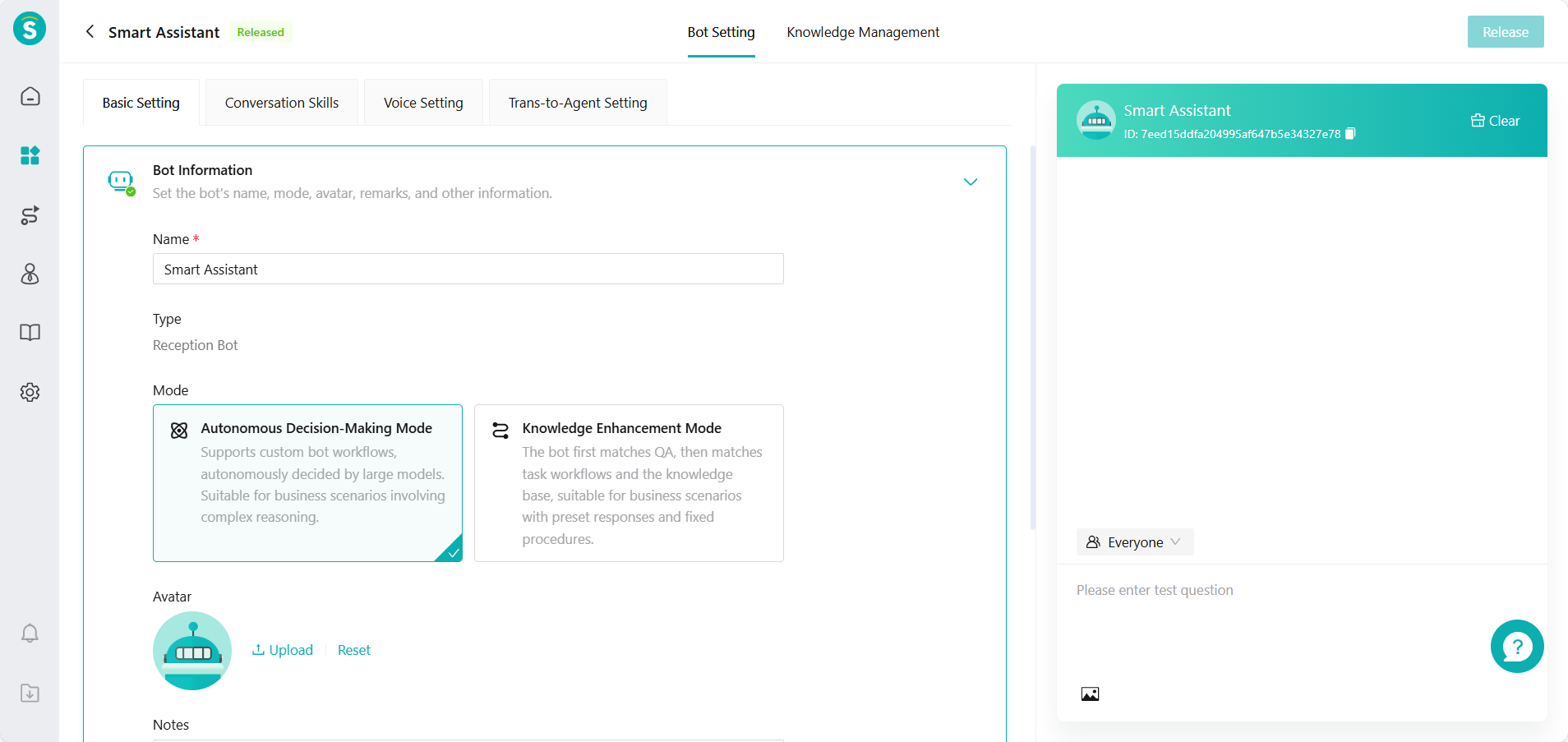
Autonomous Decision-Making Robot Configuration:
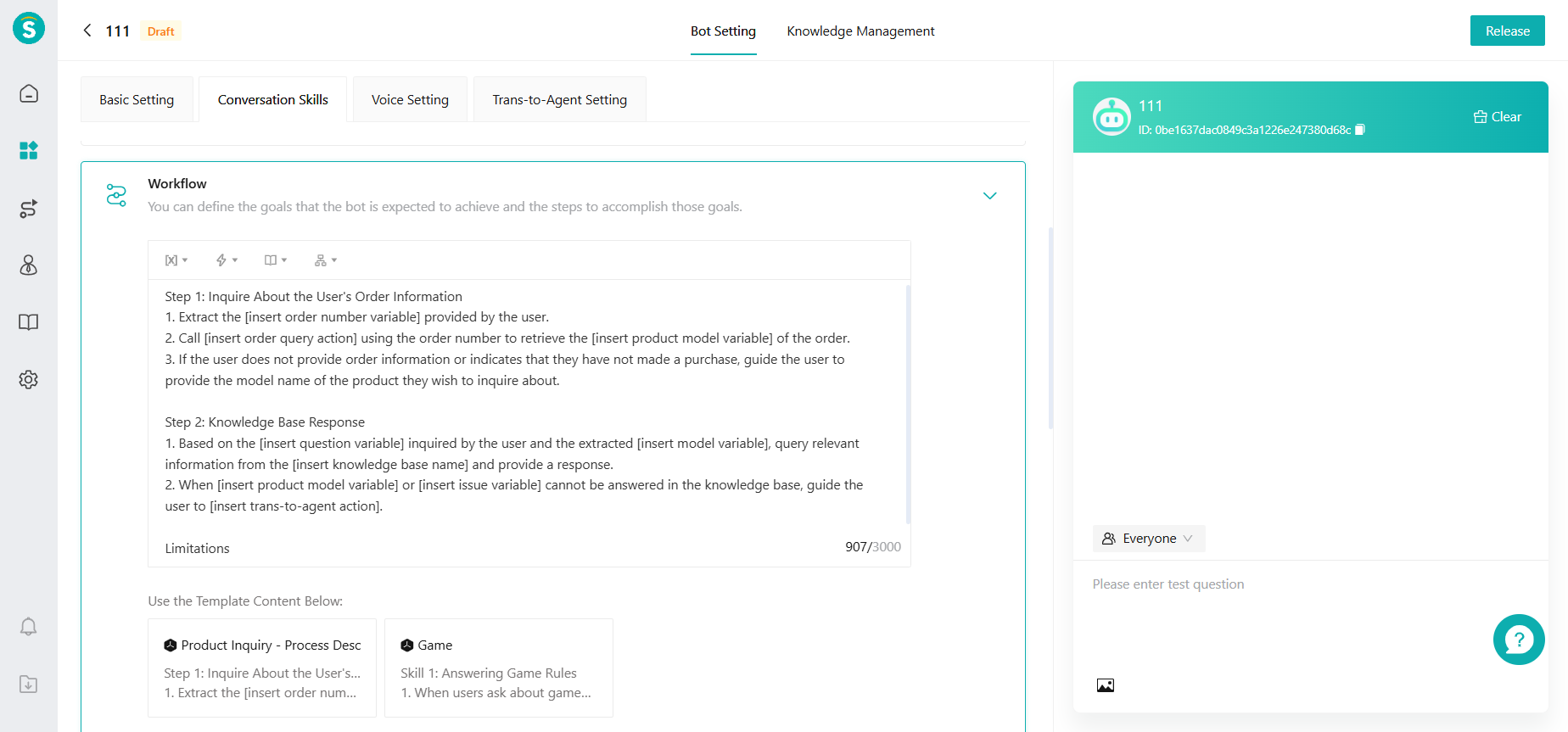
i. Workflow
Robot Settings - Conversation Skills - In Conversation, add Workflow Settings.
Enterprises can define the goals they expect robots to achieve and the steps to achieve these goals in the workflow. They can insert variables (only global variables are supported), actions, knowledge bases, and task flows. The robot will guide the process and call tools independently based on customer intent.
ii. Knowledge Management
The knowledge management of autonomous decision-making robots will only display the knowledge base, task processes, and actions referenced during the workflow.

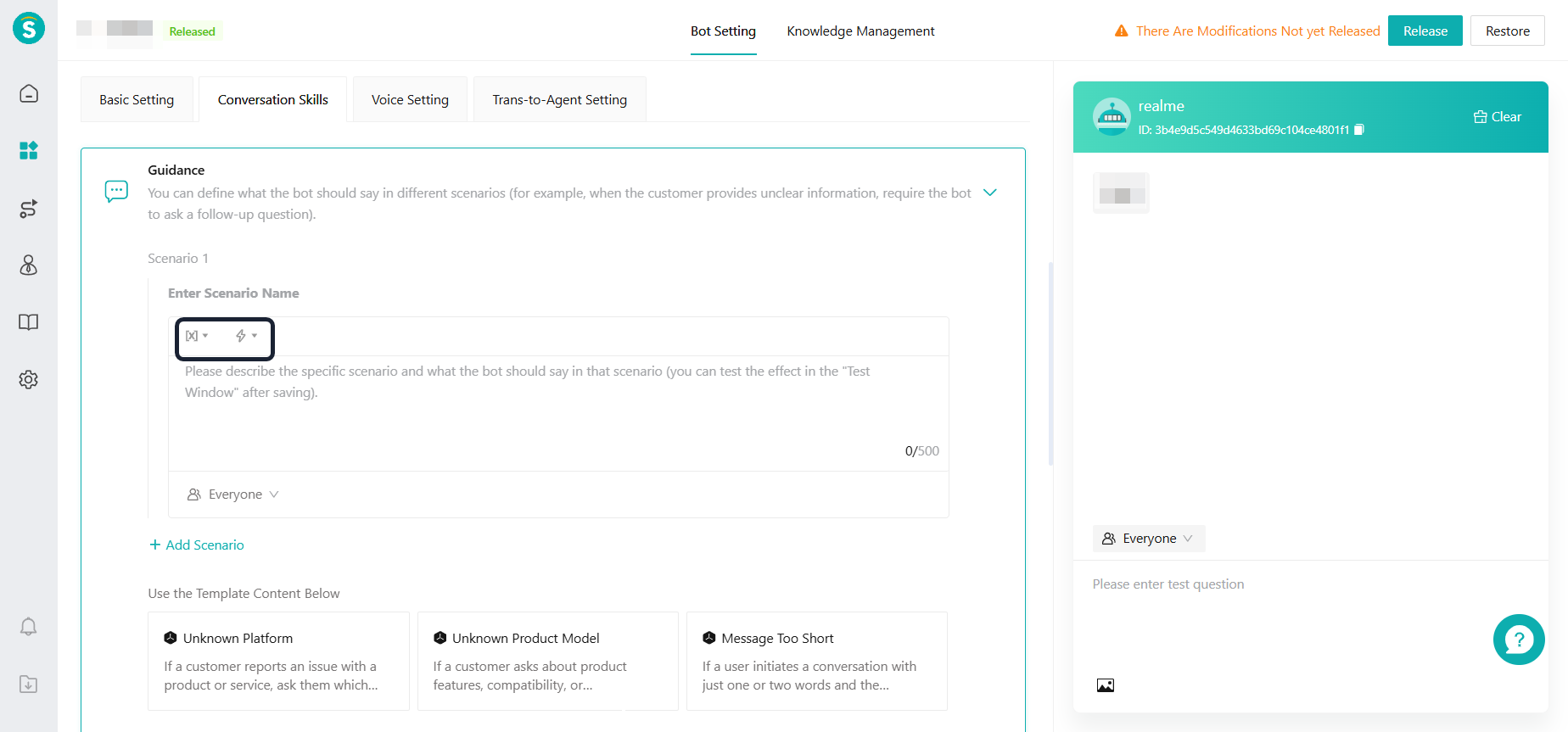
iii. Conversation Guidance
In autonomous decision-making mode, conversation guidance can reference adding variables and actions.
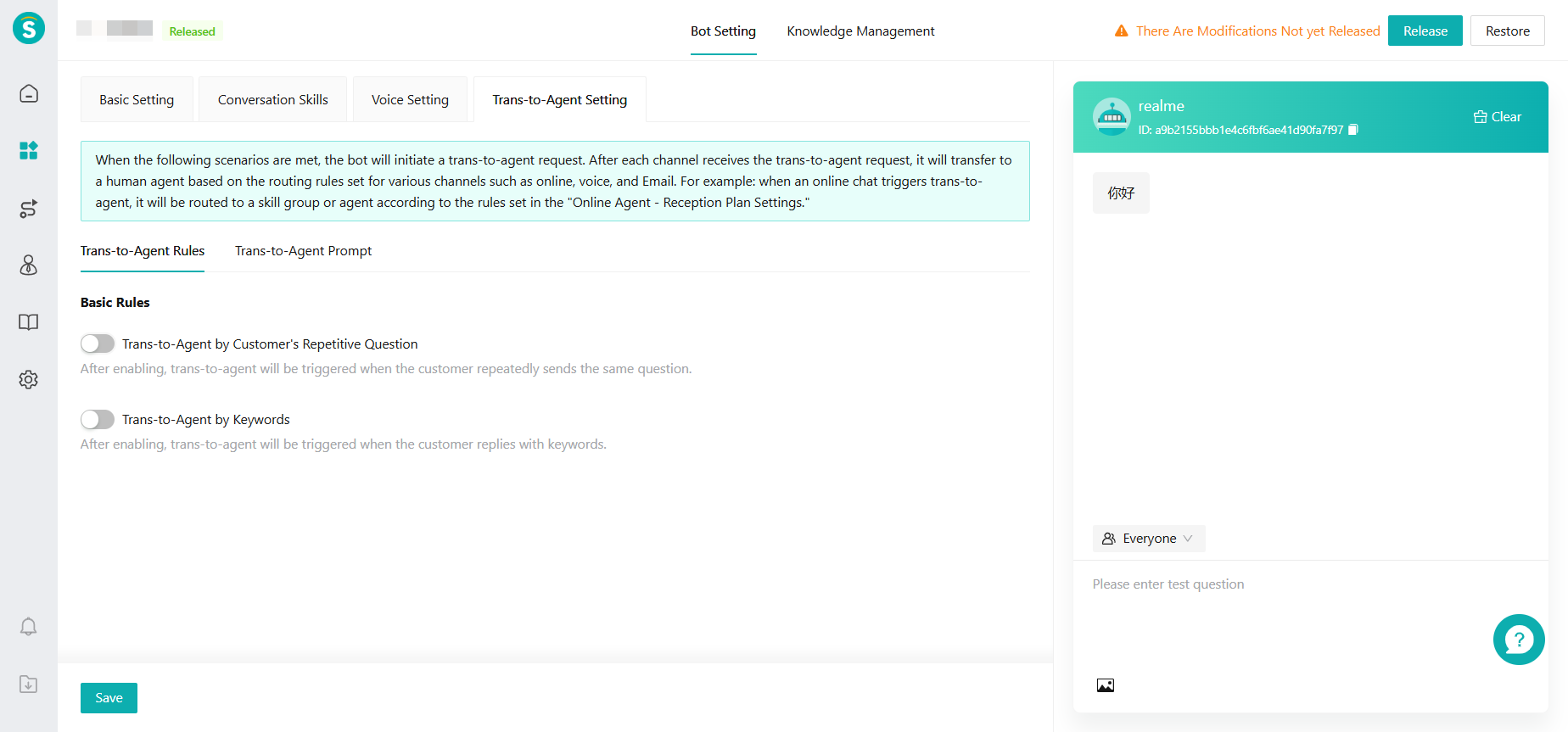
iv. Trans-to-Agent Setting
Autonomous decision-making robots cancel the settings for transferring to human agents due to lack of knowledge and custom transfers. The settings must be configured within the workflow requirements.
Autonomous decision-making robot statistics and knowledge operations, reusing current functions.
Introduction and User Guide for Autonomous Decision-Making Mode Robots:
https://jksgz1nq9p.feishu.cn/wiki/P7rywO5DdiX7KjksmSocyVdDnFf
Robot Status Adds Draft Status
Function Background
The current online robot configuration is "hot update". Any changes made during debugging will affect the online service in real time. This creates a risk of unstable performance and even a decline in service quality.
To achieve this, a "draft status" needs to be introduced. The new robot configuration can be fully debugged and verified under the draft status. Once the performance is stable, it can be manually published online, thereby isolating the debugging environment from the production environment.
Feature Description
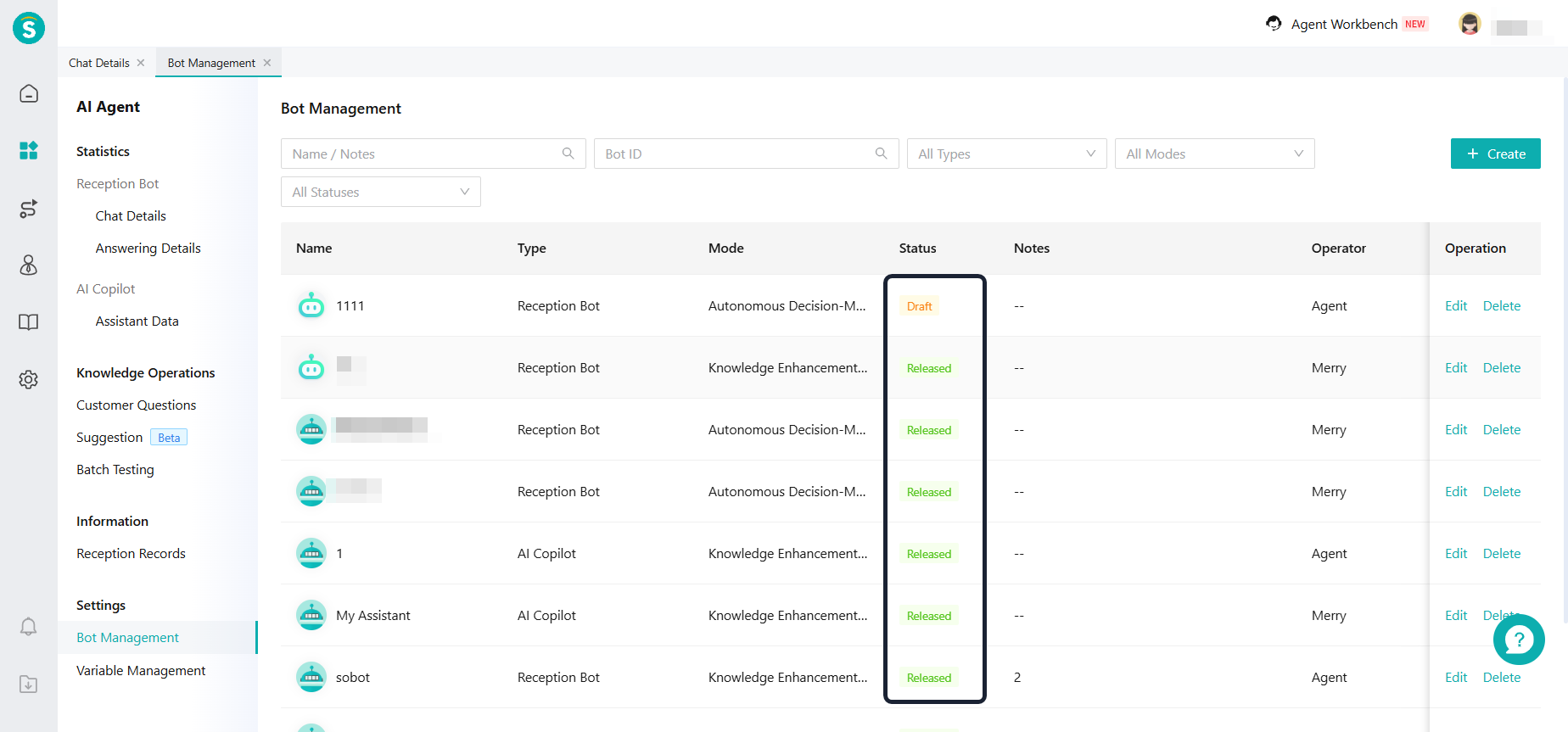
- Robot status: Draft, Published.
- Newly created robot:
A newly created robot is in draft status by default. It needs to be published before it can be referenced by business lines.
Published robots:
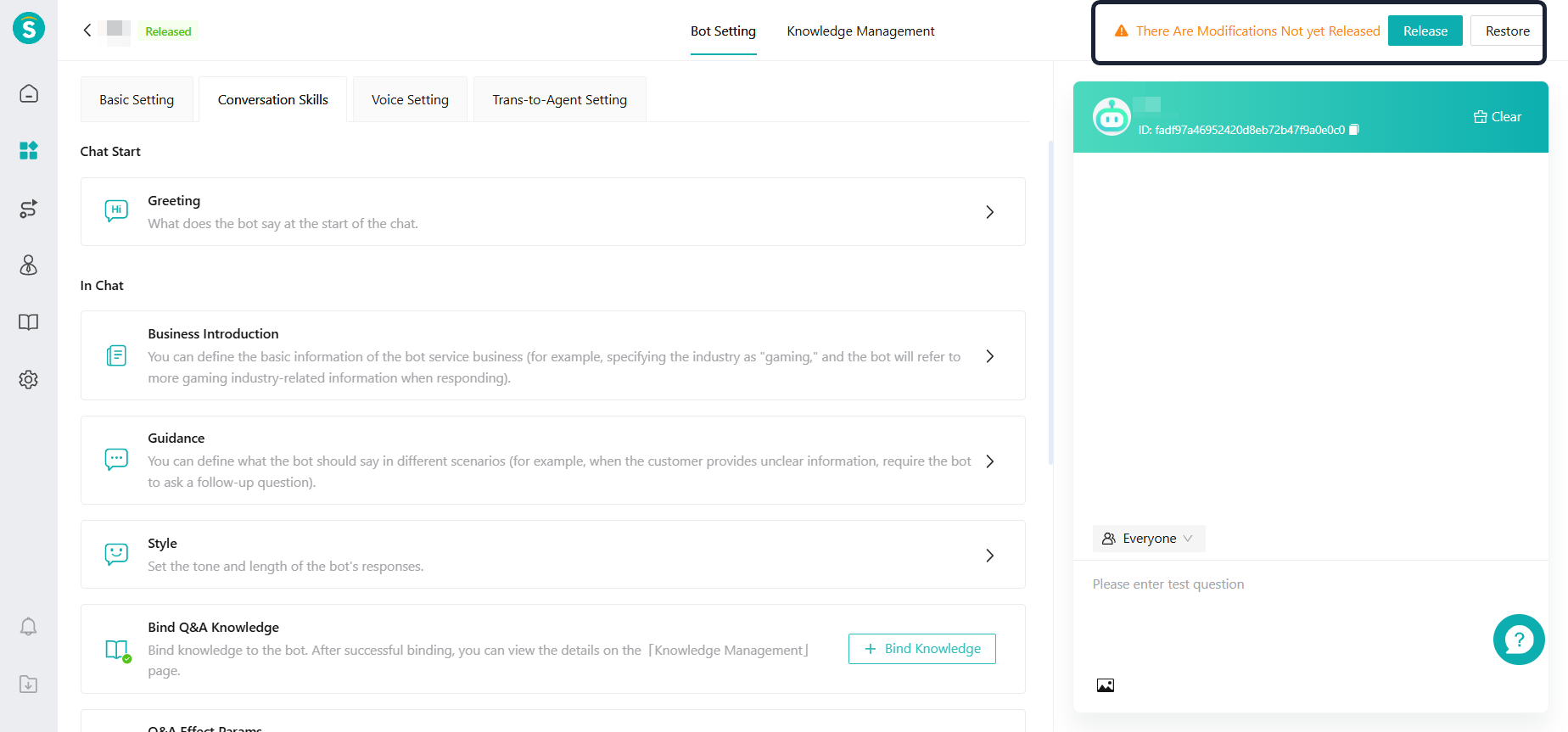
i. After editing and saving the module settings, they will be stored in a draft state, and the system will prompt the administrator with "There are unpublished changes." At this point, clicking the "Restore" button will revert the bot configuration to the last published version.
ii. After editing and saving the module settings, they will be stored in a draft state, and the system will prompt the user with "There are unpublished changes." At this point, click the "Publish" button to release the current draft configuration and synchronize the updates to the live configuration.
Special Note on the Impact Scope of Robot Configuration:
Some configurations can directly affect the live environment without publishing. The configurations that are synced immediately after saving as a draft are as follows:
i. Basic Settings: Robot Name, Avatar, Remarks.
ii. Conversation capabilities: Knowledge center binding (only in knowledge enhancement mode), rules for automatic conversation ending.
AI Agent Generates Recommended Questions
Function Background
Before customers ask questions or when their questions are unclear, the robot proactively predicts and recommends the core issues they are most likely concerned about, turning "confusing open-ended questions" into "clear multiple-choice questions." This reduces the cost for customers to express themselves and improves the first-round resolution rate and overall service experience.
Feature Description
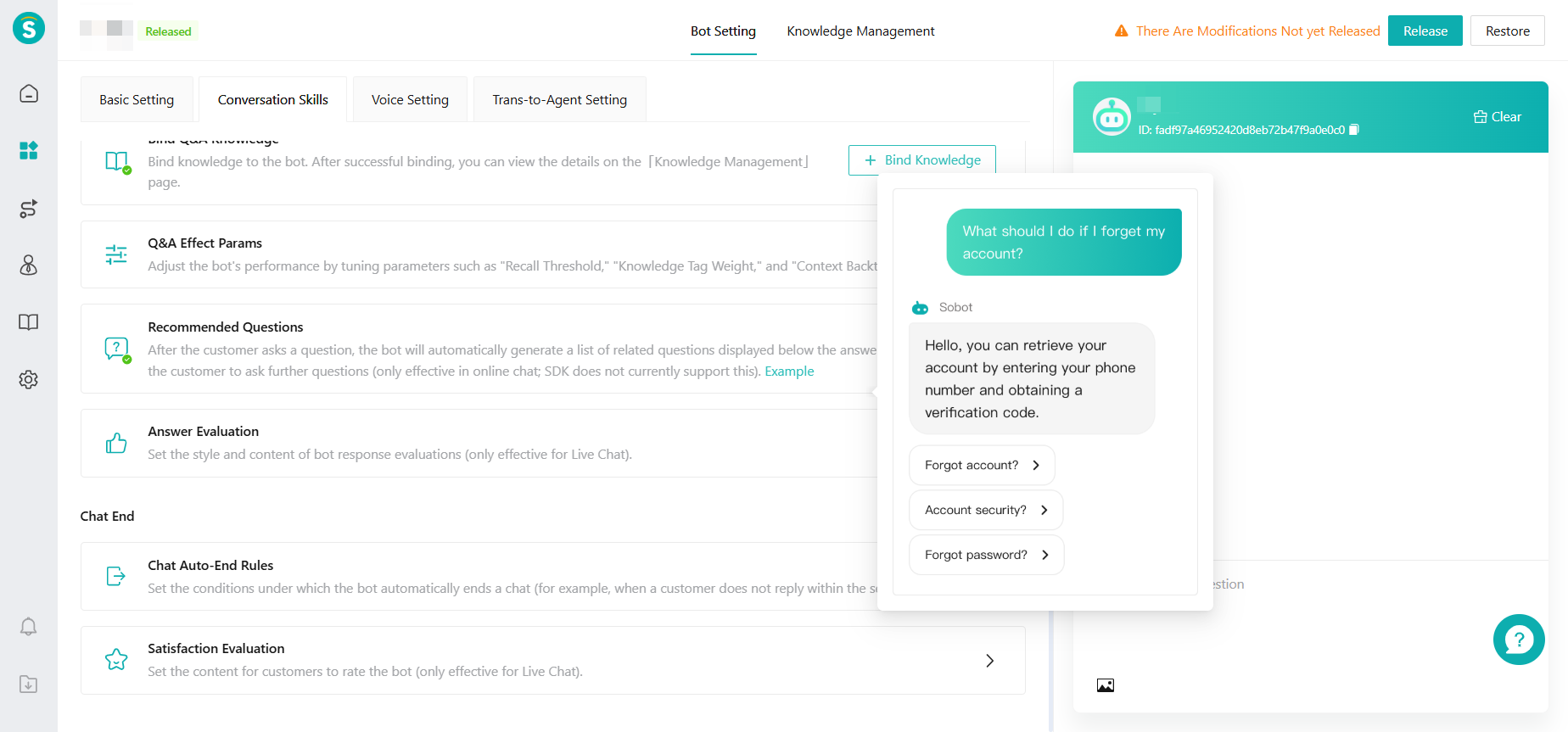
Robot Settings - Conversation Skills .
Added a new setting item for recommended questions. When enabled, after a customer asks a question during an online conversation, the robot will automatically generate a list of related questions displayed below the answer to guide the customer to continue asking.
Reception Record Details Support Jumping to Business Sessions (Both Live Chat and Voice are Supported)
Function Background
In actual operation, enterprises generally need to listen to recordings while viewing the Q&A content. This makes it easy to check if customer questions are transcribed accurately and if the robot's responses are correct. Currently, it is not possible to open pages simultaneously or jump to relevant interfaces. Call records/chat record and AI Agent reception records need to support switching between the two sides.
Feature Description
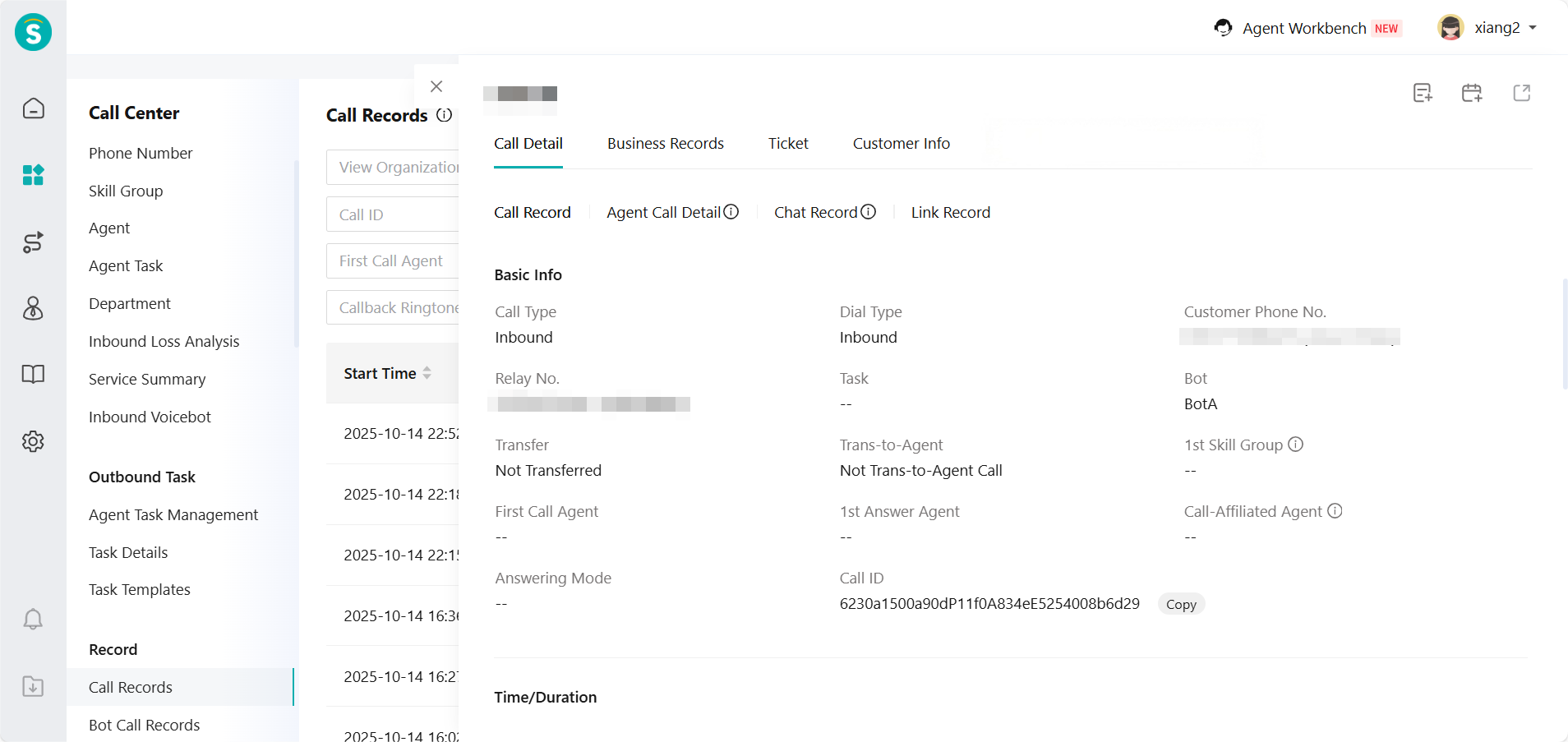
AI Agent - Reception Records - Conversation Information - Add Business Chat ID Field.
Online conversation
i. When the business type is Voice, click the Business Chat ID field to jump to Voice - Call Records, and display the associated call records.
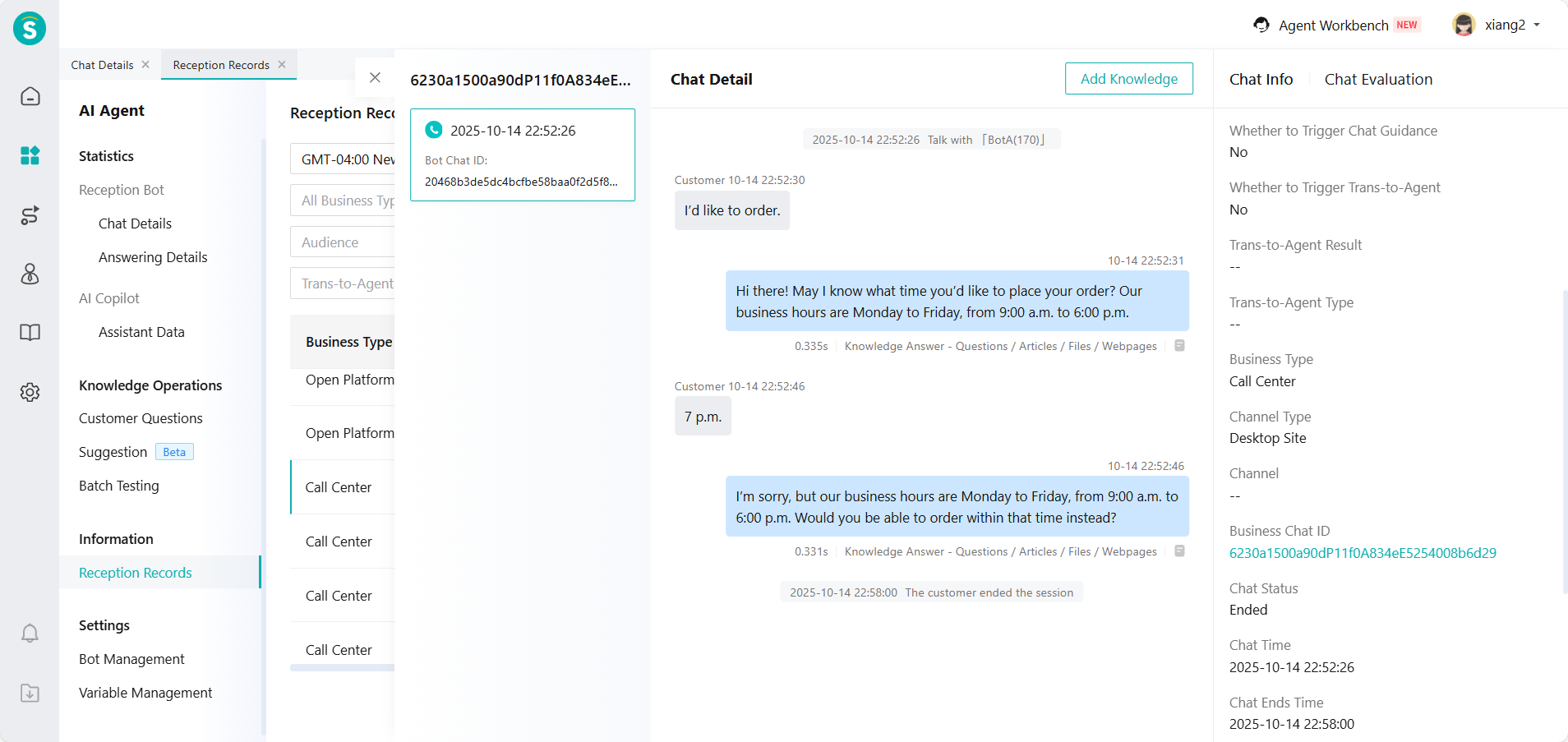
ii. When the business type is Live Chat, click the Business Chat ID field to jump to Live Chat - Session Records, and display the associated session records.
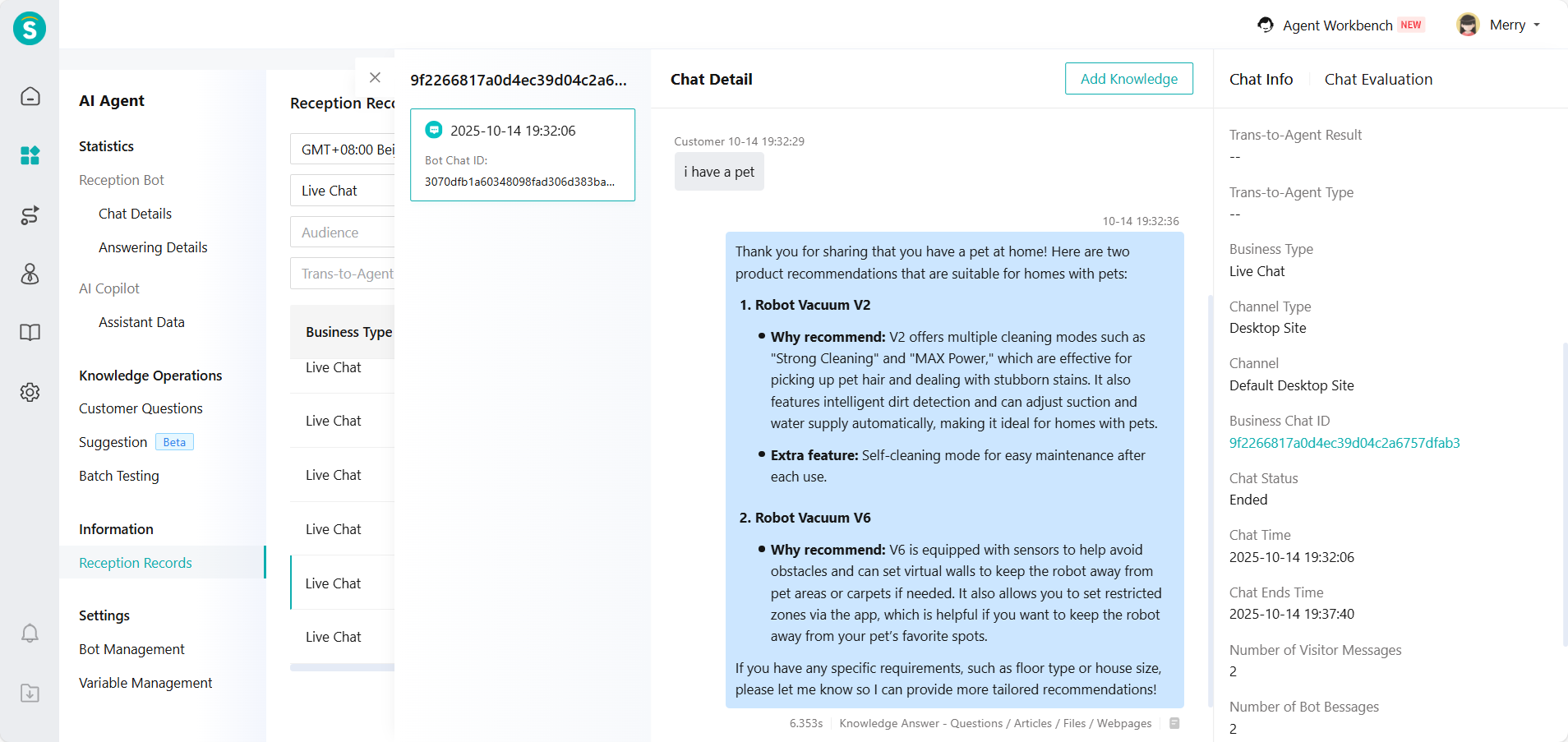
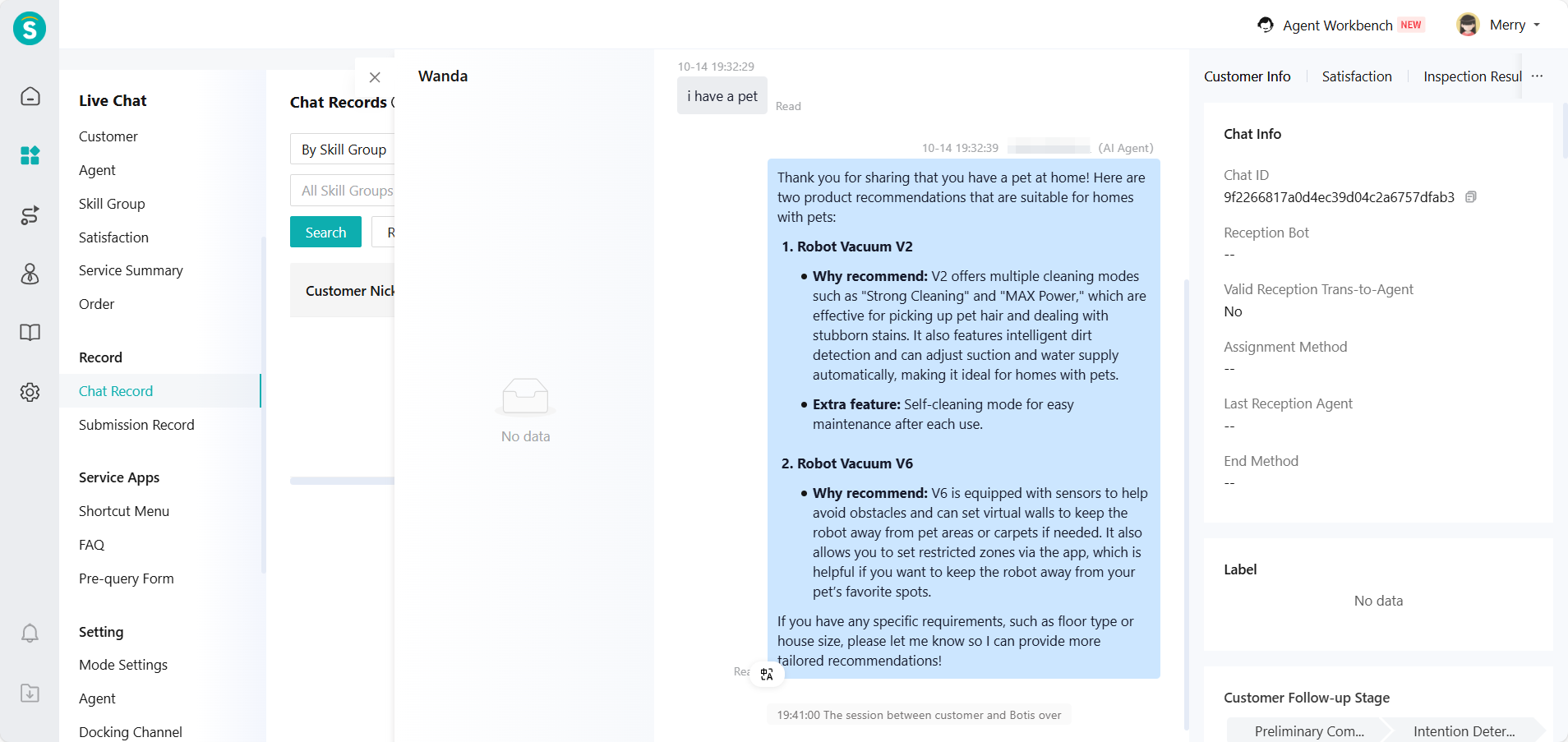
Note: You can click to redirect and view here only after the Live Chat or Voice session ends.
AI Agent Uses CRM, Browsing History, Card Data
Function Background
AI Agents can obtain and store CRM, browsing history, and card data into variables for use in conversations, such as
The bot retrieves the customer's city based on their IP address in advance and checks the service outlets.
In e-commerce scenarios, when customers consult about products through the web, the robot predicts the product they want to inquire about based on the information on the consultation page.
When embedding order cards in the online visitor client, if a customer clicks on the card, the bot can obtain the order number data.
Feature Description
Currently supports the following fields for integration with robot variables, enabling the robot to use CRM, browsing history, and card data.
| Field type | Field Name | Variable Encoding |
|---|---|---|
| Customer Identity Information | Docking ID | parterId |
| Real Name | realname | |
| Phone | tel | |
| Country | countryName | |
| Province | proviceName | |
| City | cityName | |
| Time zone | timezoneId | |
| Language | locale | |
| Customer Level 10-Regular Customer 1-VIP Customer | isVip | |
| Customer Level 2 | vipLevel | |
| Customer Tags | Use Customer Tag ID | |
| Custom Fields for Customers | Use Custom Field ID | |
| Session Access Information | Channel Source | source |
| IP address | address | |
| Custom Parameters | Custom fields for params | Custom Parameters |
| MultiParams Custom Field 2 | Custom Parameters | |
| Live Chat Card | Product Card, Order Card Fields | Reference parametersdevelope doc:product and order card |
AI Agent Can Respond Based on the Current Time
Function Background
In the following scenarios, the AI Agent needs to obtain time information for judgment and provide corresponding answers.
- Delivery Scenarios:
Hope that based on the customer's location and current time, the robot replies with the specific delivery time. For example, when a customer inquires at 5:02pm on Tuesday, the robot replies, "Delivery will be the next day from 9:00am to 1:00pm."
- Reservation scenario:
The customer says, "Help me book an appointment for 2:00 PM next Monday." The robot can recognize the time of 2:00 PM next Monday.
- Urge repair progress:
Based on the current time, check if the repair time is within a certain range. If it is within the time range, expedited service requires an additional fee. If not, create a ticket.
- Activity Scenarios:
Some activities have a validity period, and some customers may try to take advantage after the period ends. If the robot does not know the time, it might make a commitment directly.
Feature Description
AI Agents can make judgments based on the current time.
Singapore, North America: Use the enterprise time zone time.
Voice Scene: Add Response Speed Setting
Feature Description
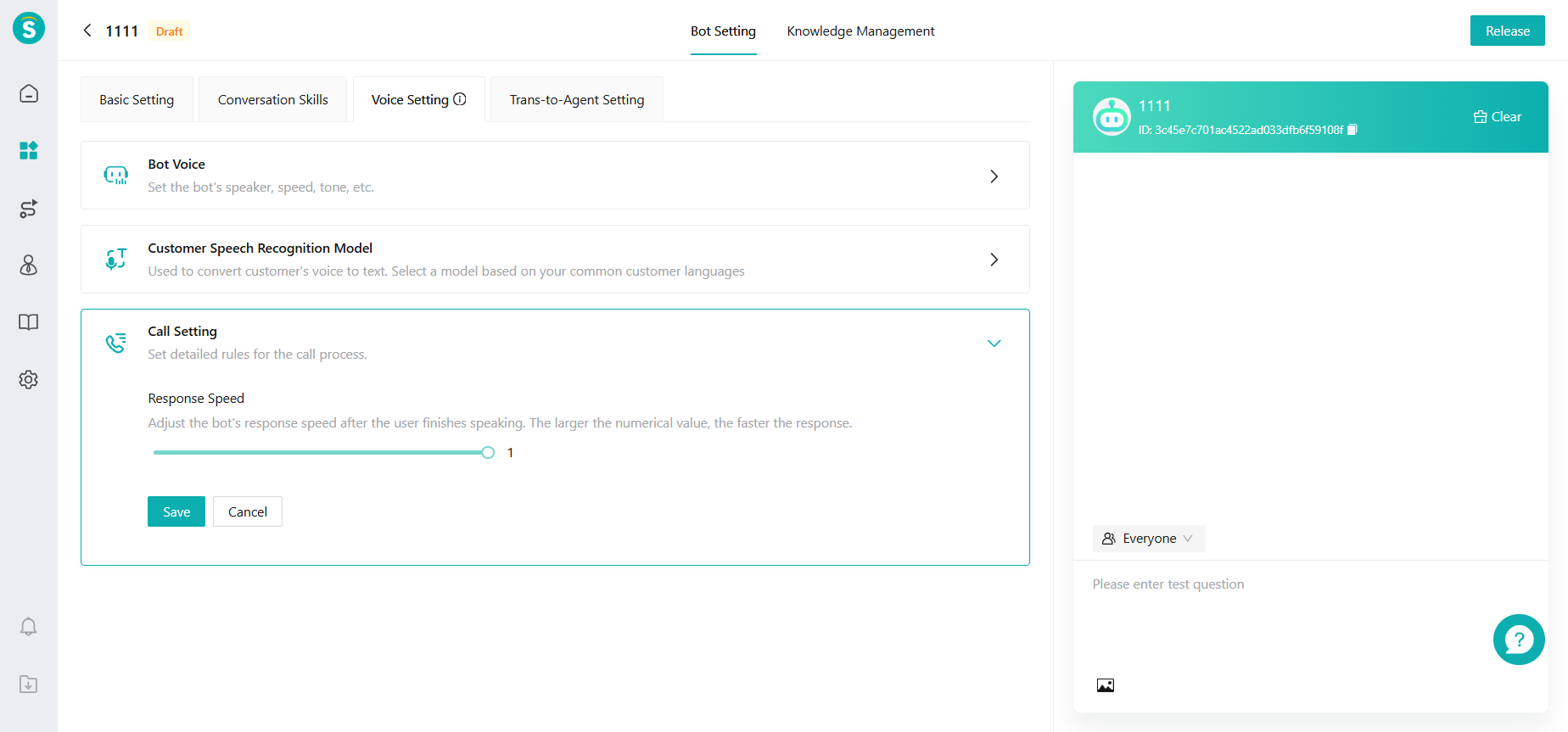
Robot Setting - Voice Setting - Call Setting added response speed. The original silent duration has been merged with response speed.
The default response speed is 1. The higher the value of the response speed, the faster the robot responds.
Knowledge Center
Action Management: Add Robot Sending SMS Action
Function Background
The robot can automatically send text messages to customers during a call, for example:
Scenario 1: For pre-sales and after-sales issue resolution, appointment scheduling for repairs, service center inquiries, etc., send the appointment details or order status via SMS to the customer and confirm if they have received it.
Scenario 2: In a voice conversation, the robot asks the customer for the verification code received and calls the interface to verify if the code is correct.
Feature Description
- New Action: Add SMS Sending Action. (Requires activation of corresponding SMS resource package. Singapore and North America regions only support international SMS.)
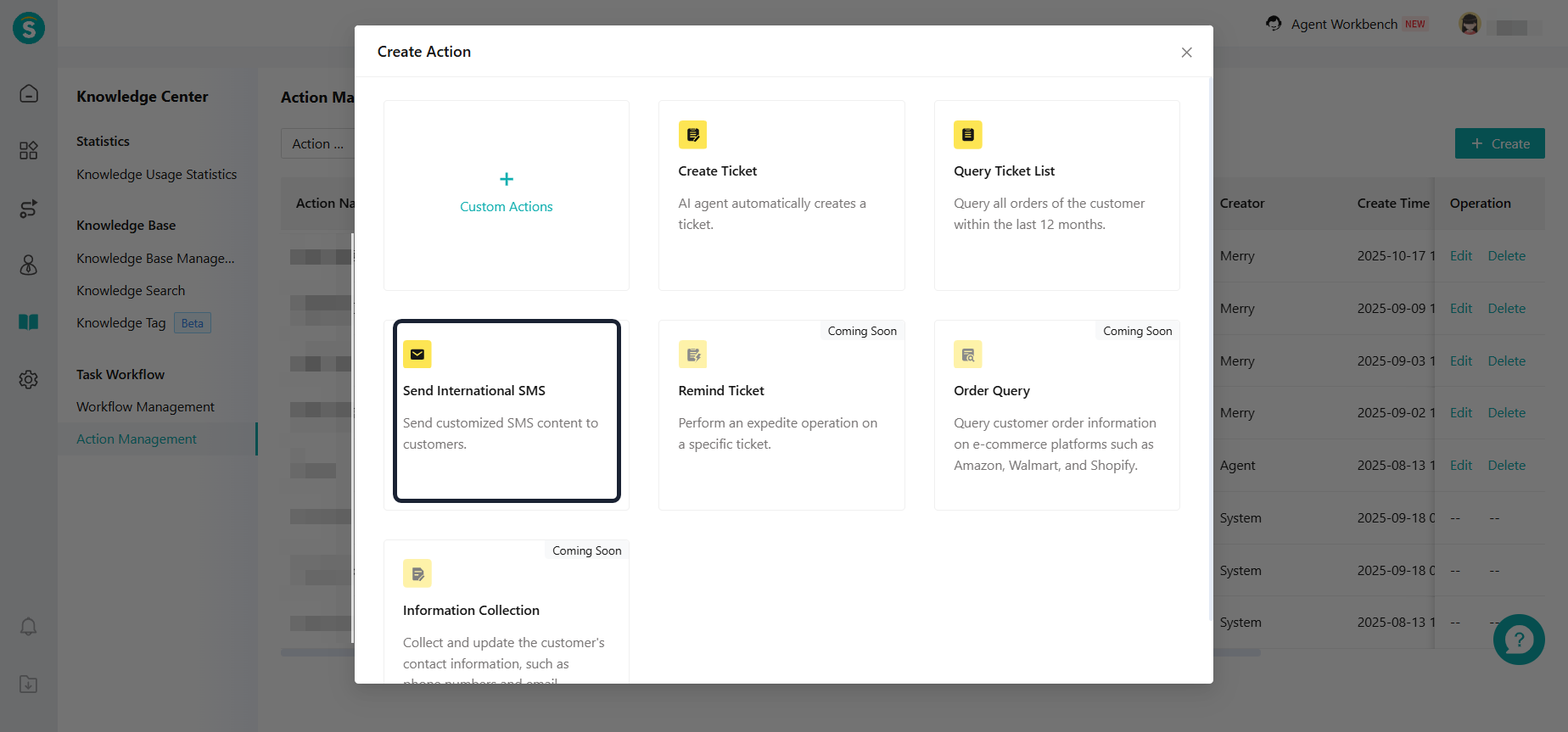
Configuration Process
i. Create variables: If variables need to be inserted in the SMS, create the variables first in AI Agent - Variable Management.
ii. Create SMS template: Create a template in SMS Center - Template Management and submit it for review. (If sending SMS with variables, you need to insert variable codes into the SMS template.)
iii. Create SMS sending action: After the SMS template is approved, you can reference the SMS template when creating an SMS action.
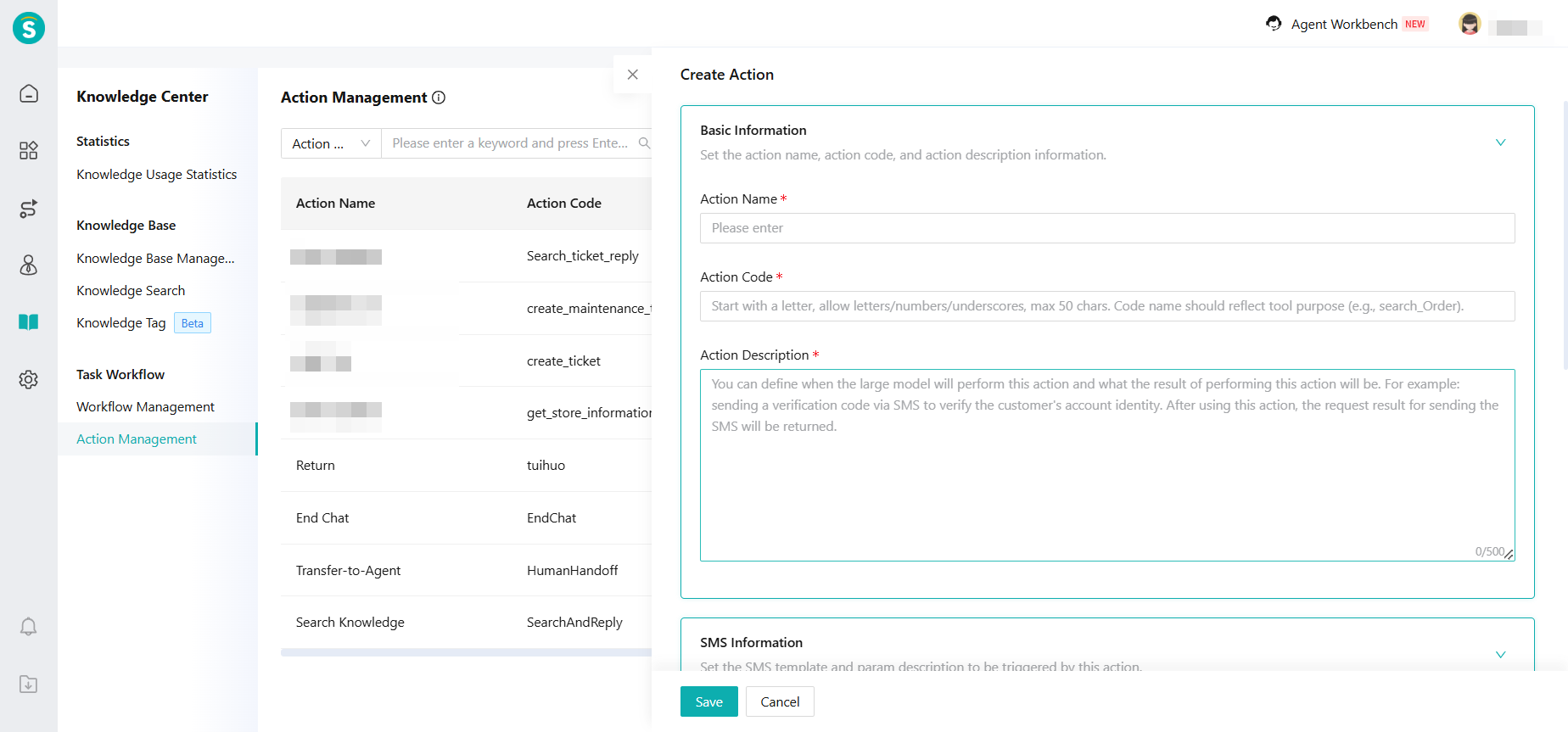
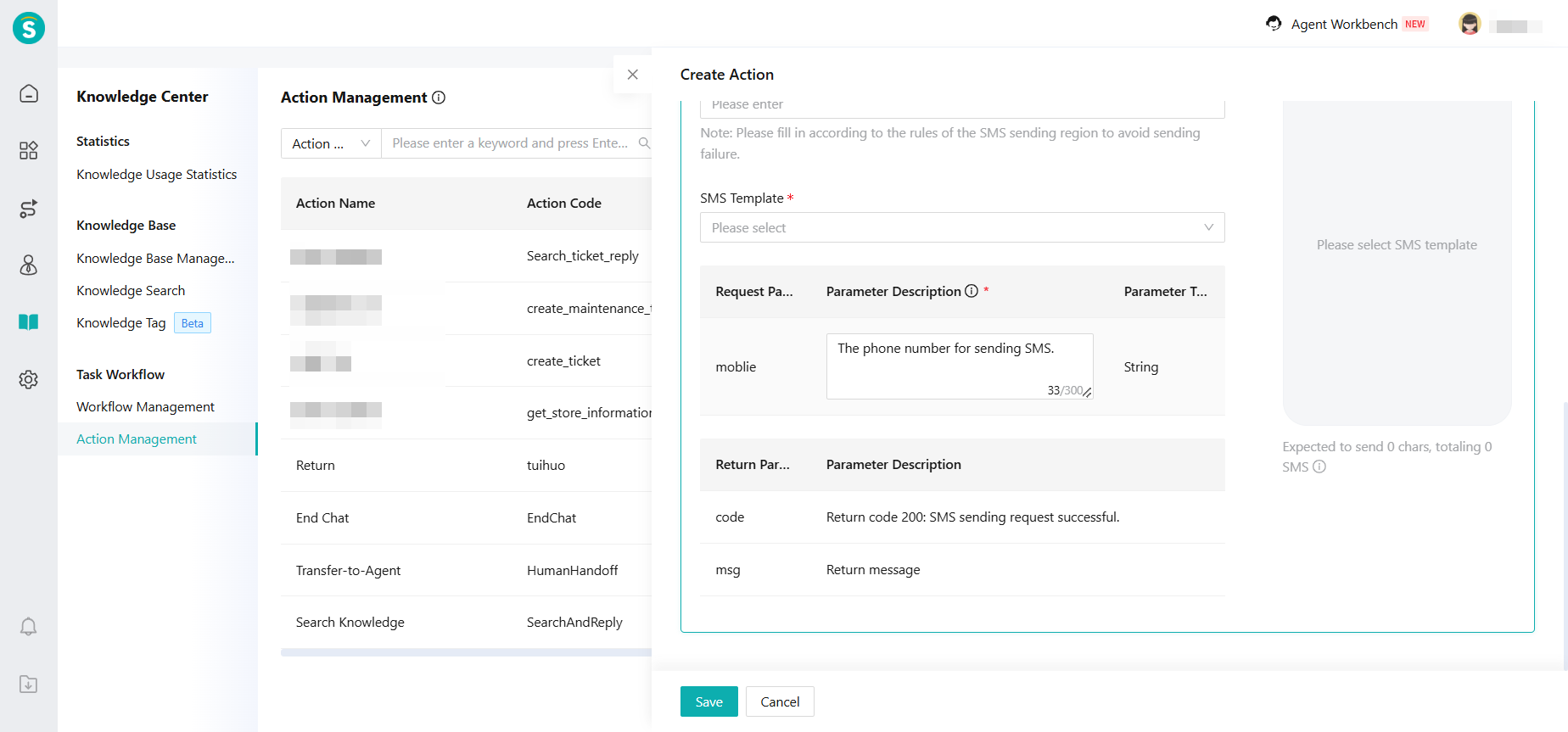
Action Management: Add Robot Query Ticket Action
Function Background
After customers report issues, request repairs, provide feedback, or leave messages to create tickets, they will follow up to check the ticket progress. Enterprise hope the robot can help customers check the ticket progress by themselves.
Feature Description
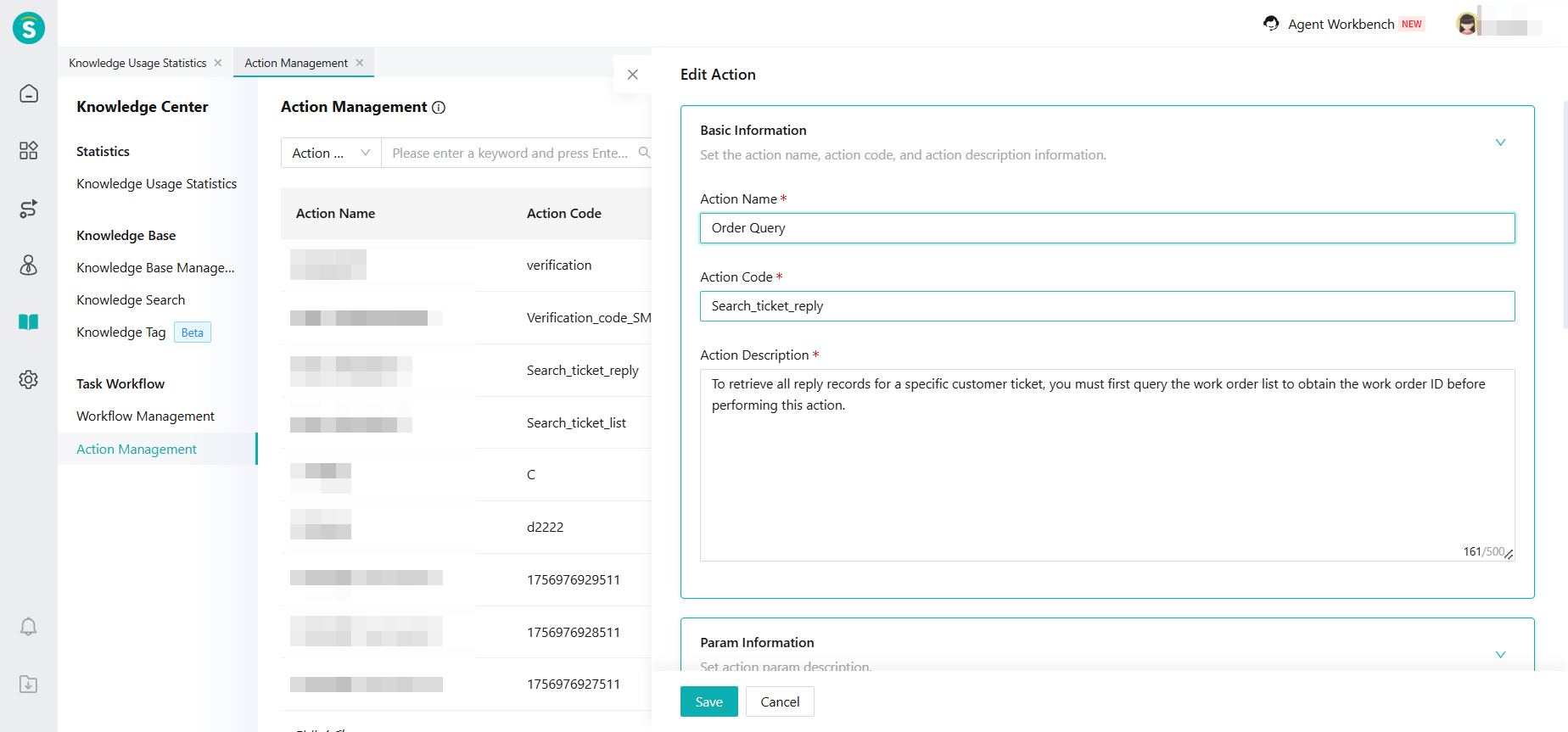
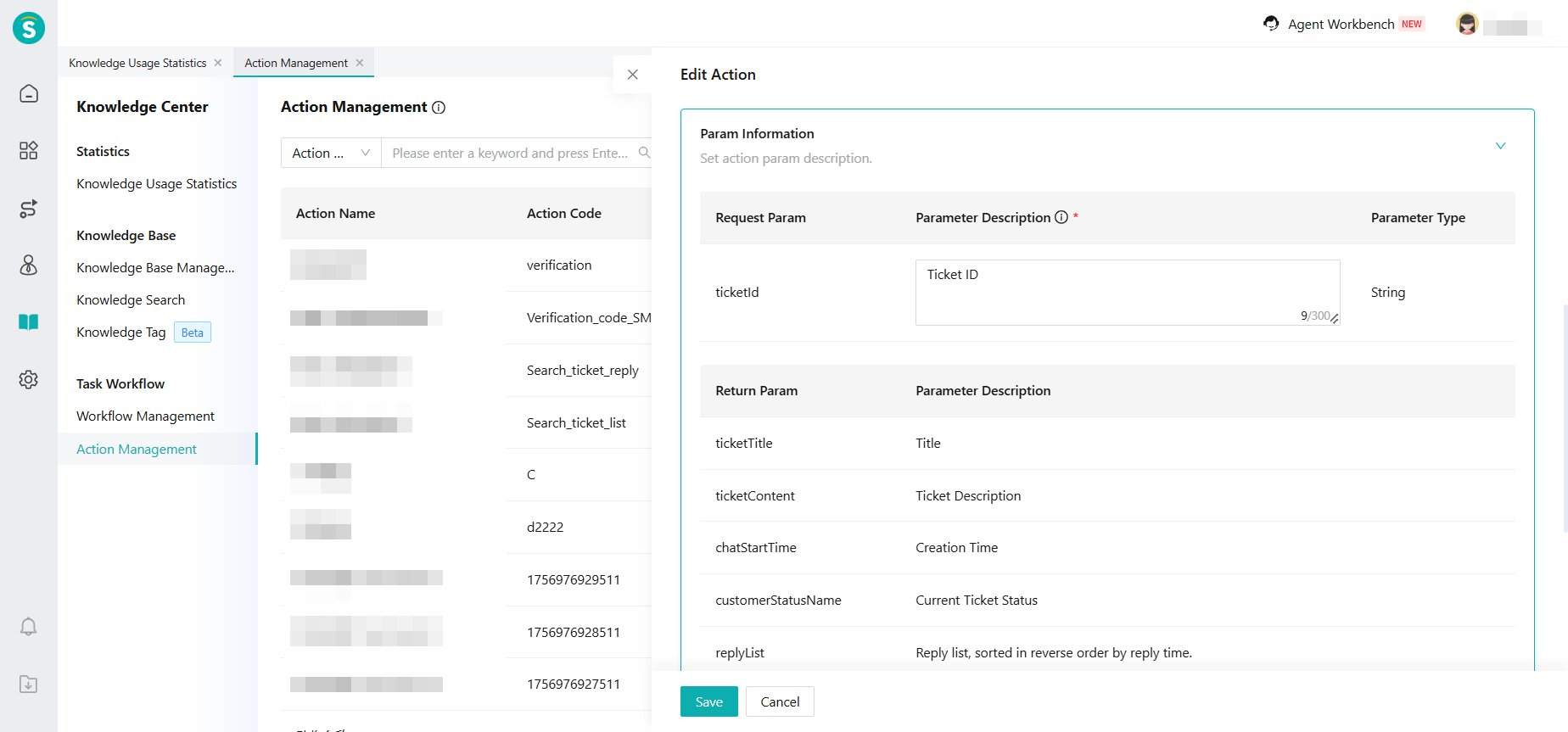
To check a ticket, you need to configure and use both the "Query Ticket List"and "Query Ticket Reply" actions. This feature can only be tested when the visitor provides a connection ID or during an IVR call. You cannot check tickets in the Bot Settings - Test Window. The process is as follows:
Pass in customer information:
i. Live Chat Visitor End: Incoming Partner ID (partnerId)
ii. Voice IVR: Use the IVR data request node to query the customer ID (customerId) based on the phone number.
Create Action - Query Ticket List:
i. Action Description: Query the tickets within the last 12 months under the customer's name based on the incoming customer ID. At most, 15 tickets will be queried. After the query, the ticket IDs will be returned.
ii. Query Range: Refer to the setting of "Customer View Ticket Range" in Ticketing - Ticket Channel Settings.
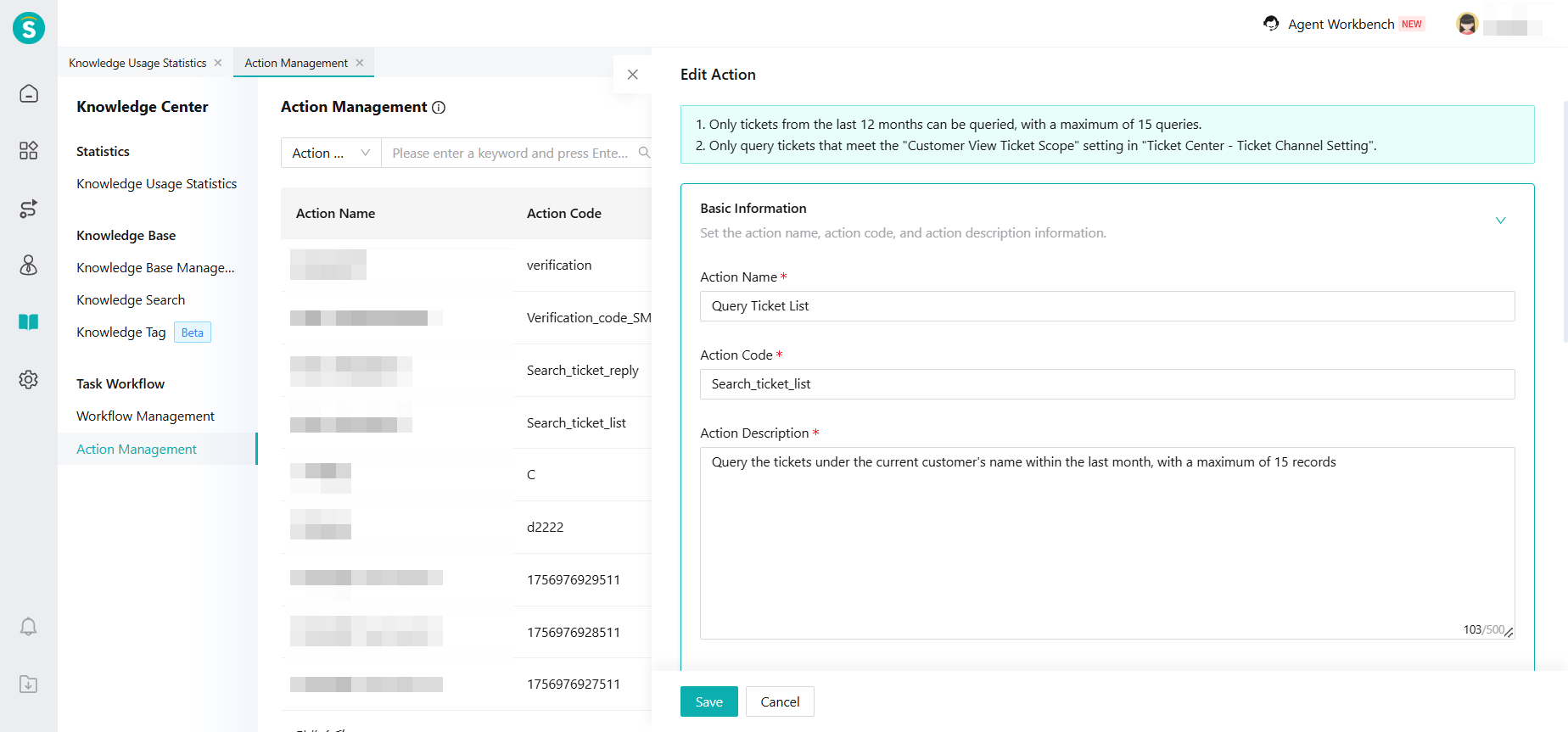
Query Ticket Reply:
i. Action Description: Query the reply details of a ticket by its ID.
ii. Note: You need to use the Query Ticket List action first, and then use the Query Ticket Reply action.
Outbound Voicebot (General Version)
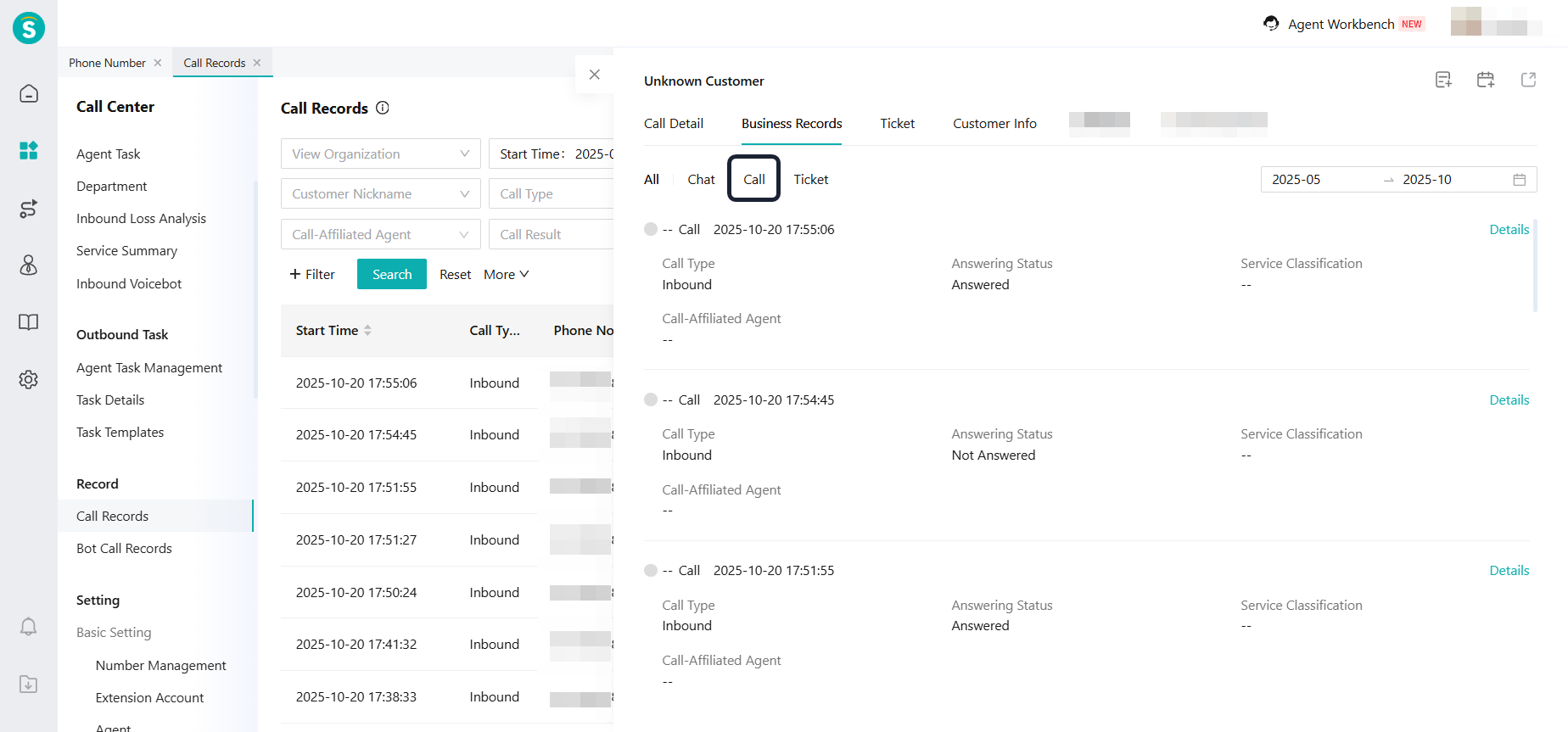
Business Records Add Call Records for Outbound Voicebot (General Version)
Function Description
The call module of the business record component has added call records for the outbound voicebot (general version), involving the following multiple pages:
Voice - Call Records - Call
Ticketing - Ticket Details Page - Record - Call
Agent Workbench Sidebar - Records - Call
Outbound Voicebot (General Version) - Bot Call Records - Business Records - Call
New Satisfaction Evaluation API
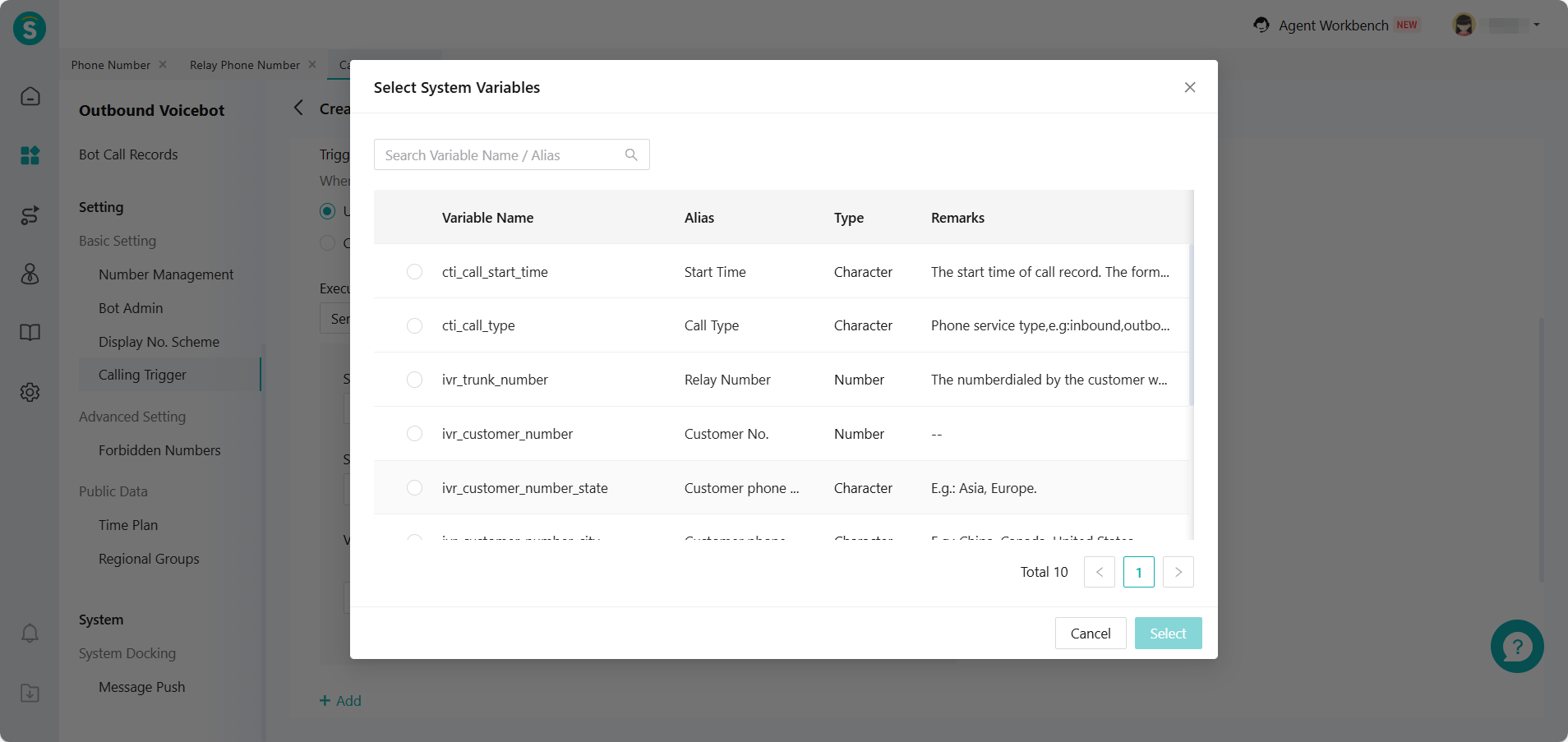
Calling Trigger Supports System Variables for Voice
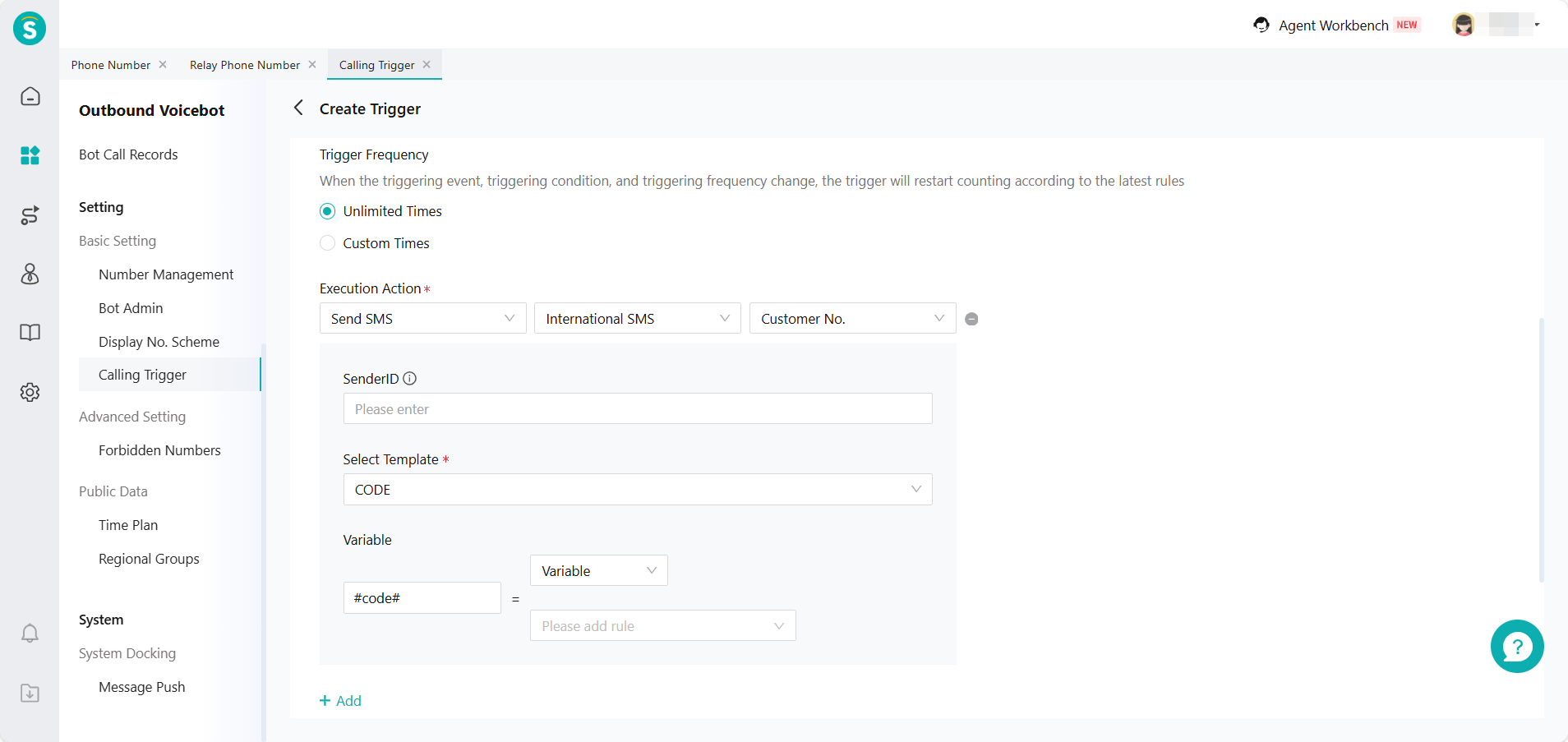
Feature Description
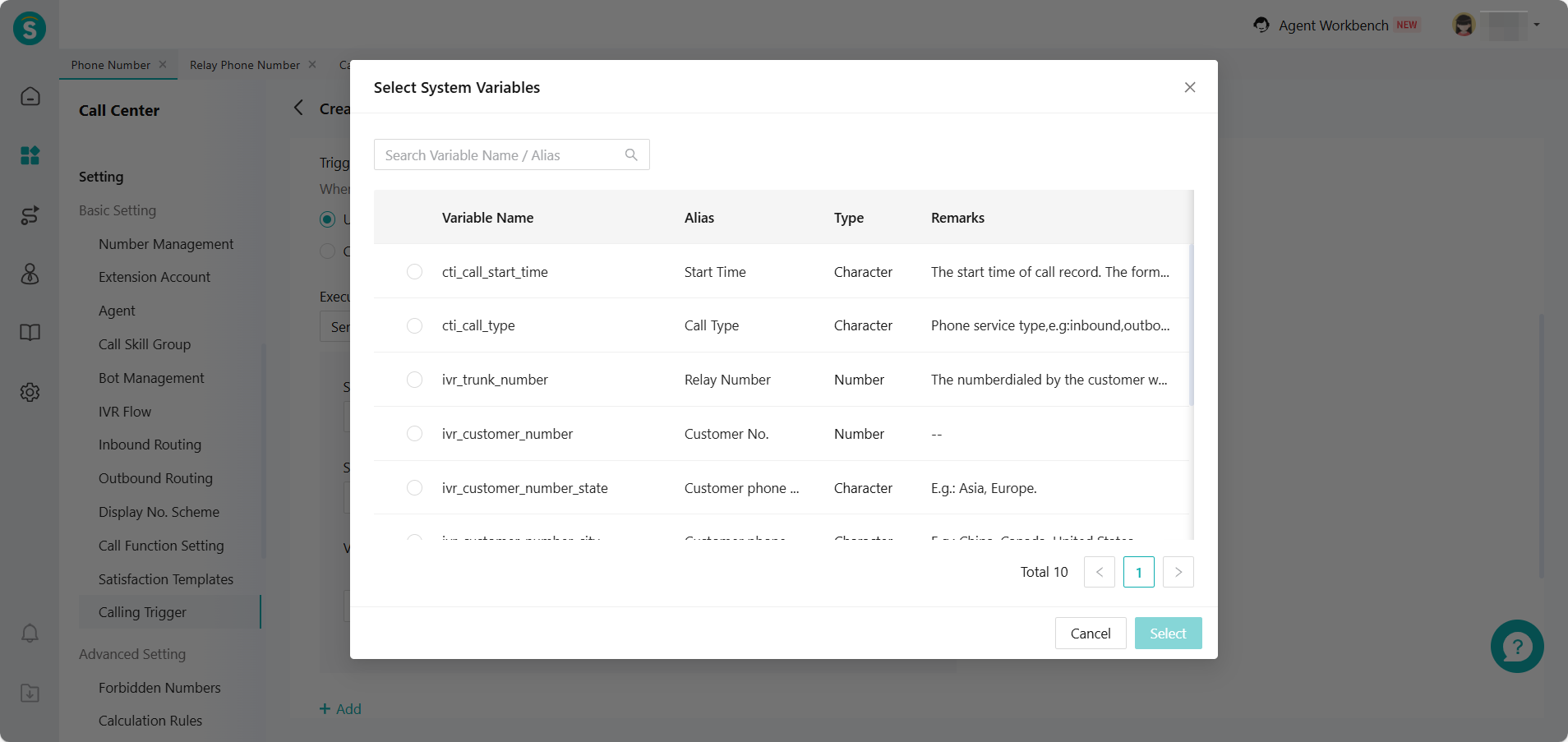
Outbound Voicebot (General Version) - Basic Setting - Calling Trigger - Execution Action (Send SMS), supports assigning call system variables to variables in the SMS template.
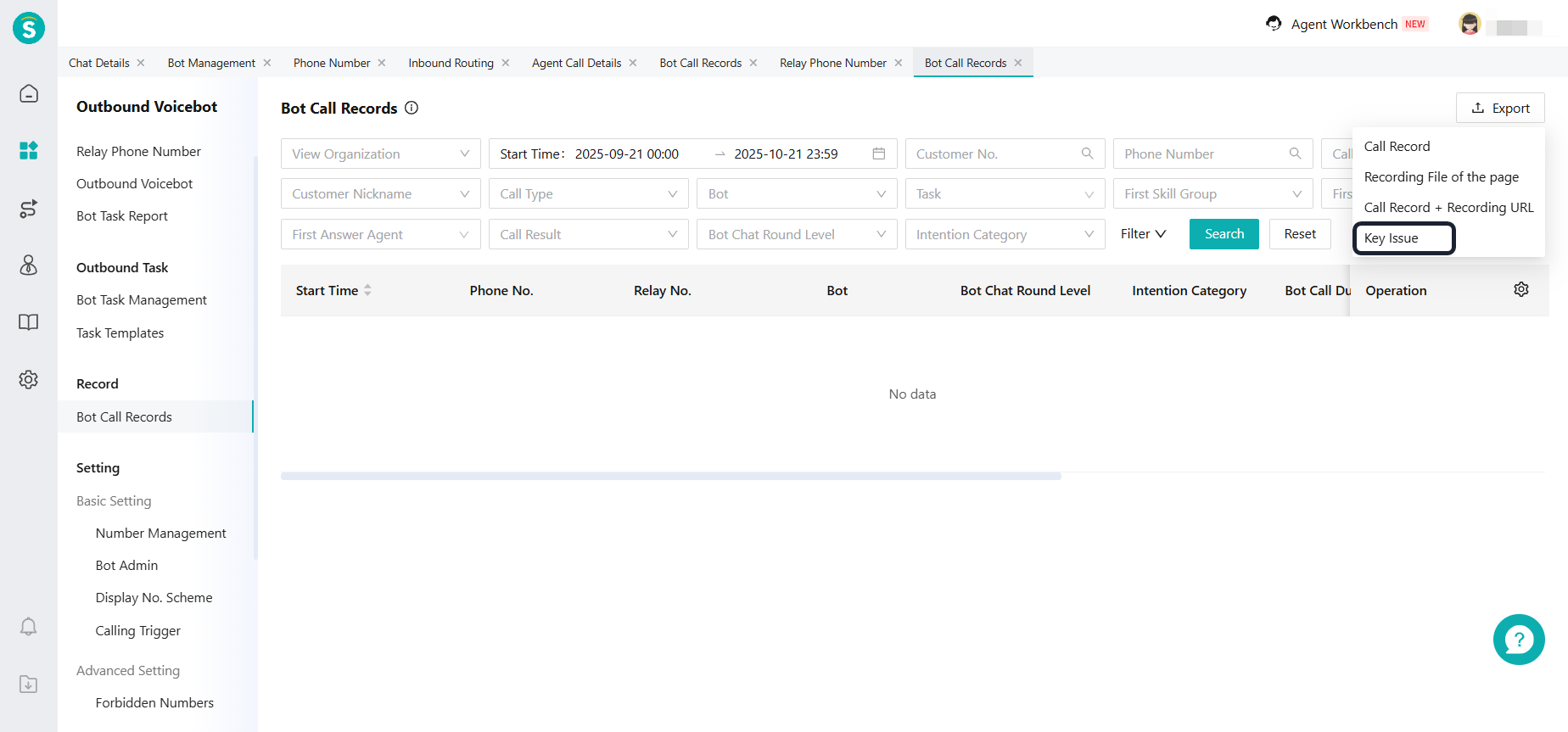
Bot Call Records Support Exporting Key Issues
Feature Description
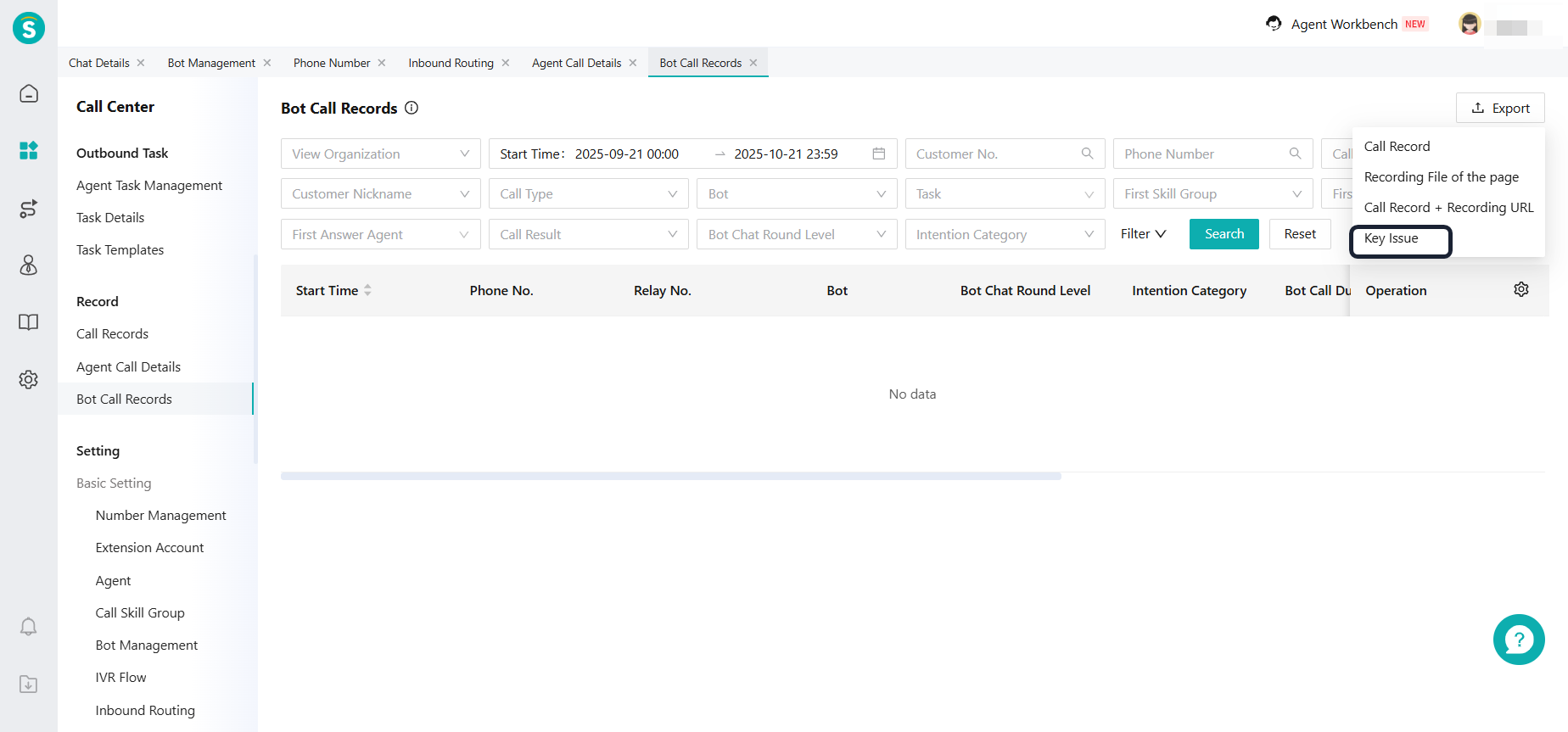
Outbound Voicebot (General Version) - Bot Call Records - Export supports exporting key issues, which are the questions in the key nodes marked with a star in the robot process canvas and the corresponding customer responses to these nodes.
Voice
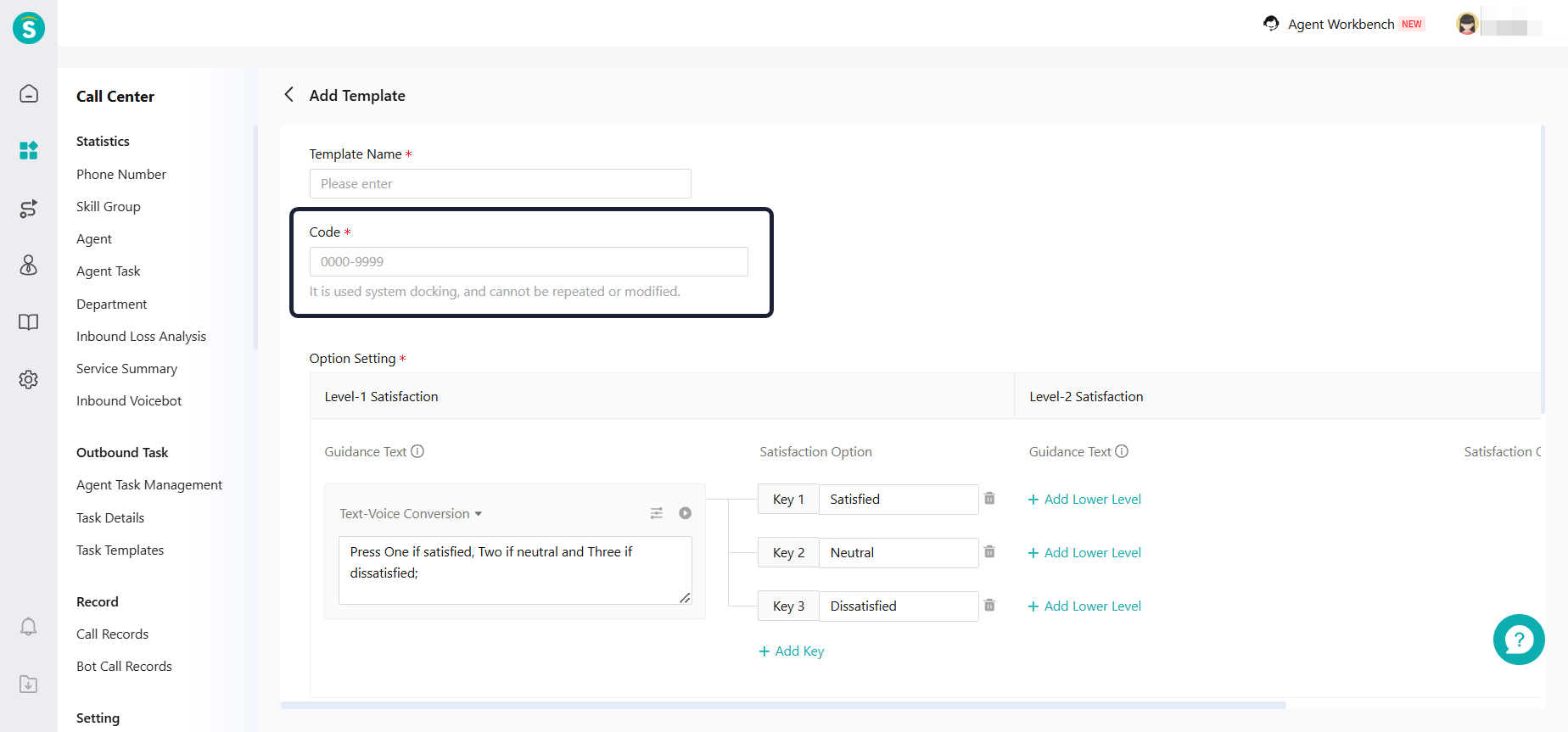
Satisfaction Template Adds Code Field
Feature Description
Voice -Basic Setting - Satisfaction Templates support adding encoding information.
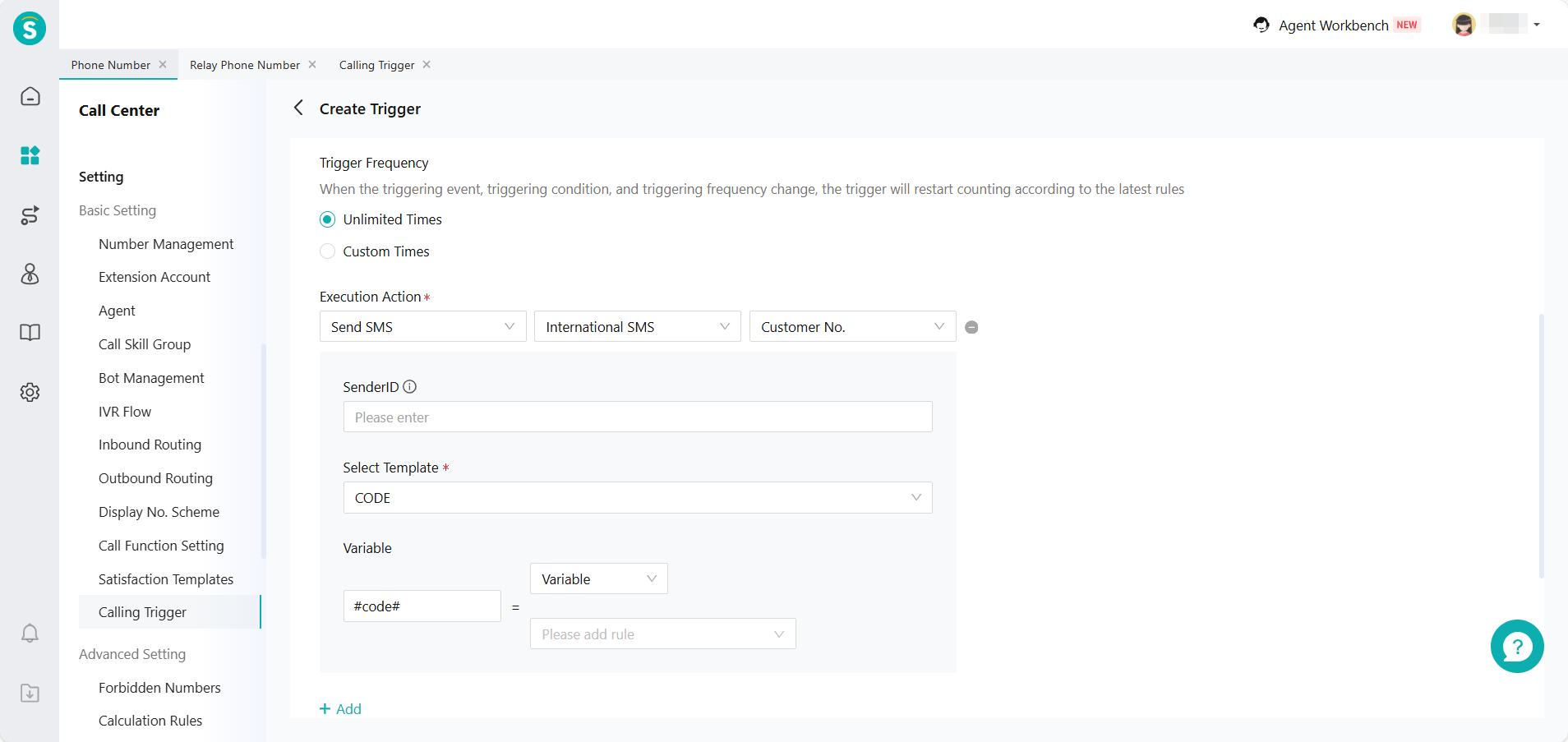
Calling Trigger Supports System Variables For Voice
Feature Description
Voice - Basic Settings - Calling Trigger - Action (Send SMS), supports assigning call system variables to variables in the SMS template.
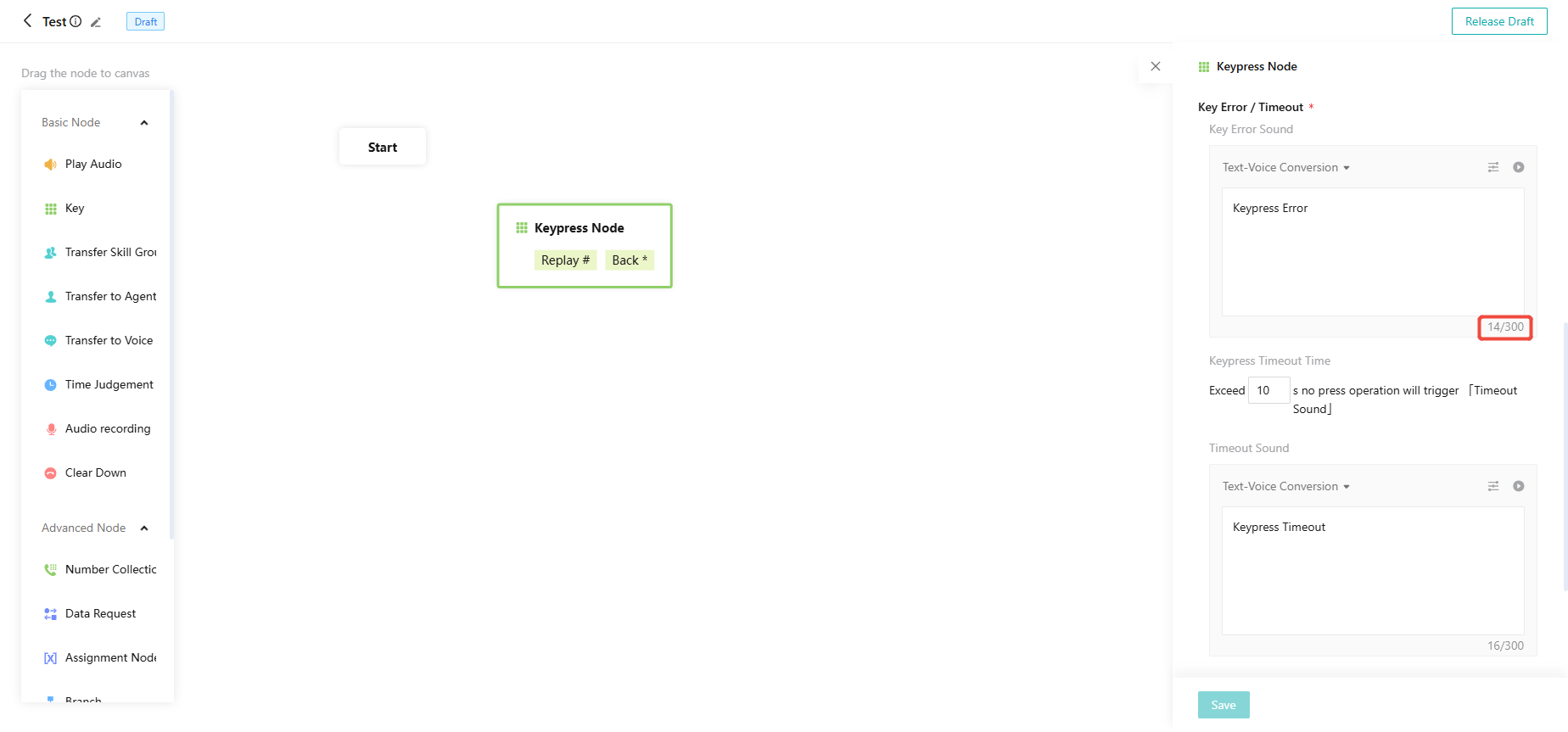
IVR Error Keyand Timeout TTS Prompt Text Limit Increased to 300 Characters
Feature Description
In the Voice - IVR, the upper limit for adjusting the TTS prompt text when a wrong key is pressed or timeout occurs is 300 words.
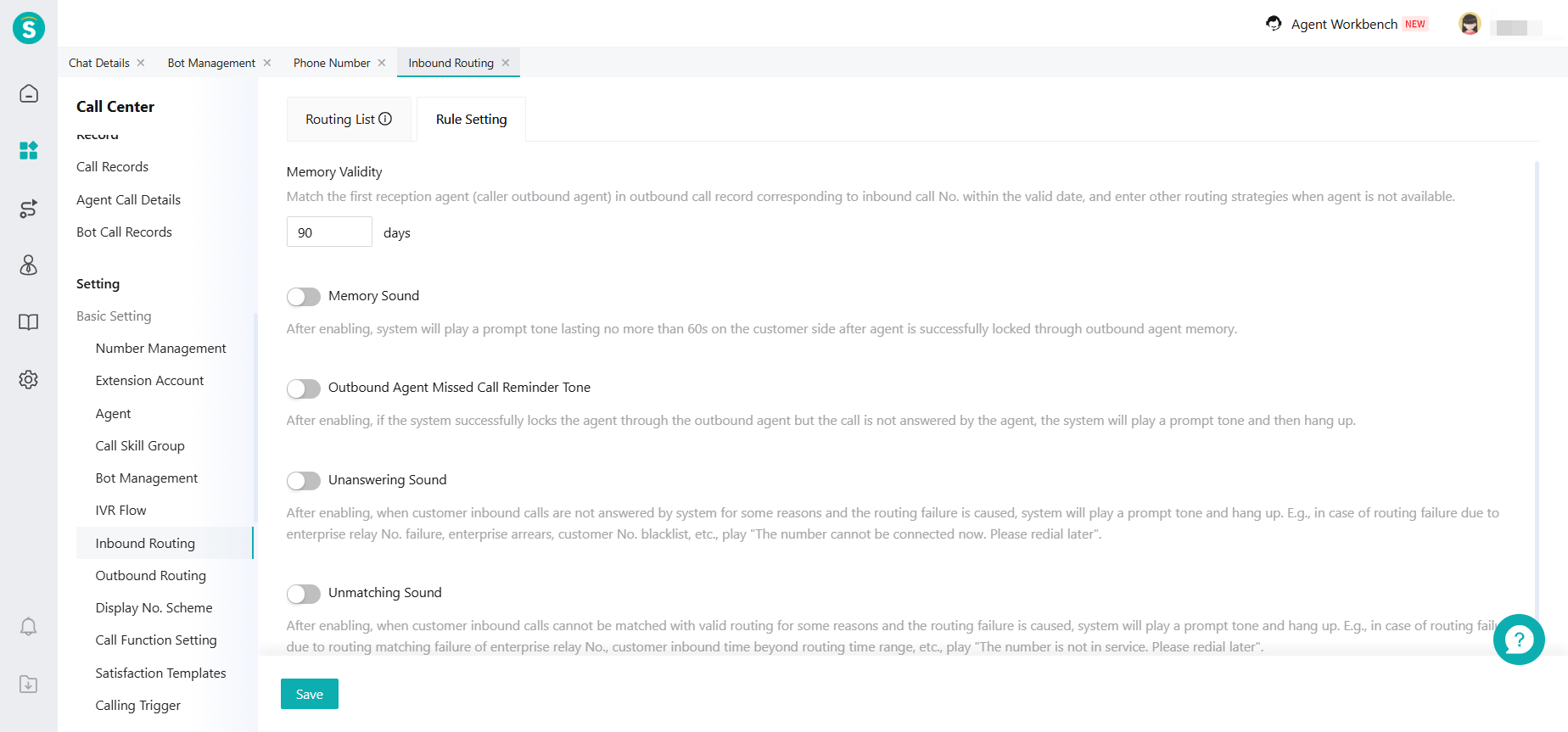
Outbound Agent Memory Duration Range Expanded
Feature Description
Voice - Setting - Inbound Routing - Rule Setting, The valid duration range of outbound agent memory supports setting from 1 to 90 days.
Bot Call Records Support Exporting Key Issues
Feature Description
Voice - Bt Call Records - Export supports exporting key issues which are the questions in the starred key nodes of the robot process canvas and the corresponding customer responses to these nodes.
SMS Center
AI Agent Product SMS Source
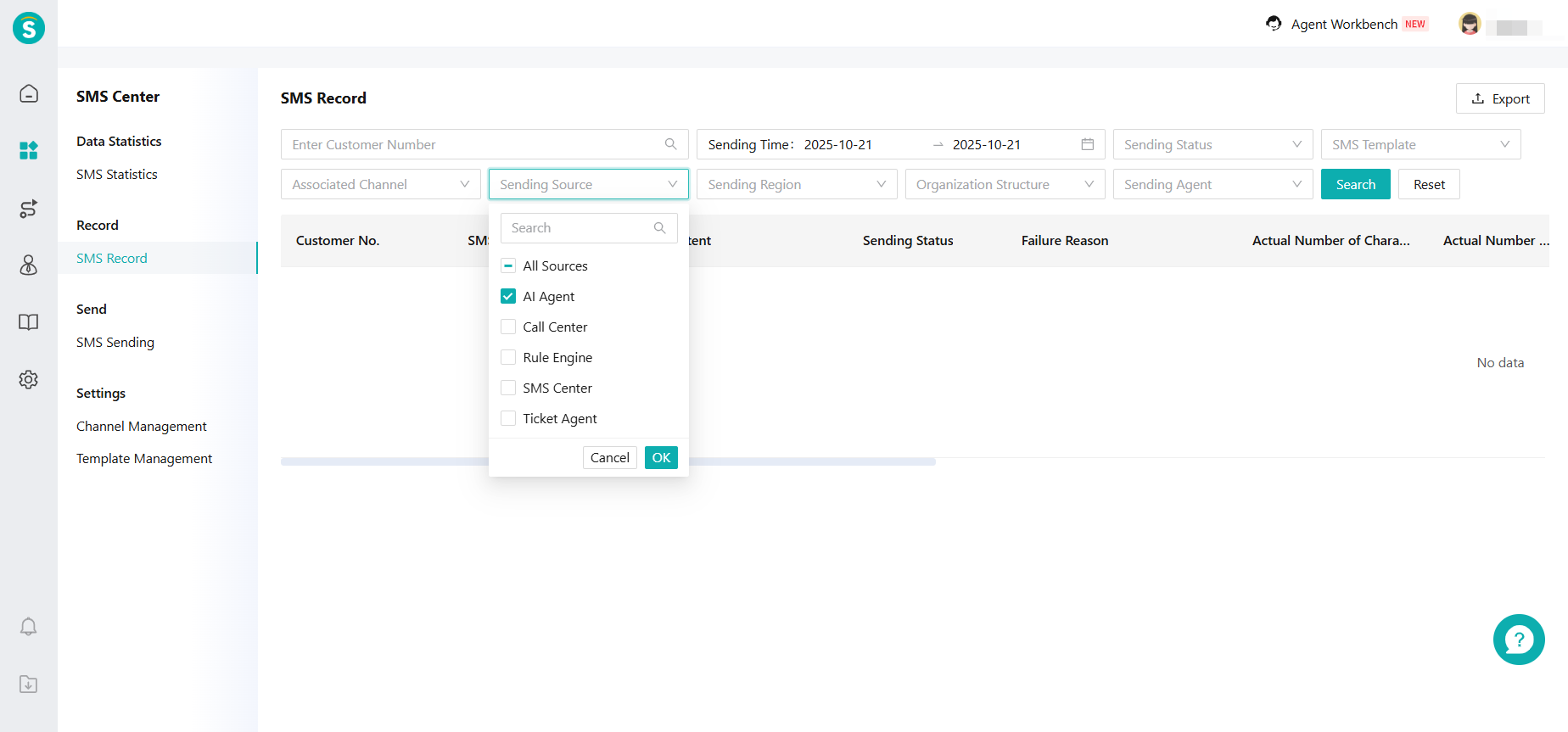
Feature Description
SMS Center - SMS Records add AI Agent product SMS source. Records of SMS actions sent by AI Agents will be displayed here.
Ticketing
Ticketing External Open API Additions and Updates
Feature Description
- Ticket message push interface adds ticket template ID
https://developer.sobot.io/en/pages/950d89/#%E2%97%8F-ticket-information
- The ticket details interface adds: whether the order has been expedited, the first expediting time, the number of expediting times, and the operator ID
https://developer.sobot.io/en/pages/950d89/#%E2%97%8F-query-ticket-detail-page
- Add a query interface for ticket categories
https://developer.sobot.io/en/pages/950d89/#%E2%97%8F-query-ticket-category
Ticket Plug-in Supports New Interaction Style
Feature Description
- You can upgrade in Business Rules - Ticket Channel Setting- Ticket Plug-in. You can also view a demo video of the new interaction style here.
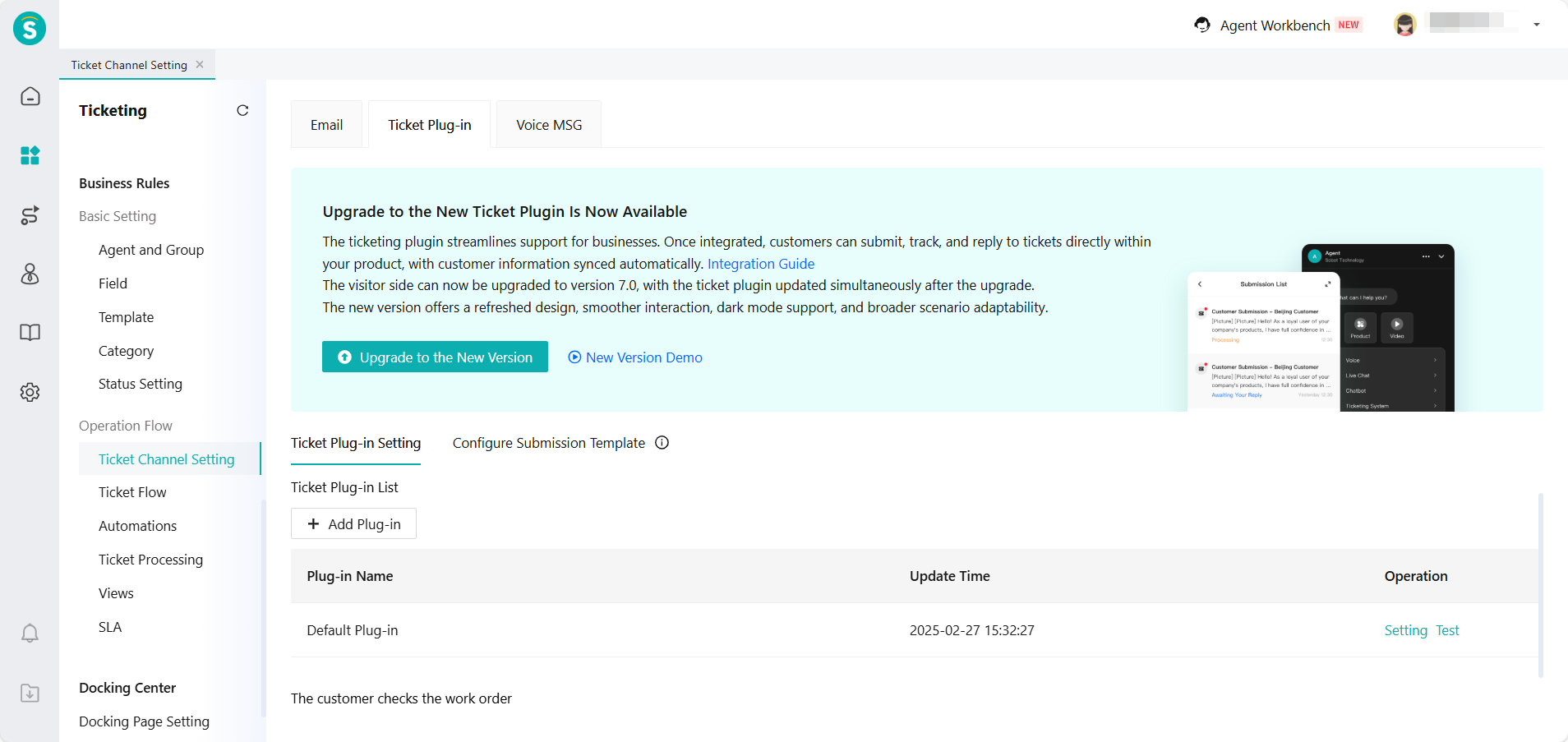
- After the upgrade, the style of plug-in links created before is still old. If you need to change to the new style, please use the new link.
App Supports Top-priority Ticket Reminders
Function Background
When a customer initiates a follow-up request, it will be displayed in the notification center but not on the App. However, the notification center contains a large volume of information, making it easy to overlook and potentially affecting agent quality.
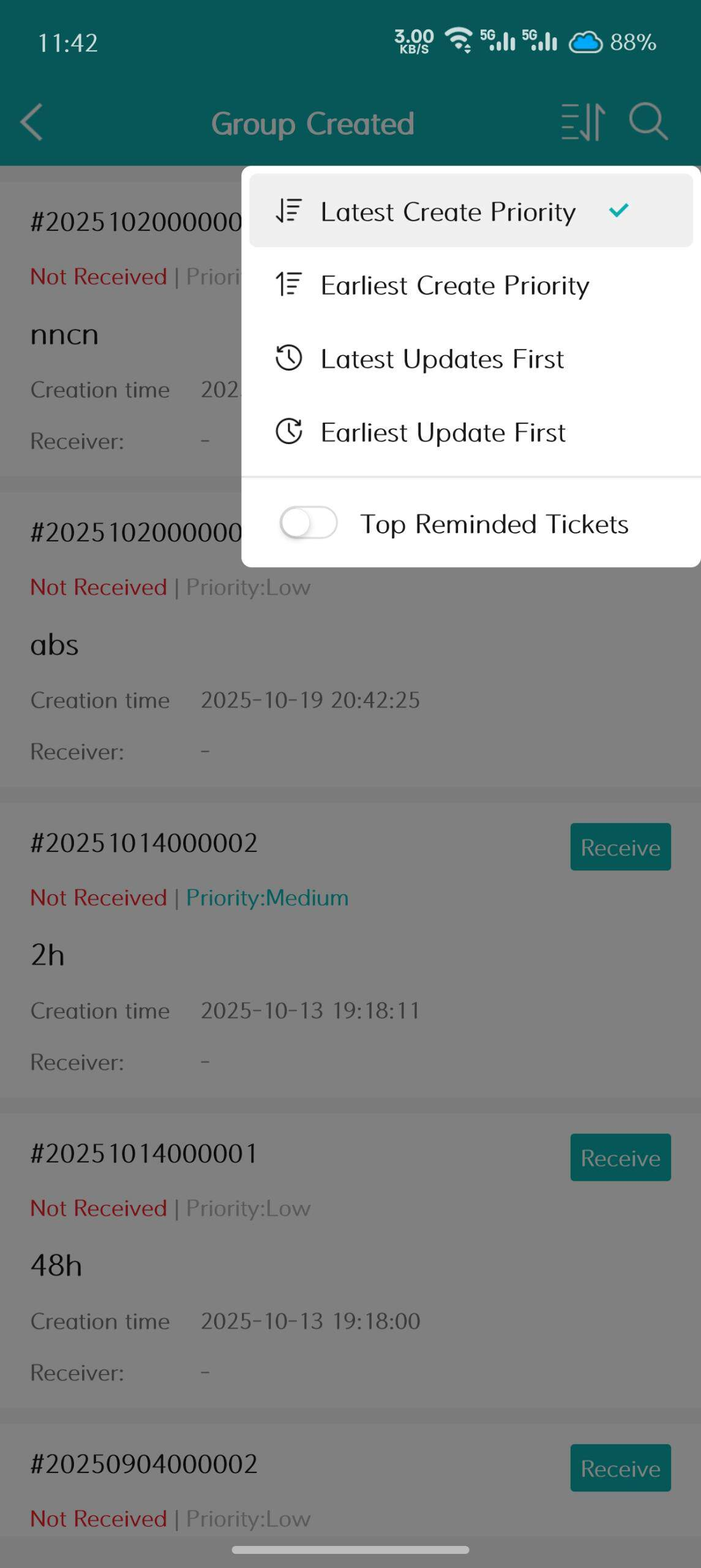
Feature Description
My - Ticketing- Pending Tickets filter has a new option to pin rush tickets. When selected, it will pin unsolved rush tickets.
Admin Center
Admin Center Menu Structure Adjustment
Function Background
Current issues with the Admin Center structure:
The classification is not detailed. General settings are all in the settings, without distinction between business and rules.
The hierarchy is uneven, such as satisfaction ratings and service summaries.
It is inconvenient to use, as the settings and management of time zones and languages are scattered in different places.
Feature Description
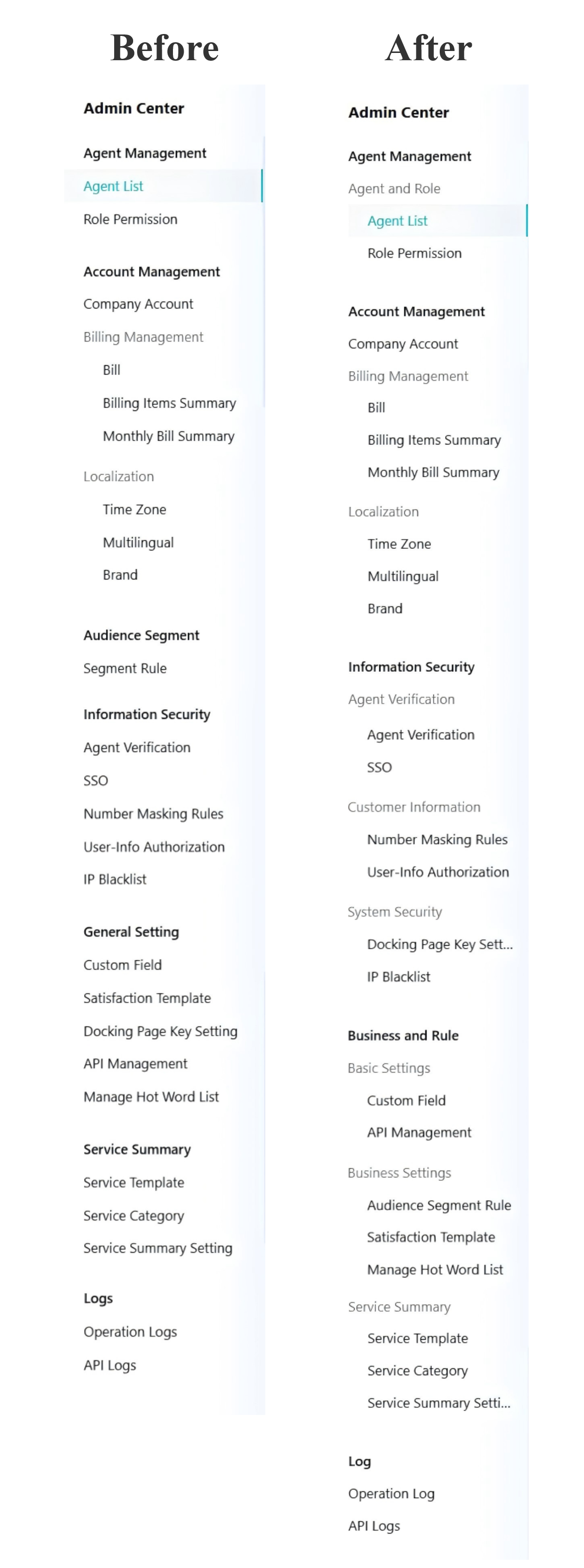
Adjustment details:
Agent management, no changes.
Account management, no changes.
The original "Audience Segment - Segment Rule" has been changed to "Audience Segment Rule", and moved to "Business and Rule - Business Settings - Audience Segment Rule".
Three secondary menus are added under information security management:
i. Agent Verification (including "Agent Verification" and "SSO")
ii. Customer Information (Includes "Number Masking Rules" and "User-Infor Authorization")
iii. System Security (including "Docking Page Key Settings" and "IP Blacklist")
The original "General Setting- Custom Fields" has been moved to "Business and Rules- Basic Settings- Custom Fields".
The original "General Setting- Satisfaction Eemplate" has been moved to "Business and Rules- Business Settings- Satisfaction Template".
The original "General Setting - Docking Page Key Settings" has been moved to "Information Security - System Security - Docking Page Key Settings".
The original "General Setting- API Management" has been moved to "Business and Rules- Basic Settings- API anagement".
The original "General Setting- Manage Hot Word List" has been moved to "Business and Rules- Business Settings - Manage Hot Word List".
The original "Service Summary Setting" has been moved to "Business and Rules- Service Summary Setting".
Log no changes.