
Chat Statistics Guide
# Chat Statistics Guide
——Learn about the usage methods and indicators of Chat Statistics through this article
# Role of Chat Statistics
We would like you to know about the scenarios and roles of Chat Statistics first:
● Chat Statistics is used by the admin to analyze the reception of all chats
● Support data permission isolation by skill group
● Understand the details of channel chat reception based on different channels
● Data range includes agent chat data and agent message data, excluding bot chat data
# How to Use Chat Statistics
You can find Chat Statistics in the new version of the livechat console menu:
# ● Data Filter Rules and Conditions
Support data permission isolation by skill group, department and inquiry channel.
Support filtering by time, with the minimum unit of seconds.
Support agent filtering by department and skill group.
Support filtering by channel and sub-channel.
Support filtering by bot and agent.
Support displaying reports by Total, Daily Report, Weekly Report and Monthly Report time dimensions.
# ● Metrics Overview
The metrics available in Chat Statistics vary depending on the reception mode.
# ● Real-Time Reception Mode
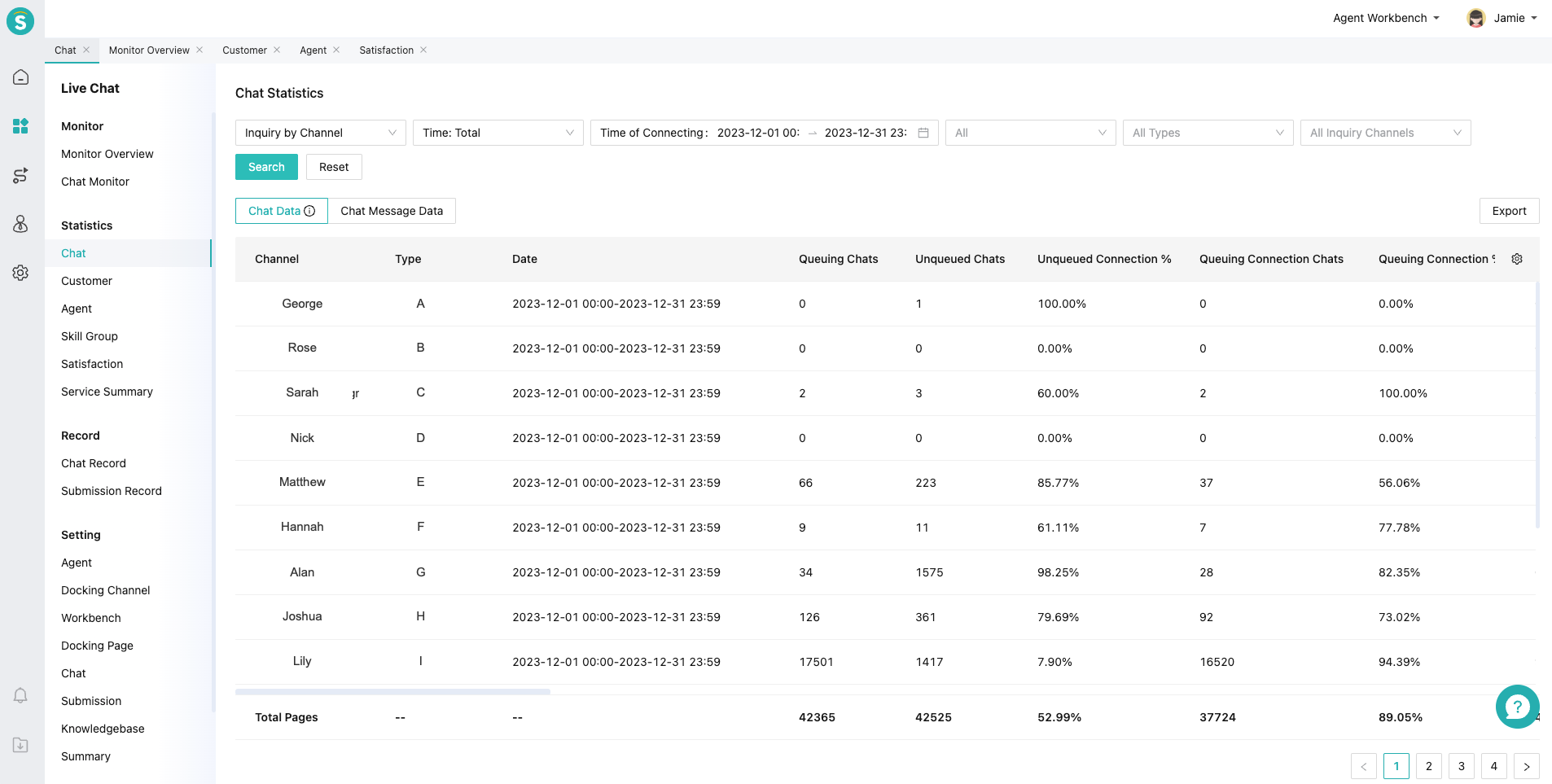
1.Chat Statistics includes two reports: Chat Data and Chat Message Data.
Chat Data is categorized into Queuing Chat Data and Inquiry Agent Chat Data.
| Type | Metrics |
|---|---|
| Queuing Chat Data | Queuing Chats, Unqueued Chats, Unqueued Connection %, Queuing Connection Chats, Queuing Connection %, Queue Leaving Chats, Queue Leaving %, Avg. Queuing Connection Time, Avg. Queue Leaving Time. |
| Inquiry Agent Chat Data | Total Chats, Independent Reception Chats, Bot Reception %, Valid Chats, Invalid Chats, Valid Chat %, Unattended Chats, Unattended Chat Rate, Avg. Reception Time, Average First Response Time, Avg. Response Time, Valid Handled Chats, Valid Reception Chat Rate, Invalid Handled Chats, Transferred Chats, Blocked Chats, Resolved Chats, Unresolved Chats, Chats Taken Over, Proactive Chats, Unlabeled Resolution Chats. |
Chat Message Data covers messages exchanged between agents and customers during agent chats.
| Type | Metrics |
|---|---|
| Agent Chat Message Data | Total Chat Messages, Customer Messages, Agent Messages, Offline Message of Agent, Average Number of Messages Per Session, Q&A %, Avg. Customer Msgs Per Chat, Avg. Agent Msgs Per Chat, Agent Character Count, Avg. Agent Msgs Chars Per Chat, Human Chat Turns, Human Chat Response Alert Rounds, Human Chat Response Alert Rate. |
2.Metric definitions and formulas are available in the report. See the location below.
# ● Always On Mode
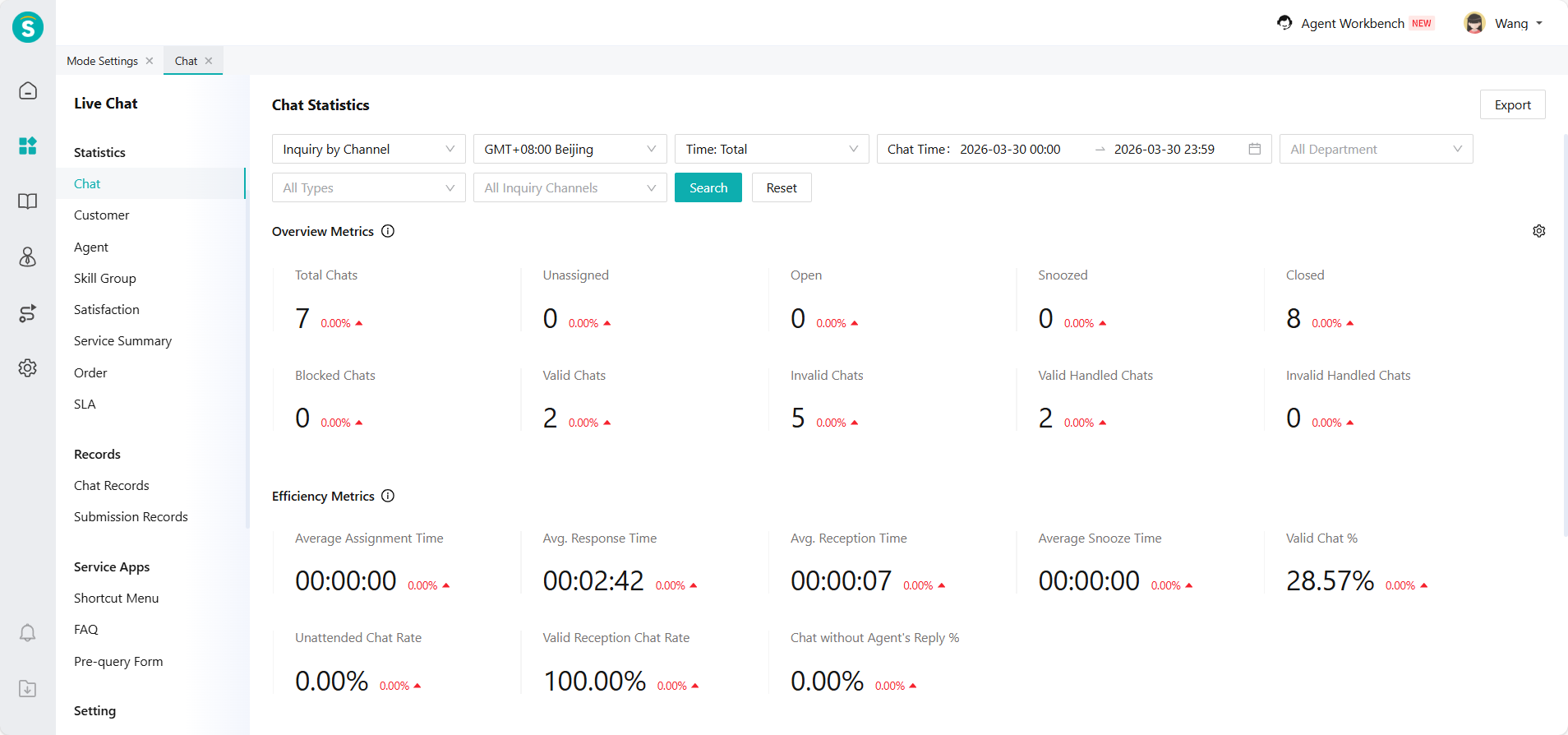
1.The top of the report page displays two summary panels: Overview Metrics and Efficiency Metrics.
| Type | Metrics |
|---|---|
| Overview Metrics | Total Chats, Unassigned, Open, Snoozed, Closed, Blocked Chats, Valid Chats, Invalid Chats, Valid Handled Chats, Invalid Handled Chats. |
| Efficiency Metrics | Average Assignment Time, Avg. Response Time, Avg. Reception Time, Average Snooze Time, Valid Chat %, Unattended Chat Rate, Valid Reception Chat Rate, Chat without Agent's Reply %. |
2.The detailed report includes two sub-reports: Chat Data and Chat Message Data.
Chat Data is categorized into Overview Metrics and Efficiency Metrics.
| Type | Metrics |
|---|---|
| Overview Metrics | Total Chats, Unassigned, Open, Snoozed, Closed, Blocked Chats, Valid Chats, Invalid Chats, Valid Handled Chats, Invalid Handled Chats. |
| Efficiency Metrics | Average Assignment Time, Avg. Response Time, Avg. Reception Time, Average Snooze Time, Valid Chat %, Unattended Chat Rate, Valid Reception Chat Rate, Chat without Agent's Reply %. |
Chat Message Data covers messages exchanged between agents and customers during agent chats.
| Type | Metrics |
|---|---|
| Agent Chat Message Data | Total Chat Messages, Customer Messages, Agent Messages, Offline Message of Agent, Average Number of Messages Per Session, Q&A %, Avg. Customer Msgs Per Chat, Avg. Agent Msgs Per Chat, Agent Character Count, Avg. Agent Msgs Chars Per Chat, Human Chat Turns, Human Chat Response Alert Rounds, Human Chat Response Alert Rate. |
3.Metric definitions and formulas are available in the report. See the location below.
# ● Other Functions
Indicator custom display: support controlling which indicators are displayed and the display order by Settings button in the report.
Report export function: support exporting by custom display fields.
Open API:
Chat Data API: support acquiring agent chat overview statistical results by calling this API. Agent Chat Statistics (opens new window)
Chat Message Data API: support acquiring chat message statistical results by calling this API. Chat Message Statistics (opens new window)
# FAQ
● Q: Why is there no bot chat data?
A: The bot chat data is viewed in the new bot admin console. Because the bot has not underdone data permission isolation, it is not reflected in the agent data report.