Alert Dashboard Guide
# Alert Dashboard Guide
——Find out and timely intervene in the alarm chat, and master the alarm reason of the day
# How to Use Alert Dashboard
Alert dashboard provides detailed alarm statistics, supporting the display of Agent, Customer Sensitive Word Alarm, 1st Response Timeout, Response Timeout, Chat Timeout Alarm, Customer Star Alarm type and reason. Meanwhile, admin can set anomaly alert rules for all agents or specific skill groups in the alert configuration. After enabling the corresponding rules, chats that meet the conditions will trigger alerts for admin in the "Alert Dashboard", helping them detect and intervene in abnormal chats promptly.
# ● Current Alert Overview
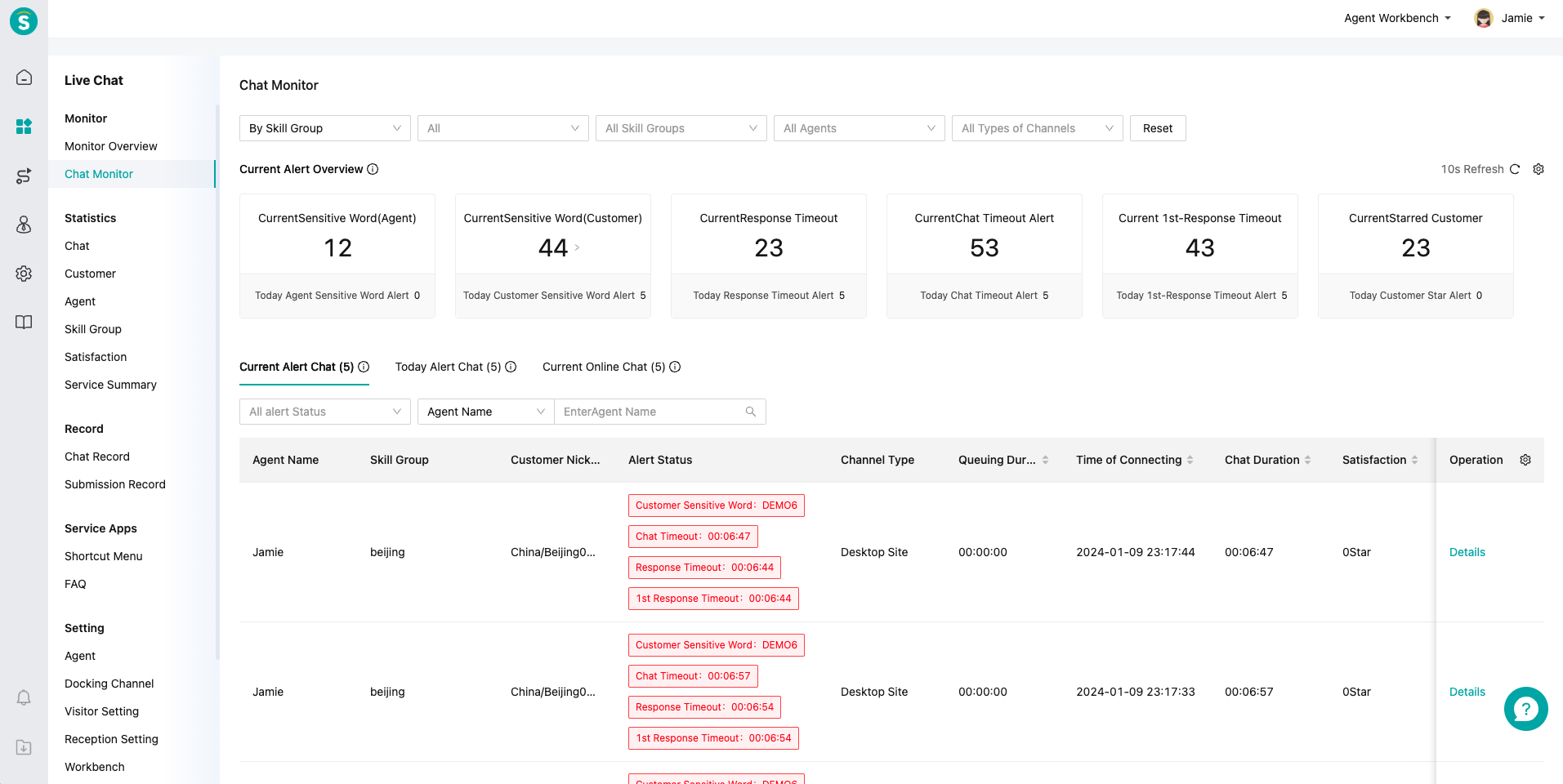
The current alarm overview displays the real-time number and today's cumulative number of various abnormal alarms, helping admin quickly understand the overall situation of current abnormal chats.
# ● Current Alert Chat
Admin can view the real-time alarm chat and alarm reason under the permission to better judge whether to intervene in the chat.
# ● Today Alert Chat
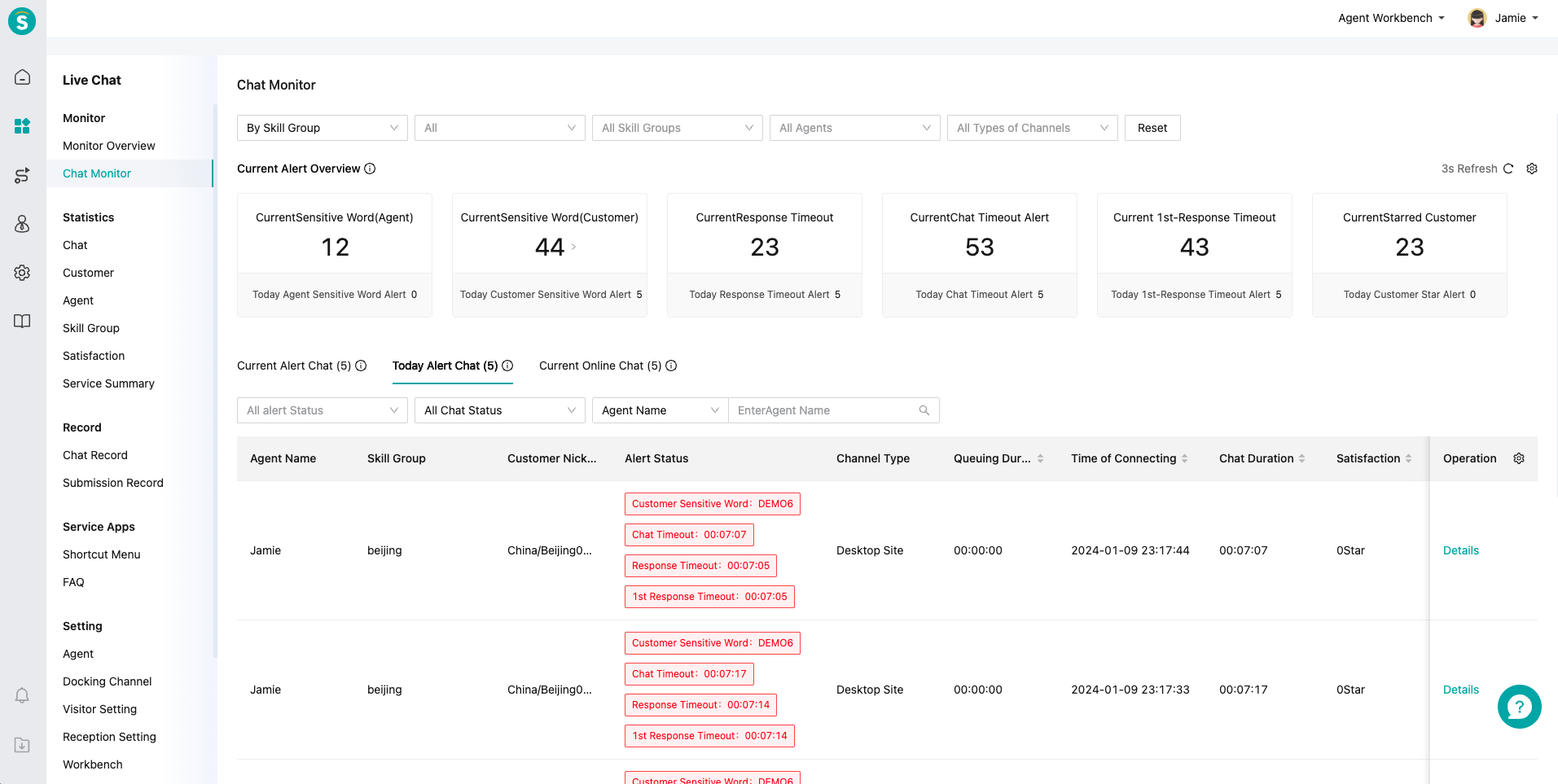
After the alarm chat ends, admin can view today's alarm chats through the "Today Alert Chat" to help the admin master the details of the alarm chat of that day.
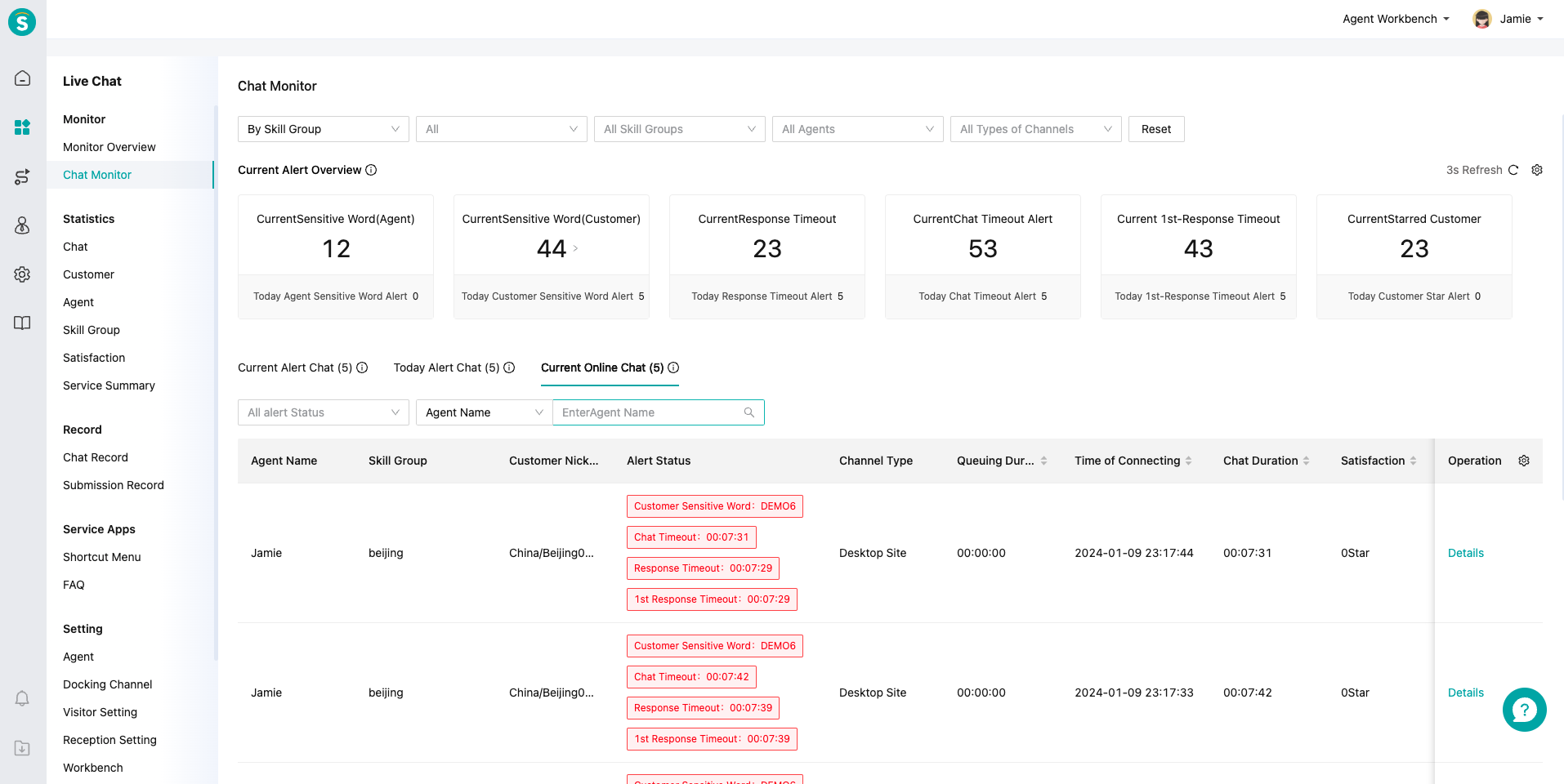
# ● Current Online Chat
Admin can view all the ongoing chats through the "Current Online Chat", monitor the status of agent replies, conduct agent training, and assist agent replies through internal chats.
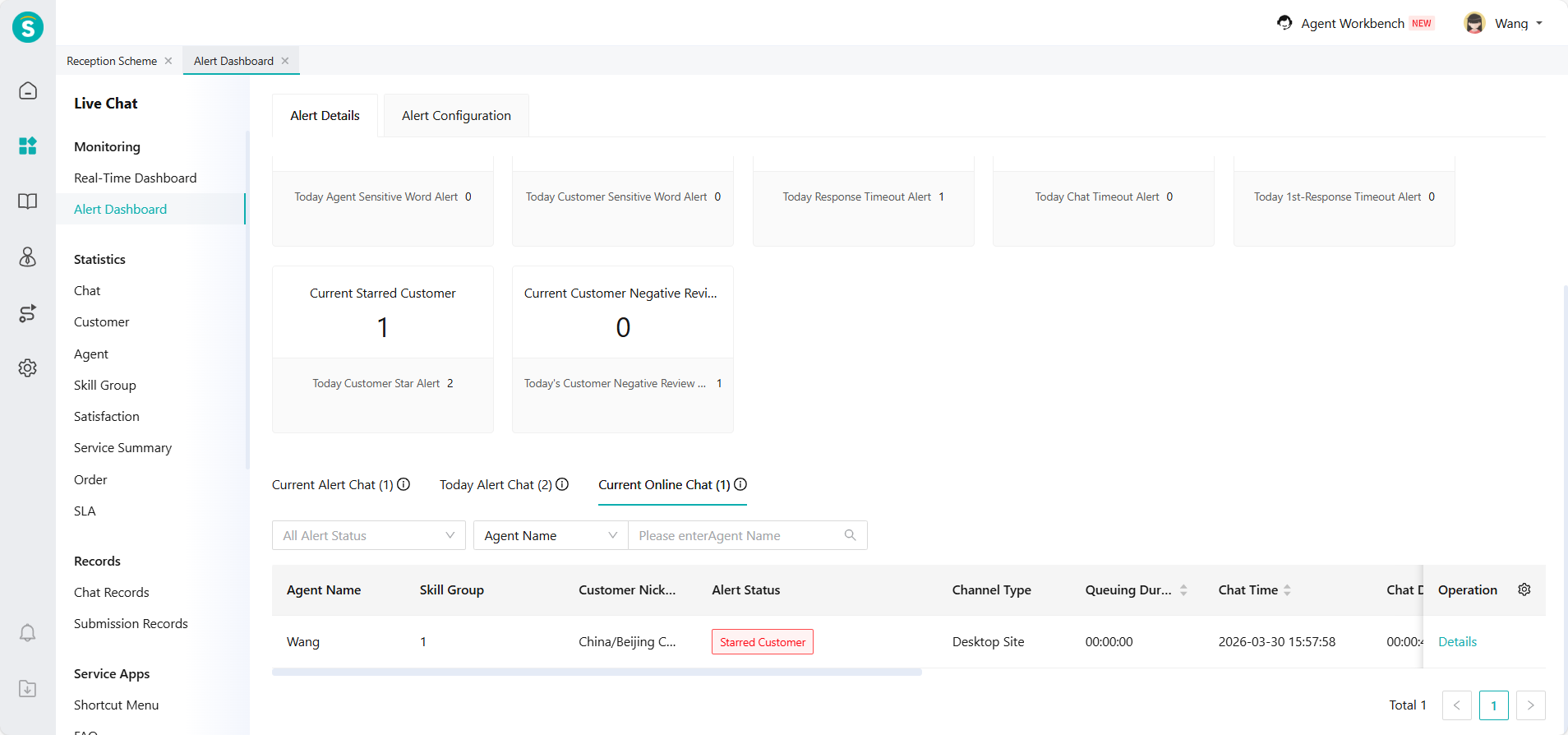
# ● Alert Configuration
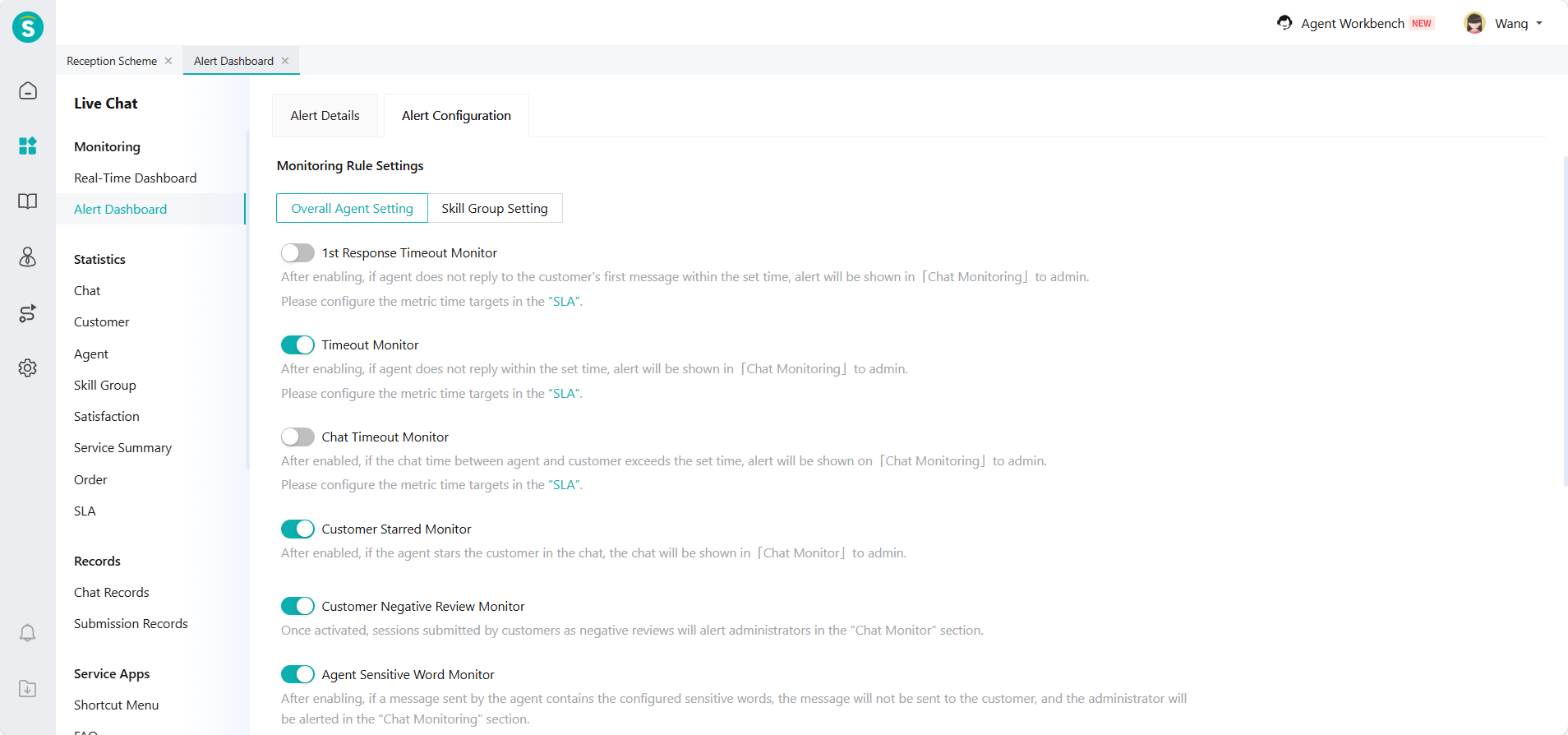
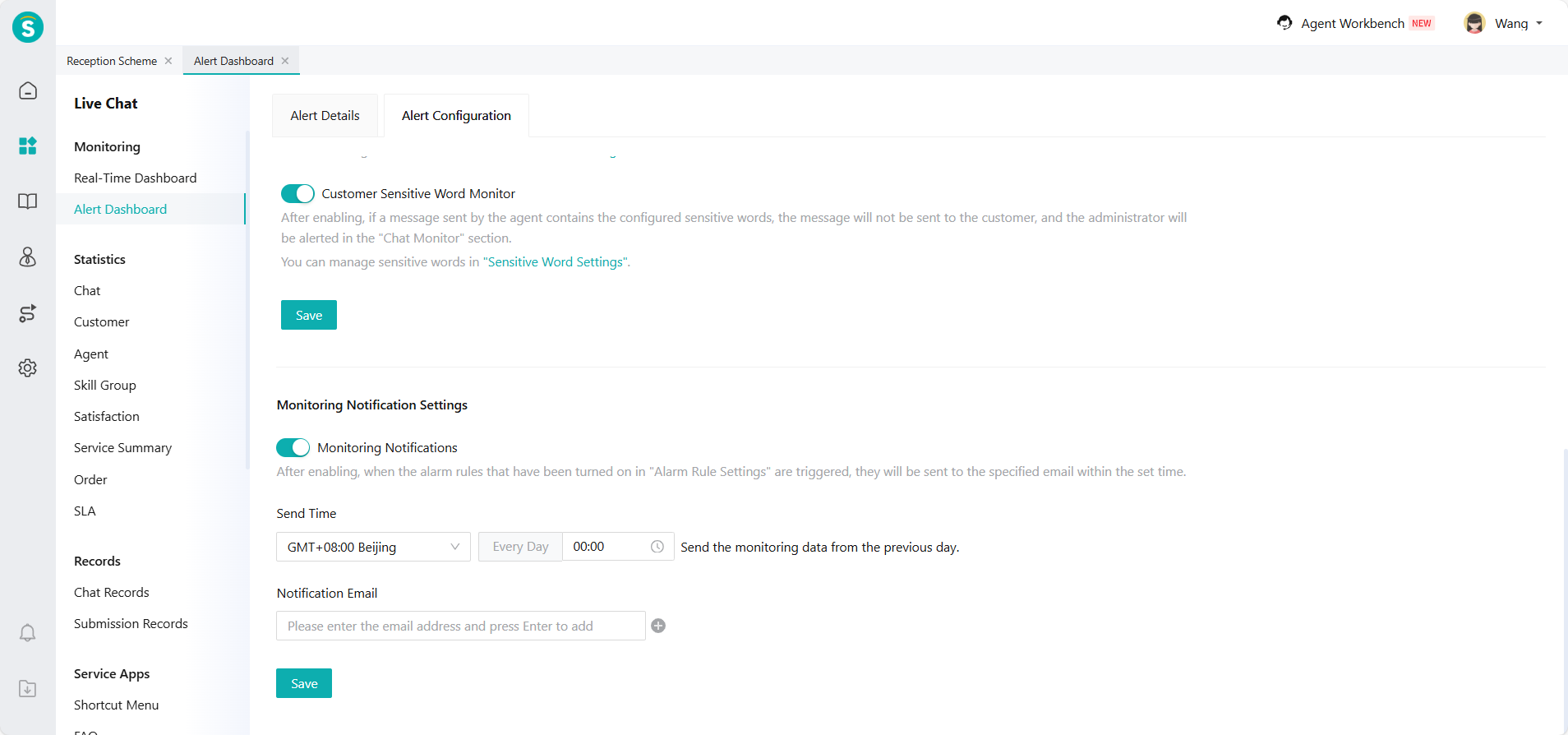
Admin can enable alarm rules such as first response timeout, timeout, chat timeout, customer starred, customer negative review, and sensitive words in Monitoring Rule Settings. The settings support configuration for overall agents or skill groups separately. Once a rule is triggered, the related chat will alert administrators in the "Alert Dashboard". Meanwhile, Email notifications can be enabled through Monitoring Notification Settings to ensure admin receive abnormal alerts promptly.