
Ticket Customer Feedback User Guide
# Ticket Customer Feedback User Guide
— An agent asks the customer to supply additional information or confirm a proposal from within the ticket. The customer submits the form page, and after review the content is written into the ticket fields.
# What Customer Feedback Is For
Handling a ticket often requires one more action from the customer: uploading a photo of an ID document, confirming a refund proposal, correcting mistyped contact details. Previously this could only be explained in plain text inside a reply, and once the customer answered, the agent had to copy the content into the ticket fields by hand — with no structure, and no way to tell whether the customer had submitted anything.
Customer Feedback closes the loop: the agent raises a request from the ticket, the customer clicks the link to open a form page and fills it in or confirms it, the agent reviews it, and the content is written into the ticket fields. The whole process has a status, a record, and a timeout.
One entry point offers two request types. Choose based on what you need the customer to do:
| Type | What the customer does | Output | Review |
|---|---|---|---|
| Information Collection | Fills in fields and uploads materials on the form page | Written into ticket fields after review is approved | Yes; an administrator can turn it off in the template |
| Proposal Confirmation | Clicks [Agree] or [Disagree] on the proposal (a reason is required for Disagree) | Only the result is recorded; nothing is written to ticket fields | No; the request completes as soon as the customer chooses |
# Before You Start
Before using this feature, complete the preparation below and get familiar with the basic rules of Customer Feedback:
# ● Prerequisites
Your edition must be Professional (China) or Professional and above (International).
An administrator must enable "Customer Feedback" in the ticket template and complete the policy configuration. Tickets using a template where it is not enabled will not show the initiation button.
Related article: Ticket Category and Ticket Template User Guide (opens new window)Raising a Customer Feedback request requires edit permission on the ticket (assigned agent, or a ticket-administrator-level role). No extra permission item needs to be granted.
Related article: Ticket Handling Settings User Guide (opens new window)The ticket must already be associated with a customer. The initiation button is unavailable when no customer is associated.
# ● Basic Rules
A single ticket can have only 1 in-progress request at a time. Once it ends (completed, cancelled, or timed out), a new one can be raised. All historical requests remain viewable.
A request follows the ticket, not the customer. If the associated customer is changed midway, links already sent remain valid.
The configuration at the moment of initiation (guidance text, fields, language, timeout duration, identity verification credential, sending channel) is frozen the instant the request is sent. Later changes to the template affect only newly raised requests.
# Configuring Customer Feedback
This section is for administrators; frontline agents can skip to the next section. Customer Feedback is enabled per ticket template and must be configured template by template:
# ● Enabling "Customer Feedback"
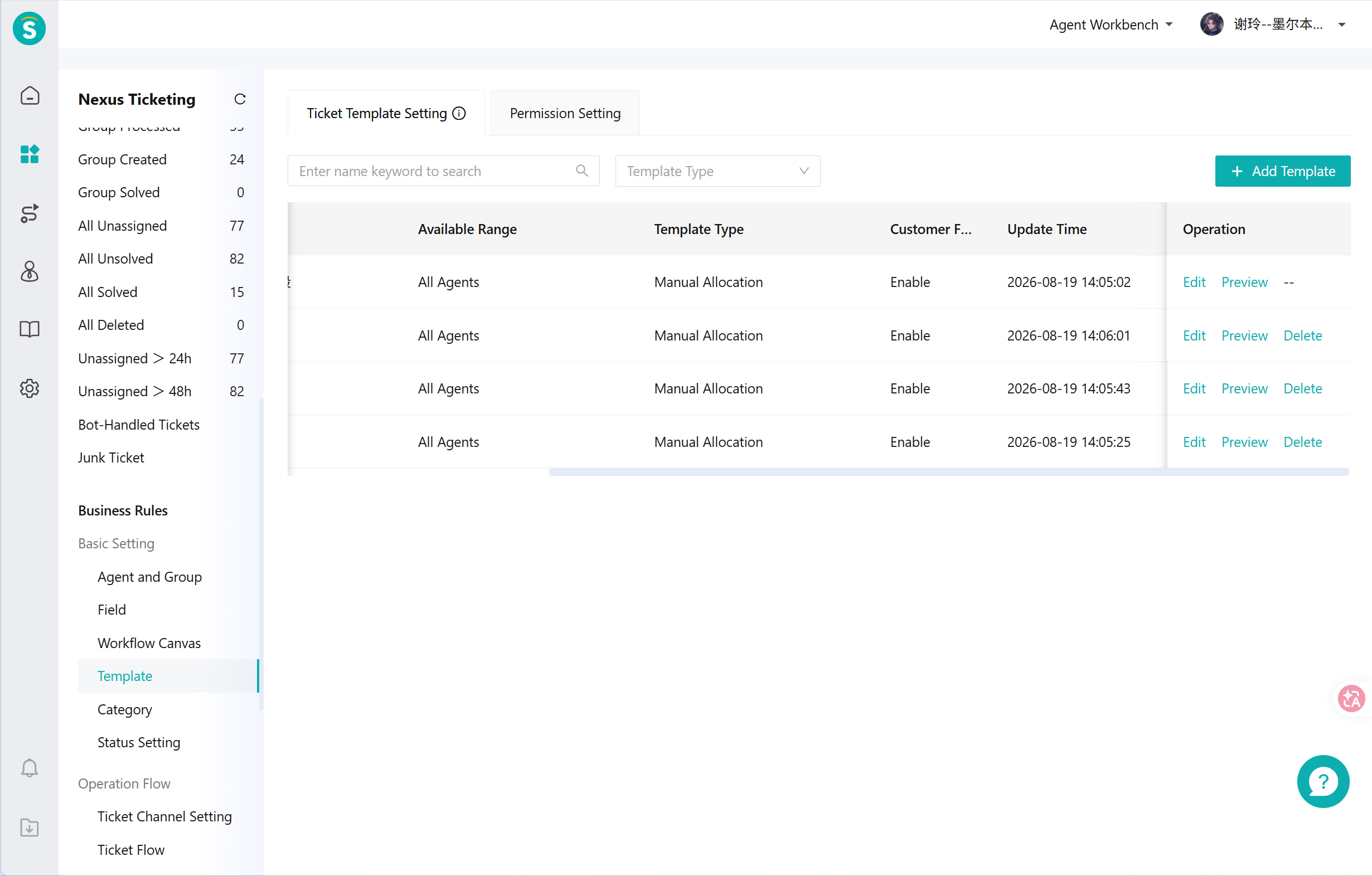
- Go to "Basic Settings - Template Settings" in the ticket channel. The "Customer Feedback" column in the list shows the enablement status of each template.
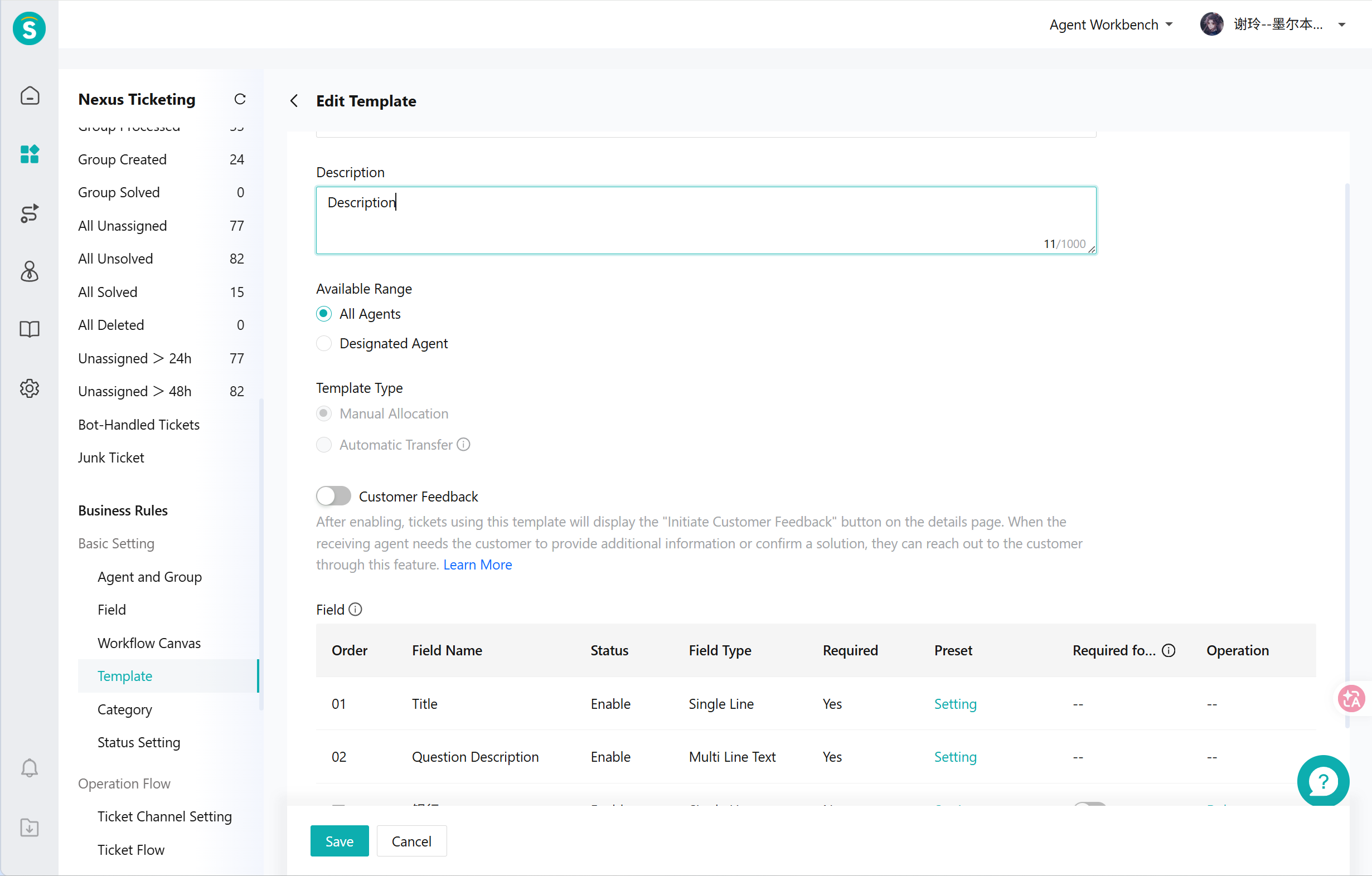
- Click the template name or [Edit] to open the template edit page, find the "Customer Feedback" toggle below "Template Type", and turn it on. The Customer Feedback policy configuration expands below. Turning the toggle off disables the feature: tickets using this template no longer show the initiation button, while requests already sent and still in progress are unaffected.
# ● Configuring the Customer Feedback Policy
The four policy items are set centrally by administrators. When raising a request, agents can only view them, not change them. Proposal Confirmation does not require a separate policy configuration.
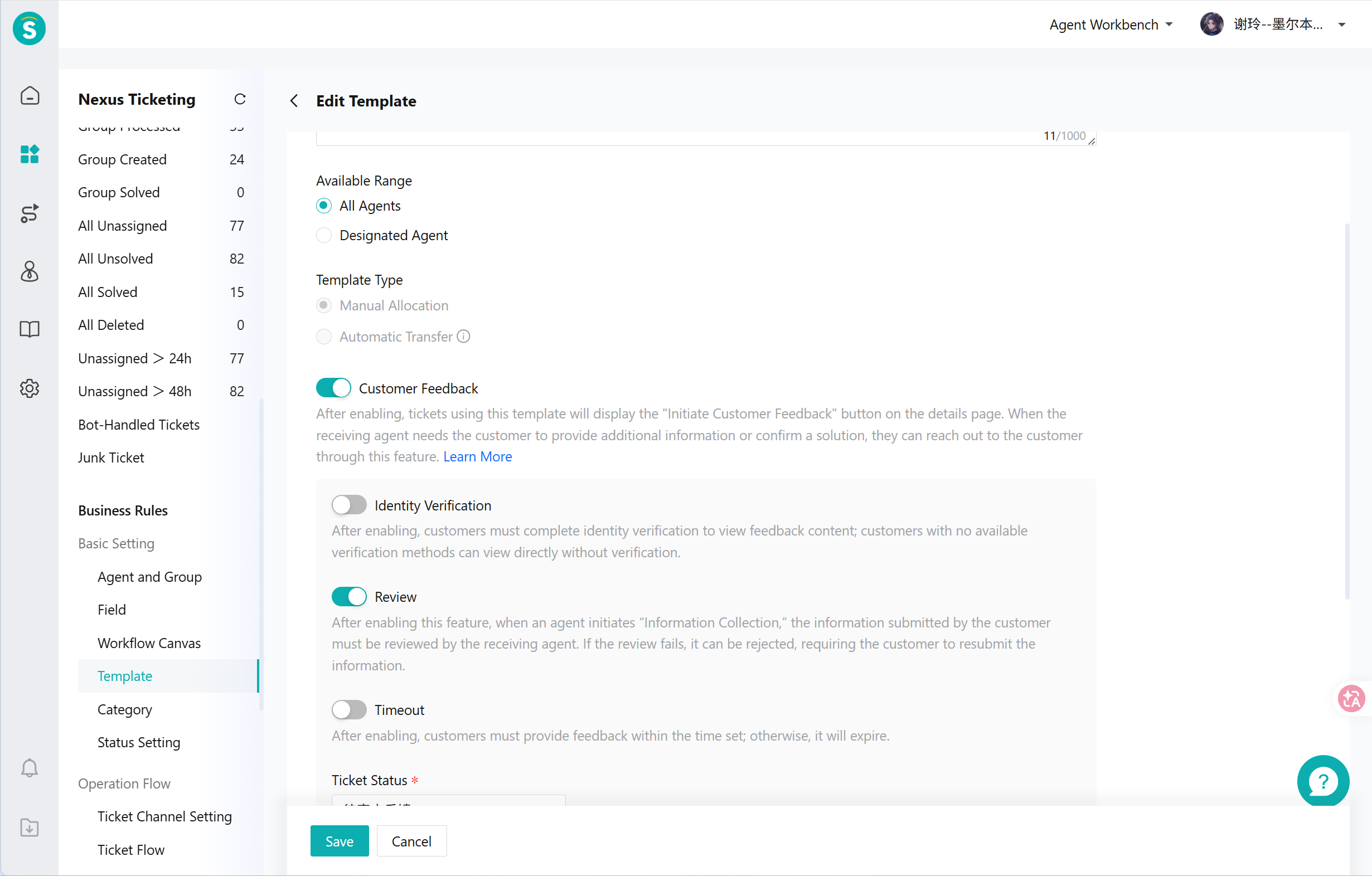
Review (applies to Information Collection only; on by default)
When enabled, content submitted by the customer must be approved by an agent before it is written into the ticket fields. The reviewer is the ticket's current assigned agent; after a ticket transfer the review responsibility automatically follows the new assigned agent, and ticket-administrator-level roles can also review on their behalf. When disabled, the customer's submission is written into the ticket fields immediately and there is no rejection step — anything the customer fills in incorrectly lands directly in the fields and can only be corrected manually by an agent.
Identity Verification (applies to both types; off by default)
When enabled, the customer must enter a verification code before opening the link. For the SMS or email channel, the code is sent to the phone number or email address used by that channel. For the ticket reply channel, the page lists all of the customer's phone numbers and email addresses, and the customer chooses one to receive the code. If the customer has neither a phone number nor an email address, this send automatically skips verification and goes out directly rather than being interrupted.
Timeout (applies to both types; off by default)
Off by default, meaning the request waits for the customer indefinitely. When enabled, the number of days defaults to 3 and can be changed to anywhere from 1 to 30. The clock starts from the first successful send, stops when the customer submits, and restarts after a rejection and resend.
Ticket Status (applies to both types; required)
Choose one status from your company's existing pending-response or paused statuses. Which category a status belongs to can be checked under "Basic Settings - Status Settings". A pending-response status is recommended: statuses in that category pause SLA timing while waiting for the customer, and timing resumes automatically once the customer submits.
# ● Setting the Disclosure Scope of Fields
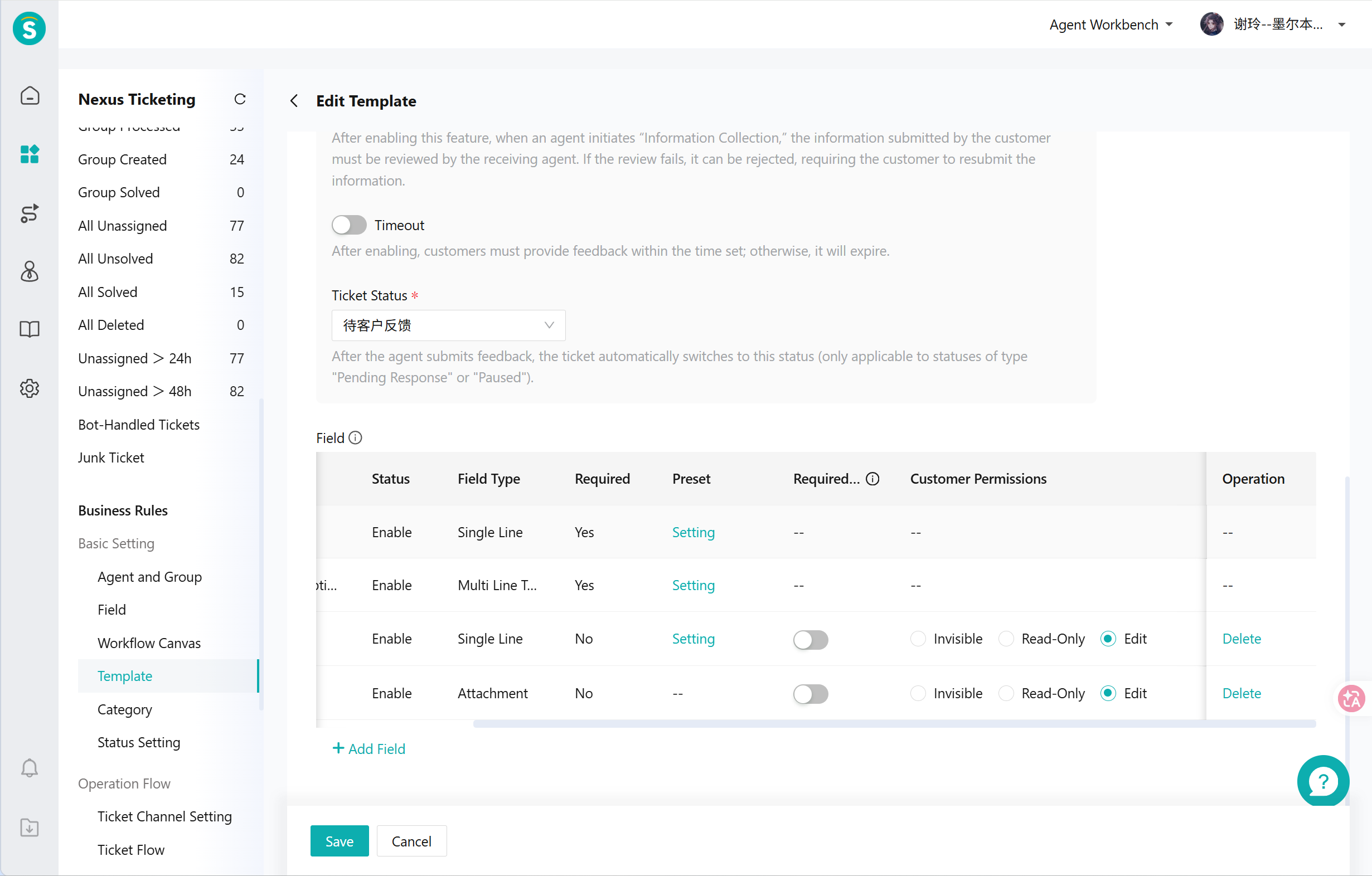
In the "Customer Permission" column of the template field table, choose a disclosure scope for each field. The default is "Not disclosed".
| Value | Meaning |
|---|---|
| Invisible (default) | The customer does not see this field on the form page |
| Read-only | Shown on the form page as a read-only item; also the fields available for display in Proposal Confirmation |
| Editable | The customer can fill it in or upload to it; written back to the ticket field after review is approved |
Four points to note when configuring:
The template must contain at least 1 field the customer can fill in before an agent can raise an "Information Collection" request. If every field is set to "Read-only", the agent will find "Information Collection" unselectable when opening the initiation dialog.
To let customers upload ID photos, receipts, or other materials, the template must include an attachment-type field set to "Editable". Setting a text field to editable will not allow the customer to upload files.
This marking applies only to the current template; it does not affect the shared field library in the Admin Center or any other template. System built-in fields (Title, Problem Description, etc.) do not have this column, and combined-form field types cannot be disclosed to customers.
Whether a field is required on the customer's form page follows the required setting in your template by default, and the agent can adjust it when raising the request.
Changing these markings does not affect in-progress requests that have already been sent. Existing templates must be configured one by one; batch enablement and copying the configuration from another template are not currently supported.
# ● Enabling the Notification for Customer Submissions
Go to "Business Process - Ticket Handling Settings - Notifications - Notification Conditions" in the ticket channel and select "When a customer submits feedback" (selected by default). It is triggered by a customer submission in Information Collection (including resubmission after a rejection), and when a customer chooses Agree or Disagree in Proposal Confirmation.
The notification method and notification scope share the same settings as the other notification conditions on that page (by default the system notifies only the assigned agent; if your company has adjusted this before, the adjusted scope applies). Setting a separate scope for this notification alone is not supported. No notification is sent when a request times out — see the "Ending a Request" section for how to keep track of requests approaching their deadline.
# Raising a Customer Feedback Request
This section and everything after it is for frontline agents. Requests are raised from the ticket detail page:
# ● Where to Start
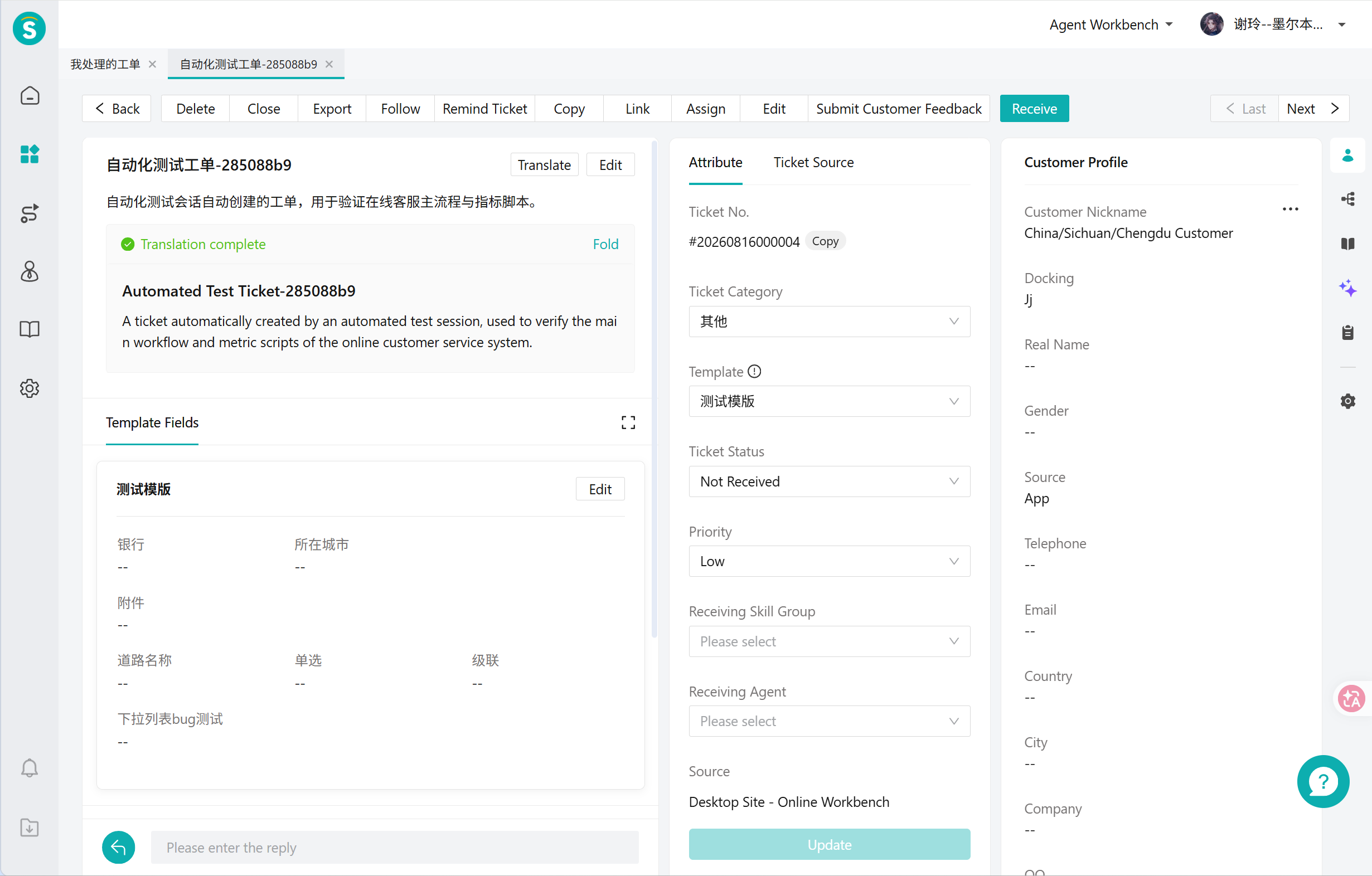
Open the ticket detail page and click [Raise Customer Feedback] in the top action bar. Button states: not shown means the template used by this ticket does not have Customer Feedback enabled — contact your administrator; greyed out means the ticket is not yet associated with a customer, or it already has an in-progress request (a new one can be raised only after that one ends).
# ● Raising an Information Collection Request
Select "Information Collection" in the dialog and fill it in as described below.
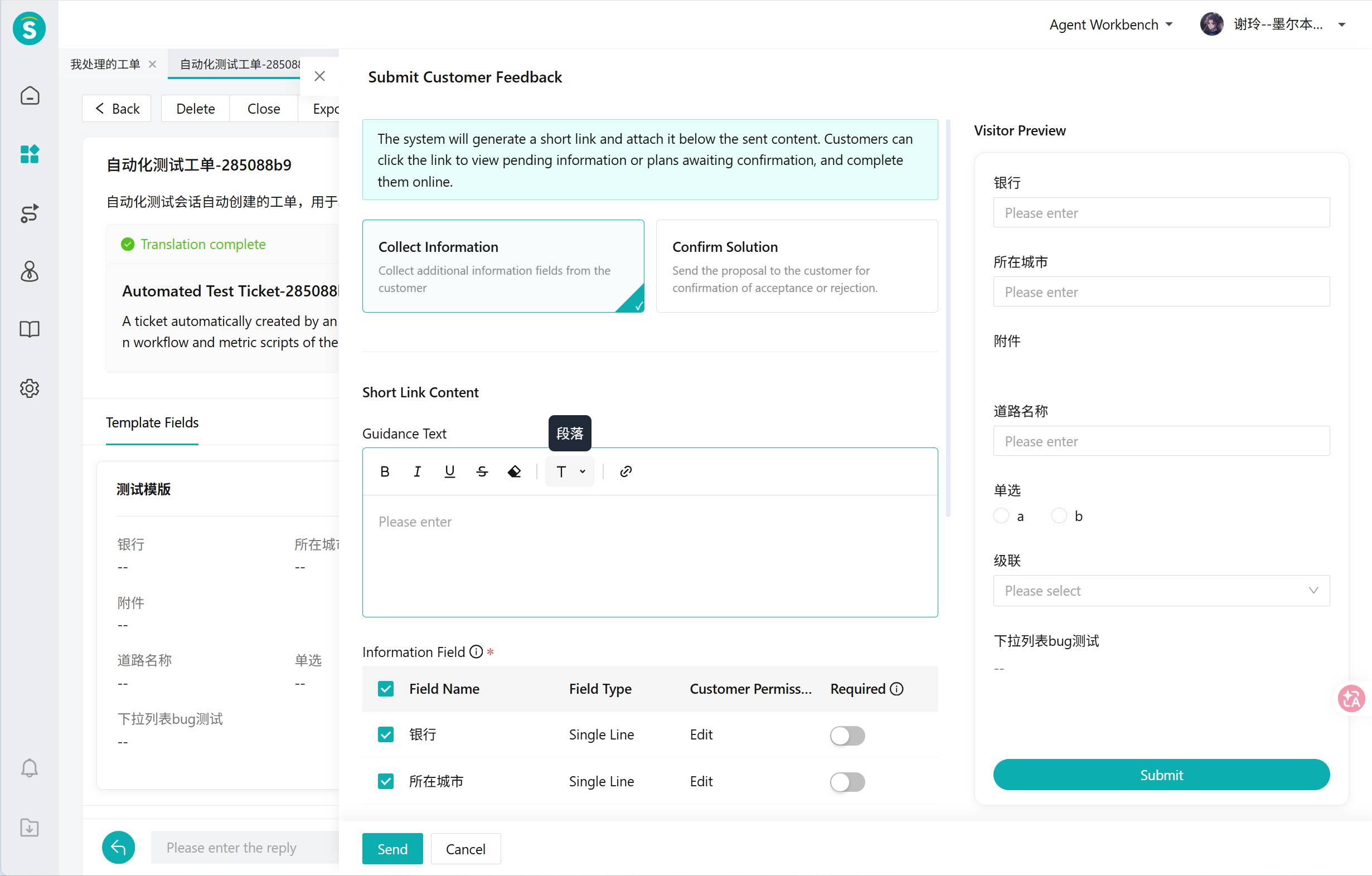
| Item | Required | Description |
|---|---|---|
| Guidance text | No | Rich text, up to 1,000 English characters. Stating clearly what the customer should do and when they will get an answer improves the completion rate |
| Form language | Yes | Defaults to the language in the customer profile. If the customer profile has no language, or the language cannot be recognized, Chinese is used in China and English internationally; if the customer's language is recognized but not among the available options, it falls back to English. The languages in the dropdown are configured by the administrator in the language settings of the customer self-service page (Ticket Plugin) — contact your administrator to add a language |
| Fields | At least 1 | Pre-filled according to the template configuration: fields the customer can fill in are all selected by default, and fields visible to the customer are brought in as read-only items. You can remove fields and change whether they are required, but you cannot add fields that are not in the template |
| Sending channel | Yes | See "Choosing a Sending Channel" below |
| Policy summary | Read-only | Shows the review, identity verification, timeout, and waiting status in effect for this request |
Note: Below the field list, an explanation appears for fields that were filtered out (not marked as disclosed in the template, or ones you do not have view permission for). If a field you need is not in the list, ask your administrator to adjust that field's disclosure scope in the template.
# ● Raising a Proposal Confirmation Request
Select "Proposal Confirmation" in the dialog, write the proposal description (rich text, up to 1,000 English characters, shown at the top of the form page), and manually select the fields to display alongside it from the fields visible to the customer (all read-only; nothing is pre-selected).
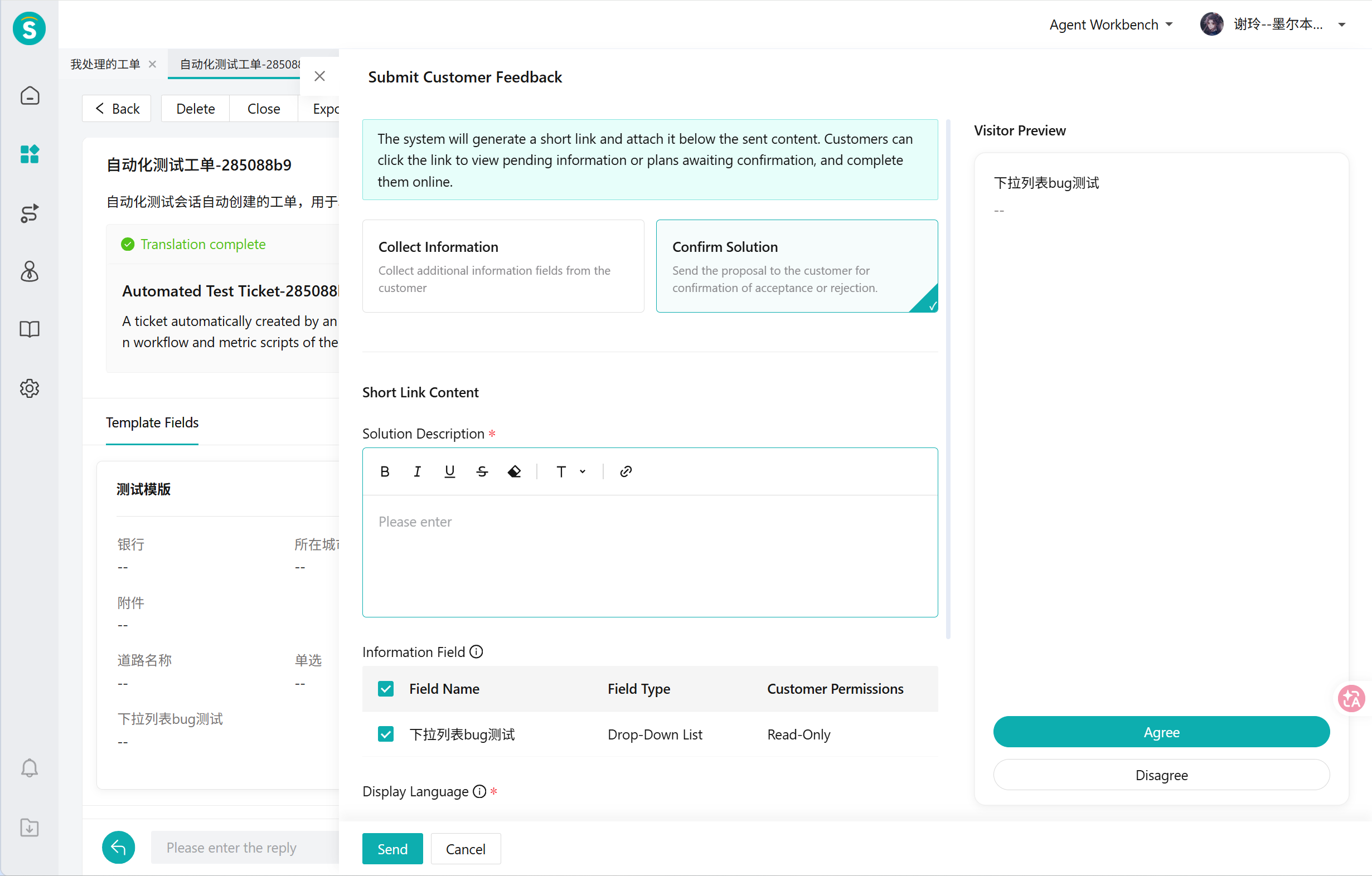
On the form page the customer chooses [Agree] or [Disagree] using buttons; choosing Disagree requires a reason (up to 500 English characters). Proposal Confirmation has no review and no rejection — once the customer makes a choice the request is completed and cannot be undone. If the customer chose the wrong option or entered the wrong reason, raise a new Proposal Confirmation request.
# ● Choosing a Sending Channel
The available channels are read from the methods enabled in the ticket's "Reply Method Management" (configured by administrators; agents can only select, not add). Only one channel can be selected per request, and if the customer has several phone numbers or email addresses, any one of them can be chosen. Once a channel is selected, the editing area expands in place. Nothing is pre-filled; required items are validated before sending and the cursor is automatically moved to any field left blank.
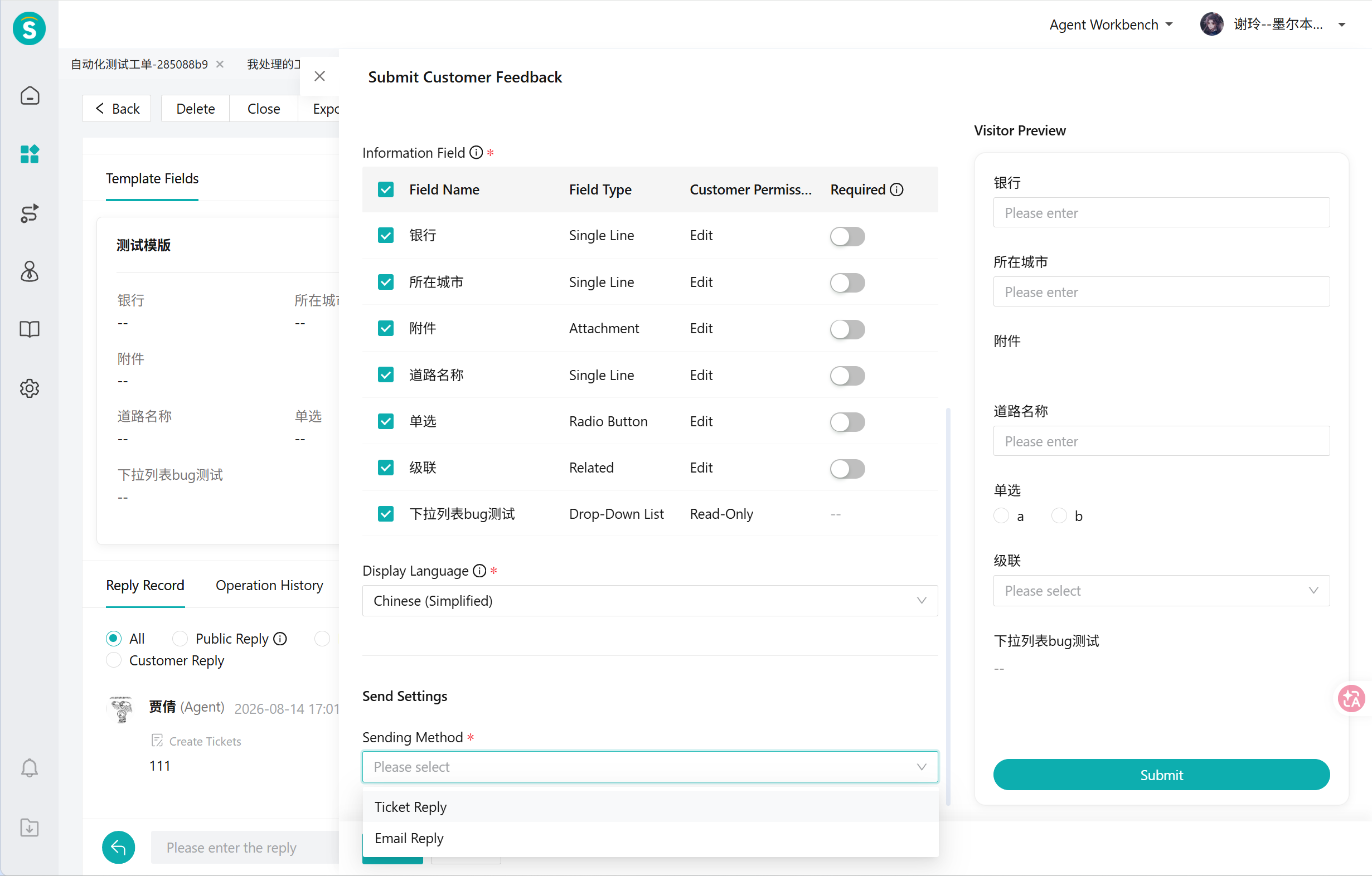
| Channel | What to fill in | How the link reaches the customer | Multiple contact details |
|---|---|---|---|
| Ticket reply | Body of the public reply (required) | A short link to the form is automatically appended below the body, on its own line | -- |
| Sender mailbox, recipient email, subject (up to 100 characters), content (rich text, up to 3,000 characters) | A short link to the form is automatically appended below the body, on its own line | Choose from a dropdown of mailboxes | |
| SMS (domestic numbers only) | Recipient number, SMS template, message count and character count | The link variable in the SMS template is rendered as a short link | Choose from a dropdown of numbers |
Points to note when choosing a channel: a ticket reply, once sent, becomes a public reply in the ticket, and the customer needs to view it on the self-service page (Ticket Plugin). A customer without access to that entry point cannot see the reply — use email or SMS instead. The short link to the form is not clickable on the agent side; only the link the customer receives in the message is the full, openable one.
# ● What Changes After Sending
Once the send succeeds, a "Customer Feedback" tab appears on the ticket detail page showing the current request's status, waiting time, remaining time before timeout, and policy summary. At the same time, the ticket status automatically switches to the waiting status configured by the administrator and the SLA pauses; as soon as the customer submits, it switches back to the status it had before the request was raised and SLA timing resumes (see "Customer Feedback Statuses" at the end of this article for the meaning of the status badges).
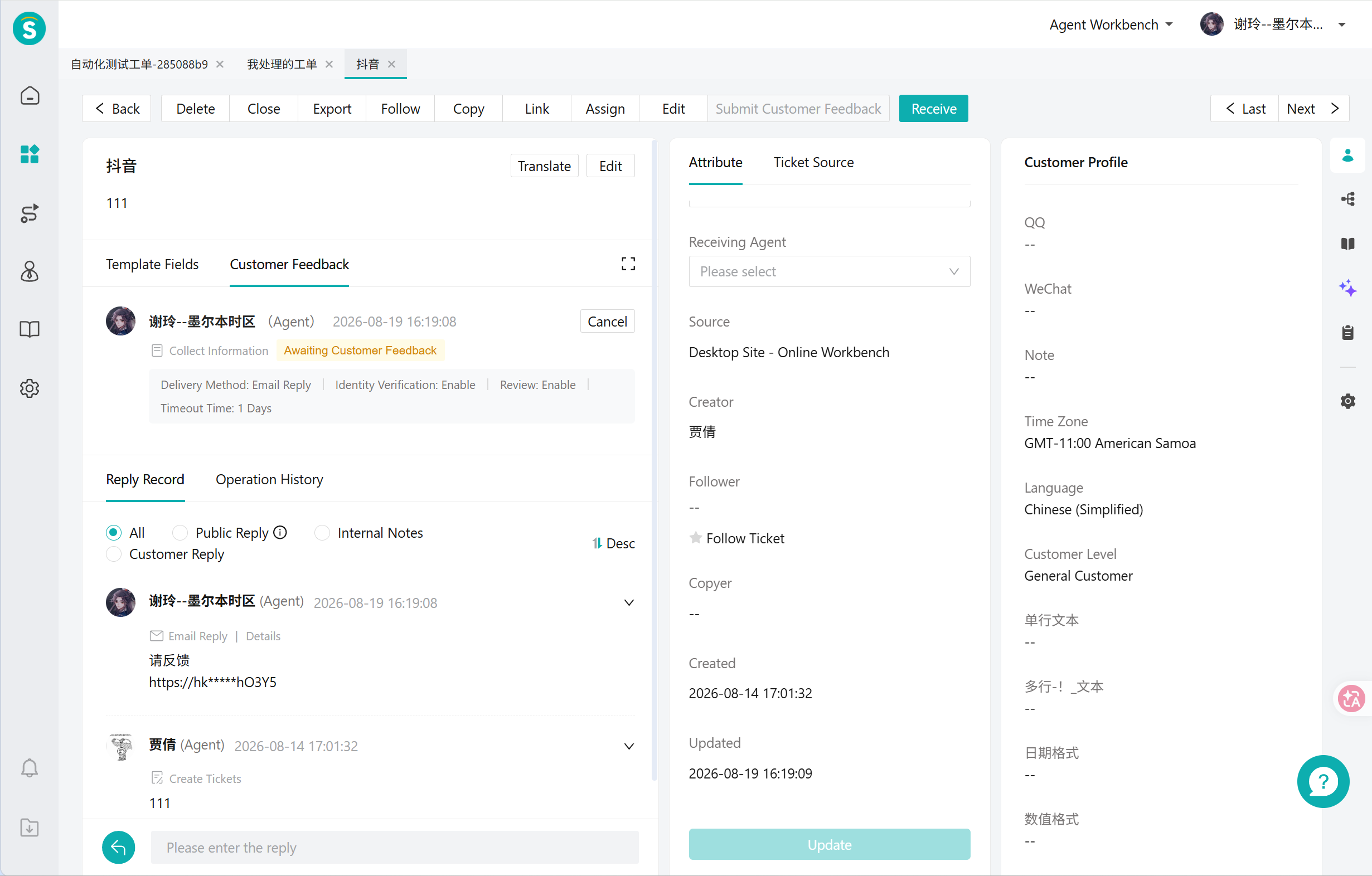
After a successful send, you cannot resend manually and cannot change the channel. There are only two cases in which a message is sent again: clicking [Resend] when a "Send failed" mark appears on the card, and the one-step resend when a submission is rejected during review. Therefore:
- To change the channel or modify the content: cancel the current request and raise a new one.
- The customer is not submitting and you want to send a reminder: repeated sending of the same request is not supported. Send a separate ordinary ticket reply or email to remind the customer; the link is still valid.
- The card shows the send succeeded, but the customer says they did not receive it (SMS blocked, email in the spam folder): cancel the current request and raise a new one on a different channel.
# The Customer Fills In the Form
The link the customer clicks opens a standalone form page (not inside the workspace), rendered on PC, H5, and SDK.
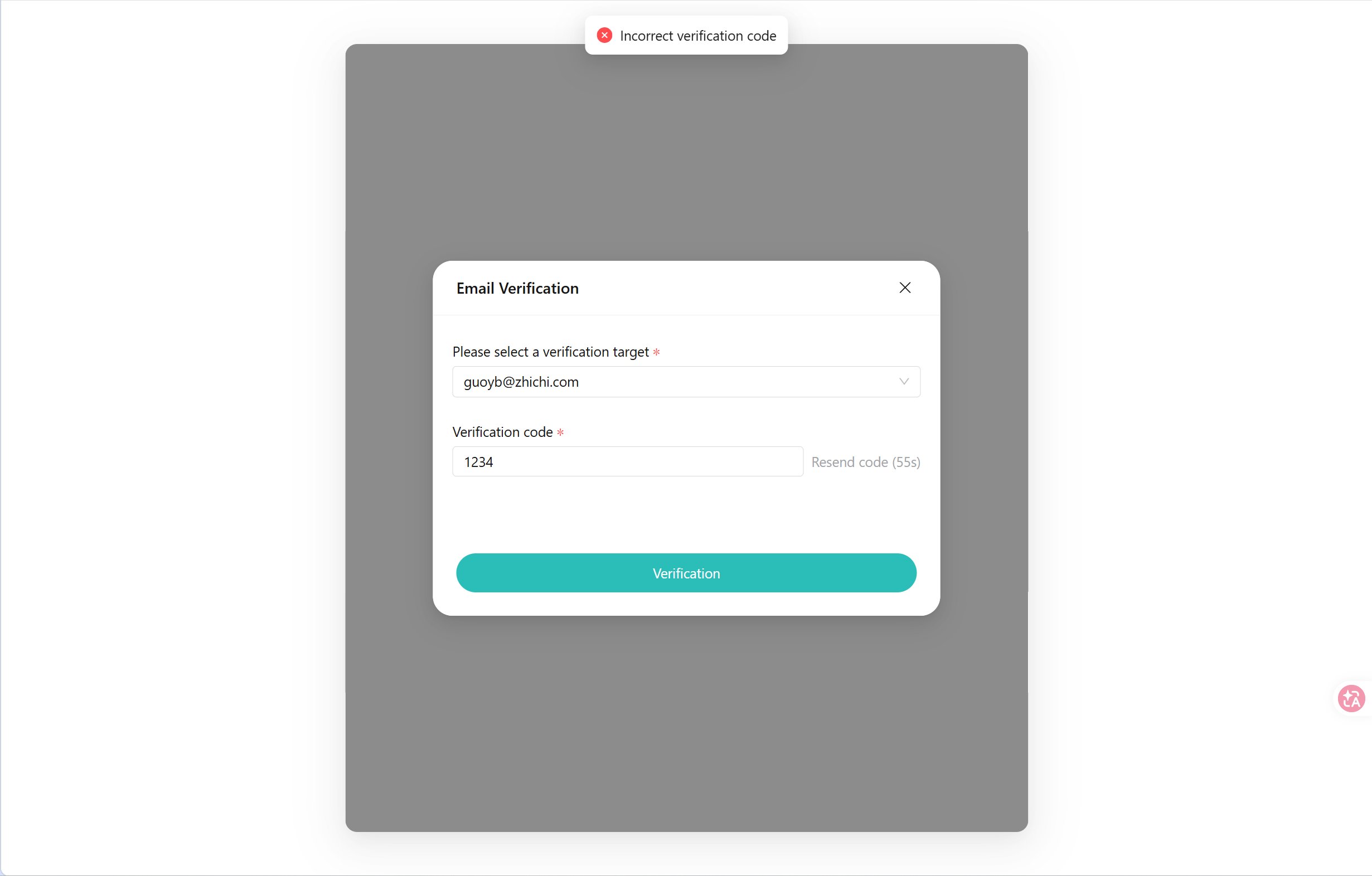
- When identity verification is enabled in the template, the customer must enter a verification code first. If the customer is locked out for entering the wrong code too many times, ask them to try again later.
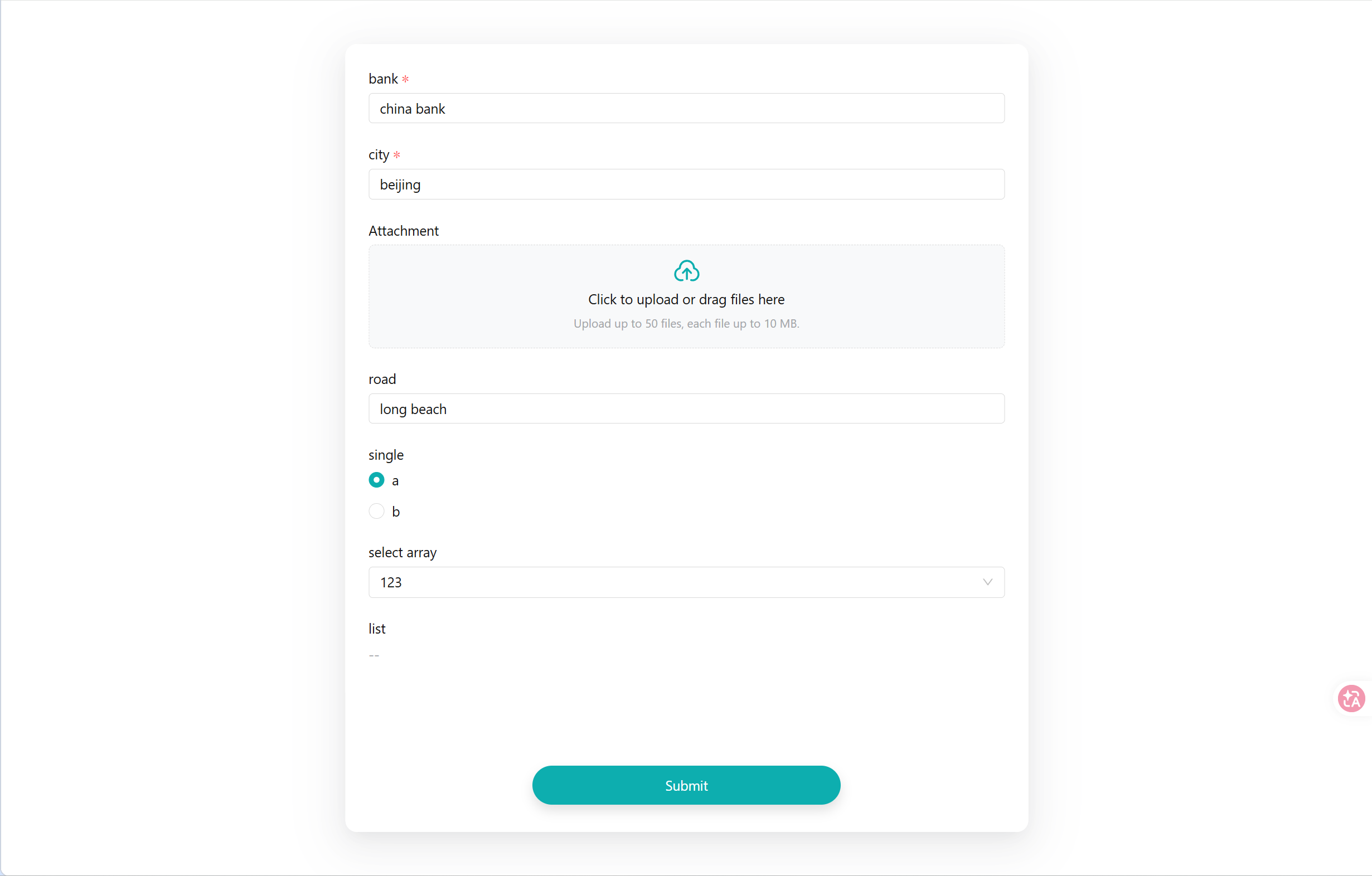
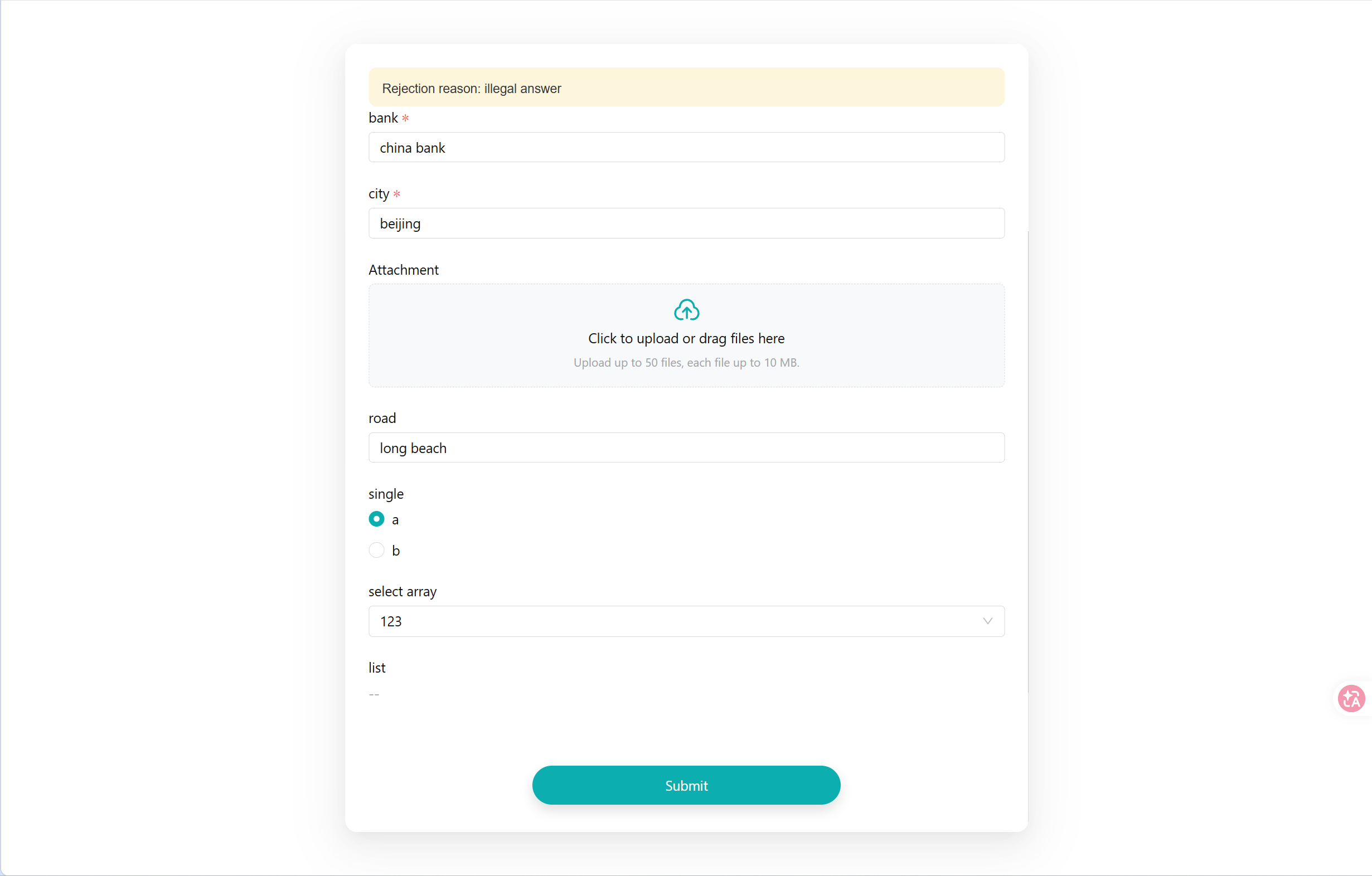
- After verification, the form opens: grey-background items are read-only, input boxes are fields that can be filled in, required items are marked with a red asterisk, and leaving them blank blocks submission.
After submission the form becomes read-only and the customer can no longer change it; it can only be edited and resubmitted after an agent rejects it.
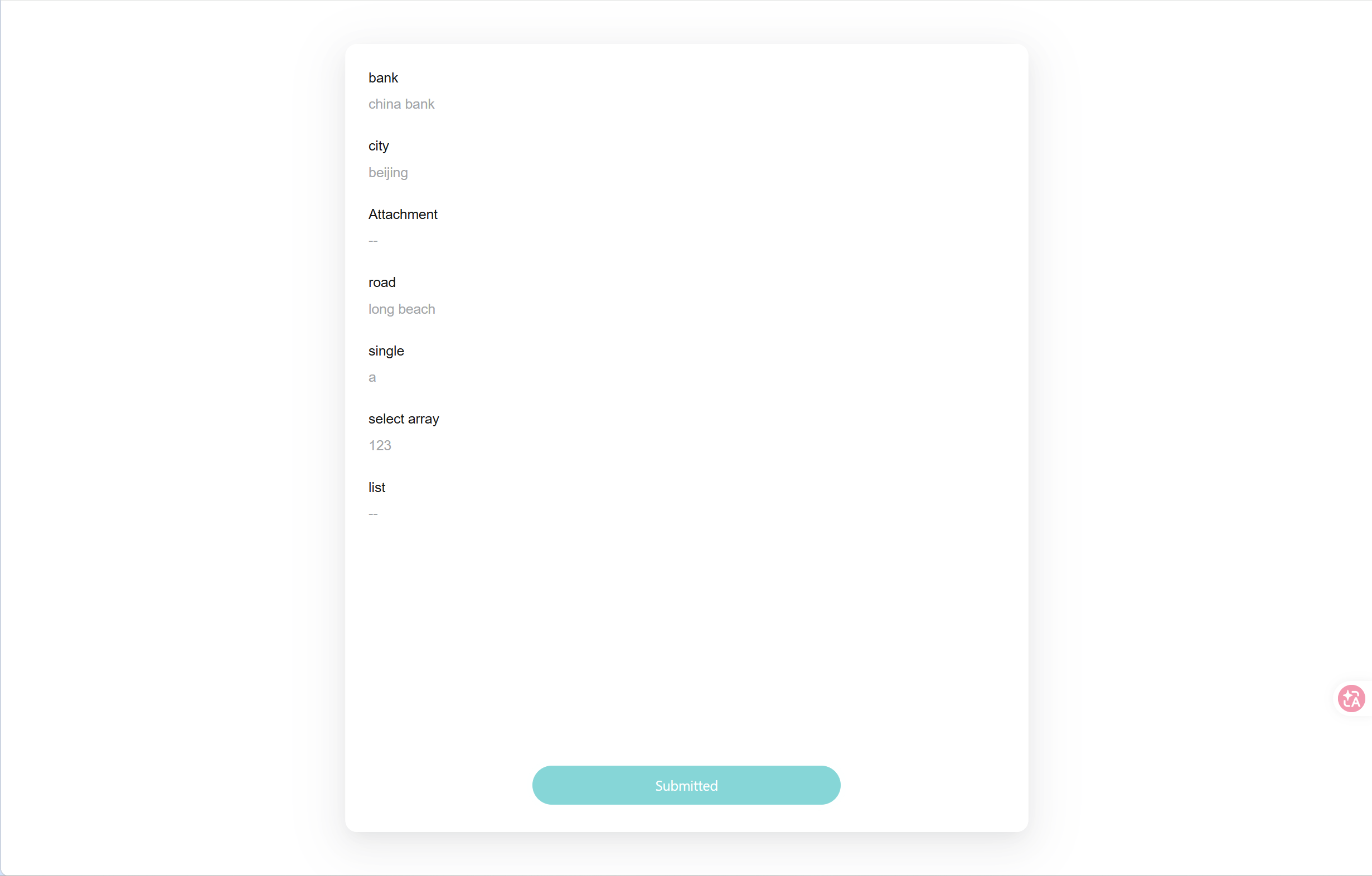
Figure 13: Submission completed on the customer side The Proposal Confirmation form page shows the proposal description and fields as read-only, with [Agree] and [Disagree] buttons at the bottom; choosing Disagree requires a reason before it can be submitted.
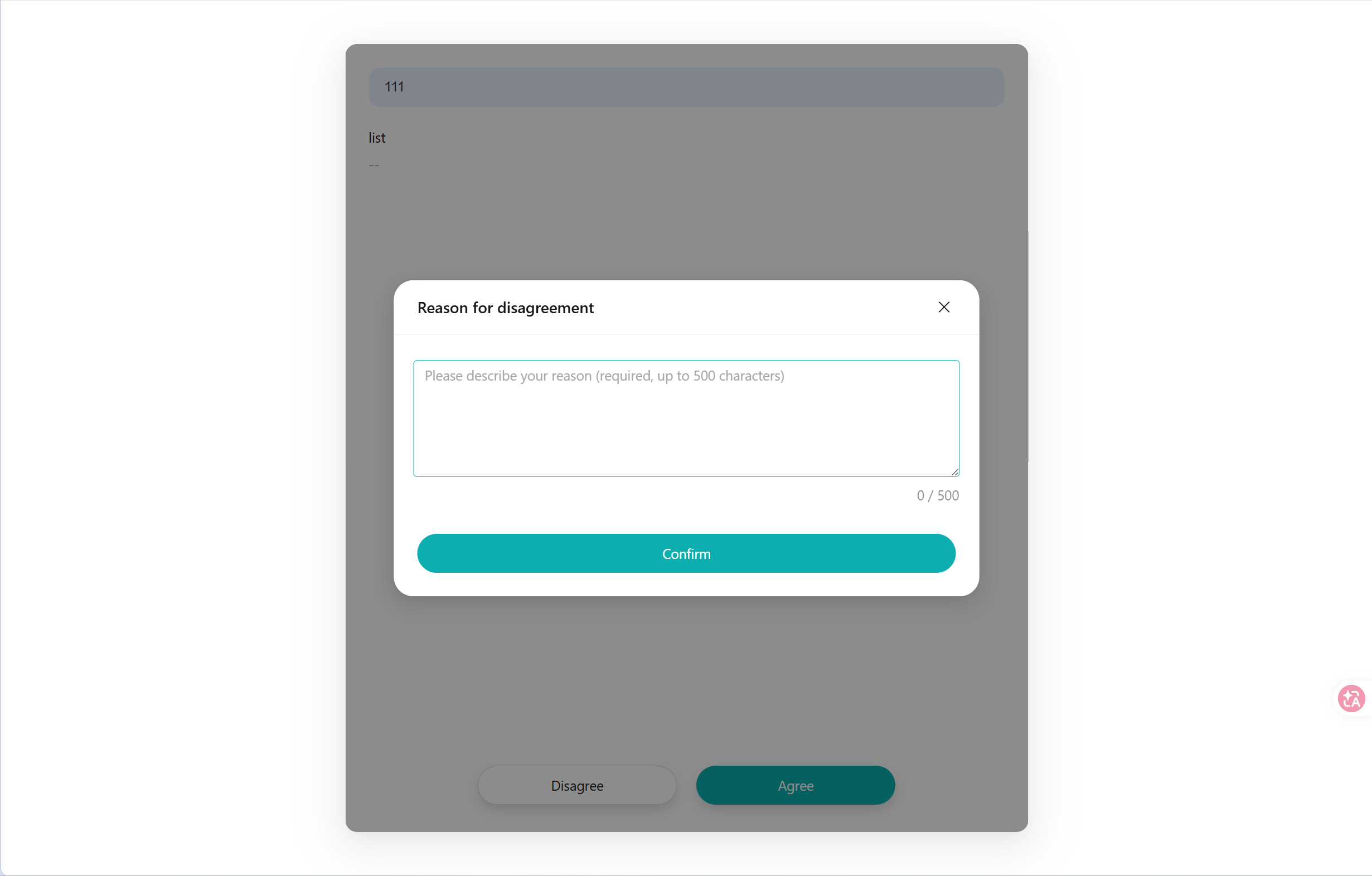
Figure 14: Proposal Confirmation on the customer side
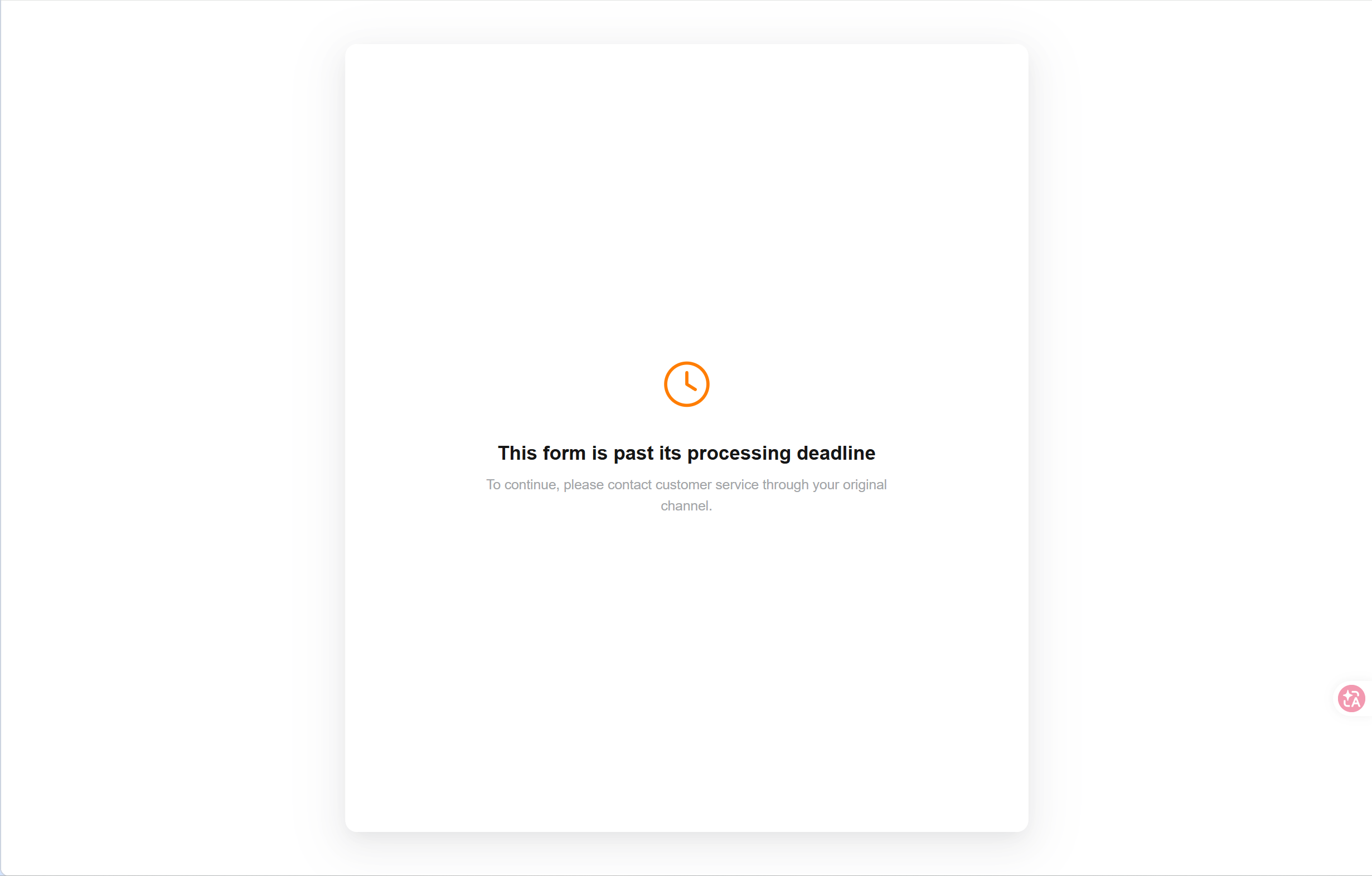
Three things agents need to know: the link stays valid for the whole time the request is in progress, and every send uses the same link; after the request is completed, cancelled, or timed out the link still opens, but the page shows "This form is no longer available"; the form content cannot be changed after sending — the only way to adjust it is to cancel and raise a new request.
# Reviewing What the Customer Submitted
Only "Information Collection" has a review step. The result of a Proposal Confirmation takes effect as soon as the customer chooses, and can be viewed directly in the "Customer Feedback" tab.
After the customer submits, the "Customer Feedback" tab on the ticket detail page turns into a review card that displays the submitted content directly, with [Approve] and [Reject] at the bottom of the card. Review permission belongs to the ticket's current assigned agent and ticket-administrator-level roles (super administrator, ticket administrator, omnichannel administrator); after a ticket transfer, the new assigned agent reviews it. Once the customer submits, the ticket status switches back to the status it had before the request was raised and SLA timing resumes, so any delay while the submission awaits review counts toward your handling time. 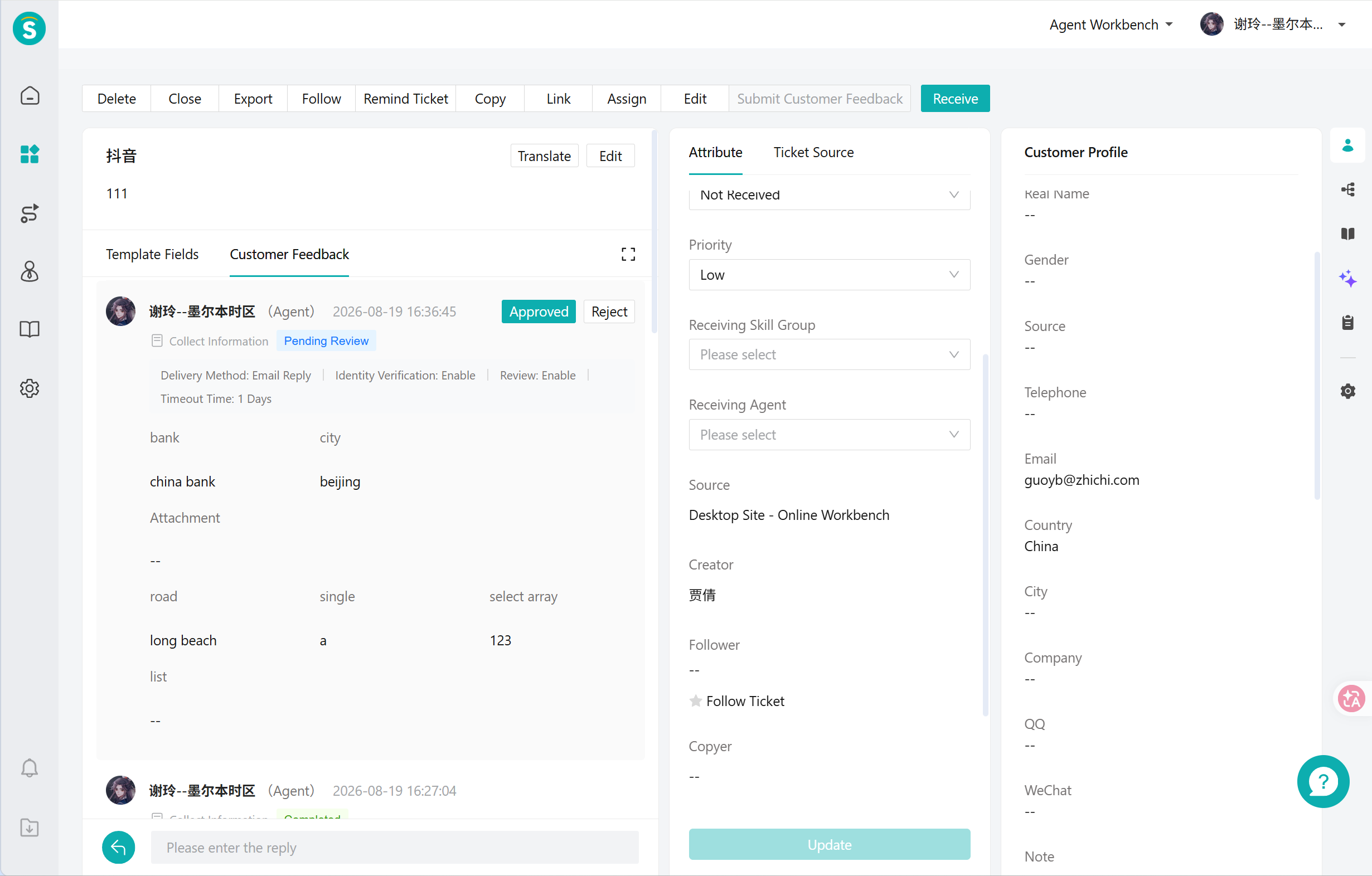
# ● Approving
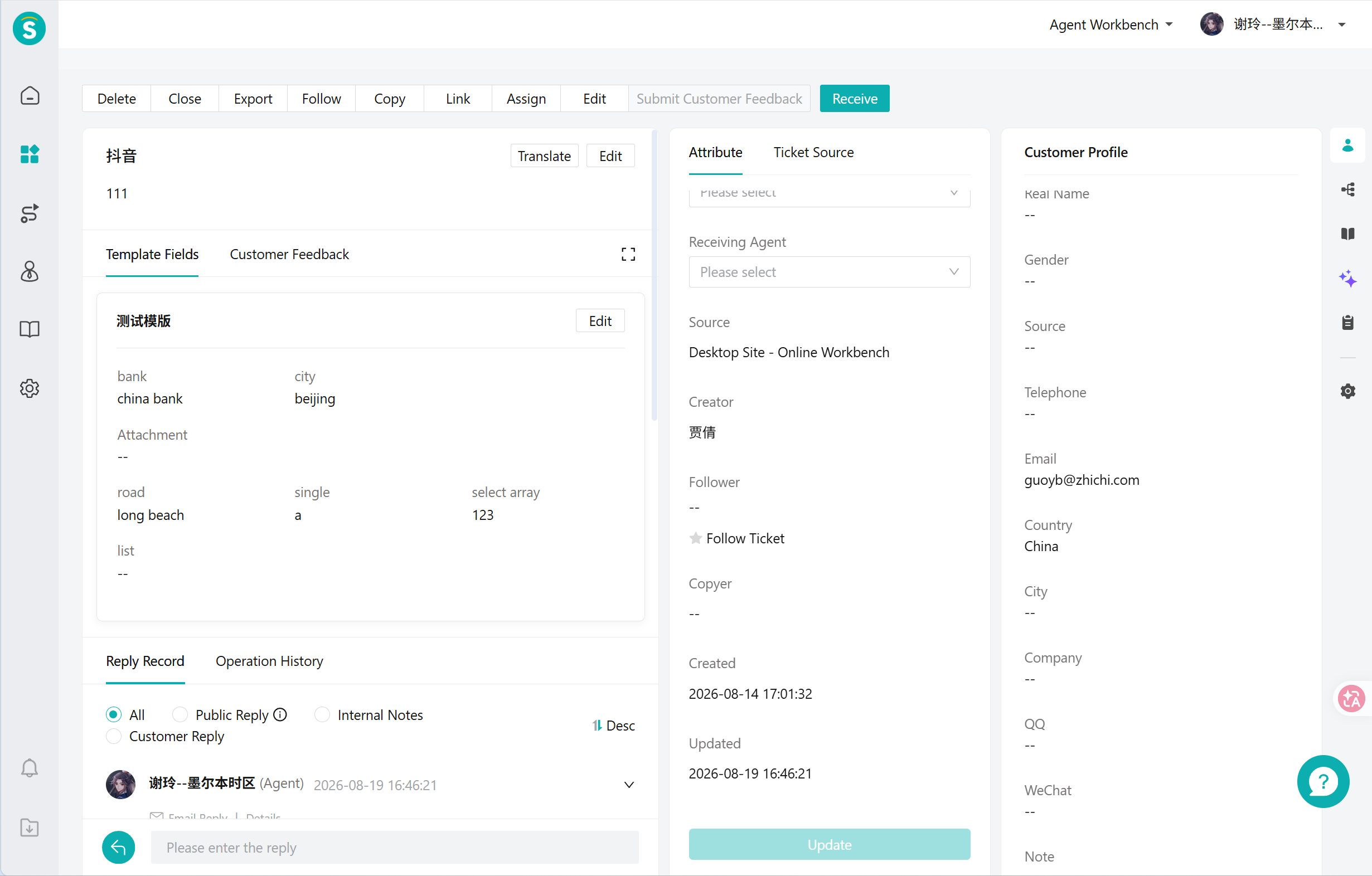
Click [Approve] and the content of this submission is written into the corresponding ticket fields all at once (approving only some of the fields is not supported), and the request is completed. Changes to field values can be viewed in the ticket's "Field Changes" record. If there is a problem with what the customer submitted, use [Reject] to have the customer correct it rather than approving first and editing it back by hand.
# ● Rejecting and Resending
Click [Reject], then fill in the rejection reason (required, up to 500 English characters) and the body of the resend message — rejection and resending are completed in one step. A rejection reuses the original sending channel and cannot switch to another one, and the body is not pre-filled. The rejection reason is shown to the customer verbatim, so word it carefully.
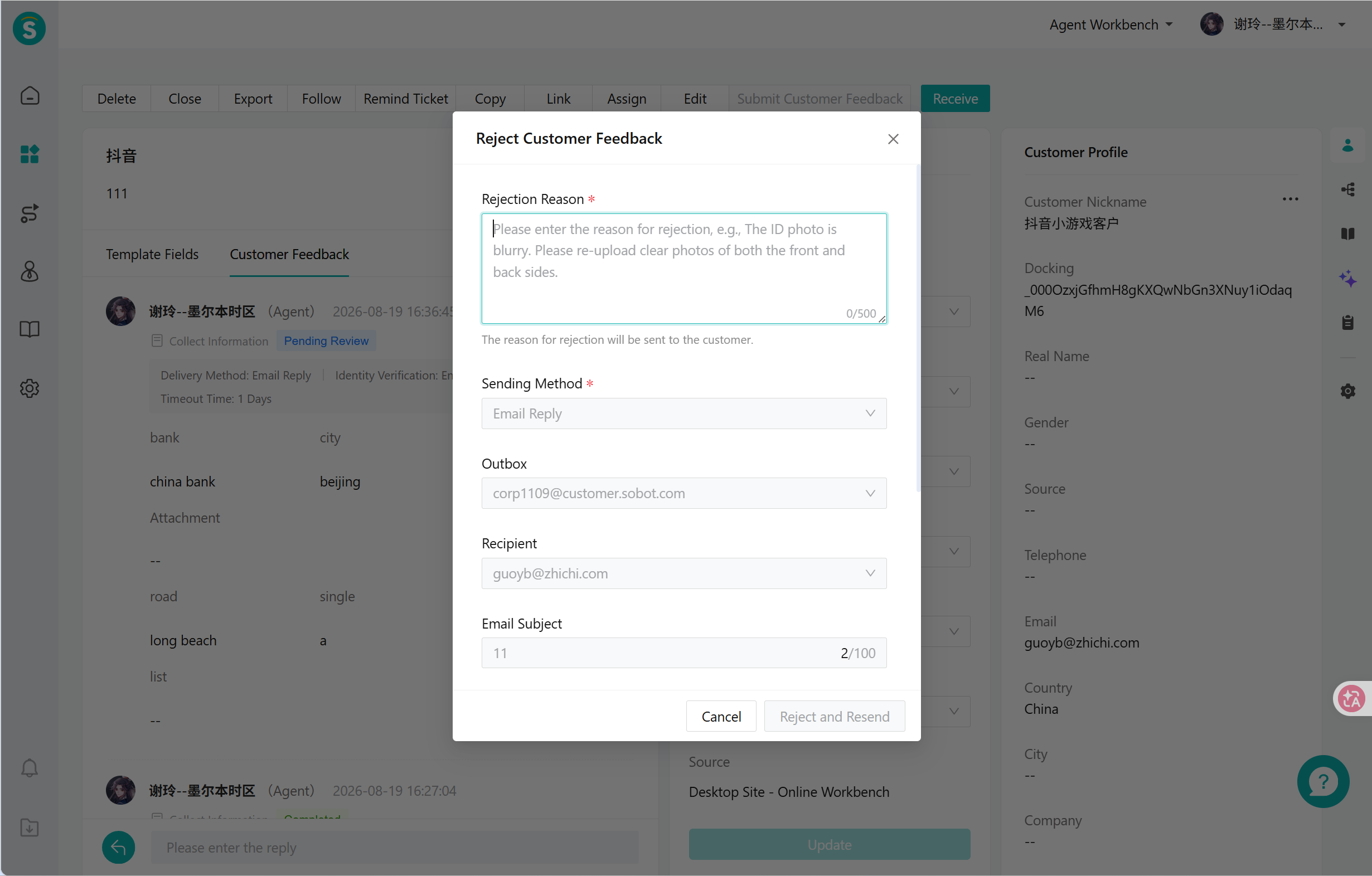
After a rejection the request returns to "Waiting for customer submission", and the timeout clock restarts from this successful send. The next time the customer opens the link, the rejection reason is shown at the top of the page and the previously entered content is restored; the customer only needs to correct it and submit again.
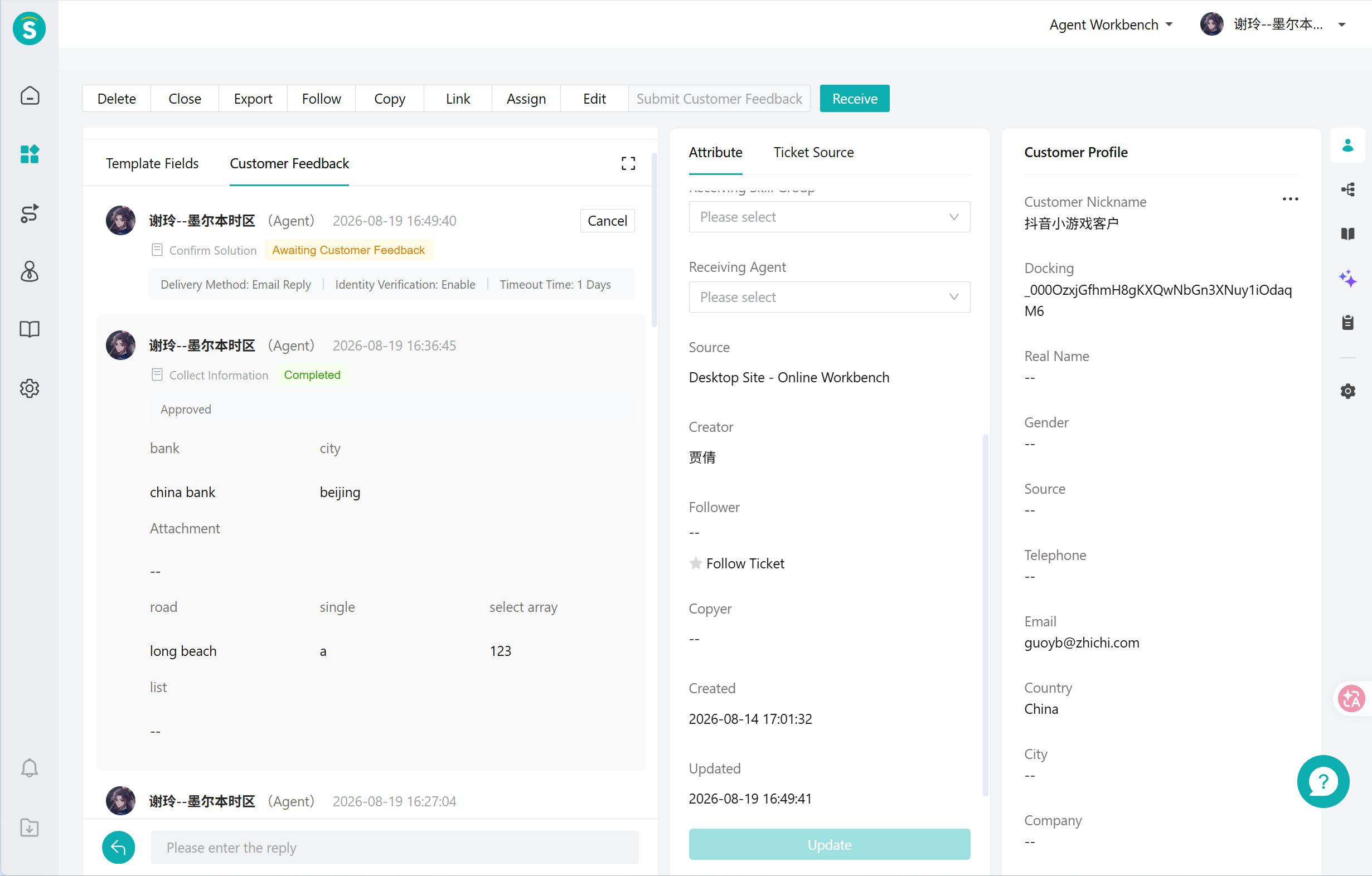
Note: Content submitted by the customer does not enter the ticket fields before review is approved; the ticket field area remains unchanged.
# Viewing Customer Feedback Records
Each of three locations shows part of the picture:
# ● Customer Feedback Tab
A tab alongside "Template Fields", hidden when there is no request. The upper half is the current request card (status, policy summary, the customer's submitted content, and review actions), and the lower half is the list of historical requests — click an entry to expand the field values submitted at that time. All field-value details are here.
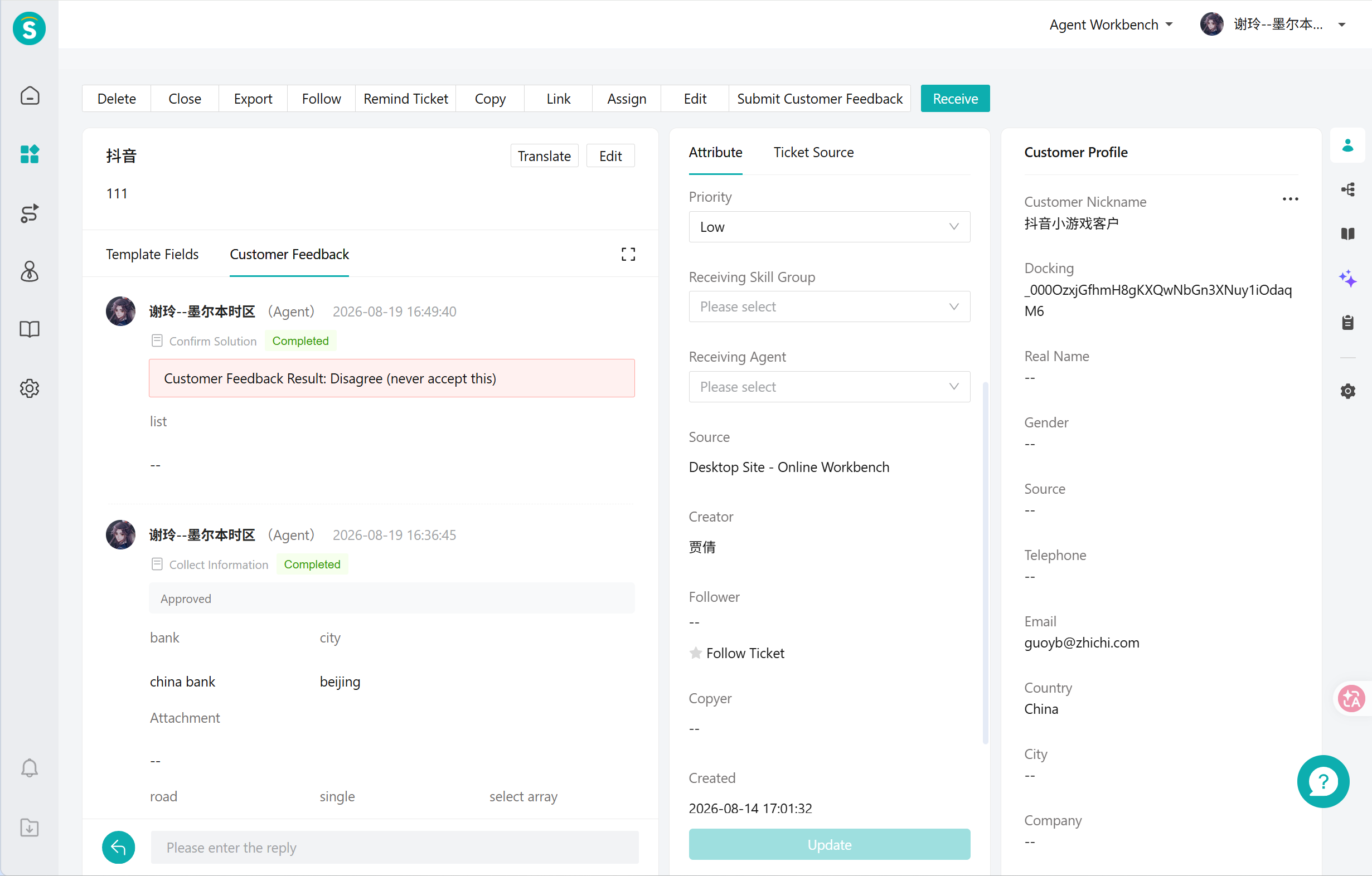
Once a Proposal Confirmation is completed, the card shows the customer's choice and the reason for disagreeing.
# ● Reply Records
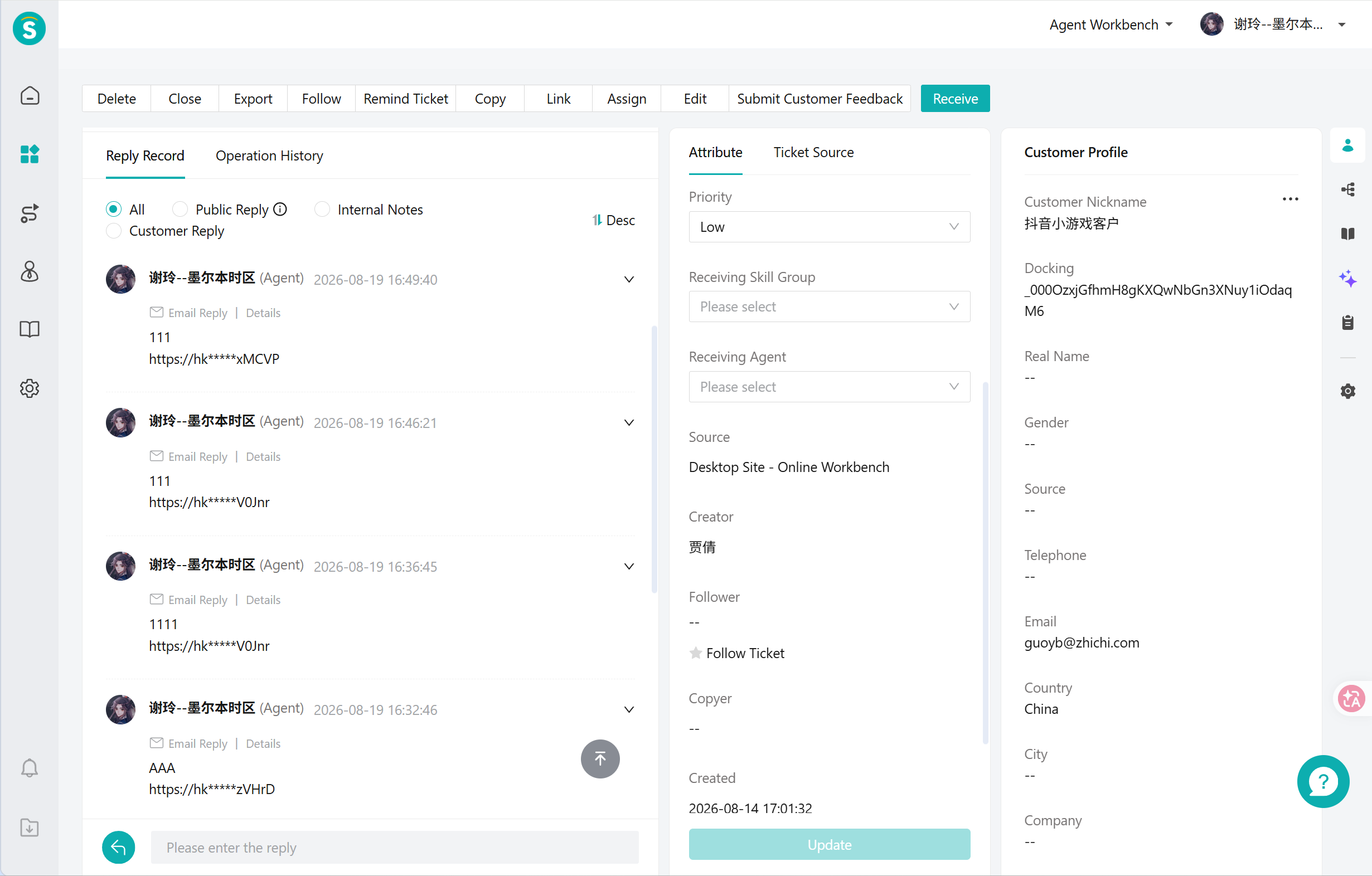
The agent's send and the reject-and-resend each leave one public reply (tagged by channel), with the body being the content sent to the customer plus the short link. Customer submissions, customer confirmations, and approvals do not enter the reply records — it is normal for there to be no new content in the reply records after the customer has submitted; check the "Customer Feedback" tab instead.
# ● Operation History
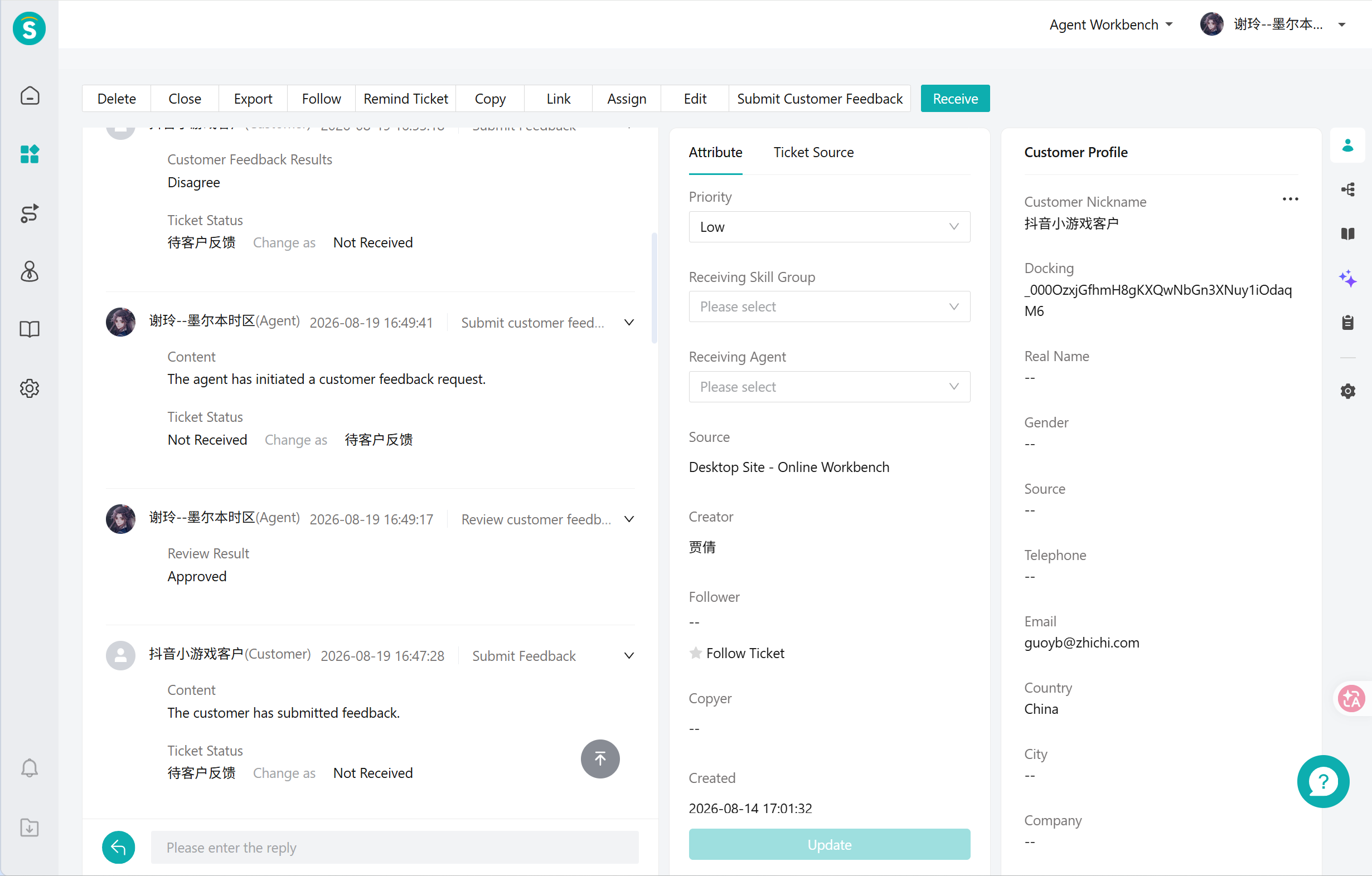
Sending, customer submission, customer agreement or disagreement, approval, rejection, timeout, and cancellation are each logged (plain text, without field values).
# Ending a Request
# ● Timeout
When the timeout is reached and the customer still has not submitted, the request becomes "Timed out" and the link expires. No notification of any kind is sent. Timed out is a final state and cannot be extended; to keep collecting information, raise a new request (which generates a new short link). A request with no timeout configured waits indefinitely, until the customer submits or an agent cancels it.
Because timeouts are not notified and the ticket list cannot be filtered by Customer Feedback status, the way to follow up on requests approaching their deadline is: filter tickets by the waiting status configured by your administrator, then check the remaining time in the ticket's "Customer Feedback" tab.
# ● Cancelling
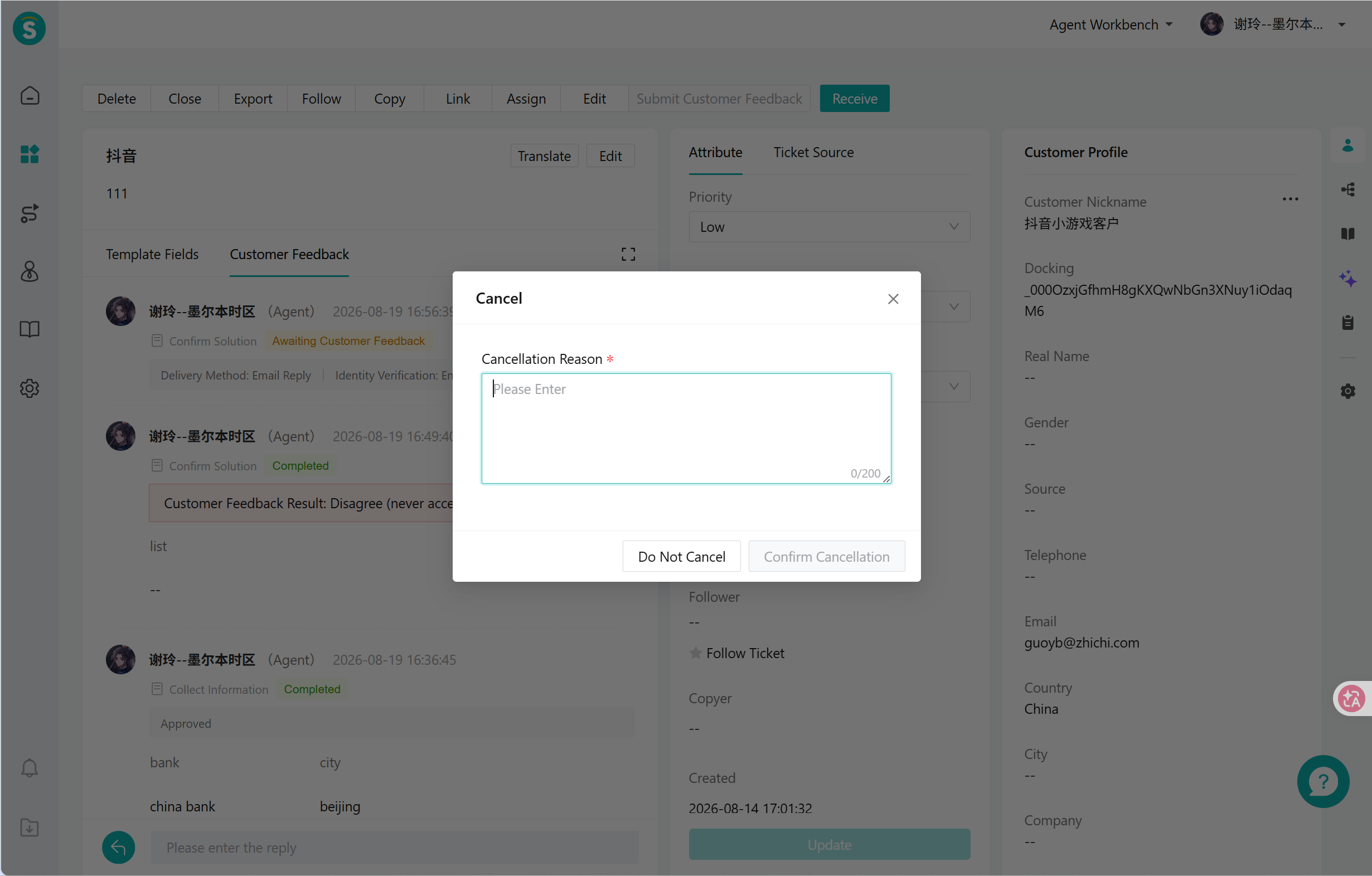
A request can be cancelled while it is in "Waiting for customer submission" (including when it carries a send-failed mark); a cancellation reason is required (up to 200 English characters). The cancellation reason is recorded in the operation history for internal reference — on the customer side only "This form is no longer available" is shown, and the reason you entered is not visible to them. After cancellation the ticket status switches back to the status it had before the request was raised, and the [Raise Customer Feedback] button becomes available again.
A request in "Pending review" cannot be cancelled directly. When the content the customer submitted is invalid and you do not need them to submit anything further, first use [Reject] to return the request to "Waiting for customer submission", then cancel it.
If the customer opens the link at this point, the page shows "This form is no longer available".
# Customer Feedback Statuses
The status badges on the "Customer Feedback" tab mean the following:
| Status | Meaning |
|---|---|
| Waiting for customer submission | The link has been sent and the customer's action is awaited; a rejected request returns to this status |
| Pending review | Information Collection only: the customer has submitted and an agent's review is awaited |
| Completed | Information Collection review approved (or, when review is disabled, submission alone completes it); for Proposal Confirmation, the customer has made a choice |
| Timed out | The timeout was reached and the customer had not submitted |
| Cancelled | Cancelled by an agent, or the ticket was deleted |
A "Send failed" mark may be layered on top of "Waiting for customer submission". When it is, the card offers [Resend], and the mark disappears once the resend succeeds.
There are only two situations in which the ticket status and SLA change: after a request is raised and sent successfully, the ticket switches to the waiting status configured by the administrator and the SLA pauses; as soon as the customer submits (or the request is cancelled or times out), the ticket switches back to the status it had before the request was raised and SLA timing resumes. A reject-and-resend counts as raising a request again, so the ticket switches to the waiting status once more. Regardless of whether an agent manually changed the ticket status while waiting, the ticket returns to the status it had before the request was raised once the customer submits.
# FAQ
● Q: The template is configured, but agents say the initiation dialog only offers "Ticket reply", or the SMS template dropdown is empty, or the customer's language cannot be selected. Why?
A: These three items are not in the template settings and need to be checked separately: email and SMS must be enabled in the ticket's "Reply Method Management"; the SMS template must contain the form link variable; and the form language must be configured in the language settings of the customer self-service page (Ticket Plugin).
● Q: An agent says they cannot see the [Raise Customer Feedback] button. How do I troubleshoot?
A: Check five things in order — whether the company's edition is Professional or above; whether the template used by this ticket has "Customer Feedback" enabled (the button is not shown when it is not); whether the agent is the ticket's assigned agent or holds a ticket-administrator-level role (the button is unavailable without edit permission); whether the ticket is associated with a customer (the button is greyed out when it is not); and whether the ticket already has an in-progress request (the button is greyed out if it does).
● Q: Can one ticket have several Customer Feedback requests at the same time?
A: No — at most 1 in progress at a time. Once the current request is completed, cancelled, or timed out, another can be raised, and historical requests are kept in the "Customer Feedback" tab.
● Q: The customer notices a mistake after submitting. Can they correct it themselves?
A: No; the form becomes read-only after submission. An agent must reject it before the customer can edit and resubmit, and the new submission overwrites the previous content.
● Q: Does the form language only affect the interface text the customer sees, or is my own content translated too?
A: The language determines which language the form page's system text (buttons, prompts, required-field validation) is displayed in. The guidance text and proposal description you write, along with field names, are shown exactly as entered and are not translated automatically — so when raising a request for a customer who speaks another language, write the guidance text in a language they understand.
● Q: The ticket's associated customer was changed while waiting. Does the original link still work?
A: Yes. The request is bound to the ticket, not the customer, so the link remains valid, and identity verification still uses the phone number or email of the customer as of the time of sending. To use the new customer's identity verification, cancel the current request and raise a new one.
● Q: I picked the wrong channel after sending. What can I do?
A: After a successful send, the channel cannot be changed and manual resending is not possible. Cancel the current request, then raise a new one and select the correct channel.
● Q: What if the customer has neither a phone number nor an email address?
A: Ticket reply is then the only available sending channel; if identity verification is enabled in the template, this send automatically skips verification and goes out directly.
● Q: Can the customer still fill in the form after a timeout?
A: No. Timed out is a final state and the link has expired; you can only raise a new request.
● Q: The assigned agent is on leave or has left the company. Who reviews the submission?
A: Ticket-administrator-level roles can review on their behalf, or the ticket can be transferred so that the new assigned agent reviews it.
● Q: The administrator changed the template configuration. Does that affect requests that have already been sent?
A: No. The guidance text, fields, language, timeout duration, identity verification credential, and sending channel are all fixed as of the moment of sending. Template changes affect only requests raised afterwards.
● Q: The SMS channel has no selectable template, or shows an error. Why?
A: SMS must carry the form link, so the SMS template must contain the link variable; if no template meets this requirement, ask your administrator to add one. Also note that SMS supports domestic numbers only — use email for overseas customers.
● Q: Can the ticket list be filtered by Customer Feedback status?
A: Not currently. Filter tickets by the waiting status instead, and check the specific status and remaining time in the "Customer Feedback" tab on the ticket detail page.
● Q: Which clients support raising and reviewing requests?
A: The ticket detail page on the console (PC) and in the agent workspace supports raising and reviewing. In Feishu and Lark, only the operation records are displayed — requests cannot be raised or reviewed there. The customer form page supports PC, H5, and SDK.
● Q: Can Customer Feedback data be exported?
A: Field values written in after approval are included in the existing ticket export; no new export columns are added. Process data such as the number of rejections is not yet included in the export.