Chatbot
# Bot Info Setting Guide
——Learn how to use the Bot Info Setting we offer you and its scenarios through this article
# Role of Bot Info Setting
We would like you to know about the scenarios and roles of the Bot Info Configuration function first:
● Basic information of bot you configure will be displayed at visitor side
● You can receive chat questions of customer using greeting base
# How to Use Bot Info Setting
You will find a description of the role and effect of each function point below:
# ● Restrictions
Bot Setting changes with bot you select in admin console.
# ● Basic Info
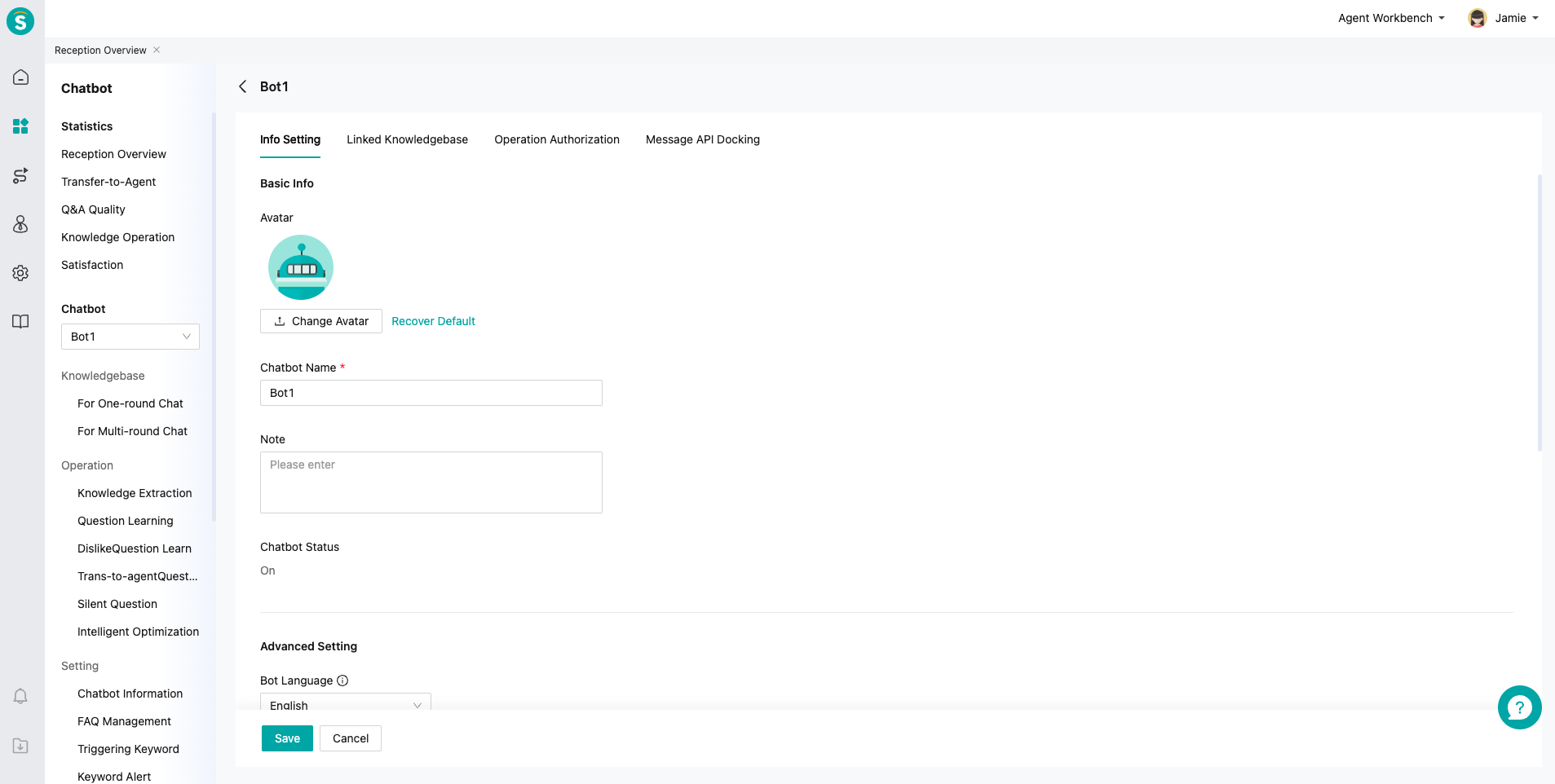
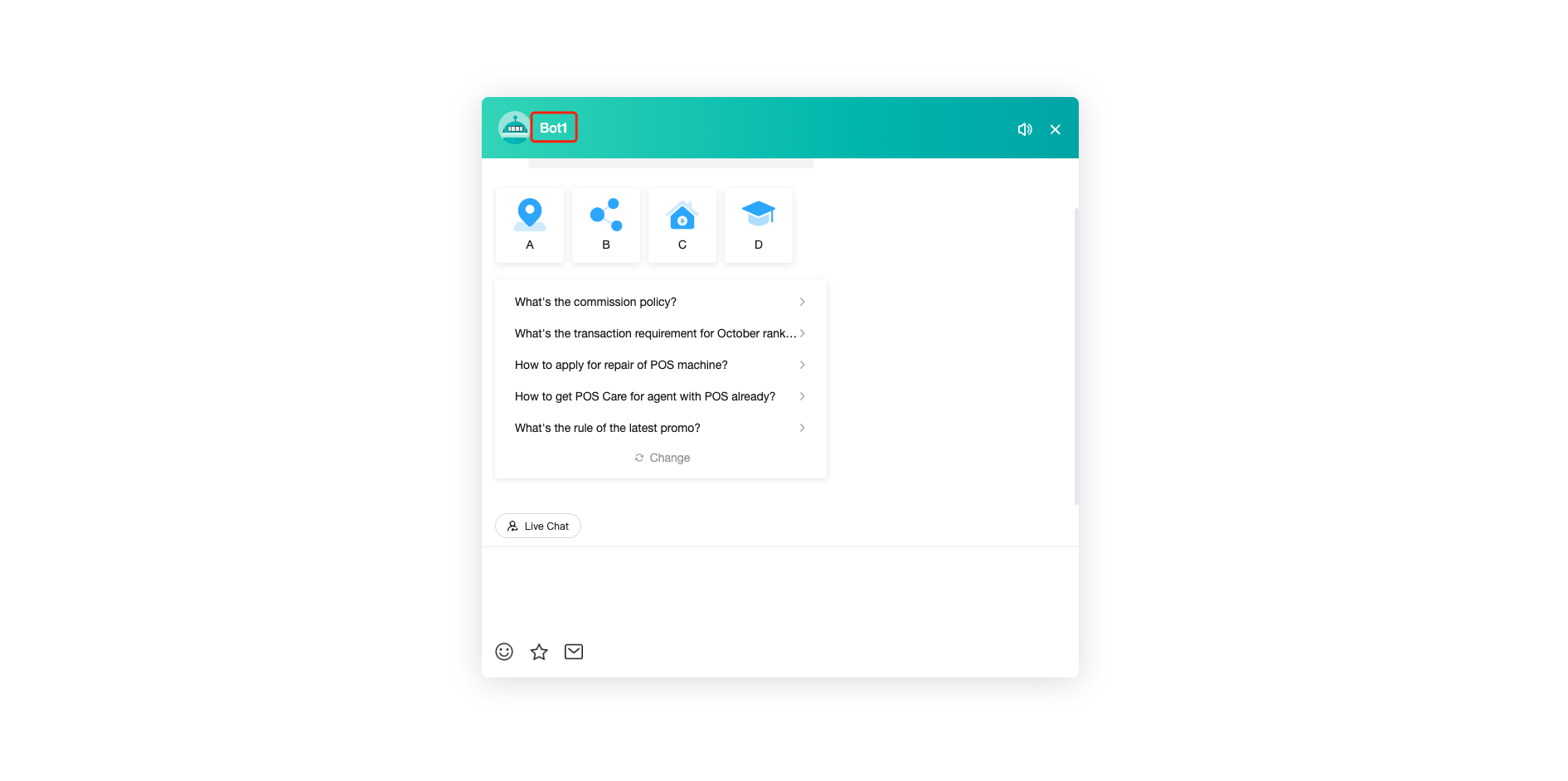
- Bot nickname: support replacing chatbot nickname, with display effect at visitor side.
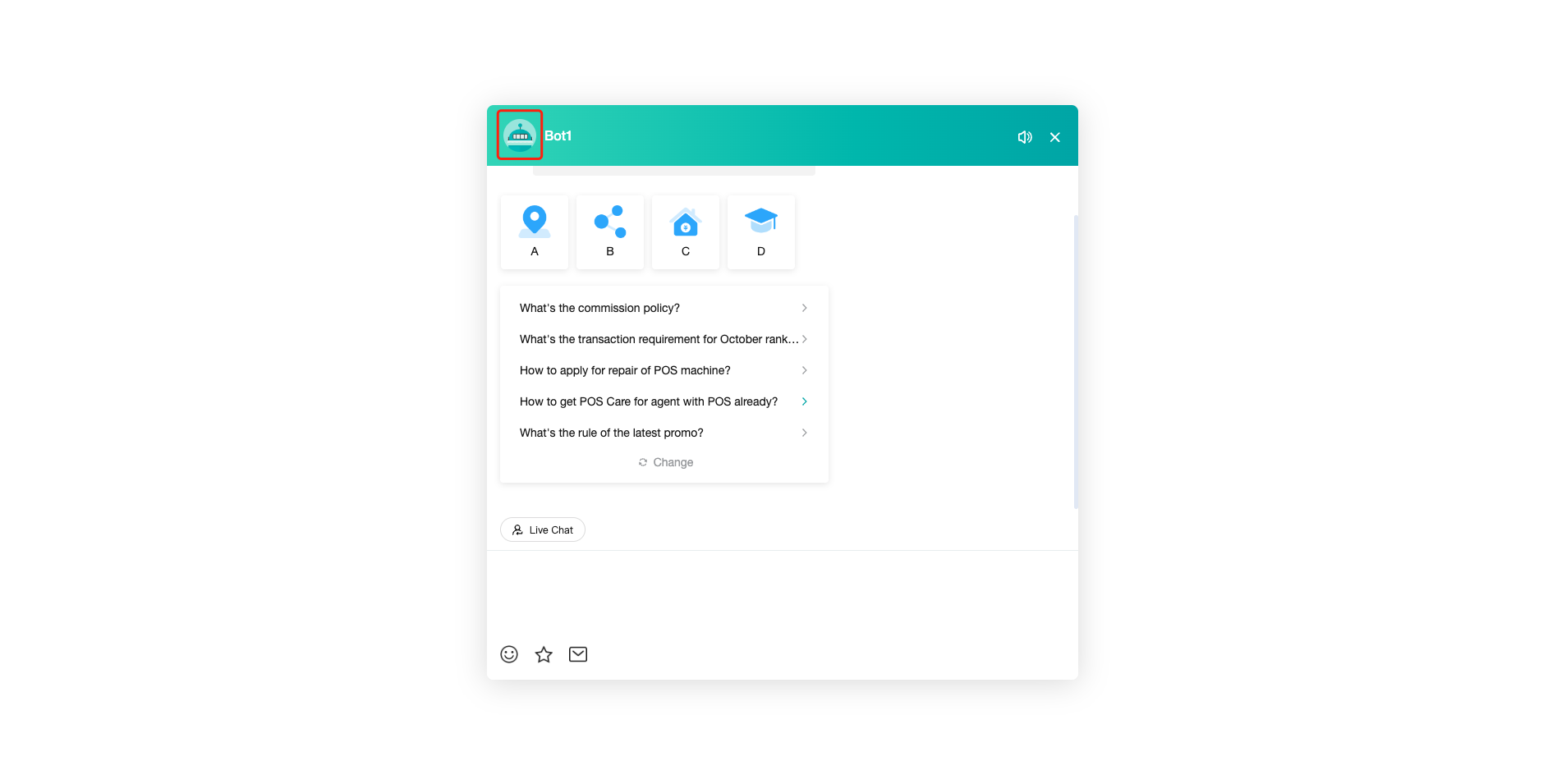
- Avatar: support replacing chatbot avatar at visitor side, with display effect.
# ● Deployment Params
robotid: distinguish bots to be called when deploying multiple bots. E.g., desktop deployment link: https://****.sobot.com/chat/pc/v2/index.html?sysnum=xxxxxxxx&robotid={x}.
robot_alias: a customized chatbot alias. It is used to differentiate bots to be called when deploying multiple bots. It is temporarily used for APP docking.
# ● Greeting Base Setting
Questions and answers in the greeting base are provided by Sobot, not supporting custom modification.
Basic greeting base: After turning on, when a customer sends a message beyond the scope of the knowledge base questions, the chatbot will reply with an answer from the greeting base.
Internet greeting base: After turning on, when a customer sends a message beyond the scope of the knowledge base questions, the chatbot will reply with a more personalized answer from the Internet greeting base.
# ● Associated Question Guidance Text
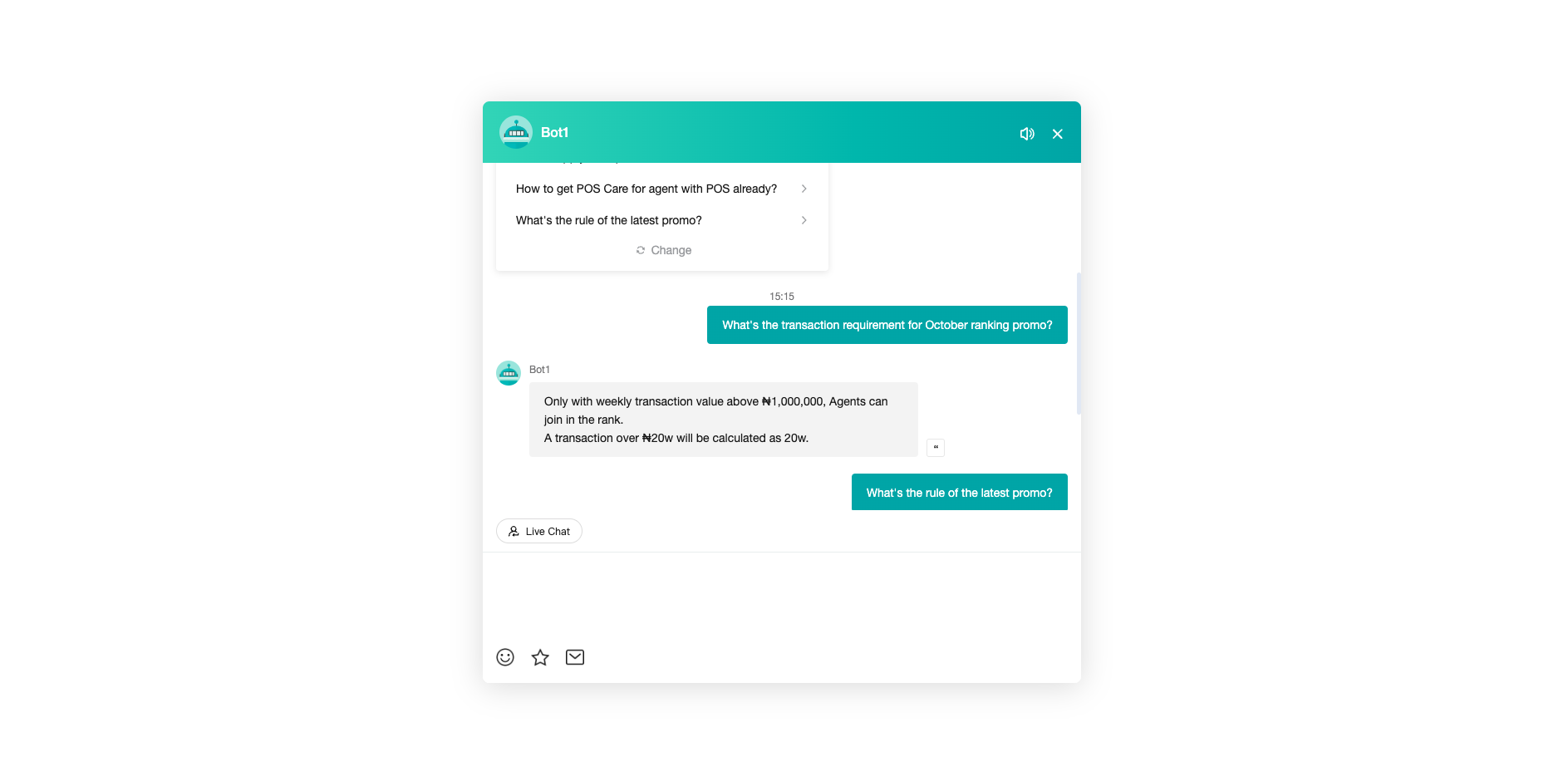
- When a message sent by customer hits knowledge base associated question, chatbot will reply with associated question guidance text set below, and display associated question.
# Trans-to-Agent Keyword Setting Guide
——Learn how to use the Trans-to-Agent Keyword Setting we offer you and its scenarios through this article
# Role of Trans-to-Agent Keyword Setting
We would like you to know about the scenarios and roles of the Trans-to-Agent Keyword Setting function first:
● Implement the business scenario of transfer to agent by different keywords
● Implement the business scenario of designating skill groups by keywords, such as "complaint", directly assigning to agent who handles complaints.
# How to Use Bot Info Setting
You will find a description of the role and effect of each function point below:
# ● Restrictions
Trans-to-Agent Keyword Setting changes with bot you select in admin console.
# ● Add Trans-to-Agent Keyword
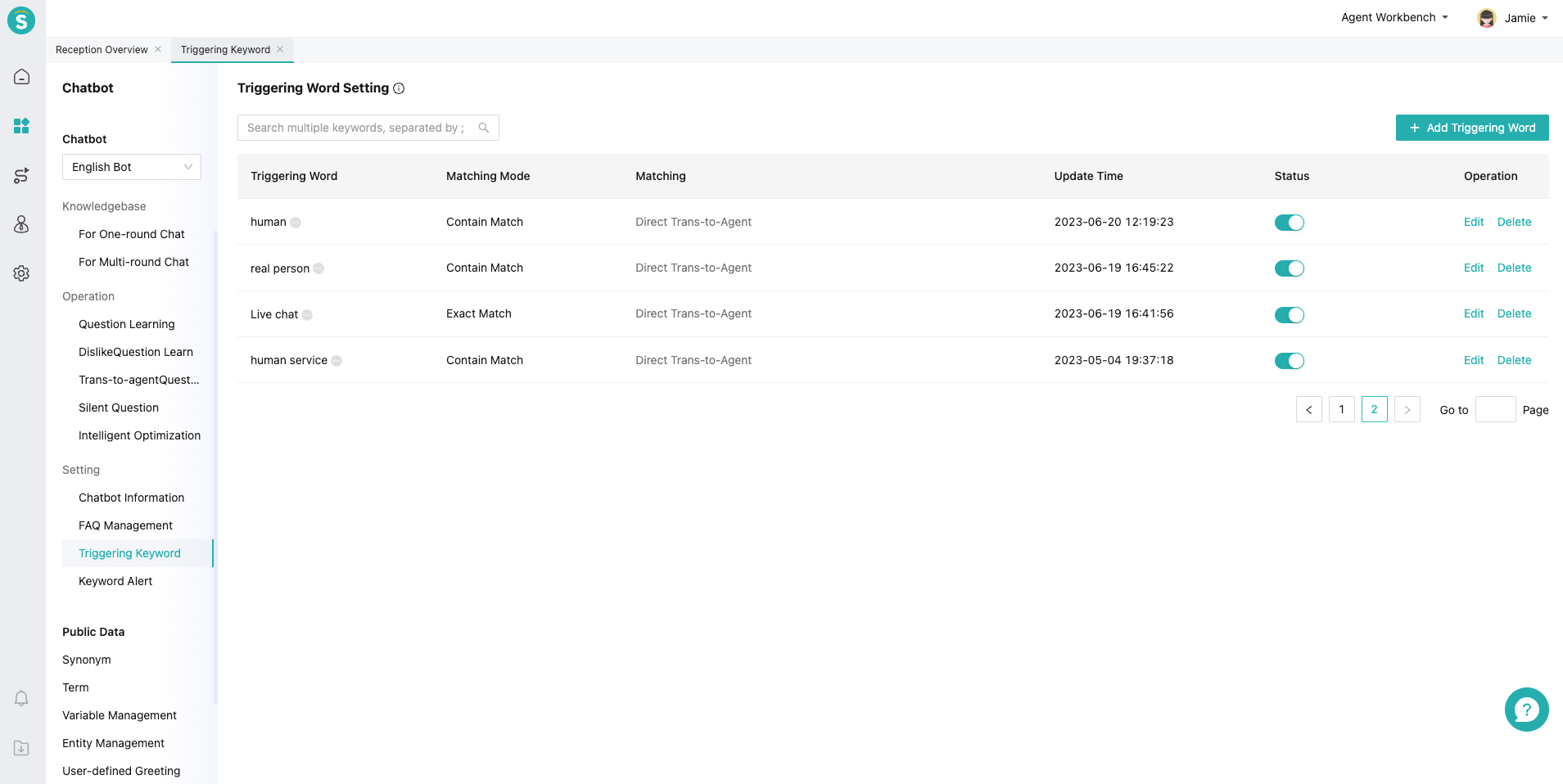
Match mode: support Containing Match and Exact Match. Containing Match means that trans-to-agent can be triggered if a message sent by the customer contains the trans-to-agent keyword; Exact Match means that trans-to-agent can only be triggered if the message sent by the customer is completely consistent with the trans-to-agent keyword.
Trigger Trans-to-Agent Type: End Trans-to-Agent and Trans-to-Agent Prompt do not take effect in SDK2.9.7.
Direct Trans-to-Agent. If direct access is not available, you can trigger Queue and End Trans-to-Agent.
Transfer to the designated skill group. If direct access is not available, you can trigger Queue and End Trans-to-Agent.
The bot shows the list of skill groups and guides customers to select skill groups.
# ● Trans-to-Agent Setting List
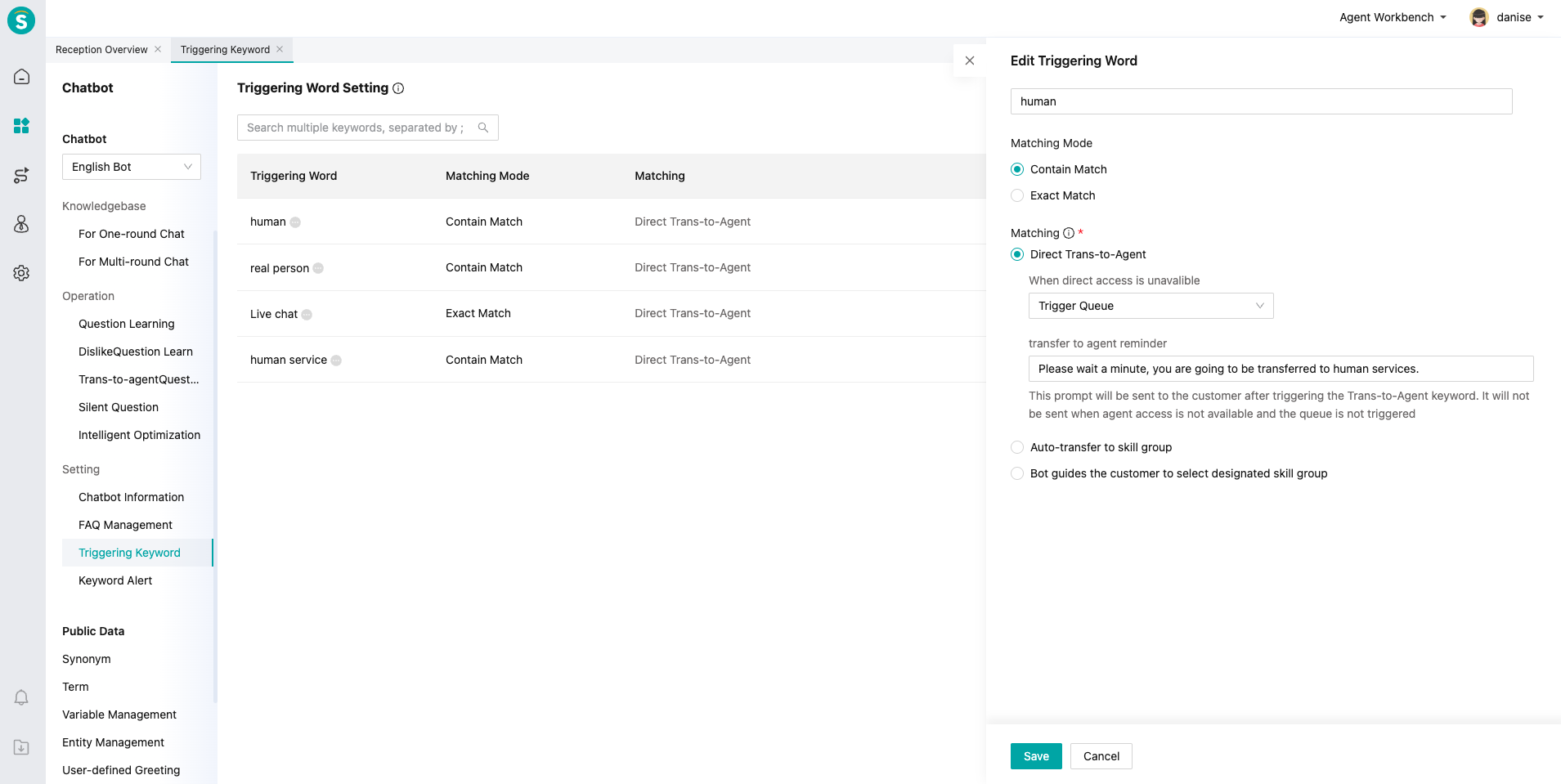
Enabling status ON/OFF: support custom enabling and disabling.
Trans-to-agent keyword hit data: support viewing the number of hit and successful transfer in 7 and 30 days.
# ● Trans-to-Agent Keyword Operation Steps
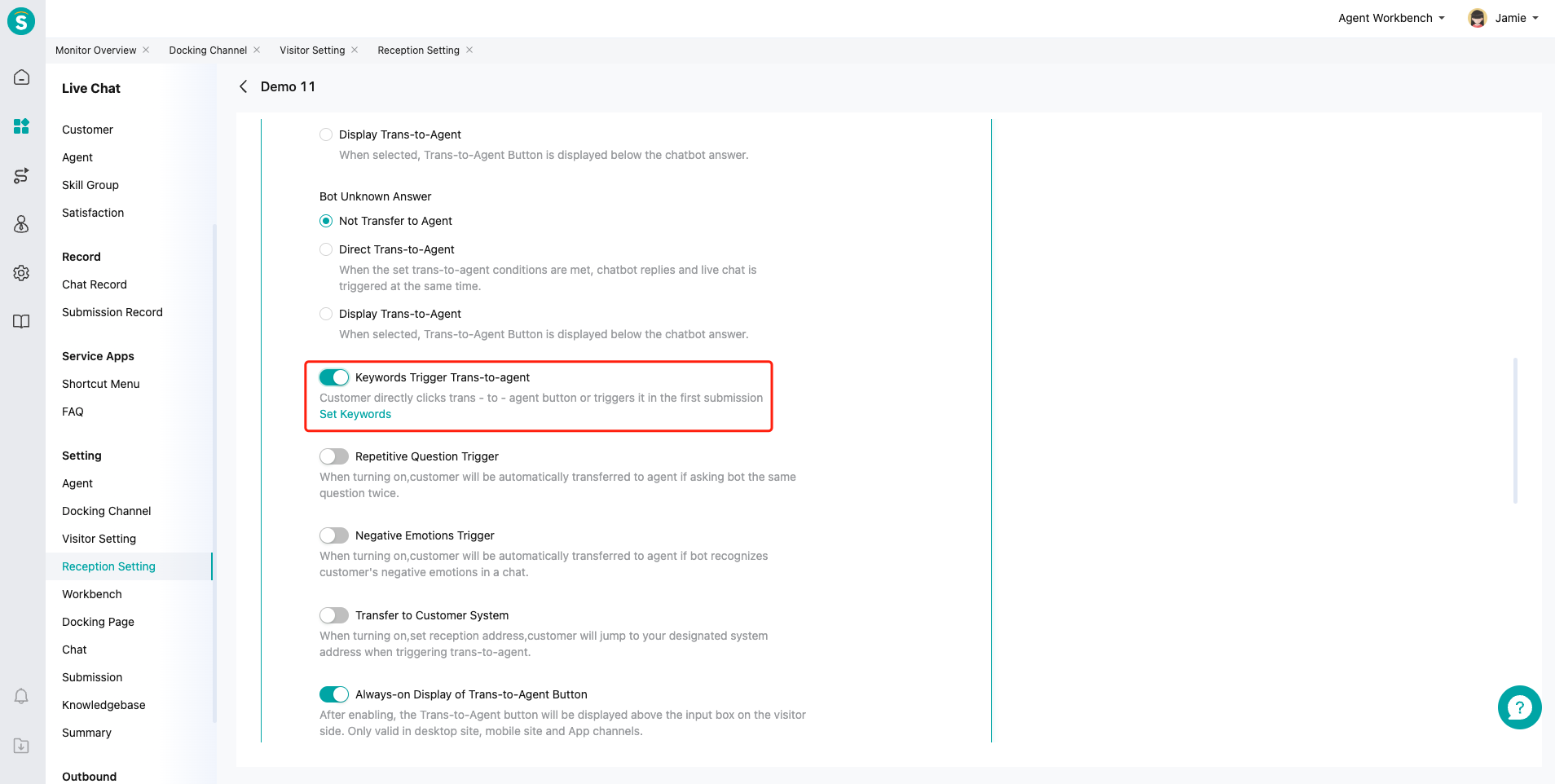
Step 1: add trans-to-agent keyword in Trans-to-Agent Keyword Setting.
Step 2: check【Live Chat - Docking Channel Settings - Agent Reception Mode in Channel Settings - Trans-to-Agent Keyword】to take effect. Taking desktop site channel as an example:
# Related article(s)
Overall Introduction to Channel Docking Module
# Intelligent Optimization Setting Guide
——Learn how to use the Intelligent Optimization Setting we offer you and its scenarios through this article
# Role of Intelligent Optimization Setting
We would like you to know about the scenarios and roles of the Intelligent Optimization Setting function first:
● Timed combination of repeated similar questions
● Timed optimization and processing of repeated to-be-learned questions in the question learning module
● Timed collection of questions with low hit count from the knowledge base for centralized optimization
# How to Use Intelligent Optimization Setting
You will find a description of the role and effect of each function point below:
# ● Restrictions
Intelligent Optimization Setting changes with bot you select in admin console.
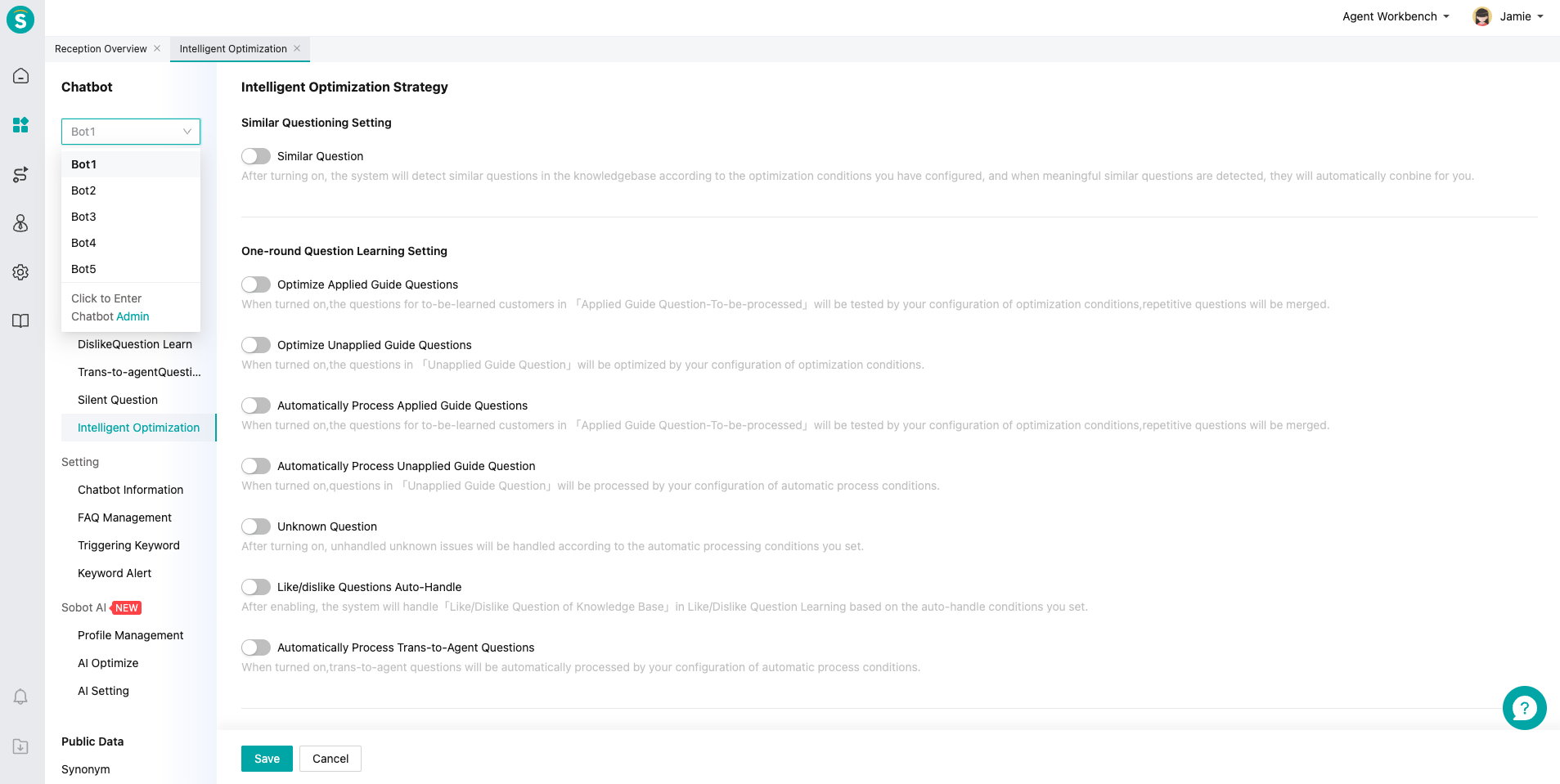
# ● Similar Question Setting
- Intelligent optimization of similar questions: After enabling, the system will detect similar questions in the knowledge base according to the optimization conditions you have configured, and when it detects questions with similar meaning, it will automatically combine them for you, so it is recommended to enable.
Configurable conditions: time and notified person.
What kind of similar questions will be processed and combined: Questions identified as similar meaning by the module. The combination will not affect the knowledge base match. For example, the difference between the two questions is only one punctuation mark.
# ● One-round Question Learning Setting
- Intelligent optimization of to-be-learned questions: After enabling, the system will detect to-be-learned questions according to the optimization conditions you have configured, and when it detects repeated questions, it will automatically combine them for you, so it is recommended to enable.
What kind of questions will be processed and combined: Questions identified as similar meaning by the module in【Intelligent Learning - To-Be-Resolved】. The combination will not affect the usage of intelligent learning, with some repeated workload filtered out.
- To-be-learned Question Auto-Handle: After enabling, the system will handle unresolved to-be-learnt questions based on the auto-handle conditions you set.
Configurable conditions: time, notified person, and processing method (including Auto Pass, Auto Ignore, and Auto-permanently Ignore).
Recommended enabling time: If the knowledge base has been operated for more than 3 months and there are no new business problems, it is recommended to enable, but the period should be more than 30 days.
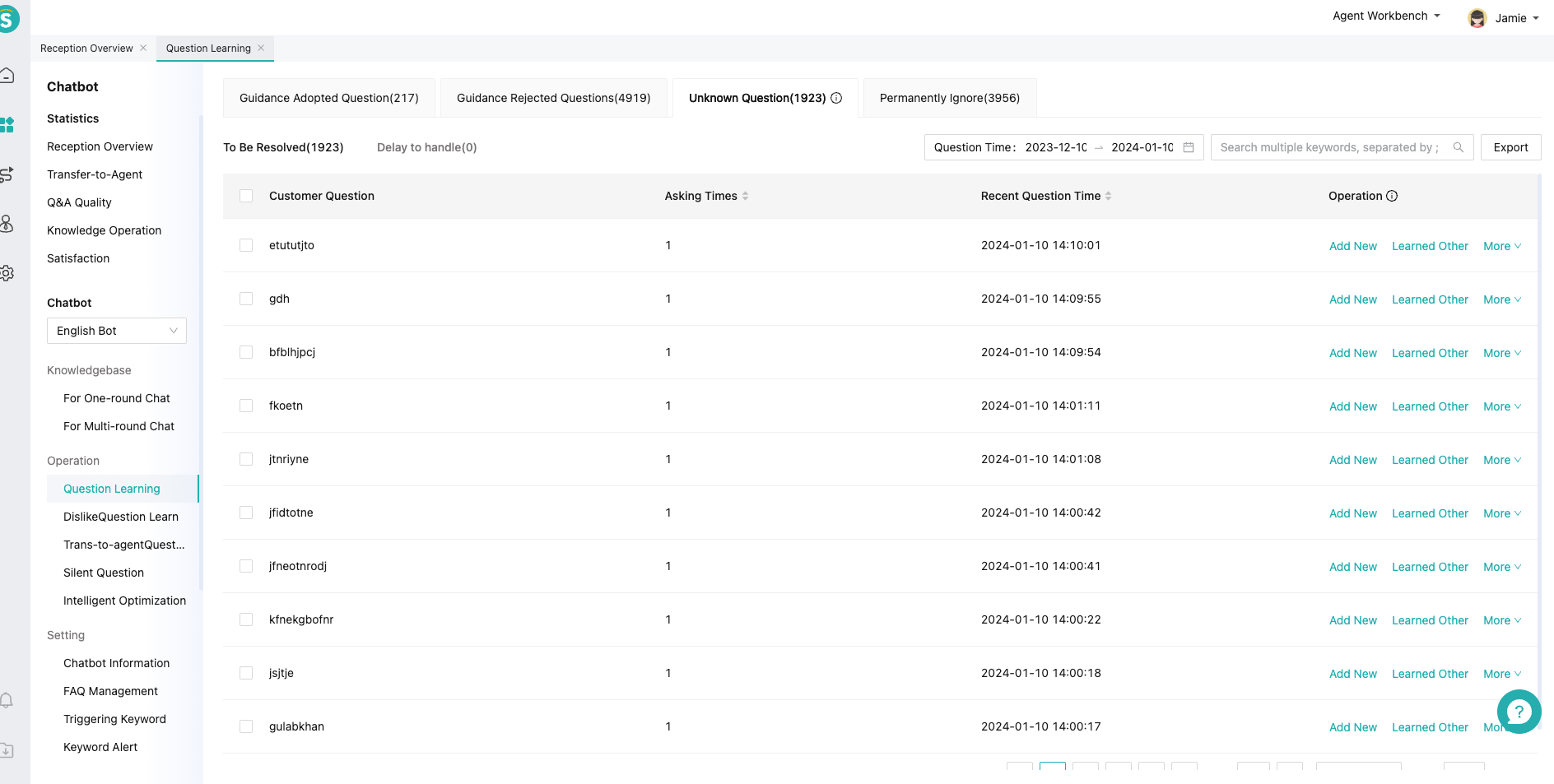
- Unknown Question Auto-Handle: After enabling, the system will handle unresolved unknown questions according to the auto-handle conditions you set.
Configurable conditions: time, notified person, and processing method (including Auto Ignore and Auto-permanently Ignore).
Recommended enabling time: If the knowledge base has been operated for more than 3 months and there are no new business problems, it is recommended to enable, but the period should be more than 30 days.
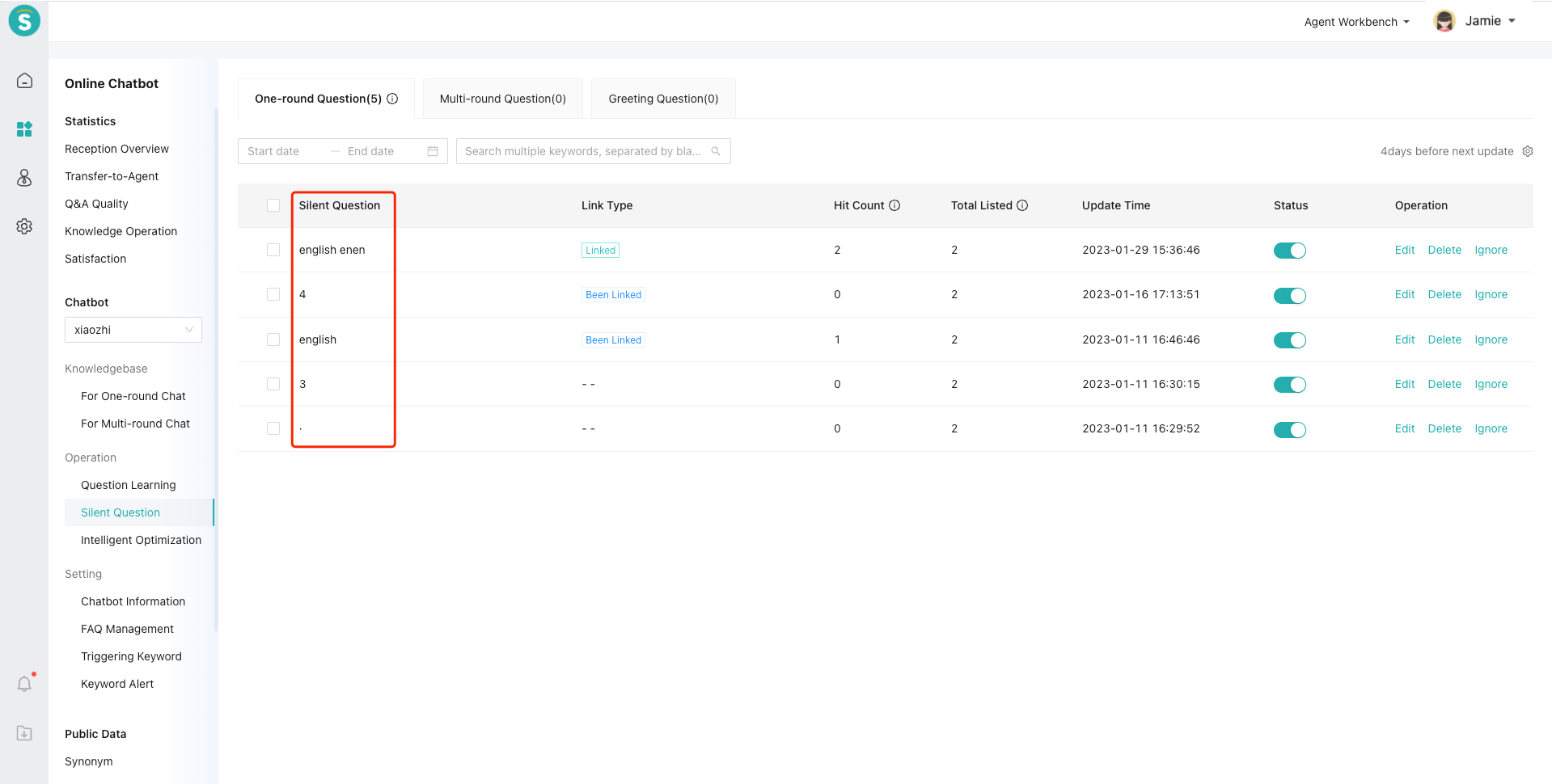
# ● Silent Question Learning
- Silent Question Collection: After enabling, the system will record the questions that meet the set conditions to the「Silent Question Learning」page, so it is recommended to enable.
Configurable conditions: time, notifier and hit count.
# Related article(s)
Unknown Question Learning Guide
# Overall Introduction to One-round Question Management Module
——Learn how to use the One-round Question Management we offer you and its scenarios through this article
# Role of One-round Question Management
We would like you to know about the scenarios and roles of the One-round Question Management function first:
● One-round Question Management is basic Q&A corpus of bot, for building a Q&A knowledge system.
● When customer inquires bot, all Q&A business questions are built in the One-round Question Management.
● Support multiple match modes to meet your actual business needs.
# How to Use One-round Question Management
You will find a description of the role and effect of each function point below:
# ● Restrictions
One-round Question Management changes with bot you select in admin console.
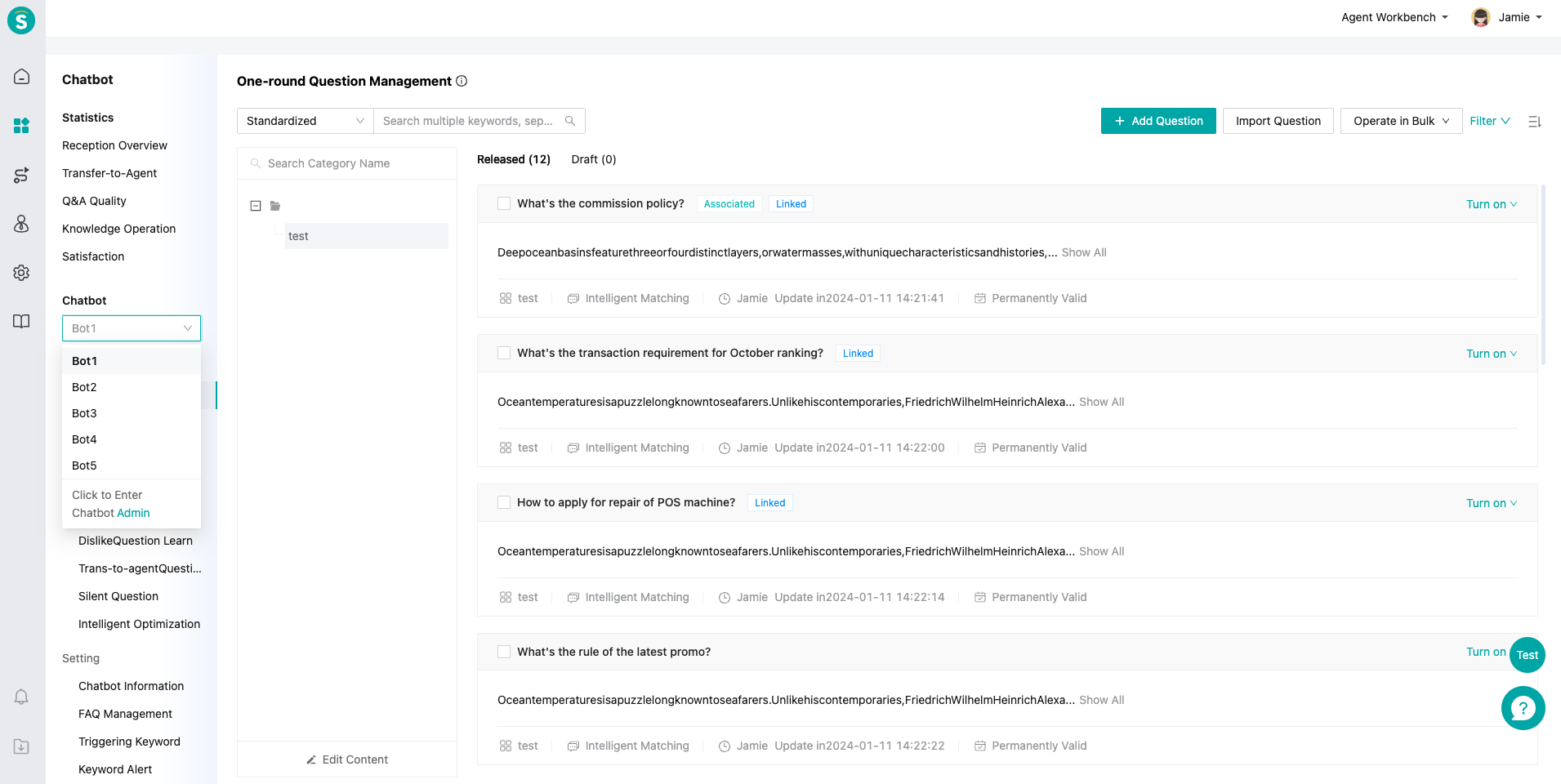
# ● How to Use One-round Question Management
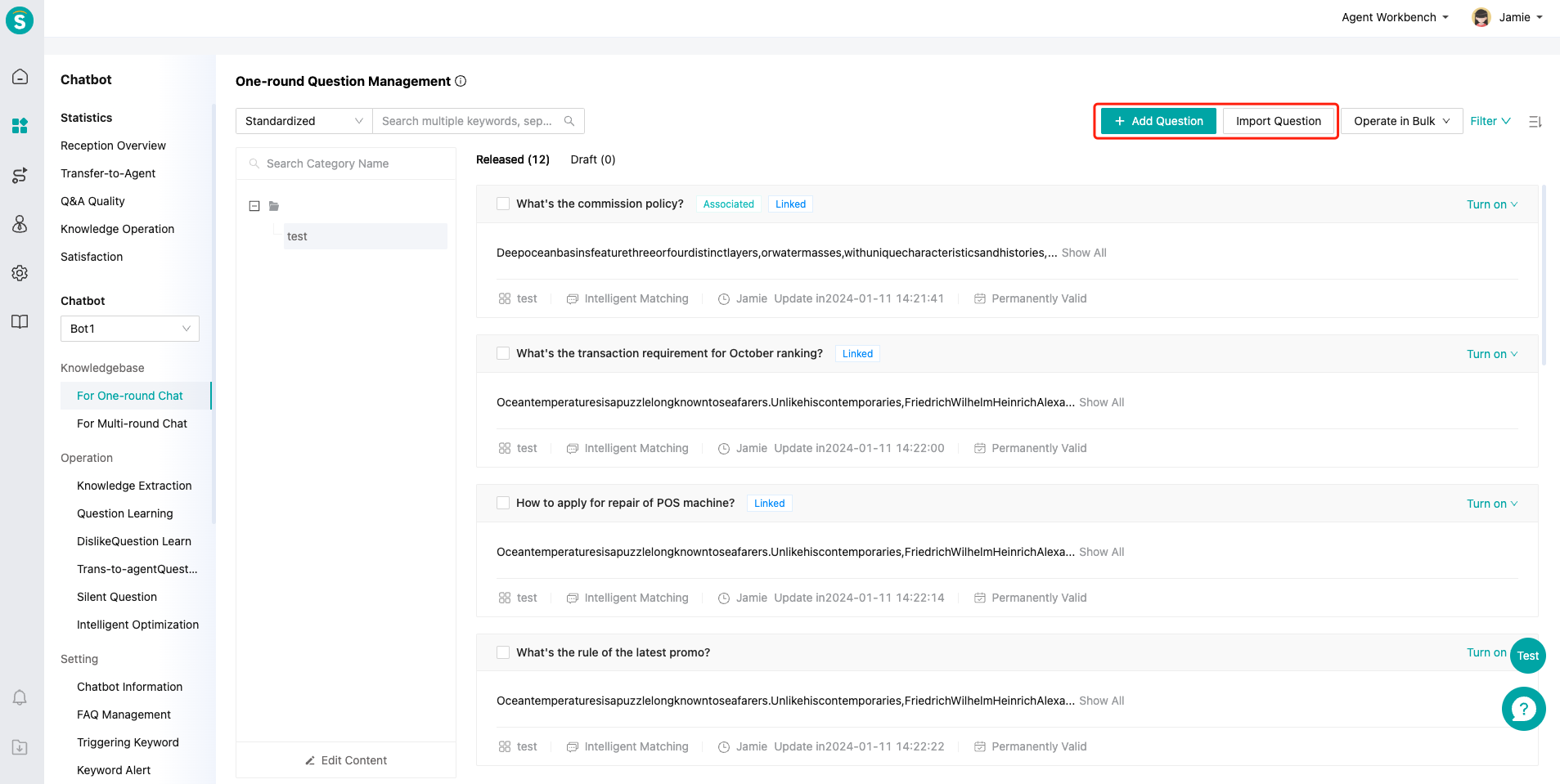
Step 1: Create categories.
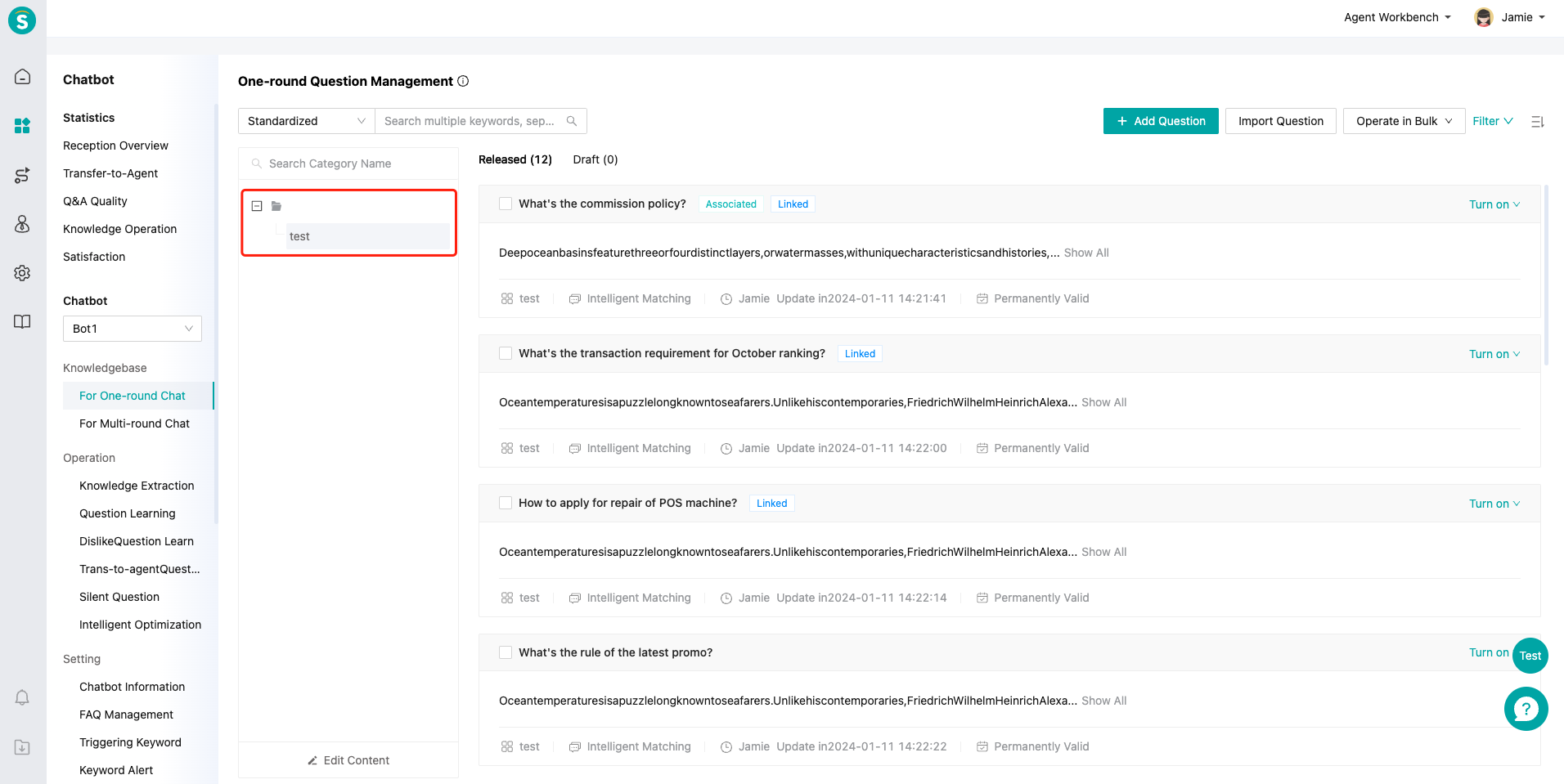
Step 2: Click【Add Question】to add questions one by one or select【Import Question】to import questions in bulk.
# ● Add Question Introduction
You can select the match type of the question, but intelligent match is commonly used. For details, please refer to the Description of One-round Knowledge Base Match Rules.
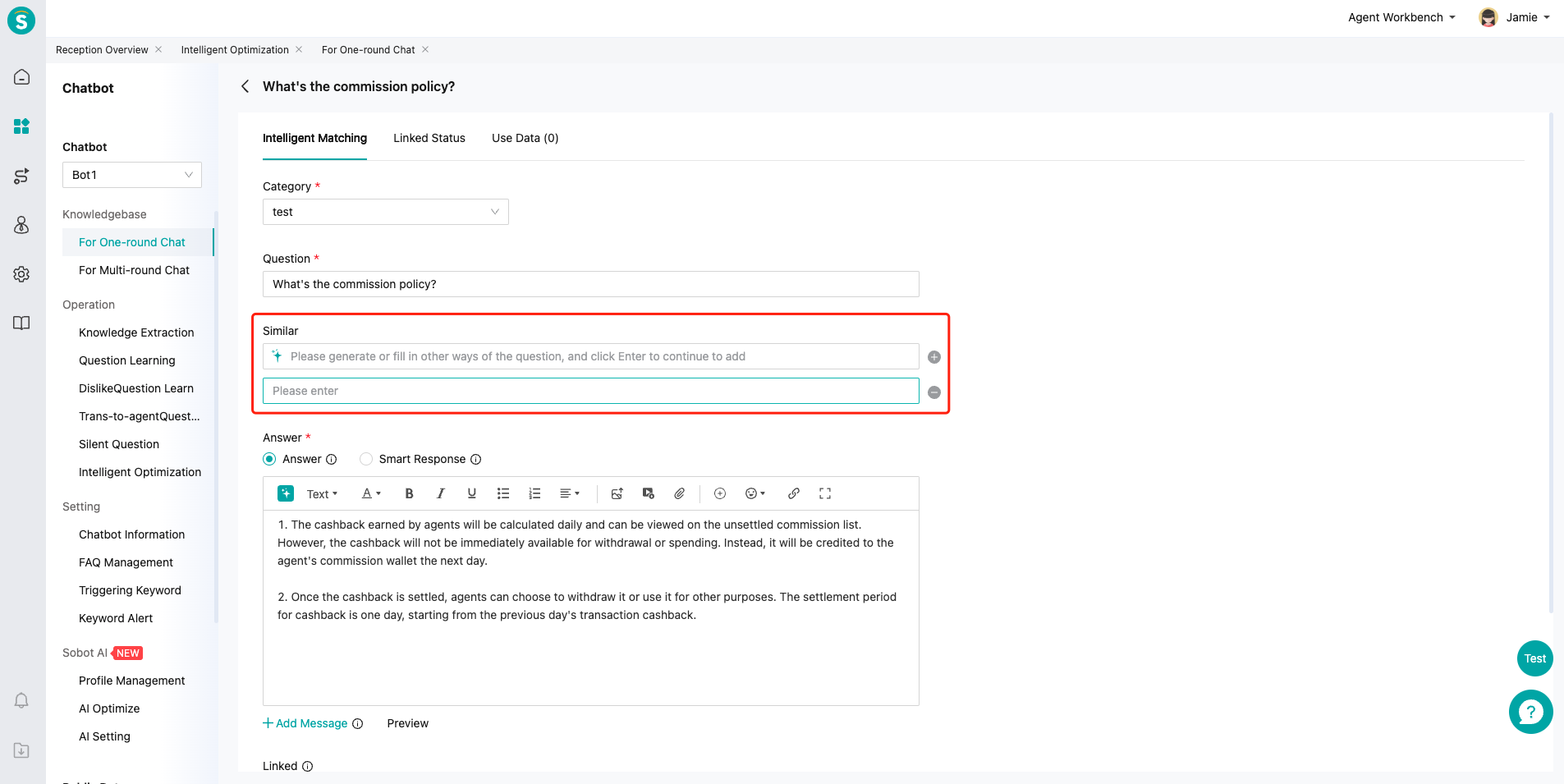
It's required to select category, add standardized questions and answers (Q&As), and the answers support rich text format. Similar questions and associated questions are not required. If you want to know the creation specifications of standardized questions, similar questions and standardized answers, you can refer to the Description of Knowledge Base Operation Management Specifications and Skills.
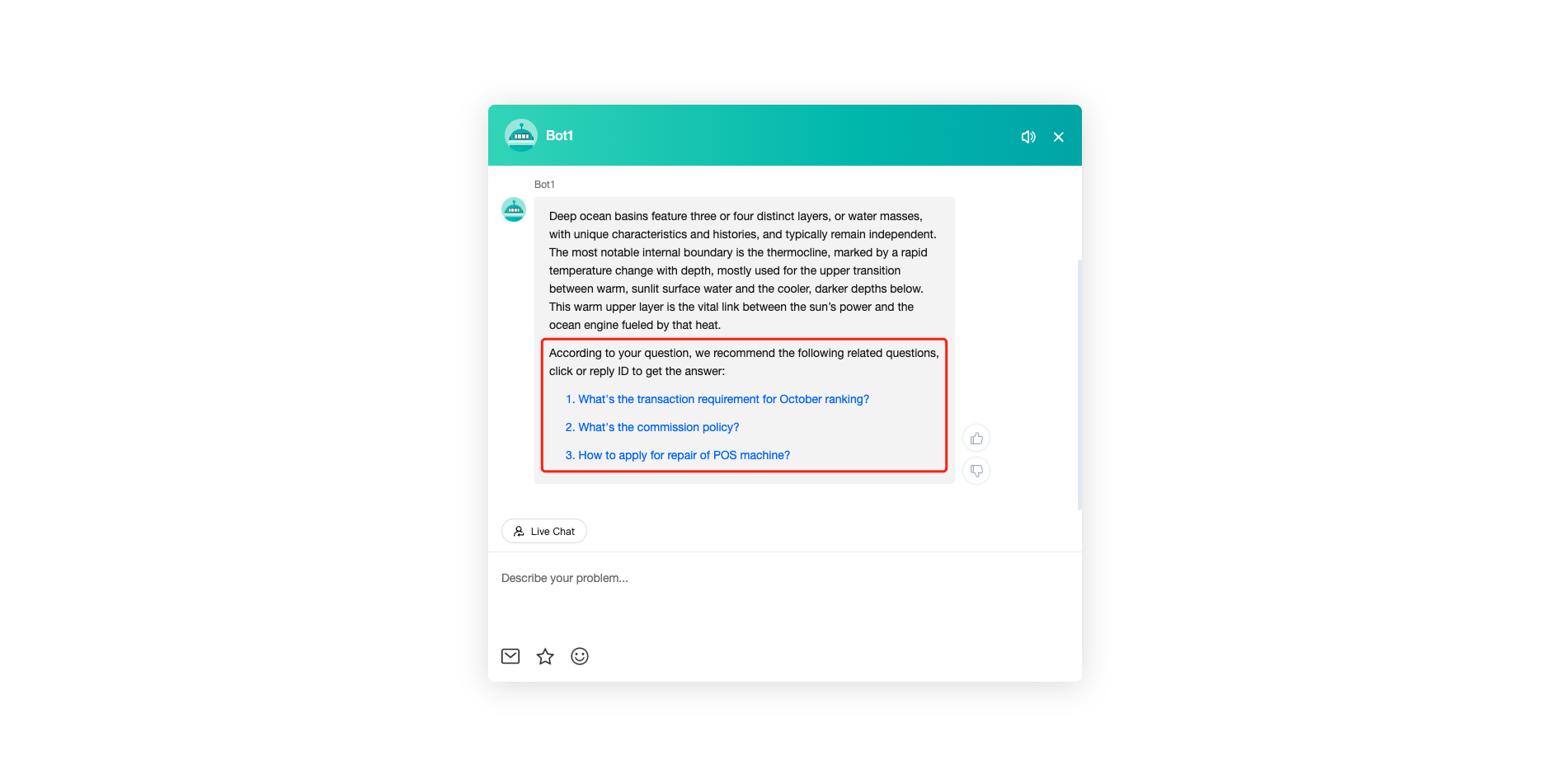
For associated questions, you can select one-round questions or multi-round questions in the knowledge base. The visitor side effect is as follows:
# ● Introduction to Bulk Question Import
You can download the import template, sort the questions into the import format, and import them into the knowledge base through【Upload File】.
How to import a similar question: configure the standardized question to be consistent with the similar question answer of the standardized question. The first question will be automatically processed as a standardized question, and other questions will be processed as similar questions. Note that if you do not want to combine the questions into similar questions, you should differentiate the answers of different standardized questions.
Limit of imported questions: support a single import of less than 1,000 questions.
Limit of format of imported questions: The imported answer supports rich text format, but the image shall be converted into url format as direct import of the image is not supported.
# ● Other Functions
Question List supports search by standardized questions, similar questions and answers.
Bulk Operation supports enabling, disabling, copying, transfer, deleting, setting valid date and cancelling association.
Support sorting by update time and creation time.
Support filtering by creation time, update time, valid time, invalid time, association status, enabling status, match mode, creator and latest operator.
# Related article(s)
Description of One-round Knowledge Base Match Rules
Description of Knowledge Base Operation Management Specifications and Skills
# Description of One-round Knowledge Base Match Rules
——Learn about the rules and usage of one-round knowledge base match type through this article
# What you can learn from this article
We would like you to understand the following contents through this article:
● Rules of various match types in the one-round knowledge base.
● Usage scenarios of various match types.
● When the customer inquires the bot, the bot matches the priority of the knowledge base.
# How to Use One-round Question Match Type
# ● One-round Knowledge Base Match Rules
Intelligent Match: The AI model performs match computing based on the questions asked by customers, and will push the answers after match.
Exact Match: The answer to the customer's question will be sent only when it is exactly the same as the created standardized question and similar questions. The number of similar questions under the same standardized question cannot exceed 200.
Containing Match: The answer to the customer's question will be sent only when it completely includes the standardized question and similar questions. For example, if the customer's question is "one-round question knowledge base match" and the standardized question is "one-round match", it will not hit. The number of similar questions under the same standardized question cannot exceed 200.
API Call: When the customer's question is completely consistent with the standardized question, and the subsequent parameter input format conforms to the specification, the API call type will be triggered, and the answer to this question will be sent. API call development document: One-round chat API (opens new window).
Note: The API call is valid for enterprise edition and flagship edition, while it's invalid for professional edition.
- Regular Match: It's used to configure the text that conforms to a certain rule, such as phone no., QQ no., etc. When a customer asks a question, it will hit the question.
Match type priority: Exact Match > API Call > Containing Match > Regular Match > Intelligent Match
# ● Usage scenarios of various match types
Intelligent Match: It can be used for daily business questions.
Exact Match: It requires completely hitting scenarios of standardized questions by customer's questions, similar to password red packet in activities.
Containing Match: The use of Containing Match in the middle and later stages of operation can improve the direct response %.
API Call: Questions that need to be answered through API query, such as inquiring about the weather.
Regular Match: Order no., phone no. or other regular customer questions can be implemented through Regular Match.
# ● Bot Match Knowledge Base Priority
The following is described by match priority:
One-round and multi-round question management: When the customer inquires the bot, the one-round and multiple-round question answers will be matched first through AI model computing. Trigger direct or similar answers.
Custom greetings: the function of the flagship bot. You can customize the greeting questions and answers here.
Basic greetings and Internet greetings: When you enable the greeting base in the Bot Info, if the above cannot be matched, this greeting base will be triggered.
Unknown answer: When the customer's question fails to hit the above answers, the unknown answer reply will be pushed. The unknown answer reply is configured in【Docking Channel Settings - Agent Reception Mode】.
# Smart Response Question Configuration Guide
——Learn how to use the Smart Response and its scenarios through this article
# Learn about Smart Response function
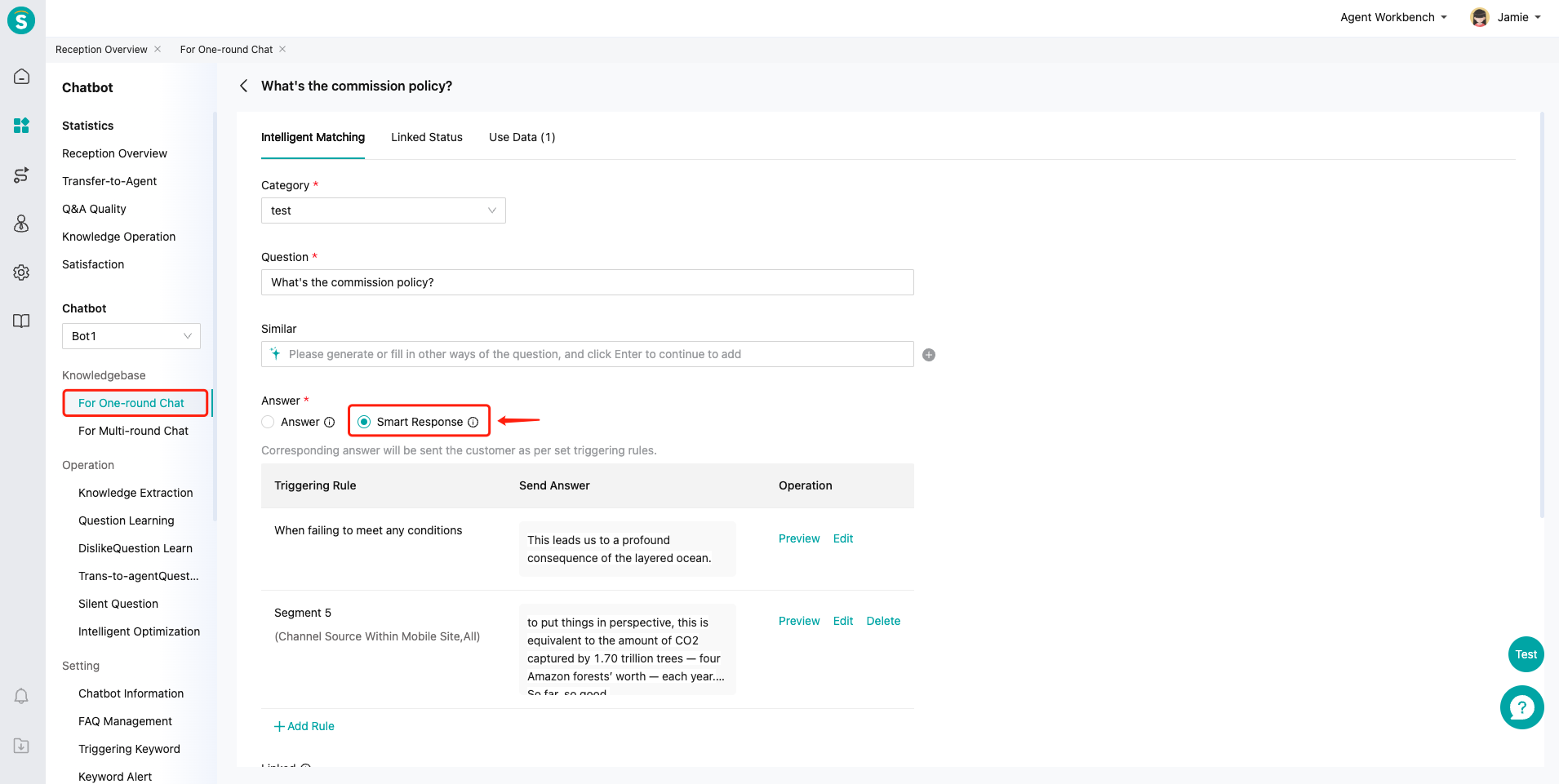
● Smart Response is to configure bot's answers for different customers as per different judgement conditions.
● When the customer meets multiple rules, reply will be made in the order of answer configurations.
● When the customer doesn't meet the judgement conditions, standardized answer to the question will be sent.
● The complete Smart Response function includes the following core function sections:
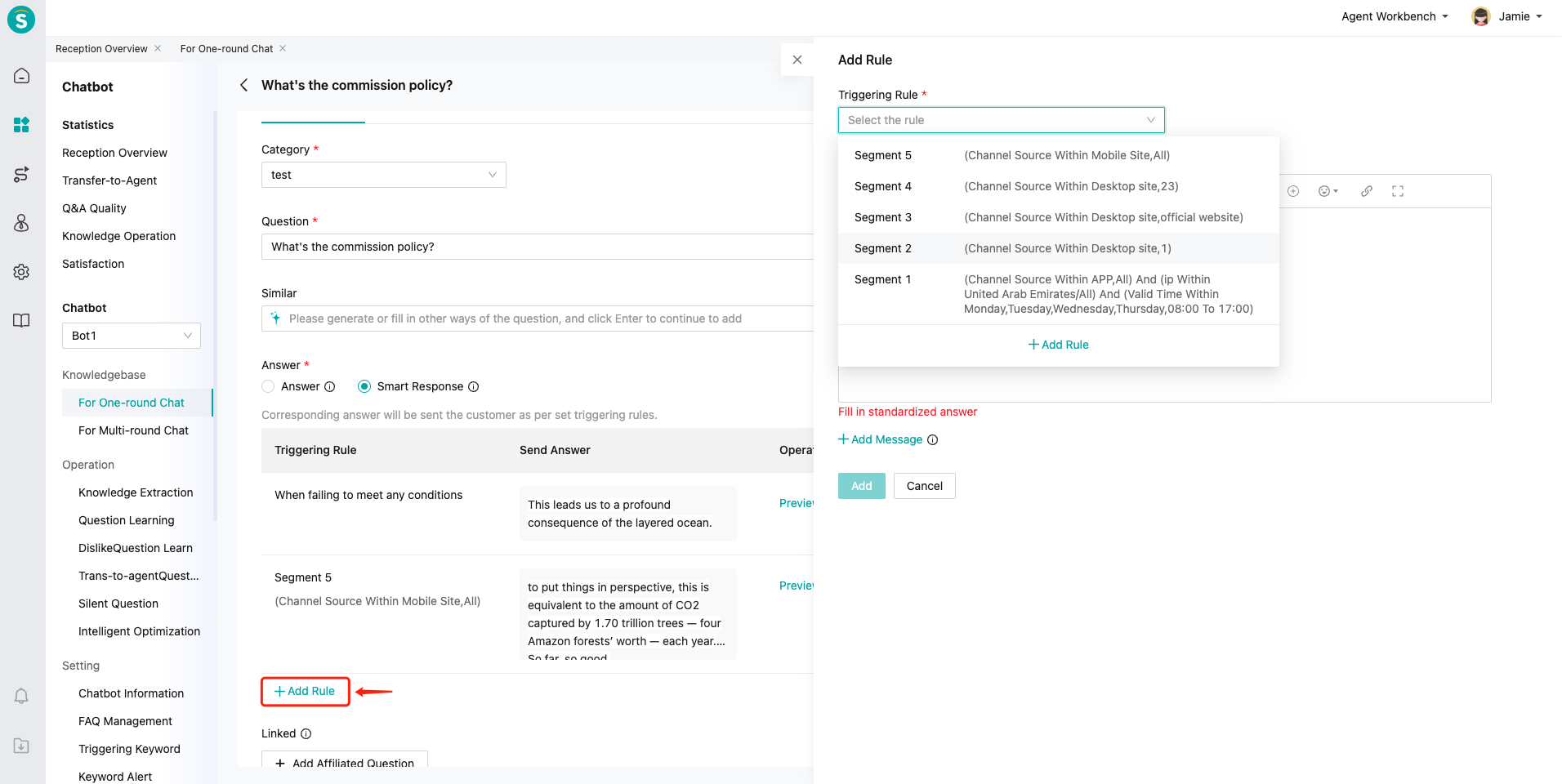
Trigger rules for different answers: Admins can set "Customer Group: Grouping Rules" for specific answers;
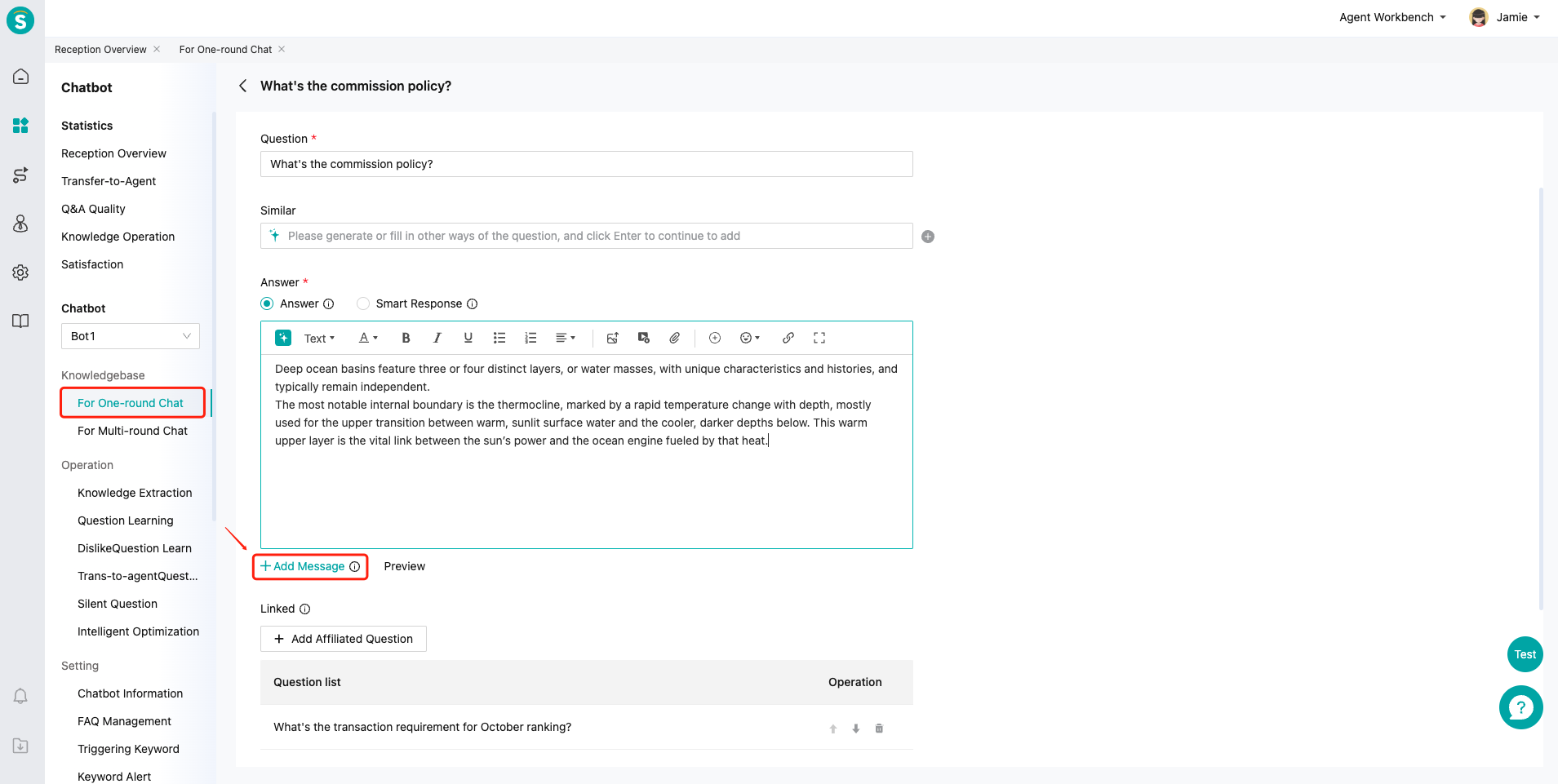
Configuration of answers correpsonding to rules: The Smart Response function supports "rich text" or "mini program" answers corresponding to the trigger rule, and an answer can be sent multiple times in multiple messages;
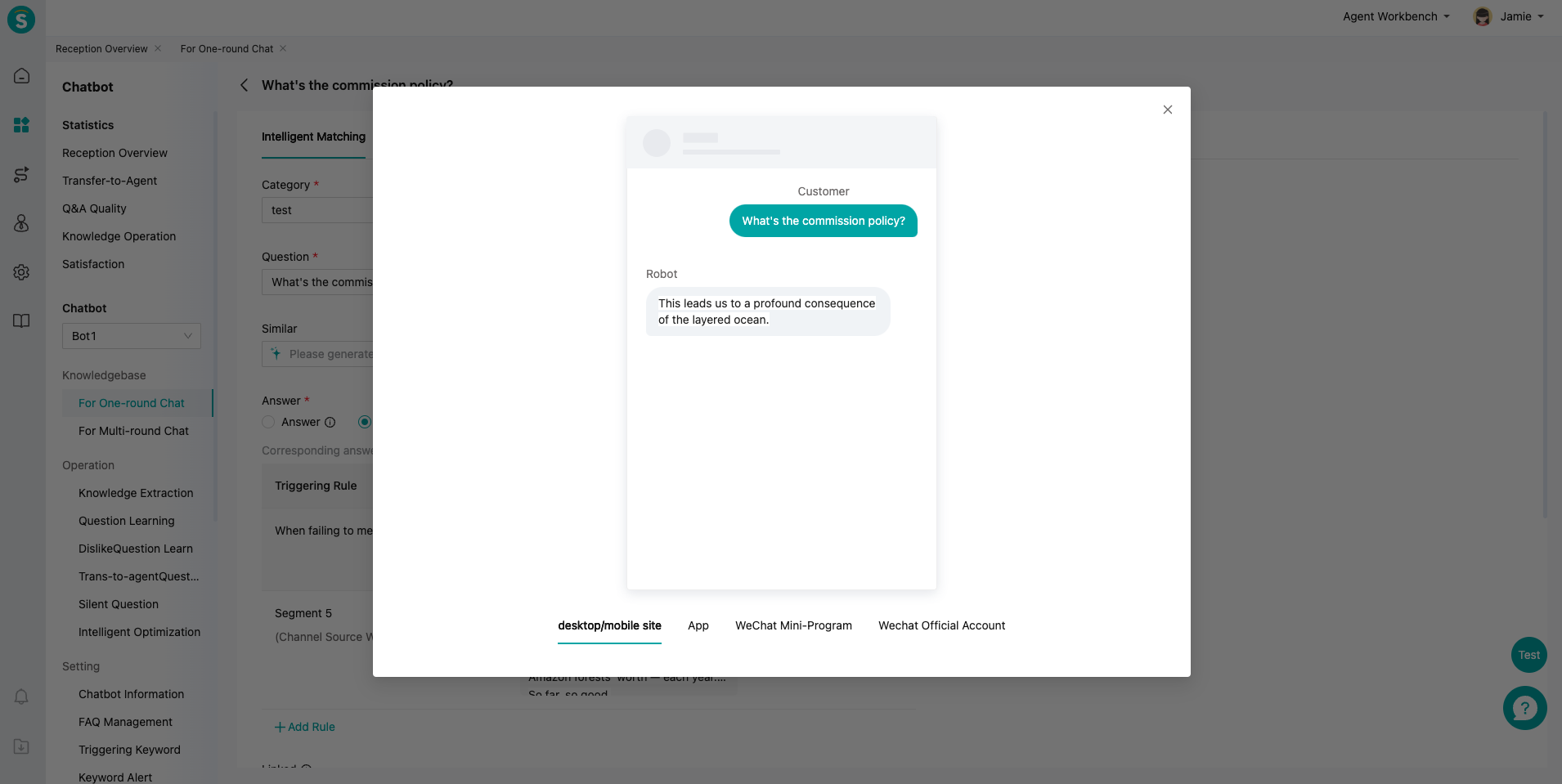
Rule answer draft and test: The Smart Response function supports publishing it to the draft box, and supports the grayscale test function.
# What is the Walue of the Smart Response Function
● Output answers based on customer groups to improve bot answer efficiency and accuracy
● Support multiple message sending to enhance the effectiveness of information reaching visitors
# How to Configure Smart Response Questions
# ● Visitor grouping
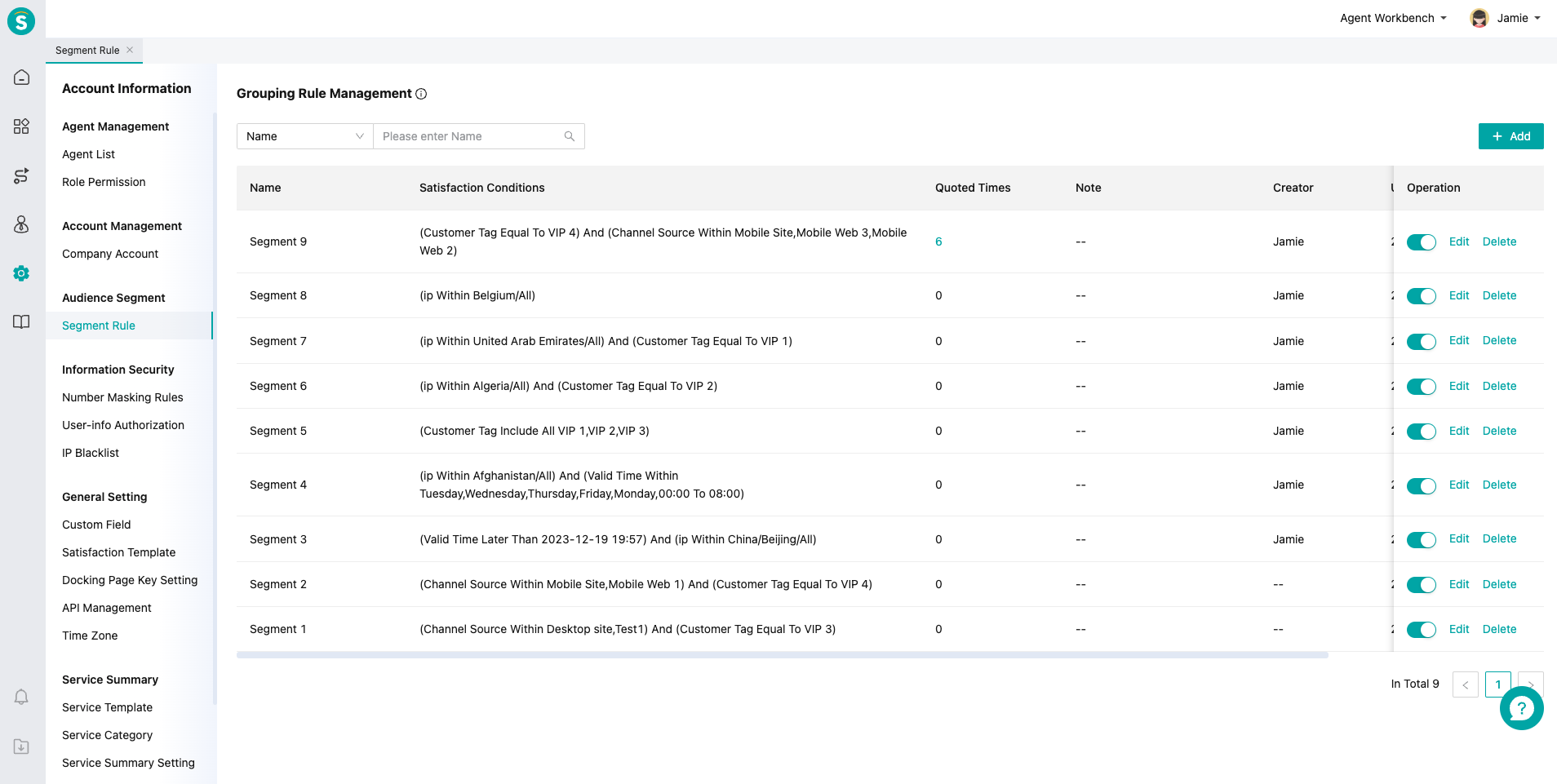
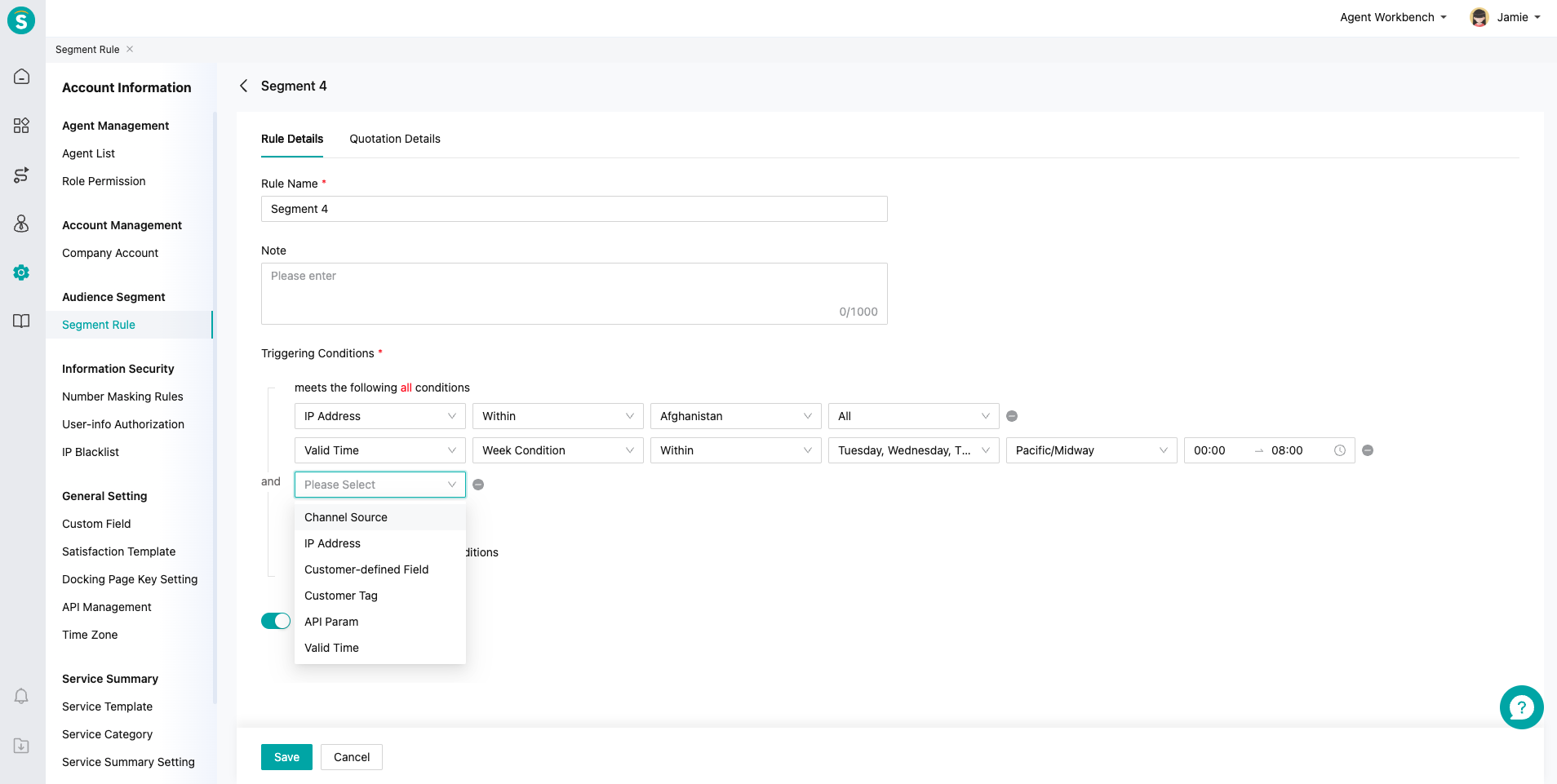
Visitor grouping rule management means to create reusable rule template based on customer channel source, business tag, valid time and other conditions to distinguish customer identities and output different answer settings for different customers through visitor grouping rules.
# ● Create questions and preview
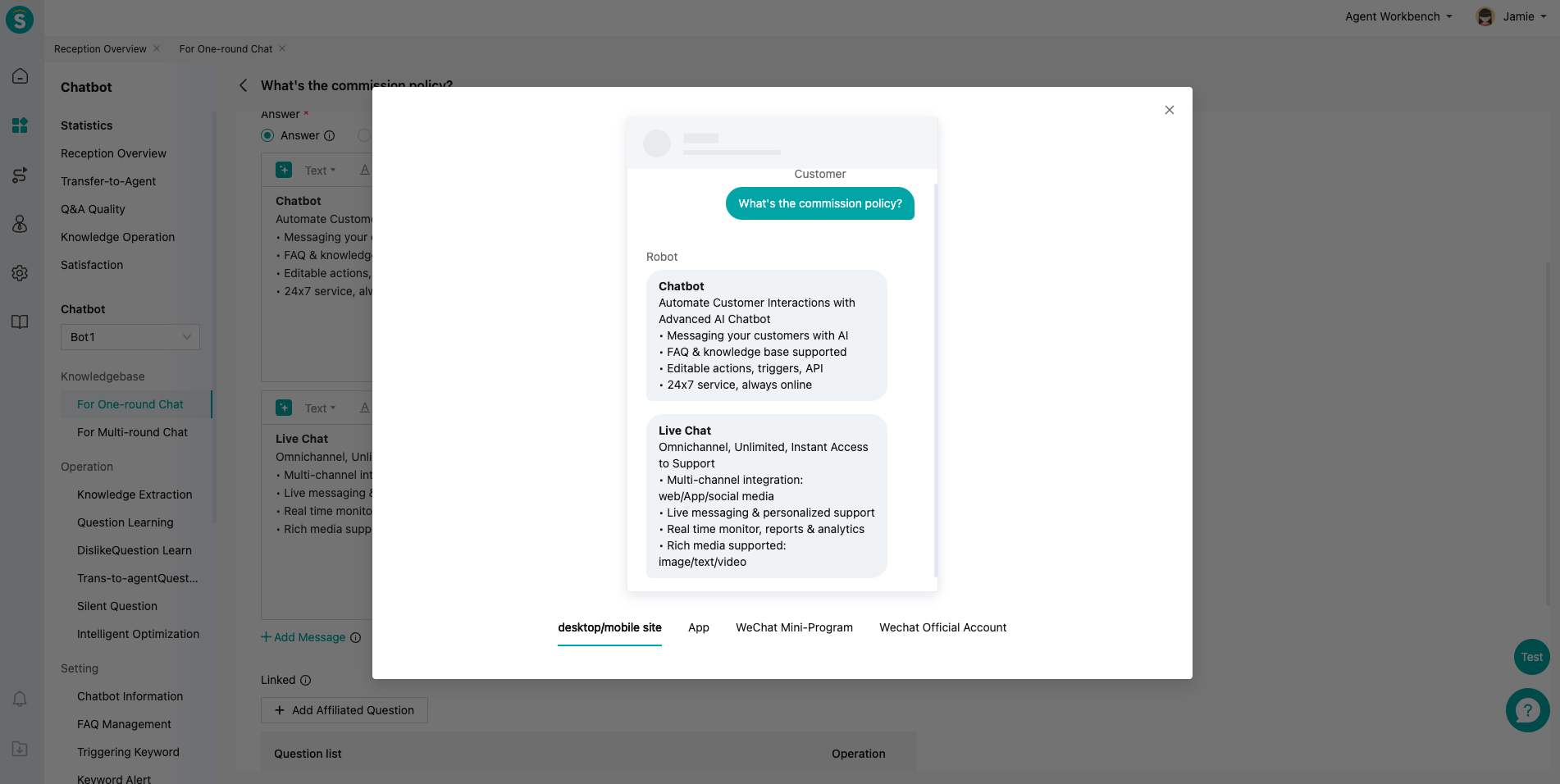
- Enter "Bot - One-round Question Management", click "Add Question", and select the "Smart Response" option to enter the "Smart Response" question addition interface.
# ● Question test and release
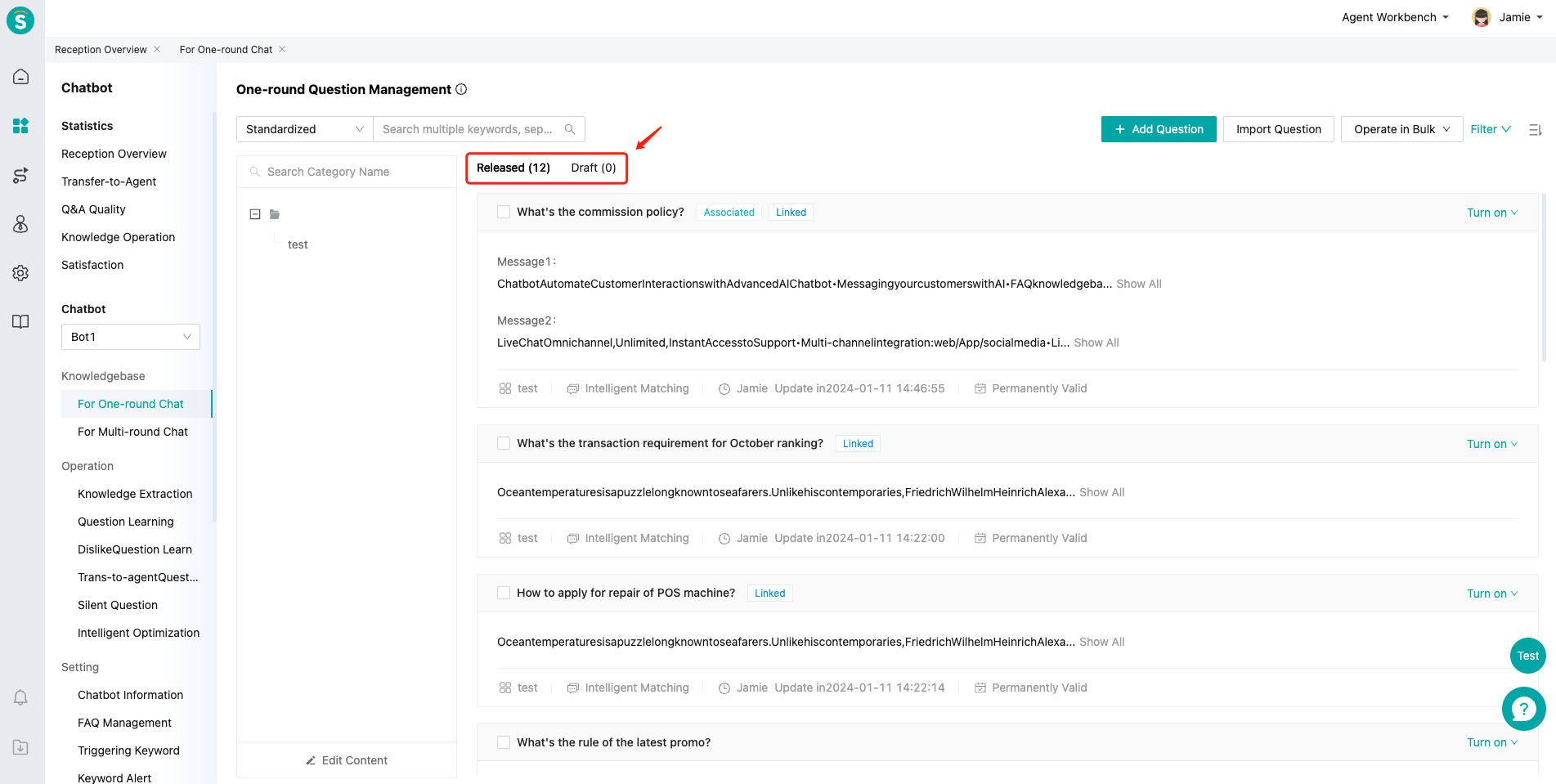
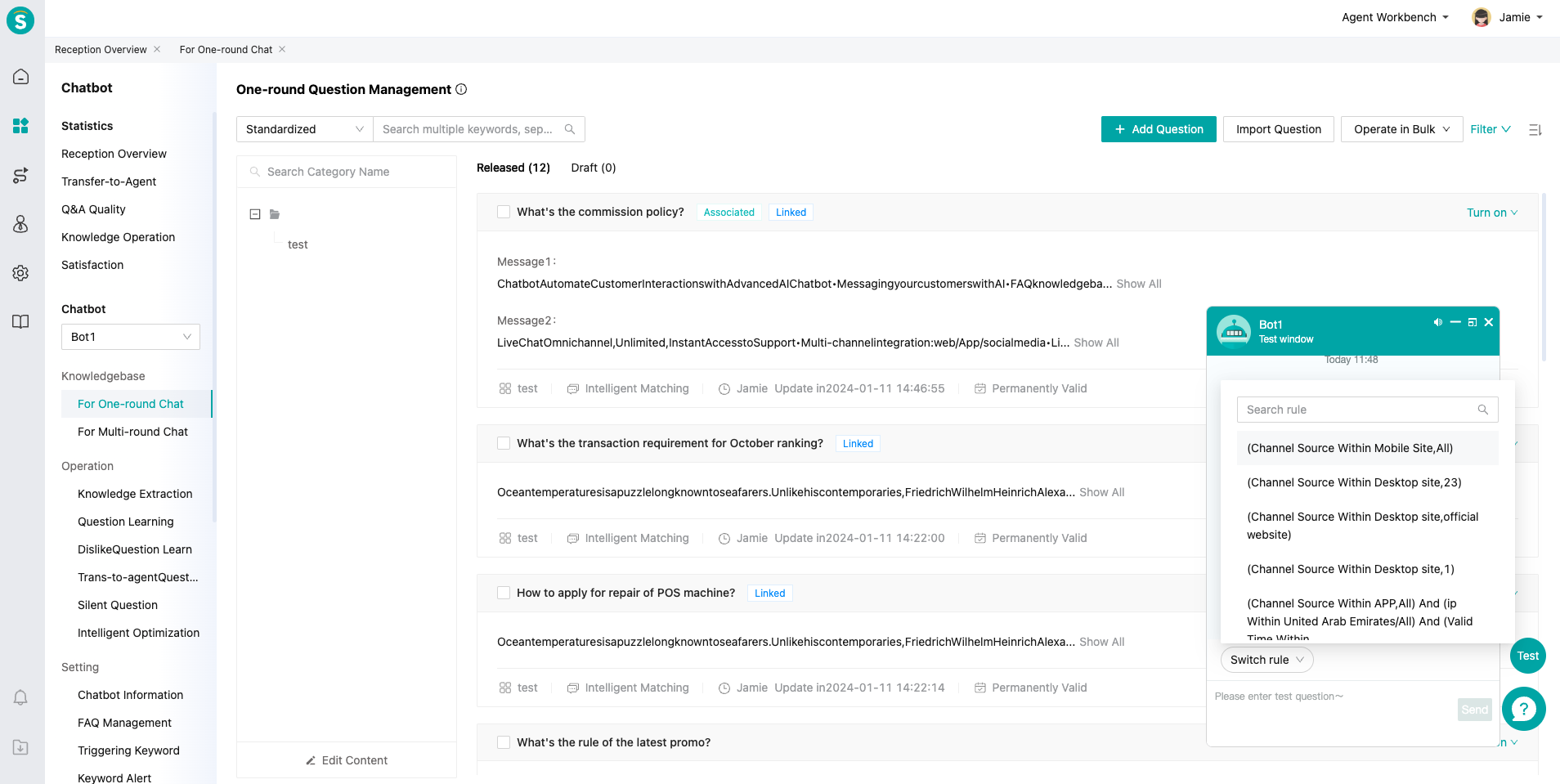
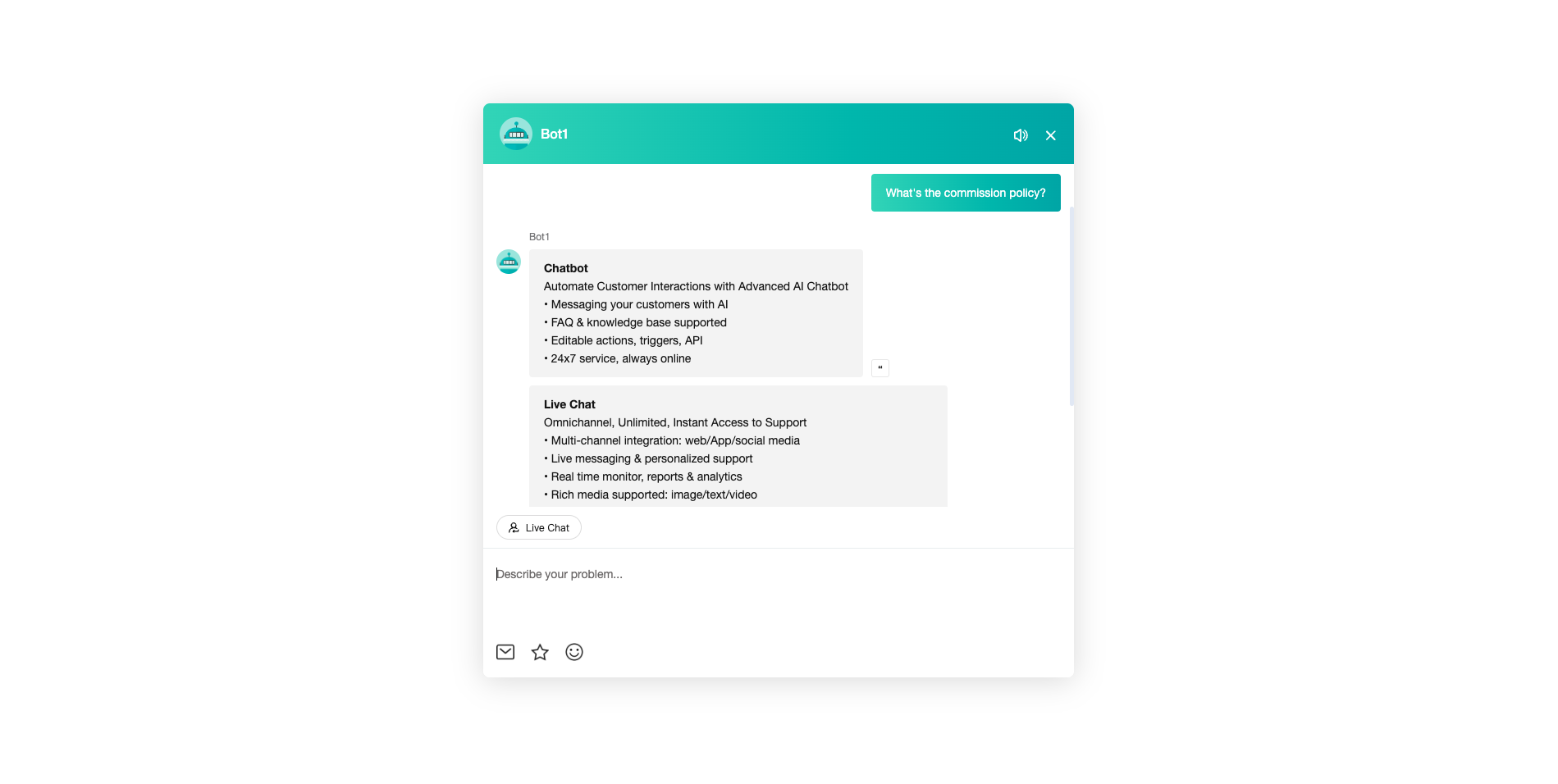
- In the question adding interface, the admin can click "Publish" to directly publish it online, or click "Save as a Draft" and then publish it online after passing the grayscale test and meeting the requirements.
# Description of Knowledge Base Operation Management Rules
——Learn how to operate chatbot knowledge base through this article
# What you can learn from this article
We would like you to understand the following contents through this article:
● The operation methods and functions introduced in this article are applicable to flagship edition chatbot. If you use professional or enterprise edition, you can make some reference.
● What are the operation objectives in different time periods and how to operate it.
● How to better use bot functions
● What indicators need attention
# How to Build a Knowledge Base from Scratch
# ● Stages of Knowledge Base Operation
Stage 1: build the knowledge base before going online, half a month to one month before going online.
Stage 2: test the knowledge base before going online, 1 week before going online.
Stage 3: fast operation period, within 1 month after going online.
Stage 4: refined operation period, 1-3 months after going online.
Stage 5: continuous operation period, 3 months after going online.
# ● What should You Do at These Operation Stages
- Stage 1: build the knowledge base before going online: complete the preparation of knowledge base content at an appropriate time in advance according to the volume of your actual business.
Step 1: collect questions from customers in real business scenarios. If you have used the agent system before, you can export the chat records. If you have no chat history records, you can collect questions from actual business personnel.
Step 2: after collecting data, you can categorize the actual business scenarios using mind map, which will help you better improve the knowledge base later.
Step 3: sort out the knowledge base categories according to the listed business scenarios, categorize the questions collected in Step 1, and sort out the standardized questions and answers first. Similar questions can be enriched after the standardized questions are sorted out. It is recommended to configure at least 5 similar questions for each standardized question.
- Stage 2: test the knowledge base before going online: you can set the goal of the knowledge base test as the Unknown Answer % less than 15% (Unknown Answer % = Unknown Answers / Bot Answers). Testing the answers of the knowledge base will help your bot receive better after going online. See the Q&A Quality Statistics Guide for indicators.
Step 1: prepare the test set. Prepare about 200 questions that customers really ask as a test set.
Step 2: upload the knowledge base questions sorted offline to the one-round questions. Multi-round questions cannot be uploaded. You can directly configure in the admin console.
Step 3: use the online access test, enter the test set questions at the visitor side, and record the answer type (including Direct Answer, Similar Answer and Unknown Answer) to calculate the unknown answer %. If it is less than 15%, it can be ready to go online, and if it is more than 15%, the knowledge base questions should be optimized. Before the test, you need to configure the reception mode and the reception bot in【Docking Channel Settings - Customer Reception Mode】, and confirm that the bot you want to test is the current bot. Refer to the Overall Introduction to Channel Docking Module for details.
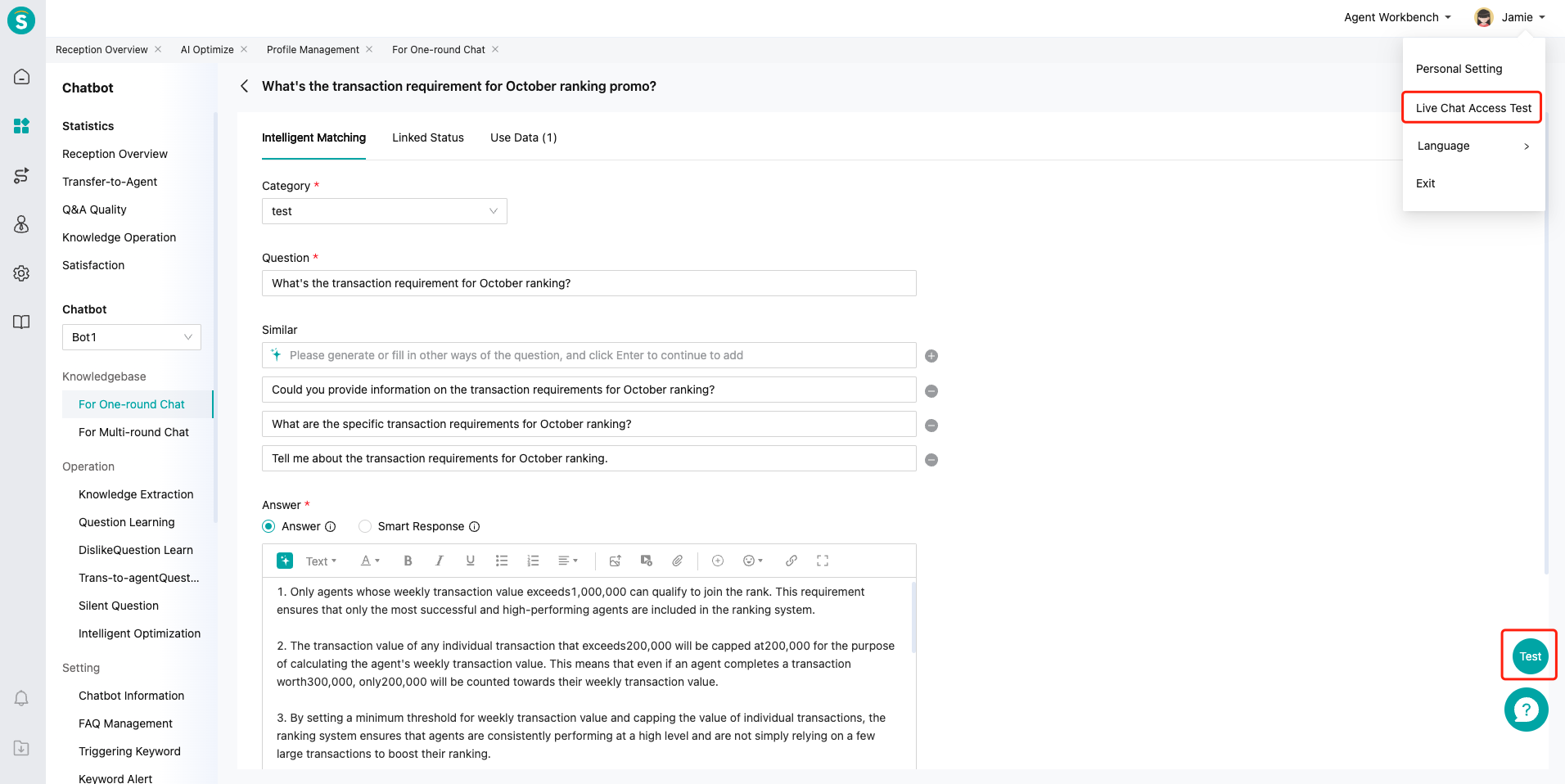
- Stage 3: fast operation: quickly reduce the Unknown Answer % and the Independent Reception %. According to the actual business, the Unknown Answer % should be controlled below 5%. Enriching questions in the knowledge base is the primary goal of this stage, which quickly enables bot to answer more customer questions.
Step 1: You need to learn unknown questions, starting from the first day of going online, and reducing the learning frequency after the Unknown Answer % is less than 5%. For the way to use unknown questions, refer to the Unknown Question Learning Guide.
Step 2: You need to start using intelligent learning 2-3 days after going online. For the way to better use intelligent learning, please refer to the Intelligent Learning Guide.
Step 3: You can monitor relevant indicators in the statistical report.
- Stage 4: refined operation. The purpose of this stage is to improve the Direct Answer Match % and the Independent Reception %.
Step 1: You can export the chat history from the trans-to-agent chat record, analyze the reason for each trans-to-agent chat one by one, optimize the knowledge base questions according to the actual reason, and improve the Independent Reception %. Refer to the Chat Record Analysis Method for analysis.
Step 2: You can add Containing Match as the match method of some one-round questions to improve the Direct Answer Match %.
Step 3: You can appropriately use associated questions to improve the Direct Answer Match %. You can bind no more than 5 associated questions.
- Stage 5: continuous operation. There are bottlenecks in all operational indicators. In the continuous operation stage, Unknown Answer %, Direct Answer Match %, and Independent Reception % indicators are required to be stable, and there is no need to improve all indicators.
Reduce the operation frequency according to the actual business volume and keep the indicators stable.
# ● What Are the Specifications for Building a Knowledge Base
Standardized question: Standardized question is used to display, so it should be concise and clear that when the question is displayed, the user can instantly understand its intention. The standardized question should cover the whole meaning of similar questions and answers. It should be limited to no more than 15 chars.
Similar question: Similar question should be consistent with the standardized question in terms of intention. You should avoid similar questions with vague intention and distinguish the intention from other standardized questions and similar questions. It is suggested to enrich more than 20 and less than 200 similar questions (not mandatory requirement)
Standardized answer: The answer should meet all the intentions in the corresponding standardized question + similar question, and indicate the key points. When there are too many key points, it is recommended to disassemble them into different standardized questions. The text should not be too long, and the expression should be close to the vernacular, reducing professional discourse to make users understand.
# ● Introduction to Knowledge Base Answer Type
Direct answer: The method of bot directly giving the answer.
Similar answer: When the module identifies that multiple standardized questions are highly similar to the questions asked by customers, the bot will show these standardized questions to customers, and customers can click to view them. This is called similar answer.
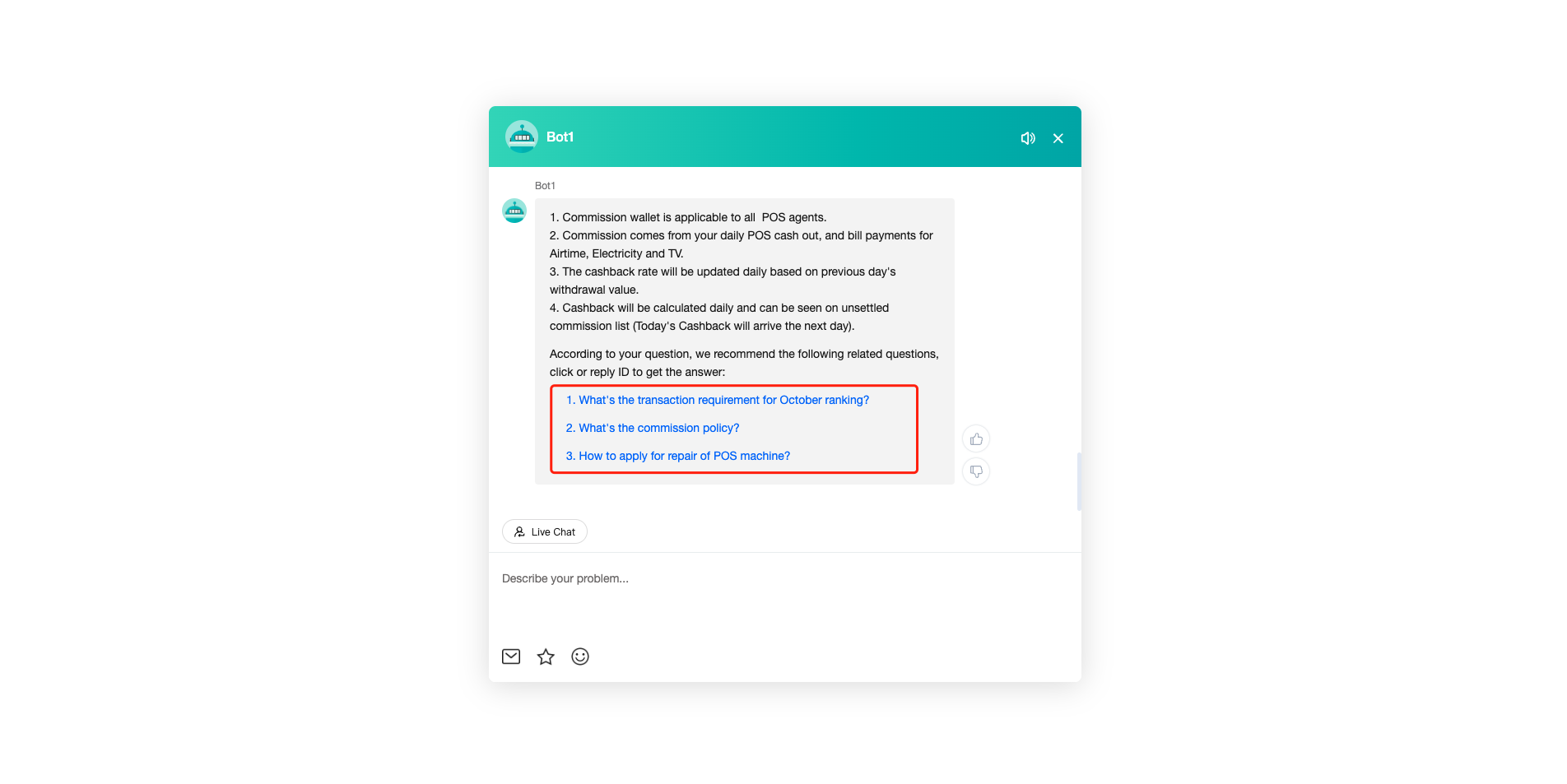
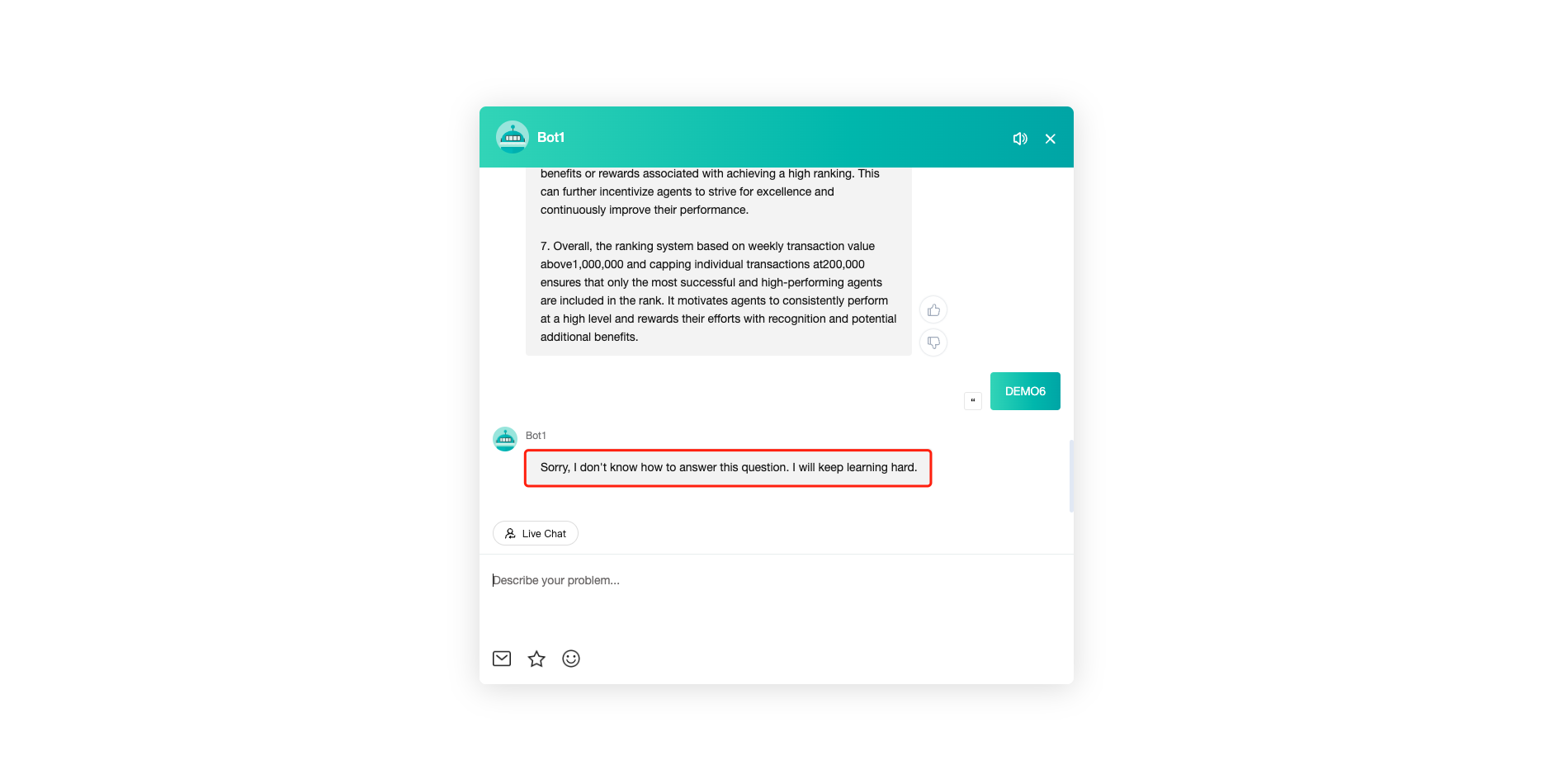
- Unknown answer: When there is no answer to match, the bot will push the reply of unknown question to the customer, which is called unknown answer.
# Related article(s)
# Unknown Question Learning Guide
——Learn how to use the Unknown Question Learning we offer you and its scenarios through this article
# Role of Unknown Question Learning
We would like you to know about the scenarios and roles of the Unknown Question Learning function first:
● Usage scenario: After the knowledge base is launched, when a real customer inquires the bot, unknown questions need to be learned and optimized by the operator.
● Purpose: You can find questions that bot can't answer in real time, quickly track and improve the knowledge base, to reduce the bot's Unknown Answer %.
# How to Use Intelligent Learning
You will find a description of the role and effect of each function point below:
# ● Restrictions
Unknown Question Learning changes with bot you select in admin console.
# ● Source of Unknown Questions
Introduce you to the sources of to-be-resolved questions in unknown questions:
When a customer initiates an inquiry with the bot, with no matched answer or greeting question in the knowledge base, the bot will push the unknown answer reply to the customer. The unknown answer reply is configured in【Docking Channel Settings - Agent Reception Mode】.
# ● When to Use Unknown Question Learning
Start time: When the bot is launched for use by formal users, it needs to learn unknown questions many times every day.
Learning restriction: Unknown questions help you enrich standardized questions and similar questions in the knowledge base. When Unknown Answer % is less than 5%, it is suggested that you should reduce the learning cycle. For how to understand the Unknown Answer %, please refer to the Q&A Quality Statistics Guide.
Continuous operation period: When the Unknown Answer % continues to be less than 5%, it is suggested that you check it once a week.
When to increase the operation frequency: When the Unknown Answer % is more than 5% or new businesses and activities are launched, increase the learning frequency as appropriate.
# ● How to Use Unknown Questions
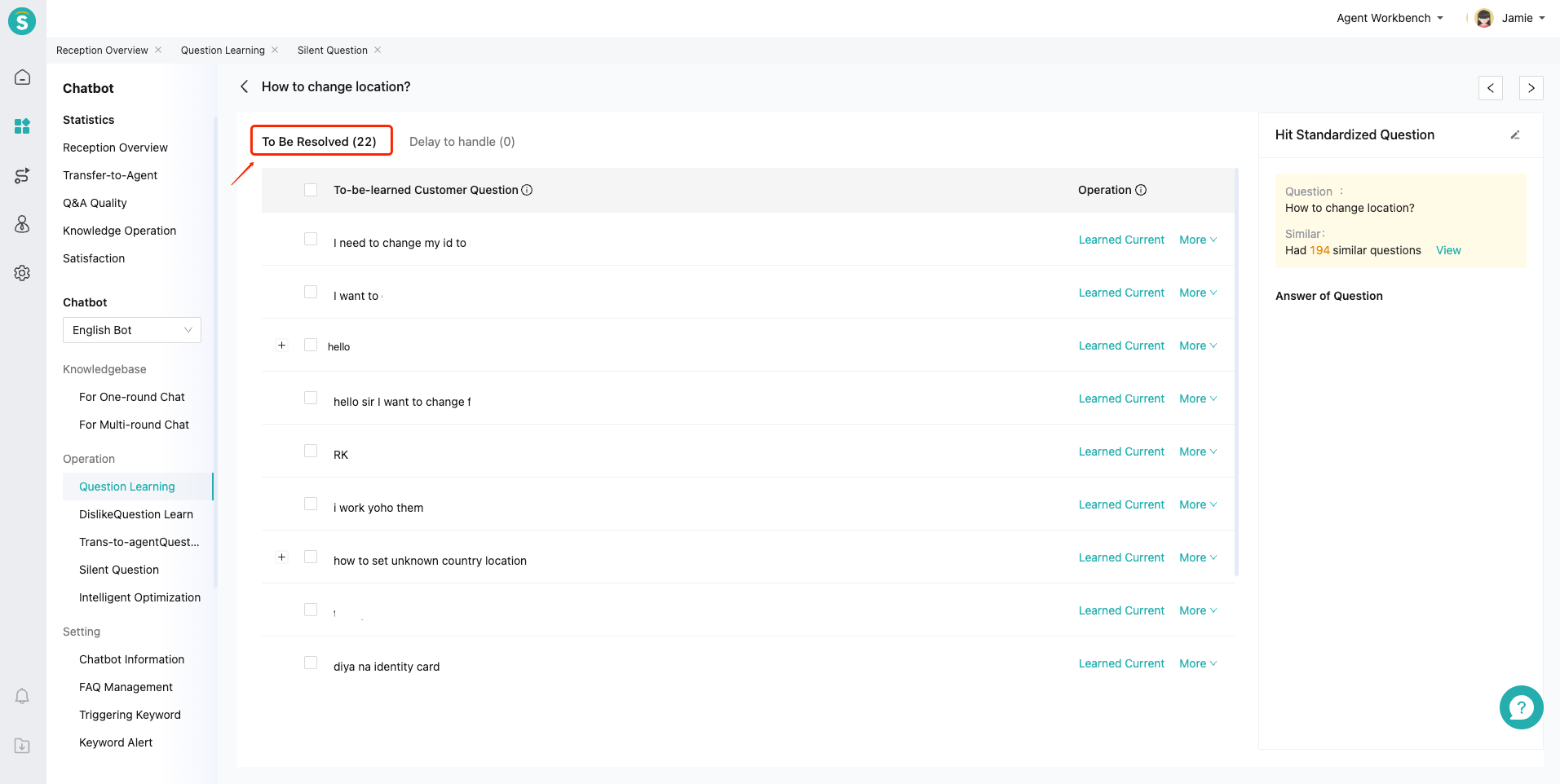
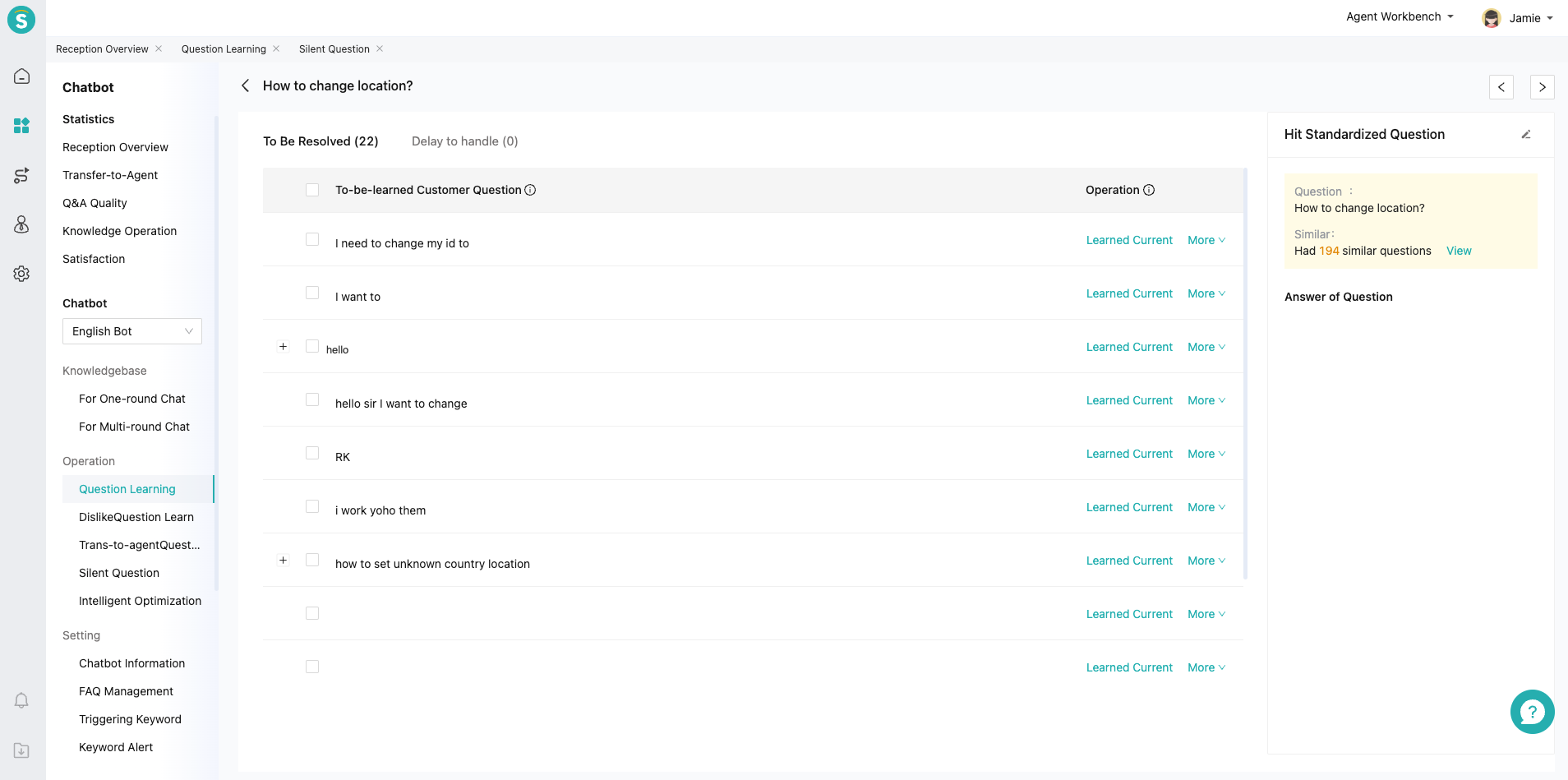
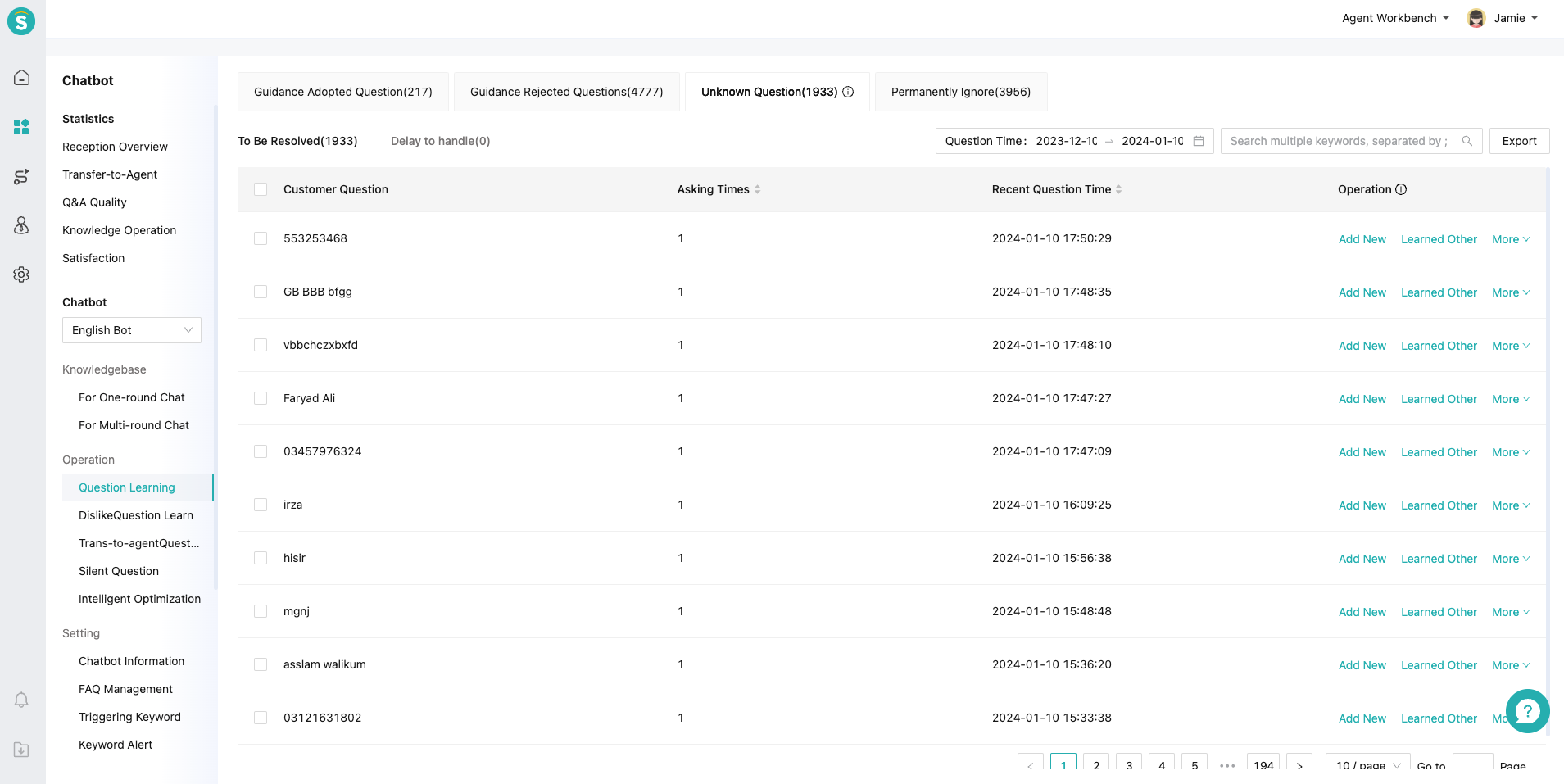
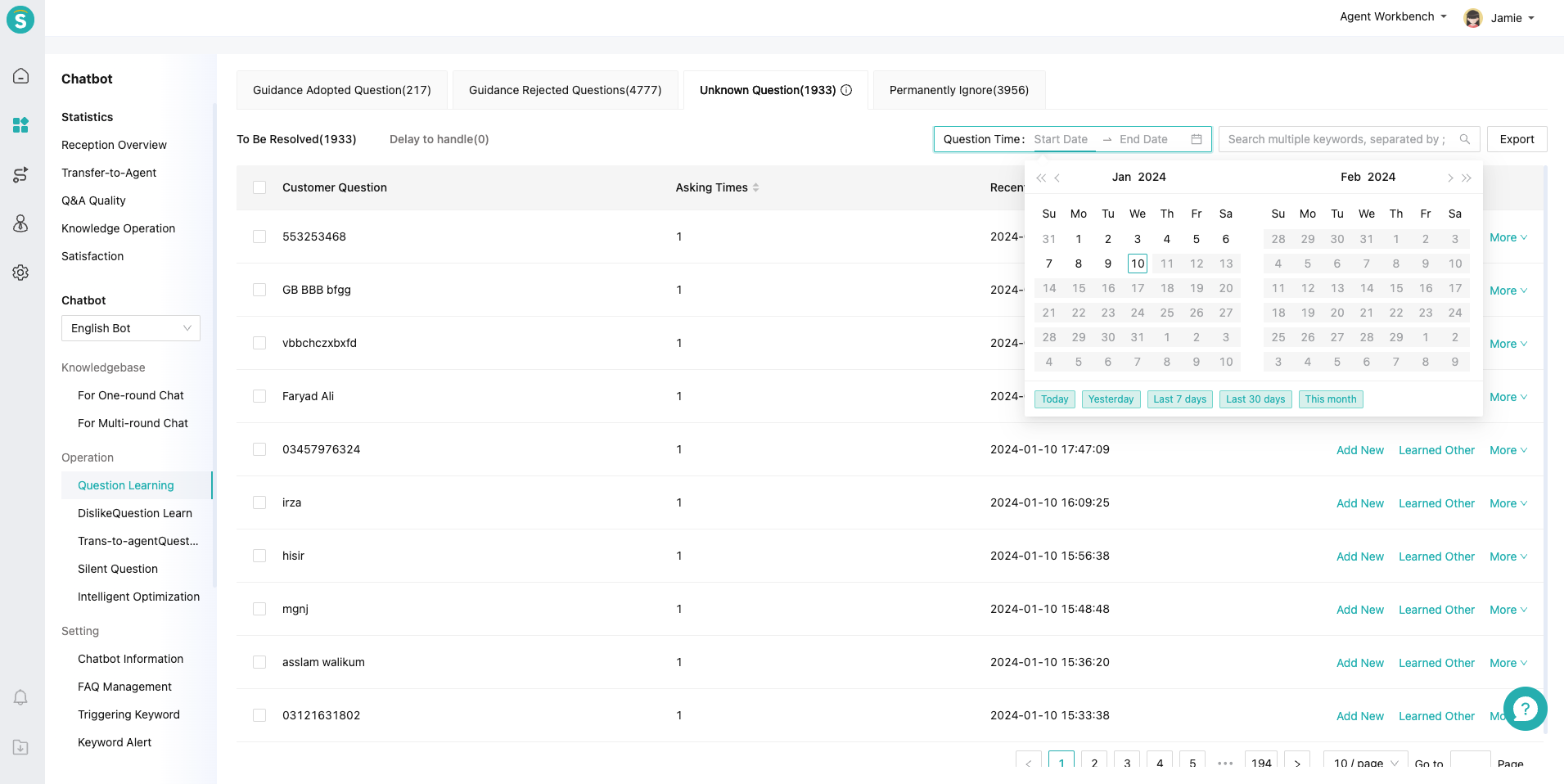
- Step 1: On the【Unknown Questions - To Be Resolved】page, all unknown questions are displayed by default. You can filter the time period to be optimized by date.
- Step 2:
If you are a small customer and have no more than 100 to-be-resolved questions every day, you can directly handle them online.
If you are a large customer and have more than 100 to-be-resolved questions every day, you can export them for offline handling and directly import them into the one-round knowledge base in bulk. To learn about bulk import, please refer to the Overall Introduction to One-round Question Management Module.
- Step 3: You can understand the inquiry scenario of to-be-resolved questions through chat details, and then add the questions as new questions or learn to other questions. For the way to standardize the standardized questions and similar questions, refer to the Description of Knowledge Base Operation Management Specifications and Skills.
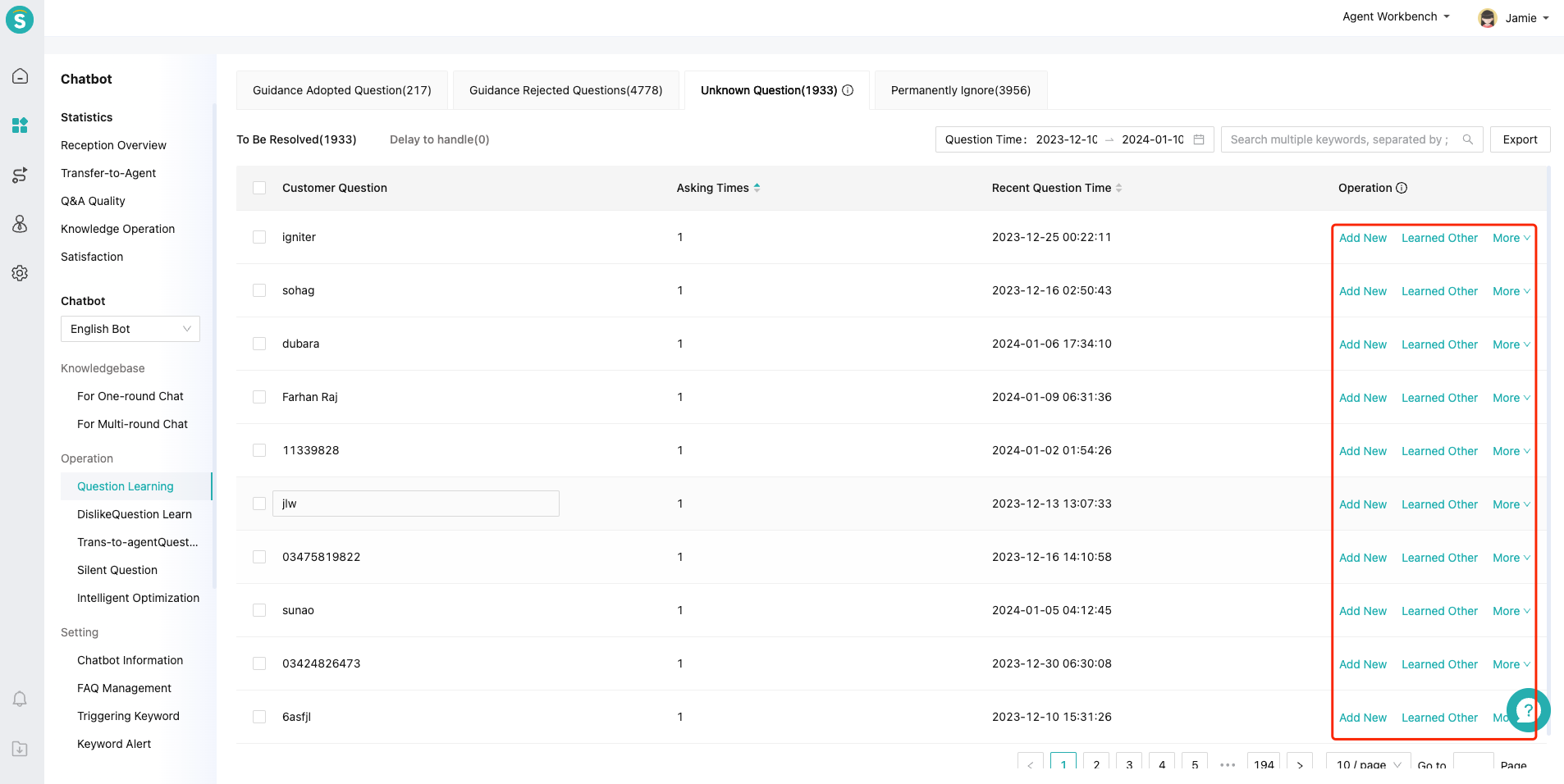
- The following introduces the functions of each operation:
Add new question: After clicking, the page for adding one-round questions will open. You can select the match method and add a new one-round question.
Learn to other questions: After clicking, the one-round and multi-round questions of all bots will be displayed for you. You can learn this question into other standardized questions in the knowledge base.
Chat details: You can understand the real chat scenario of the customer's questions.
Delay-to-Handle: When you are not sure which standardized question you should learn to or whether it should be added as a new question, you can select Delay-to-Handle, and then the question will be added to the【Delay-to-Handle】list.
Permanently Ignored: After clicking, this customer's question will not enter the intelligent learning; meanwhile, permanently ignored questions will be recorded on the【Permanently Ignored】page.
Delete: After clicking, this customer's question will be deleted from the list, but the same question will still be recorded in the intelligent learning next time.
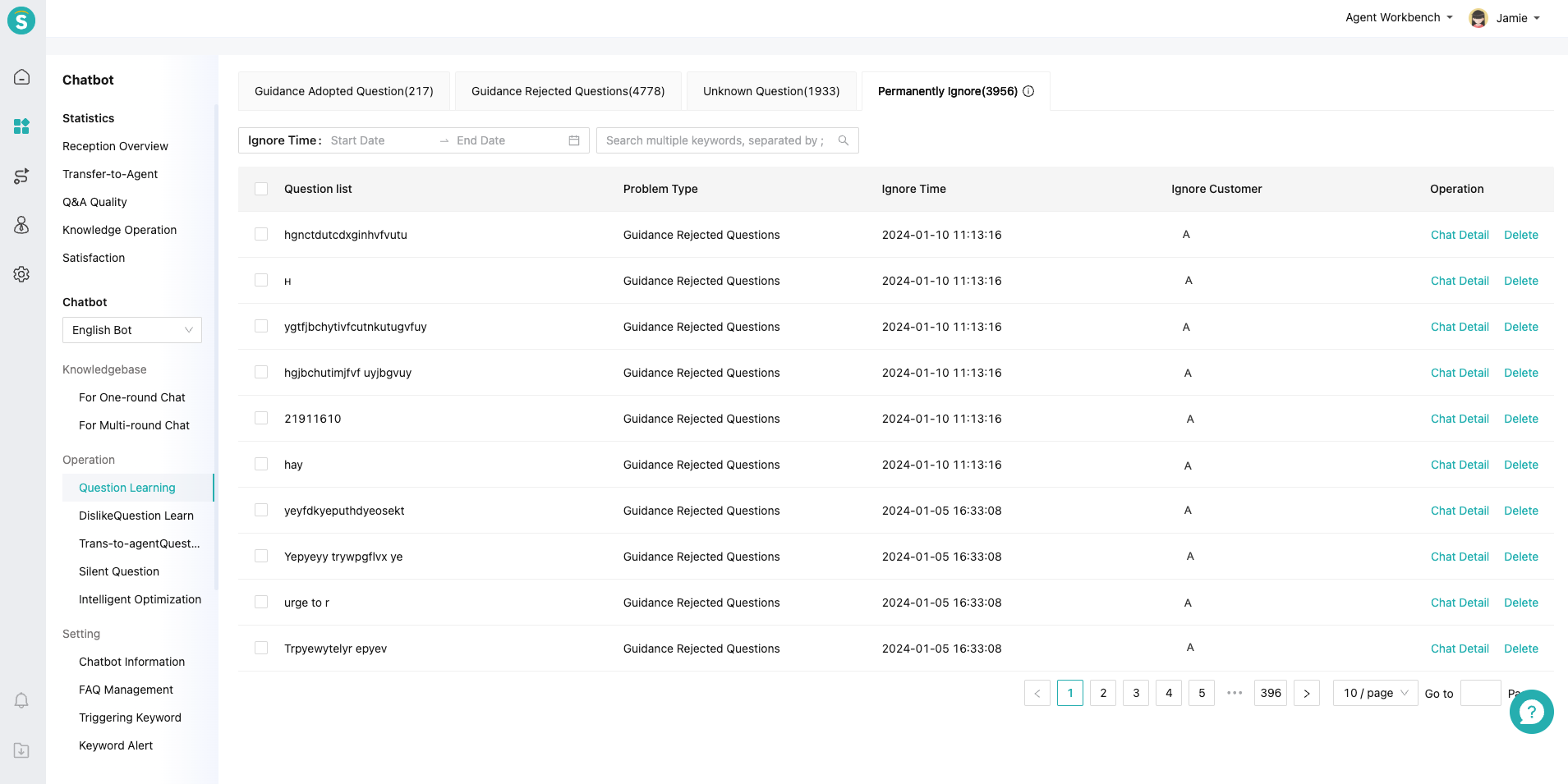
# ● Other Functions of Unknown Questions
Support item-by-item operation and bulk operation.
Support searching questions by keywords.
# Related article(s)
Overall Introduction to One-round Question Management Module
Description of Knowledge Base Operation Management Rules
# Guidance Rejected Questions Guide
——Learn how to use the Guidance Rejected Questions we offer you and its scenarios through this article
# Role of Guidance Rejected Questions
We would like you to know about the scenarios and roles of the Guidance Rejected Questions function first:
● Usage scenario: After the knowledge base is launched, when a real customer inquires the bot, the unclicked guidance questions need to be learned and optimized by the operator.
● Purpose: To understand the reasons for not clicking on guidance questions, quickly improve the knowledge base and improve the Direct Answer Match %.
● Usage permissions: Currently, the Guidance Rejected Questions menu has not been fully available for the public. If you want to use it, you need to contact the service manager to enable a whitelist for trial use
# How to Use Guidance Rejected Questions
You will find a description of the role and effect of each function point below:
# ● Restrictions
Guidance Rejected Questions function changes with bot you select in admin console.
# ● Source of To-Be-Resolved Questions
Introduce you to the sources of to-be-resolved questions in Guidance Rejected Questions:
After the customer initiates an inquiry with the bot, when the bot gives an understanding or guided answer and the customer doesn't click any standardized question, the customer's questions will be recorded in the intelligent learning.
The same customer's questions will be combined and asking times will be increased by 1.
The list of guidance questions for combined customer questions will be deduplicated and accumulated, and the chat records for the same customer's questions can display up to 20 recent chats.
# ● When to Use Guidance Rejected Questions
Start time: When the bot is launched for use by formal users, Guidance Rejected Questions can be used in about 2-3 days, and the learning frequency depends on the daily data volume, at least once a day.
Learning restriction: Guidance Rejected Questions function helps you enrich the standardized questions and similar questions in the knowledge base. When there are more than 200 similar questions in the knowledge base, you should not continue to learn this standardized question.
Continuous operation period: When similar questions of all questions are enriched to 20-200 pieces, that is, almost two months after the bot goes online, you can enable the Guidance Rejected Questions Optimization Setting in the intelligent optimization setting. For details, refer to the Intelligent Optimization Setting Guide. Then you only need to view it once a week according to the actual business updates.
# ● How to Use Guidance Rejected Questions
- Step 1: On the Guidance Rejected Questions Page, you can view all to-be-learned questions. They are displayed by the dimension of customer questions and are sorted descendingly by the number of to-be-asked questions.
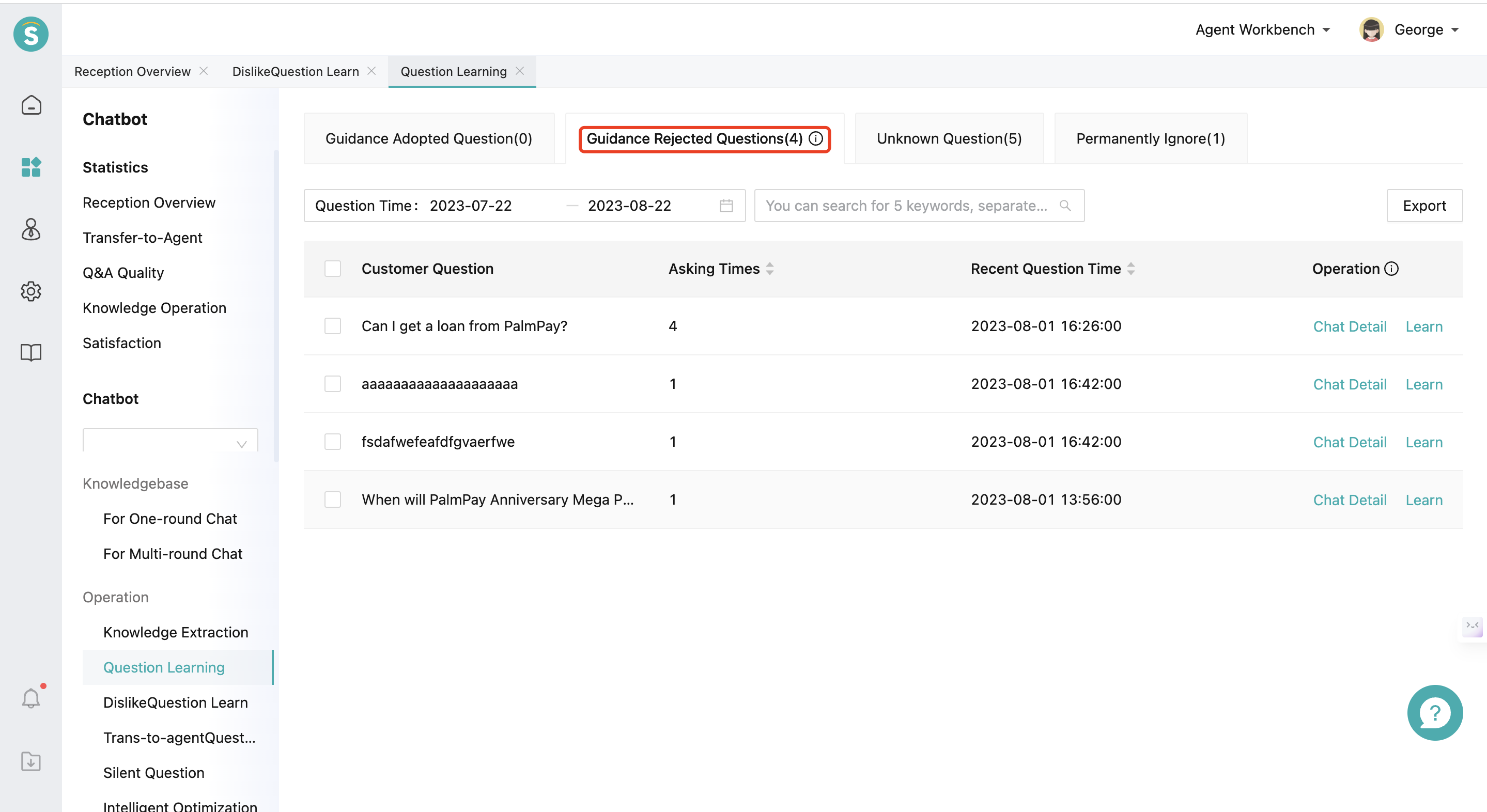
Step 2: Analyze the reasons for not clicking on the guidance question list through chat records, usually including inconsistency between recommended guidance questions and questions asked. In this case, it is necessary to learn the questions asked by the customer into similar questions or create standardized questions. If the guidance questions are unclear or too long to read, the standardized question expressions need to be optimized.
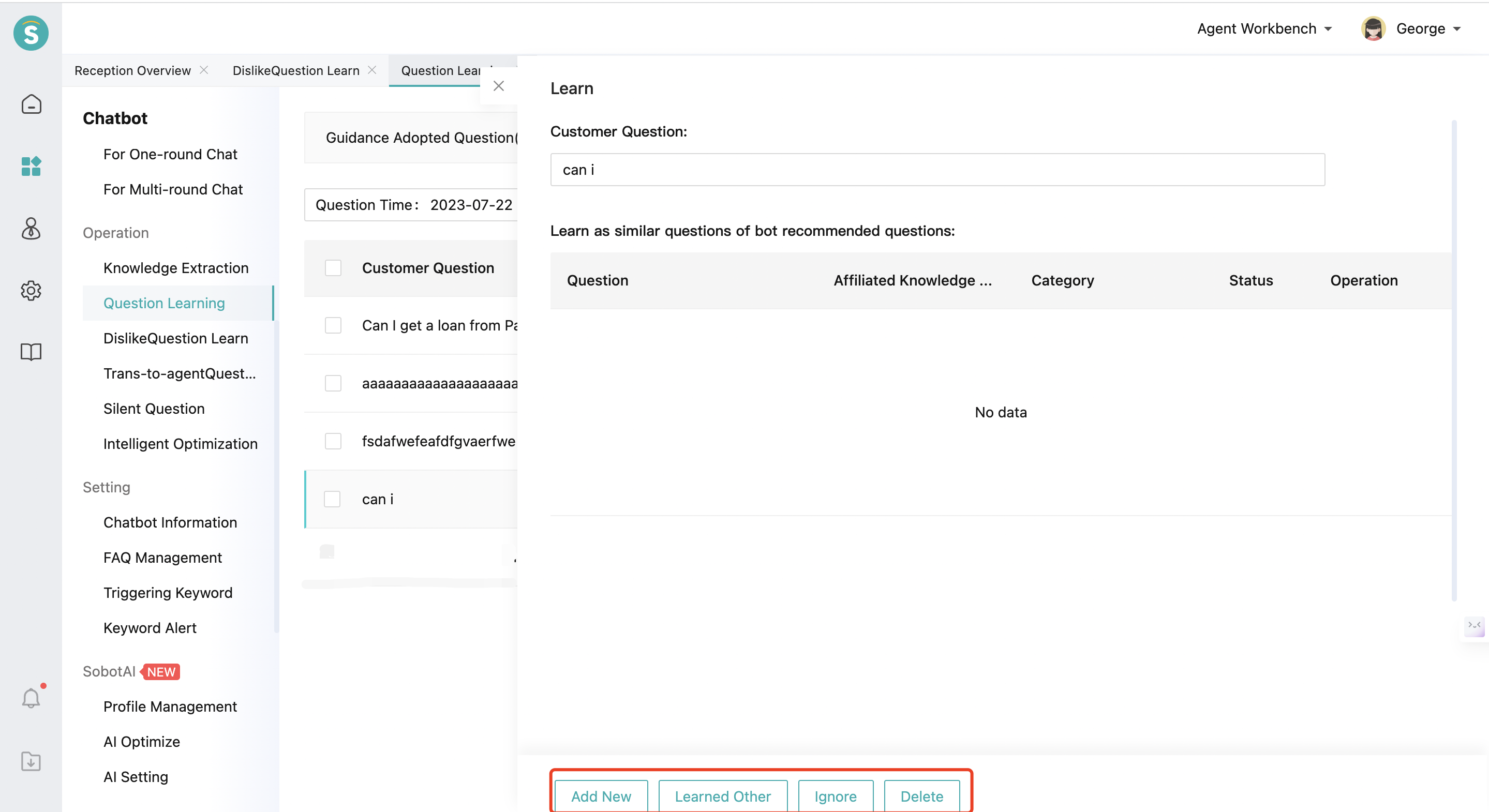
Step 3: Click【Learn】to view the list of guidance questions from the customer questions. If there are standardized questions in the guidance list that are consistent with the customer's intention of questions, you can modify the customer's questions and click【Learn】to learn them into the corresponding standardized questions. If the standardized question expressions in the guidance question list are unclear or too long, you can also click【View】to open the creation page of the standardized questions and modify the standardized questions or answers
- The following introduces the functions of each operation:
Learn button on the learning page: Click on the Learn button to learn the customer's questions into the corresponding standardized questions.
Add new question: After clicking, the page for adding one-round questions will open. You can select the match method and add a new one-round question.
Learn to other questions: After clicking, the one-round and multi-round questions of all bots will be displayed for you. You can learn this question into other standardized questions in the knowledge base.
Chat details: You can understand the real chat scenario of the customer's questions.
Permanently Ignored: After clicking, this customer question will not enter the Guidance Rejected Questions; meanwhile, permanently ignored questions will be recorded on the【Permanently Ignored】page.
Delete: After clicking, this customer question will be deleted from the list, but the same question will still be recorded in the Guidance Rejected Questions next time.
# ● Other Functions of Guidance Rejected Questions
Support item-by-item operation and bulk operation.
Support searching for customer questions through multiple keywords.
Support exporting up to 3 months of data at a time.
# Dislike Question Learning Guide
——Learn how to use the Dislike Question Learning we offer you and its scenarios through this article
# Role of Dislike Question Learning
We would like you to know about the scenarios and roles of the Dislike Question Learning function first:
● Usage scenario: After the knowledge base is launched, when a real customer inquires the bot, the disliked bot answers need to be optimized by the operator.
● Purpose: To learn about the reasons why bot answers are disliked, improve customer satisfaction by optimizing answers, and increase the bot's Independent Reception %.
● Usage permissions: Currently, the Dislike Question Learning menu has not been fully available for the public. If you want to use it, you need to contact the service manager to enable a whitelist for trial use
# How to use Dislike Question Learning
You will find a description of the role and effect of each function point below:
# ● Restrictions
Dislike Question Learning changes with bot you select in admin console.
# ● Source of To-Be-Resolved Questions
Introduce you to the sources of to-be-resolved questions in Dislike Question Learning:
When the customer initiates an inquiry with the bot, and after the answer given by the bot is disliked by the customer, the customer question, hit standardized question and answer will be recorded in the Disliked Question Learning.
At present, the data only records one-round questions that have been disliked, and multi-round questions that have been disliked are not recorded.
# ● When to Use Dislike Question Learning
Start time: When the bot is launched for use by formal users, Dislike Question Learning can be used, and the learning frequency depends on the daily data volume, at least once a day.
Learning restriction: Dislike Question Learning mainly focuses on optimization of answers. It can also learn customer questions as new standardized questions or into standardized questions in the knowledge base. When over 200 similar questions are learned, it is recommended not to continue adding similar questions.
Continuous operation period: When similar questions of all questions are enriched to 20-200 pieces, or the bot answers will still be disliked after being optimized without reasons, that is, almost two months after the bot goes online, you can enable the Guidance Dislike Question Optimization Setting in the intelligent optimization setting. For details, refer to the Intelligent Optimization Setting Guide. Then you only need to view it once a week according to the actual business updates.
# ● How to use Dislike Question Learning
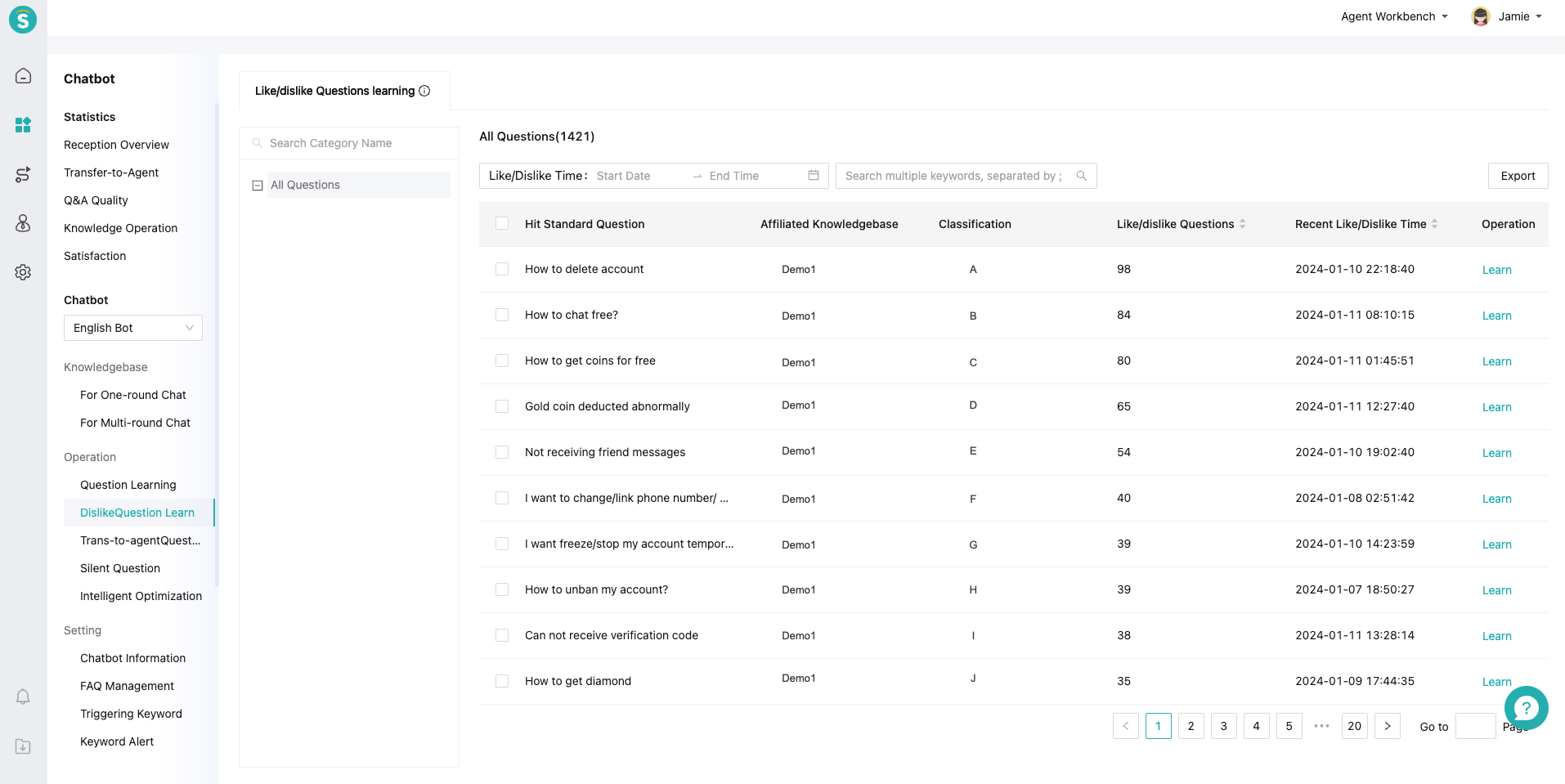
- Step 1: On the Dislike Question Learning Page, you can view a list of standardized questions corresponding to the disliked answers in all the knowledge bases under the current bot. The list is sorted in reverse order of disliked questions.
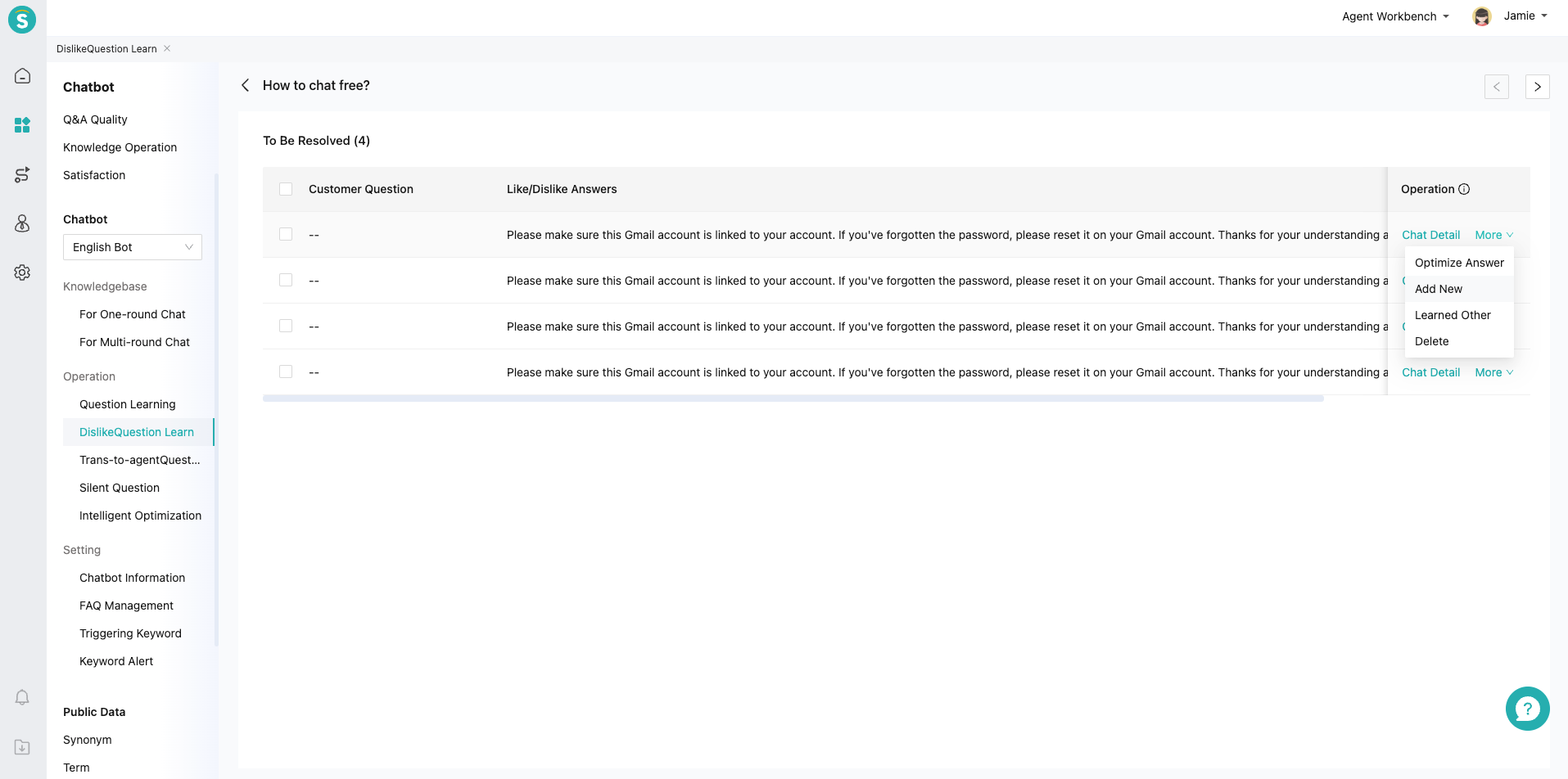
Step 2: Click on the【Learn】button to view all customer questions that have hit the standardized questions and are disliked. When there are multiple answers to a question, they can be differentiated based on the disliked answers.
Step 3: View the【Chat Details】and clarify the reason for disliking. The first reason is: long answer, poor layout, unclear expression, incomplete expression, etc. You need to click on【Optimize Answer】. After selecting multiple optimized answers and saving them, the selected questions will be removed from the list. The second reason is: mismatching. You need to click on【Add New Question】or【Learn to Other Questions】
Step 4: Items that do not need to be processed can be removed from the list
The following introduces the functions of each operation:
Optimize Answer: Select a customer question and click【Optimize Answer】to open the one-round question page where you can modify the answer or question. After publishing, return to the learning list, and the selected customer question will be cleared from the learning list.
Add new question: After clicking, the page for adding one-round questions will open. You can select the match method and add a new one-round question.
Learn to other questions: After clicking, the one-round and multi-round questions of all bots will be displayed for you. You can learn this question into other standardized questions in the knowledge base.
Chat details: You can understand the real chat scenario of the customer's questions.
Delete: After clicking, this customer question will be deleted from the list, but the same question will still be recorded in the dislike question learning next time.
# ● Other Functions of Dislike Question Learning
Support item-by-item operation and bulk operation.
Support searching for customer questions through multiple keywords.
Support exporting
# Trans-to-Agent Questions Learning Guide
——Learn how to use the Trans-to-Agent Questions Learning we offer you and its scenarios through this article
# Role of Trans-to-Agent Questions Learning
We would like you to know about the scenarios and roles of the Trans-to-Agent Questions Learning function first:
● Usage scenario: After the knowledge base is launched, when a real customer inquires the bot, the trans-to-agent customer questions need to be optimized by the operator.
● Purpose: To learn about the trans-to-agent reasons, and reduce the customer trans-to-agent cases and improve the bot's Independent Reception % through methods such as optimizing question answers, optimizing matching capabilities, and adding new questions.
● Usage permissions: Currently, the Trans-to-Agent Questions Learning menu has not been fully available for the public. If you want to use it, you need to contact the service manager to enable a whitelist for trial use
# How to Use Trans-to-Agent Questions Learning
You will find a description of the role and effect of each function point below:
# ● Restrictions
Trans-to-Agent Questions Learning changes with bot you select in admin console.
# ● Source of To-Be-Resolved Questions
Introduce you to the sources of to-be-resolved questions in Trans-to-Agent Questions Learning:
Customer questions while the bot receives customers during which trans-to-agent cases occur, including three scenarios: clicking on the Trans-to-Agent button below the direct answer, clicking on the Resident Trans-to-Agent button on the visitor, and replying to the trans-to-agent keyword.
Clicking on the Trans-to-Agent button below the direct answer will record the customer question that triggers the direct answer.
Clicking on the Resident Trans-to-Agent button on the visitor will record the customer questions directly answered by the bot before clicking on the Trans-to-Agent button.
Replying to the trans-to-agent keyword will record the customer questions directly answered by the bot for the sentence preceding the trans-to-agent keyword.
# ● When to Use Trans-to-Agent Questions Learning
Start time: After the bot is launched for use by formal users, it is necessary to quickly enrich the knowledge base in the early stage. You can use operation tools such as Unknown Question Learning, Adopted Guidance Question, and Guidance Rejected Questions. For Trans-to-Agent Questions Learning, you can start paying attention to it about 2 weeks after the launch, and operate it for about 1 month. If the company is medium-sized with 1,000 or less bot entries, you can focus on trans-to-agent questions.
Continuous operation period: When there is no clear increase or decrease in the bot's Independent Reception % indicator during the observation period, the frequency of learning can be reduced to ensure that it is viewed about once a week.
# ● How to Use Trans-to-Agent Questions Learning
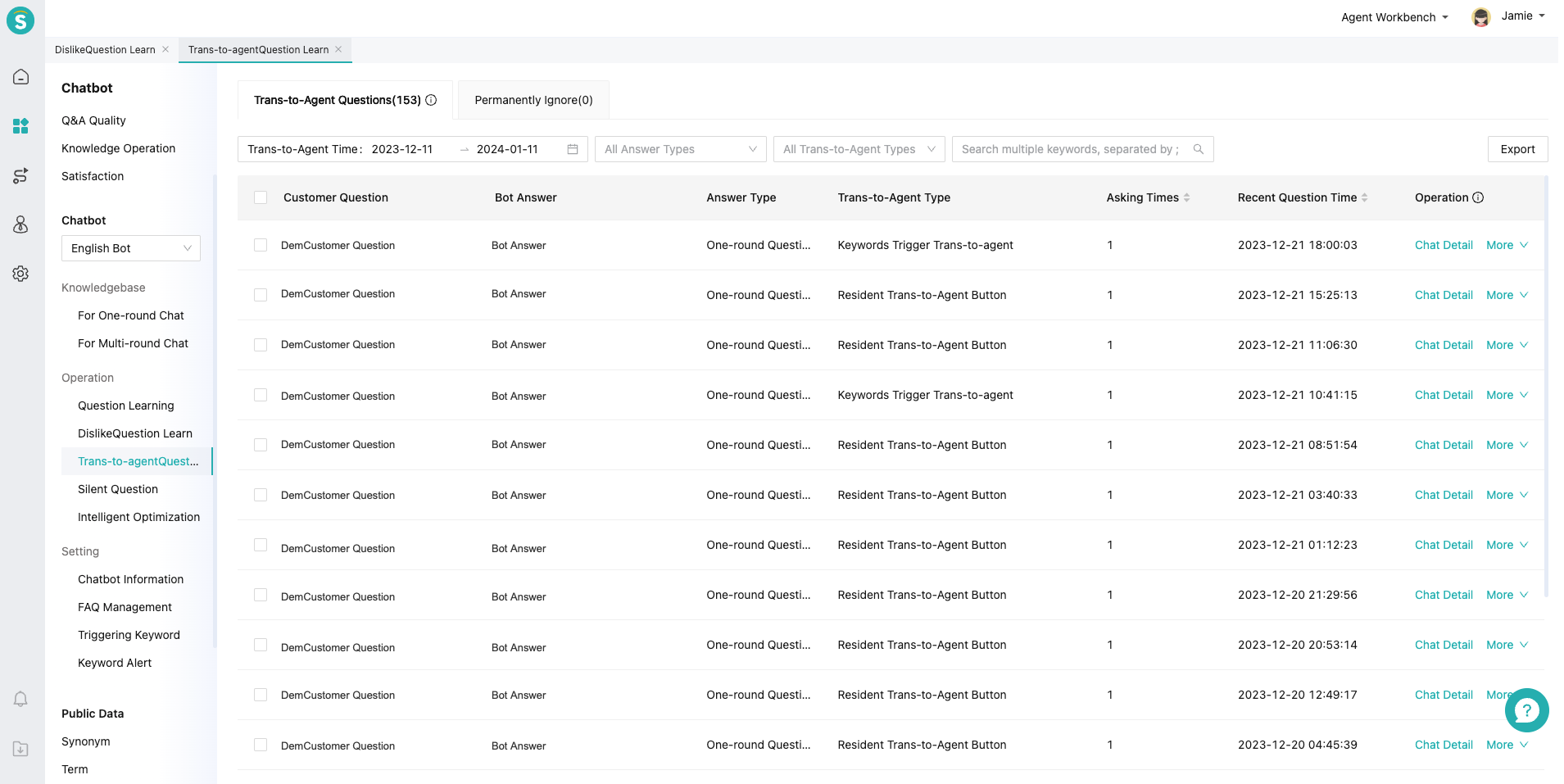
- Step 1: On the Trans-to-Agent Questions Learning Page, you can view the list of to-be-resolved questions transferred to agent after the agent asks questions. They are sorted in reverse order of asking times by default.
Step 2: You can analyze the trans-to-agent reasons through【Chat Details】. As the current trans-to-agent data is trans-to-agent by direct answer, there are usually the following reasons: mismatching, no answers in the knowledge base, and unclear answers and expressions.
Step 3: For mismatching, the customer questions can be 【Learned to Other Questions】and you can check if there are similar questions that hit the standardized question. Click 【Optimize Answer】to enter the edit page of the hit standardized question, adjust the standardized question, similar question and optimized answer.
Step 4: If there is no answer in the knowledge base, you can【Add New Question】. If the answers and expressions are unclear, you can【Optimize Answer】.
Step 5: For questions need not processing, you can delete them. For customer questions that no longer need to be learned through trans-to-agent questions, click【Permanently Ignored】.
The following introduces the functions of each operation:
Optimize Answer: Click【Optimize Answer】to open the one-round question page where you can modify the answer or question. After publishing, return to the learning list, and the selected customer question will be cleared from the learning list.
Add new question: After clicking, the page for adding one-round questions will open. You can select the match method and add a new one-round question.
Learn to other questions: After clicking, the one-round and multi-round questions of all bots will be displayed for you. You can learn this question into other standardized questions in the knowledge base.
Chat details: You can understand the real chat scenario of the customer's questions.
Delete: After clicking, this customer question will be deleted from the list, but the same question will still be recorded in the Trans-to-Agent Questions Learning next time.
Permanently Ignored: After clicking, the selected question will be recorded in the Trans-to-Agent Questions Learning - Permanently Ignored tab. When you want to ask the customer a question next time, you will not enter the trans-to-agent questions list.
# ● Other Functions of Trans-to-Agent Questions Learning
Support item-by-item operation and bulk operation.
Support searching for customer questions through multiple keywords.
# Silent Question Learning Guide
——Learn how to use the Silent Question Learning we offer you and its scenarios through this article
# Role of Silent Question Learning
We would like you to know about the scenarios and roles of the Silent Question Learning function first:
● Usage scenario: The operators can optimize the silent questions generated at the continuous operation stage 2-3 months after the knowledge base goes online.
● Purpose: You can learn about the questions that have not been used for a long time in the knowledge base, optimize them according to the actual business situation, and reduce the impact on knowledge base match.
# How to Use Silent Question Learning
You will find a description of the role and effect of each function point below:
# ● Restrictions
- Silent Question Learning changes with bot you select in admin console.
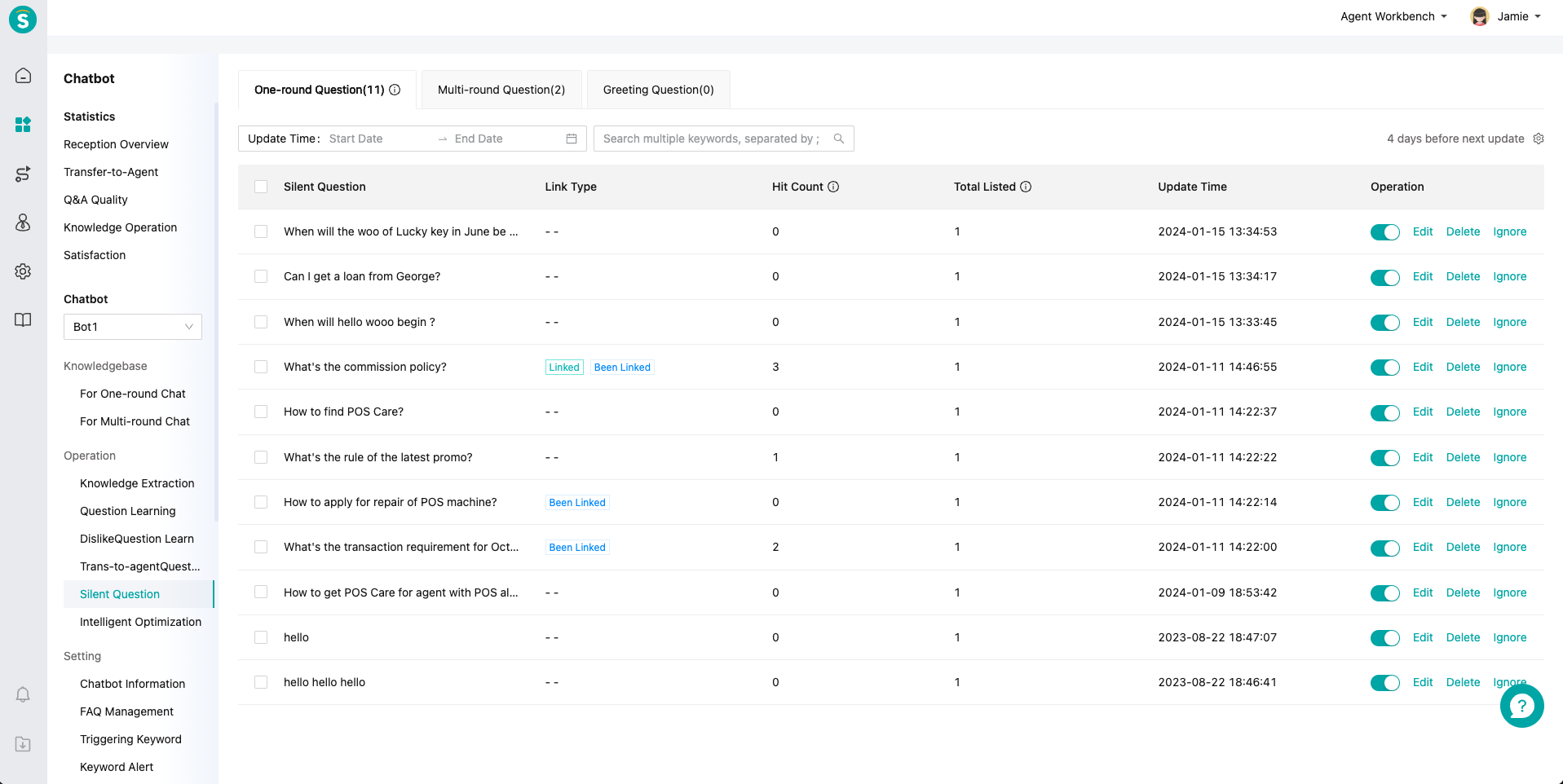
- Only the flagship edition has the permission to learn silent questions. The professional edition and the enterprise edition do not have this function.
# ● When to Use Silent Question Learning
Start time: You can optimize silent questions about 2-3 months after the bot goes online, and it is recommended to optimize them once a week or half a month.
Continuous operation period: continuous operation by reference to the above learning frequency according to the actual business volume. If the actual business change frequency in the knowledge base is low, the learning frequency of silent questions can be reduced accordingly.
# ● How to Use Silent Question Learning
Step 1: In the Intelligent Optimization Setting, turn on the silent question collection button. You can click the Intelligent Optimization Setting Guide to learn how to use it.
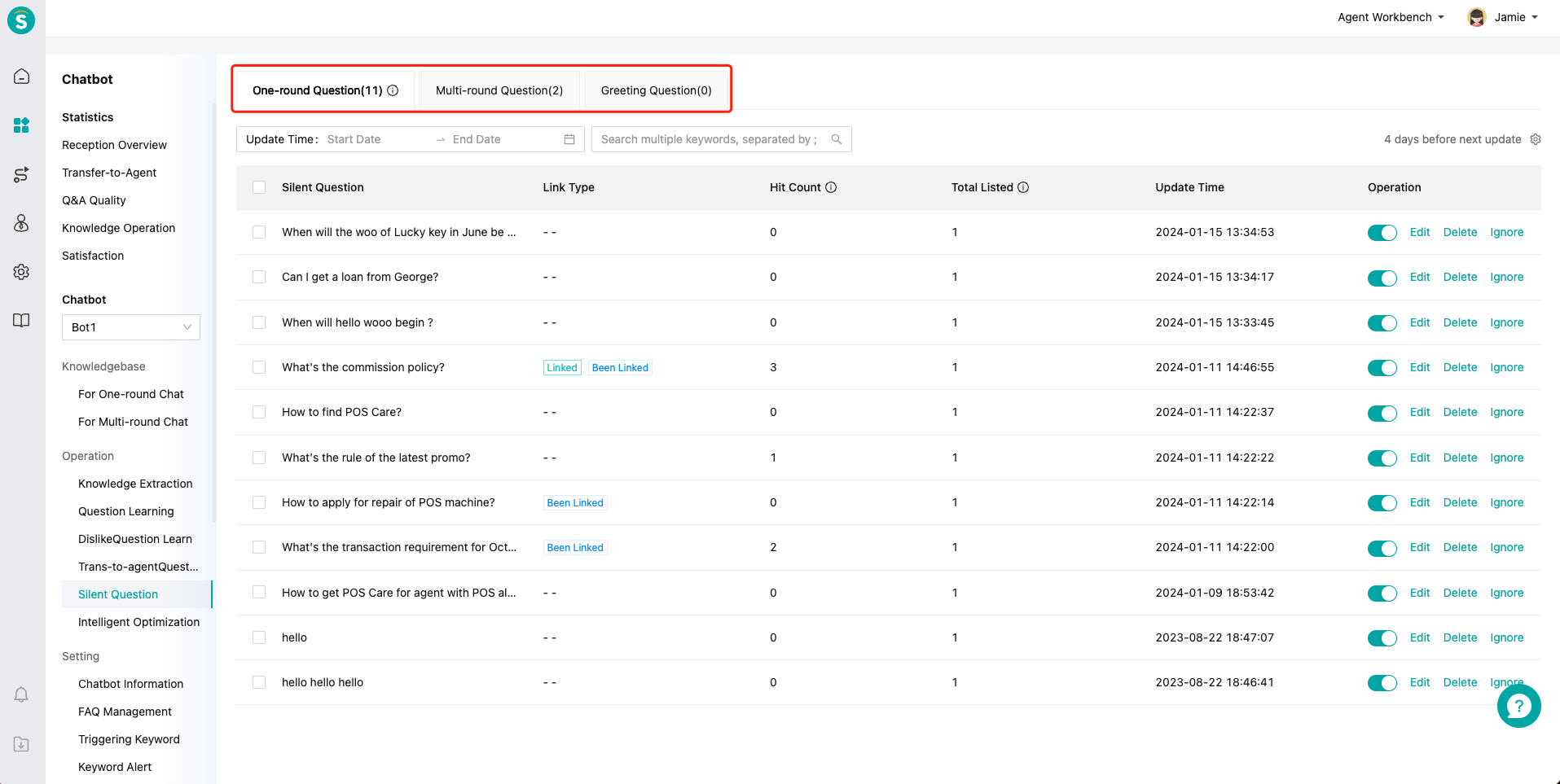
Step 2: Enable the silent question learning. You can learn the one-round question, multi-round question and greeting question respectively.
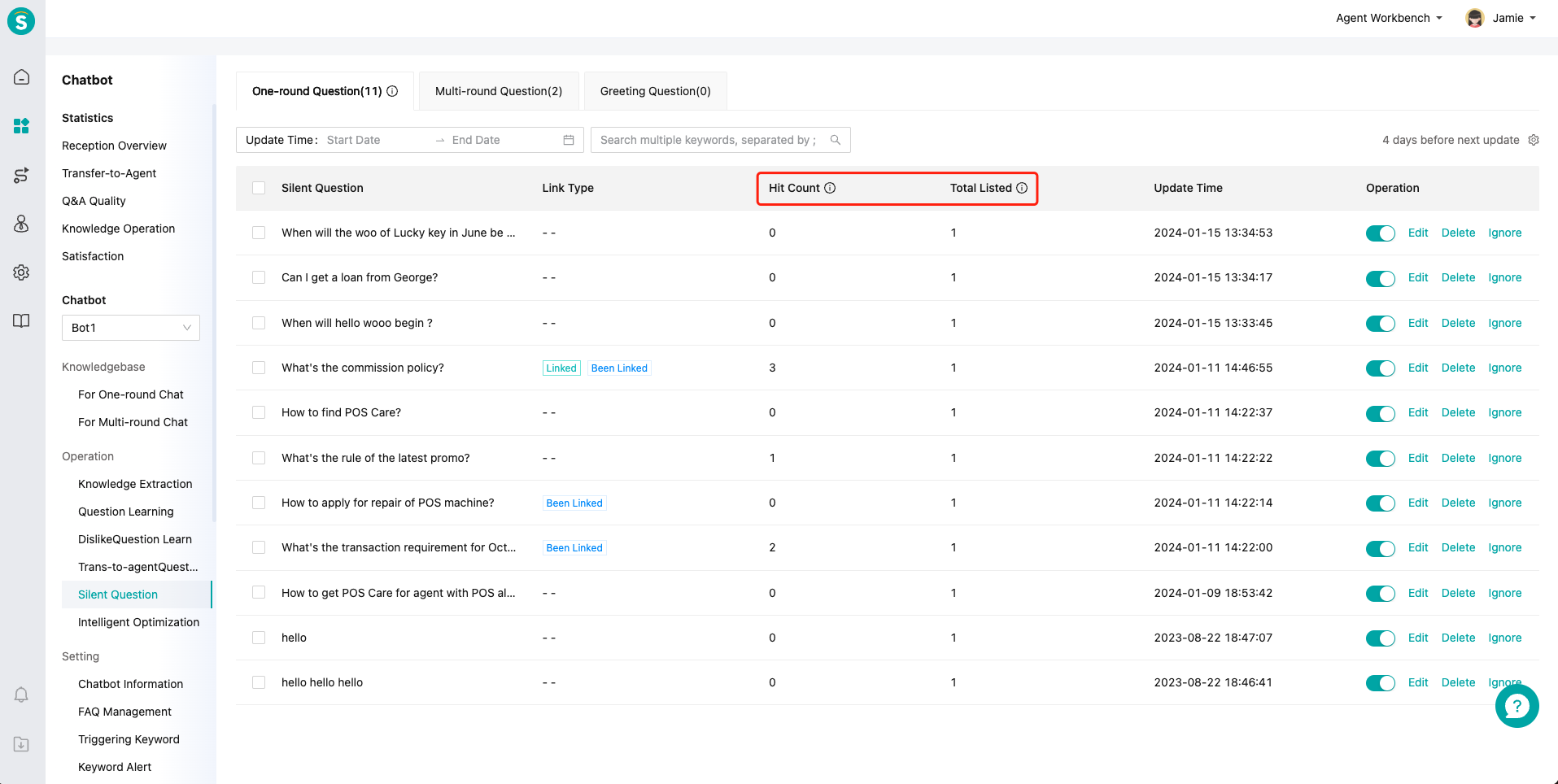
- Step 3: refer to "hit count" and "total no. of being listed", and give priority to resolving the silent questions with low hit count and large total no. of being listed.
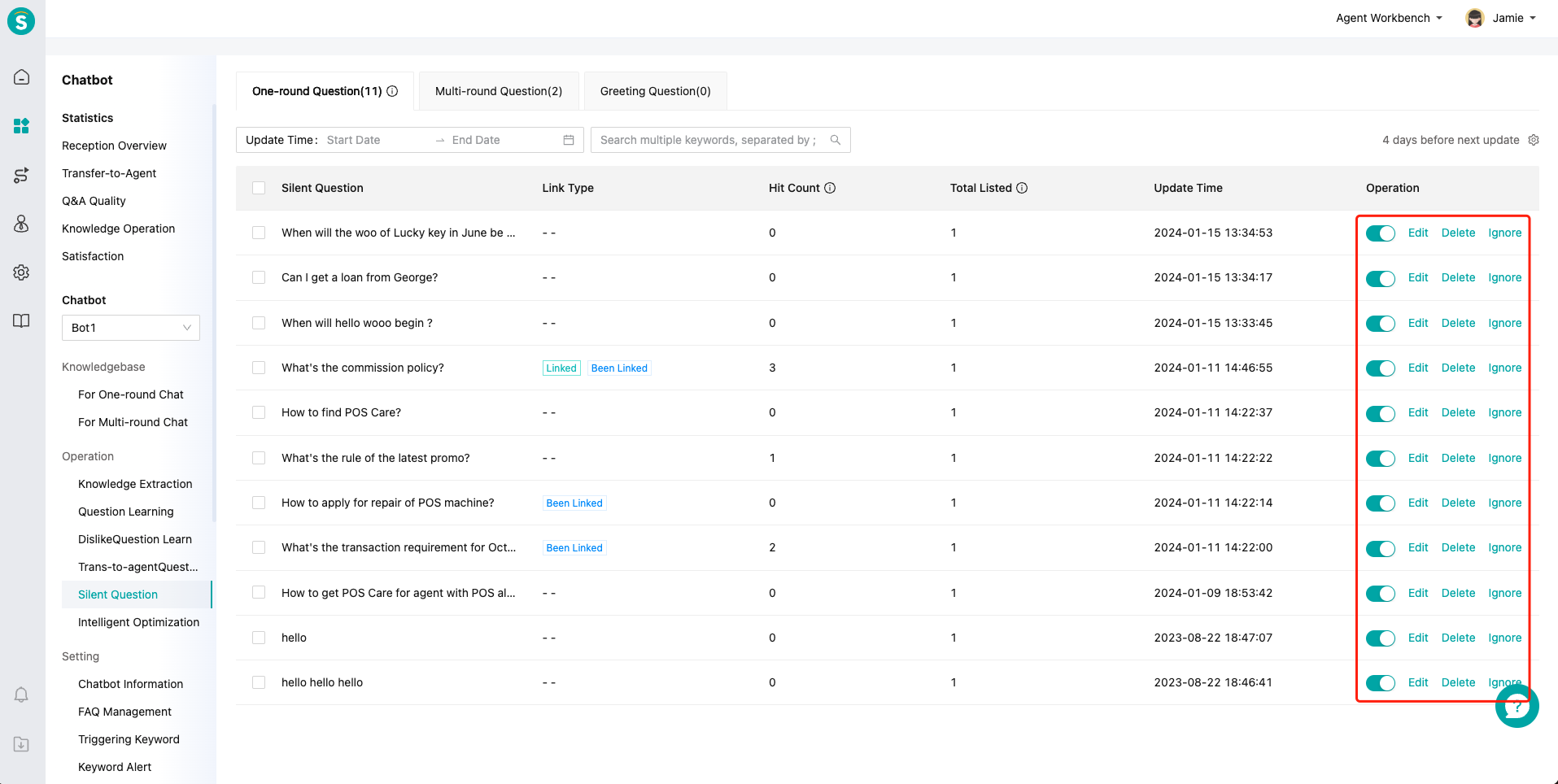
- Step 4: You can resolve these silent questions by operating the buttons.
You can click the【Edit】button to enter the question creation page. Only one-round questions and greeting questions are configured with the【Edit】button.
You can click the【Delete】button, and the silent question will also be deleted in the knowledge base. The associating and associated questions cannot be deleted directly, and can be deleted after cancelling association.
You can click the【Ignore】button, and the question will be removed from the list of silent questions this time. After the silent questions are updated, if the question meets the collection conditions, it will still be displayed in the list.
- The following describes the meaning of "hit count" and "total no. of being listed"
Hit count: the total no. of times when the bot question is hit by the customer's inquiry within the time period set in【Intelligent Optimization Setting - Silent Question Collection】.
Total no. of being listed: the total no. of times when the bot question is listed in the silent question learning according to the rules configured in【Intelligent Optimization Setting - Silent Question Collection】.
# ● Other Functions of Silent Question Learning
Support filtering by time, and all times are displayed by default.
Support searching questions by keywords.
One-round questions are configured with enabling status ON/OFF.
# Related article(s)
Intelligent Optimization Setting Guide
# Chat Record Analysis Method
——Learn how to use chat records to analyze the reasons for trans-to-agent through this article
# What you can learn from this article
We would like you to understand the following contents through this article:
● How to analyze the reasons for trans-to-agent through chat records
● How to analyze the large fluctuation of Independent Reception %
● How to optimize the knowledge base after determining the reasons for trans-to-agent
# How to Analyze Chat Records
You can learn how to analyze the chat records and improve the Independent Reception %:
# ● How to Get Chat Records
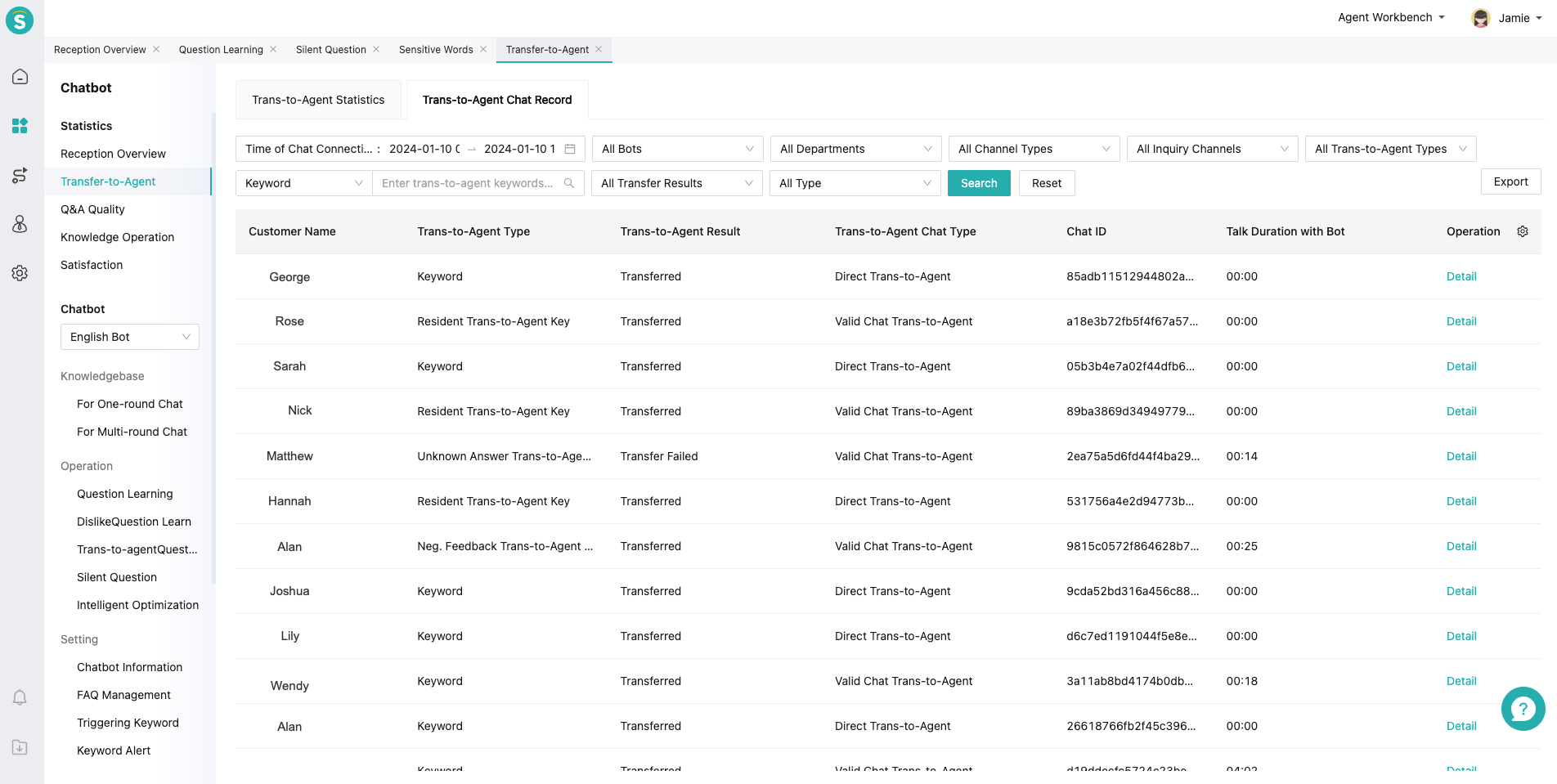
The chat records you need to obtain are trans-to-agent chat records, which can be exported through【Trans-to-Agent Statistics - Trans-to-Agent Chat Records】in admin console.
After the records of a certain day or period of time are selected, 200-300 chats are selected at random to refine the operation stage. For the first two weeks, they are analyzed and optimized 2-3 times a week.
# ● How to Use Chat Record Analysis
- Mark the chat record, and mark the reason for trans-to-agent, to improve the Independent Reception %.
Mark method: two dimensions, namely operation dimension and business dimension. The business dimension can be divided according to the actual business scenario of the customer. Please refer to the following introduction
Operation dimension: It can mark the chat as Resolved by Direct Trans-to-Agent, Resolved with Agent Participation, and Independently Resolved by Bot. Among them, Agent Participation can be divided into Guide in Answer, Product Question, Unclear Intention, No Reason and Invalid; Independently Resolved by Bot can be divided into Poor Answer, Unknown Answer, and Guidance Question.
Business dimension: Taking e-commerce as an example, the chat can be marked as pre-sale, in-sale and after-sale, and can also be subdivided.
- Why it is marked by operation dimension: Solutions can be divided in the operation dimension.
Direct Trans-to-Agent is to trigger the trans-to-agent keyword in the first sentence, without giving the opportunity for bot. It cannot be resolved by operation.
In case of Agent Participation, you can focus on the analysis of answer guidance and product reasons used for business registration for future reference by business departments.
In case of Chat Independently Resolved by Bot, it can be processed using the operation method. If the answer is not good, it can be improved. If it is an unknown answer, you can add it into standardized questions to enrich the knowledge base. If it is a guided answer, you can add it into similar questions or Containing Match.
- Why to mark from a business perspective: It can be used to analyze what type of business is usually transferred to agent. They are accumulated for business departments to adjust business.
# ● How to Analyze Independent Reception % with Large Fluctuation
It is normal for the Independent Reception % to fluctuate around 5%, and it will change with the cycle. A more accurate comparison method is the period-on-period analysis of different cycles. For example, in the e-commerce industry, the fluctuation of weekend, workday and activity day indicators is inconsistent. It is recommended not to make a mixed analysis of these three indicators.
On the date before and after the fluctuation of the Independent Reception %, export the same number of two groups of trans-to-agent chat records with the same conditions, and label and analyze them according to the above analysis method.
# Q&A Quality Statistics Guide
——Learn about the usage methods and indicators of Q&A Quality Statistics through this article
# Role of Q&A Quality Statistics
We would like you to know about the usage scenarios and roles of Q&A Quality Statistics first:
● The knowledge base operator can observe the quantity and quality of the bot's Q&A through this report, to analyze and improve the bot's answer
● Support the analysis of the answer and dislike in the dimension of hitting standardized questions
● Support the direct learning of dislike questions in the statistical report
● Support viewing the details of all evaluated chats
# Main Functions of Q&A Quality Statistics
You can find Q&A Quality Statistics from the livechat admin console menu:
# ● Introduction to Reports of Q&A Quality Statistics
Q&A Quality Statistics includes four modules: Q&A Quality Overview, Knowledge Match Statistics, Knowledge Dislike Statistics, and Chat Evaluation Statistics.
- Q&A Quality Overview: describe bot's answers to customer's questions, like and dislike, and chat evaluation; support viewing Comparison Chart and Trend Chart of related indicators, as well as distribution of bot's answer types.
Usage: At the second stage of knowledge operation, focus on Unknown Answer %; at the fourth stage, focus on Direct Answer Match %. Please refer to the report analysis.
- Knowledge Match Statistics: support data statistics according to the hit standardized questions, including one-round questions, multi-round questions and custom greetings in the knowledge base.
Usage: filter answer types to be optimized through this report, and optimize the standardized questions hit in this type. Focus on these items at the fourth stage of knowledge operation.
- Knowledge Dislike Statistics: support dislike data analysis according to standardized questions, viewing chat details, and learning in this report.
Usage: optimize answers in the knowledge base with this report after bot knowledge base goes online.
- Chat Evaluation Statistics: support viewing data details of all evaluated chats, and filtering them by channels and chat evaluation.
# ● Indicator Range & Description
You can view definitions of specific indicators at backend:
- Q&A Quality Overview: including Q&A Data, Answer Evaluation, Chat Evaluation, and Answer Type Data.
| Serial No. | Type | Indicator Details |
|---|---|---|
| 1 | Q&A Data | Customer Questions, Bot Messages, Bot Answers, Unknown Answers, Unknown Answer %, Direct Answer Match, One-round Direct Answer Match, Multi-round Direct Answer Match, Direct Answer Match %, Similar Answer Match, Understanding Answer Match, Guided Answer Match, Similar Answer Match %, Similar Answer Adoption, Guided Answer Recommended Questions, Greeting Answer Match, Custom Greeting Match, and System Greeting Match. |
| 2 | Answer Evaluation | Answer Evaluation, Like, Like %, Dislike, and Dislike %. |
| 3 | Chat Evaluation | No. of Feedback, Resolved Feedback, Resolved Feedback %, Unresolved Feedback, and Unresolved Feedback %. |
Knowledge Match Statistics: Total Match, Custom Greeting Match, Direct Answer Match, Guided Answer Match, One-round Question Direct Match, Multi-round Question Direct Match, Understanding Answer Match, Guided Answer Adoption, Guided Answer Unadoption, Like, Like %, Dislike, and Dislike %.
Knowledge Dislike Statistics: Total Dislikes, Direct Answer Dislikes, and Understanding Answer Dislikes.
Chat Evaluation Statistics: Resolved or Not, and Evaluation Tag.
# ● Other Functions
Knowledge Match Statistics supports exporting analysis and customizing indicator display sequence.
All reports support filtering by time, bot, organization structure and channel.
# Related article(s)
For the way to better use Q&A Quality Statistics Report, refer to the Description of Knowledge Base Operation Management Specifications and Skills
# Knowledge Operation Statistics Guide
——Learn about the usage methods and indicators of Knowledge Operation Statistics through this article
# Role of Knowledge Operation Statistics
We would like you to know about the usage scenarios and roles of the Knowledge Operation Statistics first:
● Knowledge Operation Statistics introduces the number of questions in knowledge base module and knowledge operation module.
● Data indicators and operation logs can be analyzed from agent dimension.
● The management can use the report to monitor and assess the maintenance by knowledge operators.
# This article will show you the following contents
● Description of Usage of Knowledge Operation Statistics Report.
● Indicator Range & Description.
● Other Functions.
# Details of Knowledge Operation Statistics Function
You can find Knowledge Operation Statistics from the livechat admin console menu:
# ● Description of Usage of Knowledge Operation Statistics Report
Knowledge Operation Statistics includes two modules: Agent Workload Statistics and Operation Logs.
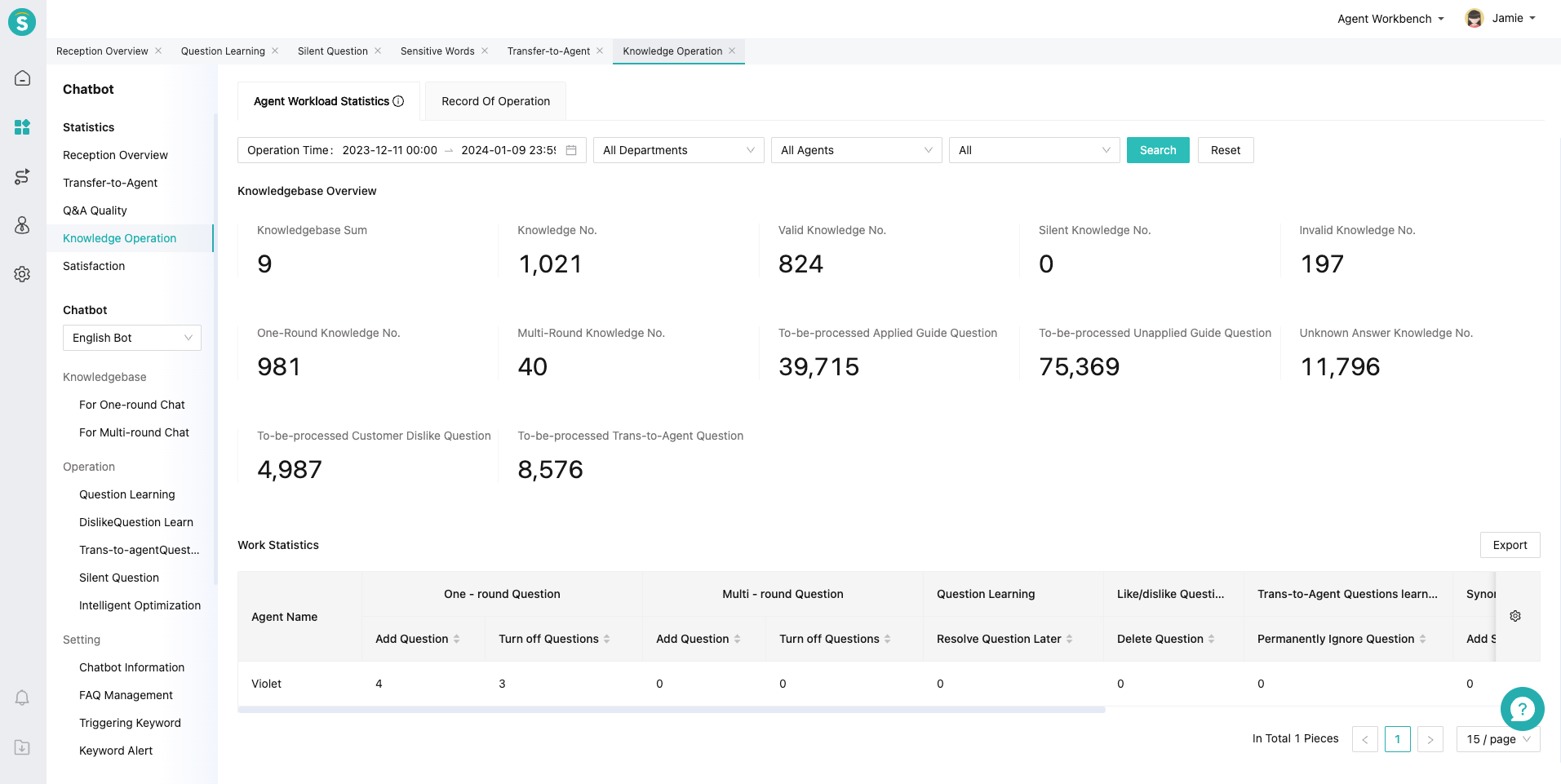
- Agent Workload Statistics: statistics on knowledge base question type and whether the questions are valid; monitoring of to-be-learned questions of knowledge operation module; statistics on operation detail data of operators.
Usage method: the admin can use the report to monitor the frequency of operators' maintenance of the knowledge base; focus on to-be-resolved intelligent learning no. and to-be-resolved unknown question no. for indicators.
- Operation Logs: record time and content of operators operating the knowledge base and knowledge operation tools.
# ● Indicator Range & Description
Agent Workload Statistics: including Knowledge Base Overview and Work Statistics.
| Serial No. | Type | Indicator Details |
|---|---|---|
| 1 | Knowledge Base Overview | Knowledge No., Valid Knowledge No., Silent Knowledge No., Invalid Knowledge No., One-Round Knowledge No., Multi-Round Knowledge No., To-be-resolved Intelligent Learning No. and To-be-resolved Unknown Question No. |
| 2 | Work Statistics | Display times of operations by the agent in one-round questions and multi-round questions, such as: add question, delete question, etc. Display times of operations in common data menu, such as: add synonym, delete synonym, etc. |
# ● Other Functions
Support filtering by time, organization structure, agent, knowledge base, operation way, operation result, and keyword.
Work Statistics in Agent Workload can be exported, and it supports customizing display indicators.
# Bot Satisfaction Evaluation Statistics Guide
——Learn about the usage methods and indicators of Bot Satisfaction Evaluation Statistics through this article
# Role of Bot Satisfaction Evaluation Statistics
We would like you to know about the usage scenarios and roles of Bot Satisfaction Evaluation Statistics first:
● Satisfaction Evaluation Statistics is used by operators to analyze the resolution of chats received by bot.
● You can query the satisfaction evaluation details of different bot chats in different channels.
# Main Functions of Bot Satisfaction Evaluation Statistics
You can find Satisfaction Evaluation Statistics from the livechat admin console menu:
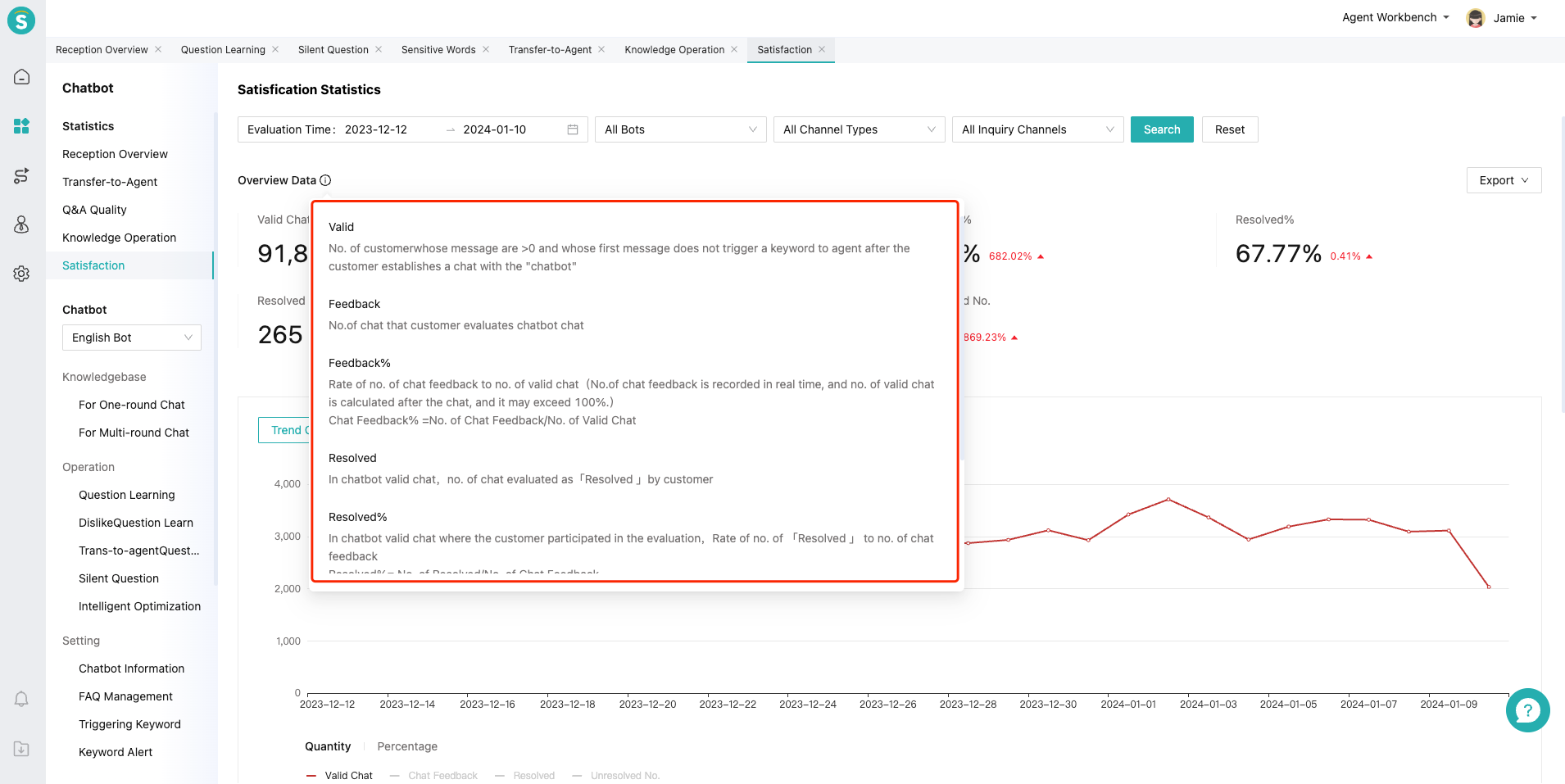
# ● Usage of Satisfaction Evaluation Statistics
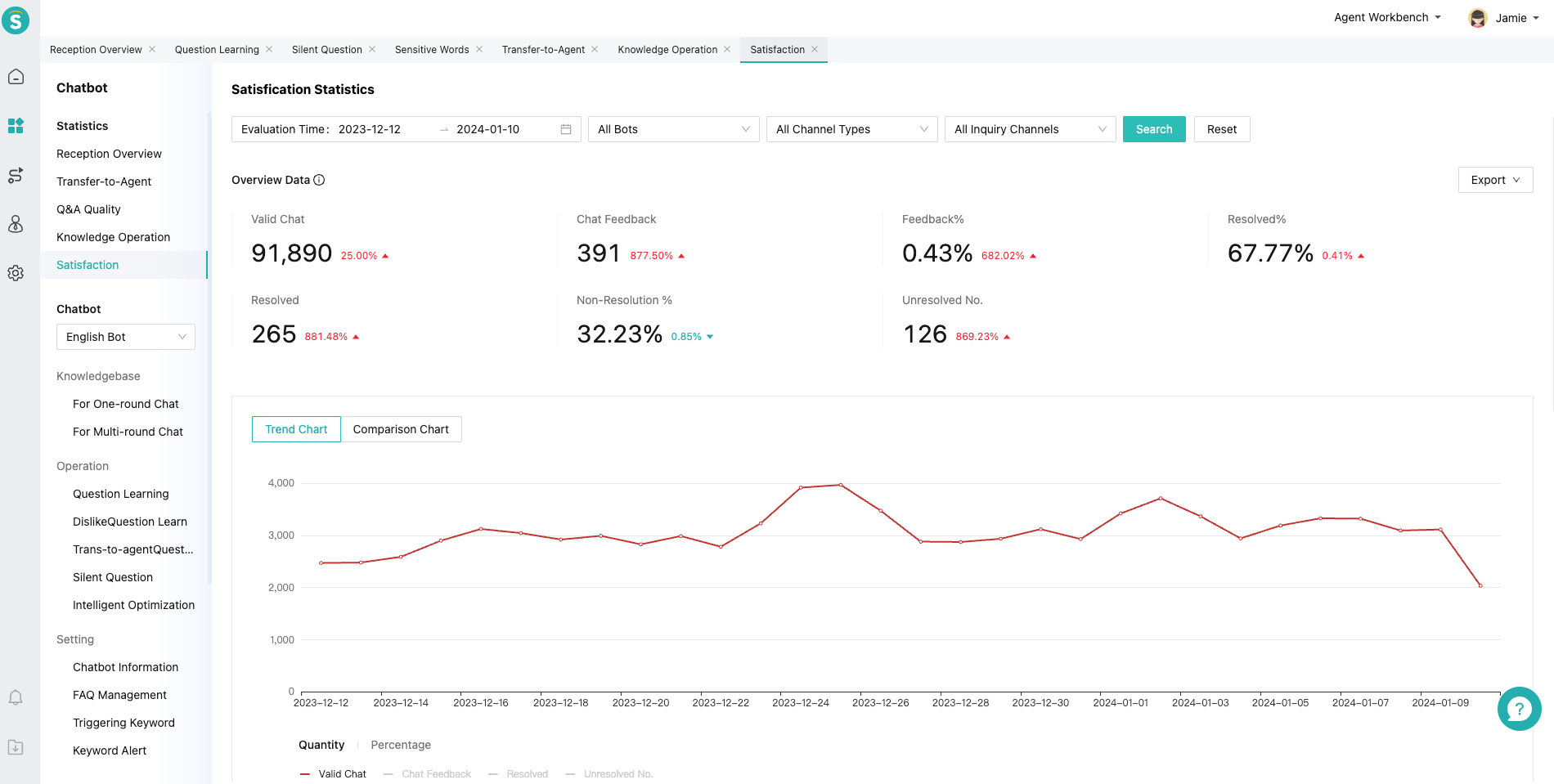
Support filtering satisfaction indicators and chat details by time, bot and channel.
Satisfaction indicators support export, and chat details support filtering by chat resolution.
Support the use of Trend Chart and Comparison Chart to analyze chat resolution in different time periods.
# ● Indicator Range & Description
The indicator range only includes indicators related to bot satisfaction evaluation.
Satisfaction Evaluation Statistics includes three modules: Data Overview, Chart, and Satisfaction Evaluation Details.
Data Overview includes the following indicators:
Valid Chats, No. of Feedback, Neg. Feedback %, Resolved Feedback, Resolved Feedback %, Unresolved Feedback, and Unresolved Feedback %.
- Chart Display Module includes the following chart types: Trend Chart and Comparison Chart; comparison cycles are: yesterday, WoW, and MoM. Including the following indicators:
Valid Chats, No. of Feedback, Resolved Feedback, and Unresolved Feedback
Satisfaction Evaluation Details is display in chat dimension and supports viewing chat details.
Indicator definitions and formulas are displayed in the report and can be viewed in the following location.