Agent Inspection
# Agent Inspection Overview
——Inspection includes chat inspection and talk inspection
# Role of Agent Inspection
Agent inspection is to evaluate the reception quality of agent, and continuously optimize the reception script, service attitude and workflow specification according to the inspection results.
# Preparation
The agent inspection product of the agent system can only inspect the chats and talks generated in the system. Before use, please establish the reception standard according to the actual business, conduct training, and build the overall function of agent inspection.
# Usage Roles
There are several roles for using the agent inspection system after opening livechat/call product:
Task Assigner: the person configured with【Task Assignment】permission
Inspector: the person configured with【Inspection Evaluation】permission
Inspected Agent: livechat/call agent
Department Director: the person with「Department Approval」permission in the department
Reinspector: the person with reinspection function permission and enabling「Reinspection Workflow」
# Role Permission
After opening inspection product, the default role permissions for agent inspection system are as follows:
Livechat admin: Inspection Evaluation, Result Query, Appeal Approval, Inspection Statistics, Chat Inspection Scheme, Chat Inspection Workflow, and all relevant operation permissions
Livechat agent: Result Query
Call admin: Inspection Evaluation, Result Query, Appeal Approval, Inspection Statistics, Talk Inspection Scheme, Talk Inspection Workflow, and all relevant operation permissions
Call agent: Result Query
Omni-channel admin: sum of livechat admin + call admin permissions
Omni-channel agent: sum of livechat agent + call agent permissions
You can customize the role through Agent Management > Role Permission Management in【Admin Center】according to the purchased products and actual business conditions, and configure the corresponding role permissions for the admin/general agent: Task Assignment, (Chat/Talk) Inspection Evaluation, Result Query, Appeal Approval, Inspection Statistics, Inspection Scheme, and Inspection Workflow.
# Main Service Workflow
# Inspection Scheme Guide
——Inspection scheme configuration is a key link in the whole inspection service workflow. Set standard script specifications according to business requirements as the unified rules for scoring.
# Role of Inspection Scheme Configuration
Inspection scheme is the standard for chat/talk inspection. During inspection evaluation, the match degree of chat/talk will be scored one by one by referring to the items of the inspection scheme, and the final inspection result will be concluded.
# Preparation
The inspection scheme should be consistent with the actual business. Multiple inspection schemes can be set up according to different businesses, and the reception agent should be trained. Reception should be carried out according to the requirements of the inspection scheme, and then evaluation should be conducted.
# Main Functions of Inspection Scheme Configuration
Support adding, editing or deleting inspection scheme
Support inspection item structure and scoring mode in multiple scenarios
Support adding, editing or deleting standardized inspection item
Support adding, editing or deleting additional inspection item
Support adding, editing or deleting score tag
Support adding or deleting inspection tag
# How to Use Inspection Scheme
# ● Add Inspection Scheme
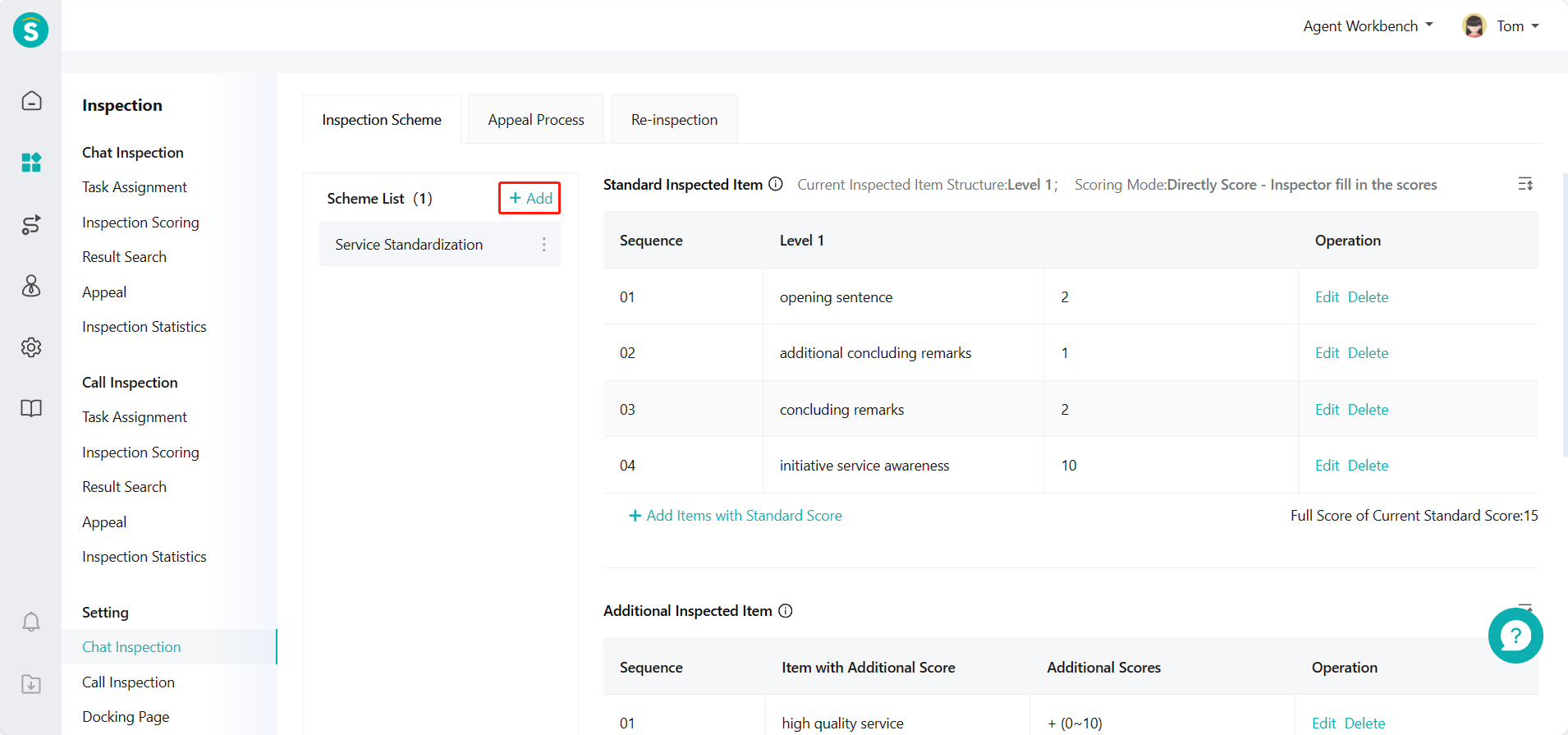
Add an inspection scheme in Settings > Chat/Talk Inspection Configuration. (Figure 1) (Note: The following legends use the chat inspection configuration, same as the talk inspection configuration)
Click the「Add」button in the scheme list, fill in the scheme name in the pop-up window, and select the inspection item structure and scoring mode. The inspection item structure is divided into: level 1, level 2, and level 3. The scoring mode is divided into: Directly Score and Tick Deduction Items. (Figure 2)
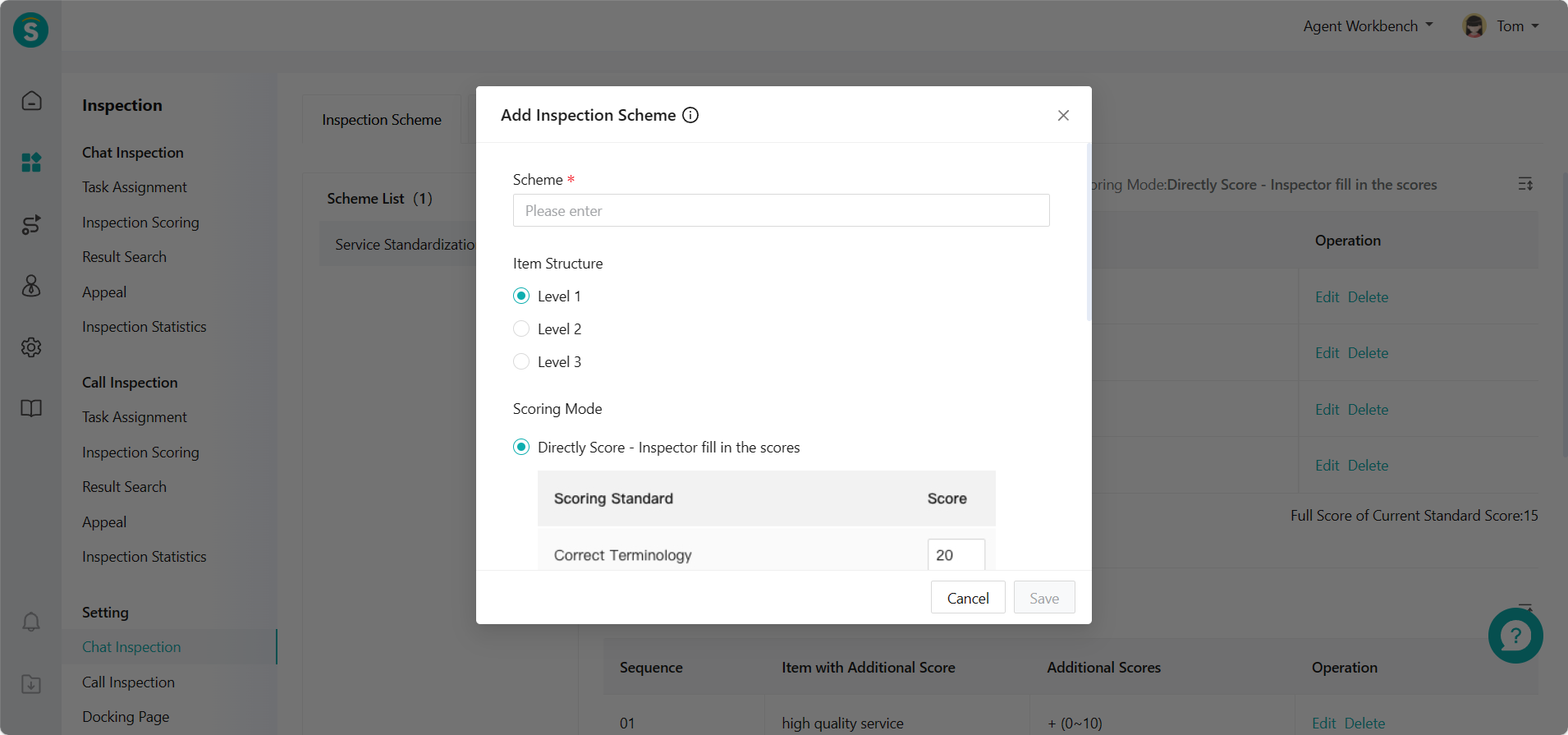
After saved, the new inspection scheme will be displayed on the left of the scheme list. Inspection scheme configuration includes standardized inspection items, additional inspection items, score tags, and inspection tags.
# ● Edit Standardized Inspection Item
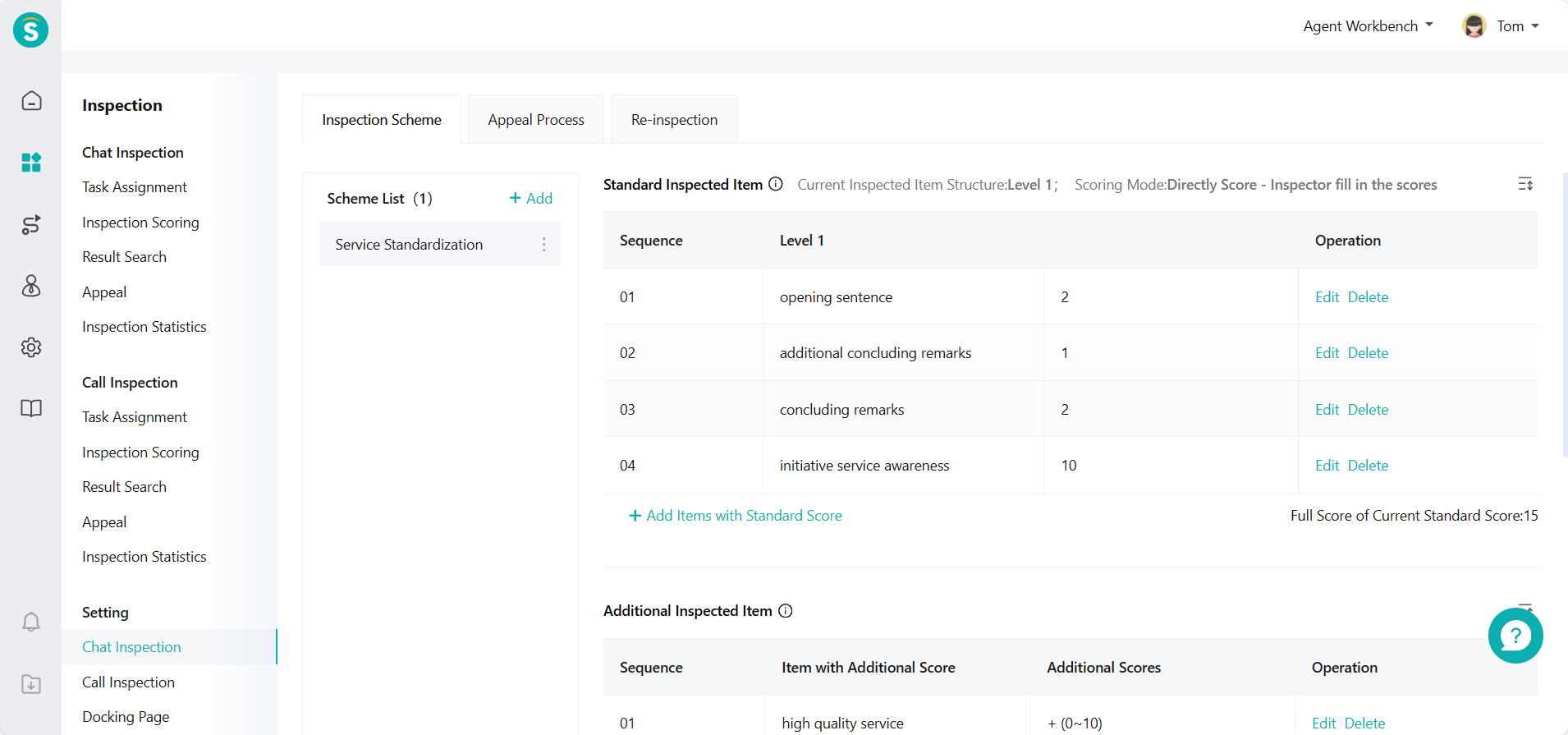
Edit the standardized inspection item name and corresponding score according to the inspection item structure selected when adding a scheme.
- For level 1 inspection item structure, click「Add Standard Score Item」(Figure 3)
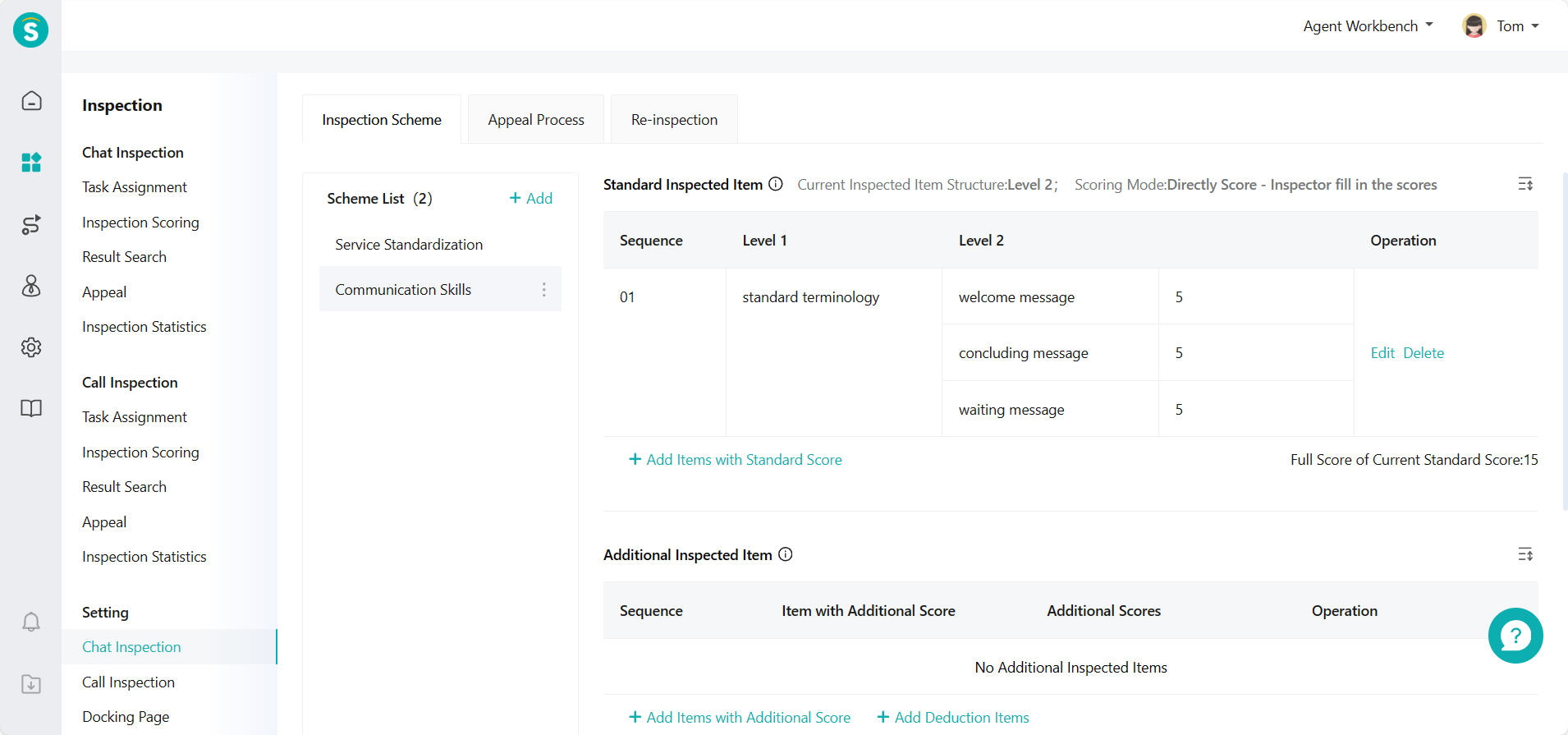
- For level 2 inspection item structure, click「Add Standard Score Item」(Figure 4)
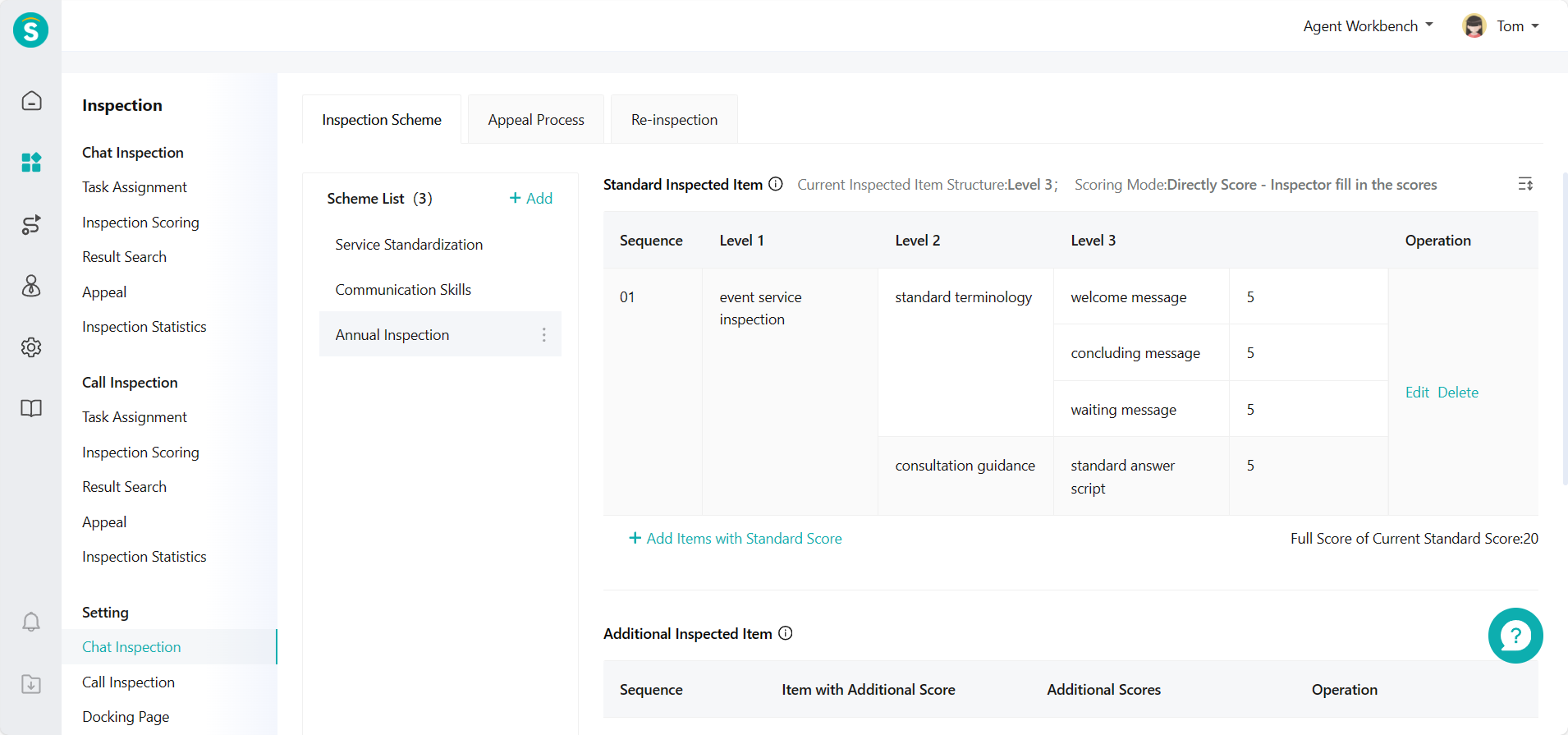
- For level 3 inspection item structure, click「Add Standard Score Item」(Figure 5)
# ● Edit Additional Inspection Item
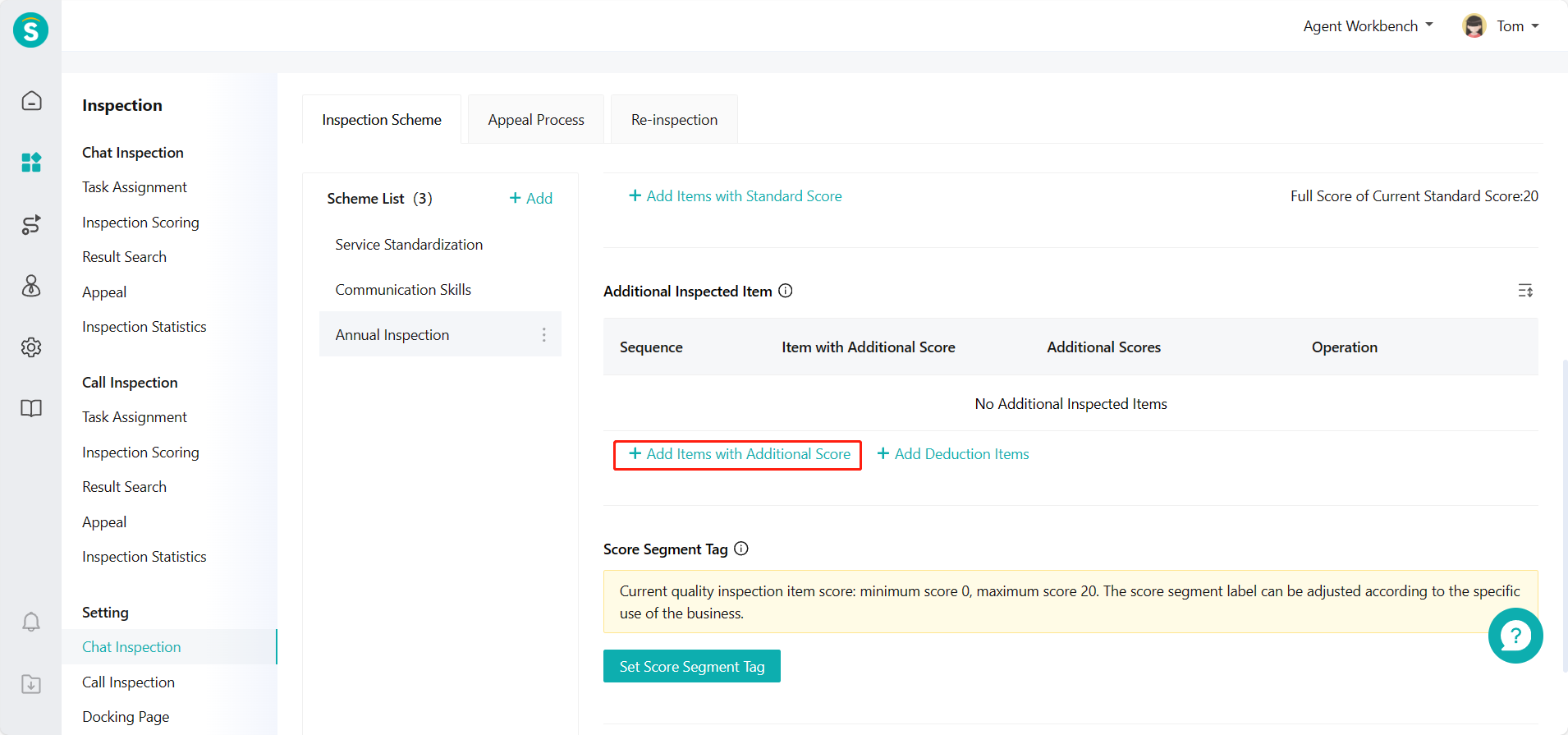
Edit the additional score item name and corresponding additional score according to the actual business usage scenarios. Additional inspection items are divided into: Add Additional Score Item and Add Deduction Item. (Figure 6)
# ● Edit Score Tag
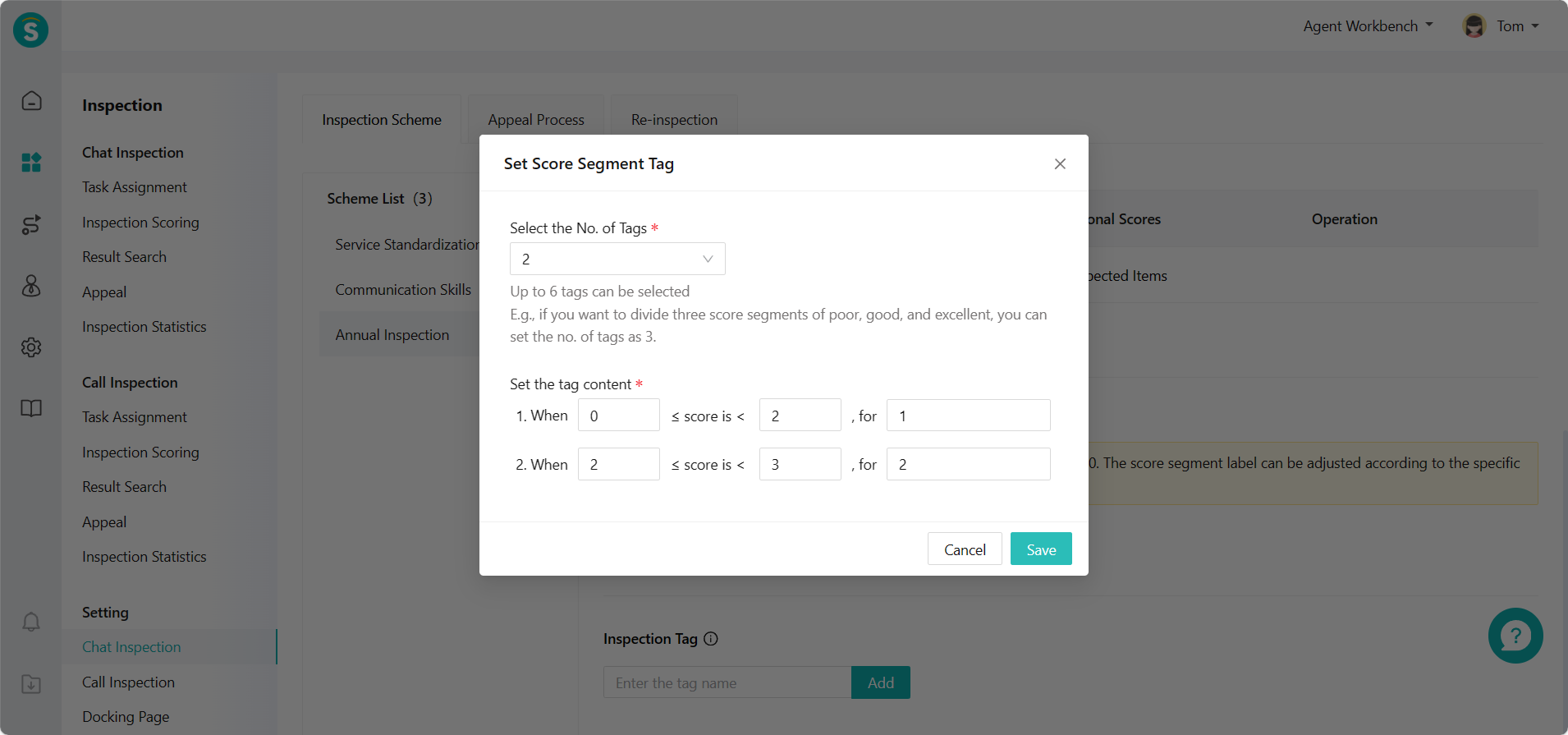
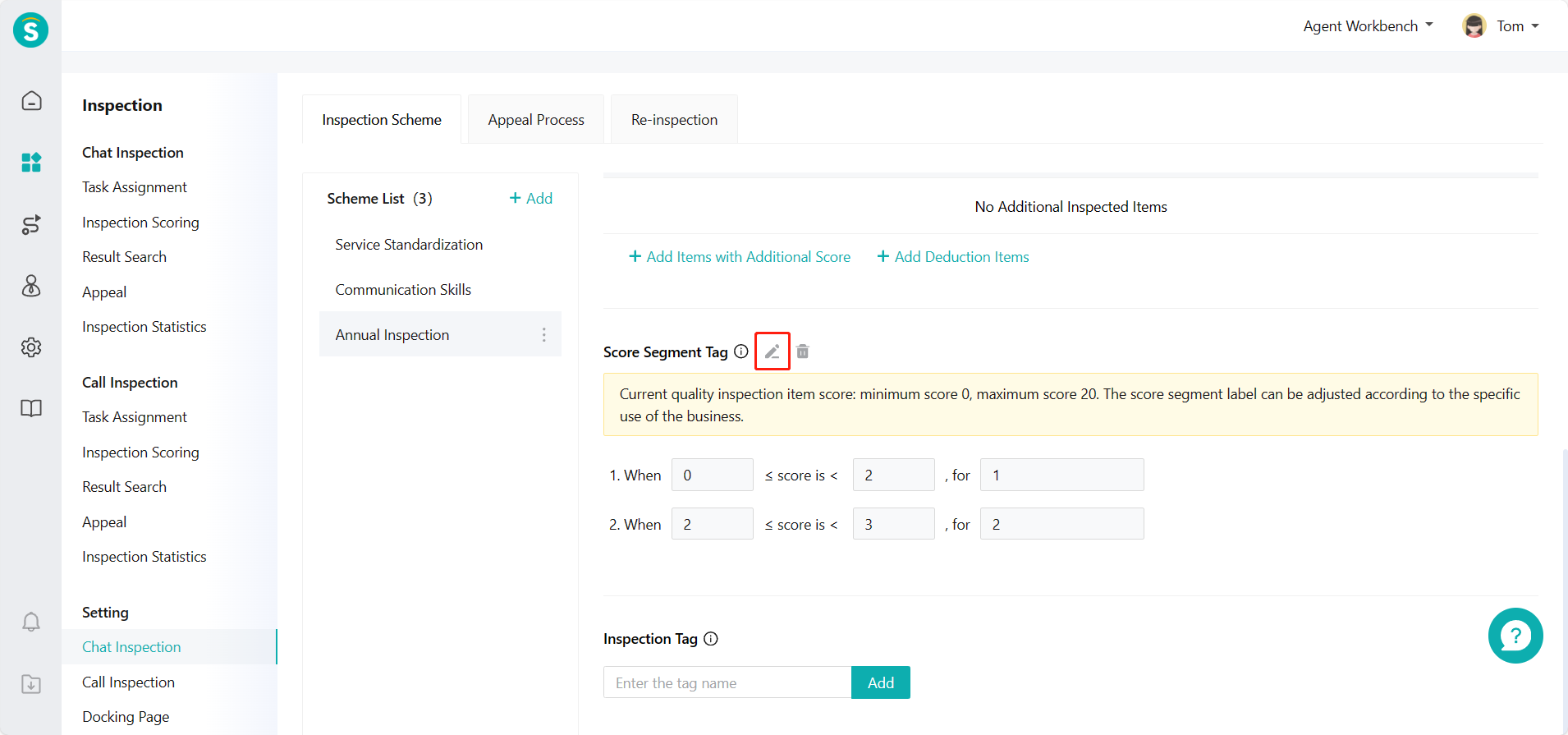
The inspection score can be divided into several score segments as per the actual business needs, and a tag can be set for each score segment. E.g., 0-60 points are unqualified, and 60-100 points are qualified. (Figure 7 and Figure 8)
After setting, the inspection data can be filtered and viewed by score tags on the「Result Query」and「Inspection Statistics」pages.
# ● Edit Inspection Tag
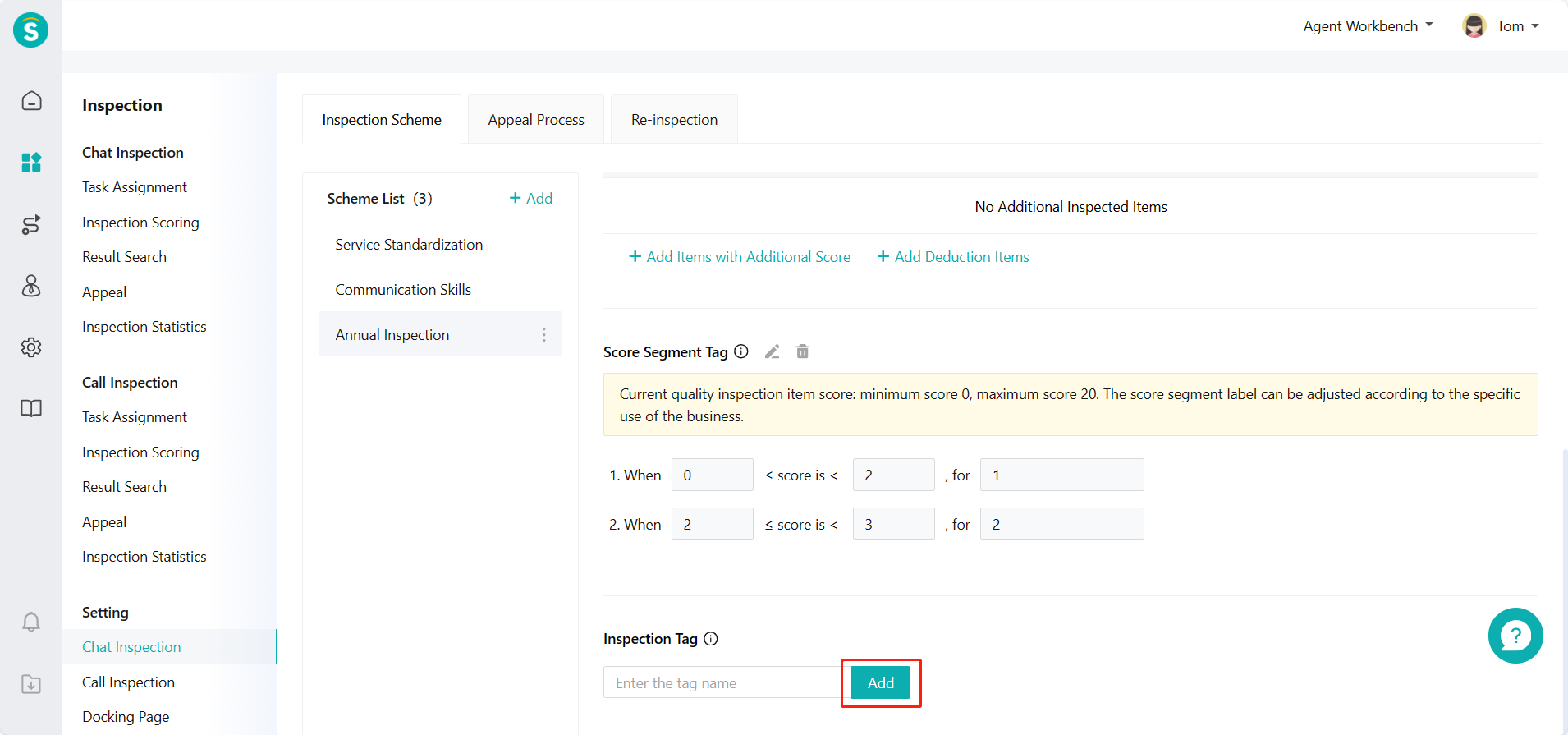
Inspection tag is used to mark inspected chats/talks. (Figure 9)
# Sampling & Task Assignment Guide
——Support the sampling of chat/talk records by time conditions and common sampling schemes.
# Role of Sampling & Task Assignment
Due to the large business volume of the enterprise, when full quantity cannot be inspected by agent, the enterprise can use the sampling inspection function to randomly sample chats/talks for inspection, and assign the tasks to be inspected to multiple agents. A small number of chats/talks are inspected to reflect overall work quality.
# Preparation
Ensure that the system has the chat/talk record of agent reception; open agent accounts and assign corresponding permissions according to members who actually participate in the inspection; add an inspection scheme according to the actual business of the enterprise.
# Main Functions of Sampling & Task Assignment
Support the agent with task assignment permissions to assign the samples to inspectors
Support the agent with task assignment permissions to reassign tasks that have been assigned but have not been inspected
Support inspectors to sample independently for inspection or process inspection tasks assigned to them
# How to Sample or Assign Tasks
# ● Chat Inspection - Task Assignment
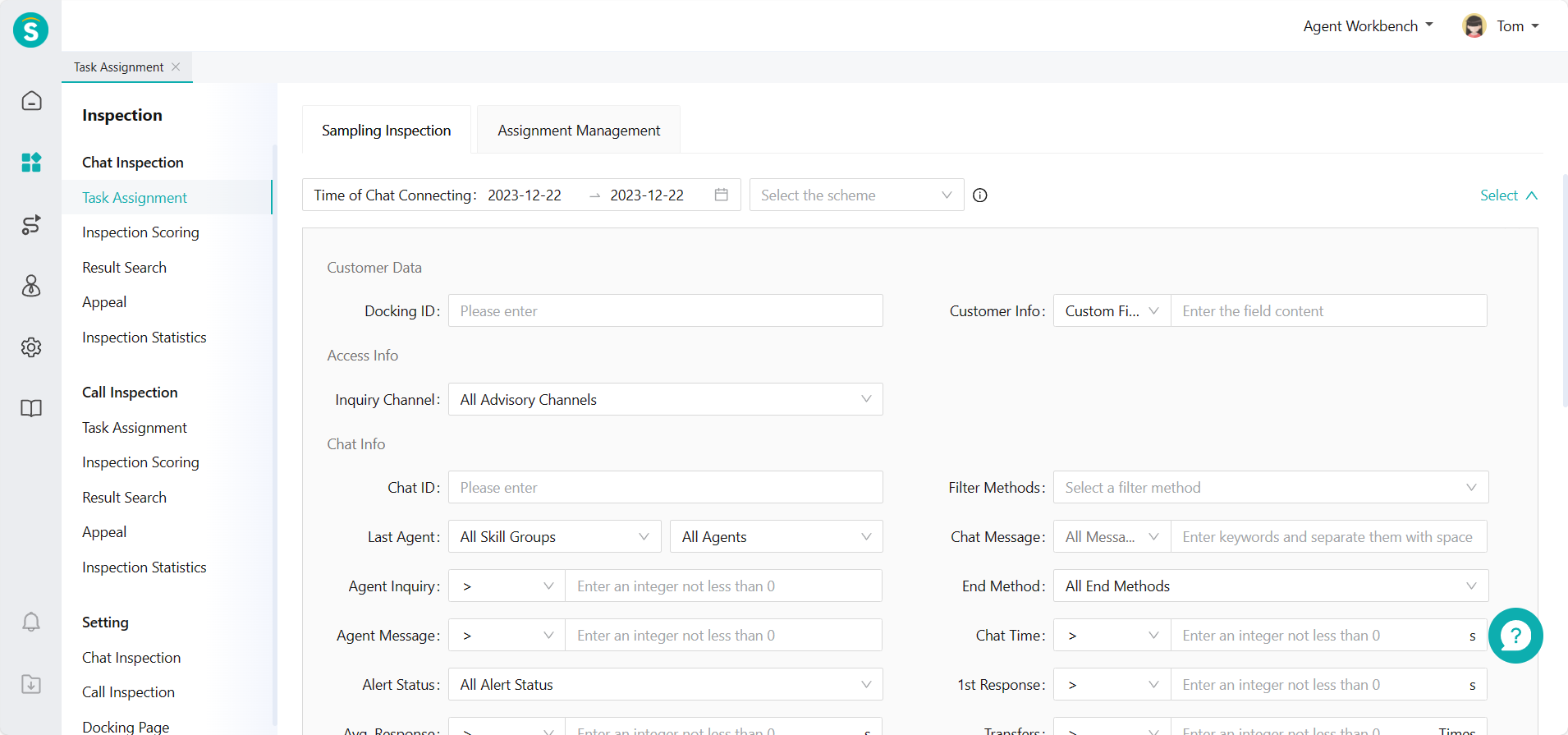
- Select chat start time and common sampling scheme for sampling in Chat Inspection > Task Assignment > Sampling Assignment. Click「Filter」on the right to expand more filter conditions (Figure 1)
- After filtering samples, you can select Assign All or Assign Some samples.
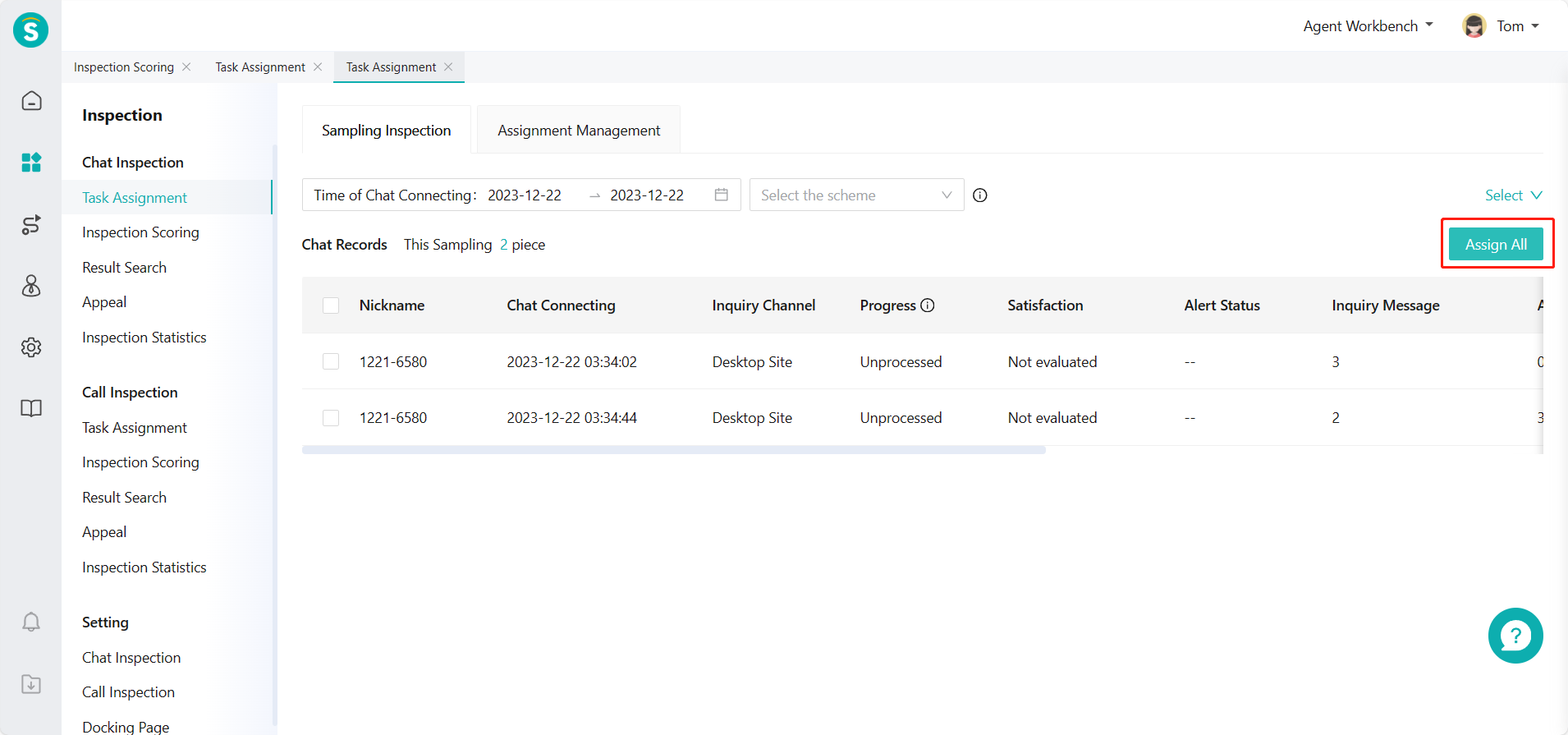
(1) Click「Assign All」button to assign all samples to the inspector (Figure 2)
Select inspector and inspection scheme in Assign Tasks pop-up window to assign tasks (Figure 3)
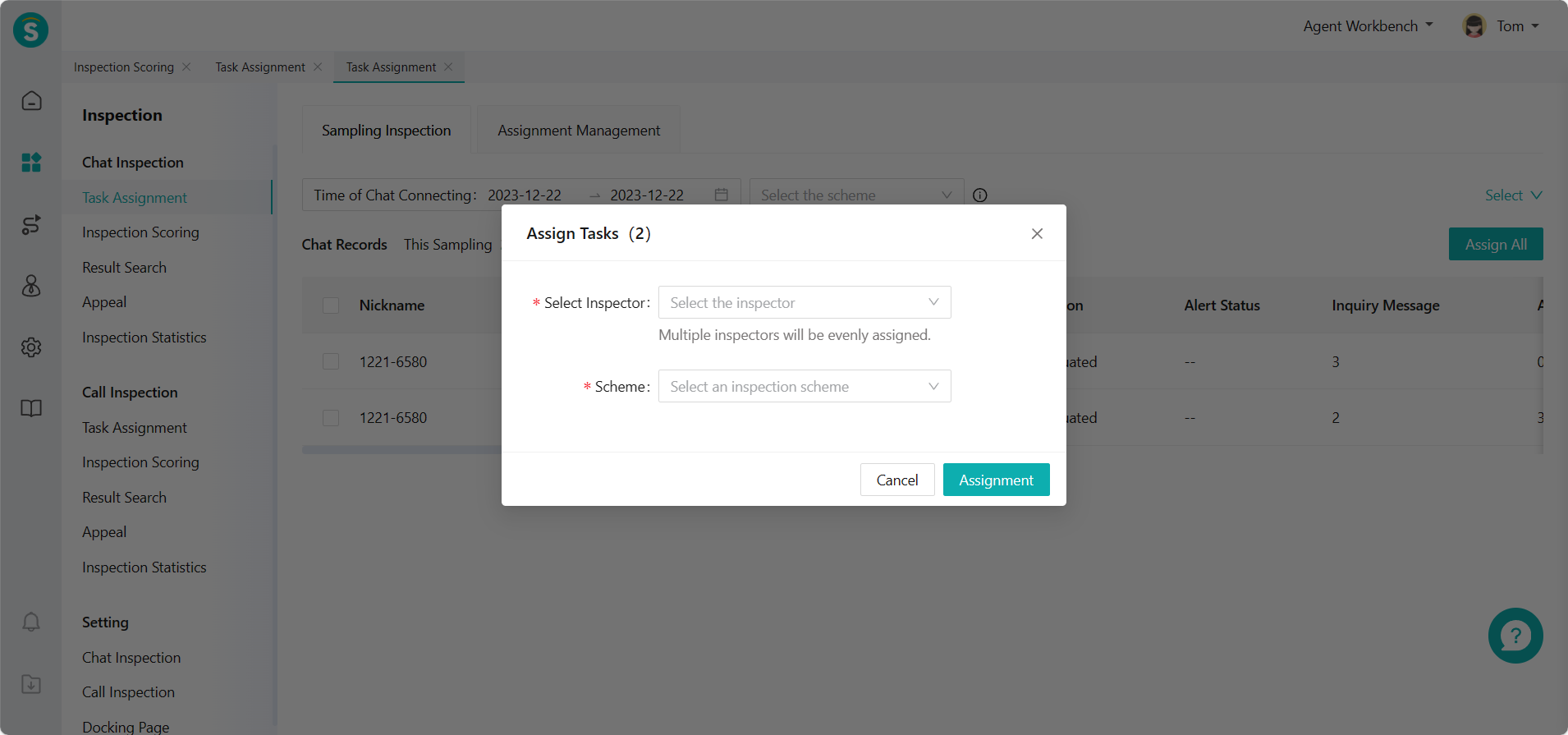
(2) Check some chat records to assign to the inspector from the filtered sample list (Figure 4)
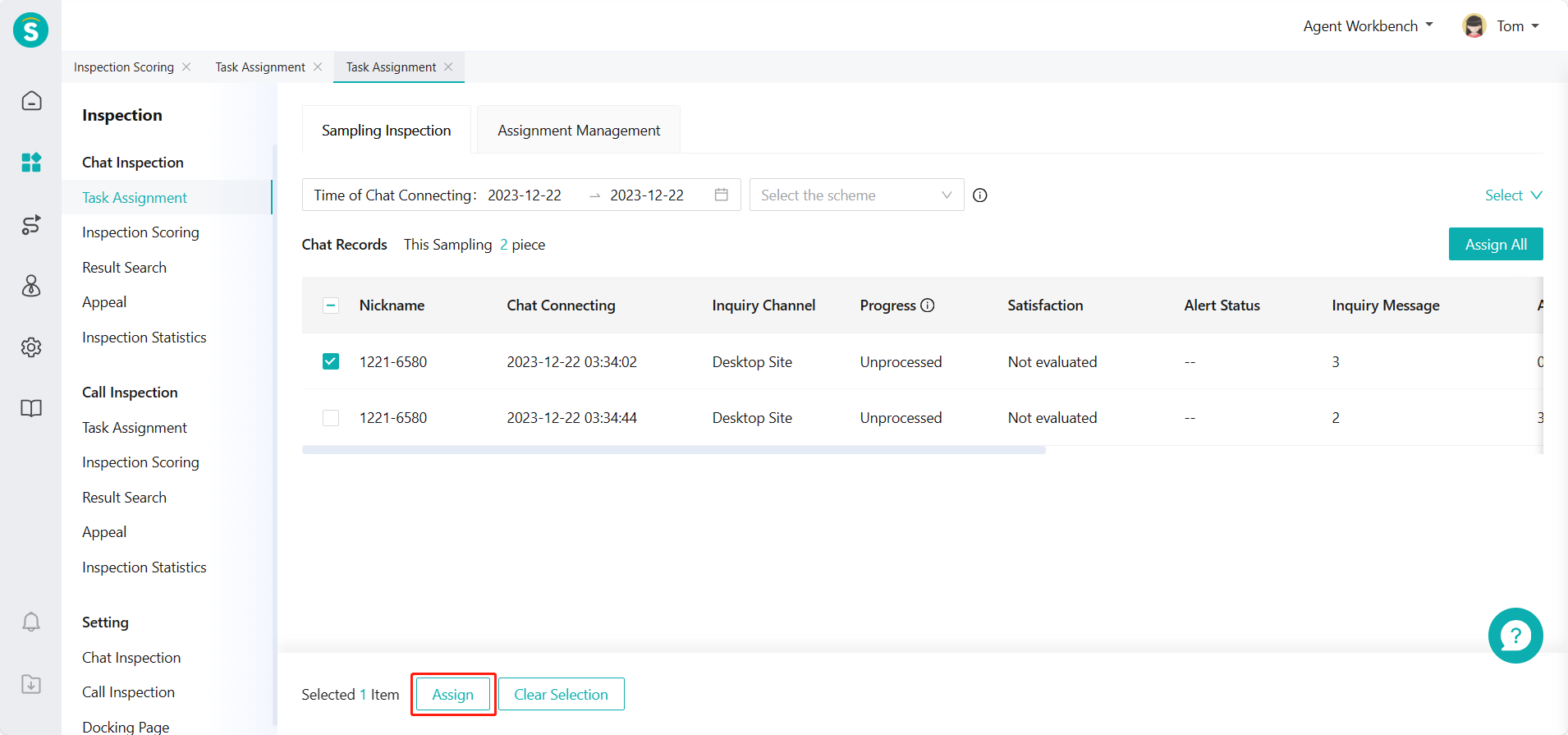
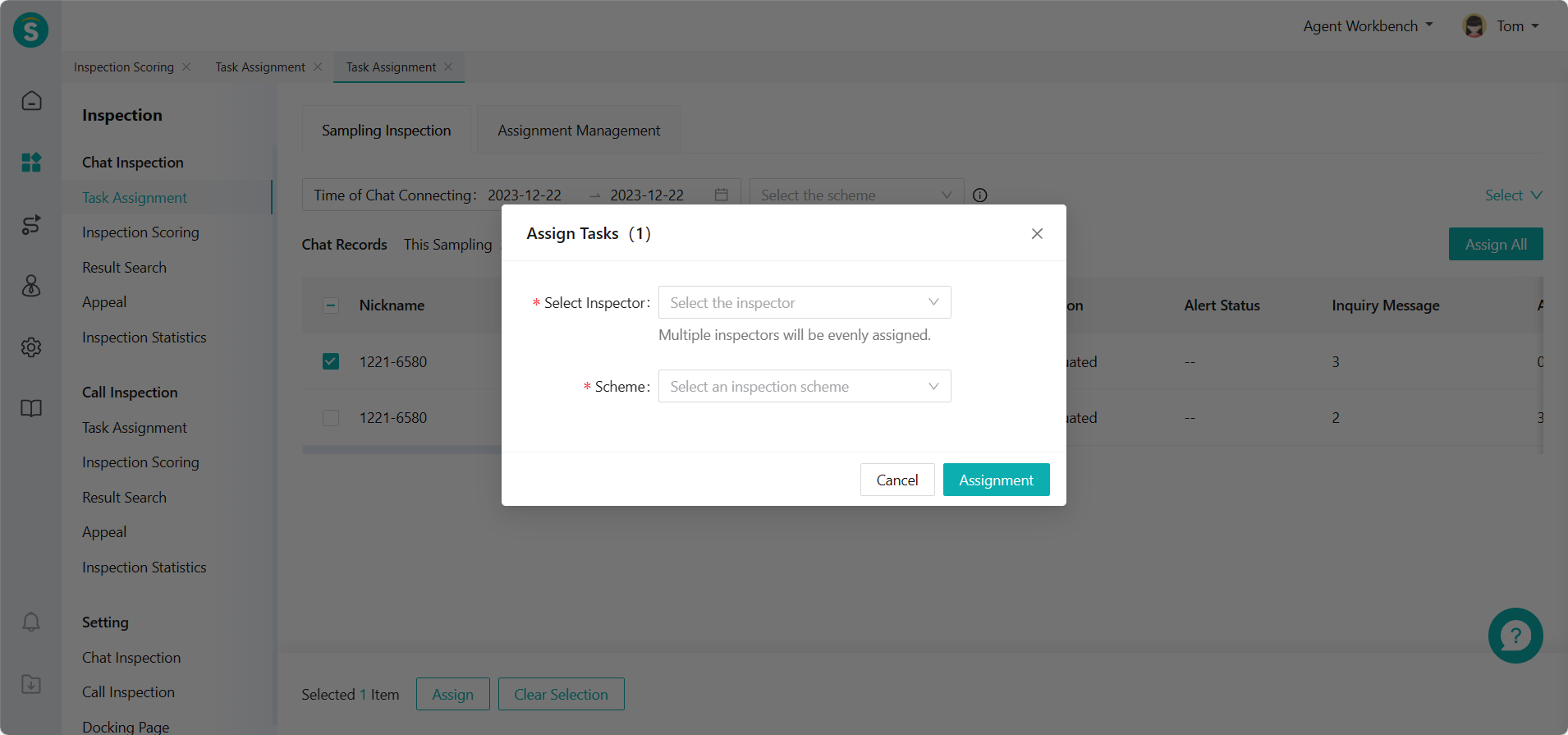
Click「Assign」and select the inspector and inspection scheme in Assign Tasks pop-up window to assign tasks (Figure 5)
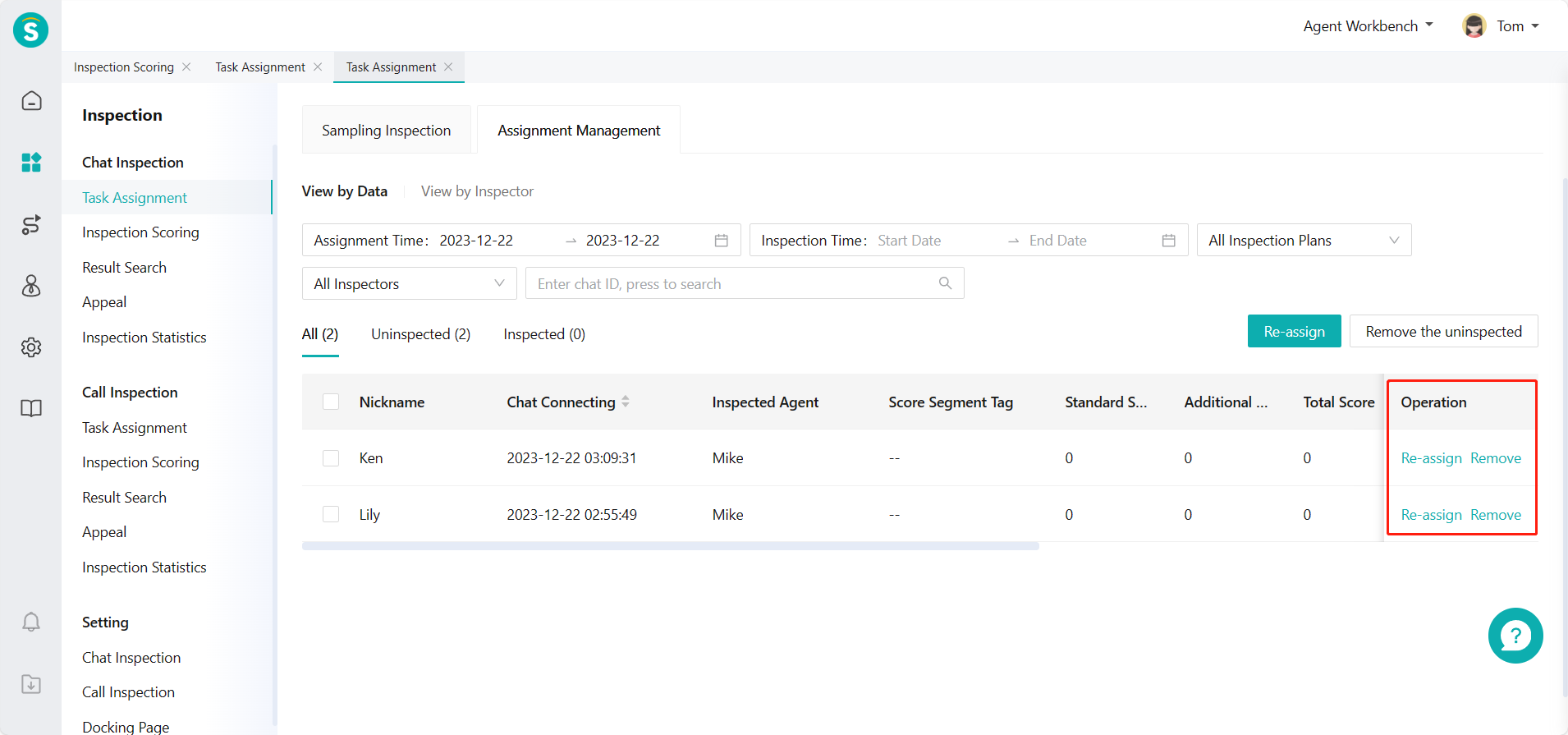
- Select View by Data: support viewing all assigned chat records in Chat Inspection > Task Assignment > Assignment Management. (Figure 6)
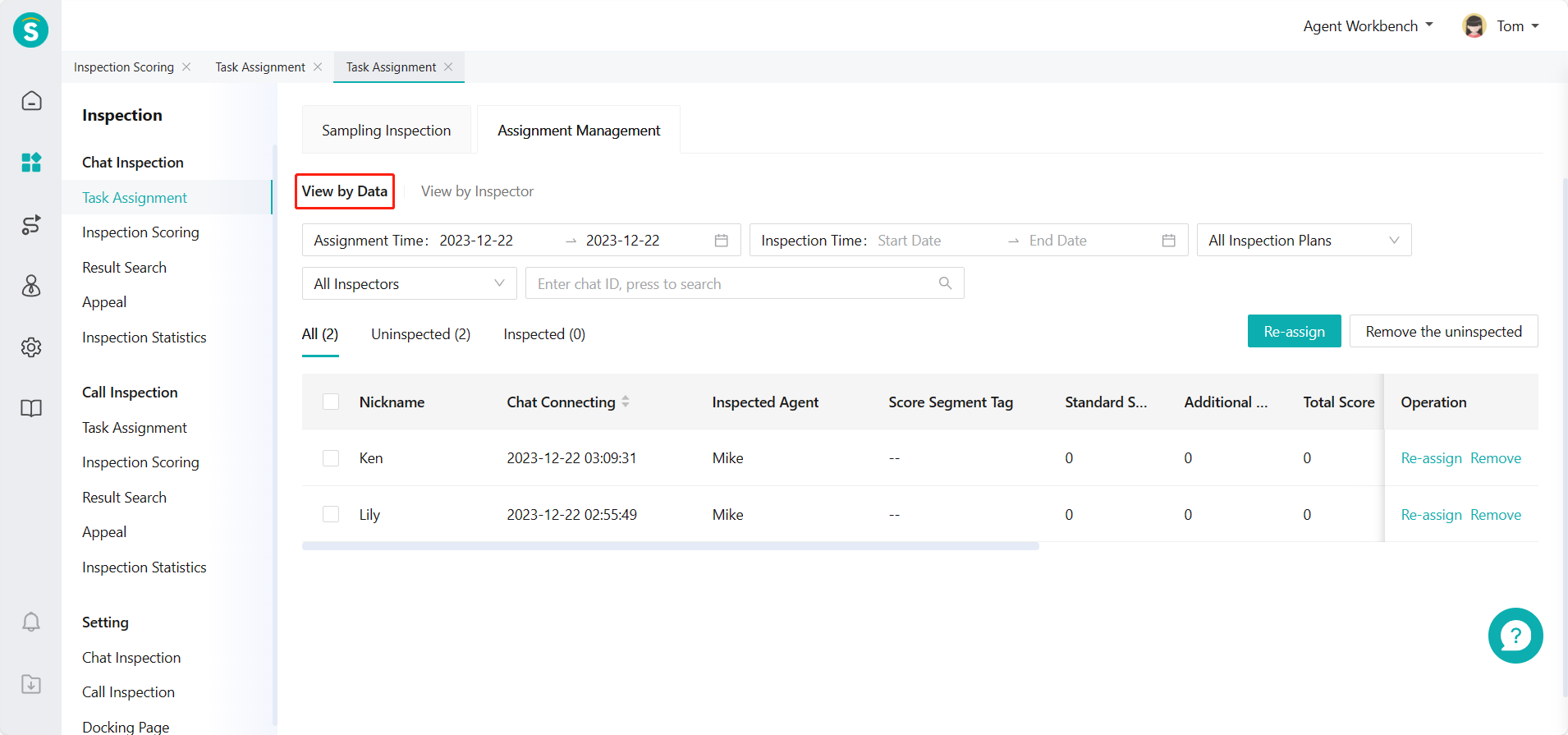
Support reassigning and deleting uninspected chat records
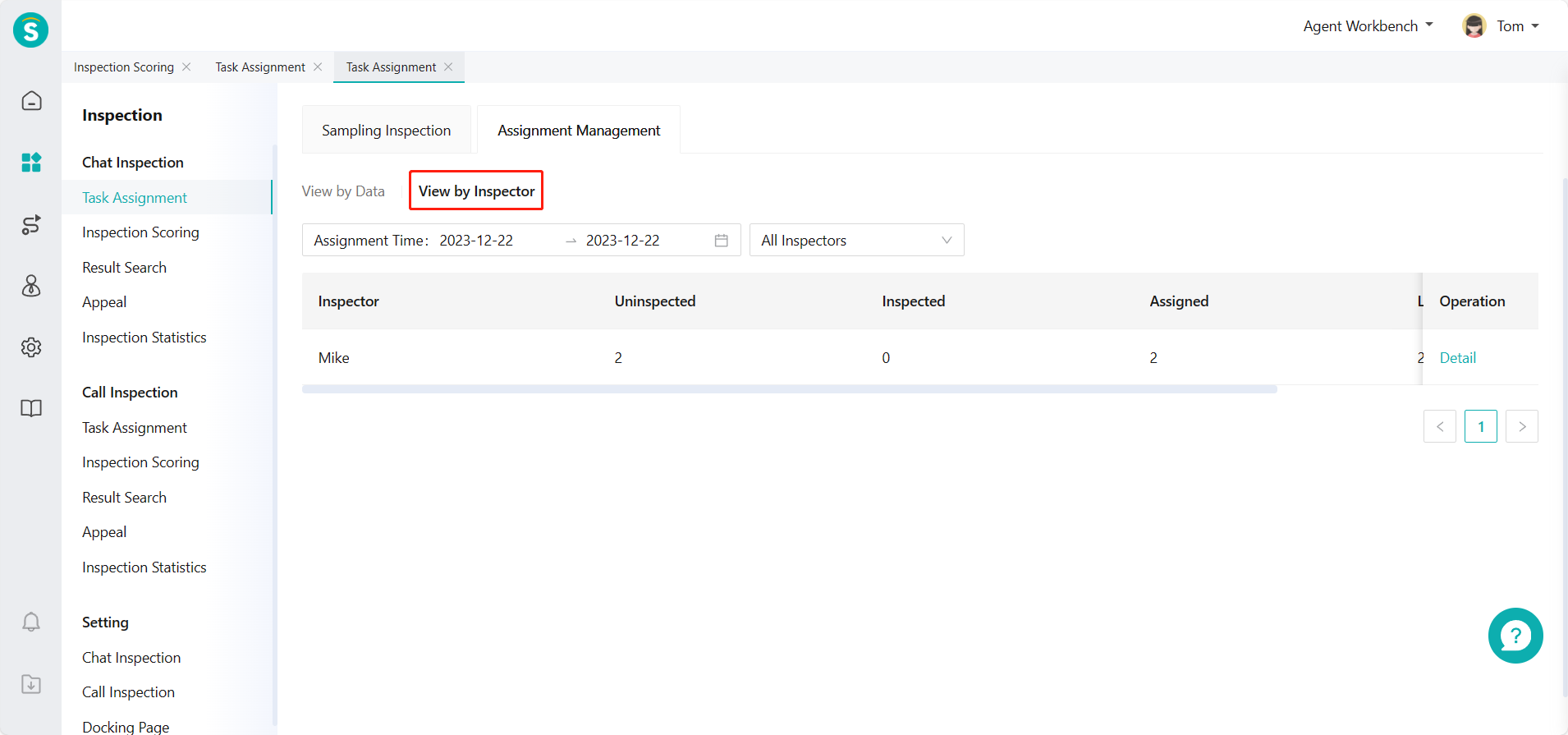
Or select View by Inspector: support viewing all chat records assigned to the corresponding inspector. (Figure 8)
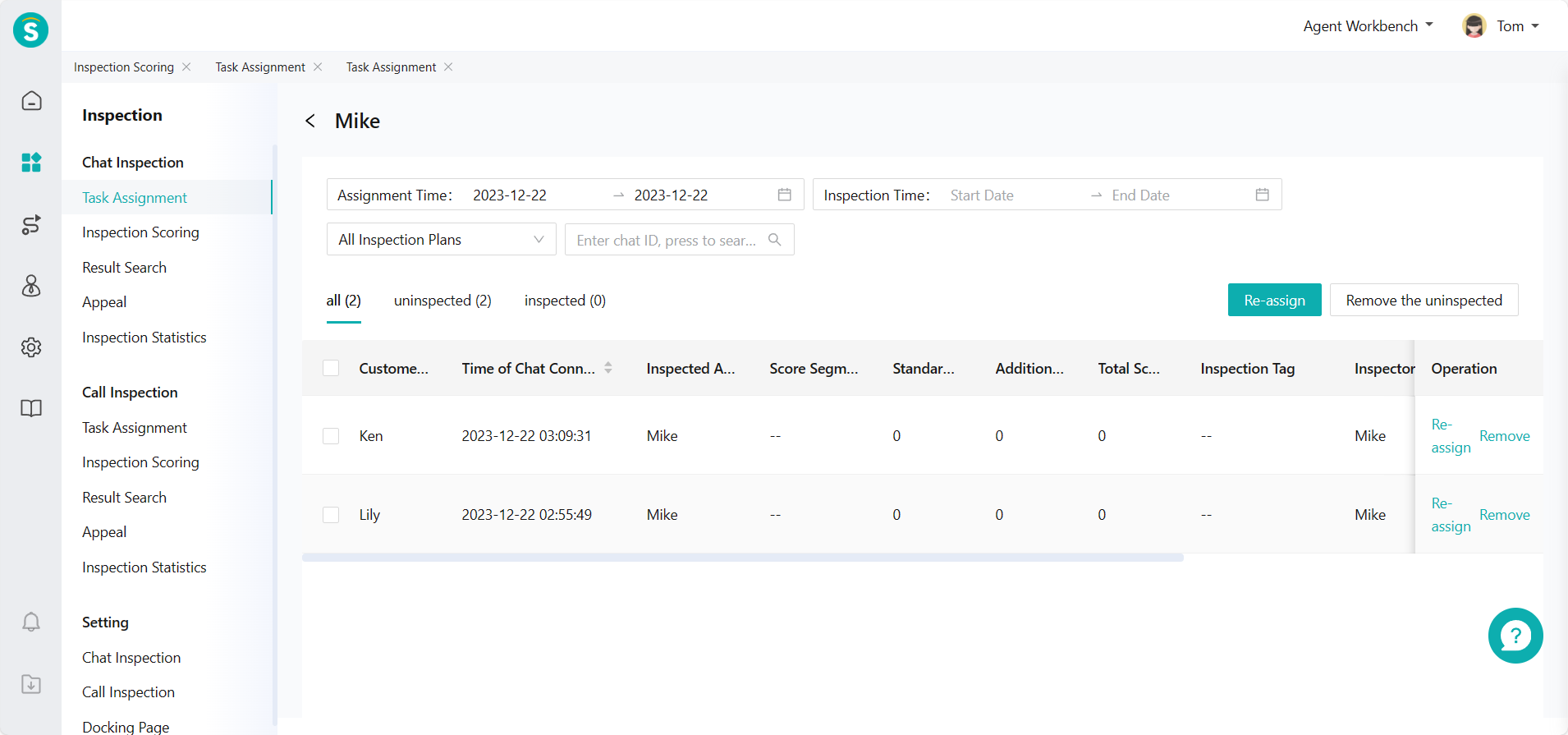
Click「Details」to go to the details page of corresponding inspector assignment records, and switch filter condition to view corresponding inspection data (Figure 9)
# ● Chat Inspection - Inspection Evaluation - Independent Sampling
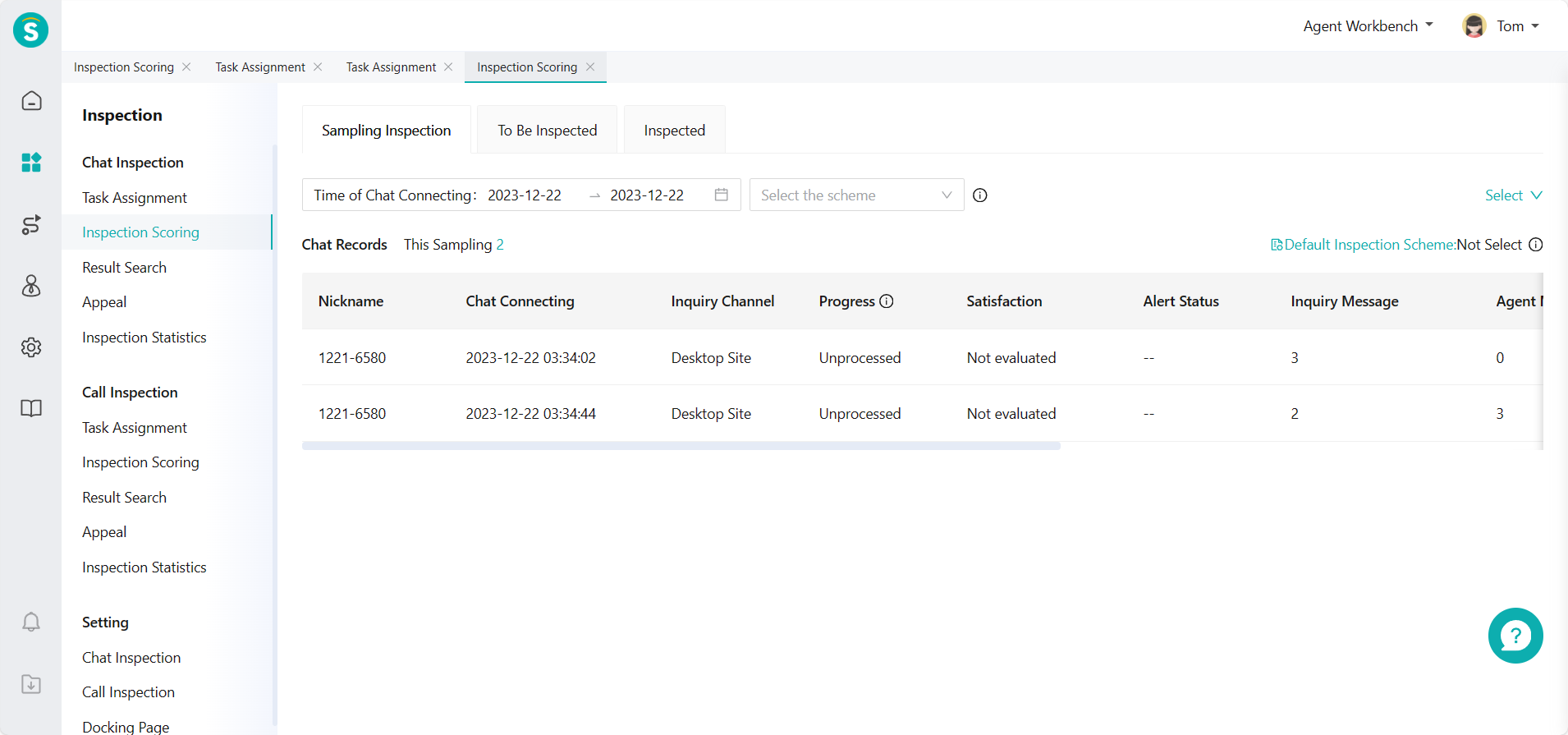
Select samples by filter conditions in Chat Inspection > Inspection Evaluation > Sampling Inspection and click the sample to enter inspection details page for inspection evaluation (Figure 10)
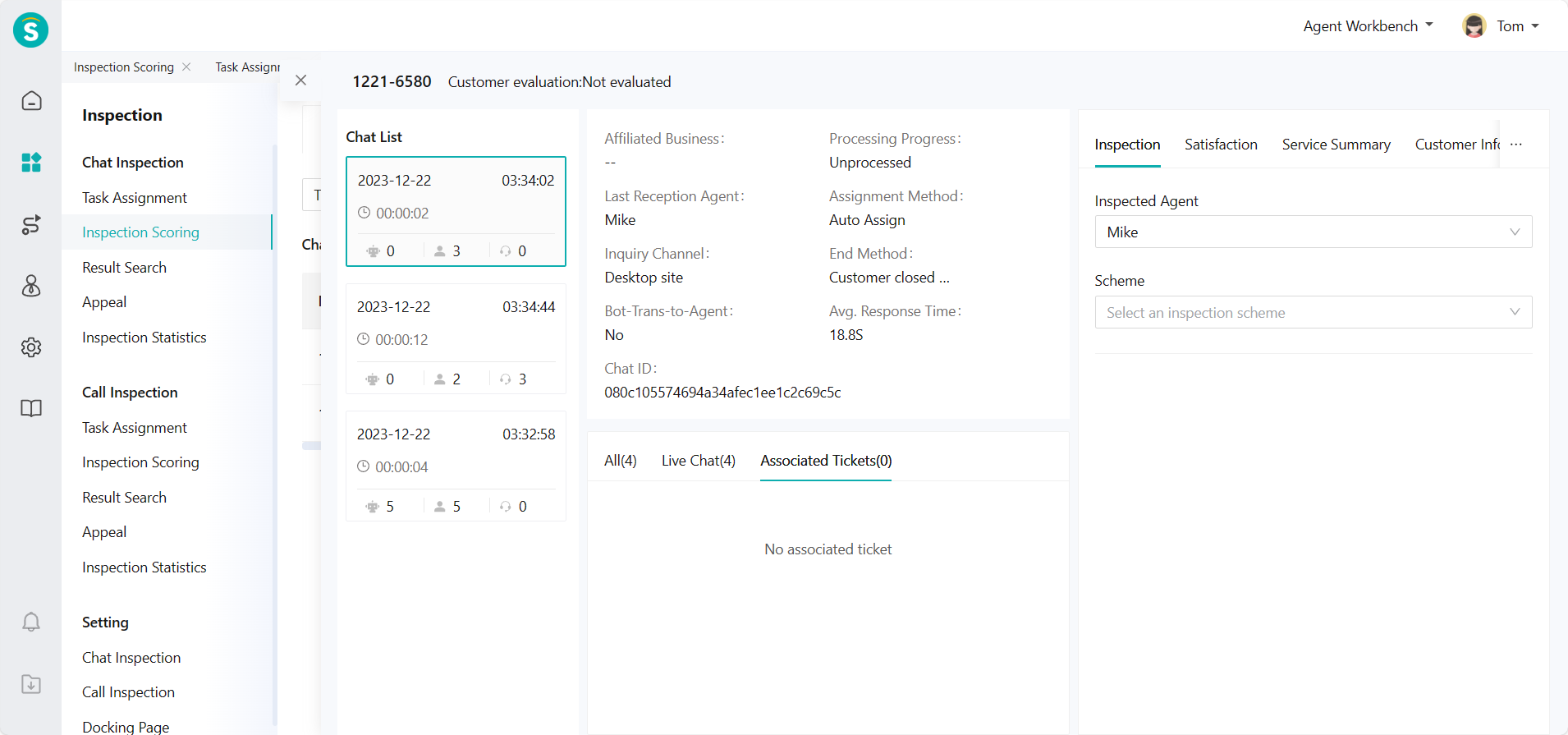
Support switching or selecting chat records, inspected agent and inspection scheme on the inspection details page, and conducting inspection evaluation by standardized inspection items and additional inspection items under the corresponding scheme. (Figure 11)
# ● Chat Inspection - Inspection Evaluation - Task Processing
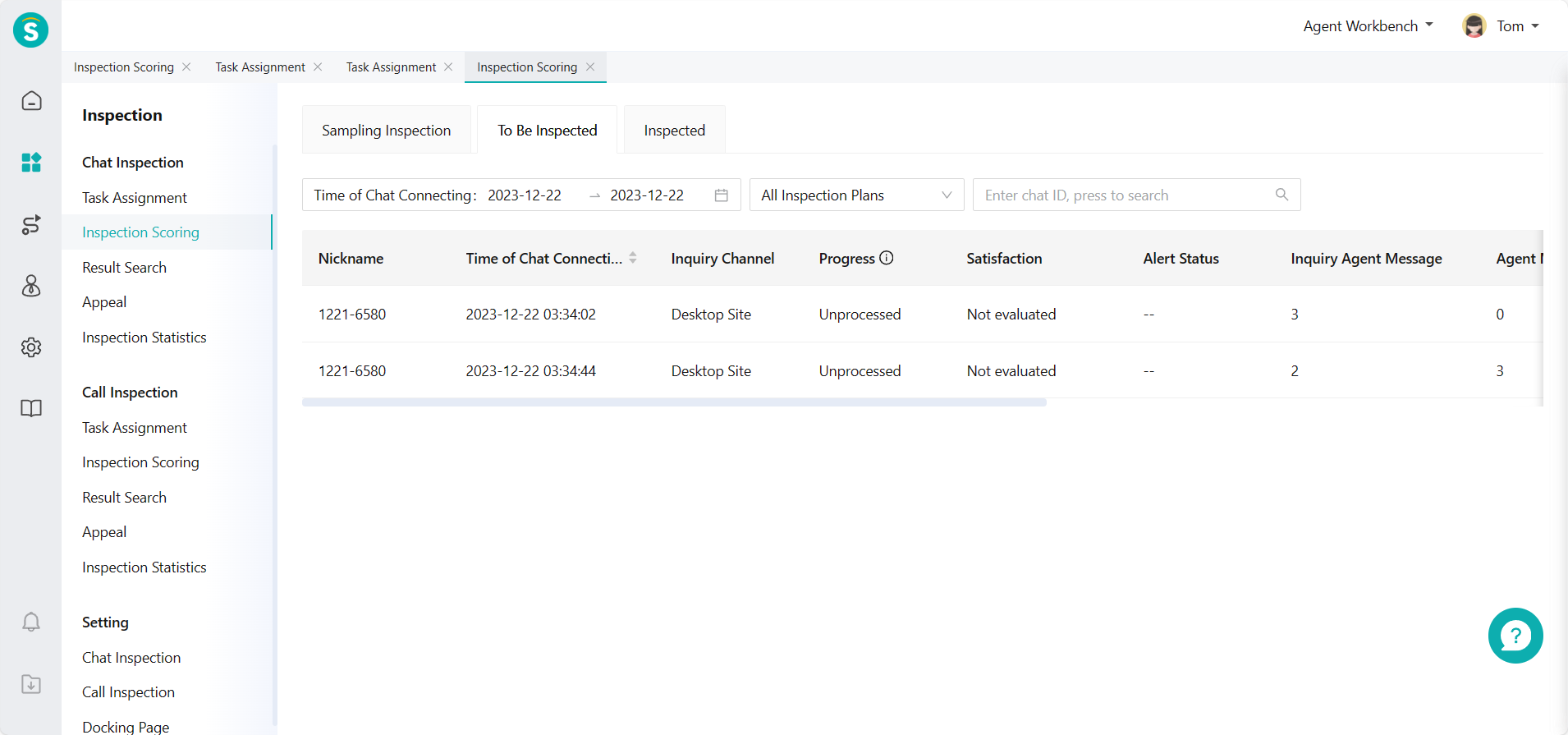
View assigned inspection tasks in Chat Inspection > Inspection Evaluation > To Be Inspected and click one task to enter inspection details page for inspection evaluation. (Figure 12)
# ● Talk Inspection - Task Assignment
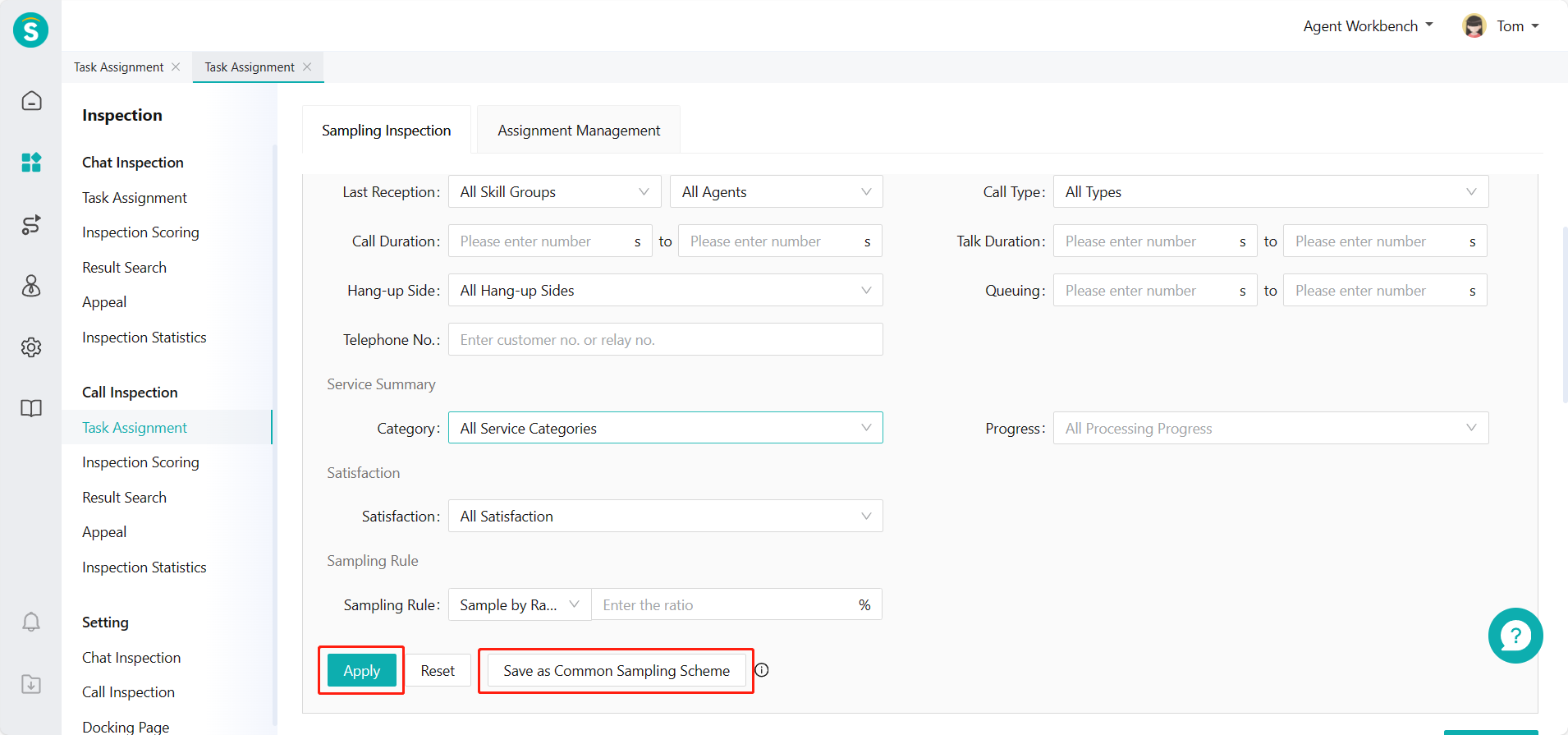
- Select call time and common sampling scheme for sampling in Talk Inspection > Task Assignment > Sampling Assignment. Click「Filter」on the right to expand more filter conditions (Figure 13)
- After filtering samples, you can select Assign All or Assign Some samples.
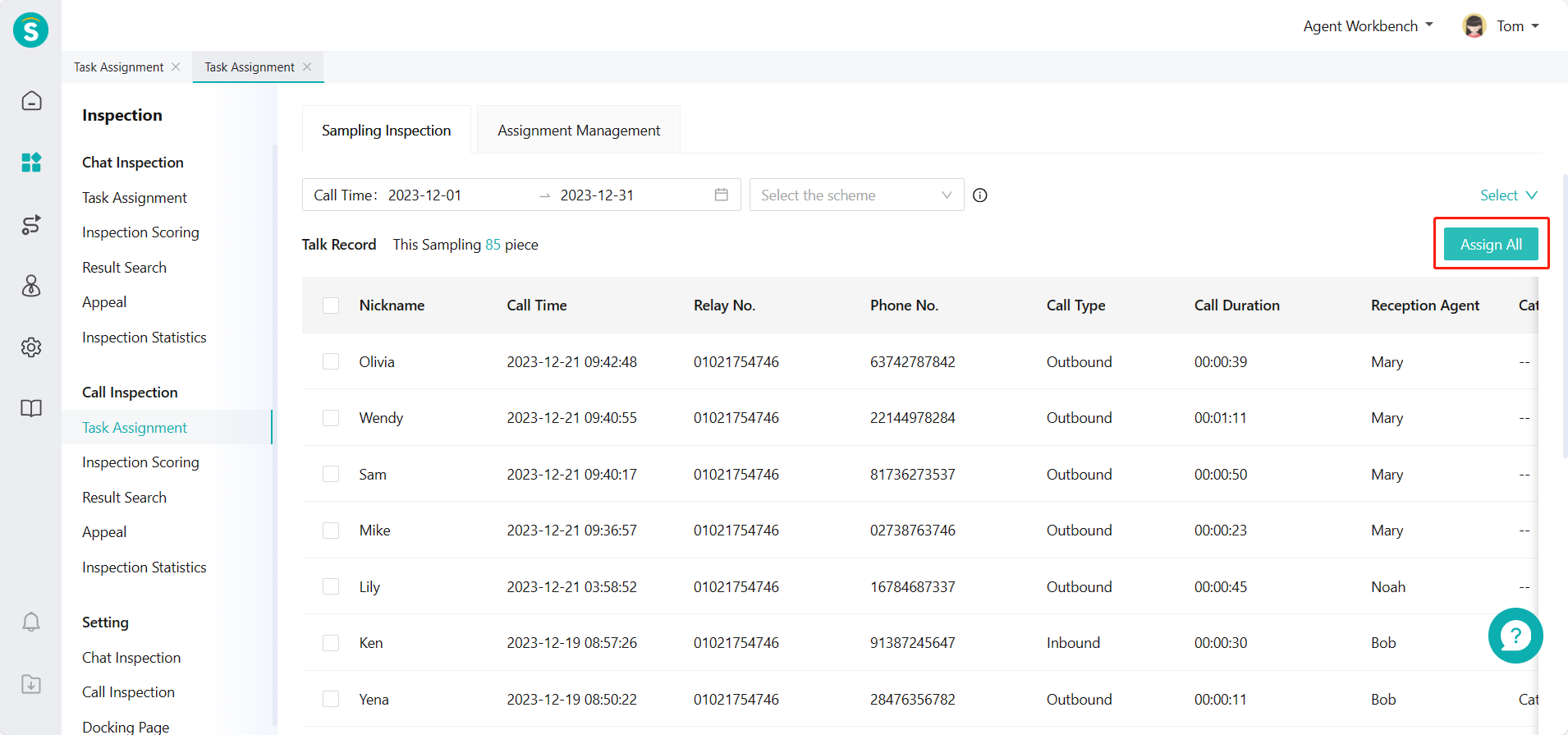
(1) Click「Assign All」button to assign all samples to the inspector (Figure 14)
Select inspector and inspection scheme in Assign Tasks pop-up window to assign tasks (Figure 15)
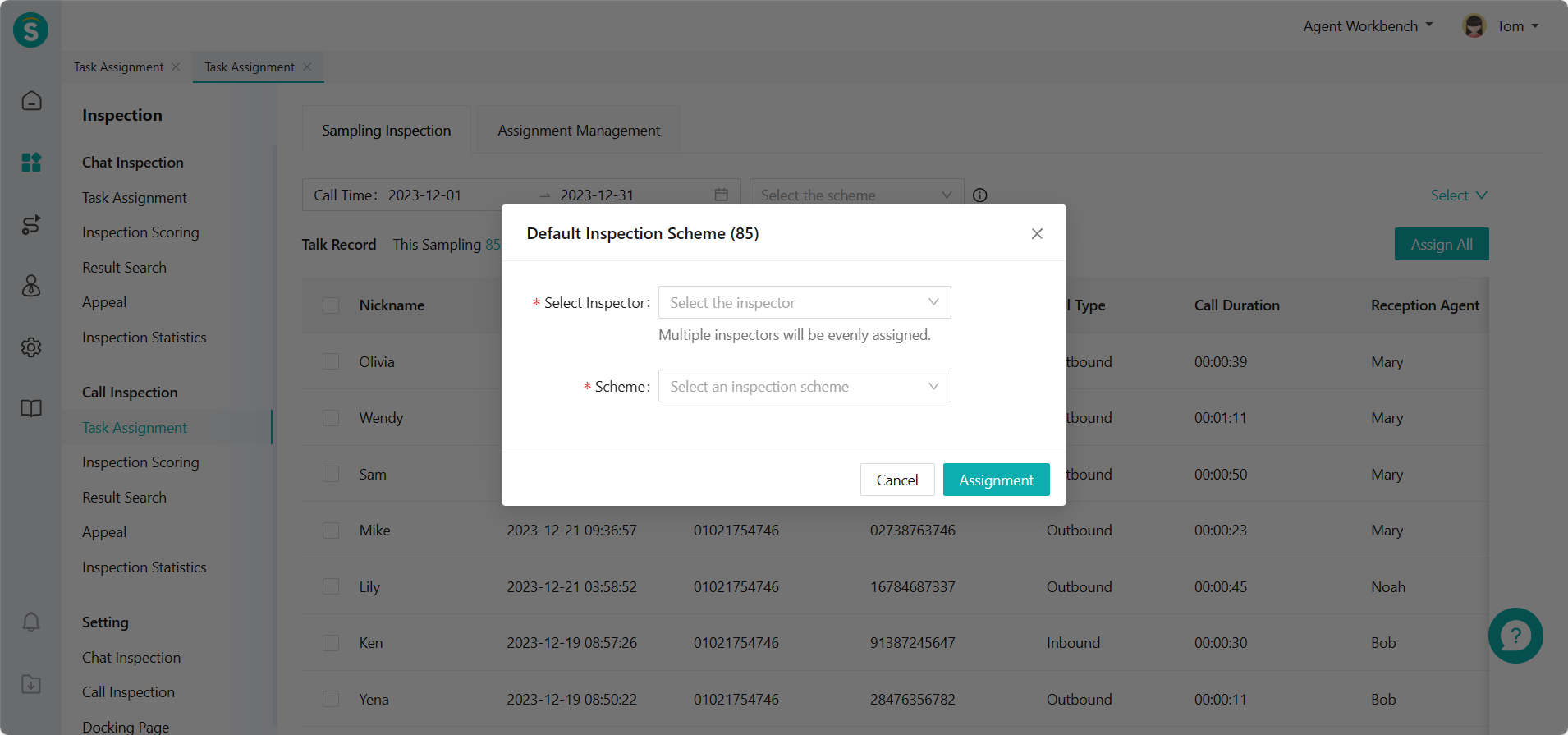
(2) Check some talk records to assign to the inspector from the filtered sample list (Figure 16)
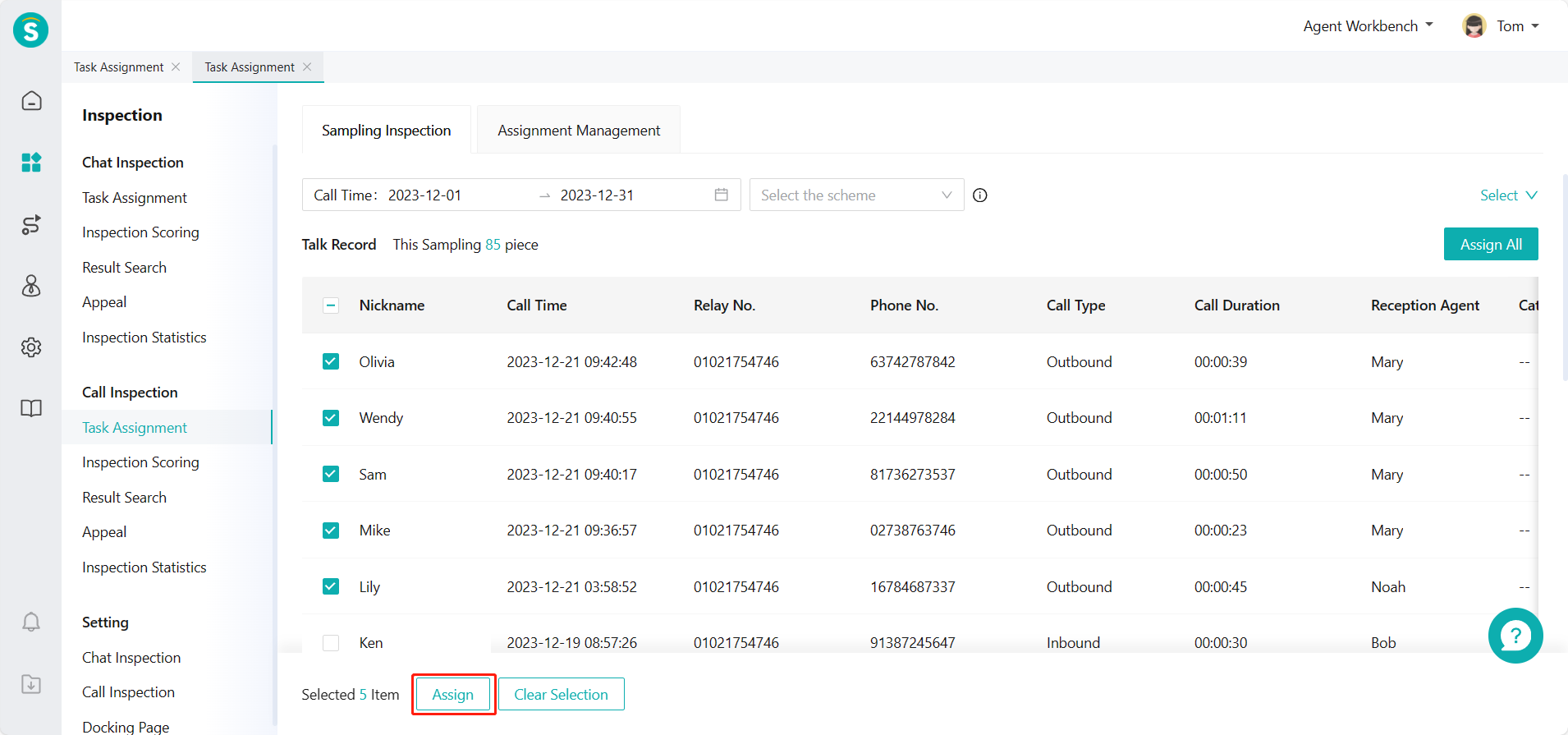
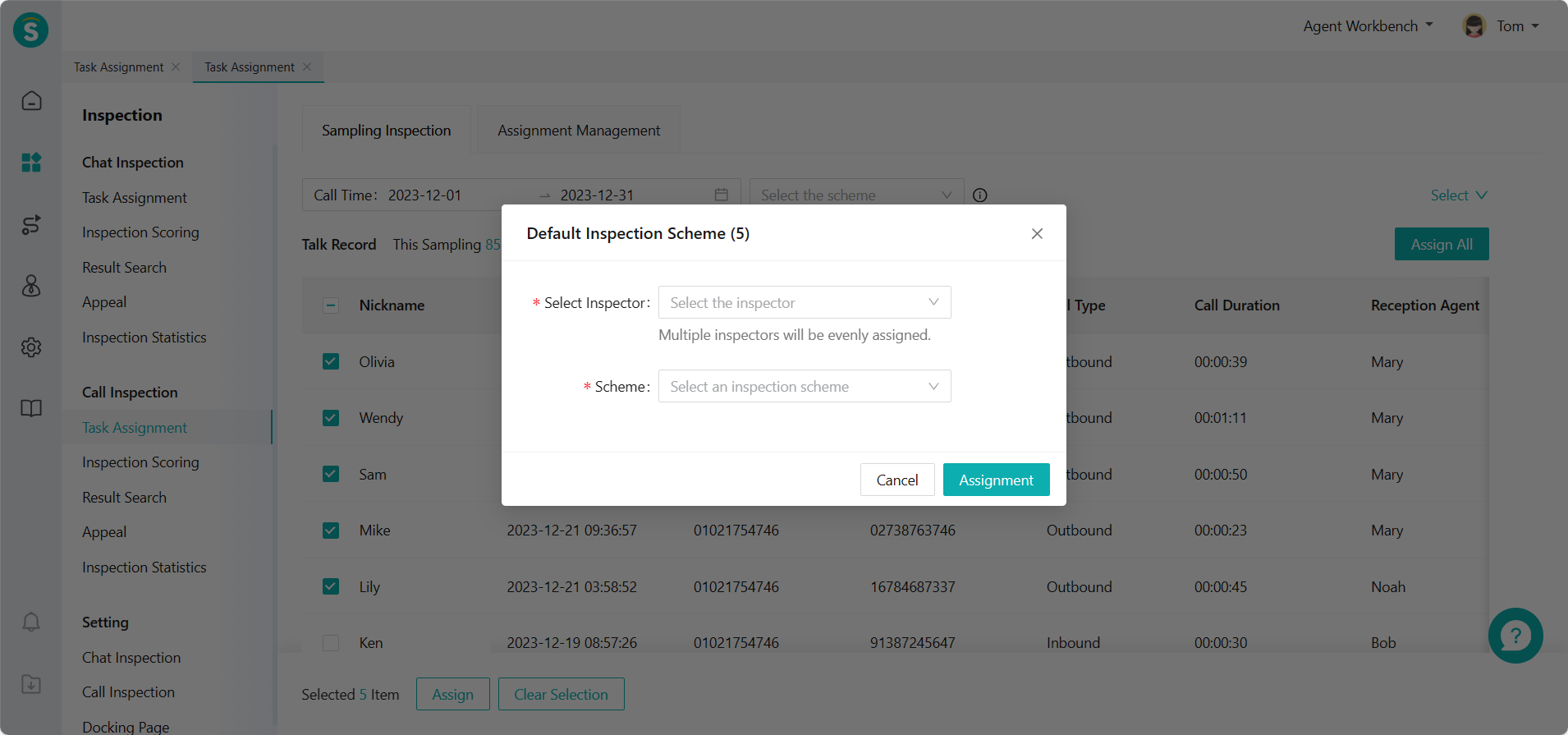
Click「Assign」and select the inspector and inspection scheme in Assign Tasks pop-up window to assign tasks (Figure 17)
- Select View by Data: support viewing all assigned talk records in Talk Inspection > Task Assignment > Assignment Management. (Figure 18)
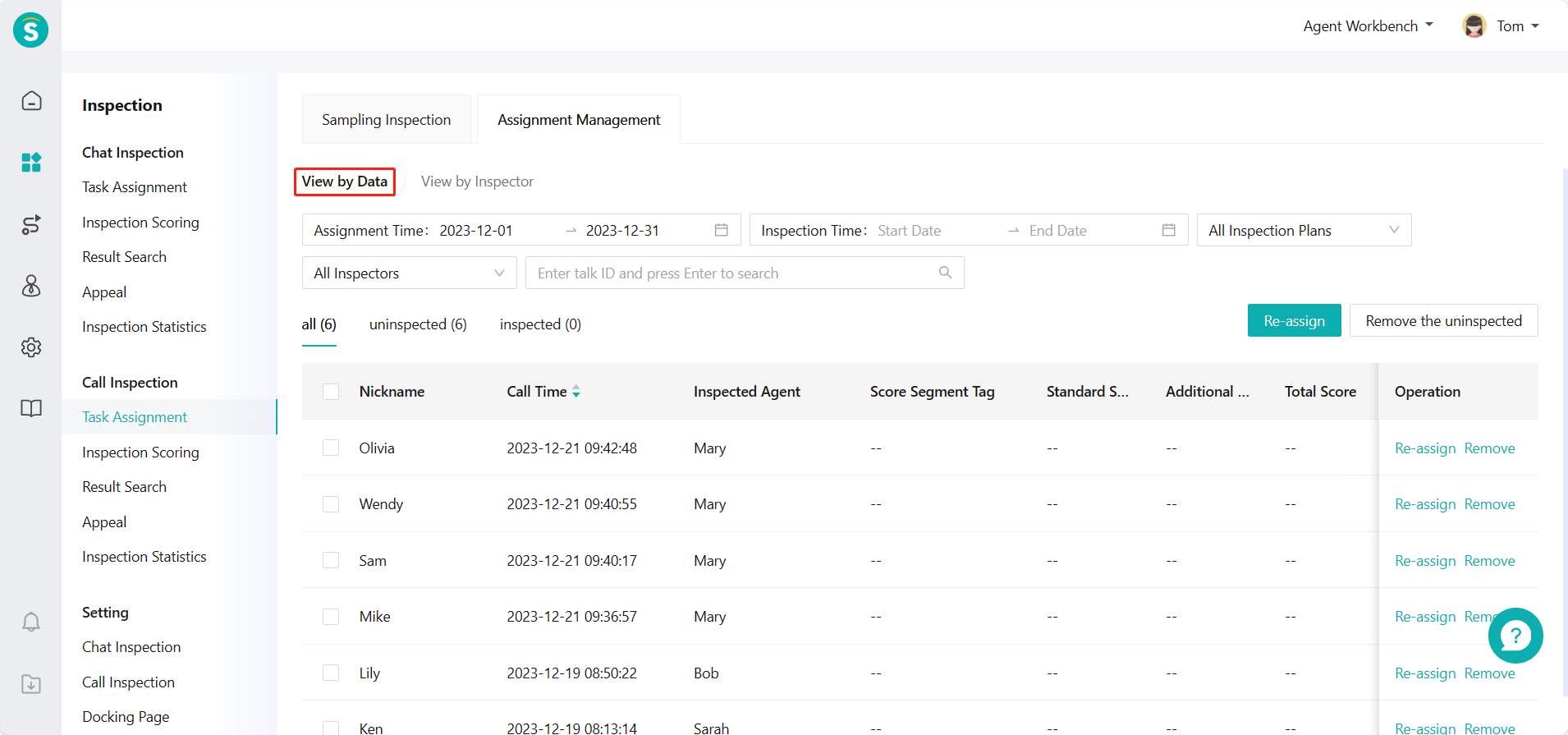
Support reassigning and deleting uninspected talk records (Figure 19)
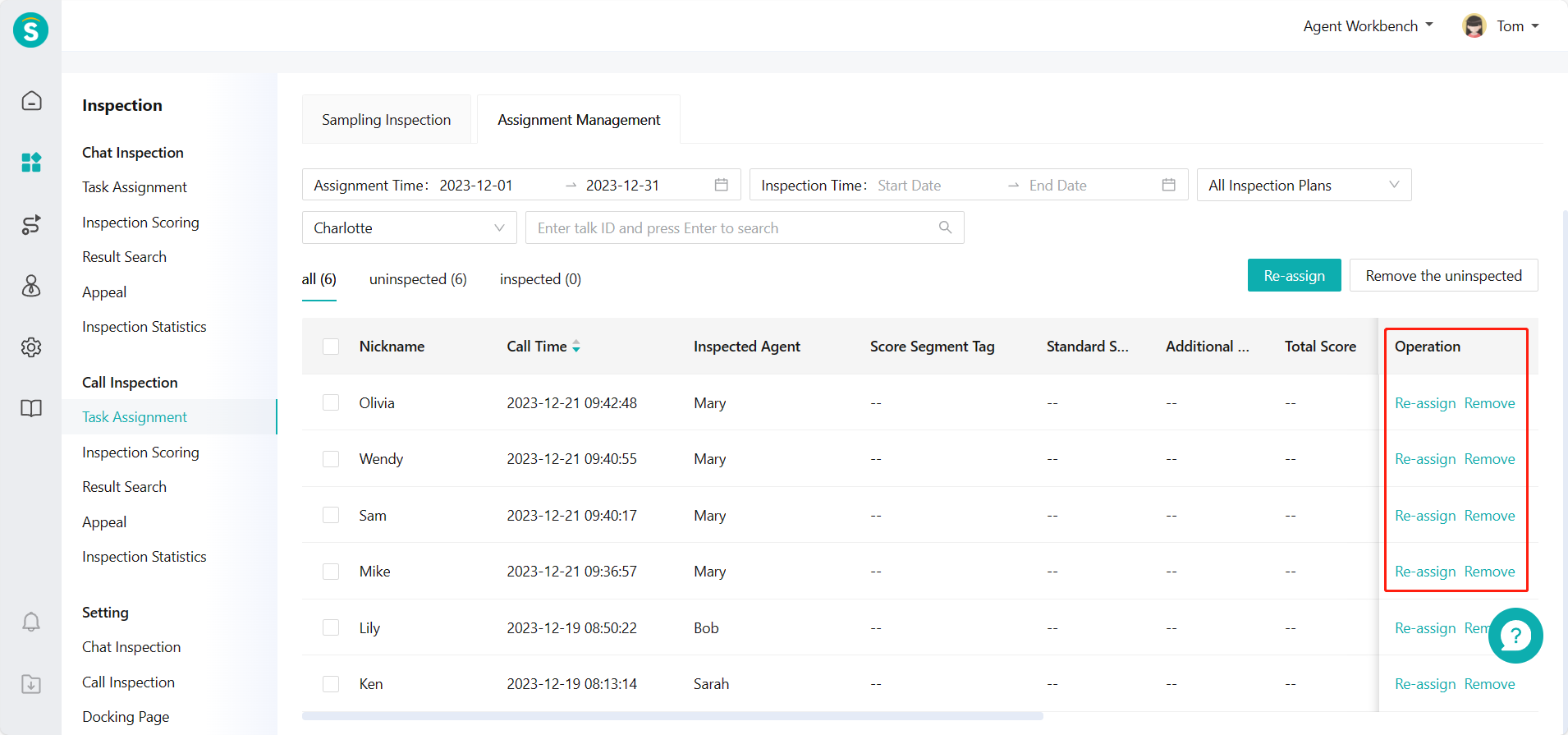
Or select View by Inspector: support viewing all talk records assigned to the corresponding inspector. (Figure 20)
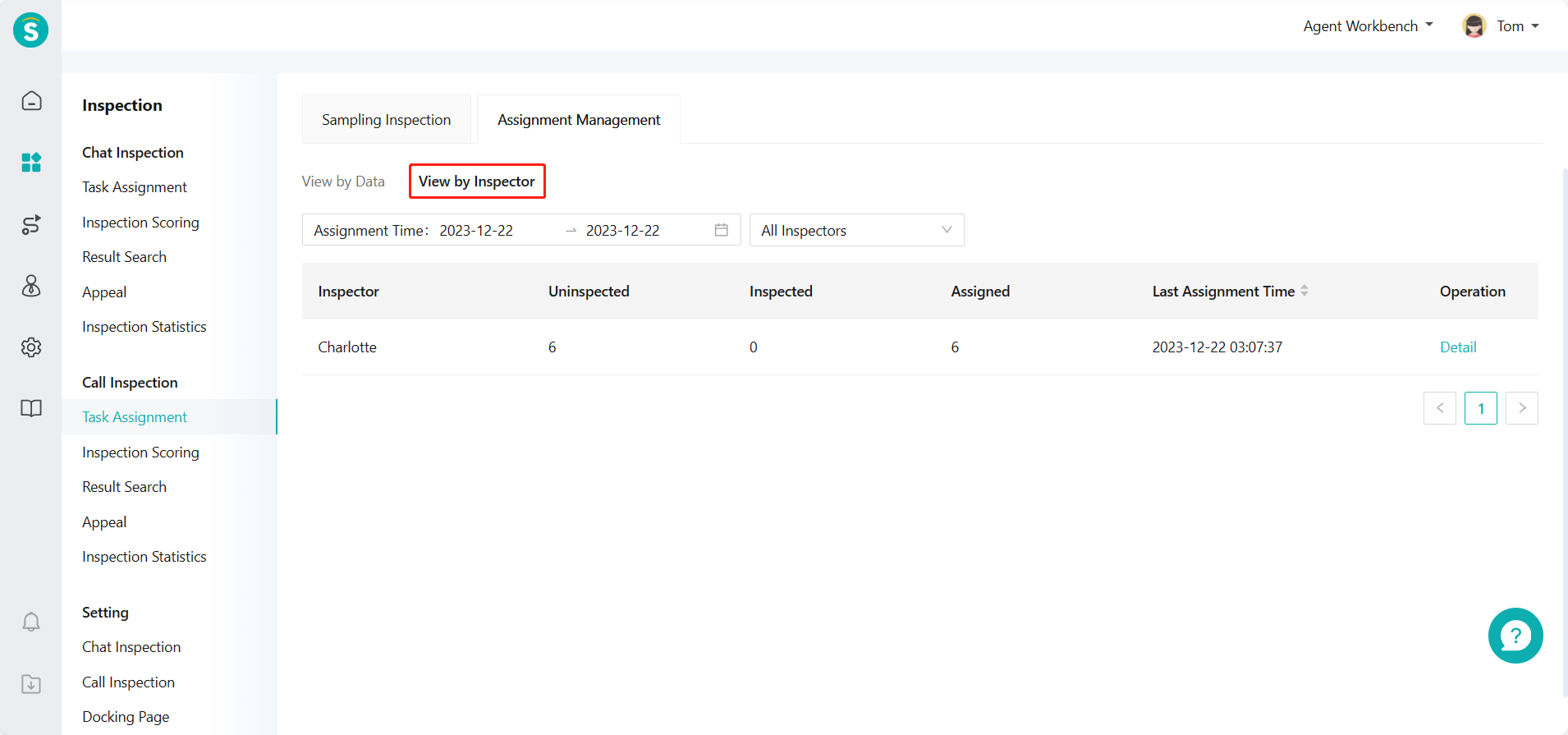
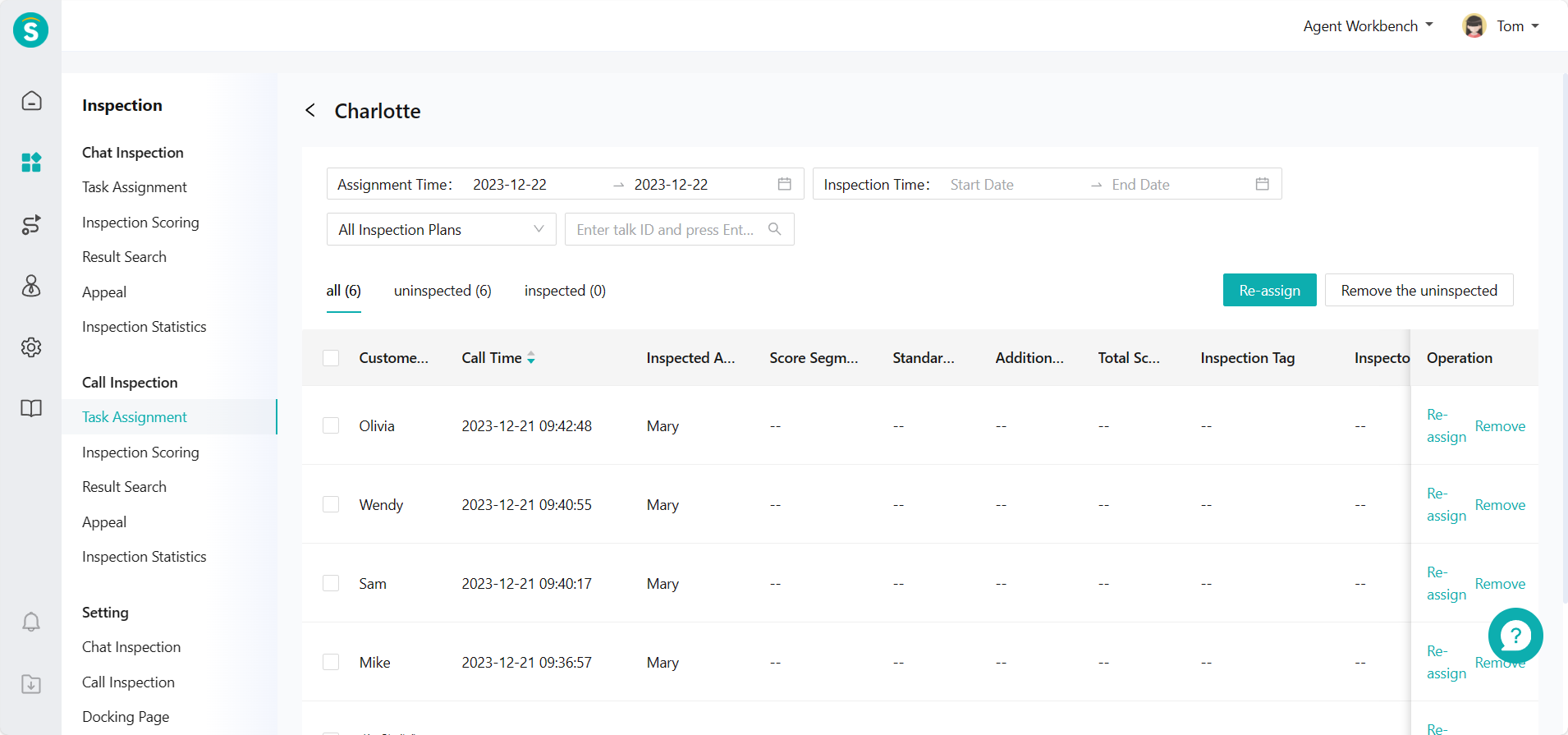
Click「Details」to go to the details page of corresponding inspector assignment records, and switch filter condition to view corresponding inspection data (Figure 21)
# ● Talk Inspection - Inspection Evaluation - Independent Sampling
Select samples by filter conditions in Talk Inspection > Inspection Evaluation > Sampling Inspection and click the sample to enter inspection details page for inspection evaluation (Figure 22)
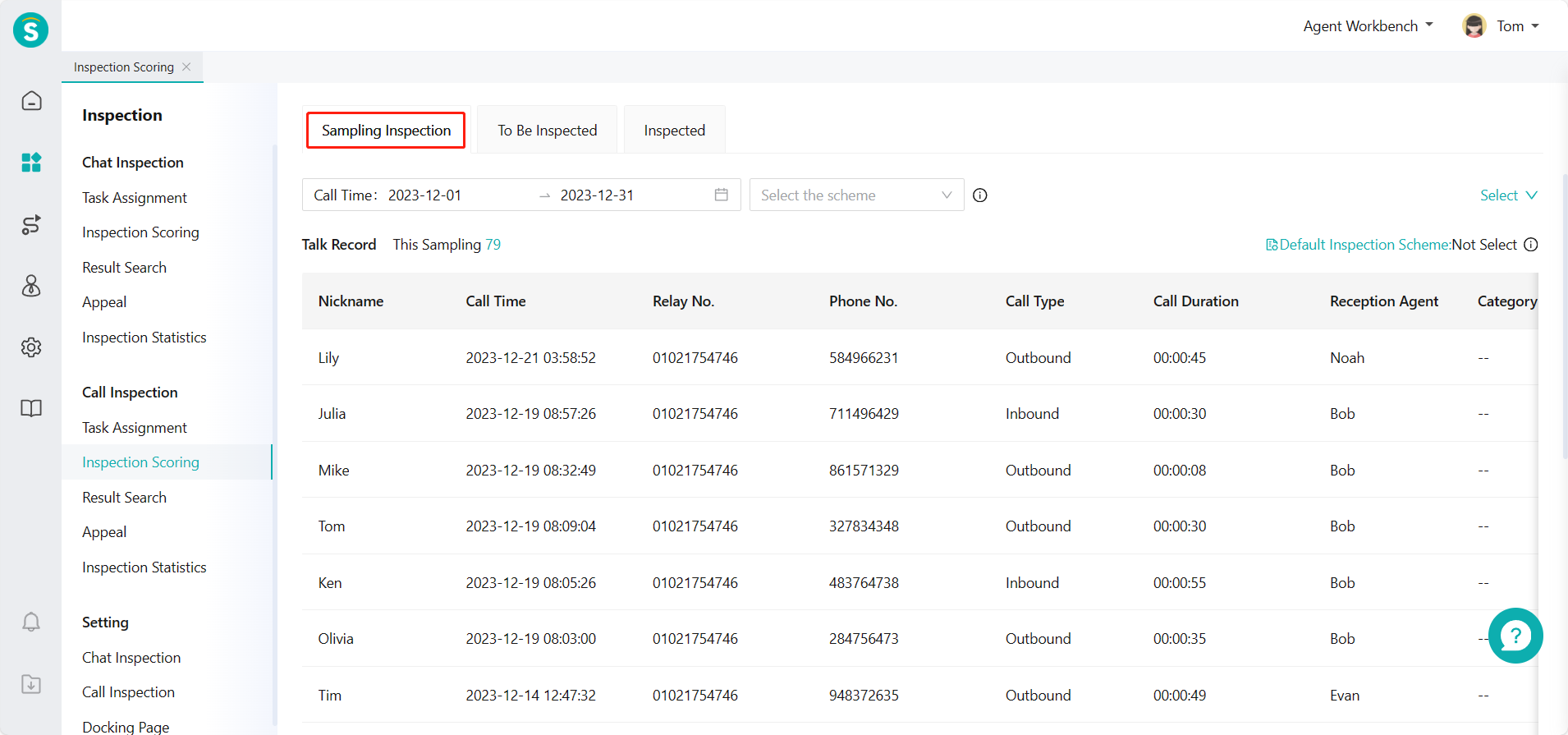
Support switching or selecting talk records, inspected agent and inspection scheme on the inspection details page, and conducting inspection evaluation by standardized inspection items and additional inspection items under the corresponding scheme. (Figure 23)
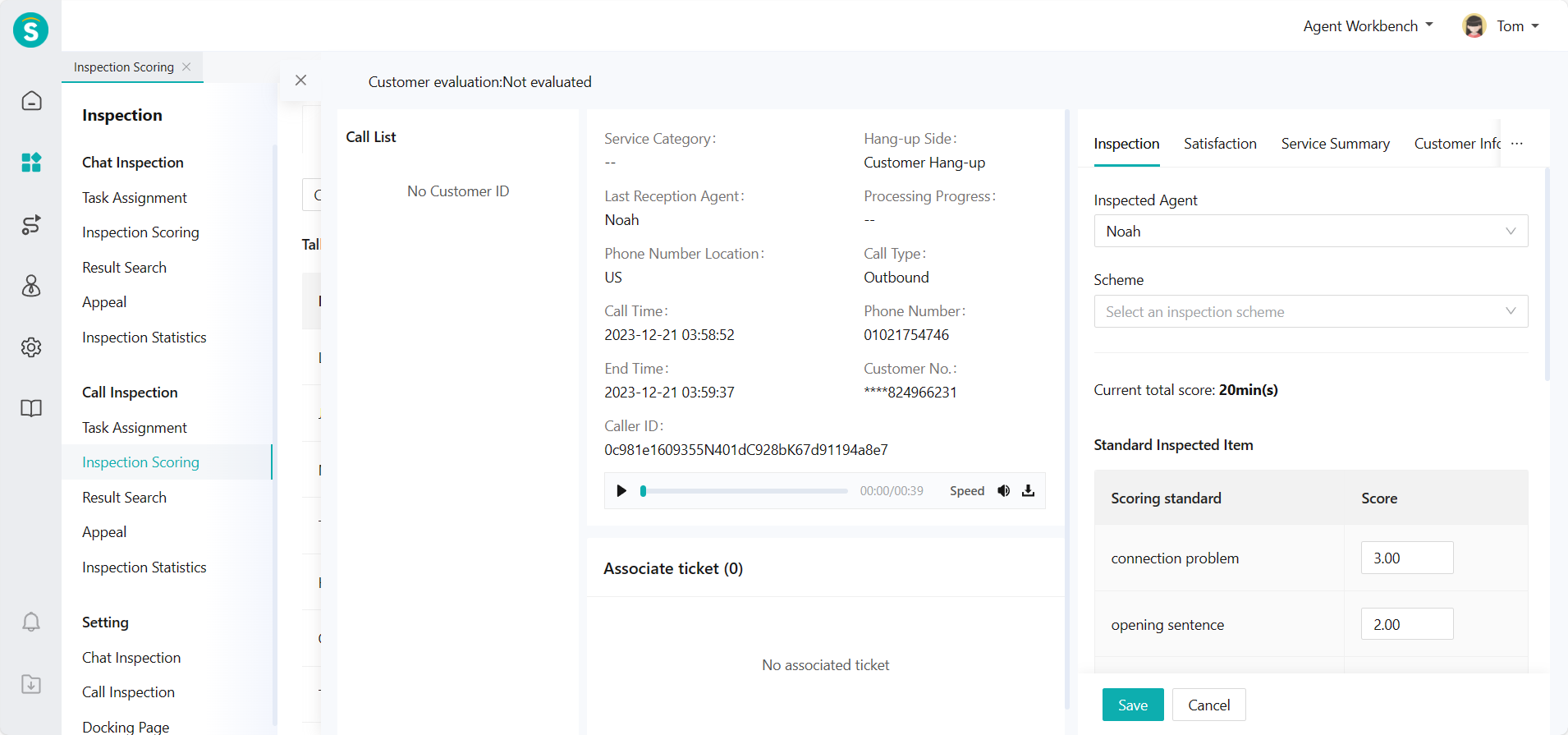
Talk Inspection - Inspection Evaluation - Task Processing View assigned inspection tasks through Talk Inspection - Inspection Evaluation - To Be Inspected and click one task to enter inspection details page for inspection evaluation. (Figure 24)
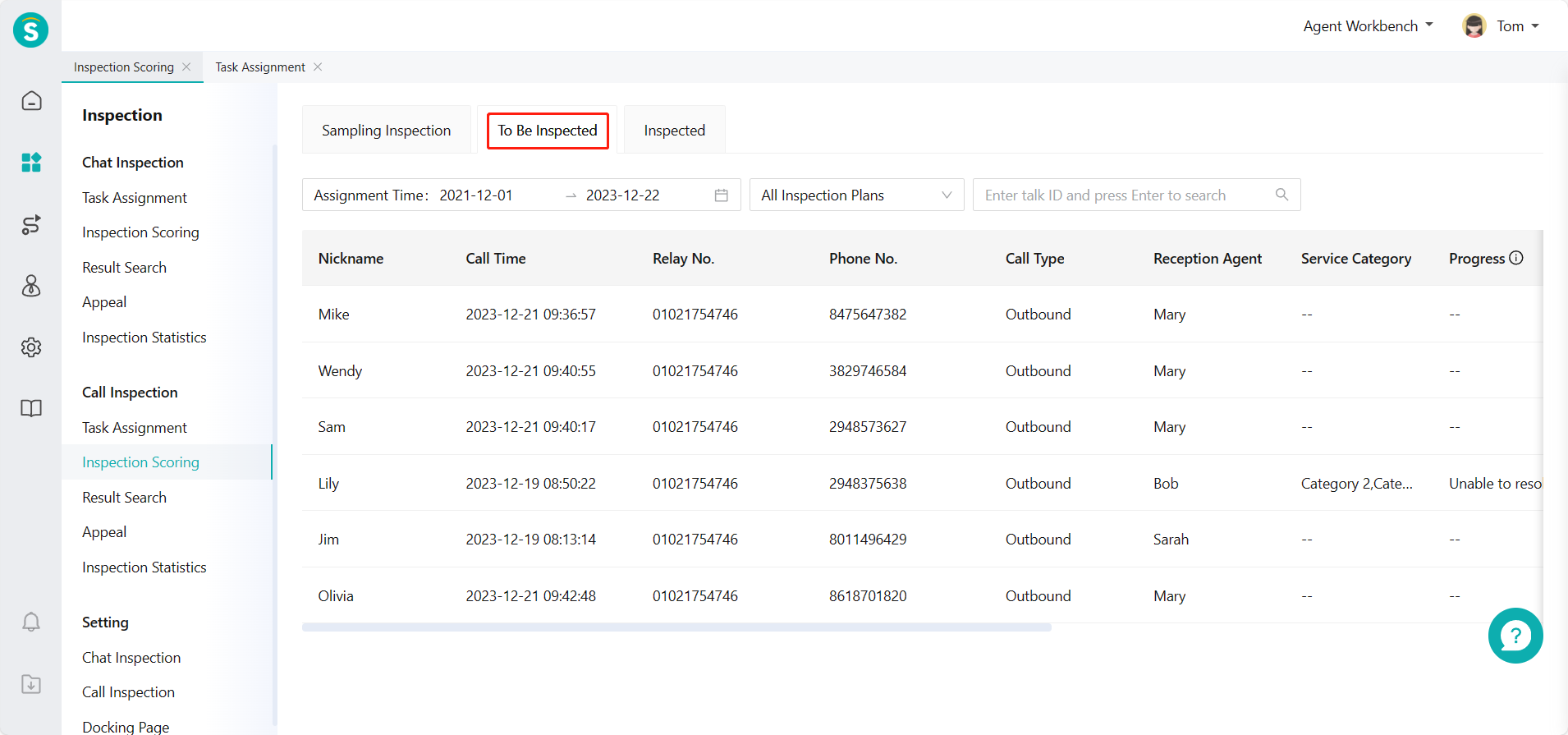
# Inspection Evaluation & Result Query Guide
——Support inspection evaluation of chat/talk records according to the inspection scheme agreed by the team.
# Role of Inspection Evaluation & Result Query
The agent with permission can score and evaluate the chat/talk through the Inspection Evaluation, and the reception agent can view the scored chat/talk through the Result Query, and appeal the inspection result as appropriate.
# Preparation
The operator should have relevant permission for inspection evaluation. After the enterprise starts the appeal approval workflow, the reception agent can initiate an appeal during result query.
# Main Functions of Inspection Evaluation & Result Query
Support inspectors to sample independently for inspection or process inspection tasks assigned to them
Support inspectors to view the completed inspection tasks or conduct reinspection
Support the inspected agent to view his/her inspected chat/talk records
# How to Use Inspection Evaluation & Result Query
# ● Chat Inspection - Inspection Evaluation
- The inspector can sample or view pending inspection tasks through Chat Inspection > Inspection Evaluation.
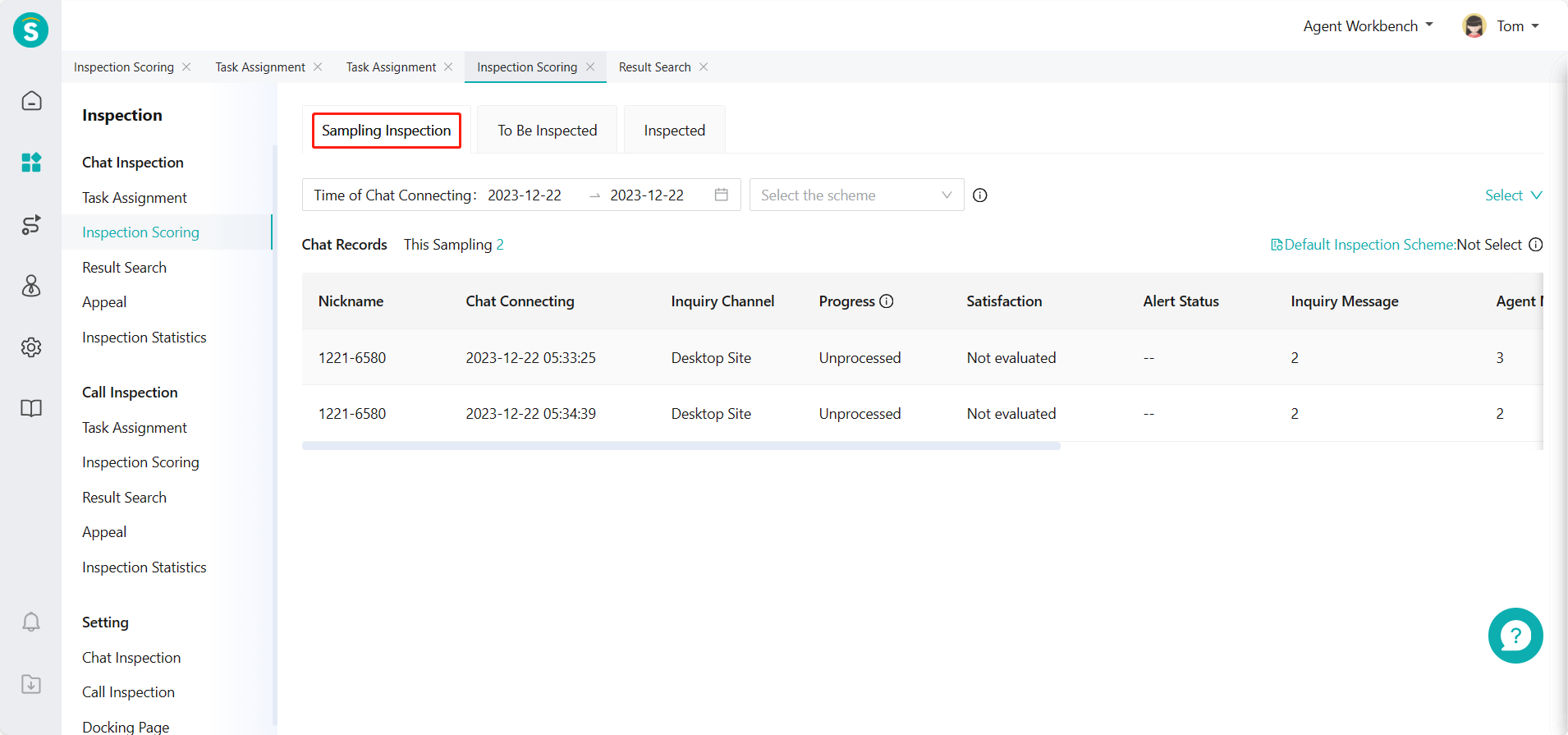
(1) Select samples by filter conditions in Chat Inspection - Inspection Evaluation - Sampling Inspection (Figure 1)
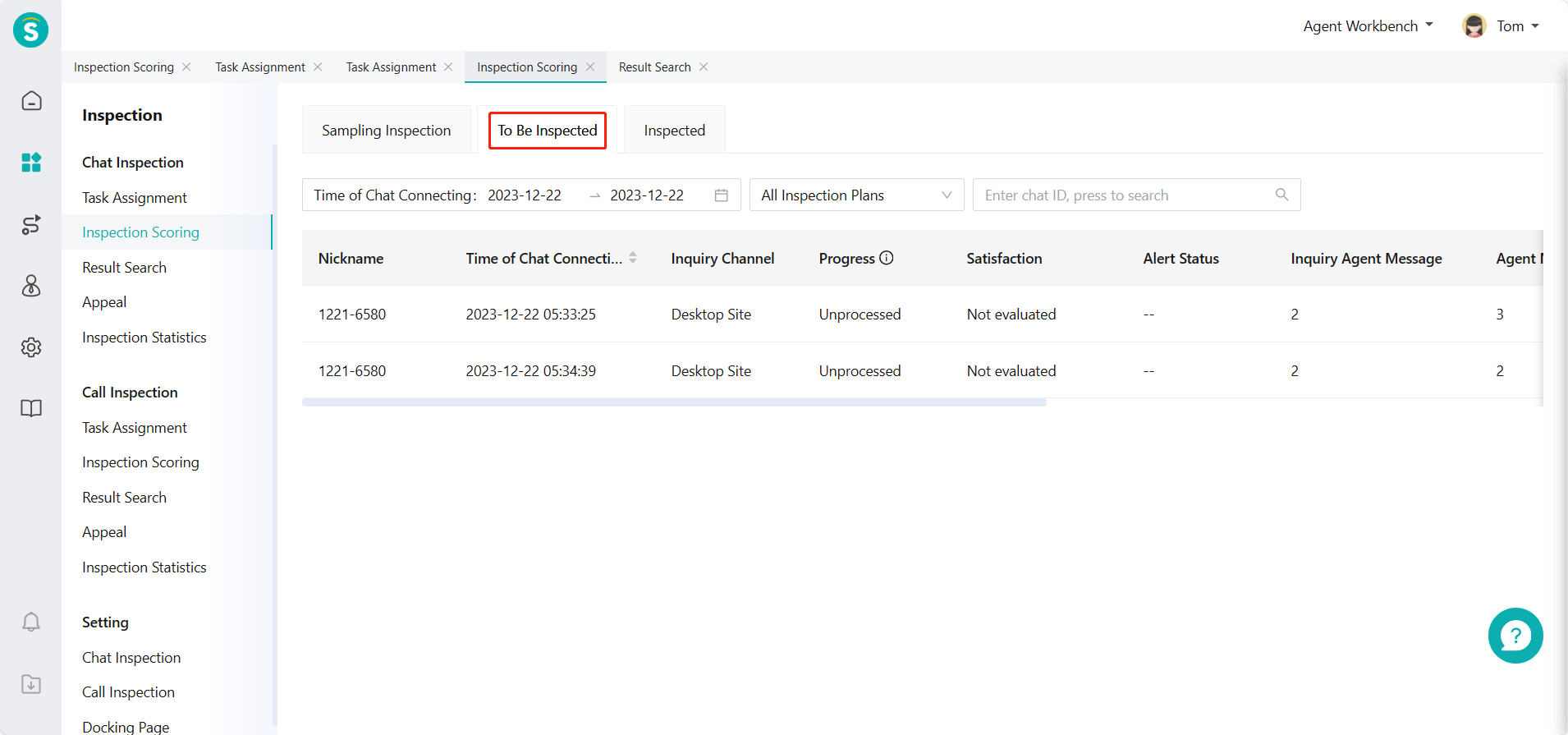
(2) View assigned inspection tasks through Chat Inspection - Inspection Evaluation - To Be Inspected (Figure 2)
- Enter the details page for inspection evaluation
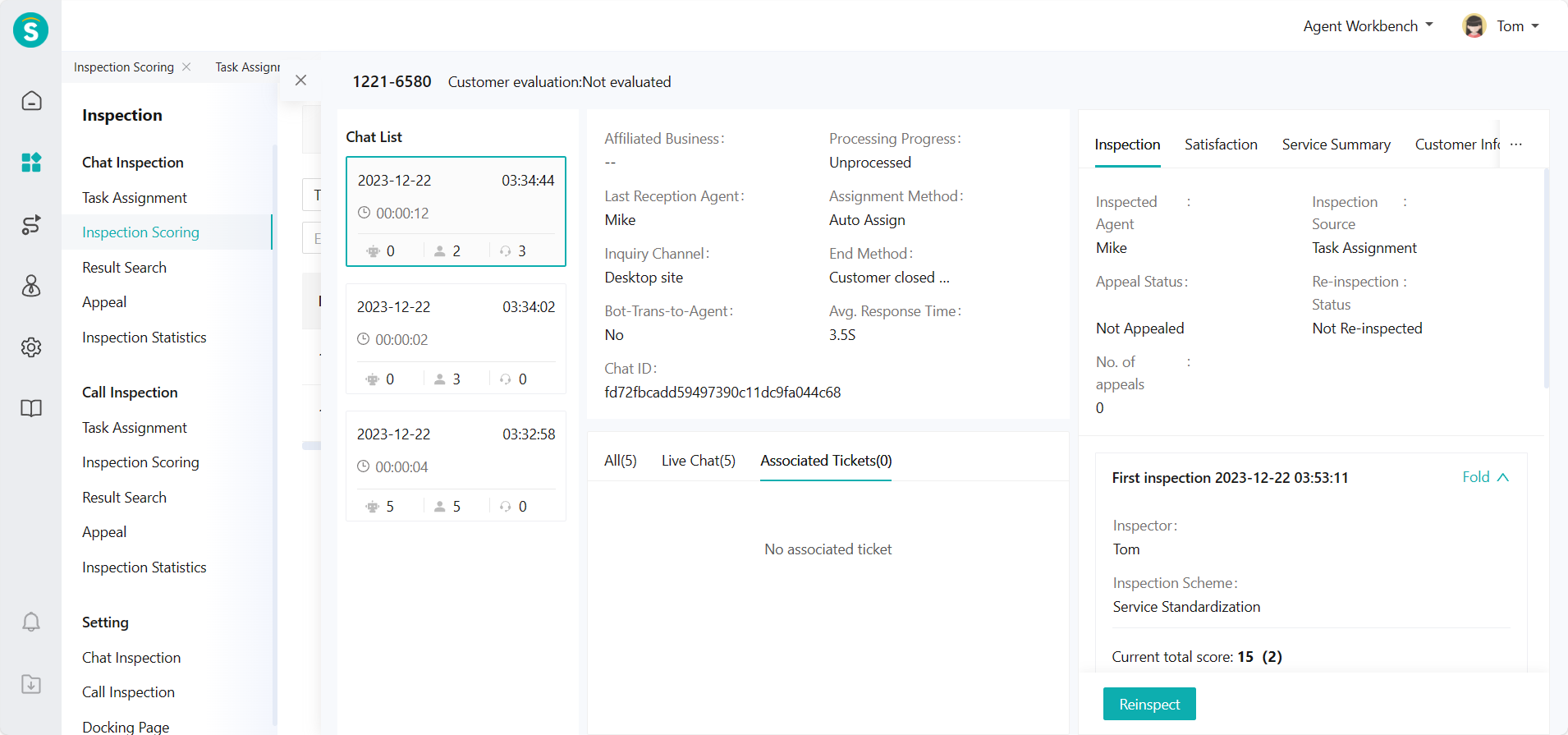
(1) Enter the details page. The left side is the chat list (the current chat is selected by default), the middle is the chat details and associated ticket status, and the right side is the operation area of inspection evaluation. (Figure 3)
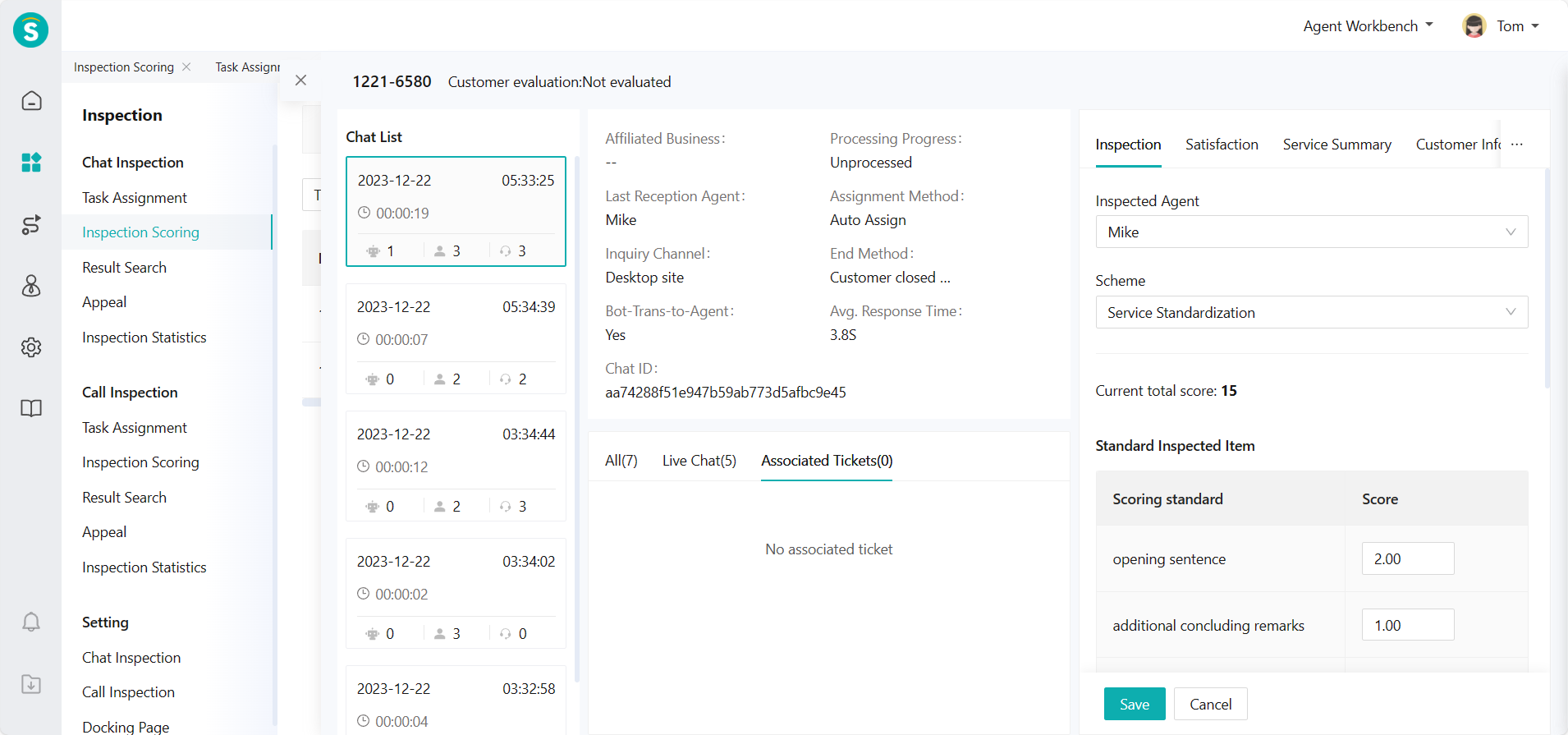
(2) Support switching or selecting chat records, inspected agent and inspection scheme on the inspection details page, and conducting inspection evaluation by standardized inspection items and additional inspection items under the corresponding scheme. (Figure 4)
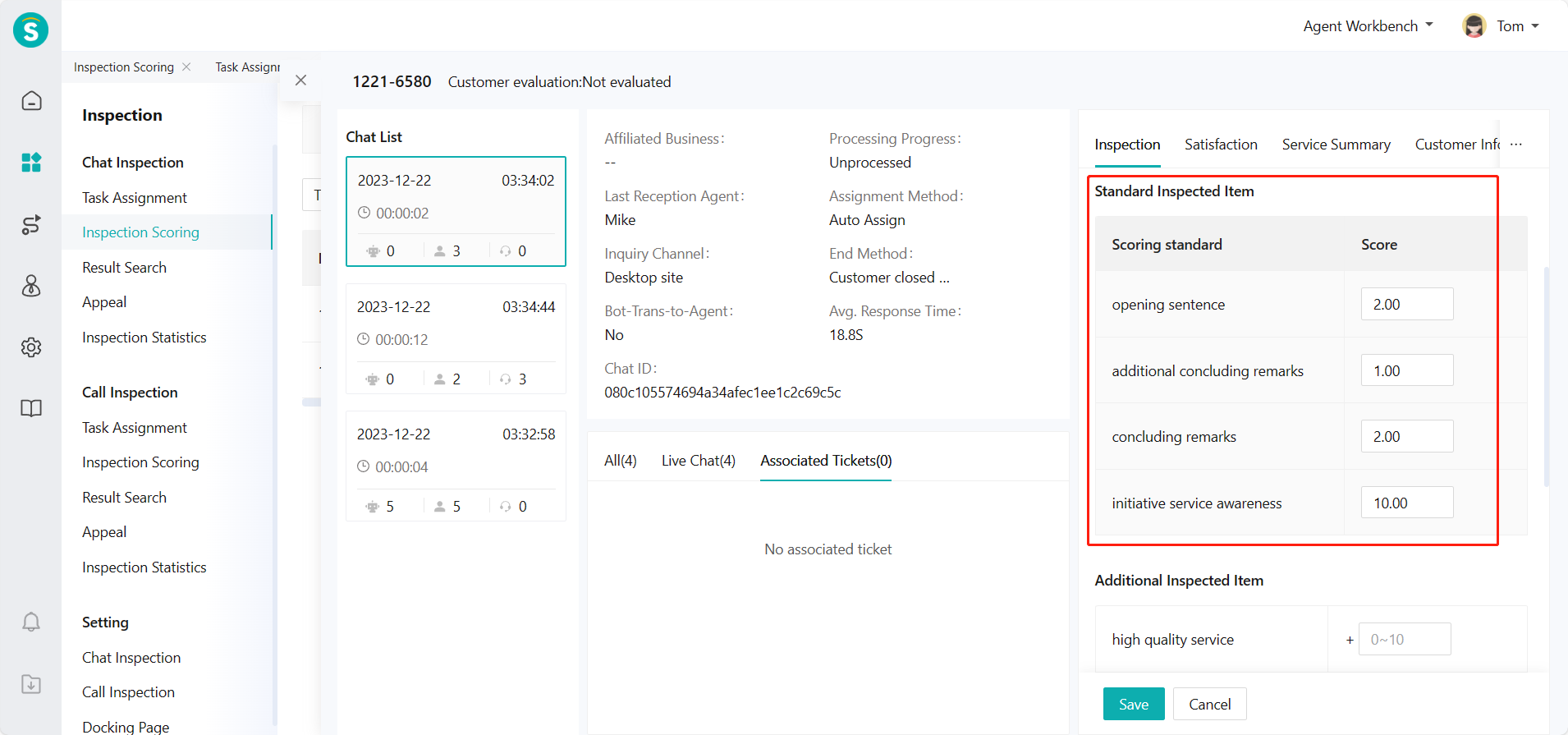
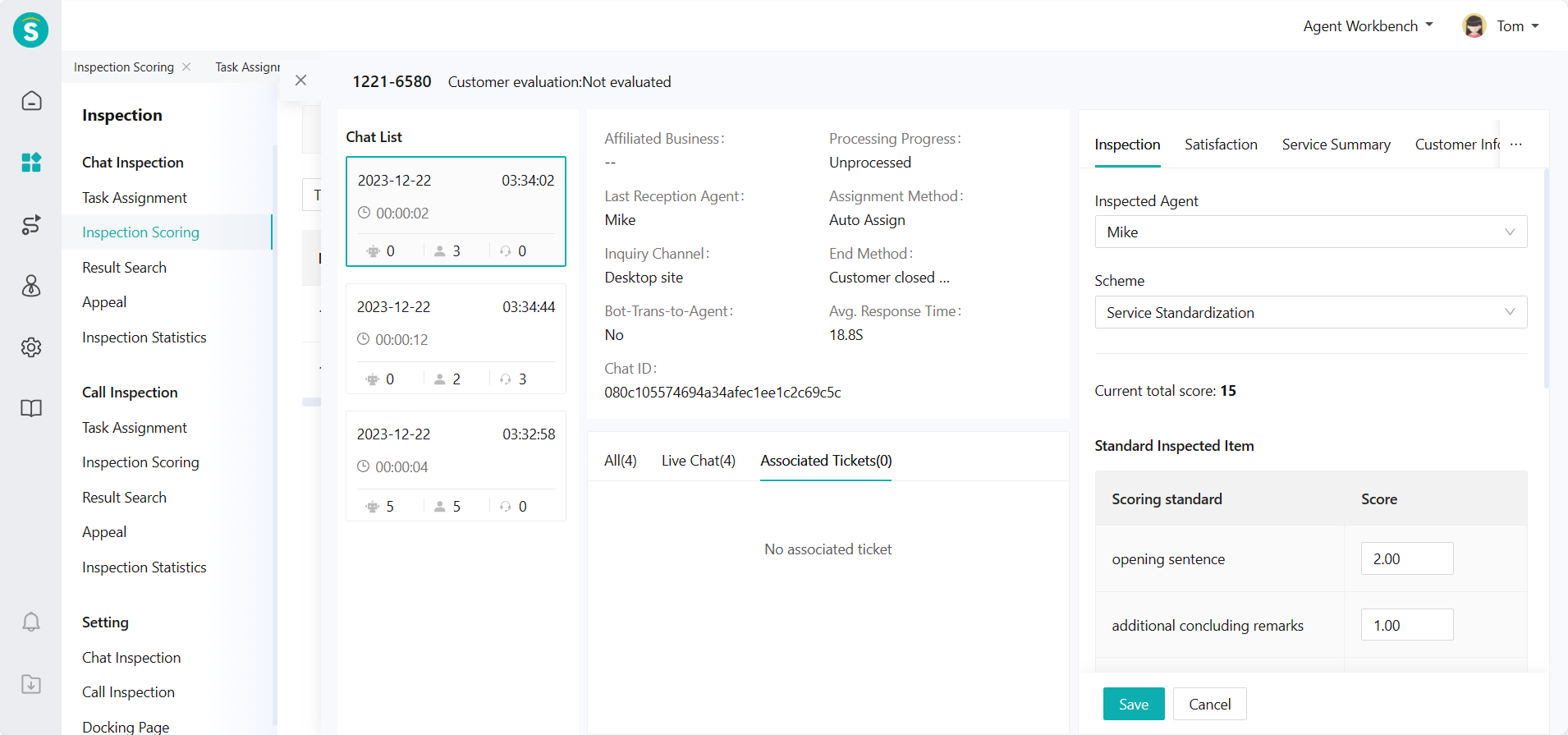
(3) Support editing deduction items and reasons, adding inspection tags to facilitate subsequent filtering and query, editing inspection comments. The first inspection is completed after saving. (Figure 5)
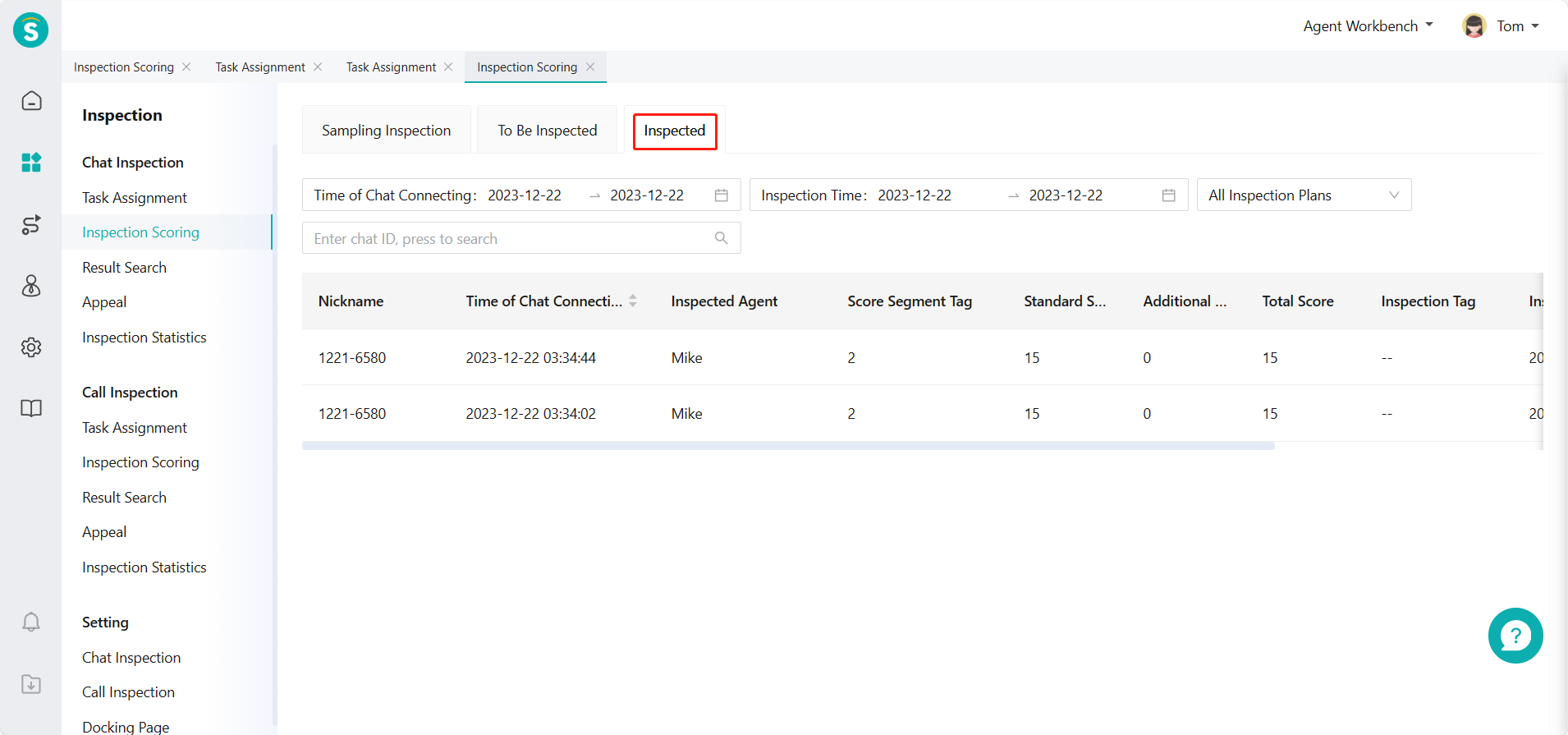
- You can view completed inspection records through Chat Inspection - Inspection Evaluation - Inspected (Figure 6)
Inspection records can be reinspected. (Figure 7)
# ● Chat Inspection - Result Query
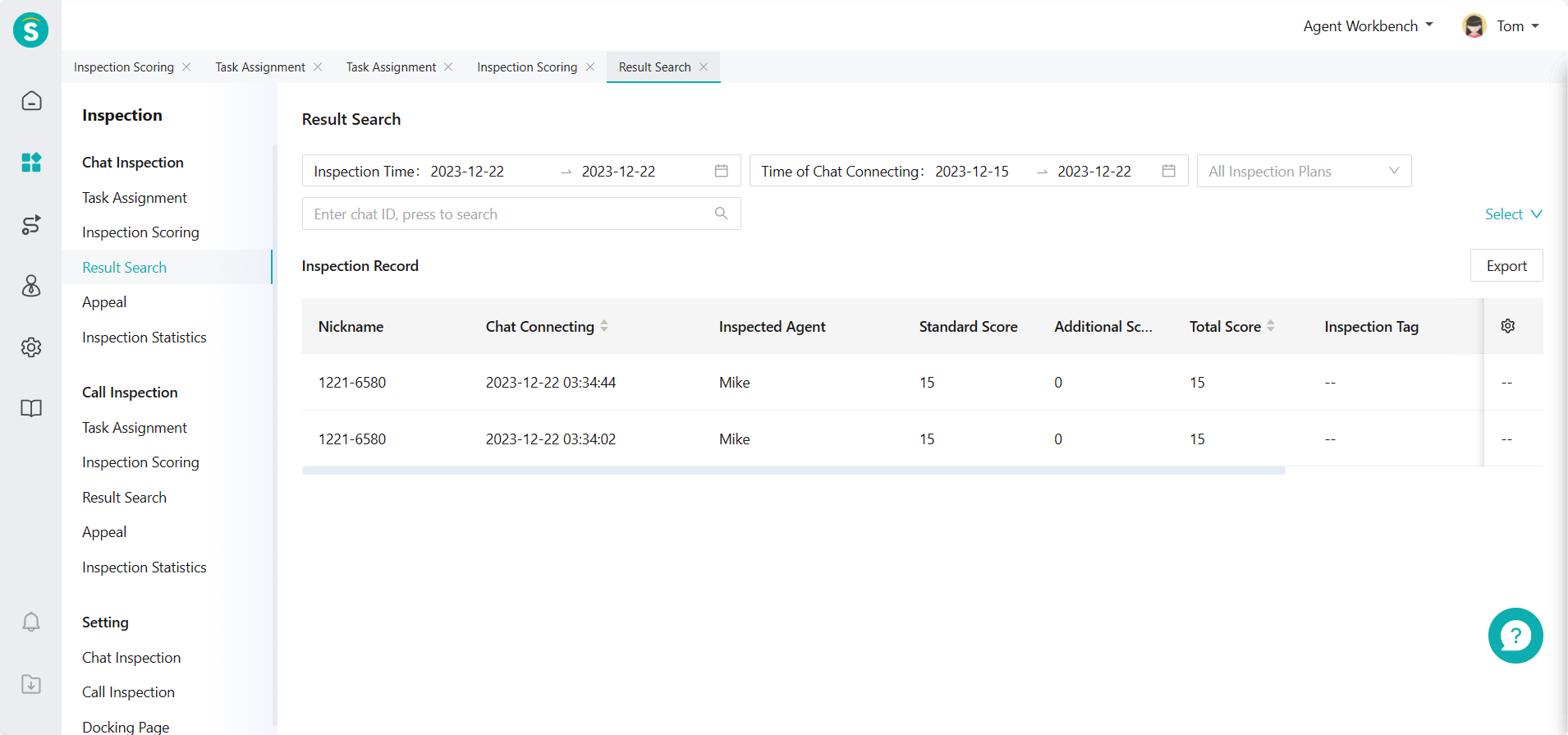
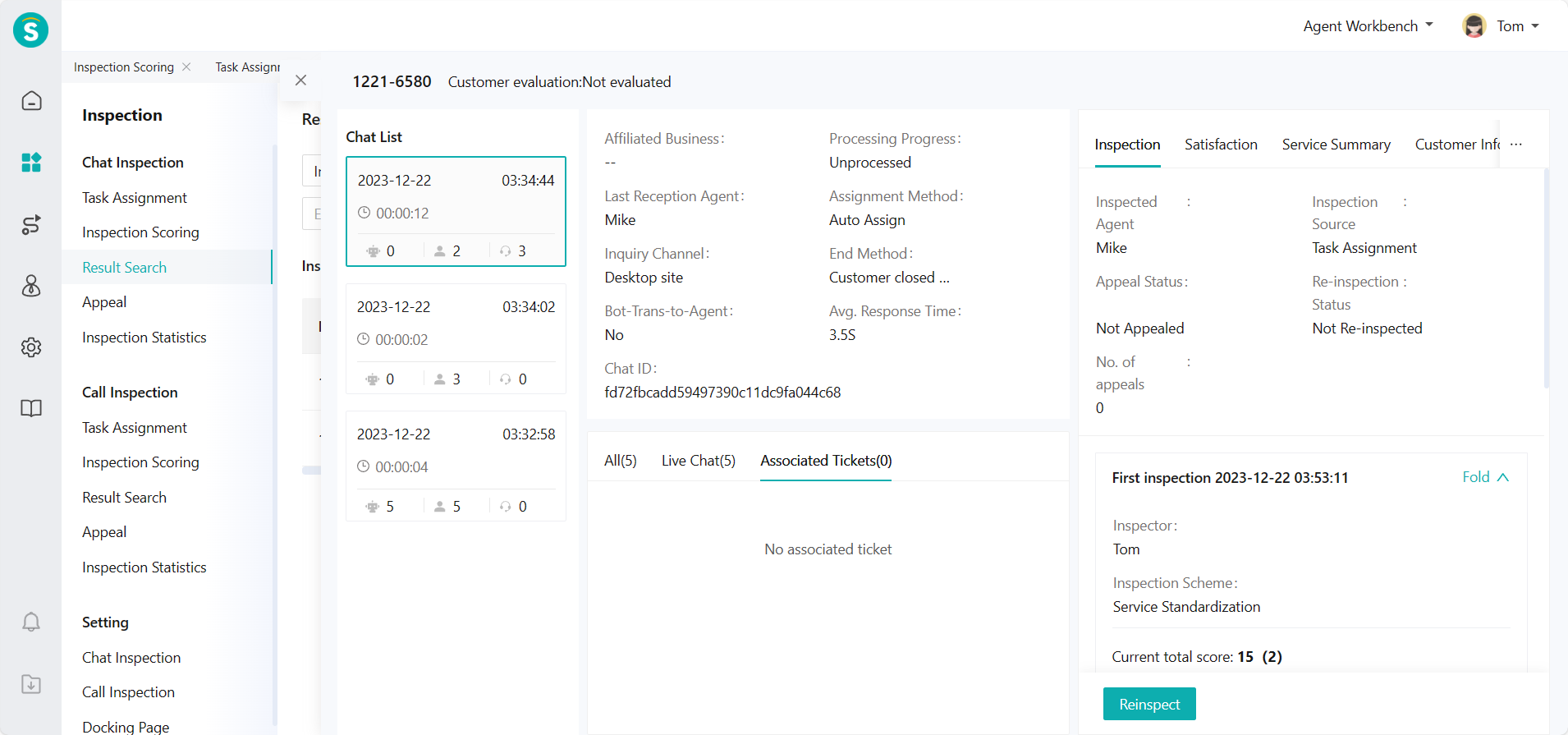
The inspected agent can view the inspected data through Chat Inspection > Result Query. (Figure 8 and Figure 9)
# ● Talk Inspection - Inspection Evaluation
- The inspector can sample or view pending inspection tasks through Talk Inspection > Inspection Evaluation.
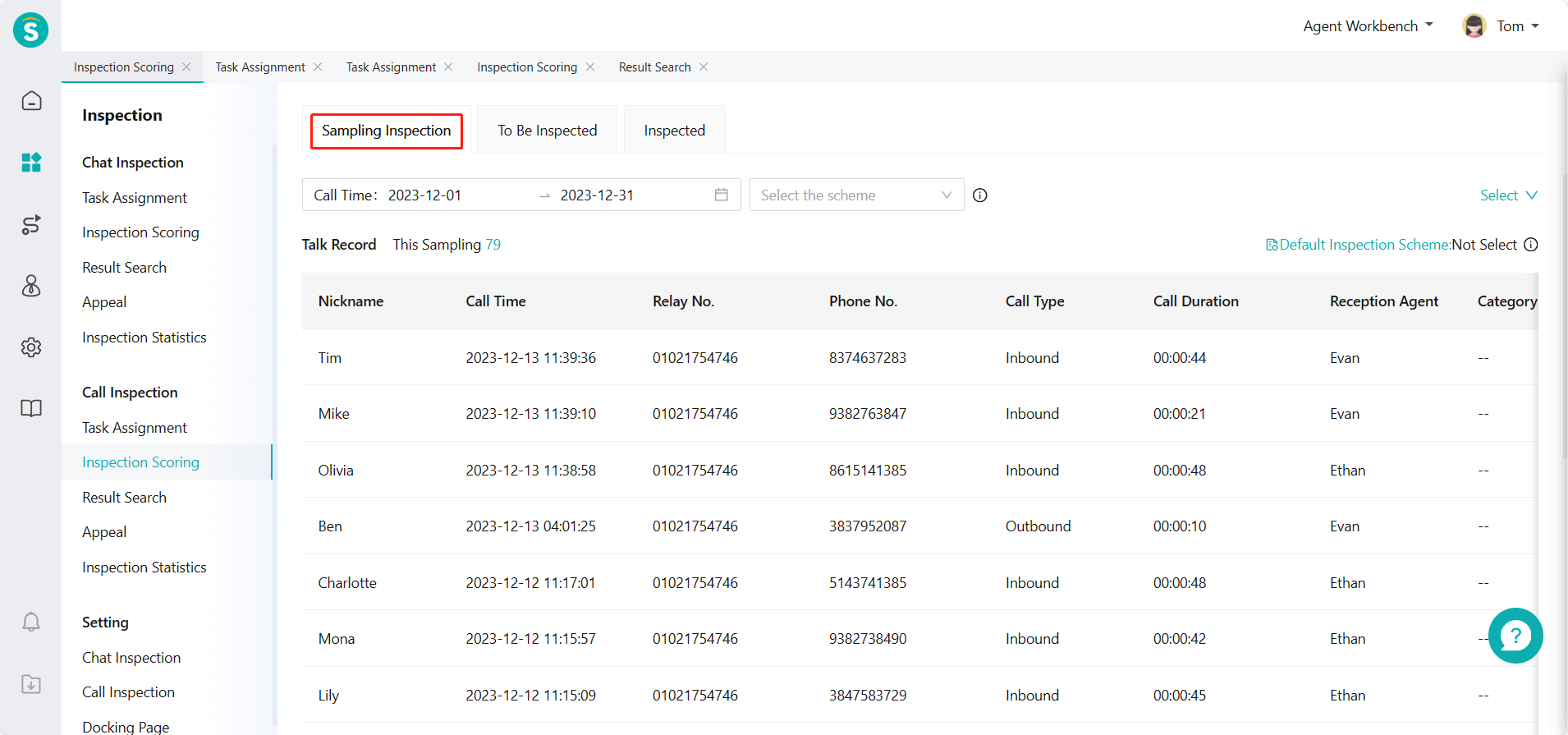
(1) Select samples by filter conditions in Talk Inspection - Inspection Evaluation - Sampling Inspection (Figure 10)
(2) View assigned inspection tasks through Talk Inspection - Inspection Evaluation - To Be Inspected (Figure 11)
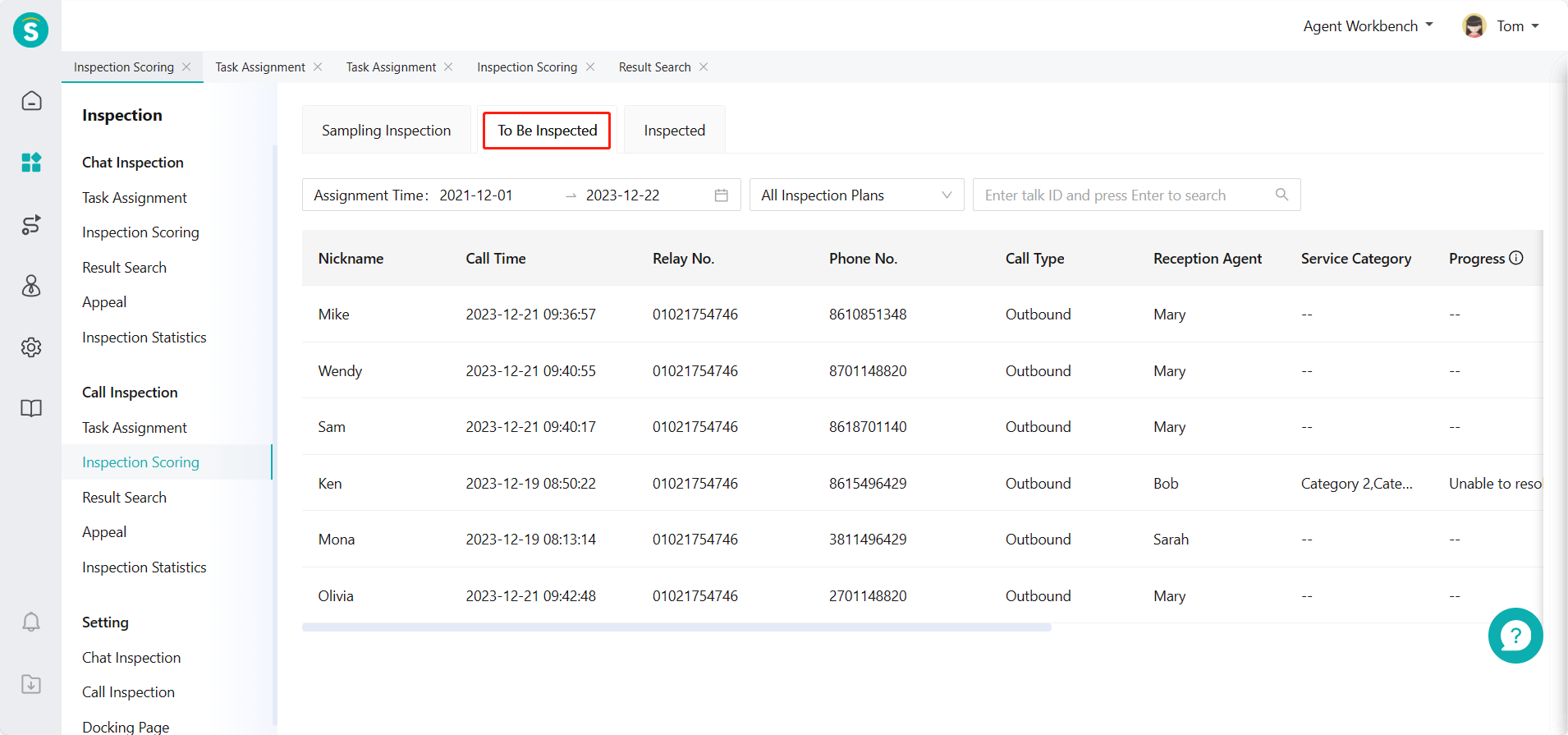
- Enter the details page for inspection evaluation
(1) Enter the details page. The left side is the talk list (the current talk is selected by default), the middle is the talk details and associated ticket status, and the right side is the operation area of inspection evaluation. (Figure 12)
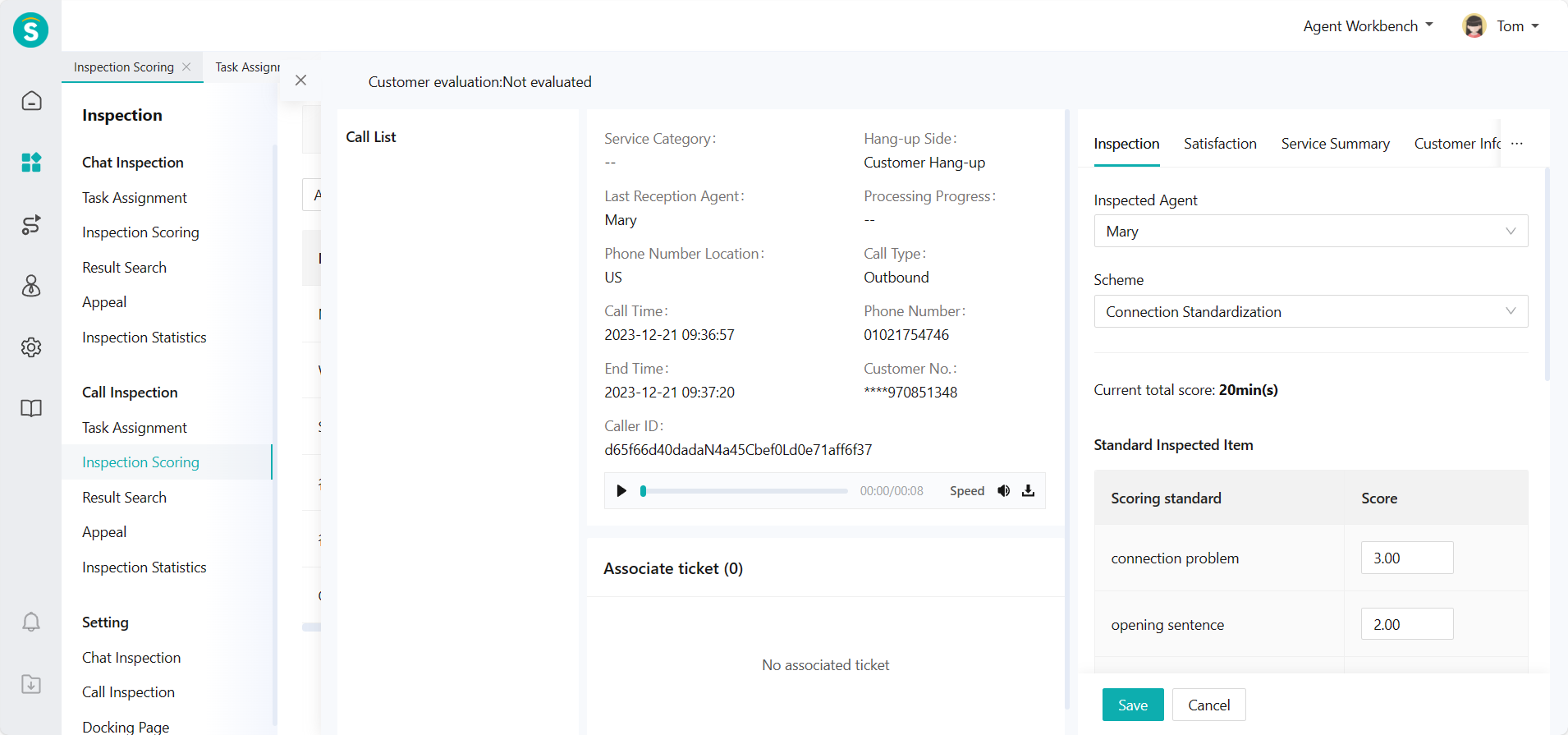
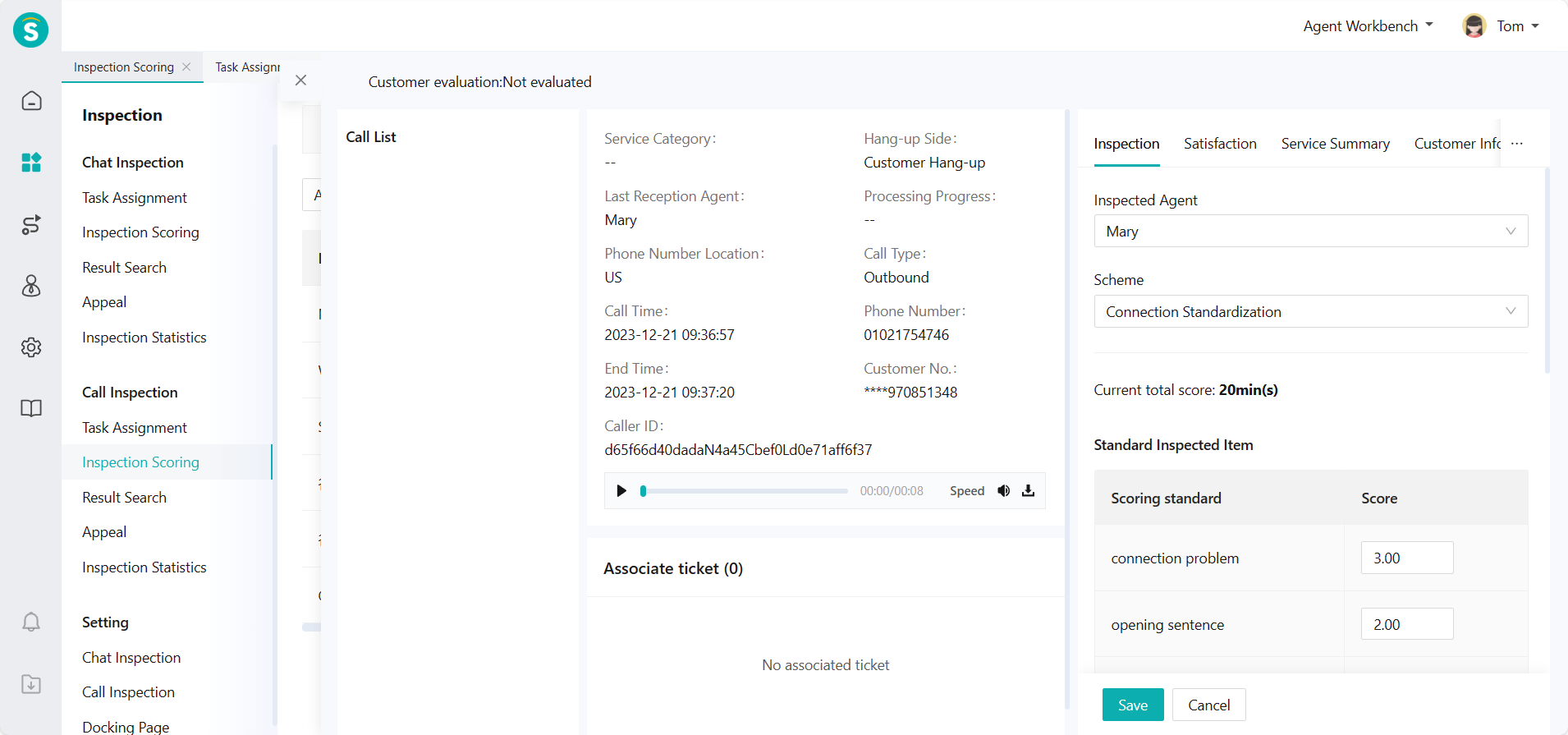
(2) Support switching or selecting talk records, inspected agent and inspection scheme on the inspection details page, and conducting inspection evaluation by standardized inspection items and additional inspection items under the corresponding scheme. (Figure 13)
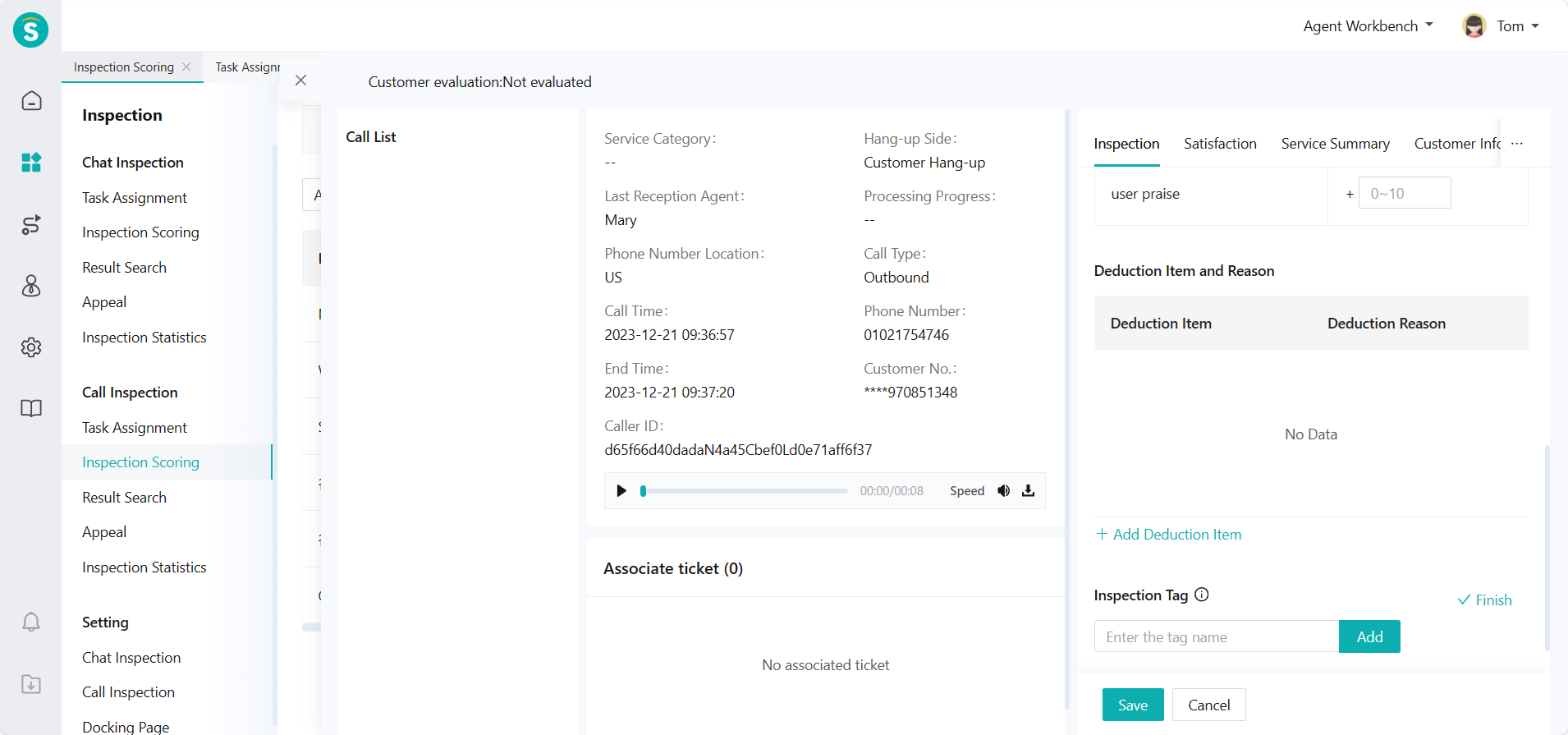
(3) Support editing deduction items and reasons, adding inspection tags to facilitate subsequent filtering and query, editing inspection comments. The first inspection is completed after saving. (Figure 14)
- You can view completed inspection records through Talk Inspection - Inspection Evaluation - Inspected. (Figure 15)
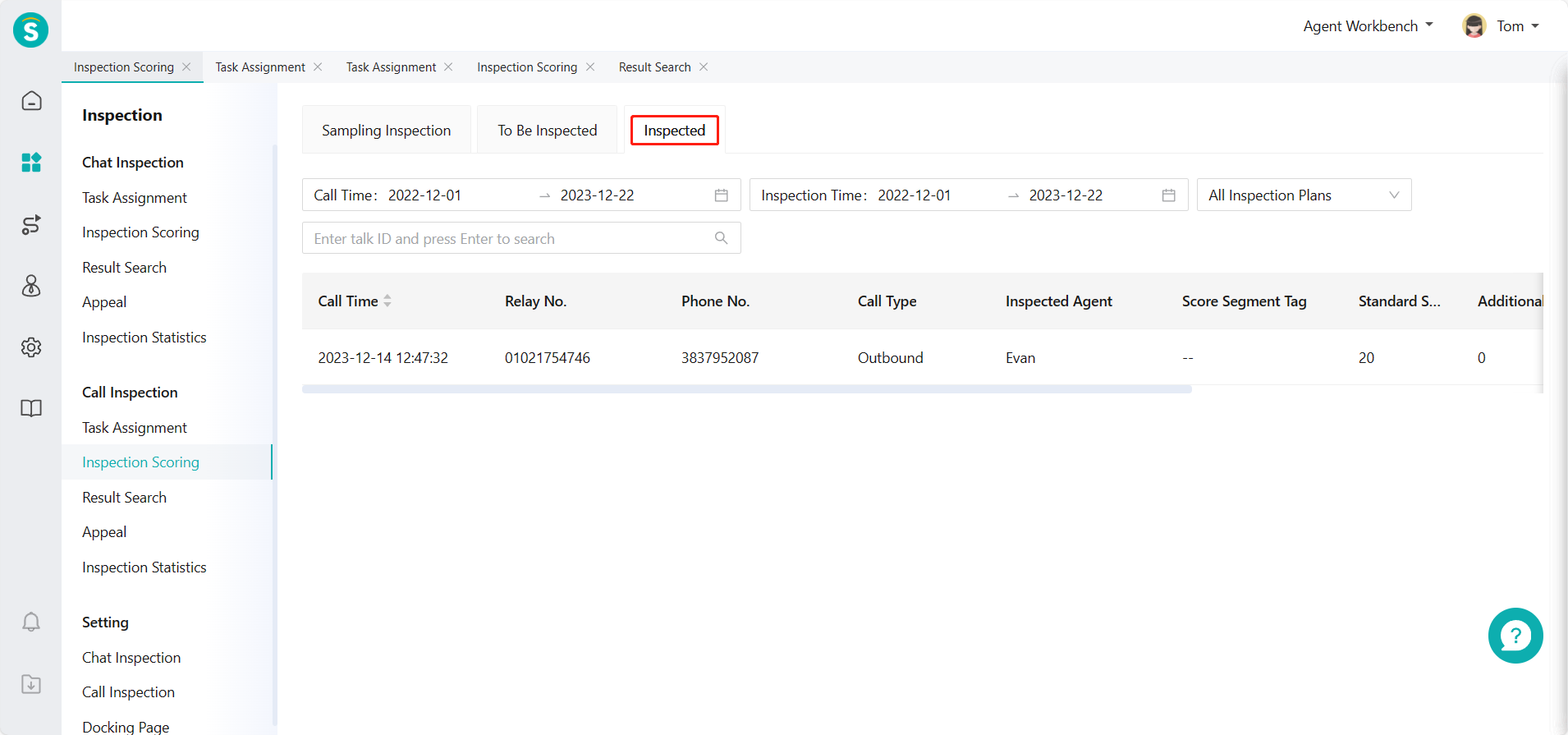
Inspection records can be reinspected. (Figure 16)
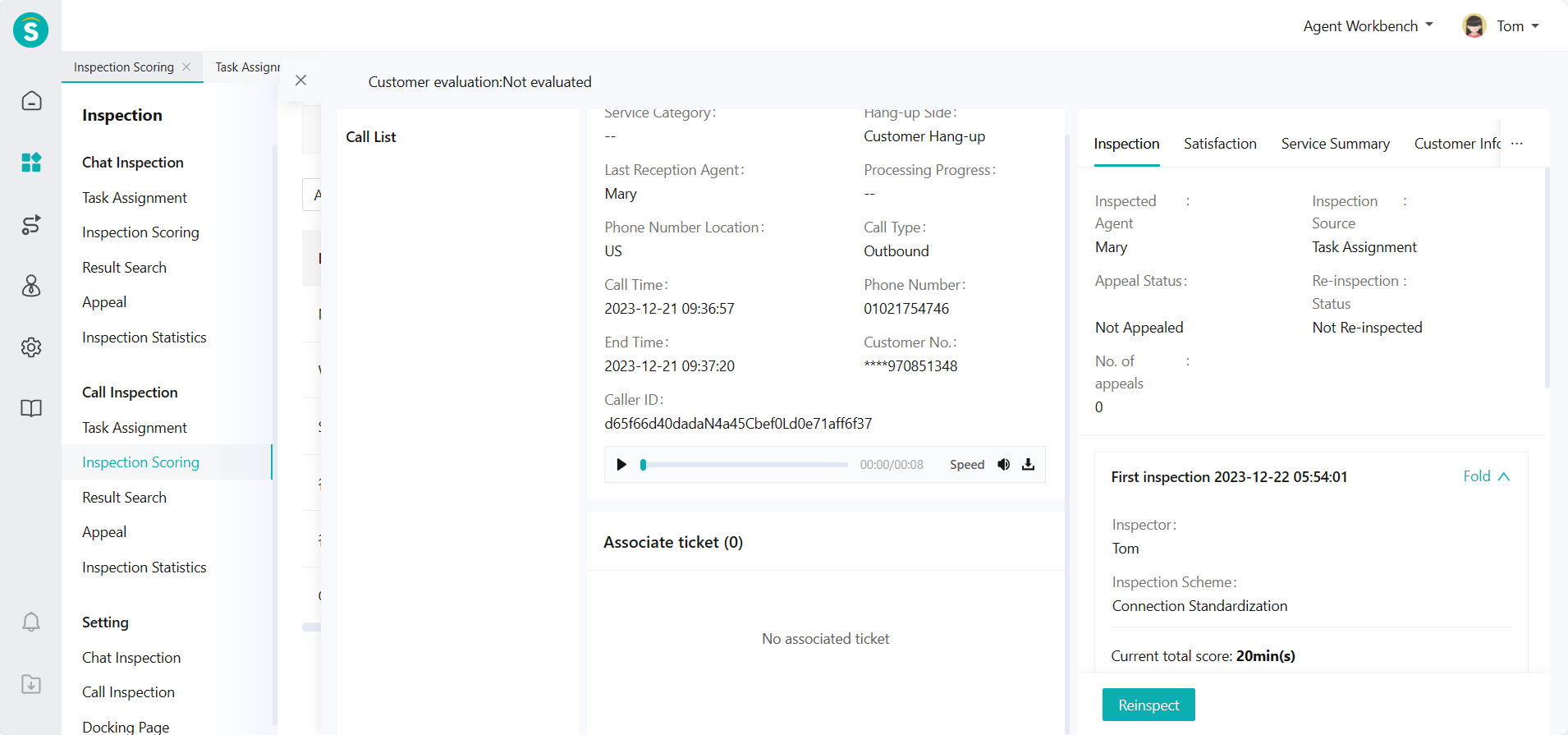
# ● Talk Inspection - Result Query
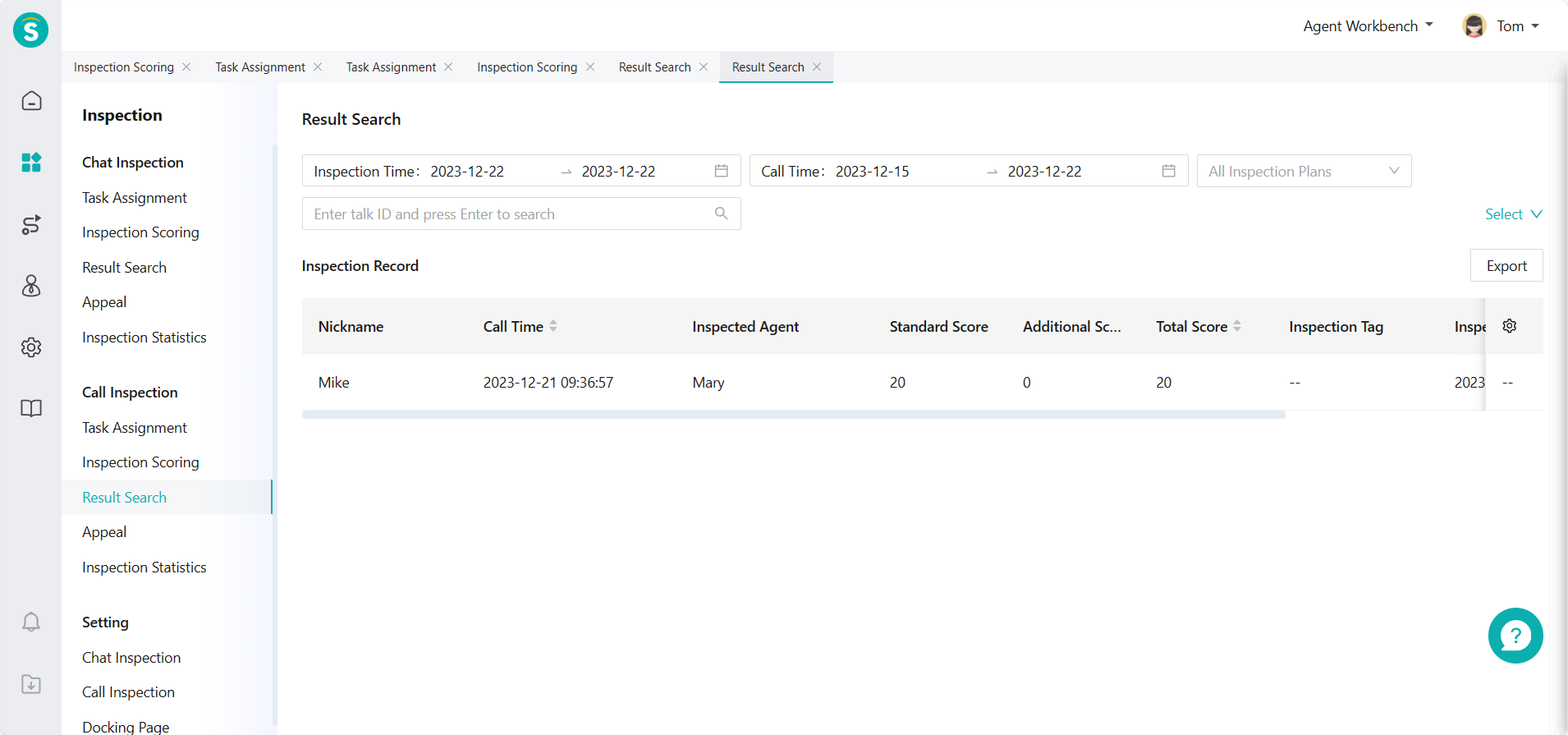
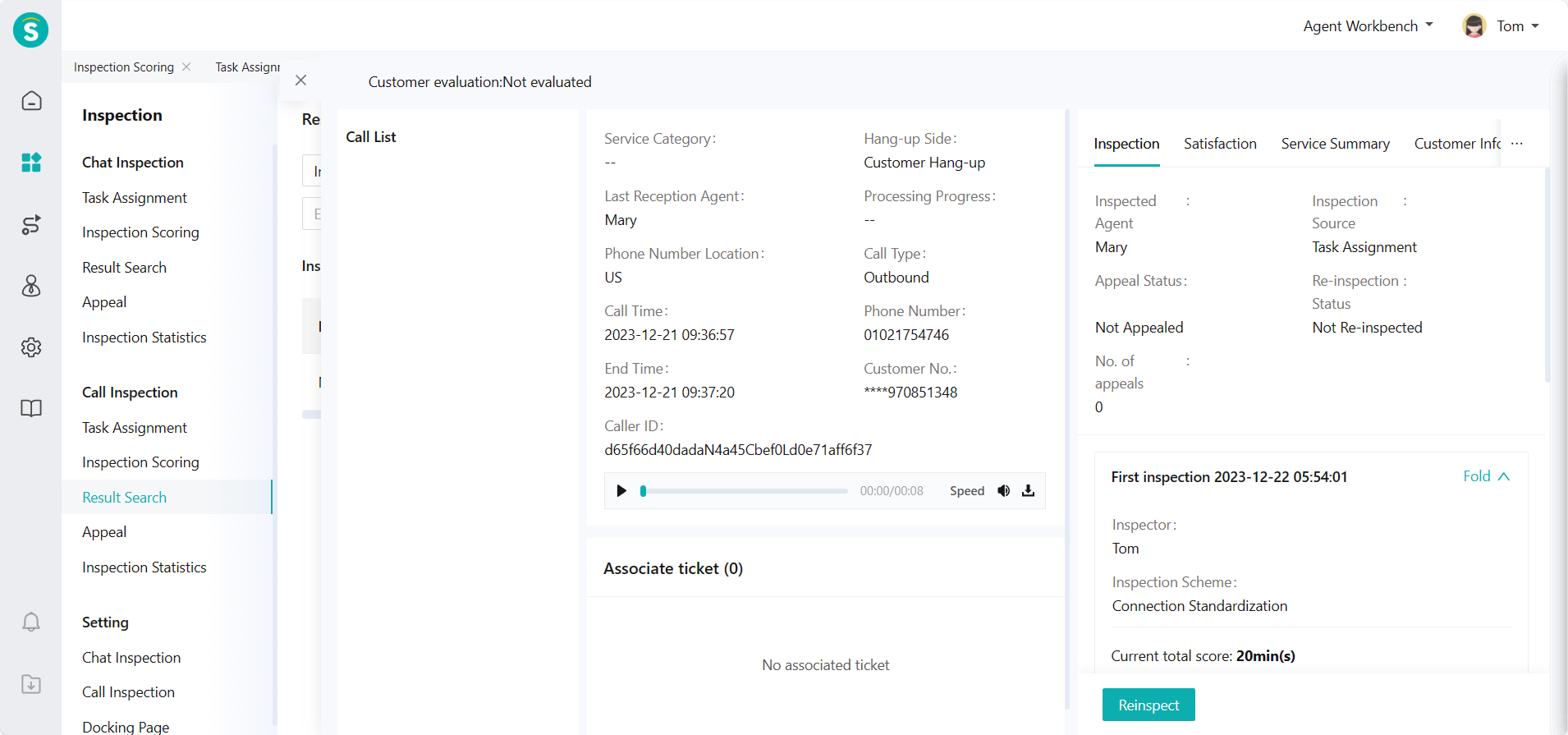
The inspected agent can view the inspected data through Talk Inspection > Result Query. (Figure 17 and Figure 18)
# Appeal Approval Guide
——Agent can appeal against the unsatisfactory inspection results and wait for the corresponding inspector or the person with department approval permission to handle according to the set appeal workflow, within the appeal window period and the limited number of appeals.
# Usage Scenario of Appeal Approval
After the enterprise enables the Appeal Approval workflow, and the chat/talk received by the agent is inspected, the scoring result can be viewed through the Result Query page. If the agent has any objection to the result, it can initiate an appeal.
# Main Functions of Appeal Approval
Support enabling/disabling the appeal workflow
Support selecting approval scheme as level-1 workflow - approval by inspectors; level-2 workflow - successive approval by department director and inspectors
Support setting appeal window period, and no appeal can be filed after the expiration
Support setting appeal limit. After the limit is reached, no appeal can be filed again (appeal can be filed indefinitely within the appeal window period if it is not set)
# How to Use Appeal Approval
# ● Appeal Workflow Setting
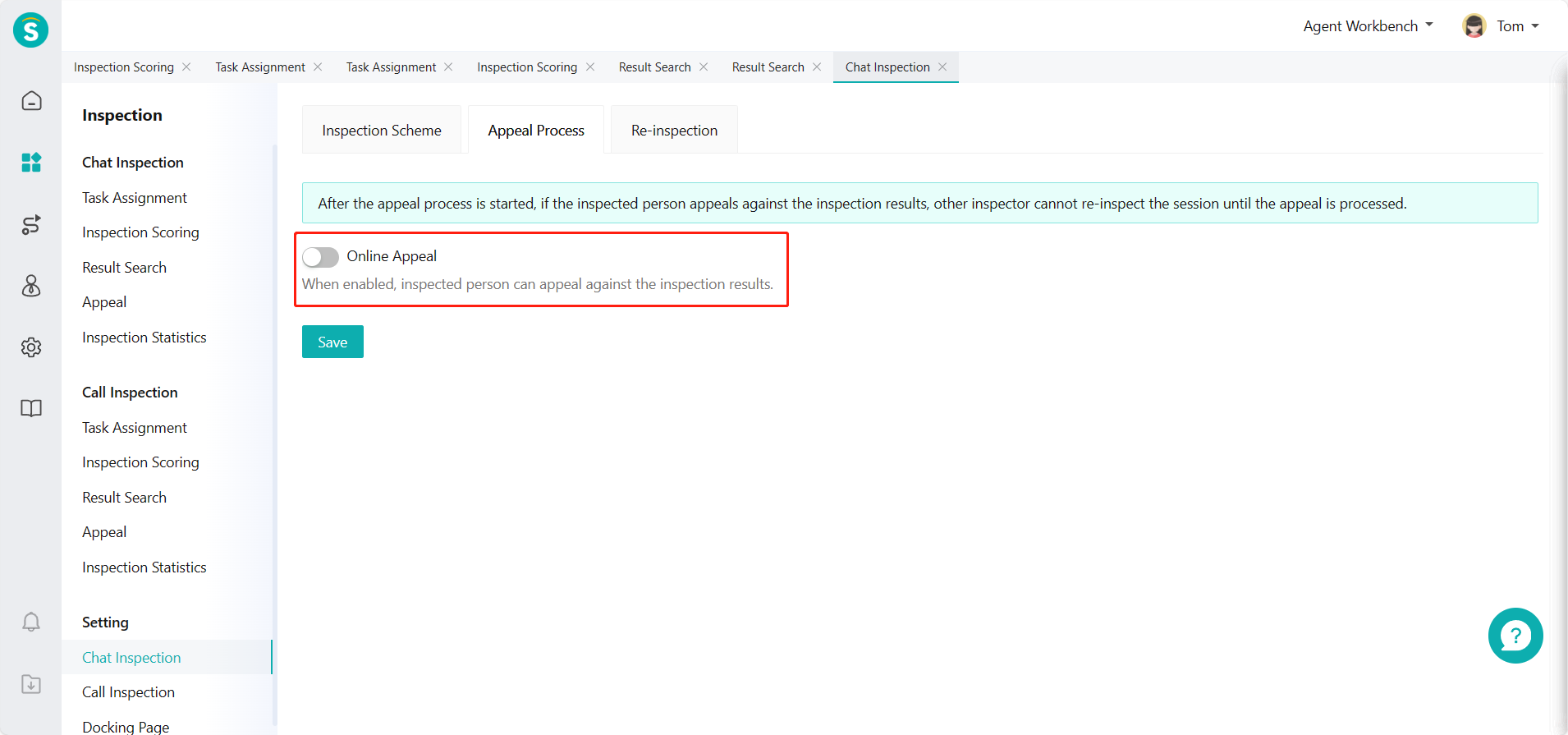
Enable livechat/call appeal workflow in Settings > Chat/Talk Inspection Configuration > Appeal Workflow. (Figure 1) (Note: The following legends use the chat inspection configuration, same as the talk inspection configuration operation)
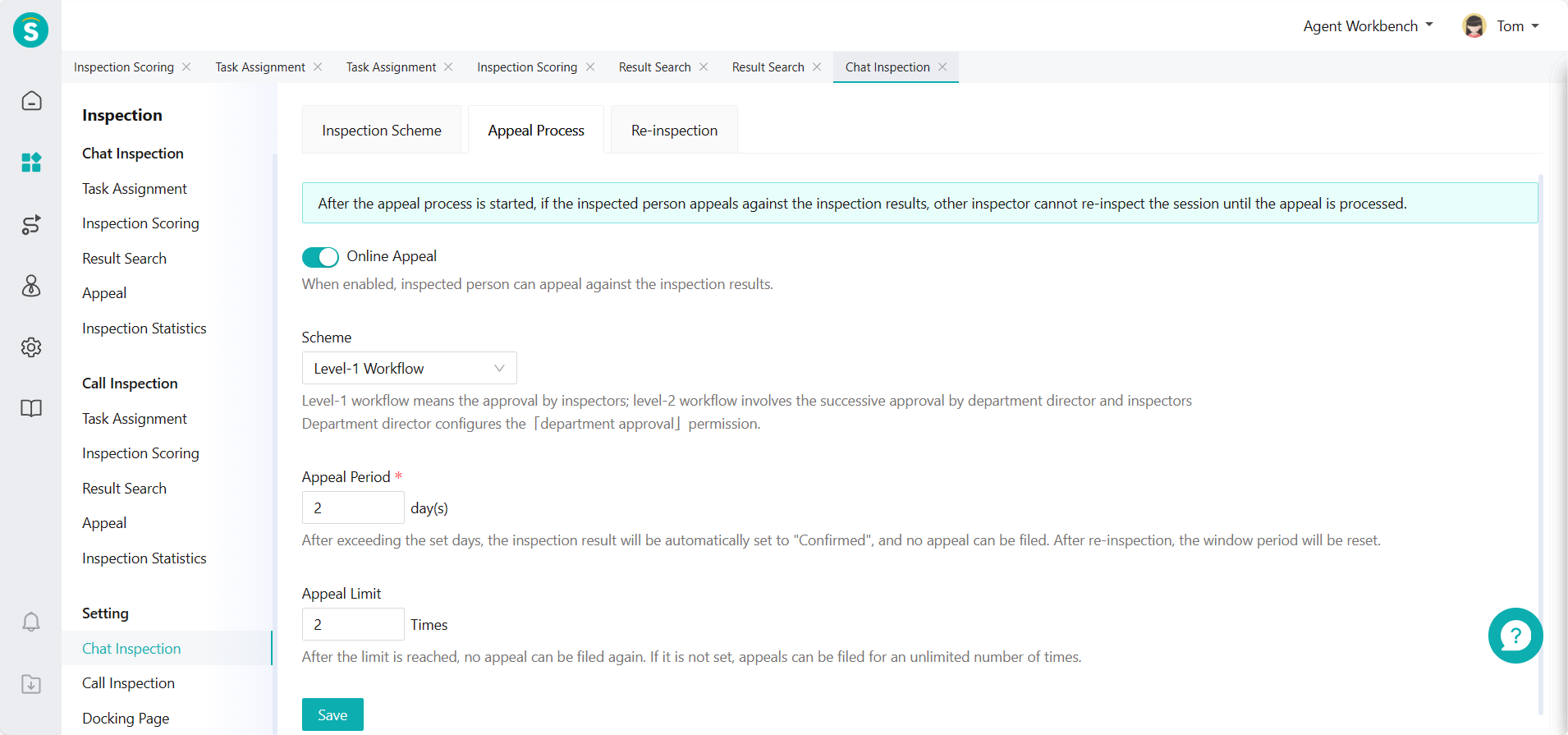
After enabling, set approval scheme, appeal window period and appeal limit. (Figure 2)
Approval scheme: Level-1 workflow indicates the approval by inspectors; level-2 workflow indicates the successive approval by department director and inspectors. Department director configures the「Department Approval」permission.
Set appeal window period, and no appeal can be filed by inspected agent after expiration.
Set appeal limit. After the limit is reached, no appeal can be filed again (appeal can be filed indefinitely within the appeal window period if it is not set).
# ● Appeal Approval - Level-1 Workflow
The approval scheme set is level-1 workflow - approval by inspectors.
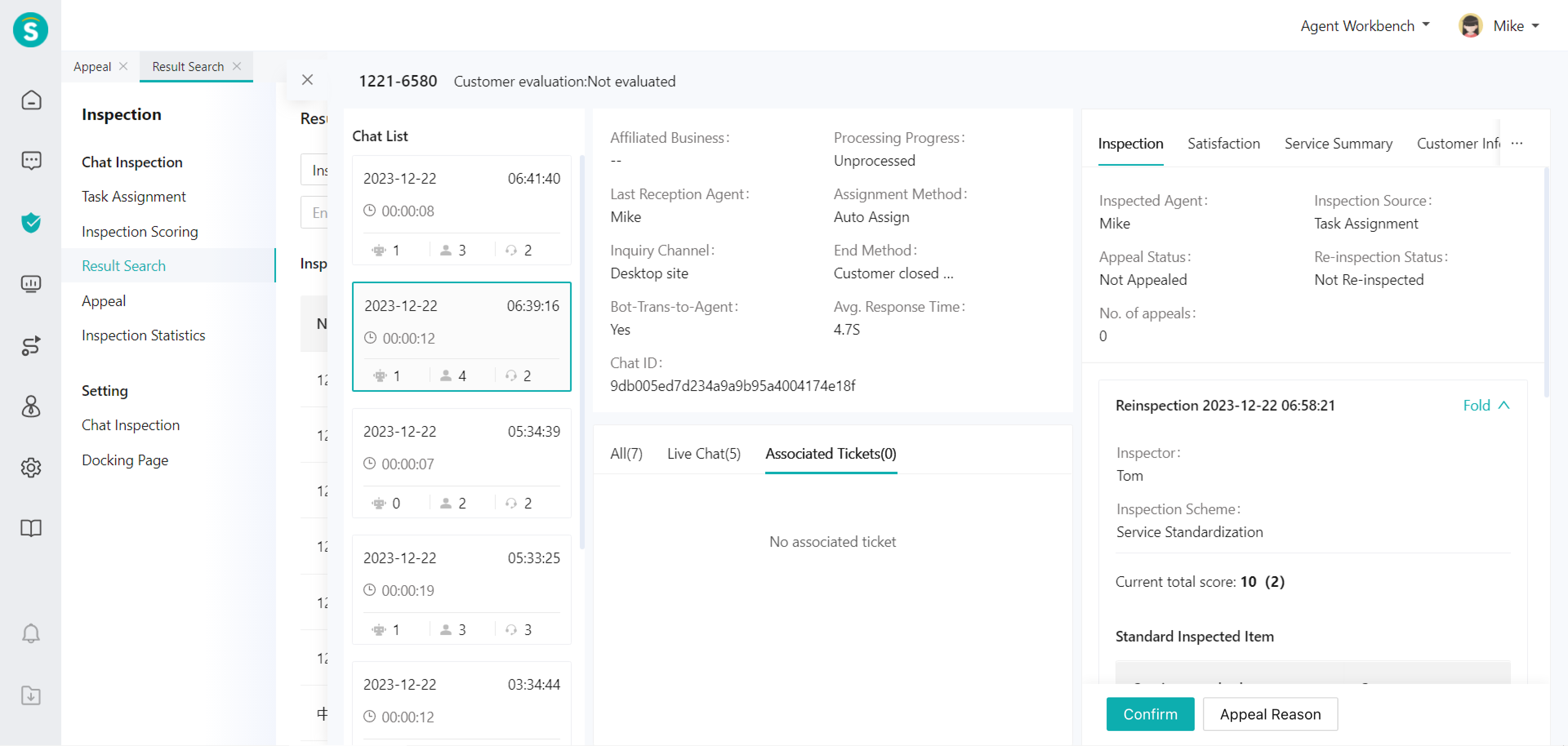
The inspected agent can view inspection results of chat/talk inspected on「Result Query」page. If the inspected agent has no objection, click「OK」. If the inspected agent is not satisfied with the results, initiate an appeal. (Figure 3)
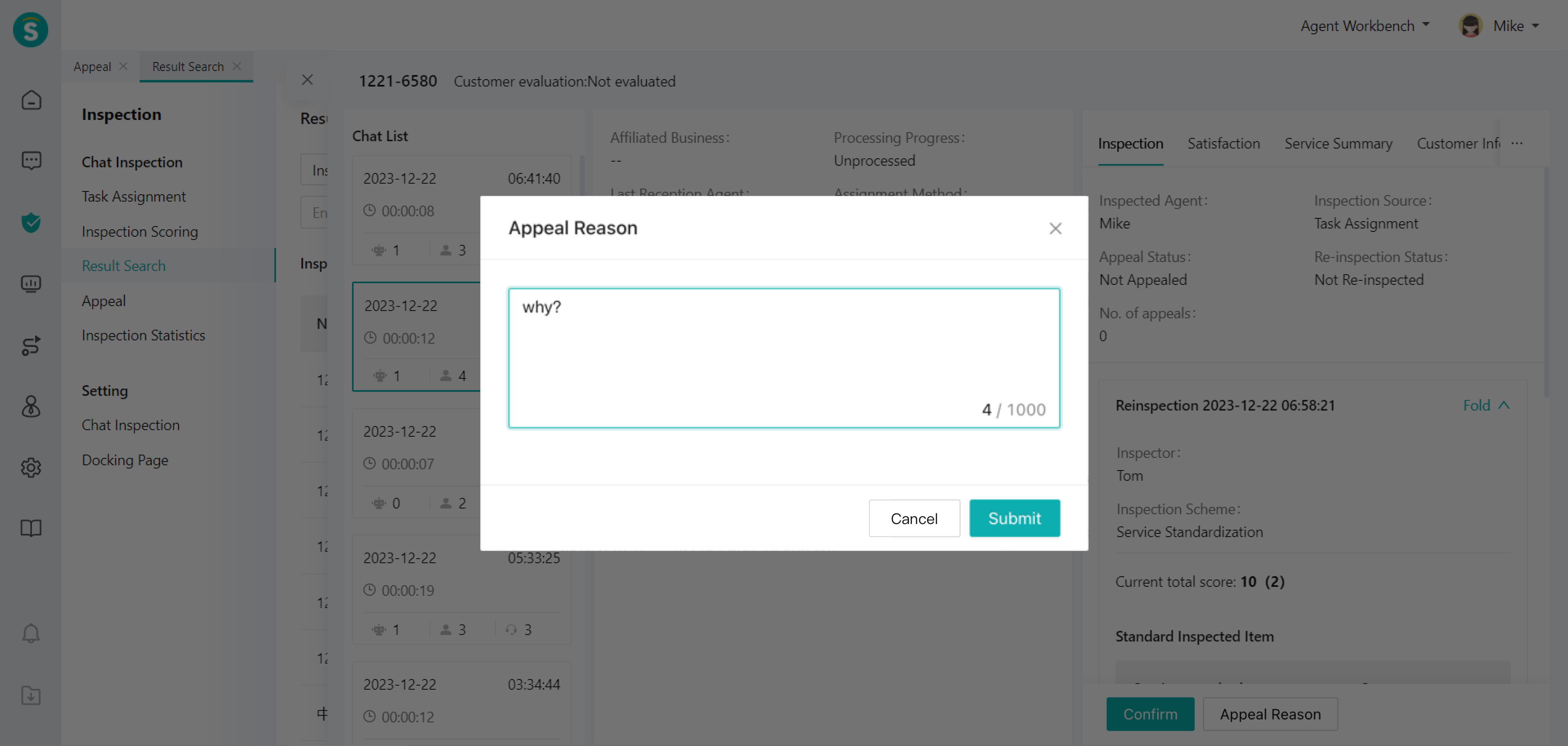
Click「Appeal」button to fill in the reason for appeal in the pop-up window. (Figure 4)
After submitting the appeal reason, the corresponding appealed inspector can view the appeal record in the status of "To Be Approved by Inspector" in the「Appeal Approval」list. (Figure 5)
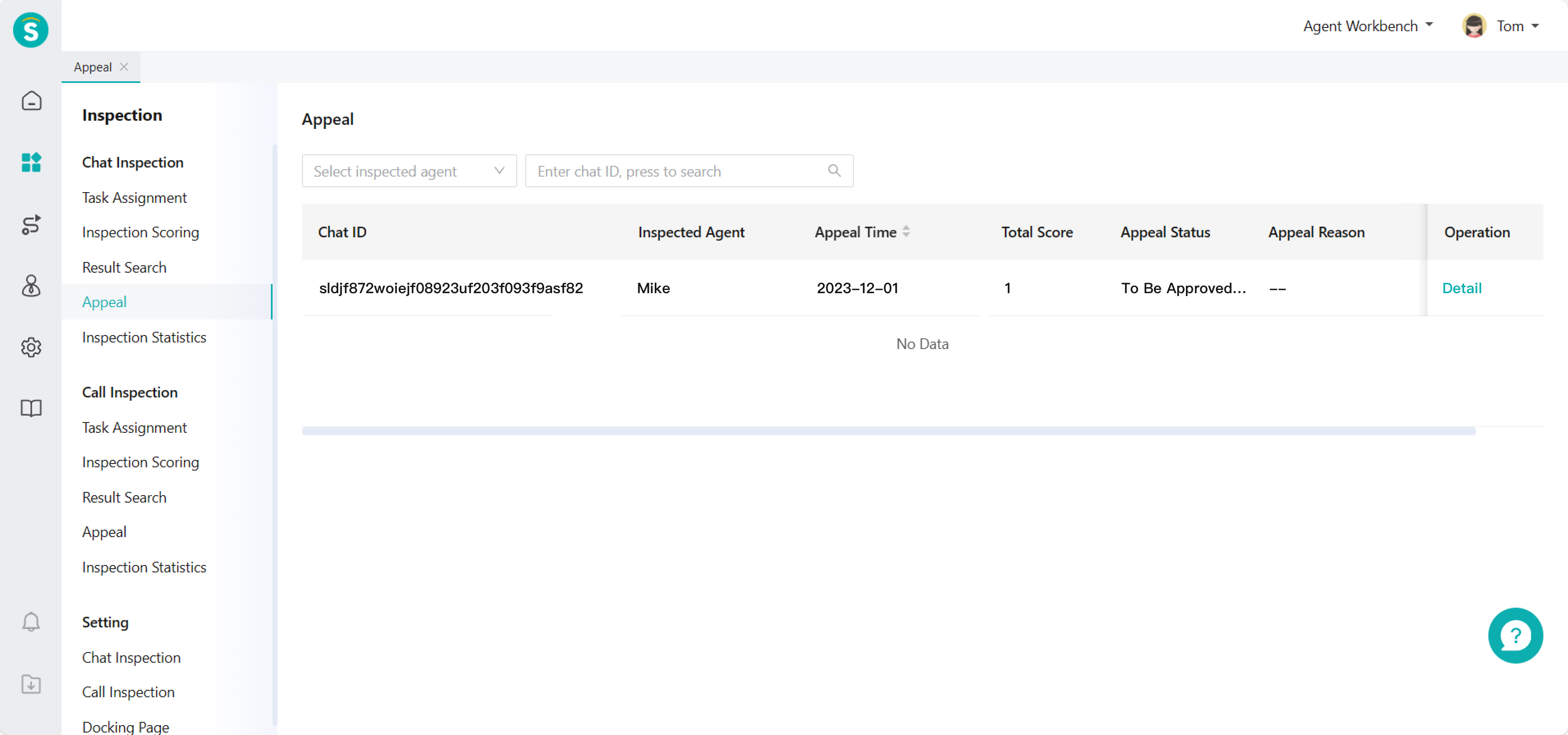
Click to enter the details page to「Reinspect」or「Reject」the inspection result. (Figure 6)
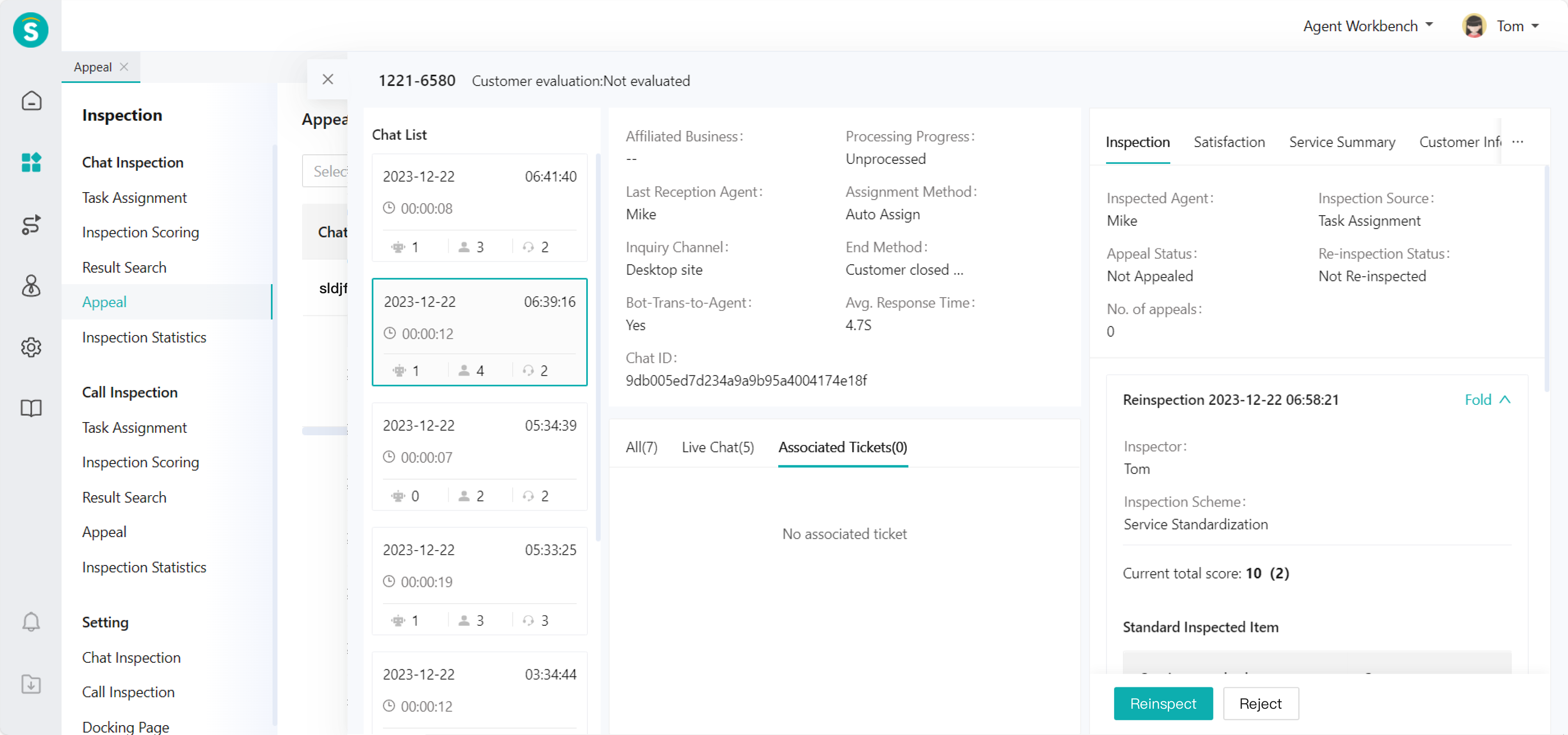
The appeal workflow ends after reinspection or rejection.
# ● Appeal Approval - Level-2 Workflow
The approval scheme set is level-2 workflow - successive approval by department director and inspectors.
After the inspected agent submits the appeal reason, the department director can view the appeal record in the status of "To Be Approved by Director" in the「Appeal Approval」list. (Figure 7)
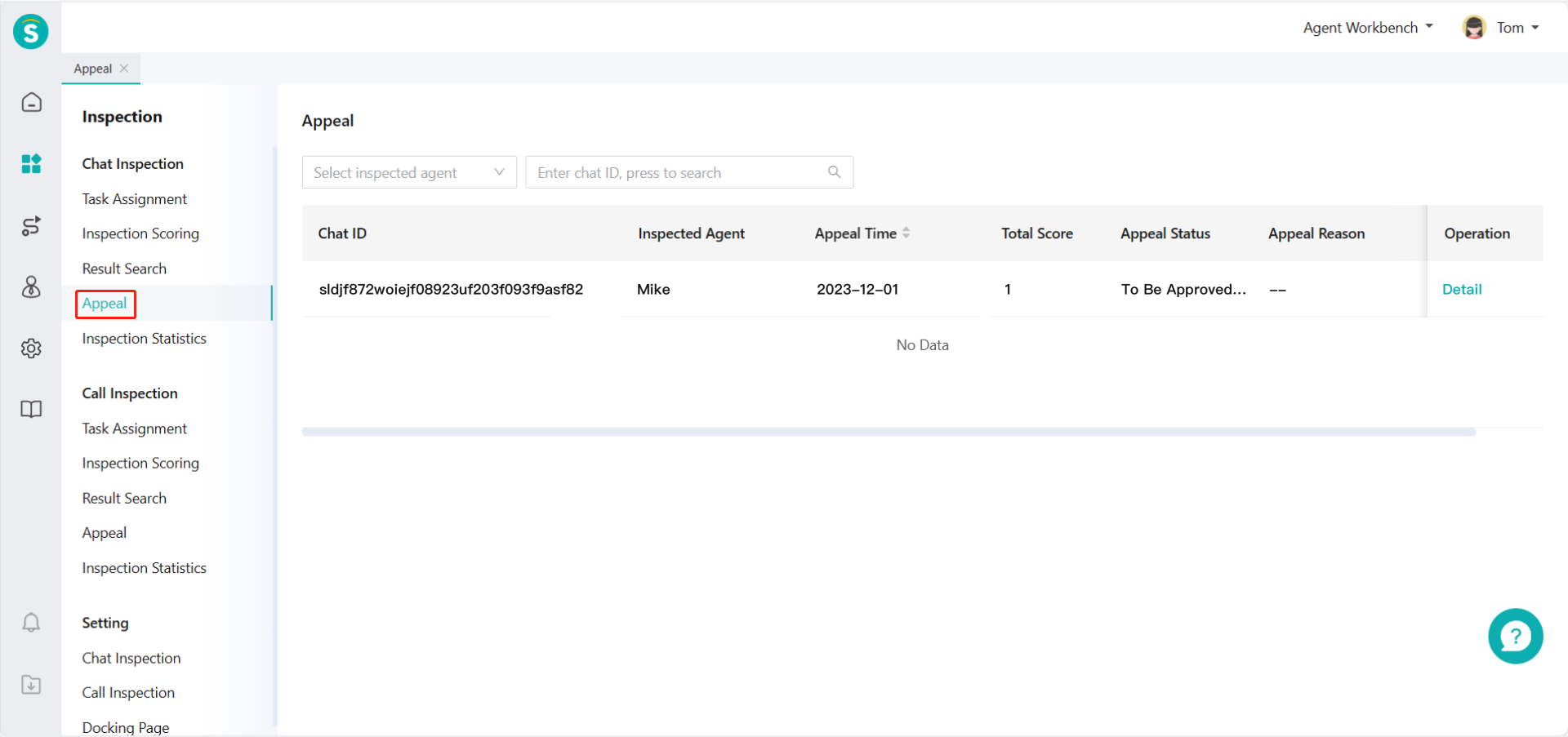
The person with「Department Approval」permission can enter the details page to「Pass」or「Reject」.
By clicking「Pass」, the director approves the doubt about the inspection result, and reinspection shall be done by the inspector. The appealed inspector can view the appeal record in the status of "To Be Approved by Inspector" in the「Appeal Approval」list.
By clicking「Reject」, the director considers there's no doubt about the inspection result, and reinspection by the inspector is not required. This appeal workflow ends.
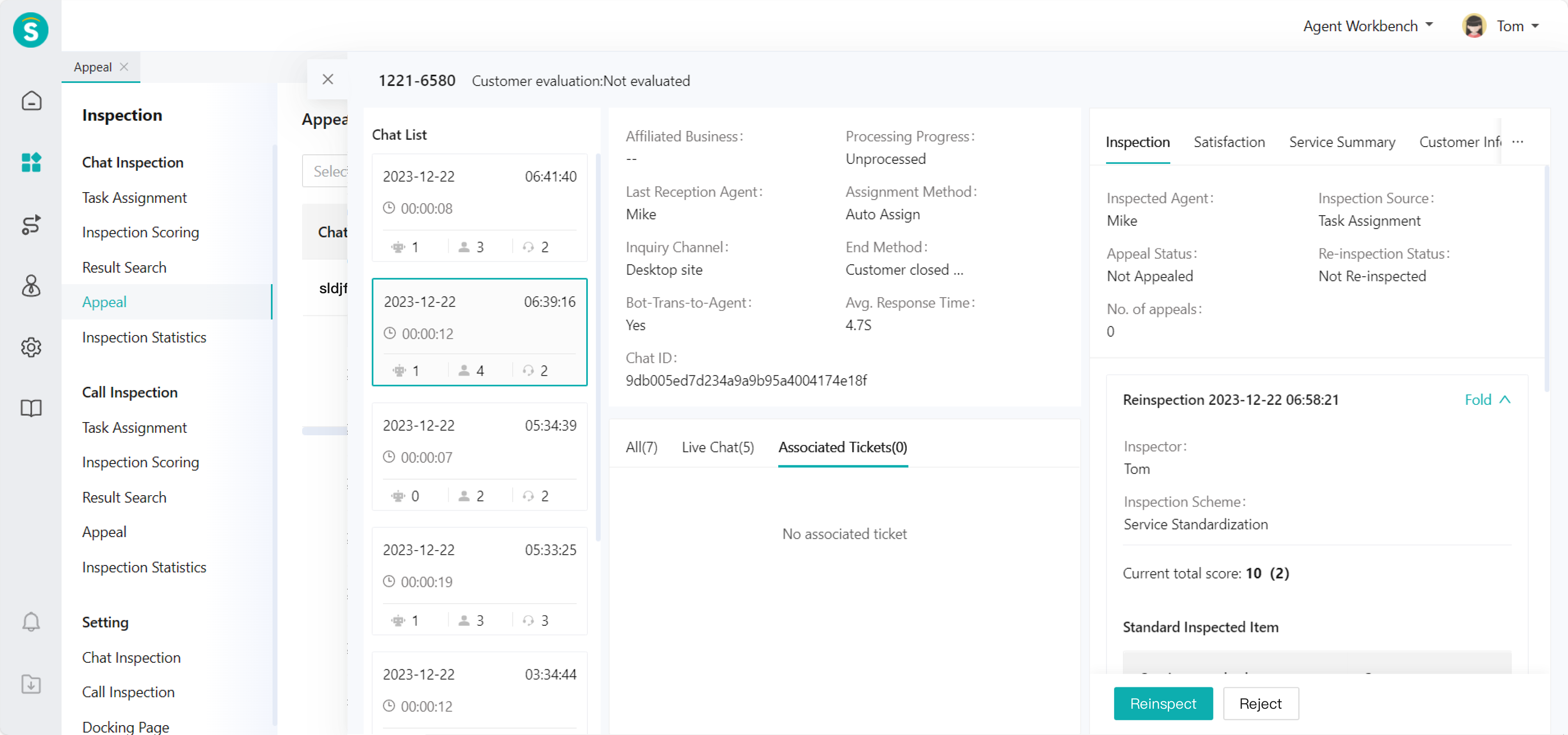
If the department director is also the inspector, he/she can「Reinspect」or「Reject」. (Figure 8)
# Reinspection Guide
——Reinspection is to assess the work quality of inspectors. The reinspection score is the final inspection result. The inspected agent cannot appeal against the reinspection result, and the inspector cannot inspect again.
# Role of Reinspection
After the inspector performs inspection on chat/talk, he/she can use the reinspection function to check the inspection results, and use the same inspection scheme to perform inspection again. If each item obtains the same score, it means that the reinspection is passed. Reinspection is the verification of the inspector's work.
# Preparation
Special permission is required for reinspection of the chat/talk that has been inspected. Please assign this permission to the operator.
# Main Functions of Reinspection
Support enabling/disabling the reinspection workflow
Support the person with reinspection permission to conduct reinspection/reinspection again
# How to Use Reinspection
# ● Reinspection Workflow Setting
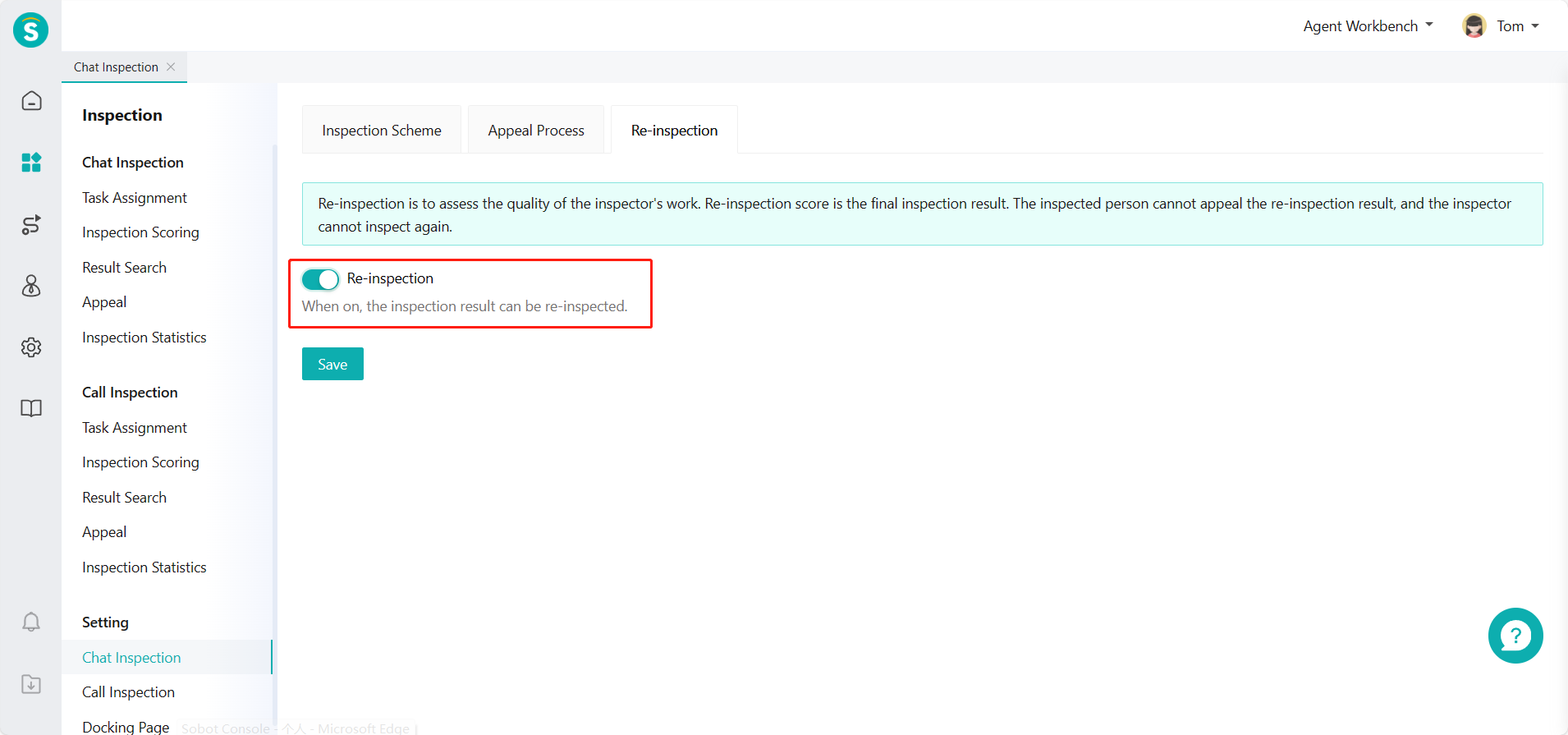
Enable reinspection workflow in Settings > Chat/Talk Inspection Configuration > Reinspection Workflow. (Figure 1) (Note: The following legends use the chat inspection configuration, same as the talk inspection configuration)
# ● Reinspection
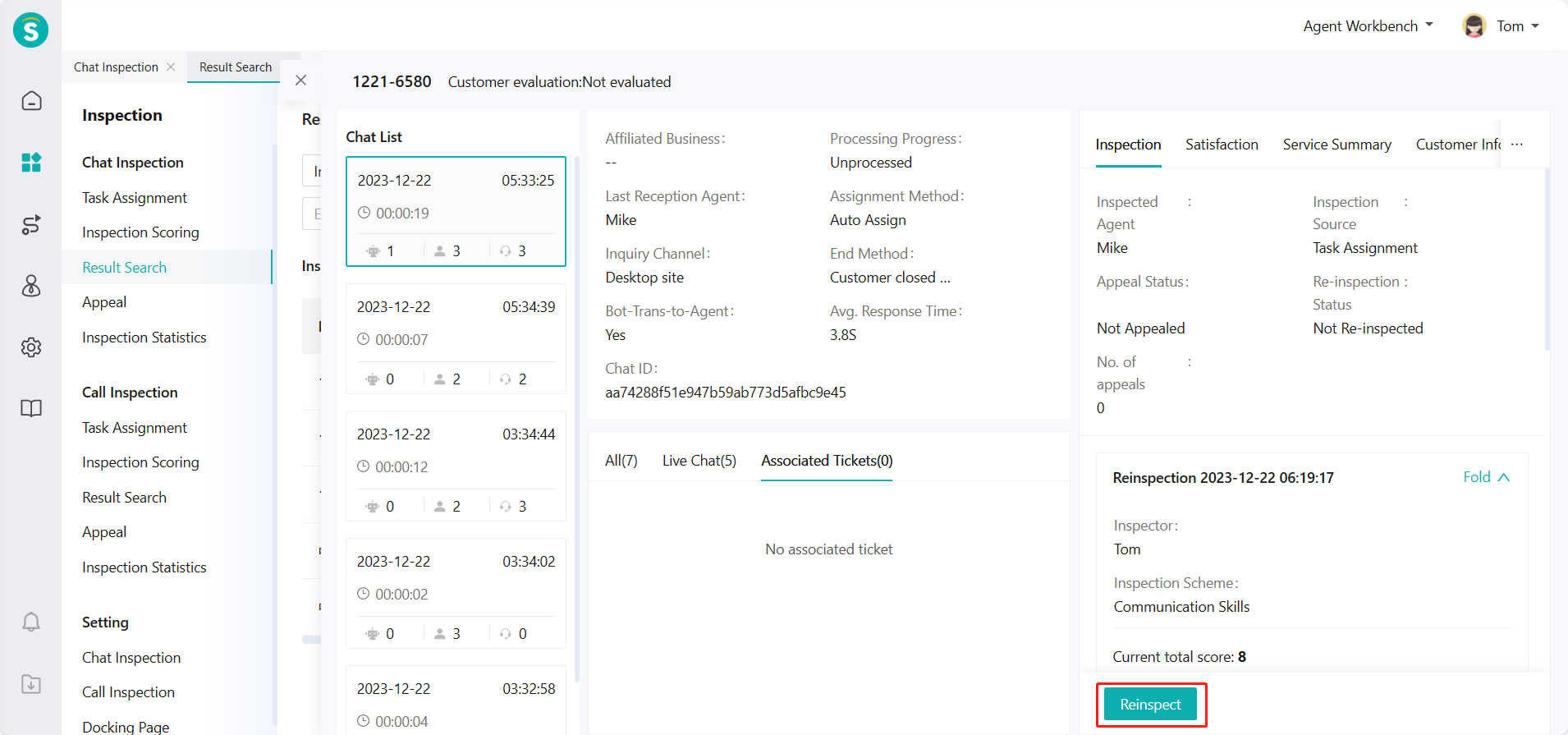
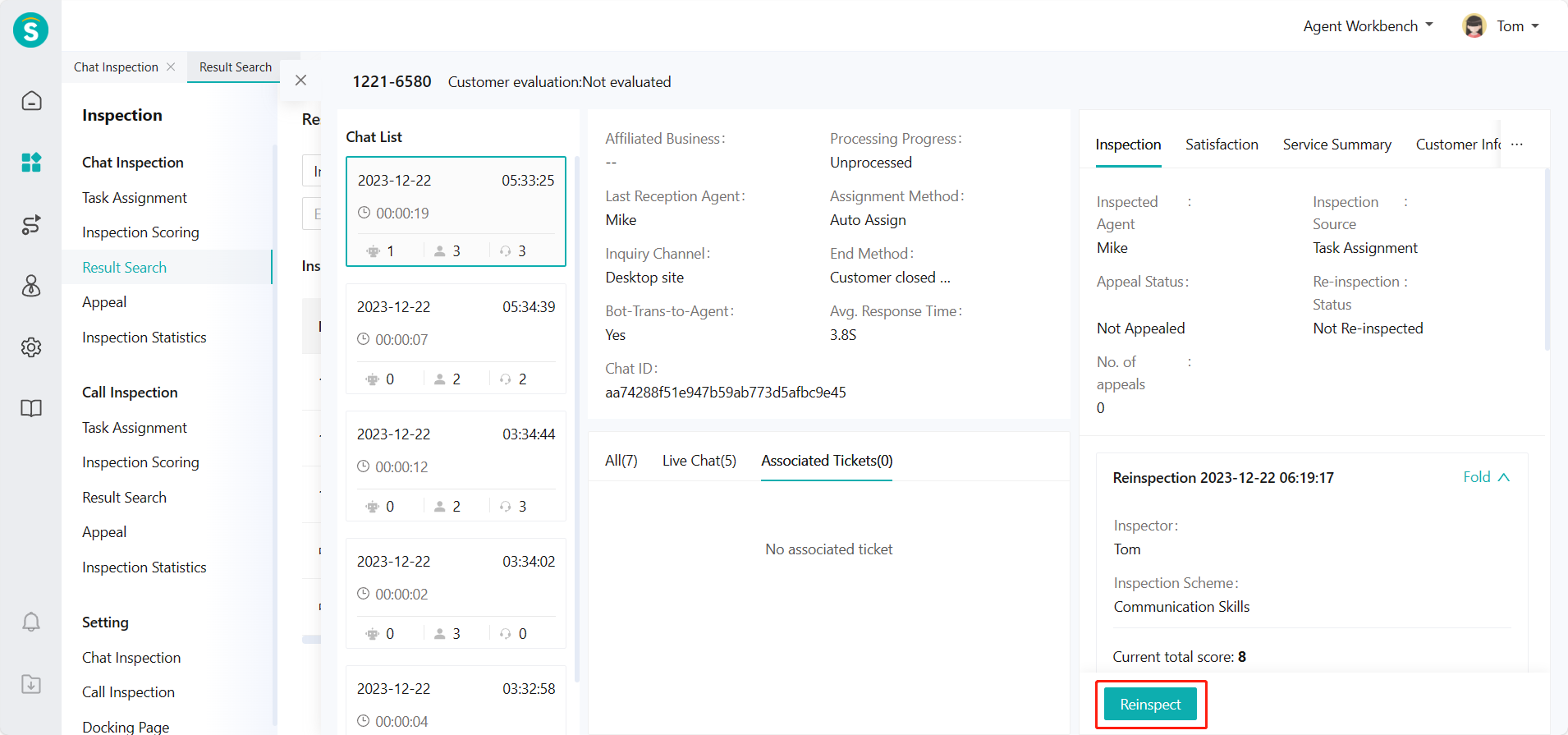
After the reinspection workflow is enabled, the inspection result can be reinspected by the person with reinspection permission. (Figure 2)
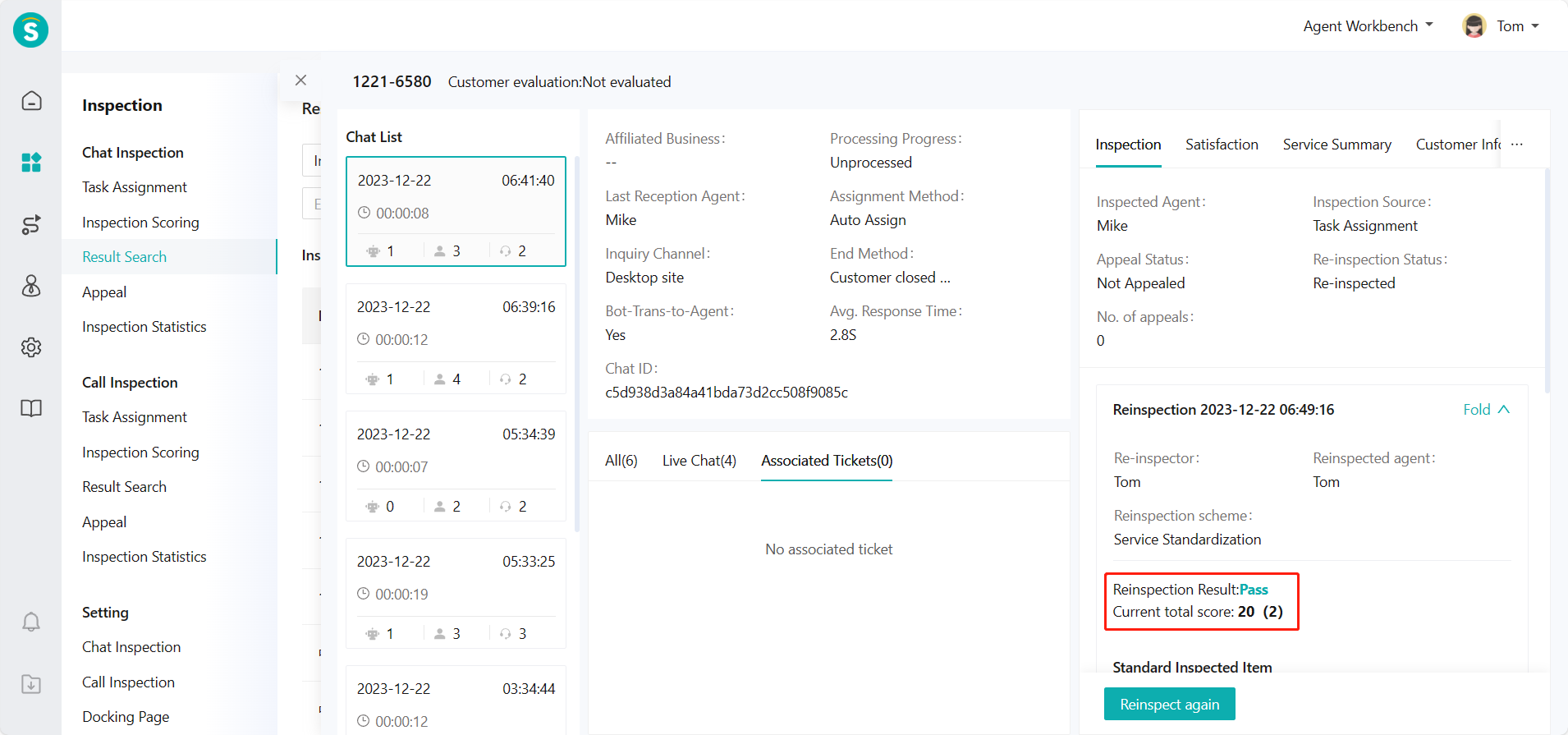
- Click「Pass」button, indicating that the reinspector has no objection to the inspection result, and it is passed directly. (Figure 3)
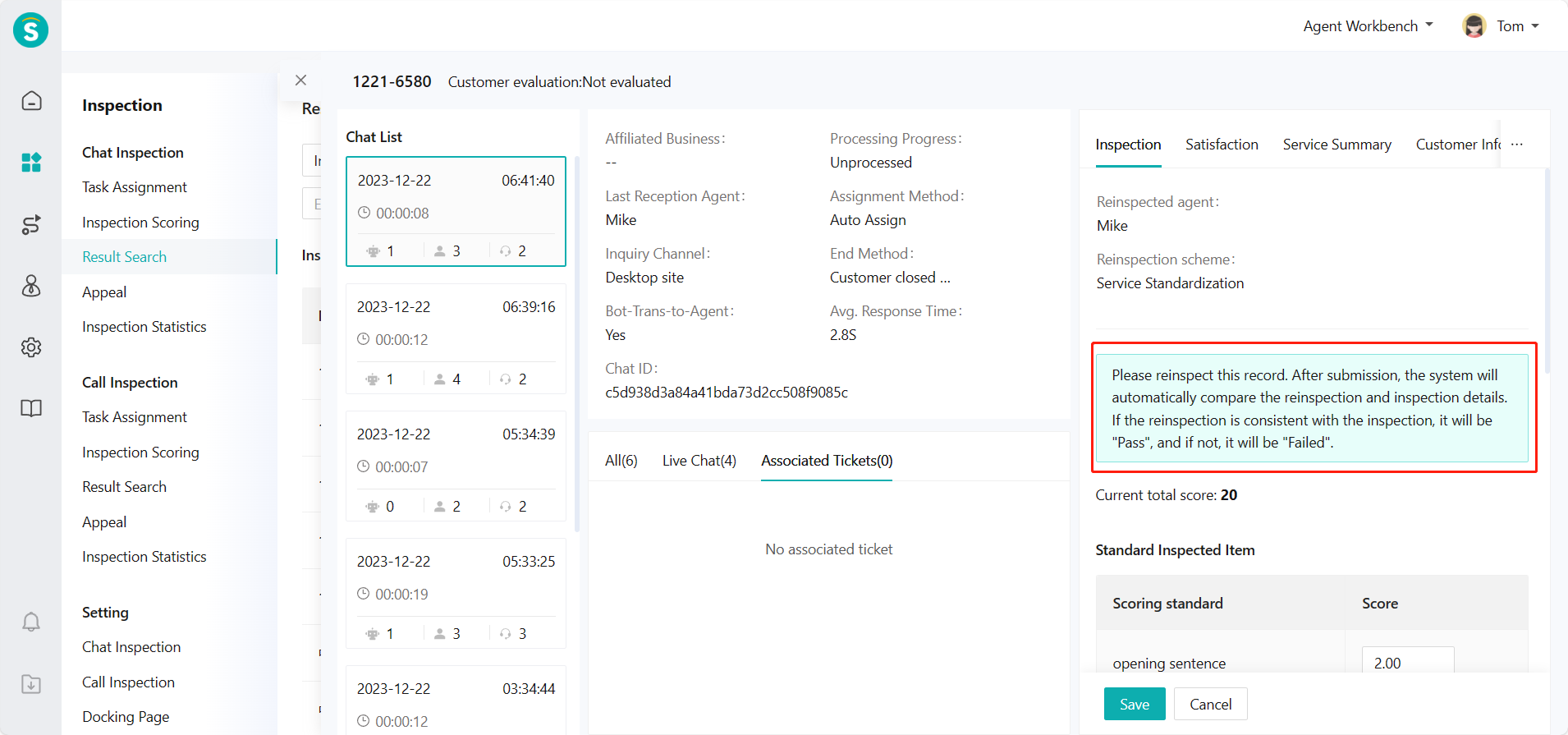
- By clicking「Reinspect」button, the reinspector can re-score the record. If the results of standardized inspection items and additional inspection items are completely consistent with the inspector's scoring results, then the result is "Pass", and if the results are inconsistent, then the result is "Failed". (Figure 4)
# ● Reinspection Again
Reinspect the results of the reinspection according to the actual needs of the business. (Figure 5)
# Overall Introduction to Inspection Statistics
——Support multi-dimensional data statistical reports to fully understand inspection status, and exporting statistical reports for sorting and analysis.
# Role of Inspection Statistics
Inspection Statistics is the overall summary and statistics of inspection results. It can reflect the inspection coverage of chats/talks received by enterprises, the service quality of different agents, and the deduction items in inspection schemes. Enterprises can optimize service standards and improve work efficiency and quality on this basis.
# Main Functions of Inspection Statistics
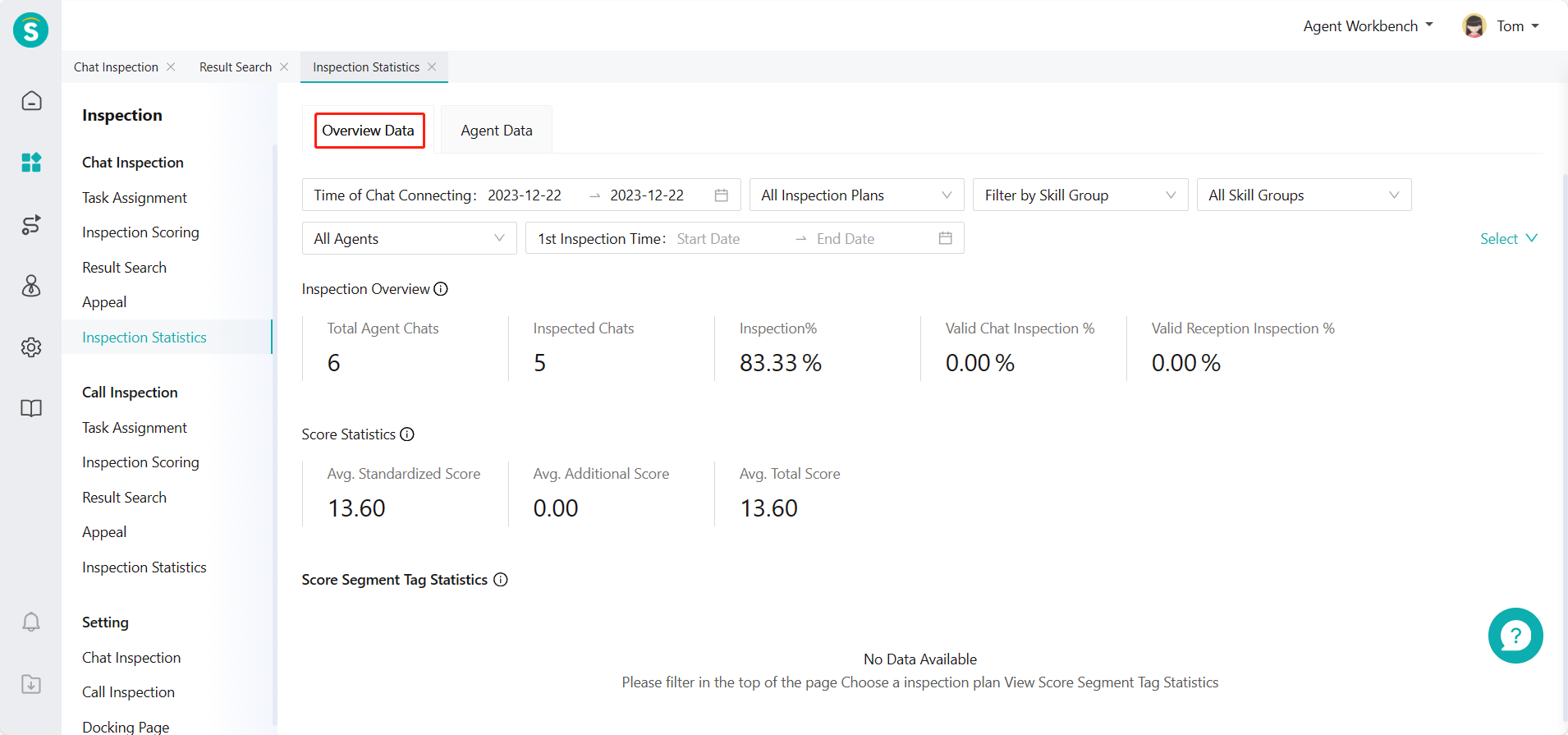
Support viewing inspection and reinspection related overview data
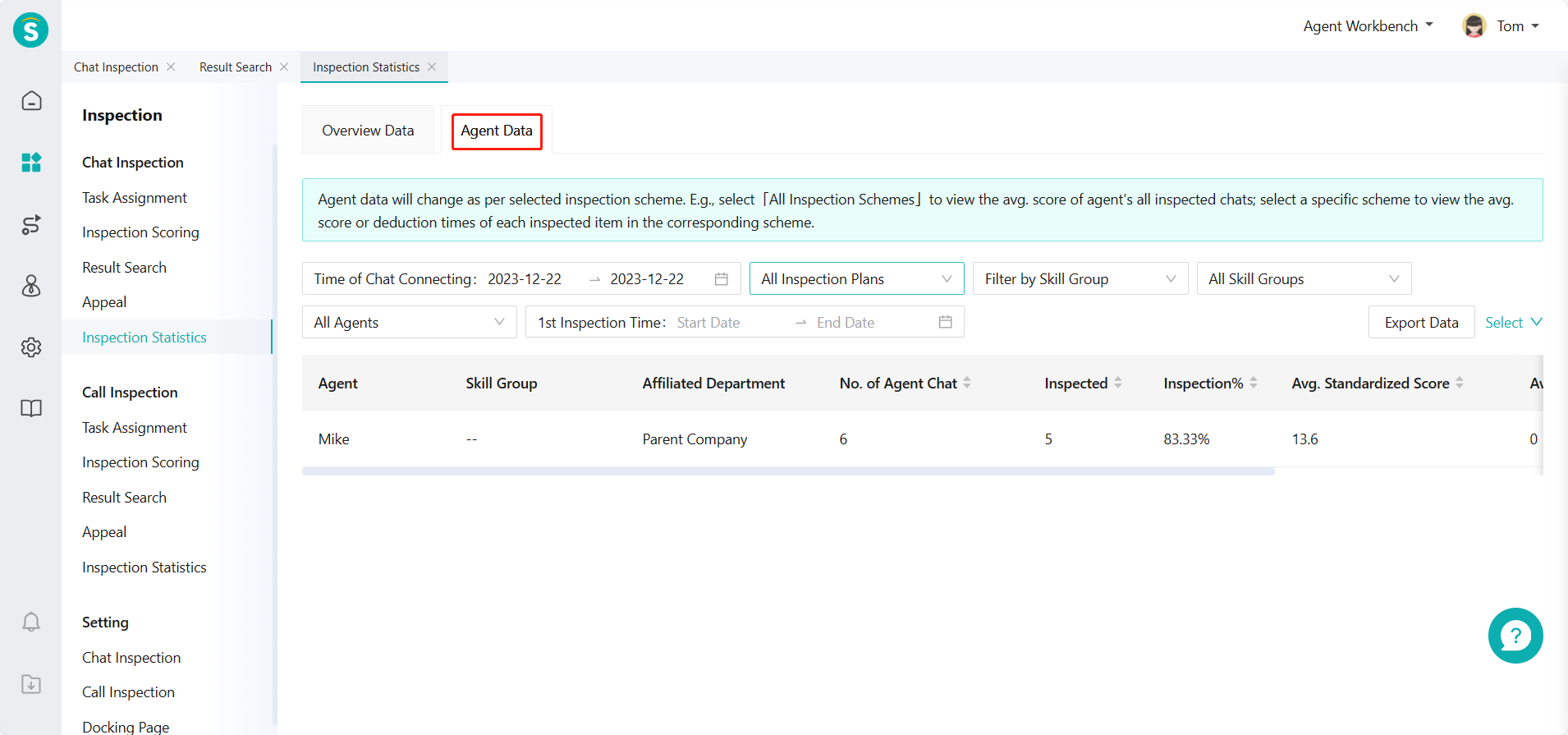
Support viewing average score of inspected agent data
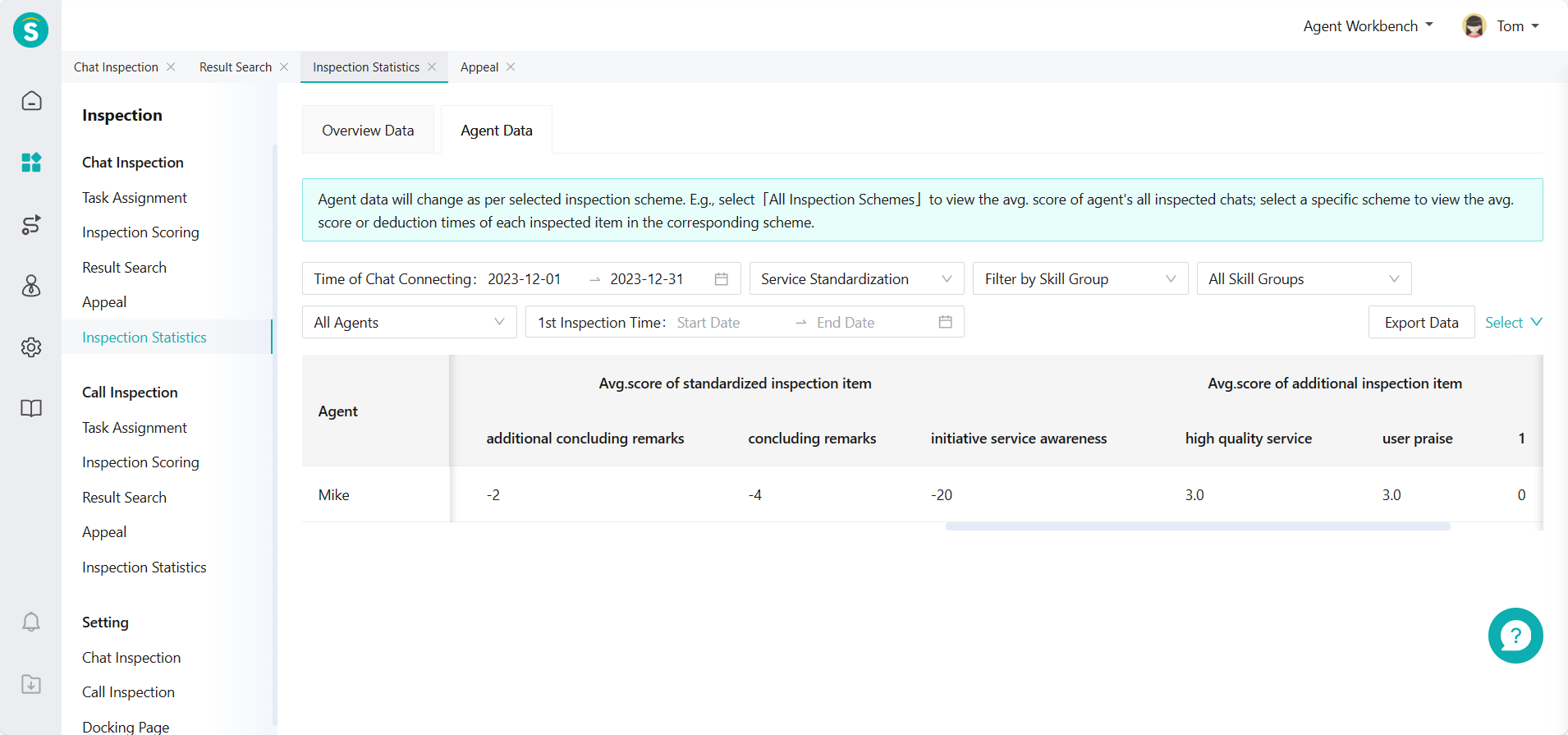
Support viewing average score or deduction of inspected agent data in terms of each inspection item in specific inspection scheme
# How to Use Inspection Statistics
# ● Overview Data
View overview data in Chat/Talk Inspection > Inspection Statistics. (Figure 1) (Note: The following legends use the chat inspection, same as the talk inspection)
# ● Agent Data
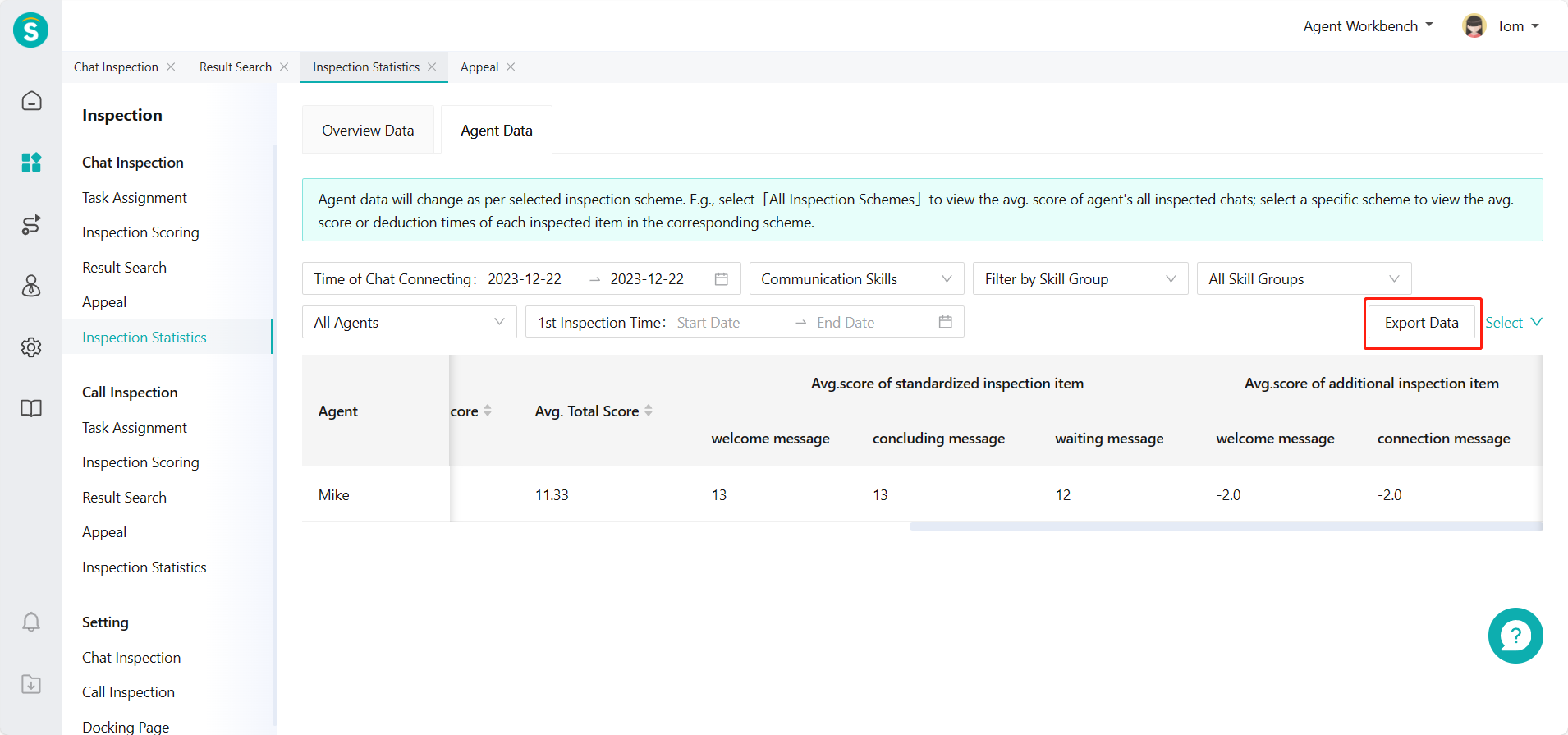
Support viewing average score of inspected agent data. (Figure 2)
Support viewing average score or deduction of inspected agent data in terms of each inspection item in specific inspection scheme. (Figure 3 and Figure 4)
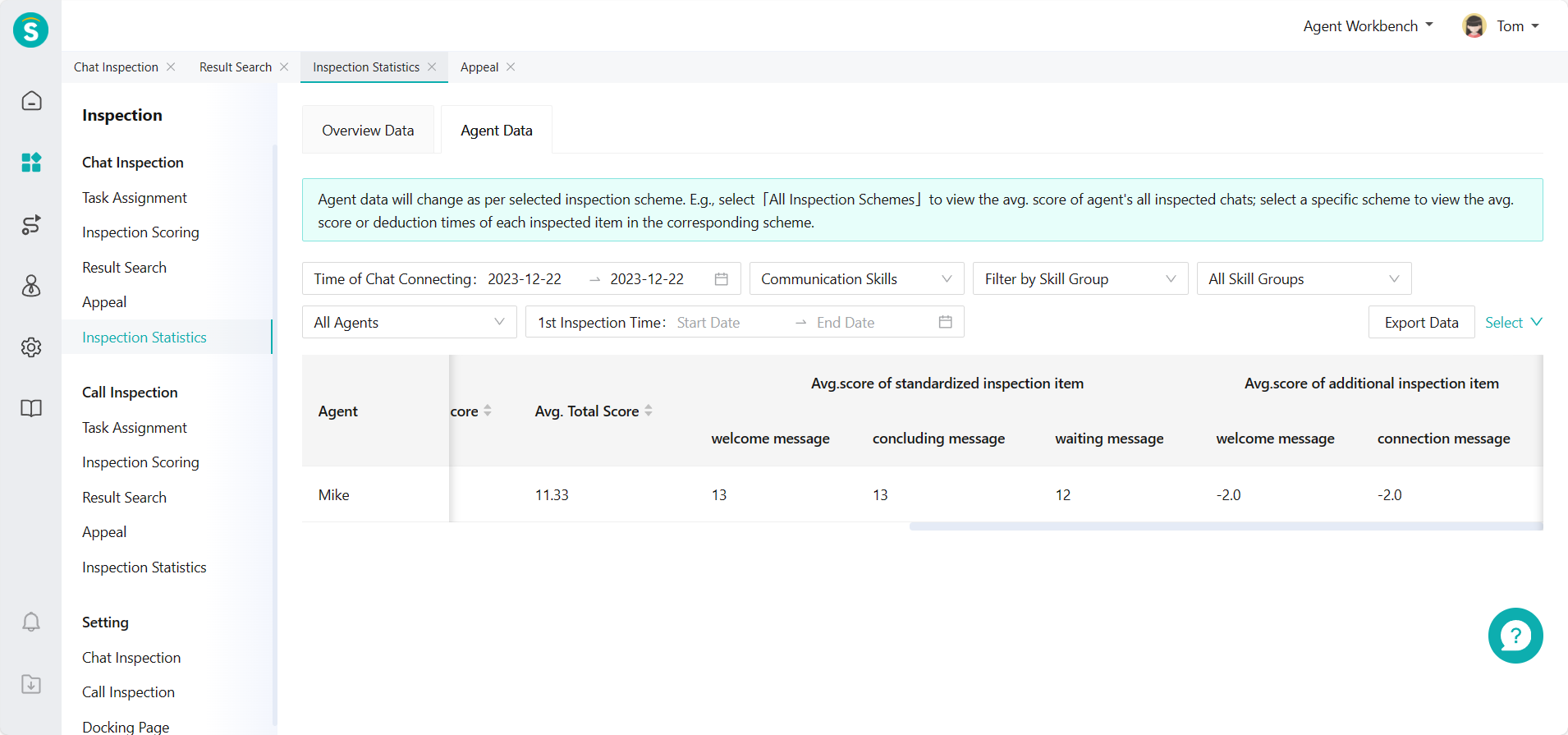
You can export inspection statistical reports. (Figure 5)