Usage description of Lark docking
# Usage description of Lark docking
——Learn about the scenarios and specific operation steps of Lark docking through this article
# Preparations
● An account with Sobot system admin permissions. ● An account with admin permissions for Lark admin backend.
# Create Lark app
# ● Log in to Lark admin backend
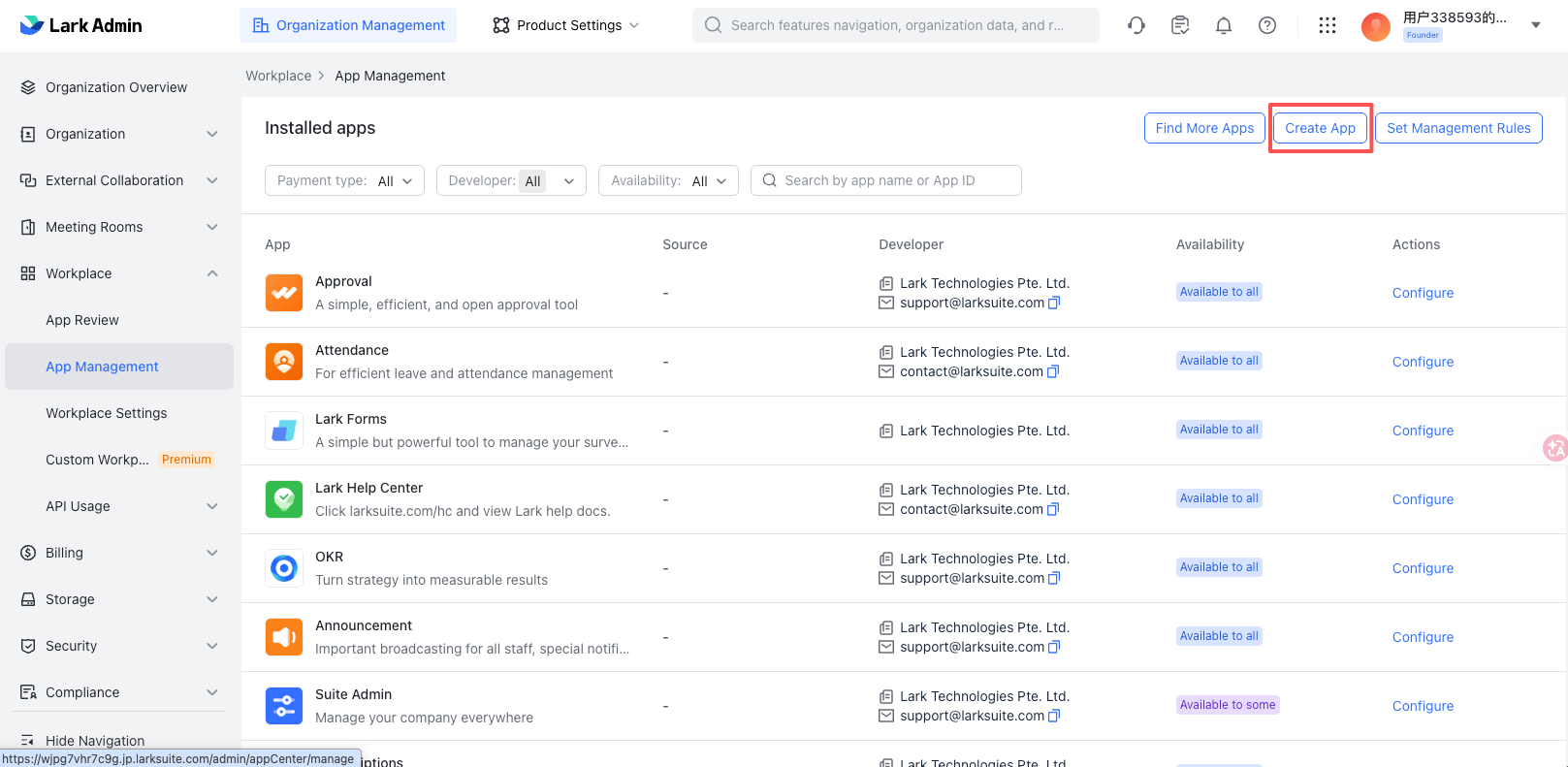
Log in to the Lark admin backend (opens new window) go to the Workplace - App Management, click "Create App" to enter the Lark developer backend.
# ● Create enterprise self-built app
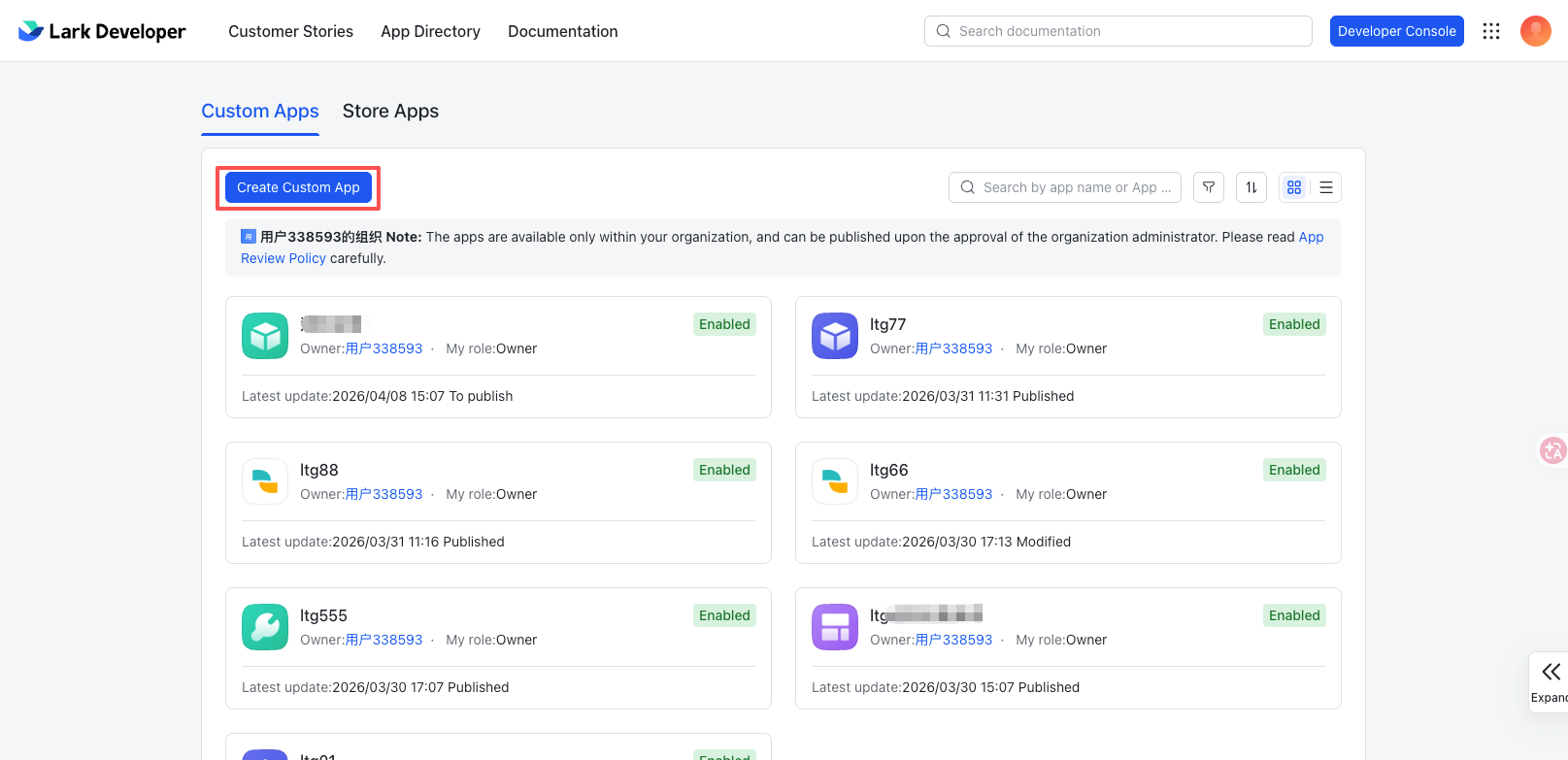
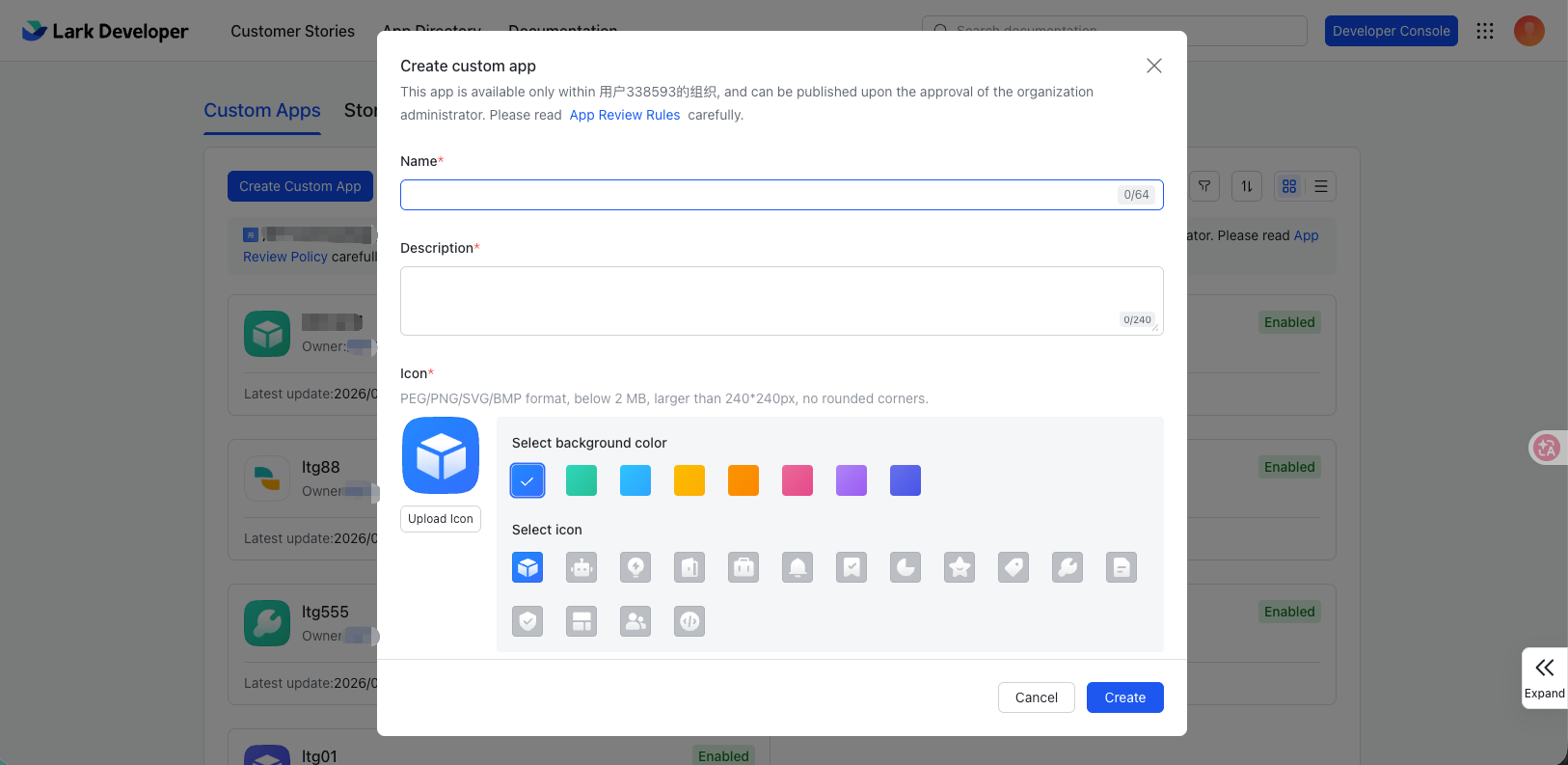
Click "Create Custom App", fill in the name, description, and select an icon for the app.
# ● Add app
Add bot app.
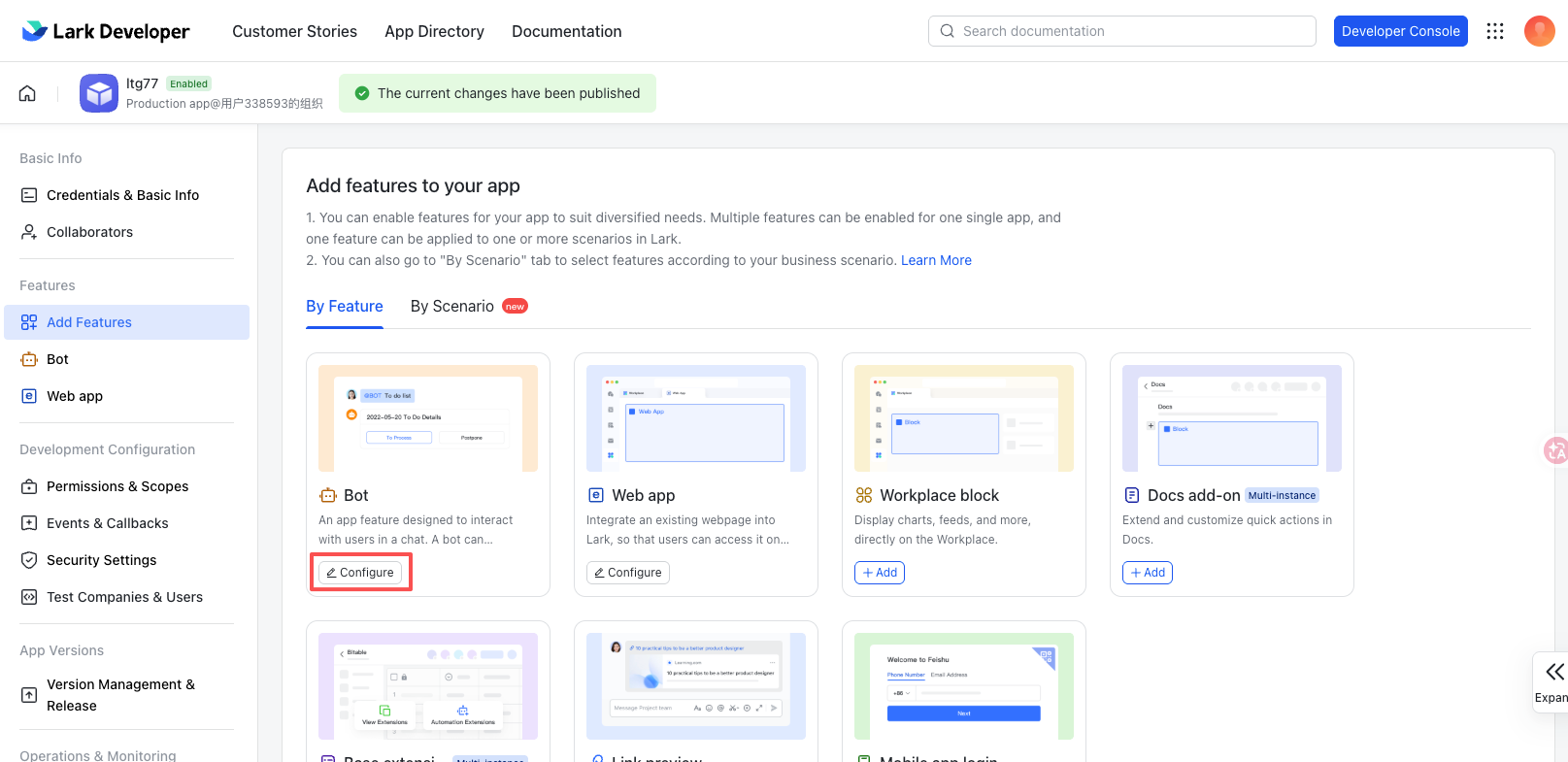
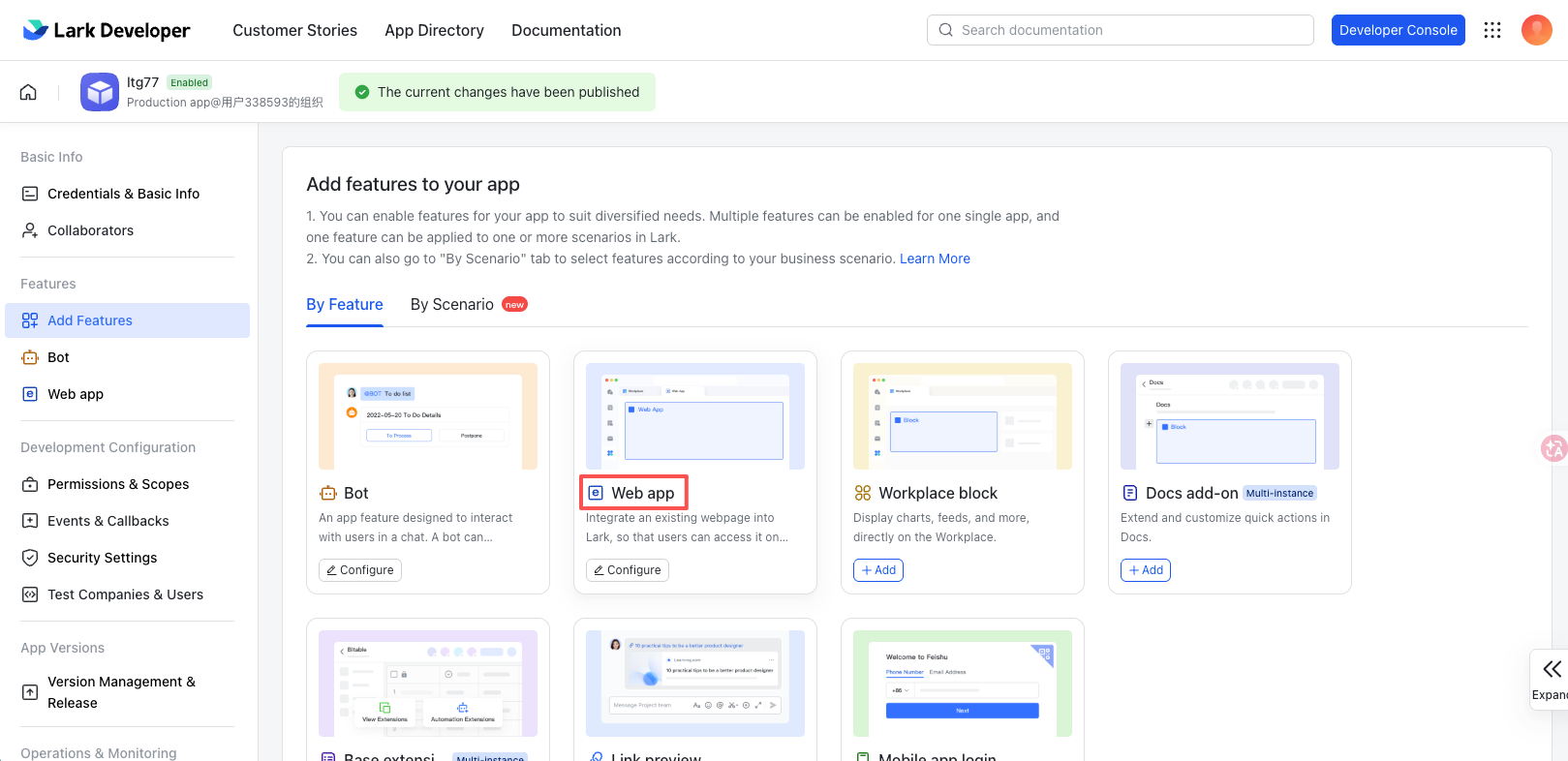
Add web app.
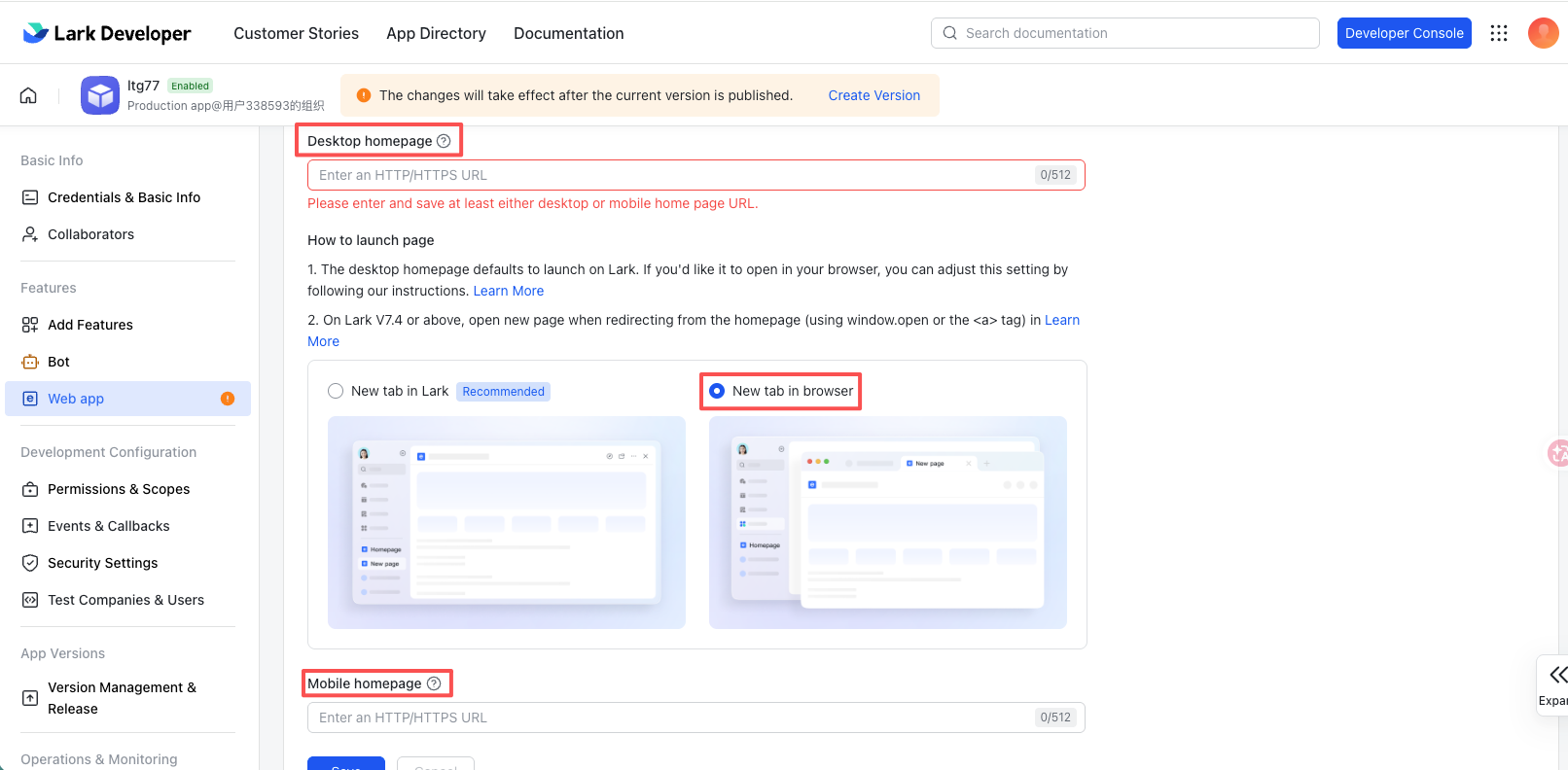
If the access domain name of your current system is sg.sobot.com, then your URL configuration is as follows: The homepage URL configuration of the desktop end is as follows: https://sg.sobot.com/auth/sign_in
If the access domain name of your current system is us.sobot.com, then your URL configuration is as follows: The homepage URL configuration of the desktop end is as follows: https://us.sobot.com/auth/sign_in
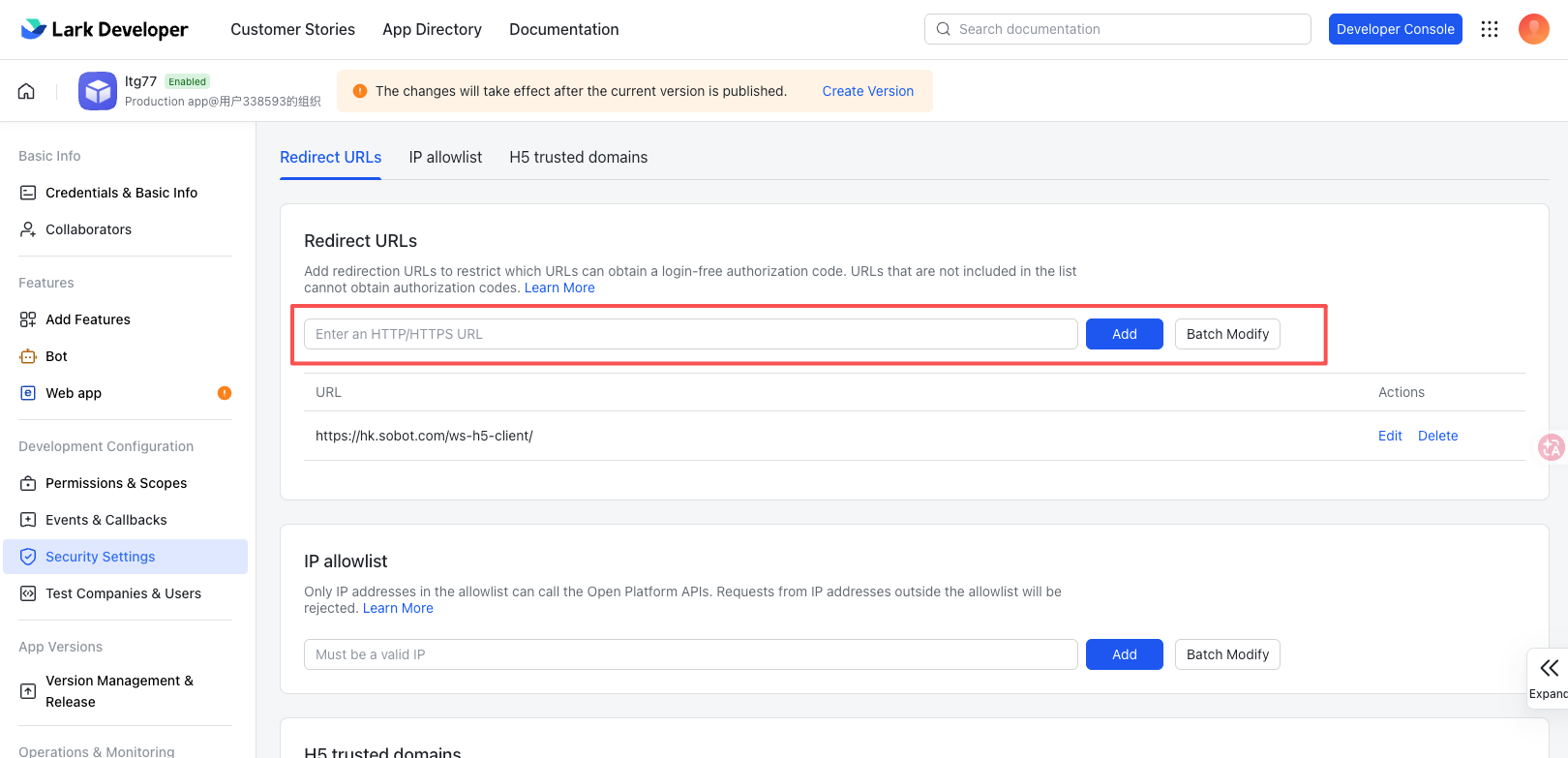
# ● Configure security setting
In the Development Configuration - Security Setting of the app:
If the access domain name of your current system is sg.sobot.com, then your URL configuration is as follows: Redirect URL: https://sg.sobot.io/ws-h5-client/
If the access domain name of your current system is us.sobot.com, then your URL configuration is as follows: Redirect URL: https://us.sobot.io/ws-h5-client/
# ● Configure Permissions
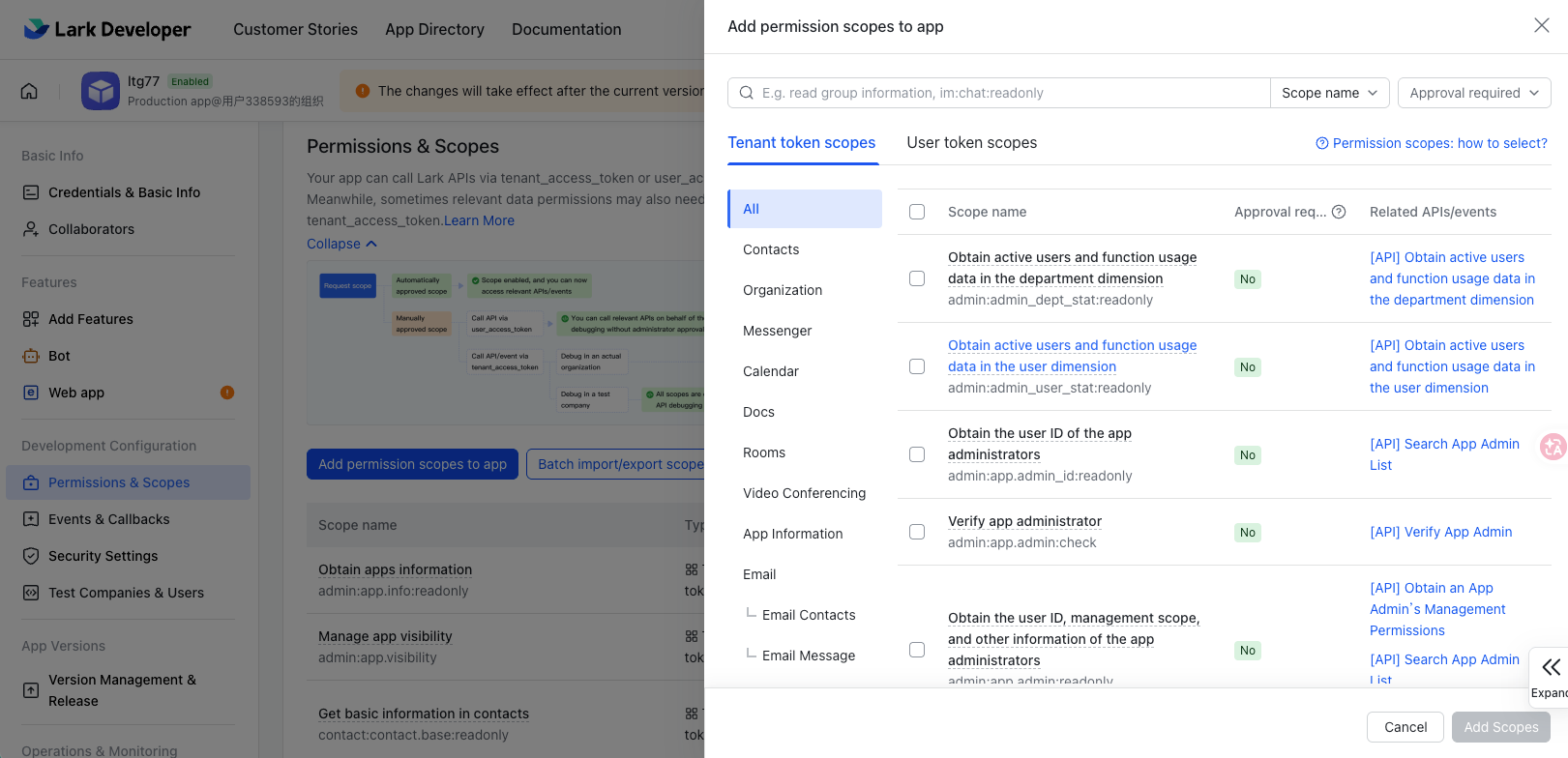
Make sure to open the following API permissions, otherwise the app will not be able to be used.
In the Development Configuration - Permission & Scopes of the app, search and open:
Obtain apps information
Get basic information in contacts
Manage app visibility
Obtain department's basic information
Obtain department's organizational structure in contacts
Obtain user's basic information
Obtain user's organization information
Obtain user's email information
Obtain user's employment information
Obtain user ID
Obtain user's mobile number
Read and send messages in private and group chats messages
Obtain tenant information

# ● Release version
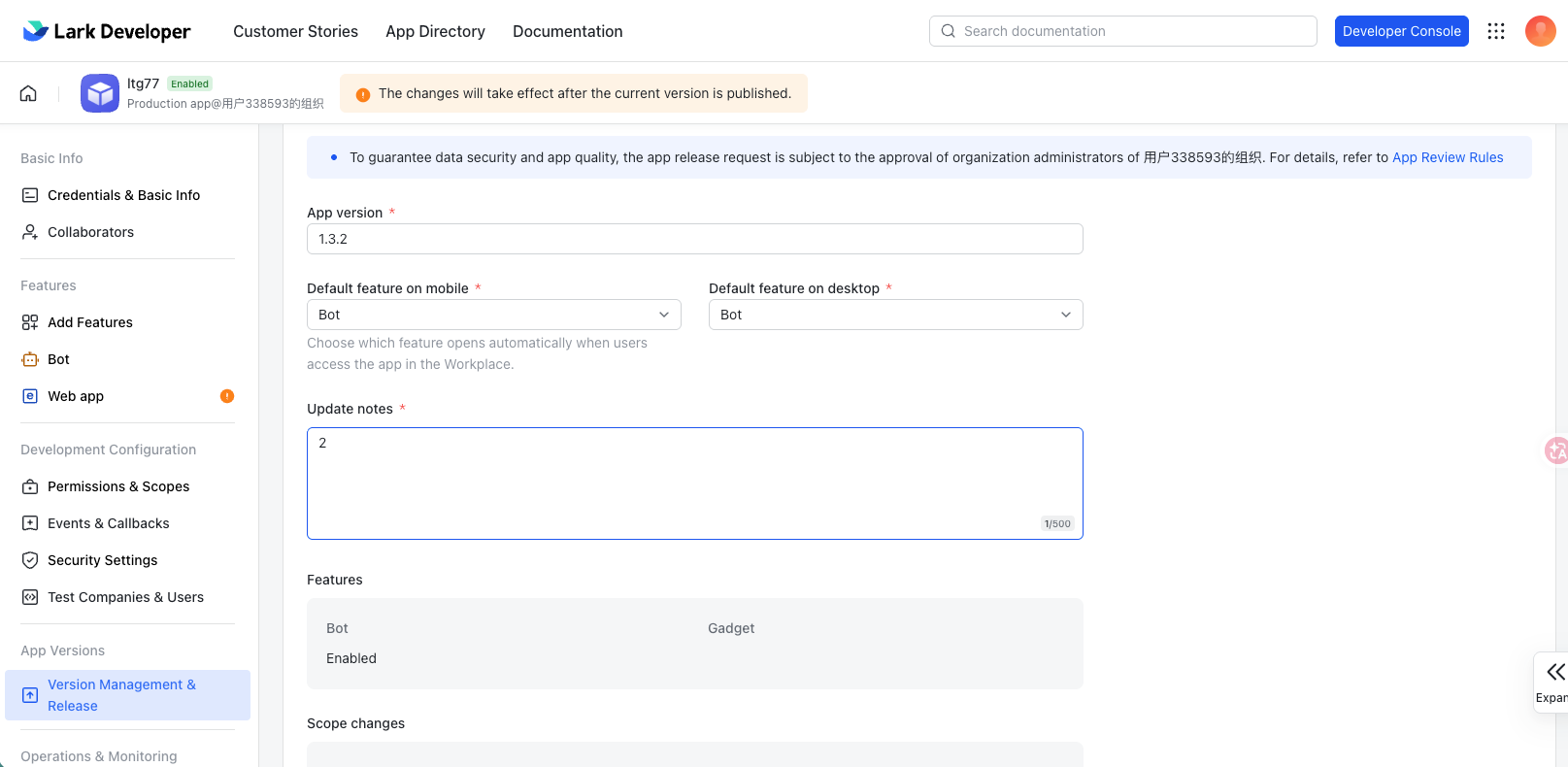
In the App Versions - Version Management & Release of the app
Fill in the version number, such as 1.0.1
Default feature on mobile: Bot
Default feature on dekstop: Web App
Update description: Fill in according to the actual situation
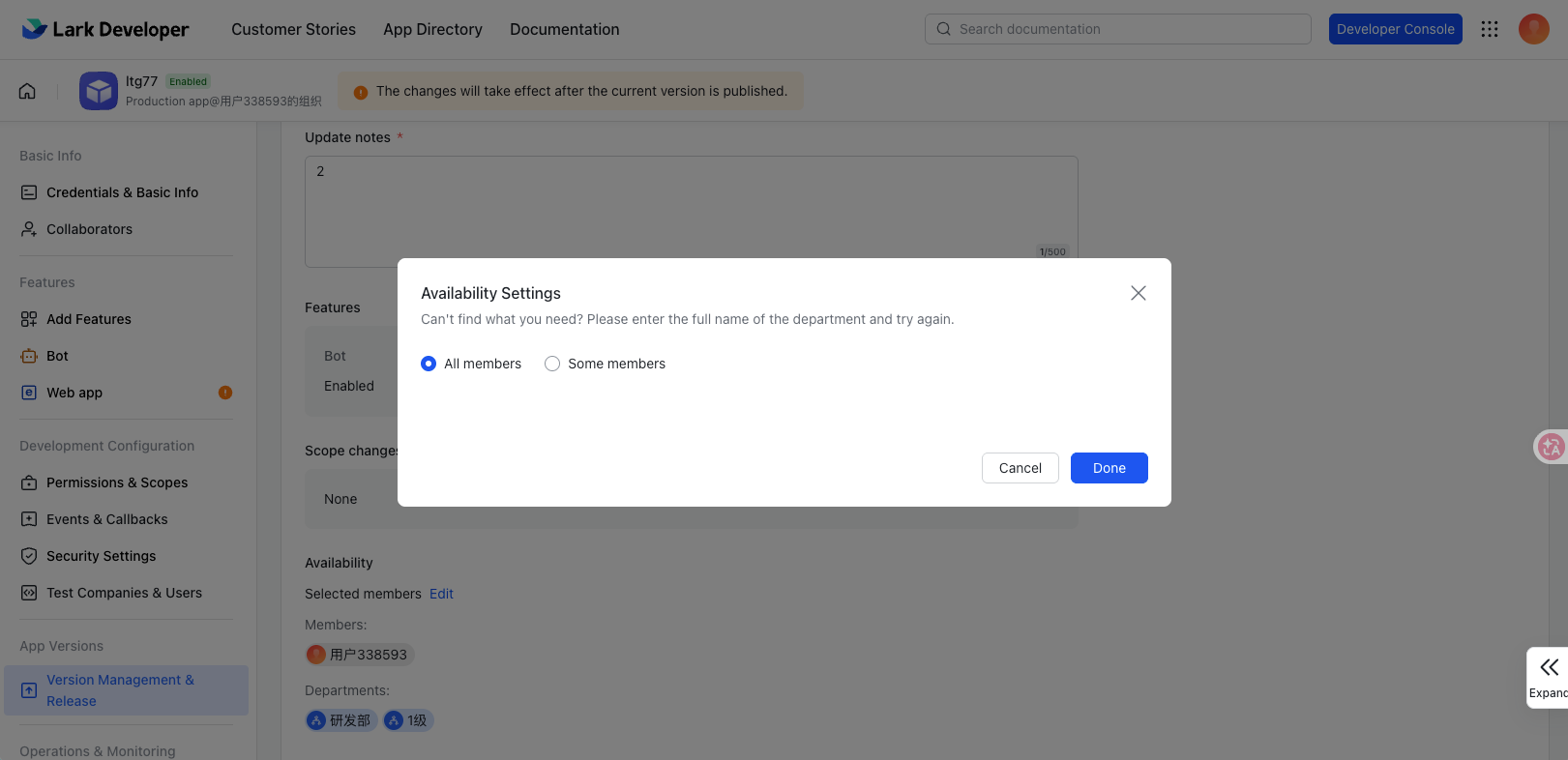
Fill in the Availability: It is recommended to select all members. When adjustments are made later, the number of versions released can be reduced.
# ● Review
After the app is released, it might be reviewed by the admin before it can be used.
# Bind Lark channel
# ● Fill in the app credential
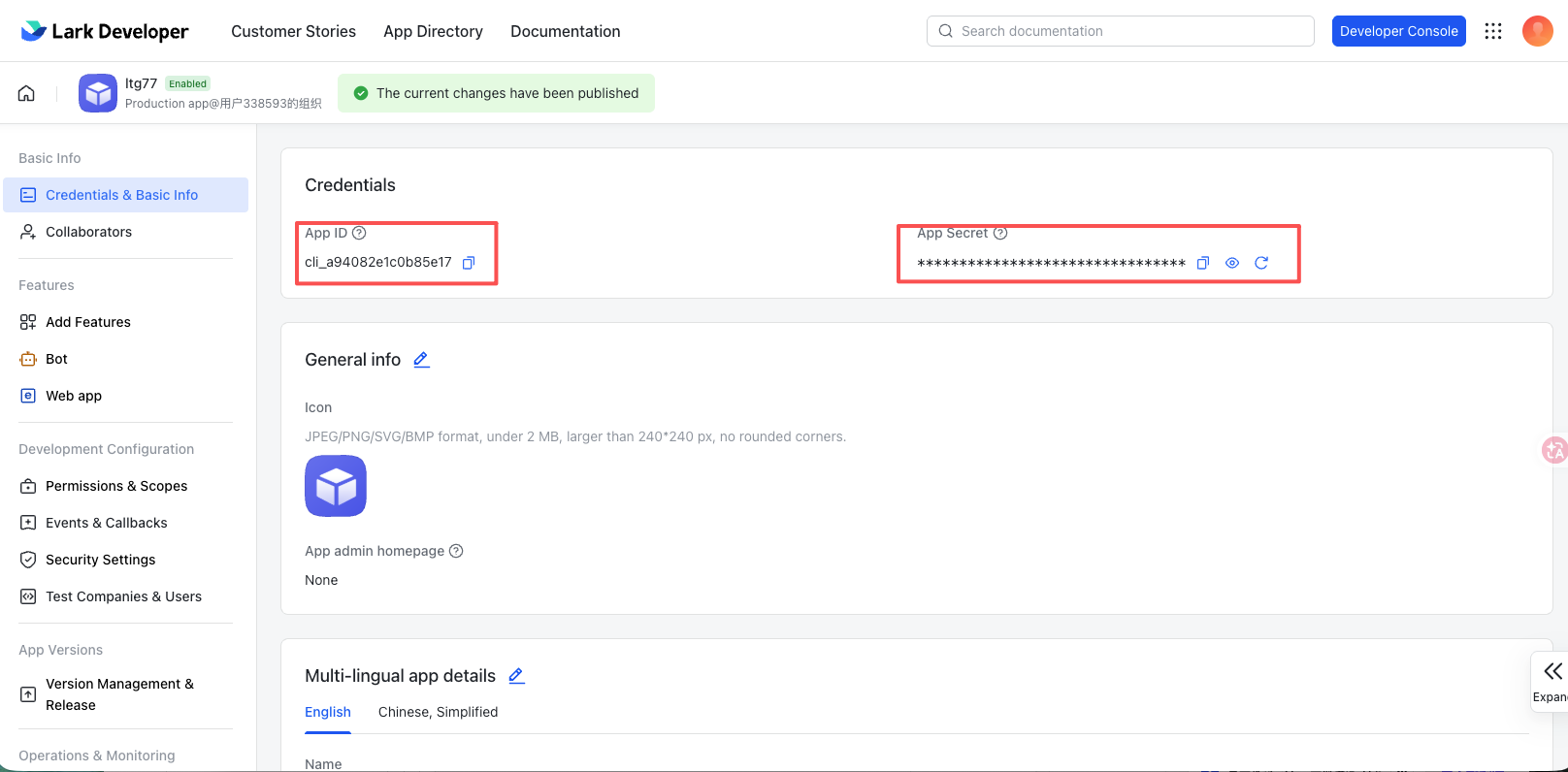
Fill in the App ID and App Secret of the app to the Sobot system. In the basic information - credential and basic information of the Lark app, find the App ID,and App Secret.
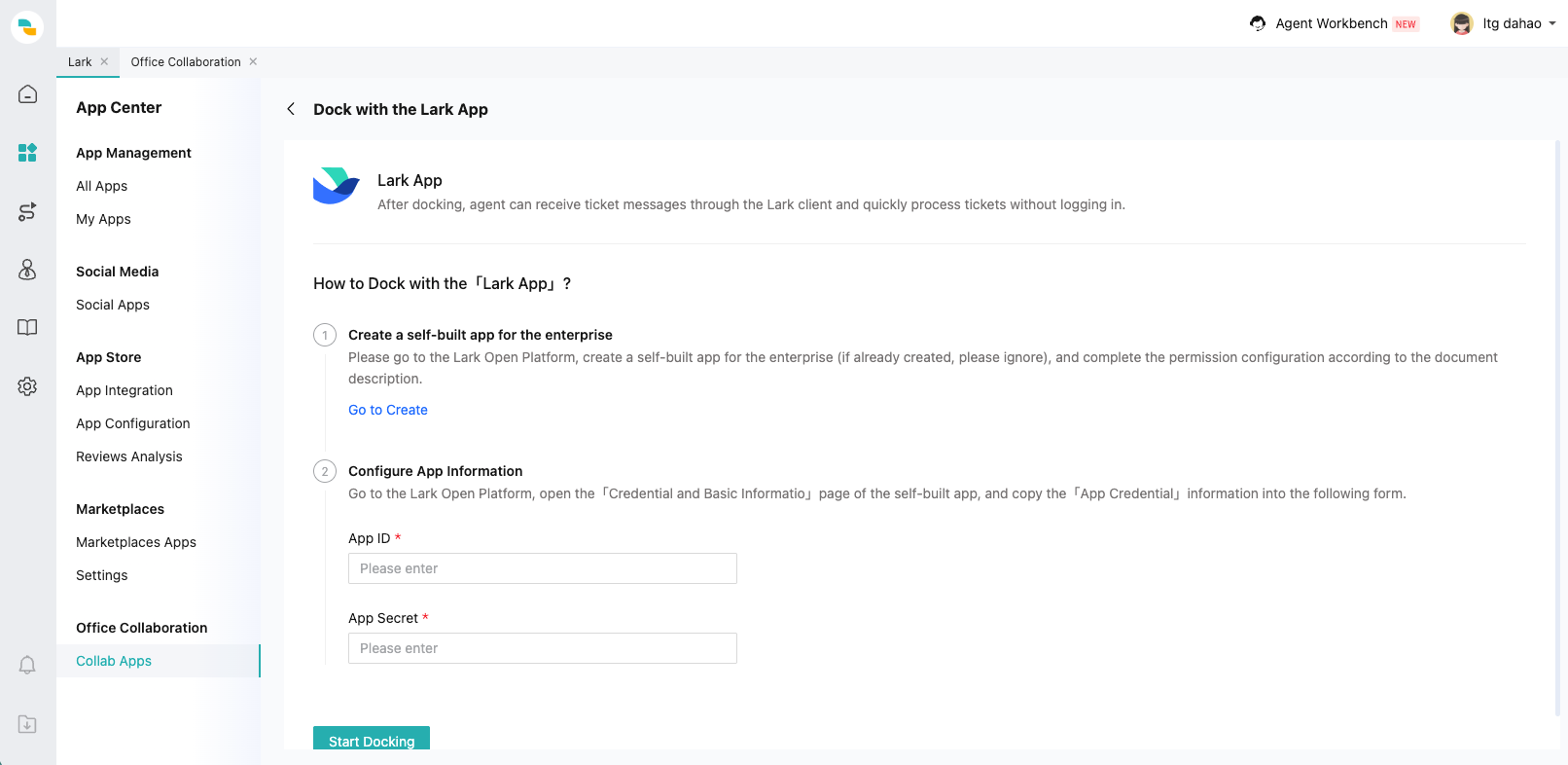
Fill them into the Sobot system, in App Center - Office Collaboration - Collab Apps - Lark app
# ● Bind agent
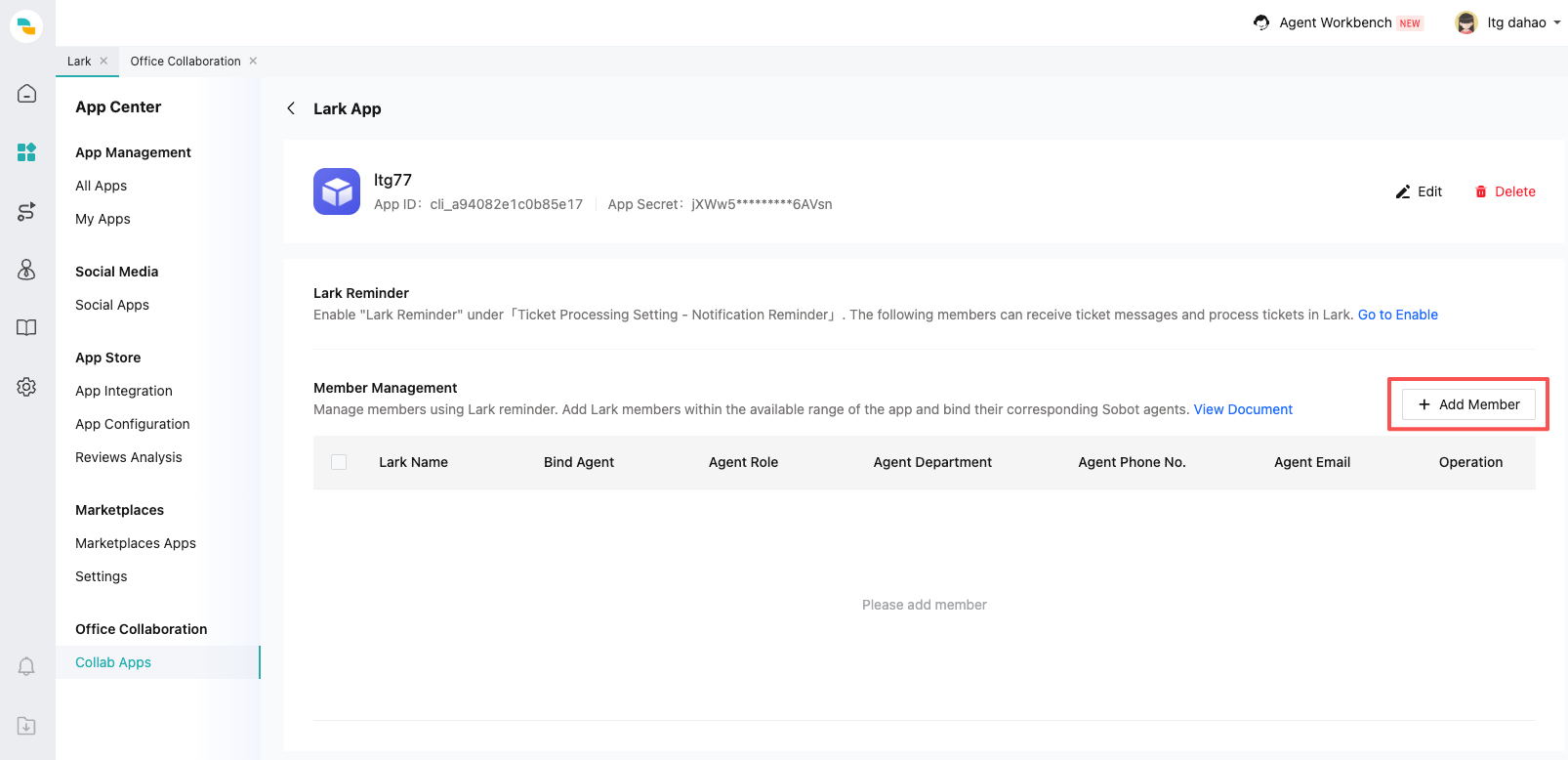
Click the "+ Add Member" button
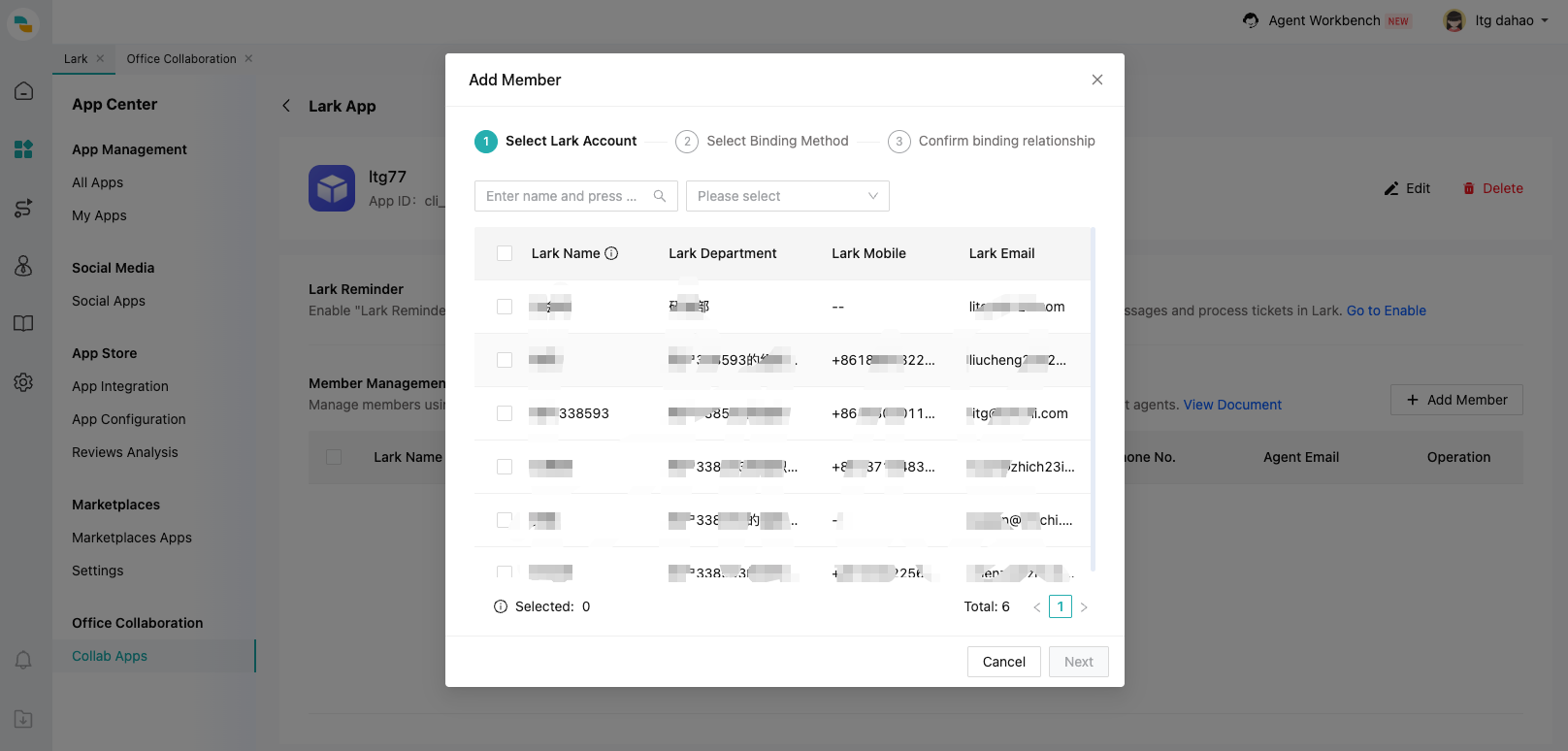
Select Lark employees to be bound to Sobot agent
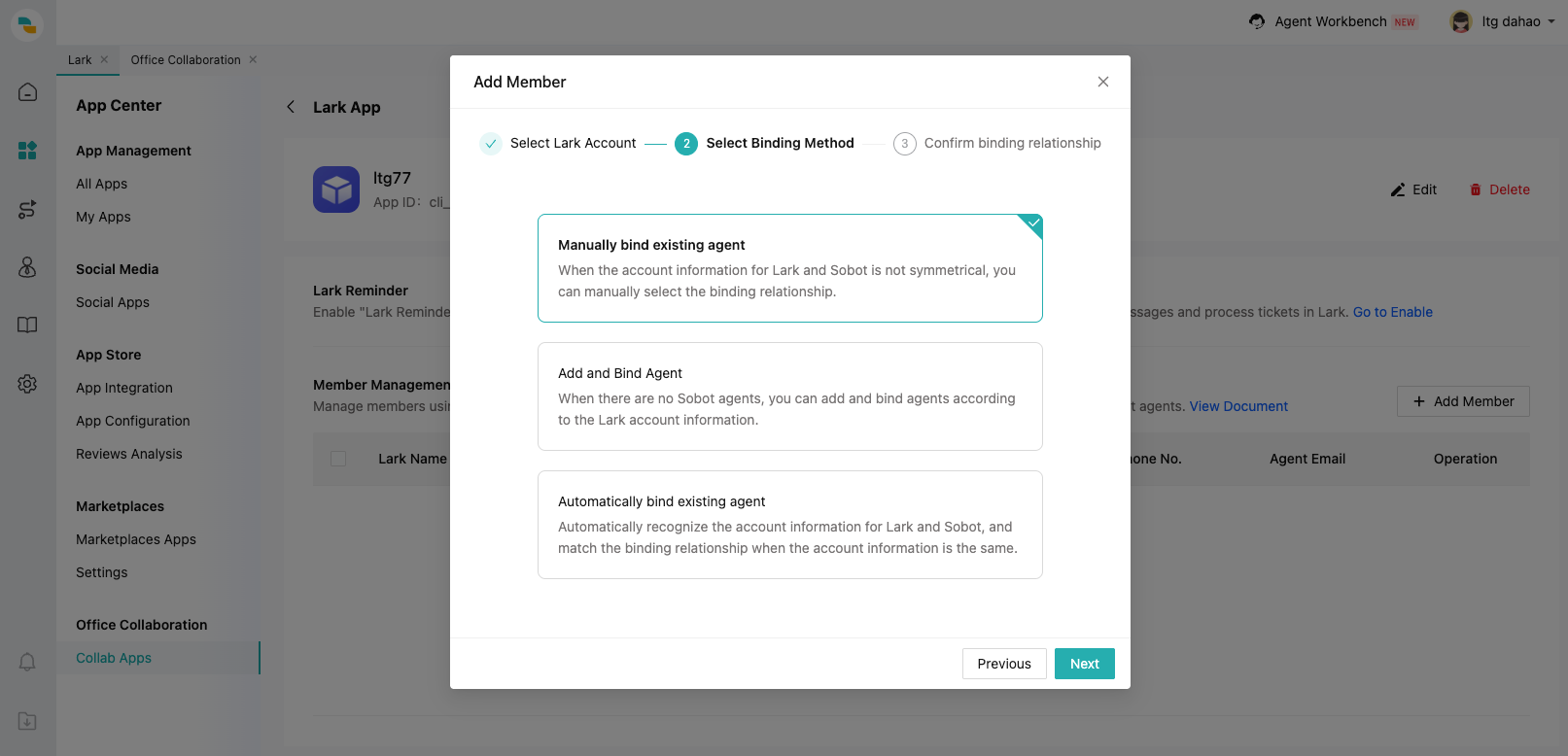
Select binding method
Manually bind existing agent: It is recommended to use this method for daily individual scenario account binding (such as employee onboarding);
Add agent and bind it: When Sobot has not created the agent for this Lark employee (such as the first time using Sobot system, and there is already relevant information of the employee on Lark), this method can be used;
Automatically bind existing agent: Automatically match Lark employee and Sobot agent by mobile no. or email (this method is suitable for scenarios where there are a large number of agents in the Sobot system that have not bound Lark);
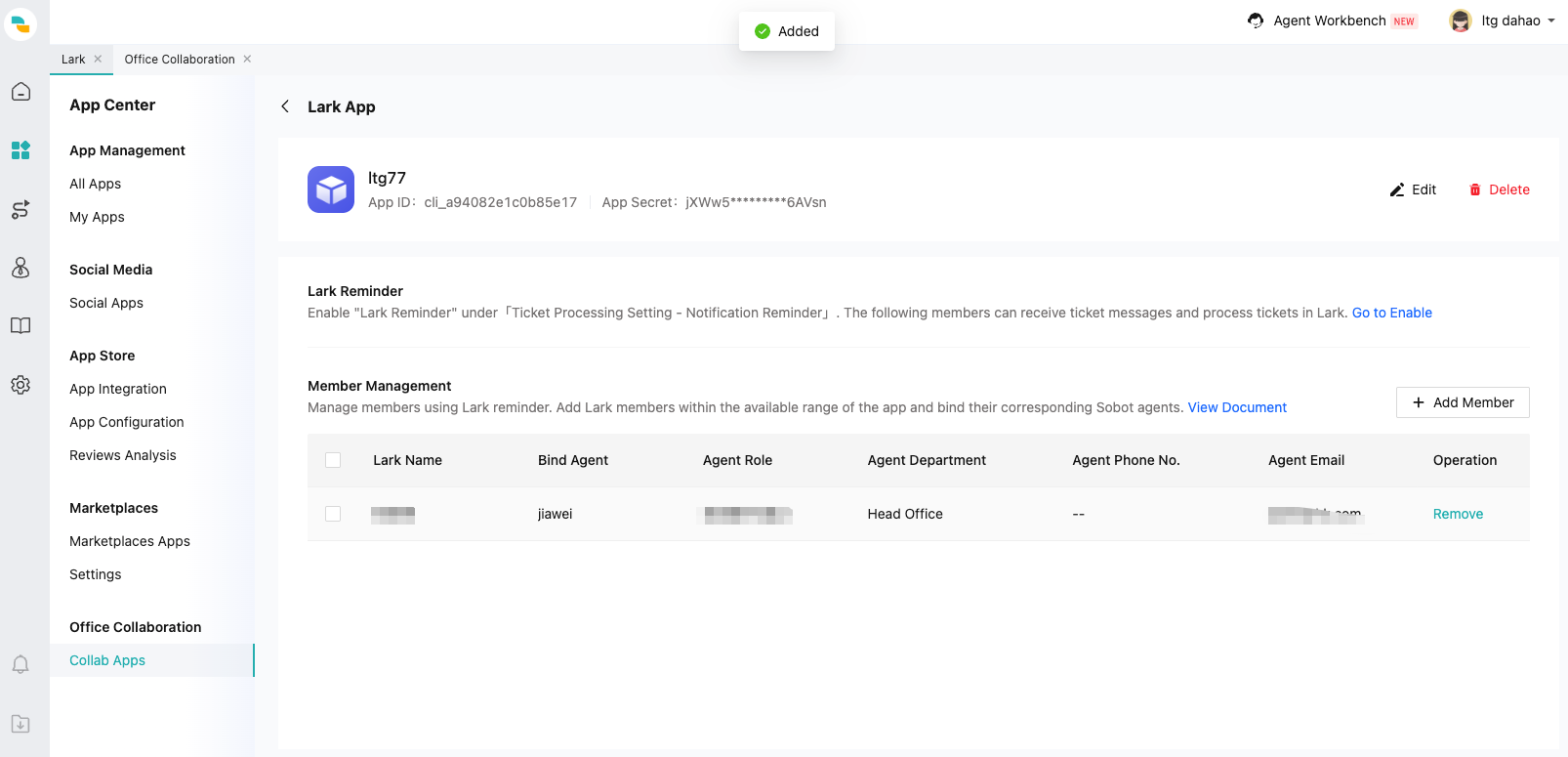
After successful binding, the agent already bound to Lark will be displayed here.
# ● Application of Lark in ticket
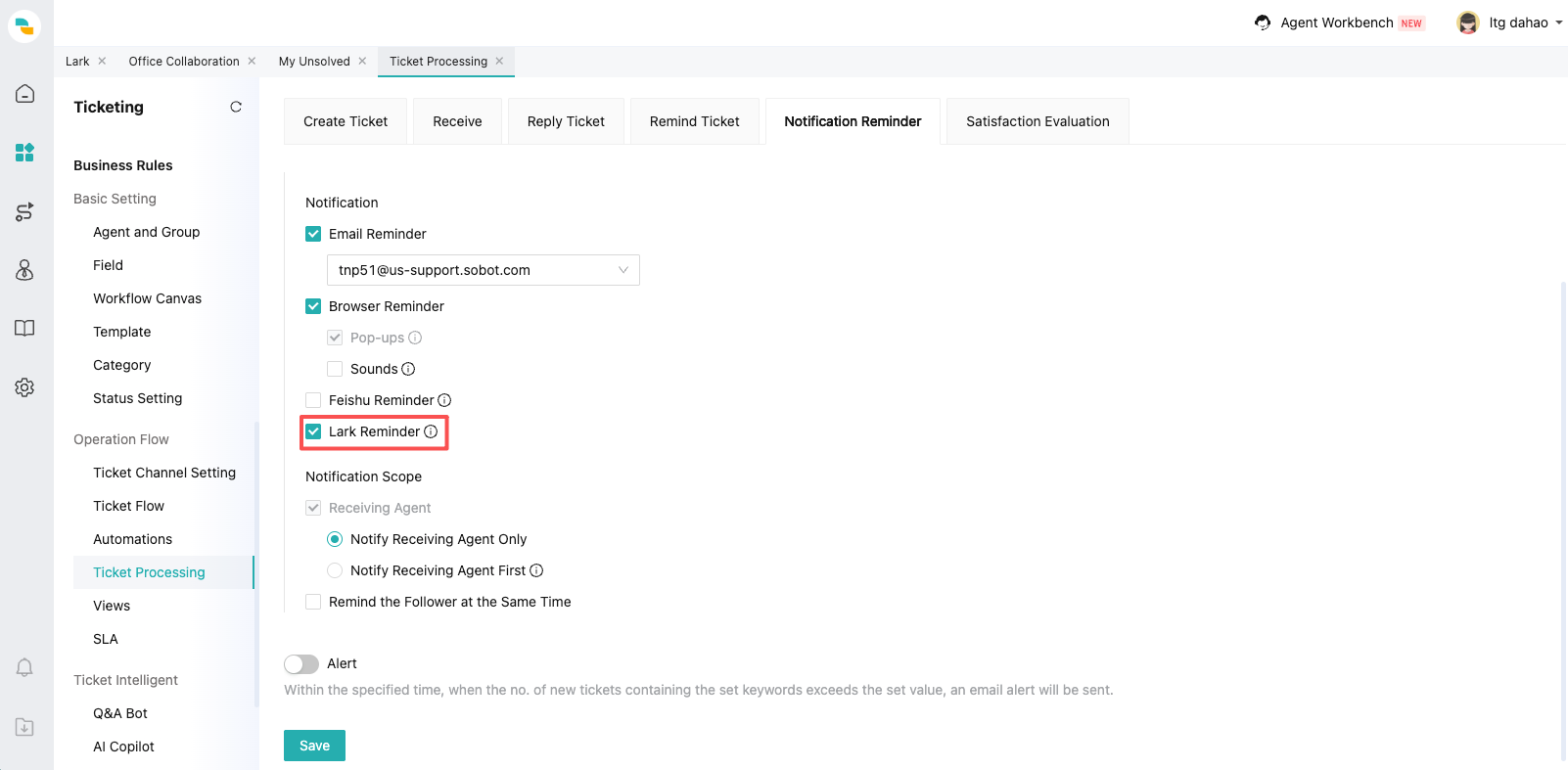
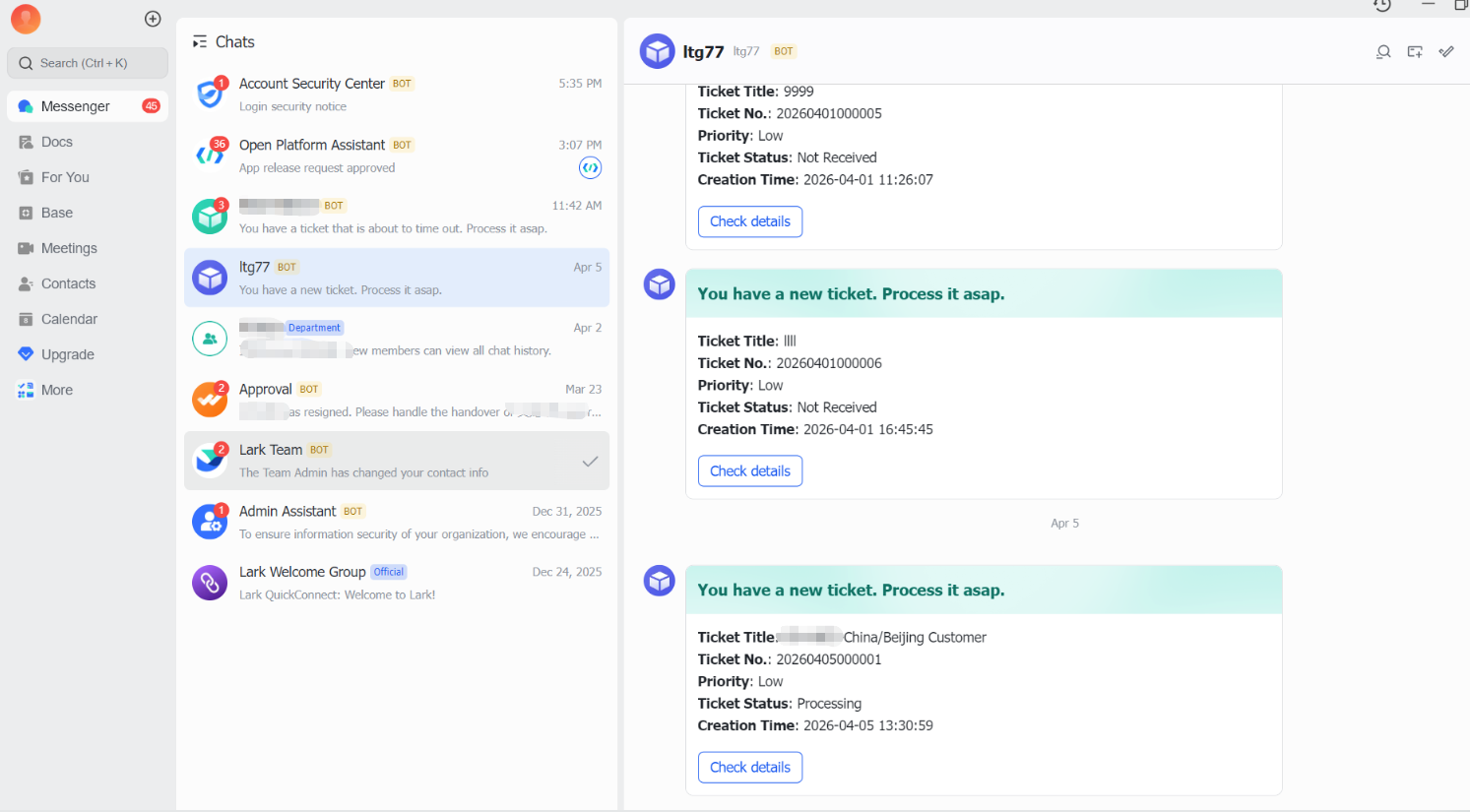
In the ticket center - setting - ticket processing setting - notification reminder, check Lark reminder. When the notification conditions are met, an app message will be sent to the corresponding Lark employee.