
Instagram Integration Guide
# Instagram Integration Guide
——Learn about the specific steps of Instagram channel integration through this article
To ensure a smooth integration process, please prepare your Meta Business Portfolio account (opens new window), Facebook page account, Instagram account, and Sobot system account in advance, and activate Live Chat or other related products.
# Create an Instagram professional account
- Register and log in to Instagram (opens new window) (Skip this step if you already have an Instagram Pro account)
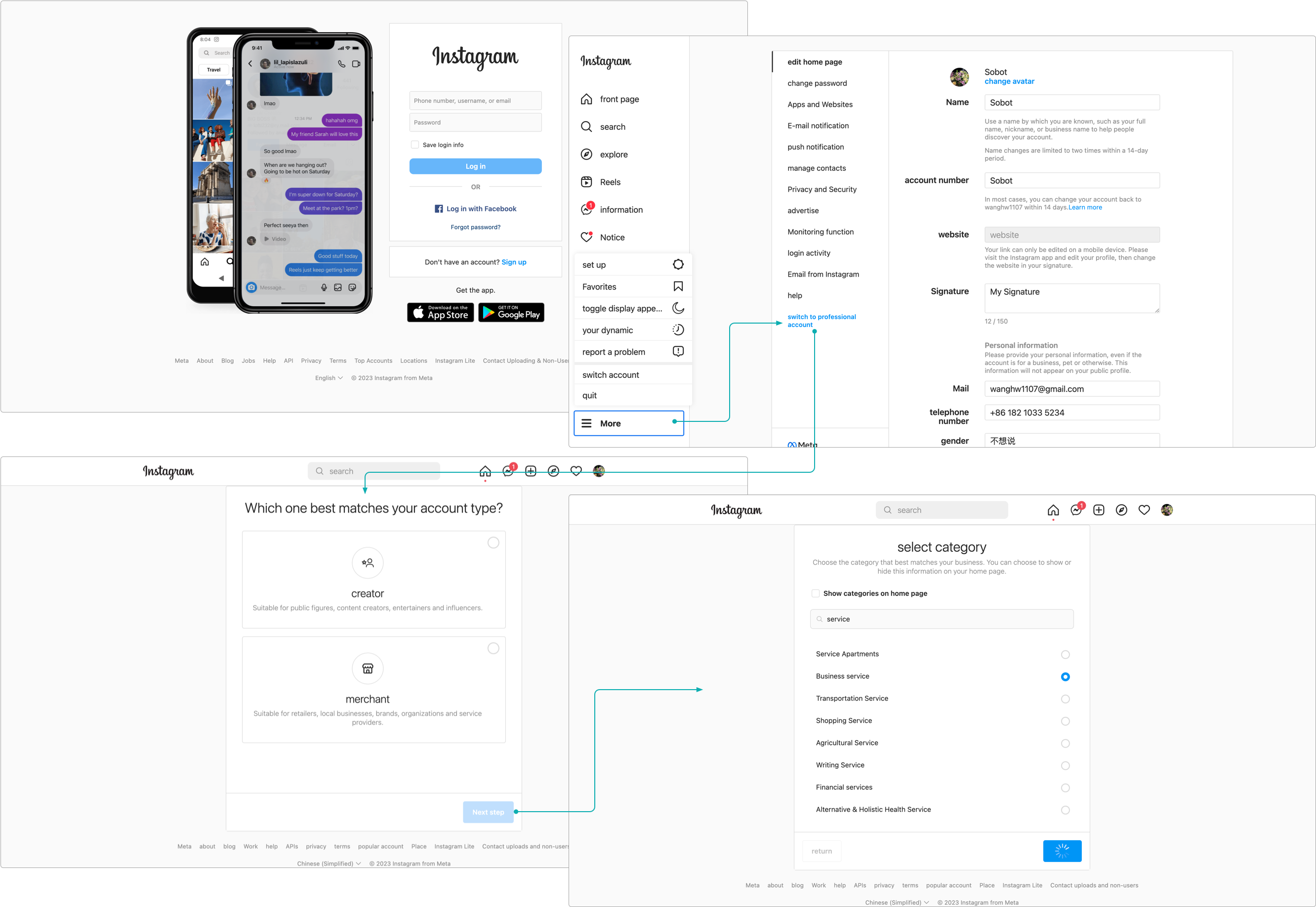
- Log in to your Instagram web account, click More - Settings - Account type and tools, switch your Instagram account to a professional account, and fill in the relevant information.
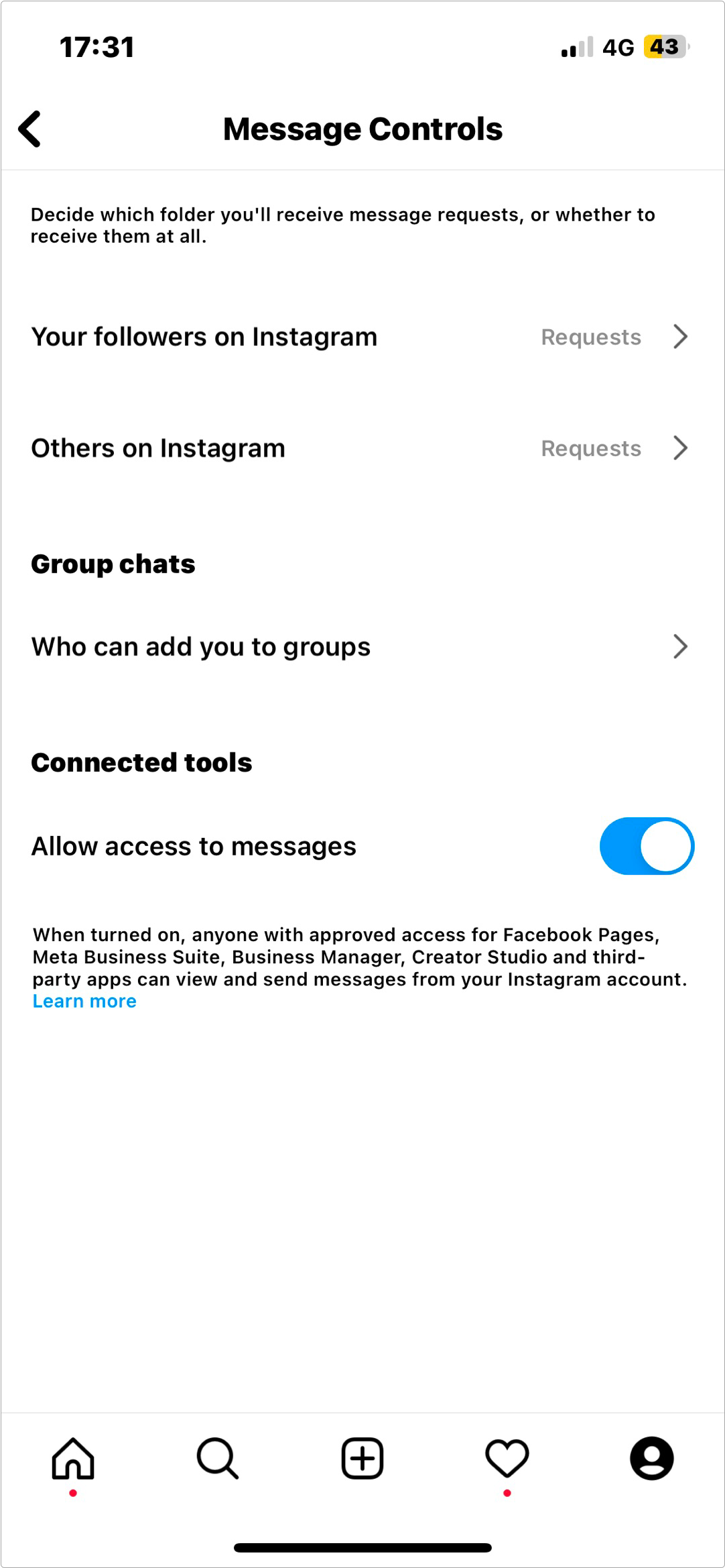
- Log in to the Instagram app, open Settings > Messages and story replies > Message requests, and in Connected tools, enable the "Allow access to messages" feature.
# Bind Facebook page
- Register and log in to Facebook (opens new window). (If you already have a Facebook account, you can skip the registration step.)
- On the webpage, log in to your Facebook account and create a Facebook Page. (If you already have a Facebook Page, you can skip the page creation step.)
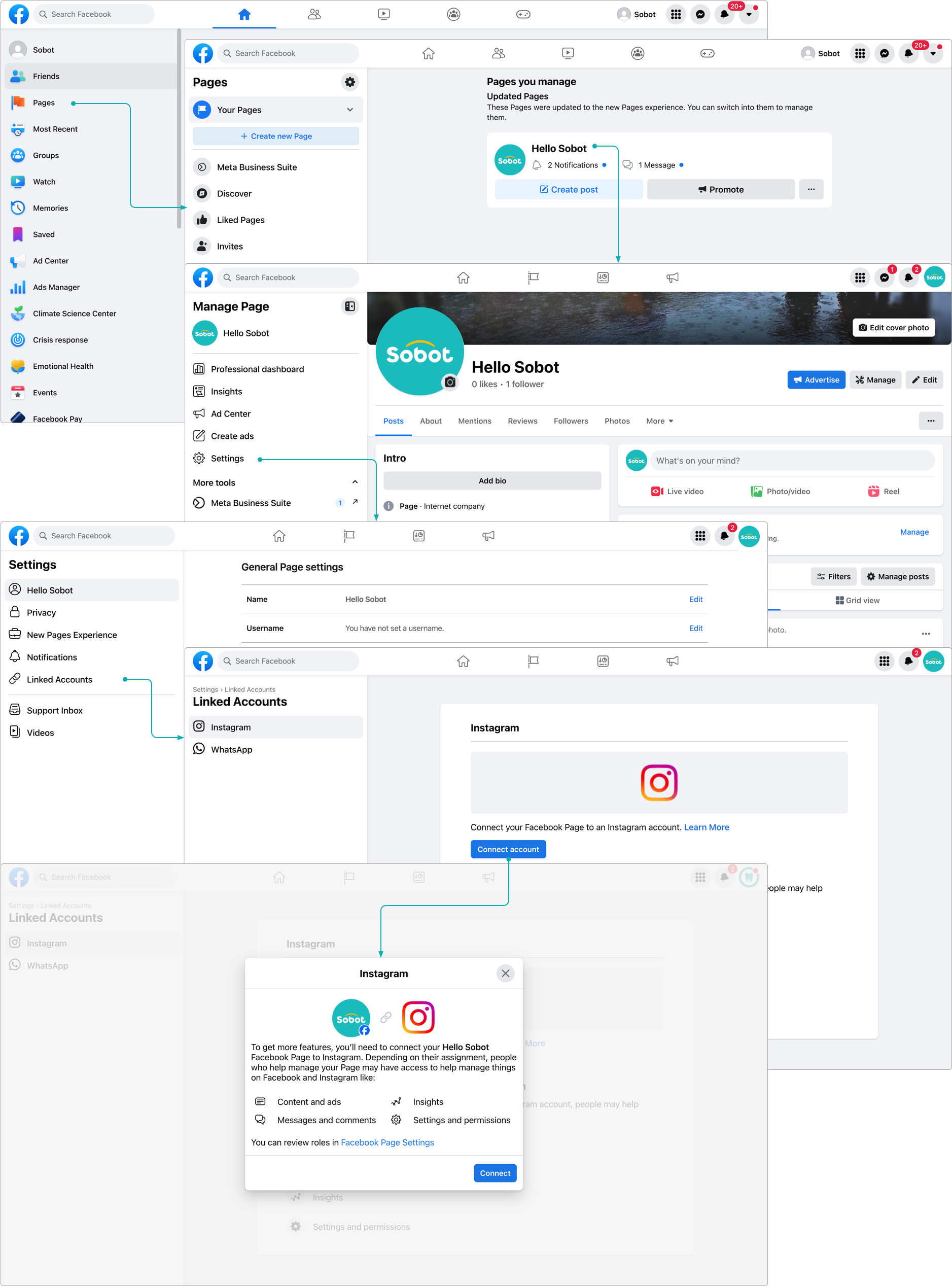
- Go to Settings & Privacy - Settings - Linked Accounts, link your Instagram account, and then turn on the "Allow access to Instagram messages in Inbox" feature.
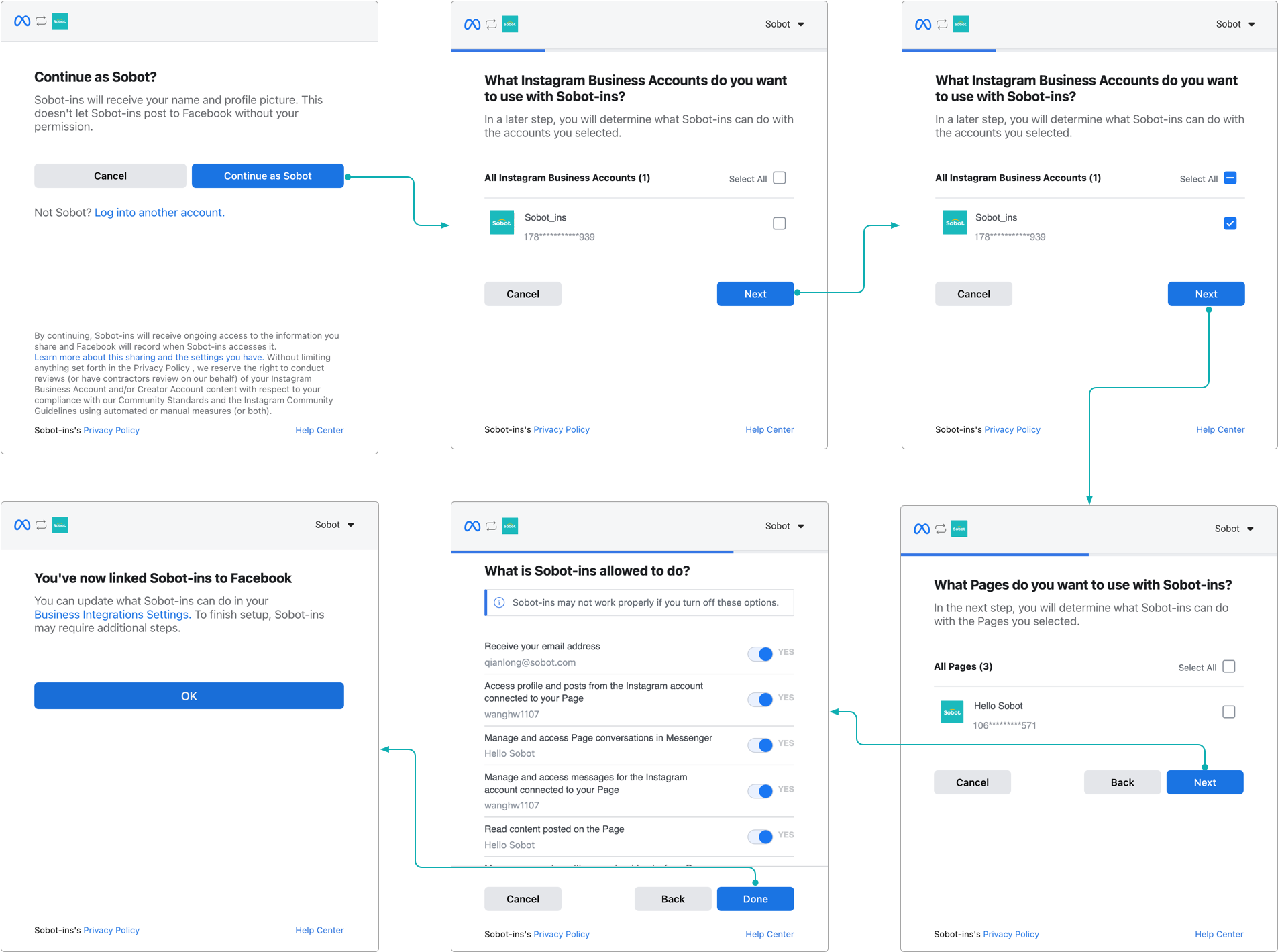
# Authorize to bind Sobot agent system
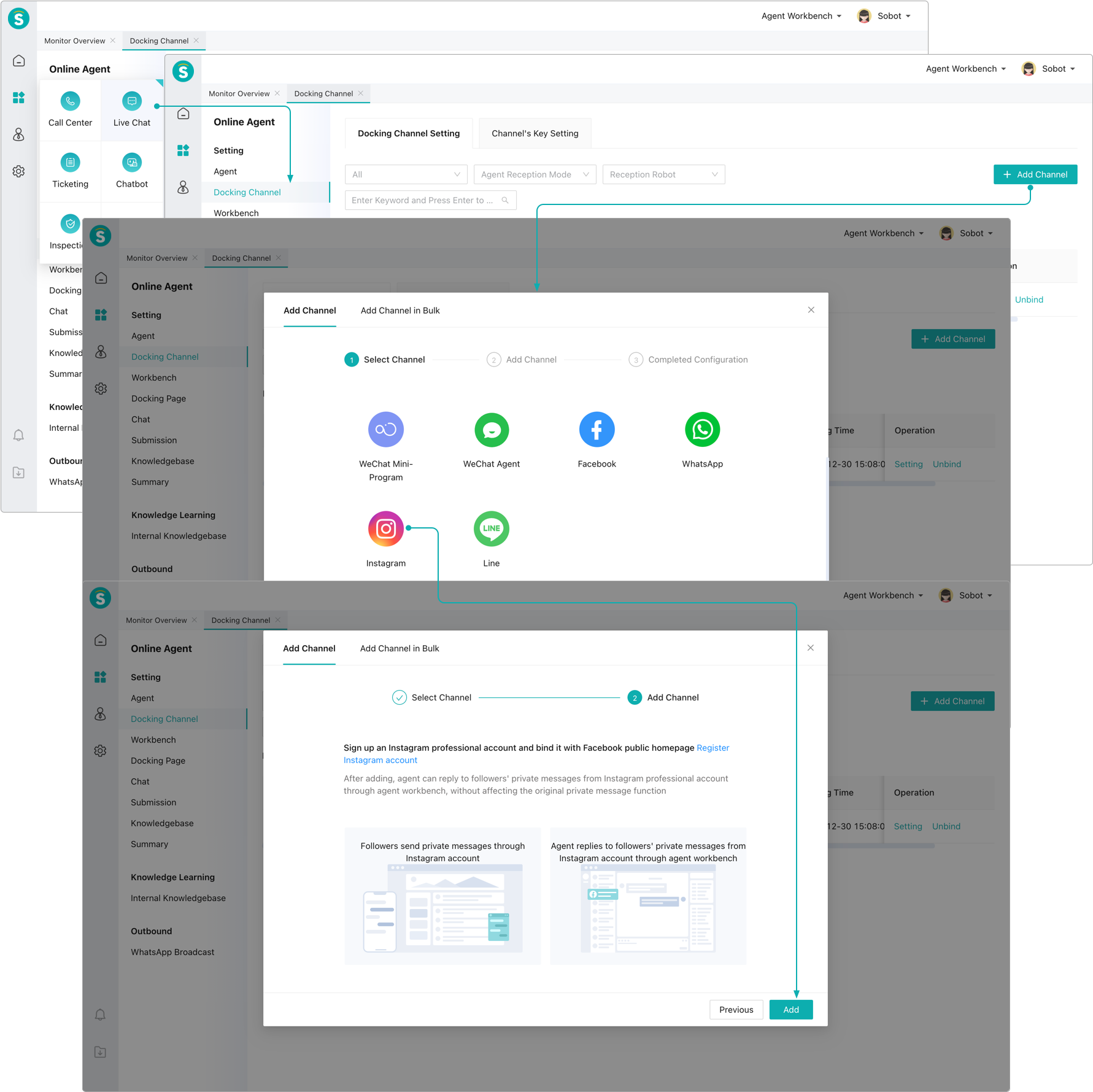
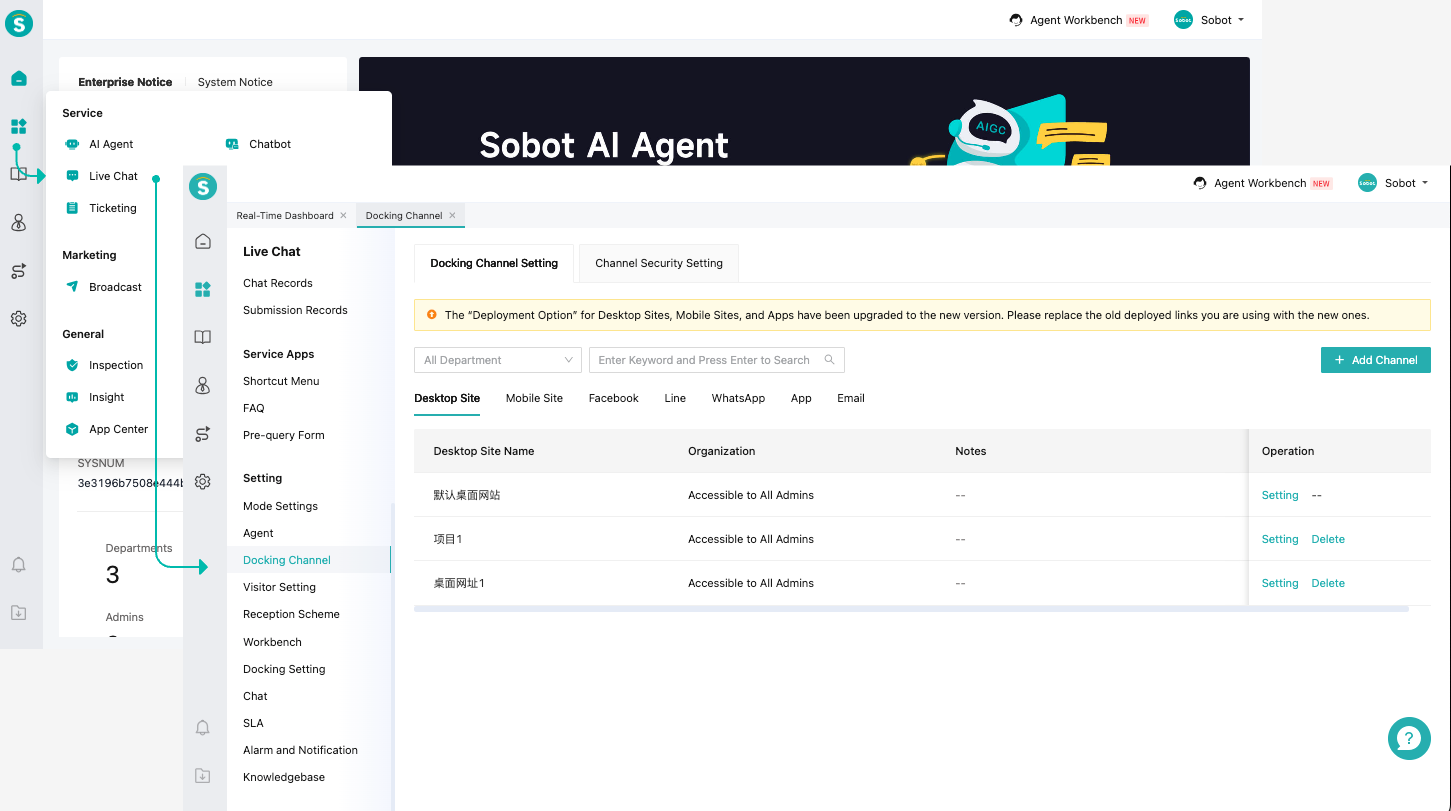
- Log in to the Sobot system, go to [Live Chat] - [Docking Channel] - [Add Channel]
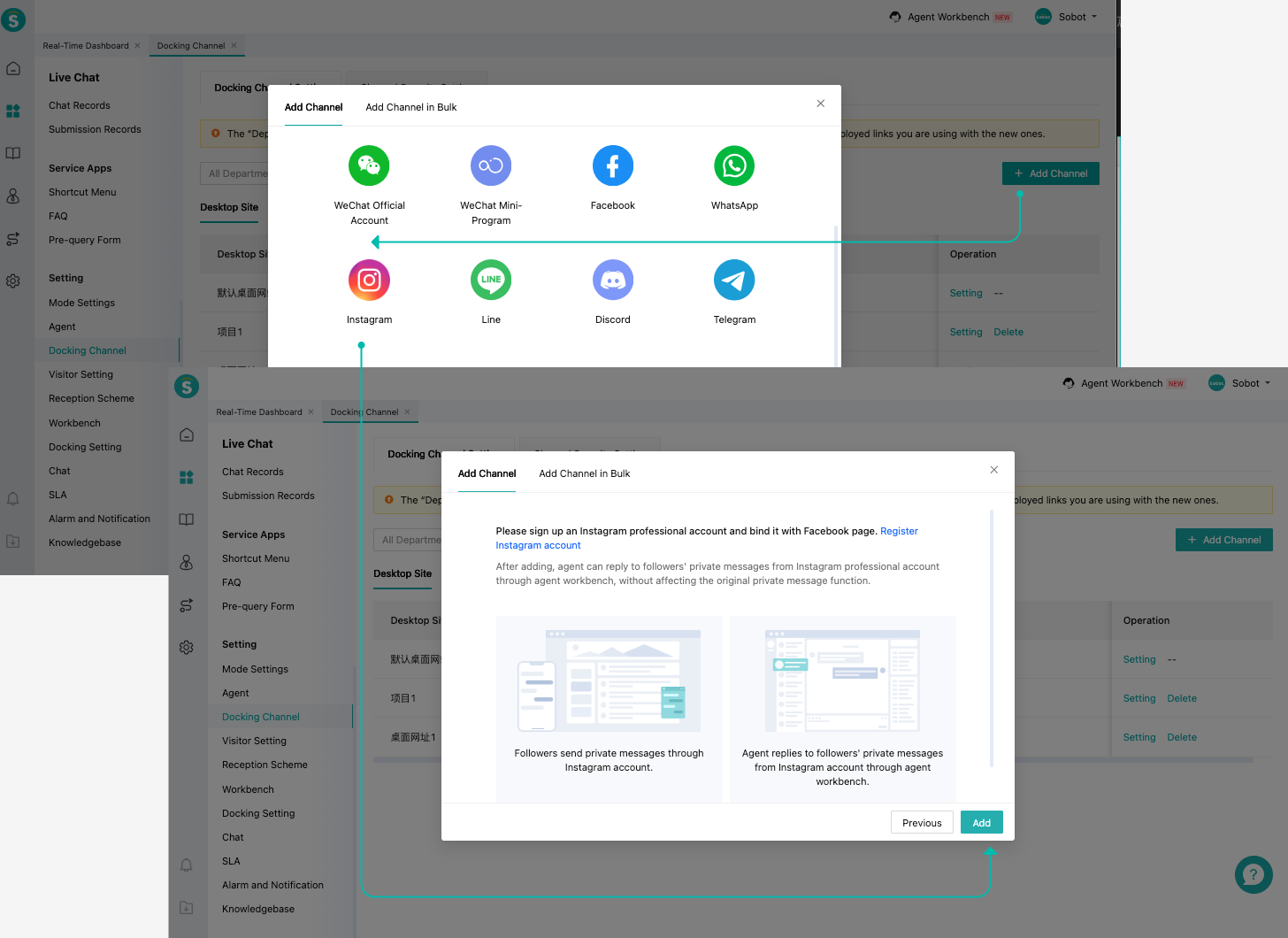
- Select Instagram and click Add.
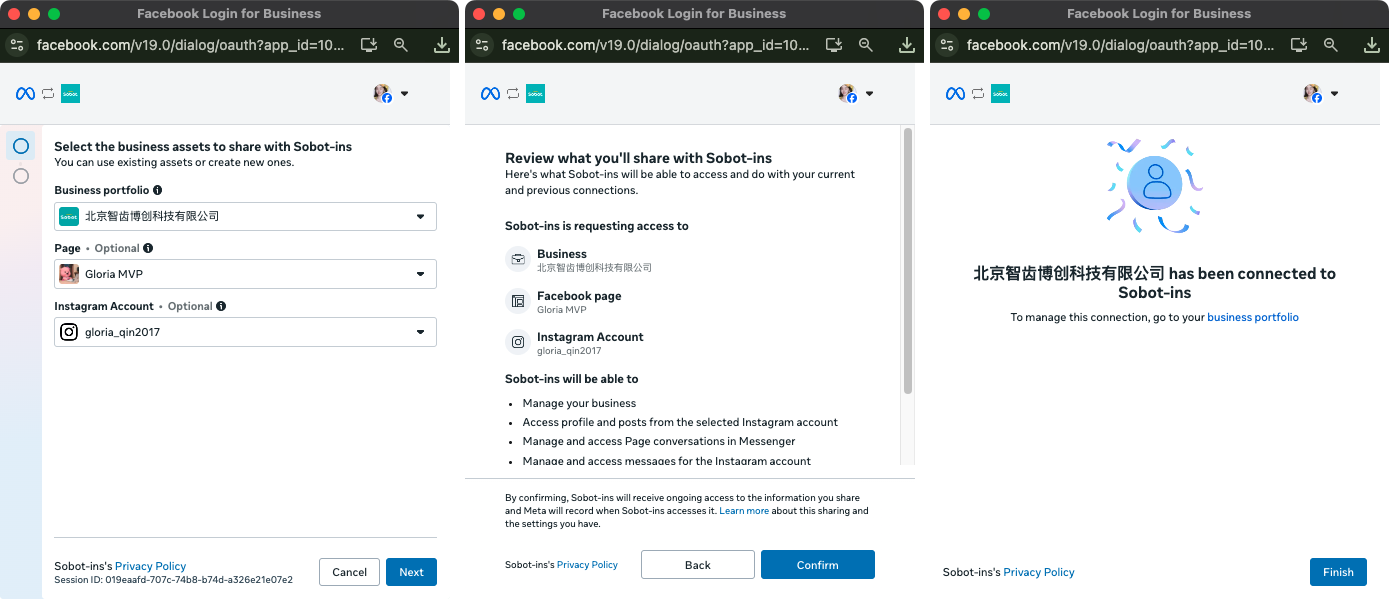
- Follow the on-screen instructions to select your Business portfolio, Facebook Page, and the Instagram Pro account you wish to link, and complete the account authorization process. (Note: The selected Instagram account must be linked to a Facebook Page beforehand; otherwise, the linking process will fail.)
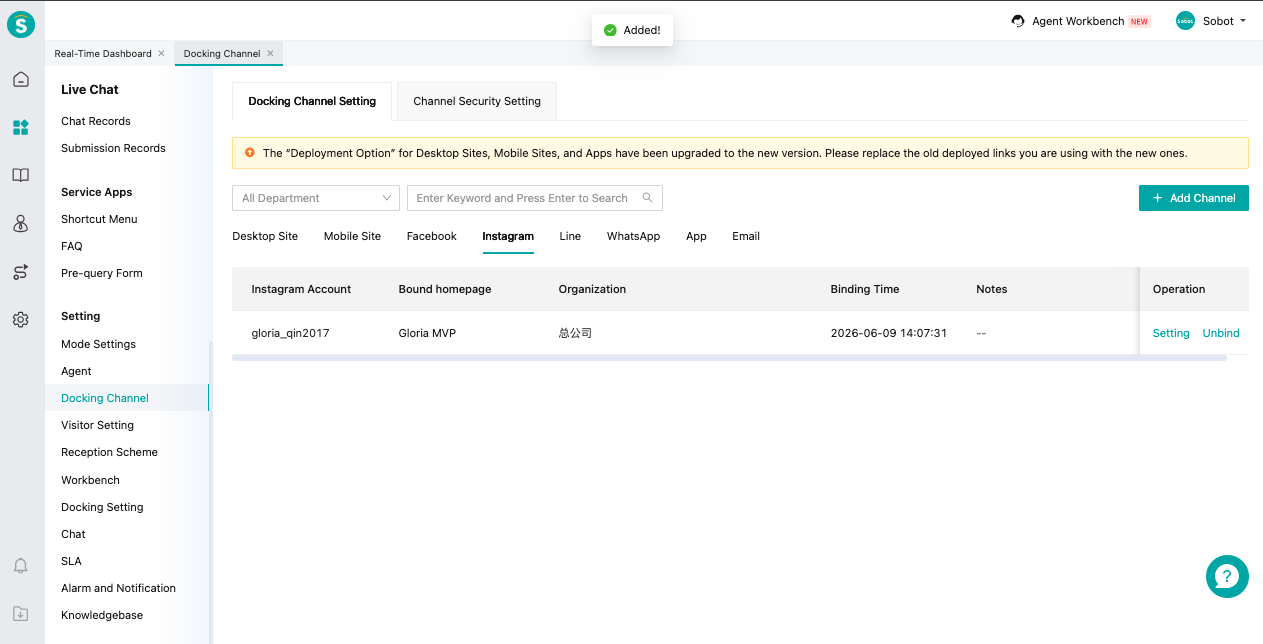
- After successful addition, your newly linked Instagram Pro account will appear in your Instagram list.
# Note
According to Meta, after 24 hours from the last message sent by a visitor, agent cannot reply or initiate a chat with the customer.
Last Updated: 6/12/2026, 11:17:34 AM