Overall Introduction to Agent Workbench Inbox
# Overall Introduction to Agent Workbench Inbox
——Provide personalized customer support and enable team collaboration through agent workbench.
# Function of Agent Workbench
Agent workbench is the main tool for frontline agents to communicate with visitors. We hope agent workbench can provide you with these capabilities:
● Efficiently respond to customer requests through the agent workbench and provide personalized services to customers;
● Use agent workbench to carry out team collaboration, in order to better support customers;
● Provide chat assistance information based on customer data display to help agents deliver high-quality customer service.
# Overall Structure Introduction
# Main Features of Agent Workbench
| Module | Function Description |
|---|---|
| ①Chat Grouping Area | Set grouping conditions based on customer attributes (customer level, customer language, customer tags, etc.) and chat attributes (channel source, starred status, alarm status, etc.) |
| ②Chat List Area | Show chats/queues/visitors that meet the selected group criteria. The chat list displays basic chat information, alarm status, marking status, etc. |
| ③Chat Function Area | Display chat operation functions such as blocking, starring, transferring, category locking, etc. |
| ④Chat Message Area | Show chat records between the agent and the customer |
| ⑤Chat Input Box | Agent edits and sends messages |
| ⑥Right Sidebar | Chat plugin area to assist agents in serving customers, displaying customer information, contact records, create ticket, quick replies, knowledge center, service summary, and other plugins |
# Agent Workbench Other Features
Agent workbench, in addition to the conversation module, allows function switching through the left sidebar. It provides internal chat, submission records, historical chat, statistics, and settings functions.
● Internal Chat: Internal chat can help agents conduct internal communication and ask questions;
● Records: Include historical chat records and submission records. You can view and filter historical chat information and customer information for service summary. Agents can also handle assigned submission tickets through the message records.
● Statistics:Through the statistics feature, agents can view key performance indicators and clearly understand their reception status;
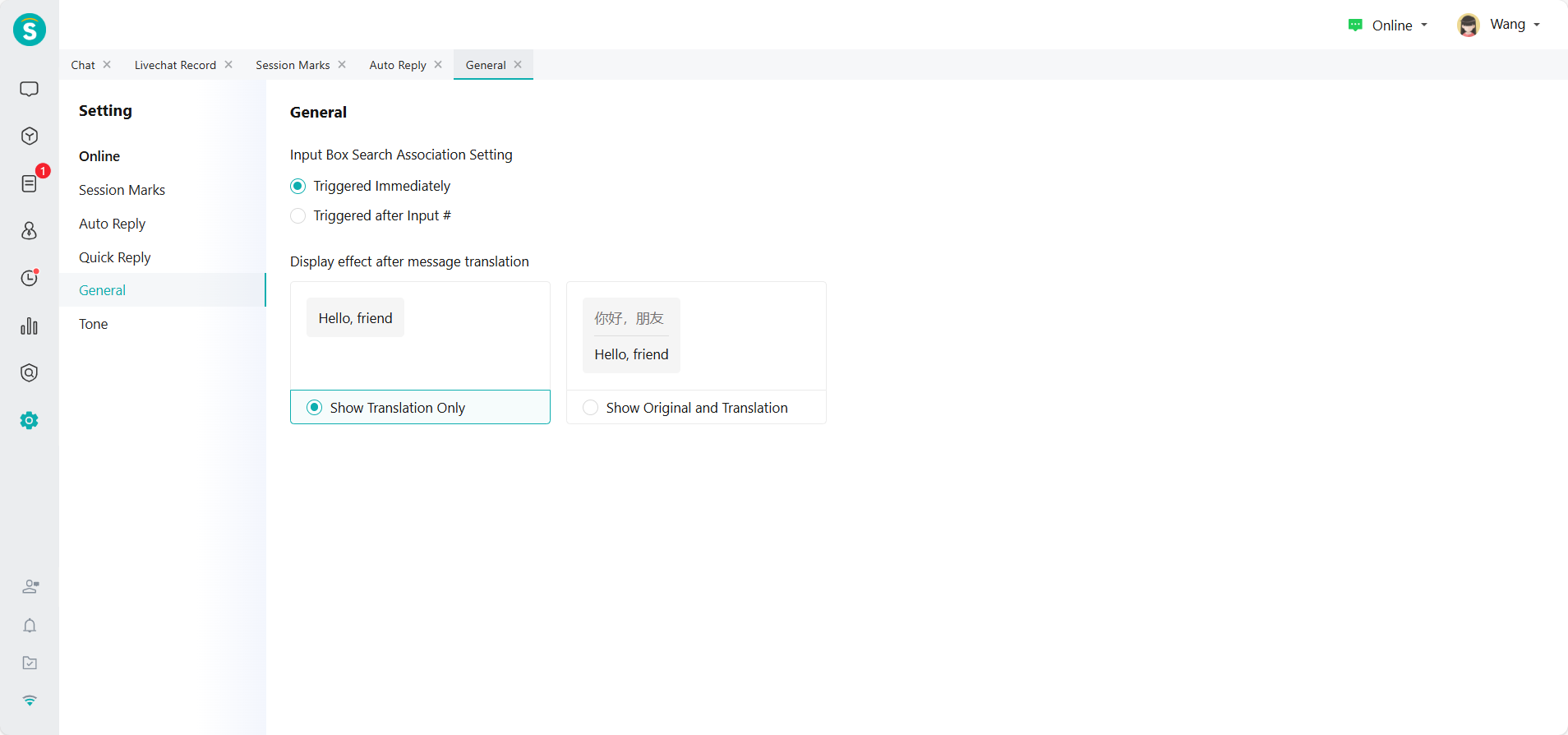
● Settings: Settings are mainly used to control the chat badge, auto-reply, quick reply, and prompt tone of the agent workbench.
# How to Use Agent Workbench
# Scene 1: Chat Grouping
Through the "chat" grouping, you can intuitively see the information of visitors waiting in line or customers currently chatting.
● Use "Reception" to view ongoing chats. It also supports sorting by time order, customer messages, and the newest messages.
● Through the "Passively Ended Chats" grouping, you can view chats that were automatically ended due to response timeout or actively ended by customers within 24 hours, and then complete functions such as service summary. This grouping is only effective in real-time reception mode.
● Use "Snoozed" to view snoozed chats . When the snoozed time expires or the customer replies, the system will automatically remind the agent to follow up, avoiding omissions. This grouping only effective in always on mode.
● Use "Unassigned" to view chats in the unassigned pool. When no agent is available to receive the chat, it will automatically enter the unassigned state. The system supports both automatic assignment and manual assignment by administrators. This grouping is only effective in always on mode.
● Use "Visitors" to view basic information of visitors who have not entered the line.
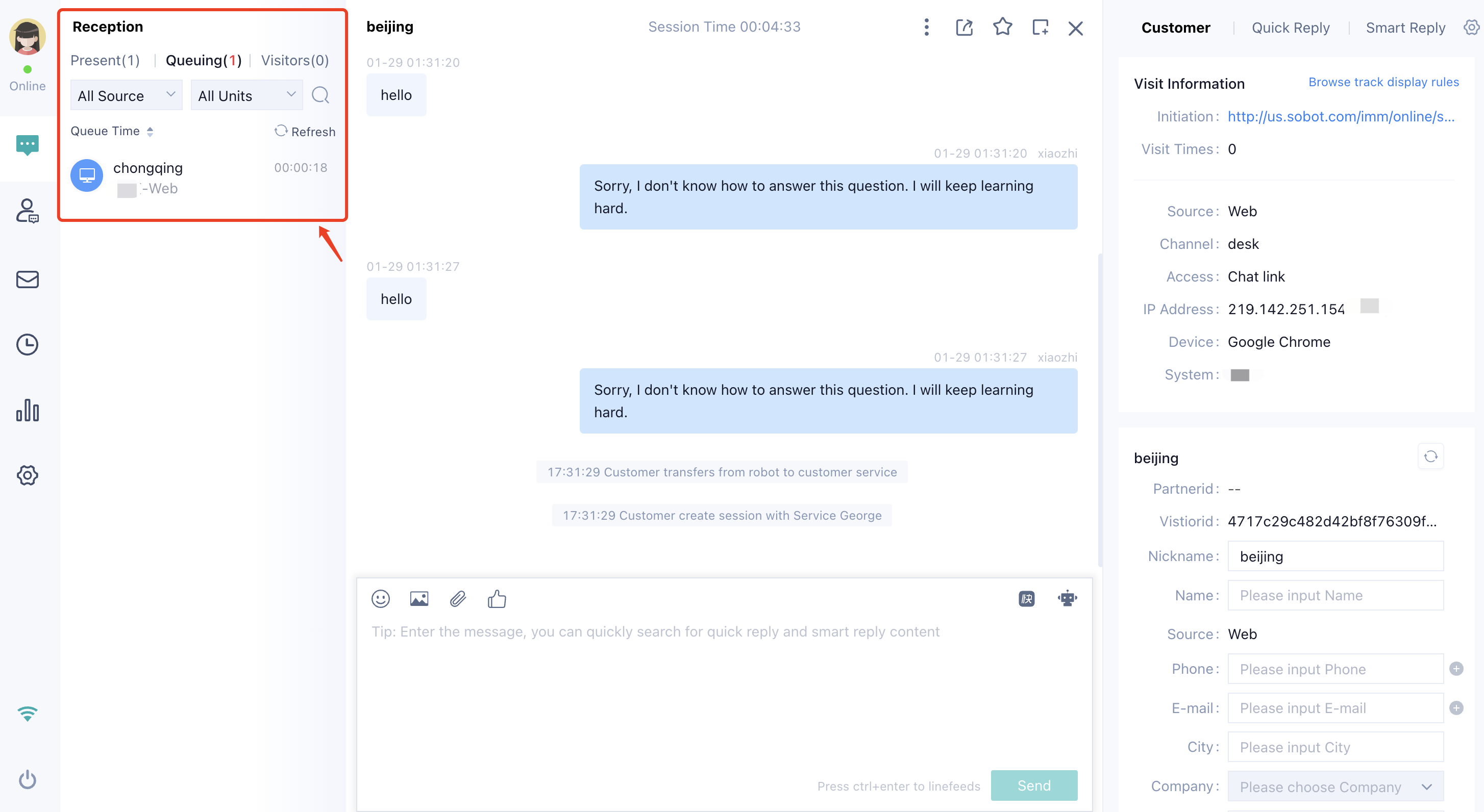
● Use the "Queuing" grouping to view customers currently in the queue. At the same time, use the filters [All Sources] and [All Skill Groups] to check the specific status of related queued visitors.
● Use "Mention" to view the chat of the @currently logged-in agent, and complete internal collaboration.
● Through "Manage Groups", define filtering conditions based on your actual business scenario to filter chats, such as filtering VIP customers.
# Scene 2: Conduct Customer Communication
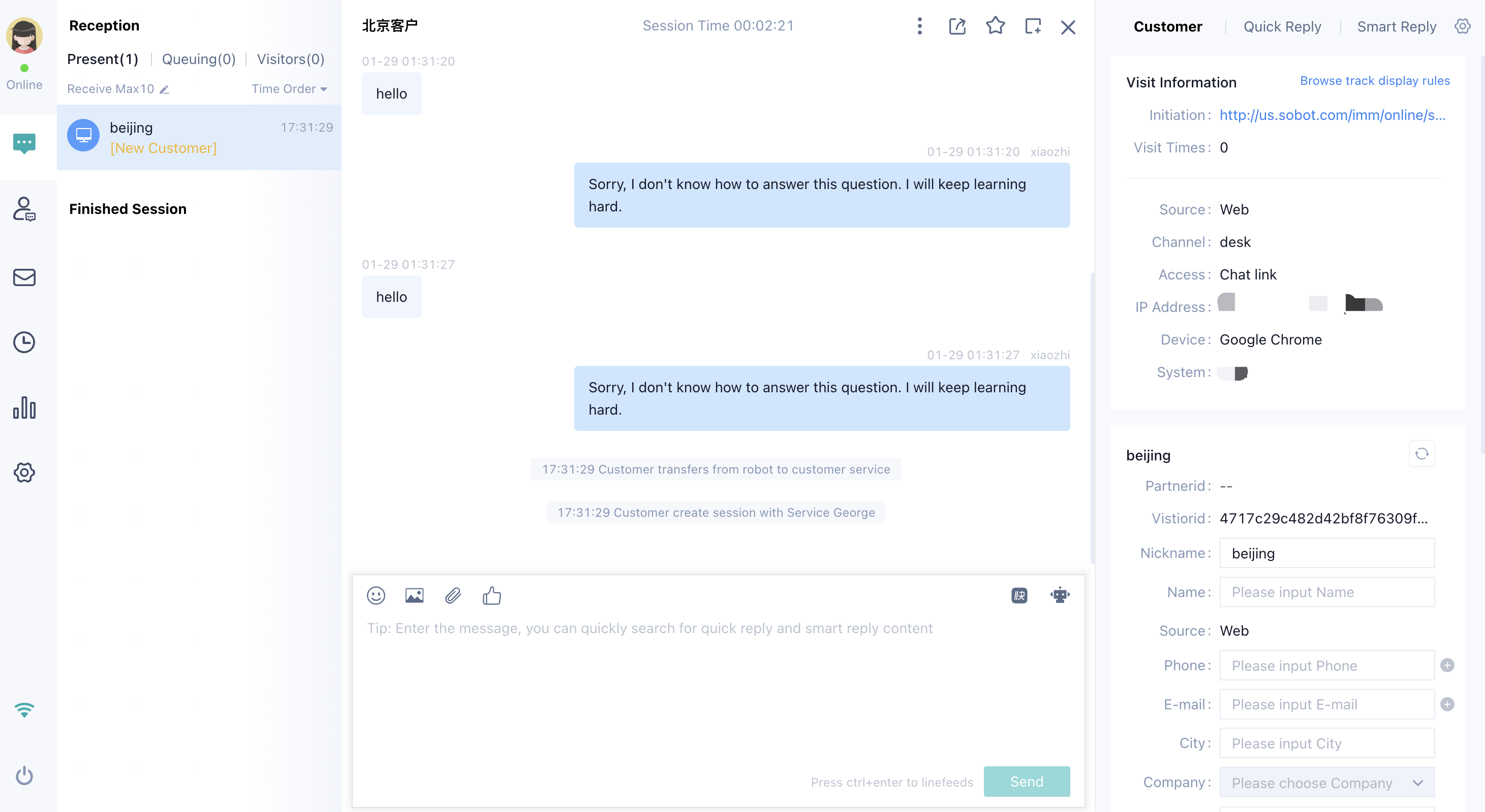
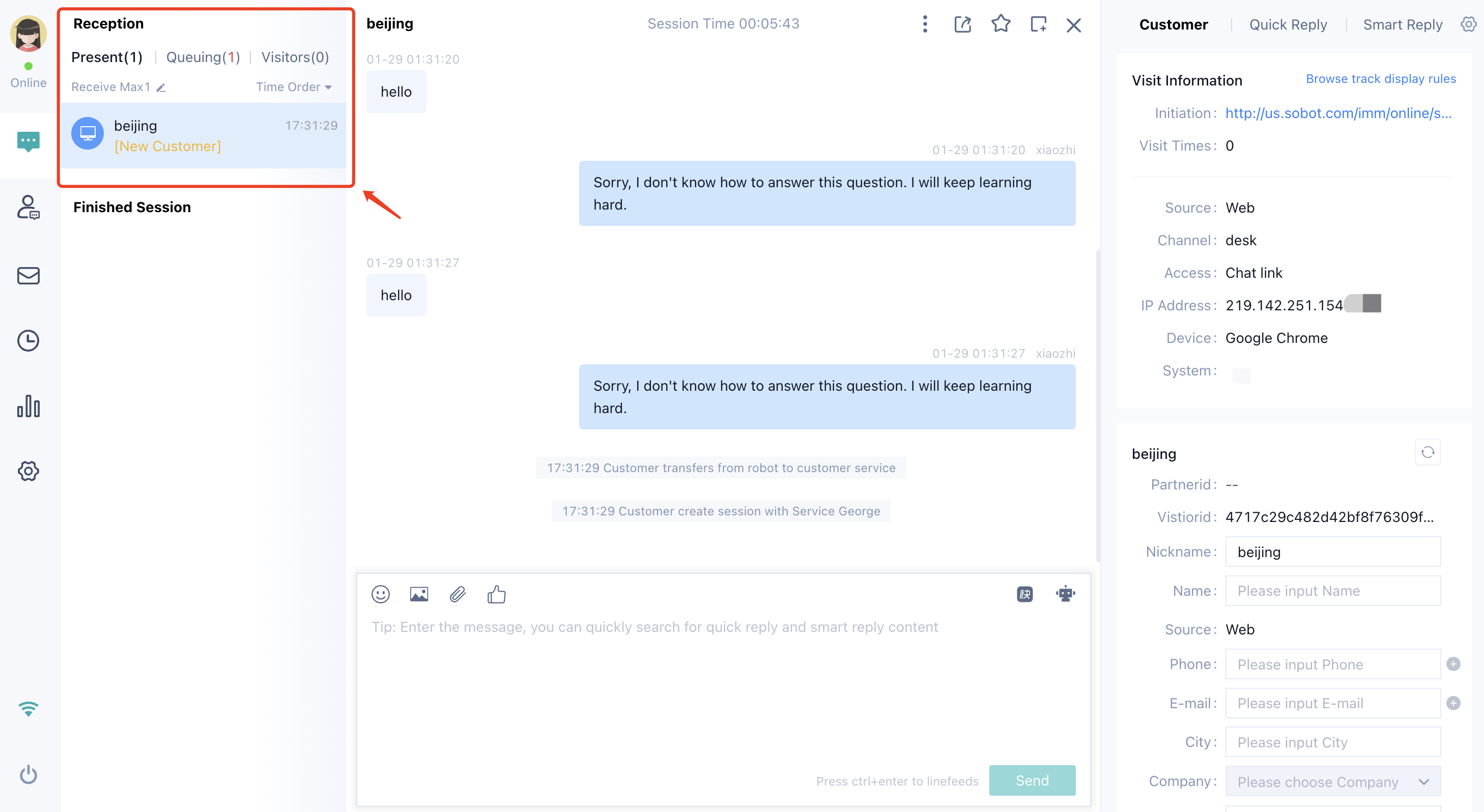
The agent communicates with customers through the "chat area".
● Agent supports sending emojis, images, and file messages during conversations with customers. It also supports message recall.
● During the chat process, agents can block users and mark users with a star.
# Scene 3: Auxiliary Information Viewing
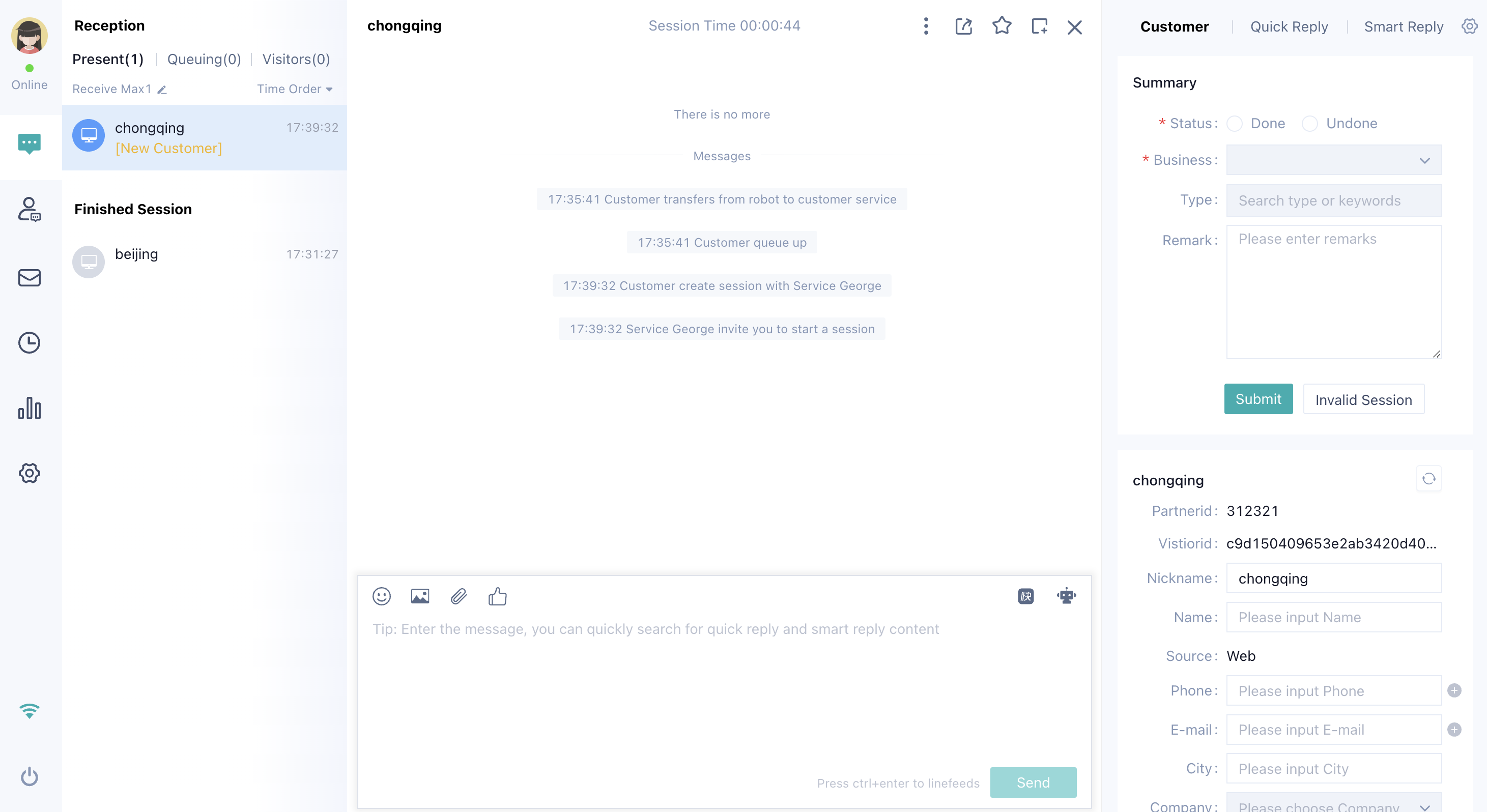
Agent workbench supports customer service by integrating with pages, quick replies, smart replies, and customer information to assist agents.
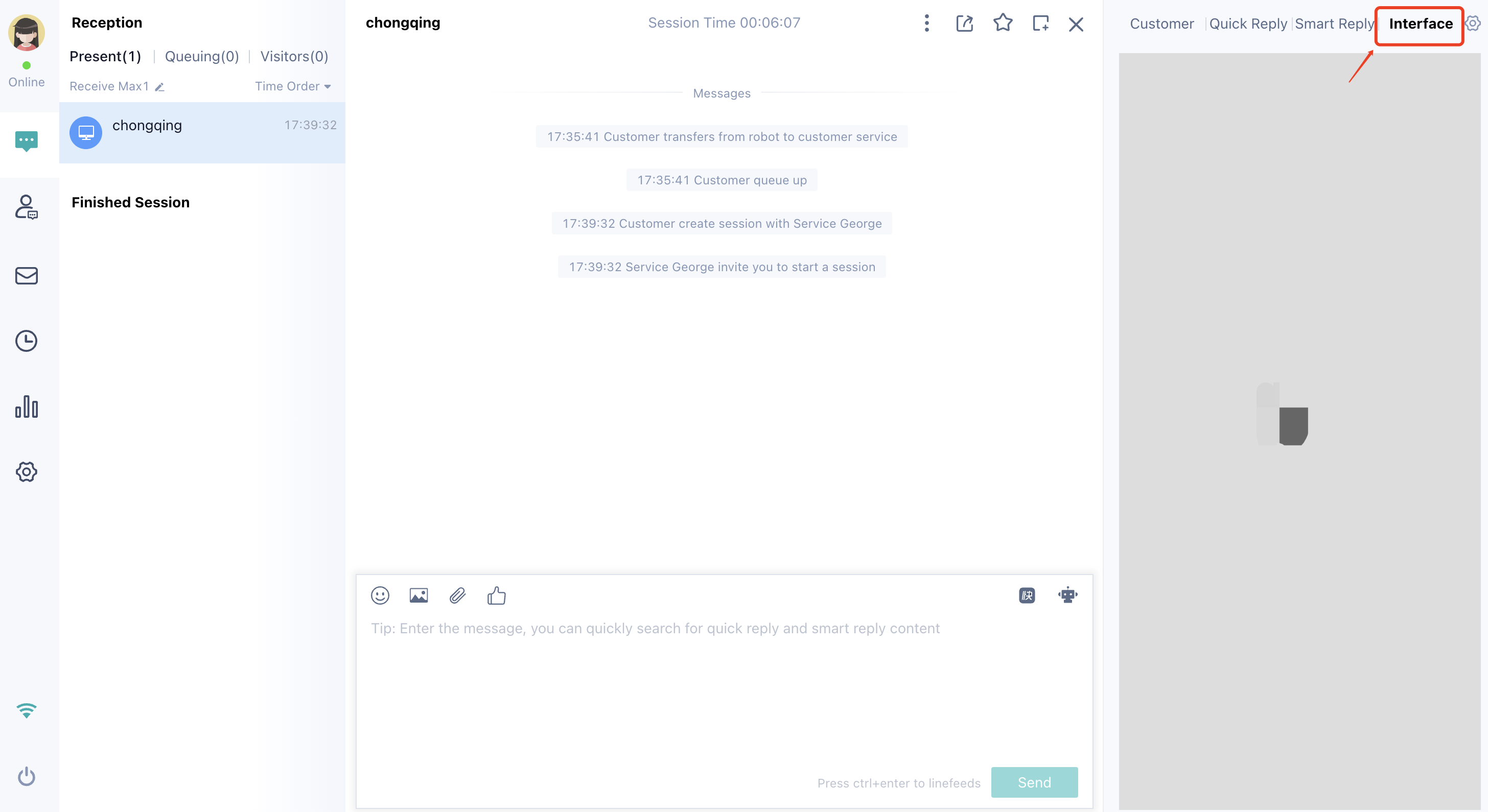
● Your enterprise can embed independently developed business operation pages into the right side of Sobot agent workbench using iframe, to help agents communicate with customers more effectively.
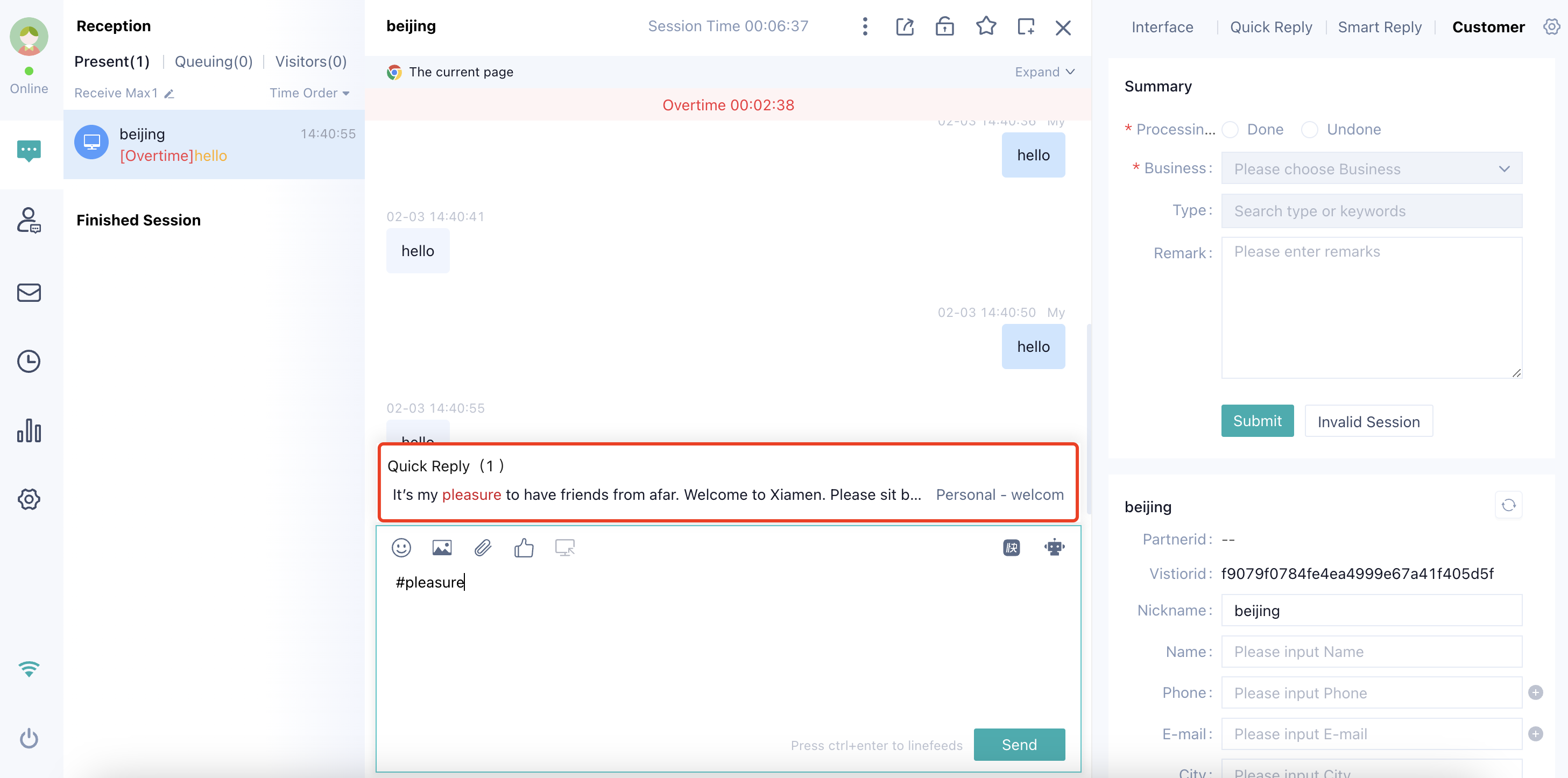
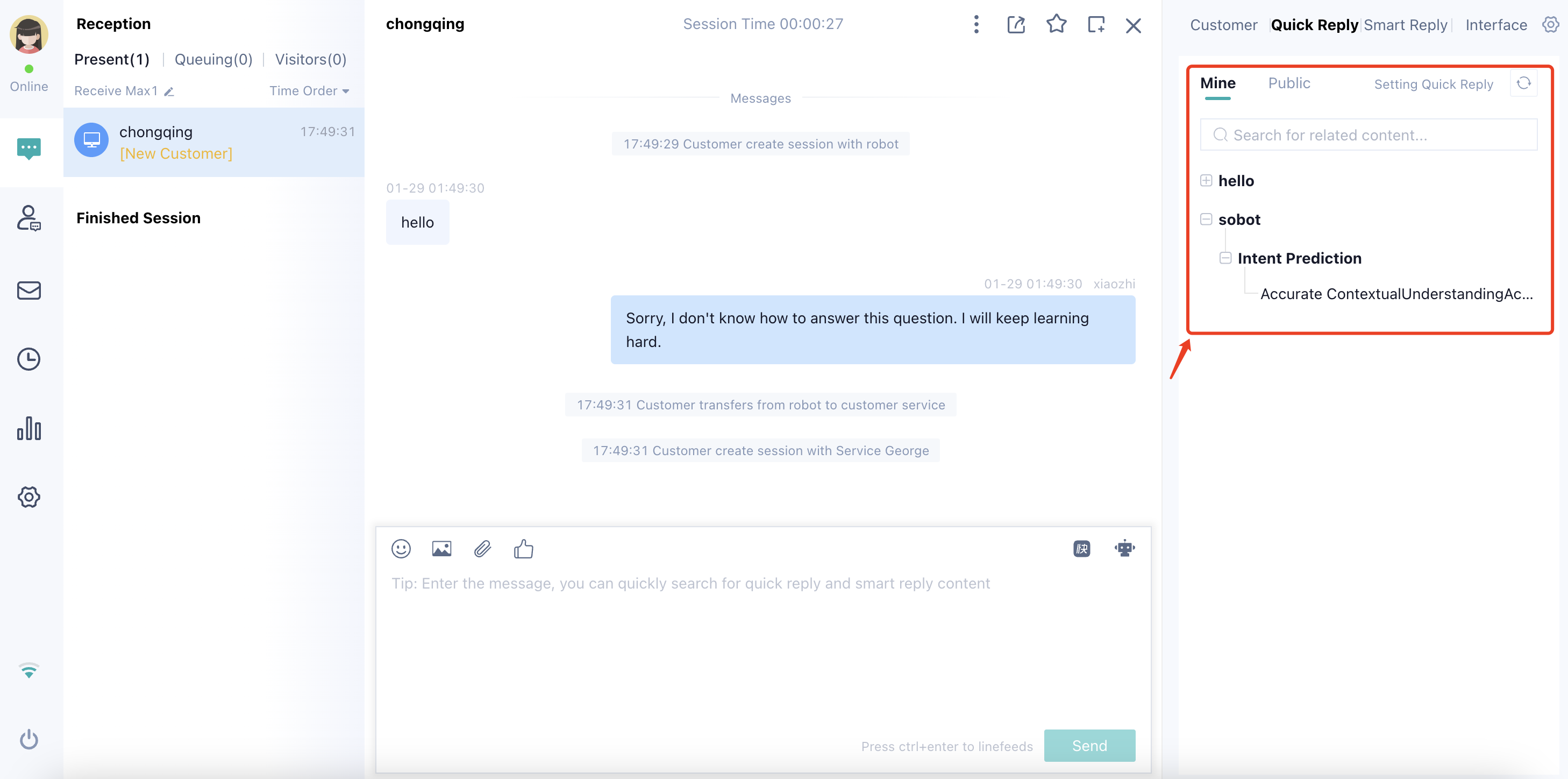
● Agents can reply to customer questions quickly by customizing FAQ phrases and using the "Quick Reply" function. At the same time, enterprises can build a unified quick reply knowledge base for all employees to use.
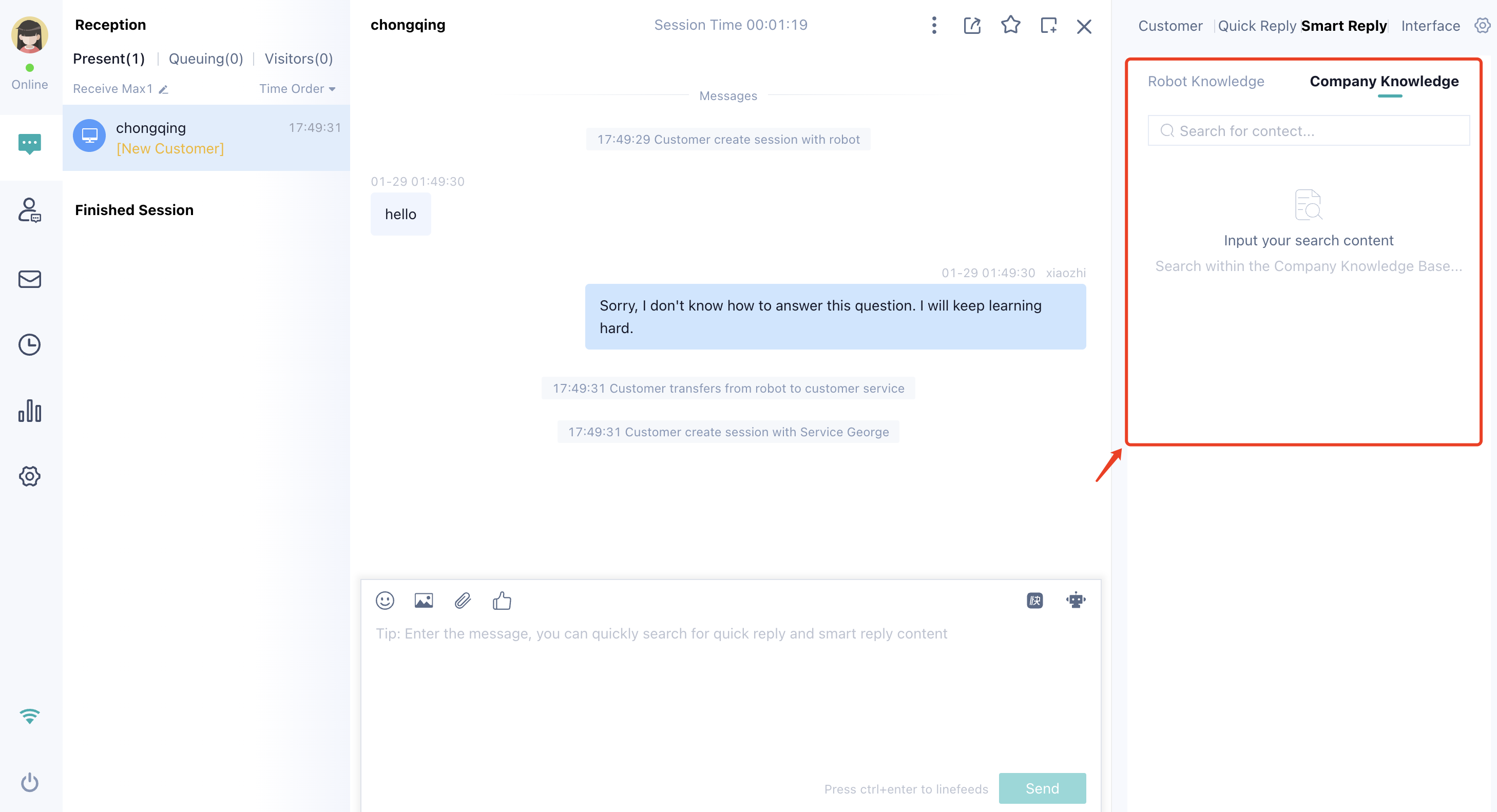
● The "Smart Reply" function can retrieve knowledge from both the bot knowledge base and the internal knowledge base to provide quick responses.
● In the input box, press the # key or enable [Input Triggers Immediate Suggestions] to quickly search content from "Quick Replies" and "Smart Replies," improving knowledge retrieval efficiency.
# Scene 4: Service Summary
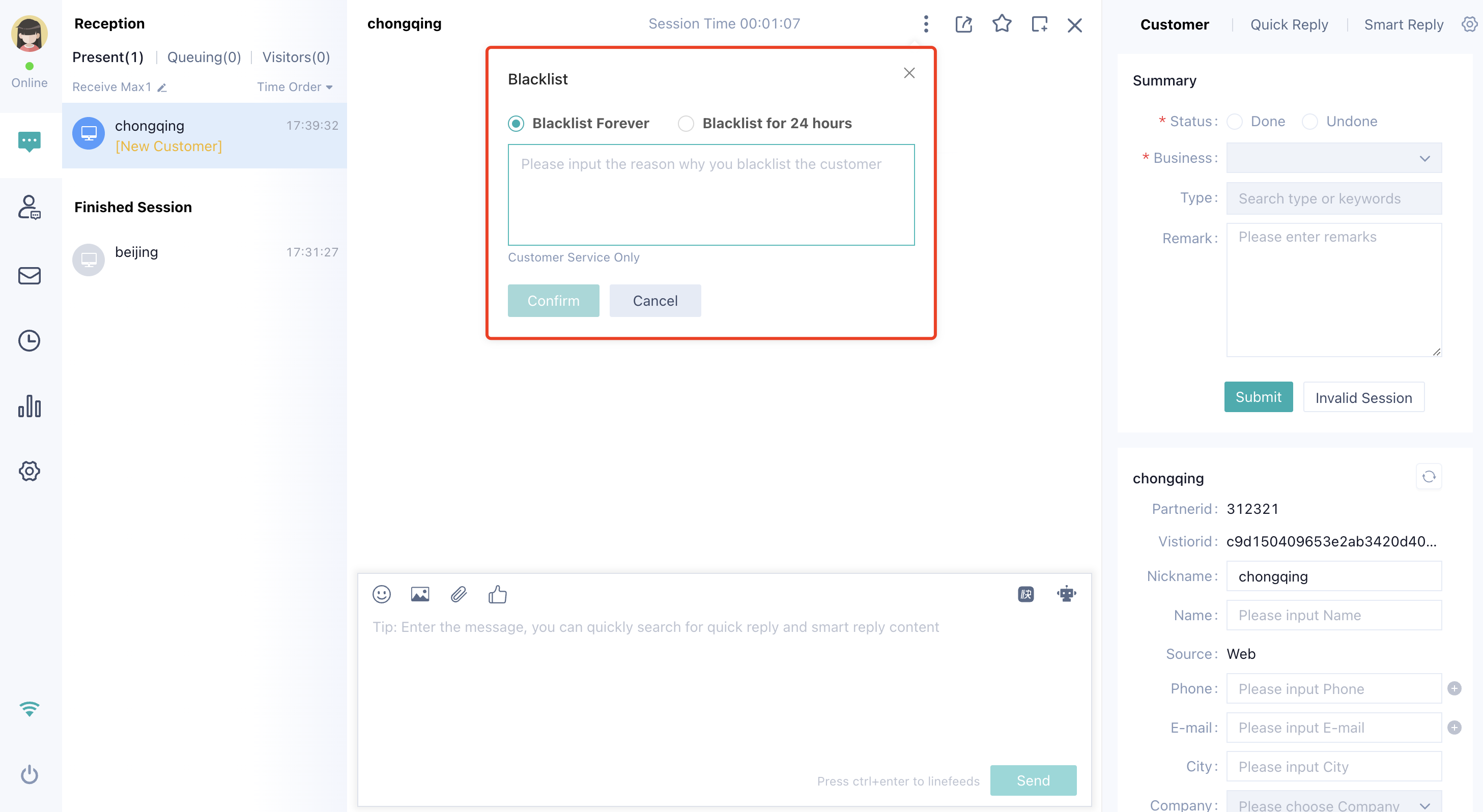
Complete the service summary in the right sidebar during the agent communication process.
● Use the service summary page to summarize this chat and record the resolution status and business details of this chat.
# Scene 5: Daily Work Organization and Review
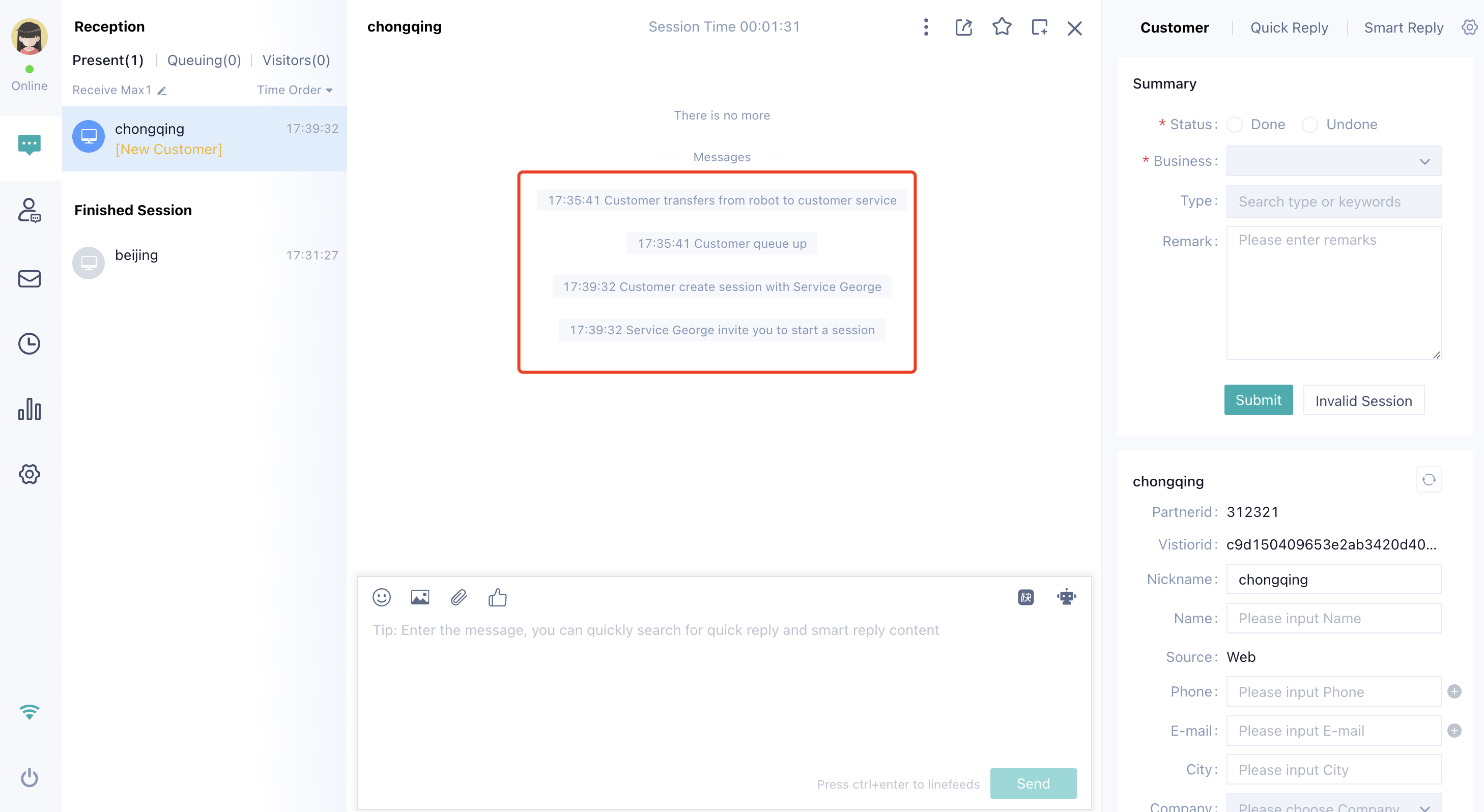
Through the "Records" module, the agent can quickly filter and locate the chat information that needs further improvement, in order to proceed with the service summary or customer information completion.
● Use the "Filter Chat" function to quickly locate the chat information that needs to be reviewed. Understand the basic situation of the chat through the chat identifier, service summary status, and processing status fields displayed in the list.
● By clicking the "More" button, review the basic chat situation and update customer information to complete the service summary.
# Scene 6: Summary of Personal Assessment Indicators
Through the "Statistics" module, the agent can view personal core indicators by time dimension and skill group dimension on their own. This makes it easy to conduct summaries and improve future work.
● The "Statistics" module supports filtering indicators by time and skill group.
● The "Statistics" module shows indicator types including: workload, work quality, satisfaction evaluation, and work status.
# Scene 7: Internal Collaboration
For new agents who are not yet proficient in the business and need guidance to respond to customers, or when conclusions can only be provided after multiple confirmations, you can choose to use "Notes".
In the input box, @ the agent who needs assistance (the agent can be @ regardless of whether they are online or not), and enter the content that requires collaboration. This content will not be visible to customers, only the agent can see it.
The agent mentioned with "@" will see it in the "@ Me" list and can reply to other agents.