
Skill Group Large Screen Monitor Guide
# Skill Group Large Screen Monitor Guide
——Learn how to view the summary data of the call data, service level, login/work status and other indicators of the skill group through large screen monitor through this article.
# Role of Skill Group Large Screen Monitor
Skill Group Large Screen Monitor is a module for admin to monitor call data, service level and work status of skill groups. This module can provide you with these capabilities:
- Support customizing multiple visual large screen monitors.
- The admin can intuitively monitor the summary data of call data, service level, login/work status and other indicators of skill groups in real time.
- Support enterprises to set indicator alerts, and make timely adjustments for businesses related to important indicators.
# Main Functions of Skill Group Large Screen Monitor
# ● Data Monitoring
- Support monitoring agent work status.
- Support monitoring agent login status.
- Support monitoring TOP 5 queuing customers.
- Support monitoring today call detail.
- Support monitoring the latest service level trend (e.g., the latest queuing answer % trend and latest 20s-ringing answer % trend).
- Support monitoring the latest inbound call trend.
- Support monitoring today summary indicators (including queue, call loss, and answer).
# ● Customize Large Screen Monitor Page
- Support customizing multiple monitoring interfaces with different combinations.
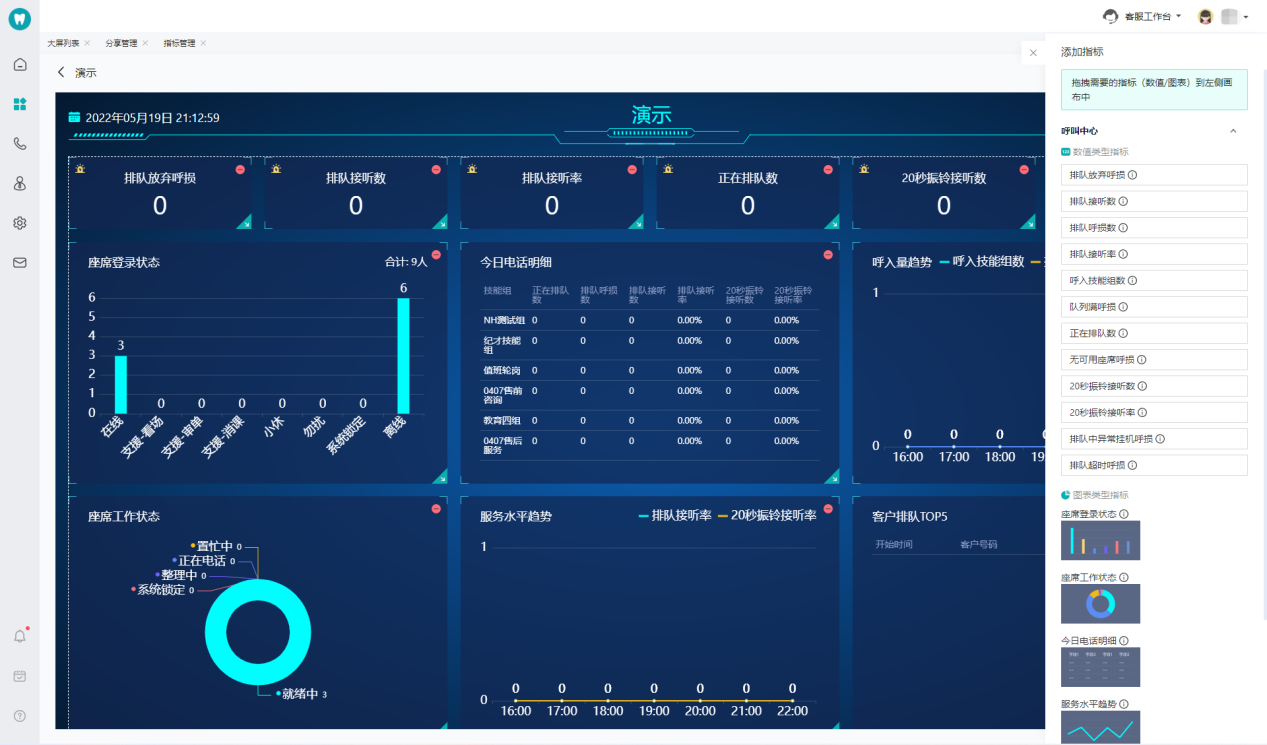
- You can drag and drop different modules to the monitoring panel for combination, including agent work status, agent login status, TOP5 queuing customers, today call detail, service level trend, inbound call trend, and summary indicators.
- Support alert settings by each indicator.
# ● Share Large Screen Monitor
Each custom large screen can generate a link, through which you can view the large screen data directly
# Usage Description of Skill Group Large Screen Monitor
# ● Customize Large Screen Monitor
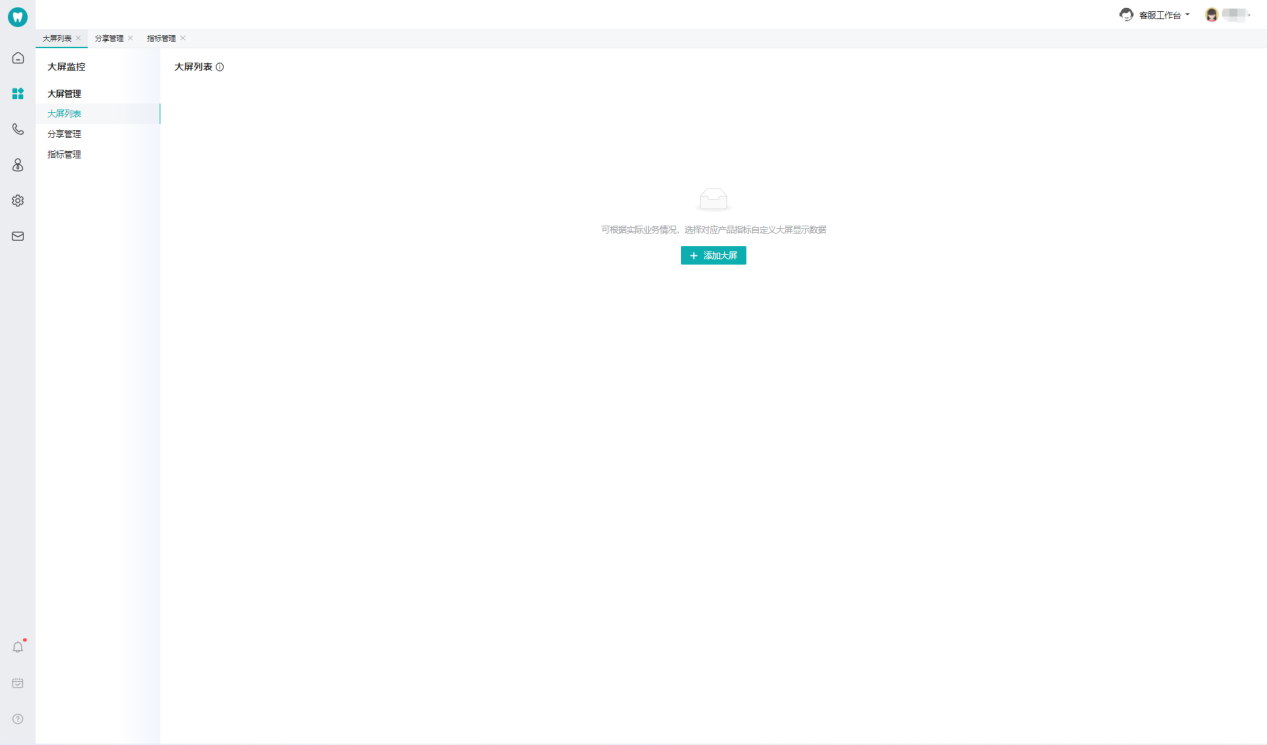
- Click「+ Add Large Screen」to create a new large screen monitor (Figure 1).
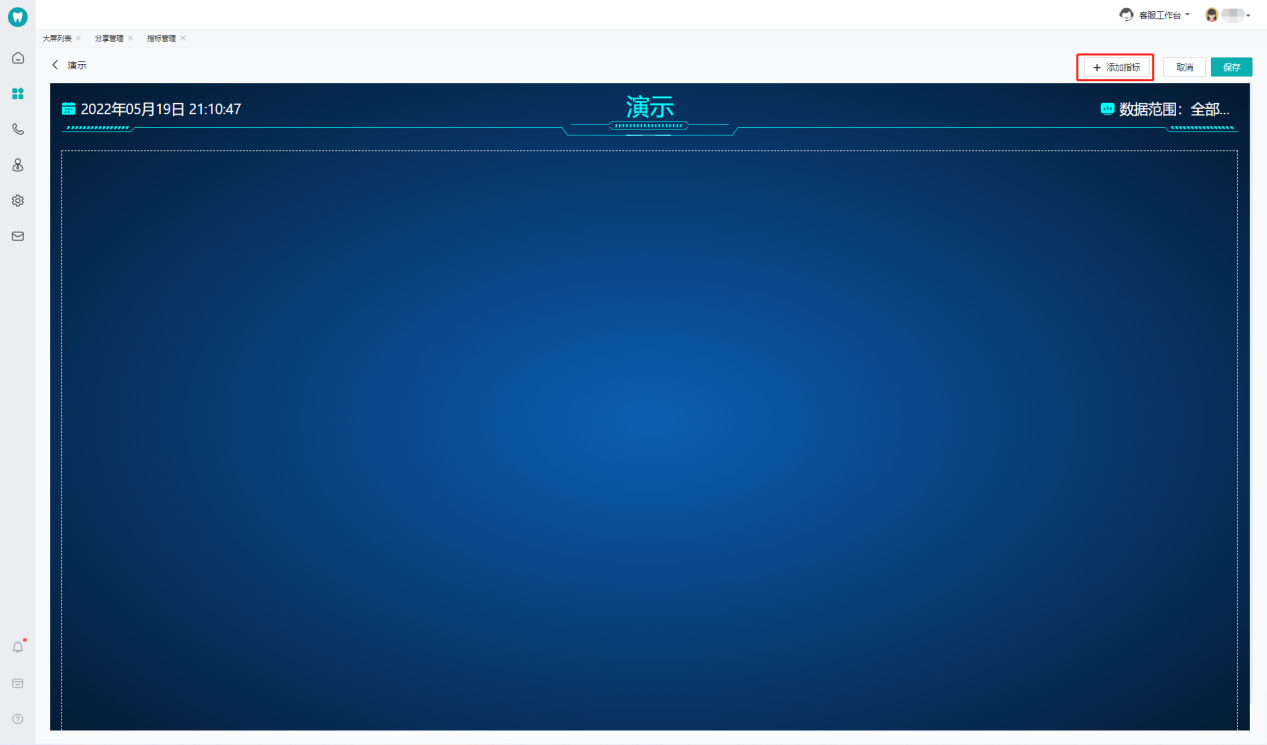
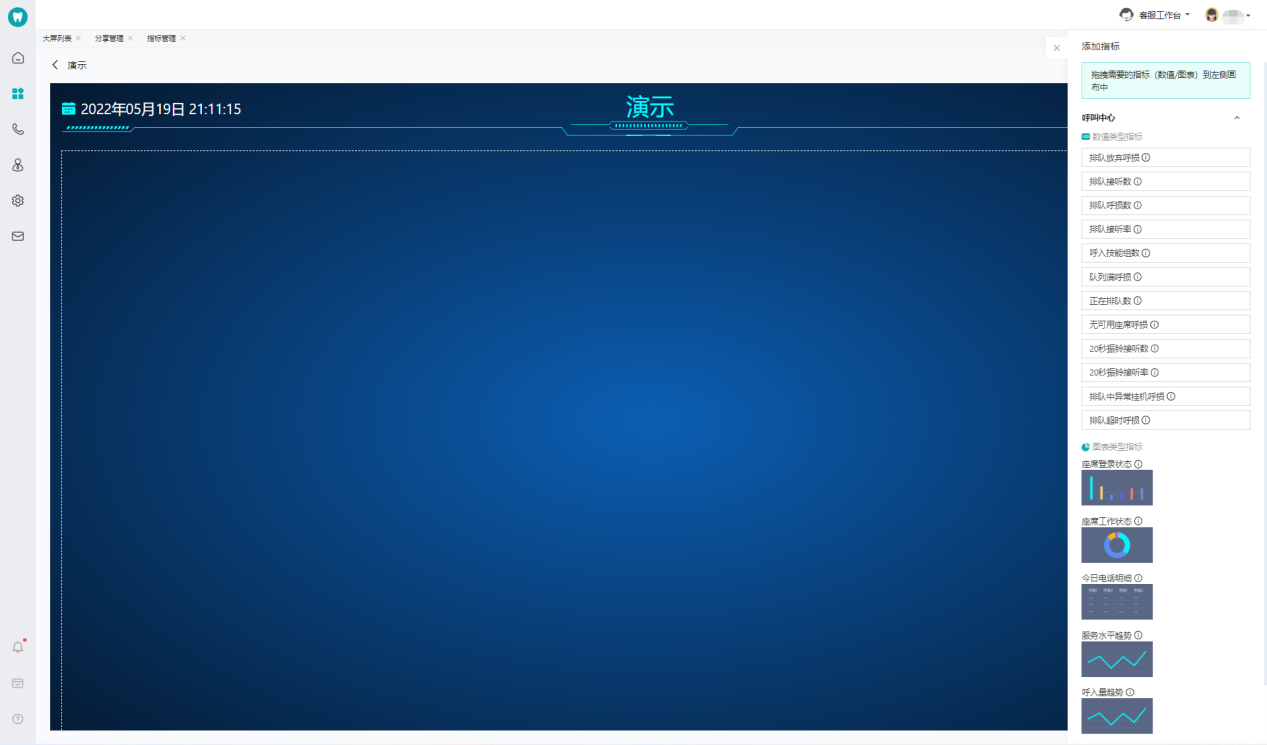
- Click「+ Add Indicator」to select different indicators and charts in the right list, and drag them to the interface for free combination (Figure 2) (Figure 3).
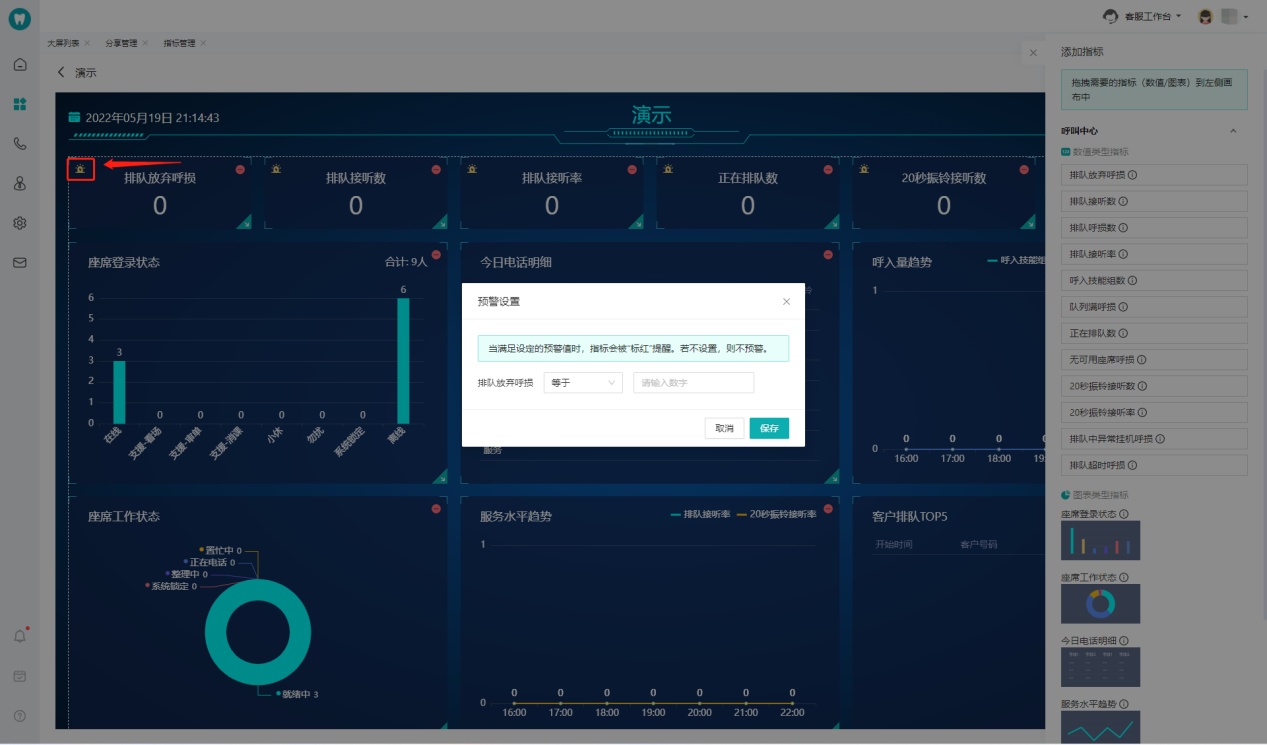
- Support indicator alert setting. You can click the button in the upper left corner of the indicator to set the red alert when the indicator reaches or falls below a value (Figure 4) (Figure 5).
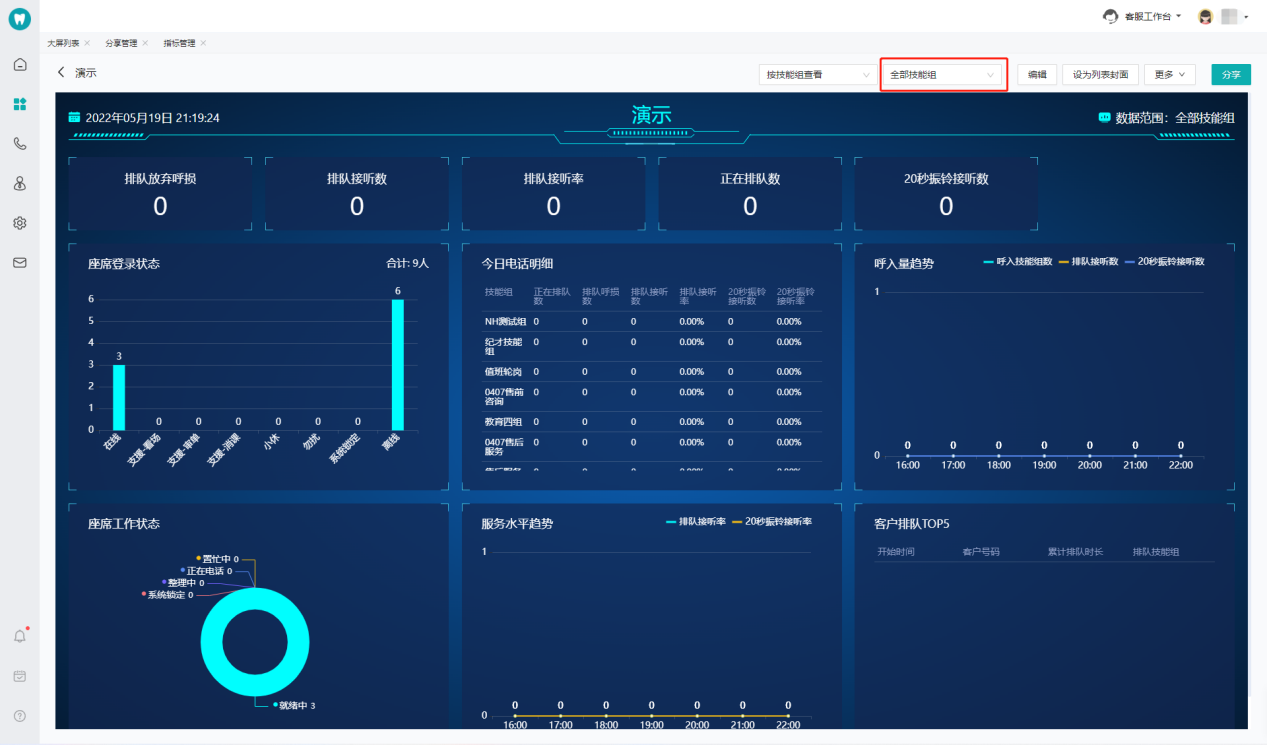
- The created large screen indicators support data query by skill groups (Figure 6).
# ● Share Large Screen Monitor
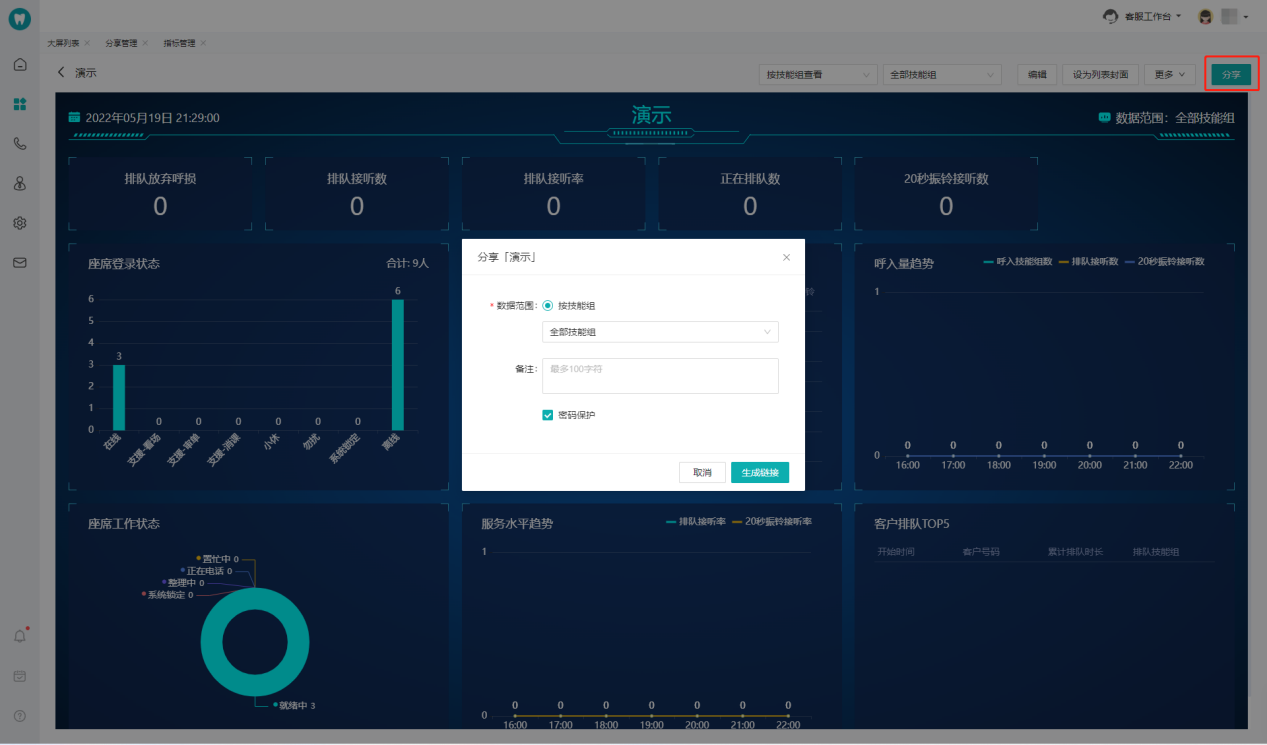
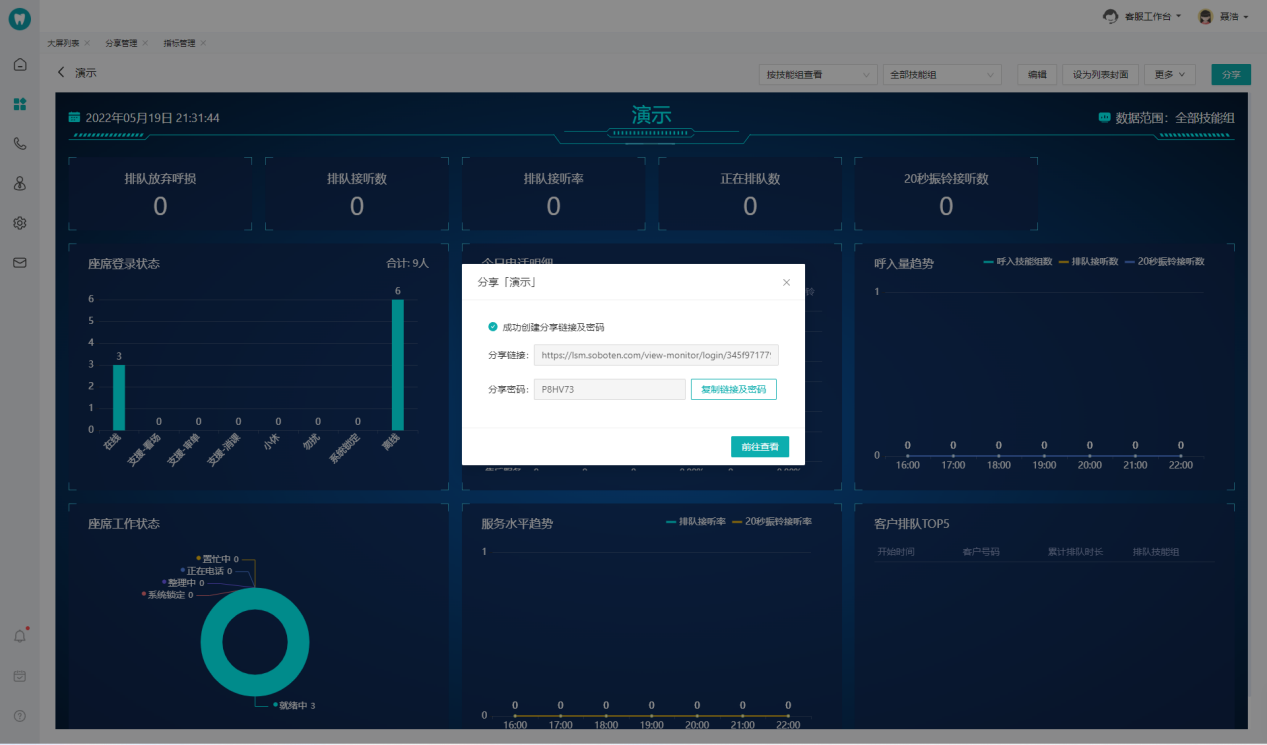
- Support sharing the created large screen monitor by generating a link, and customizing the data range by the skill group dimension. You can open the large screen monitor you want to share, click「Share」in the upper right corner, select the data range you want to share, and generate the sharing link and access password. Users who get the link can view the monitoring data within the data range (Figure 7) (Figure 8).
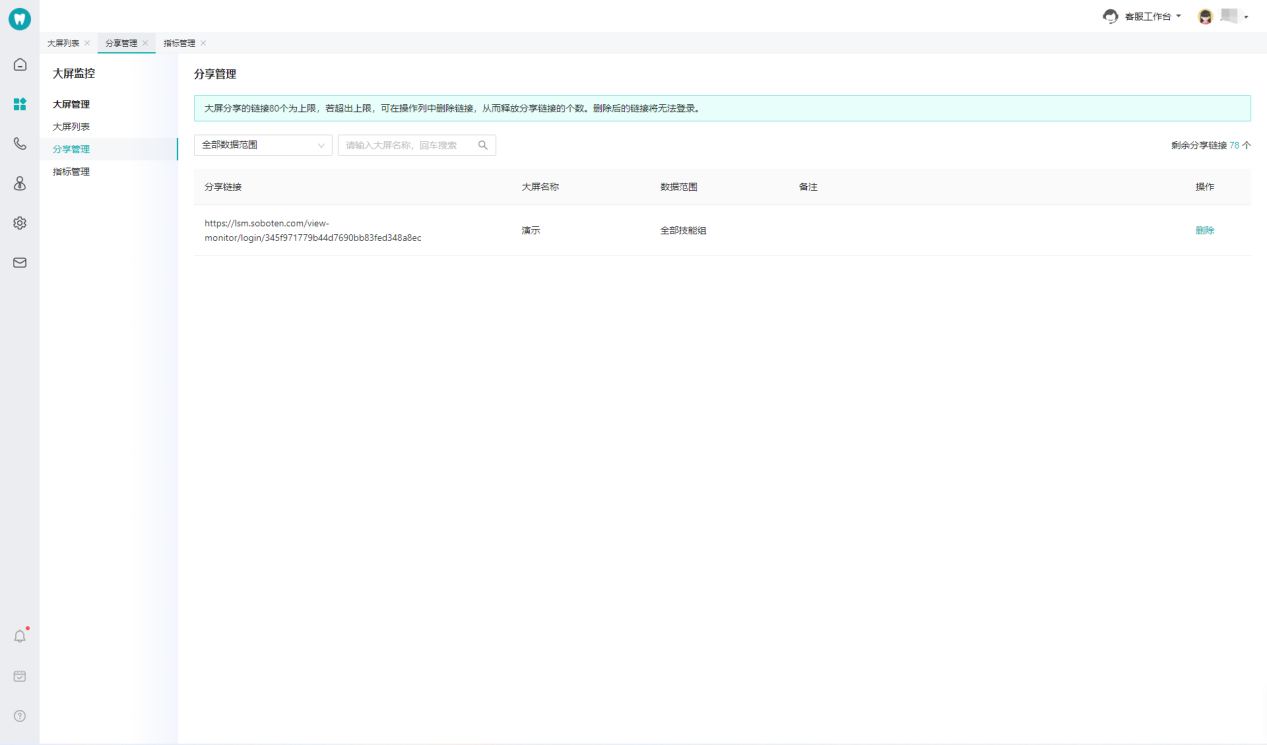
- The sharing link can be queried and deleted in the sharing management list (Figure 9).
# ● Query Indicator
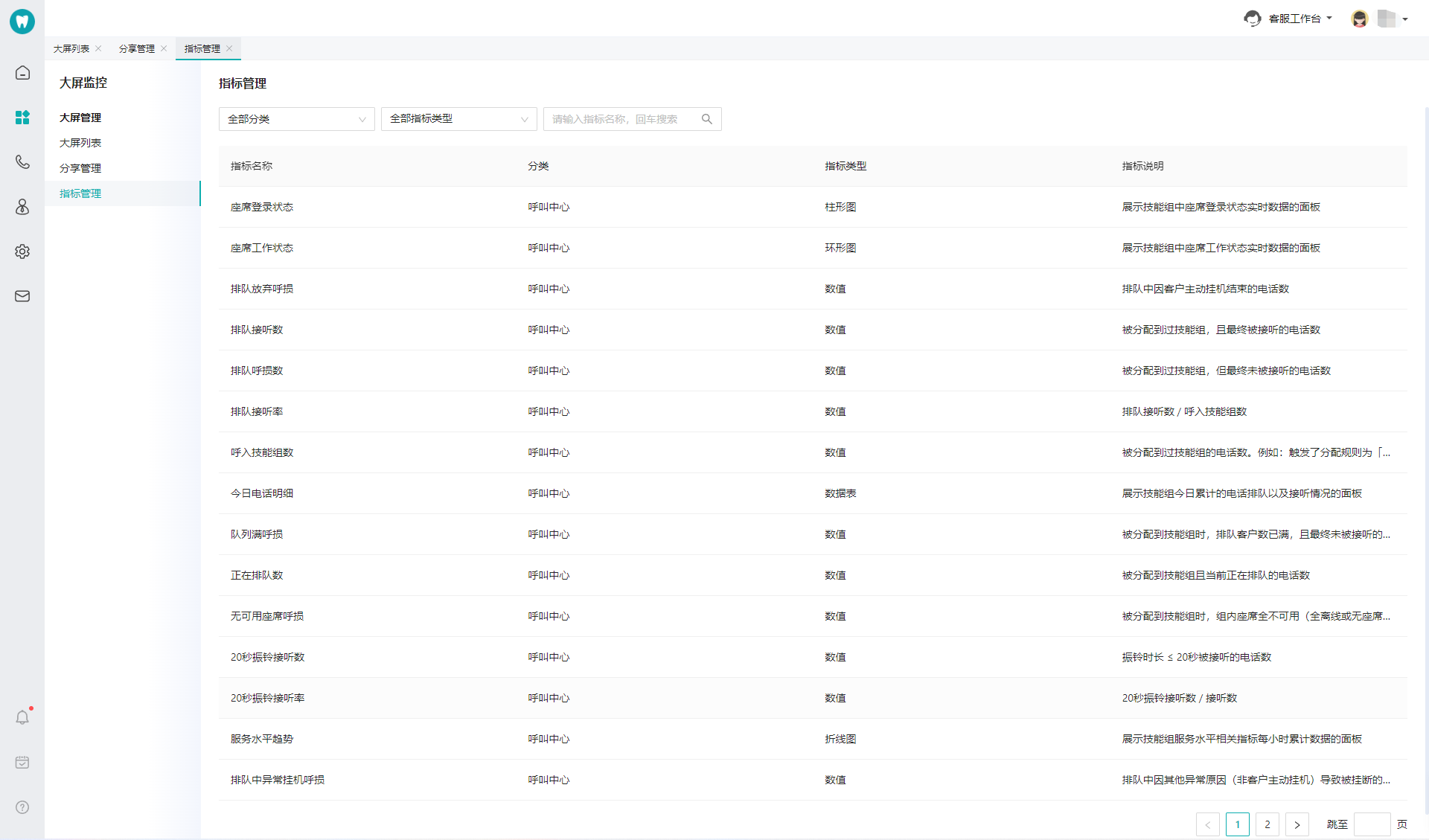
Support querying all indicators and charts of large screen monitor by indicator types in indicator management (Figure 10).
Last Updated: 11/18/2024, 7:17:07 PM