
Workflow Canvas User Guide
# Workflow Canvas User Guide
——Introduce the Workflow canvas and its application in ticket scenarios.
# Introduction To Workflow Canvas
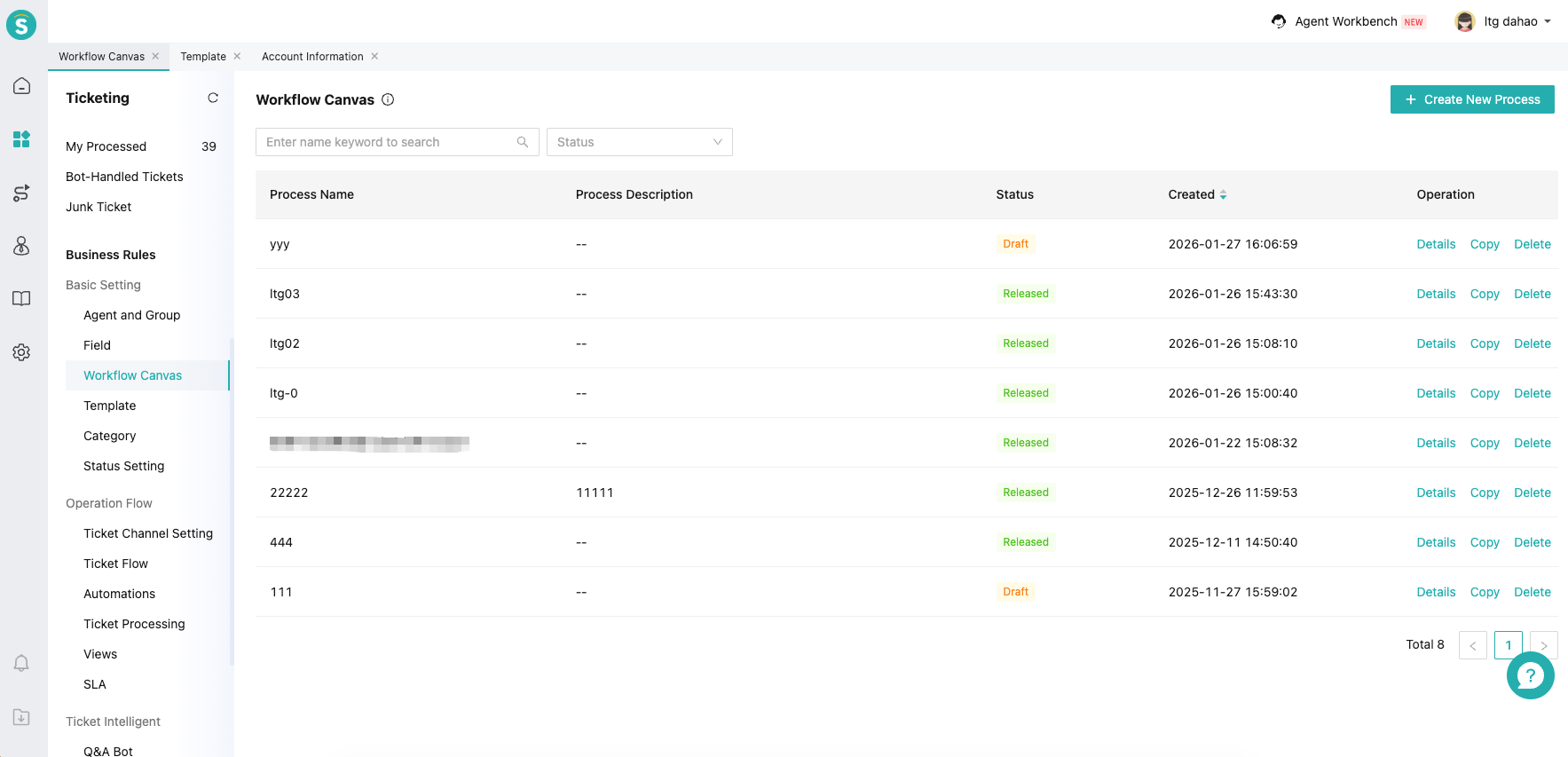
The ticket process canvas is a visual process orchestration engine. It allows you to customize the design of the full lifecycle flow rules for tickets from creation to closure using an intuitive drag-and-drop method, transforming complex business logic into clear and visible automated workflows.
The ticket process canvas is especially suitable for scenarios involving multi-department collaboration, such as refund approval, IT service management, and maintenance inspection.
# Basic Concepts
# ● Task Node
The task node clarifies the business processing boundary of the ticket at this node. It can specify that the agent performs specific business operations within a specified time.
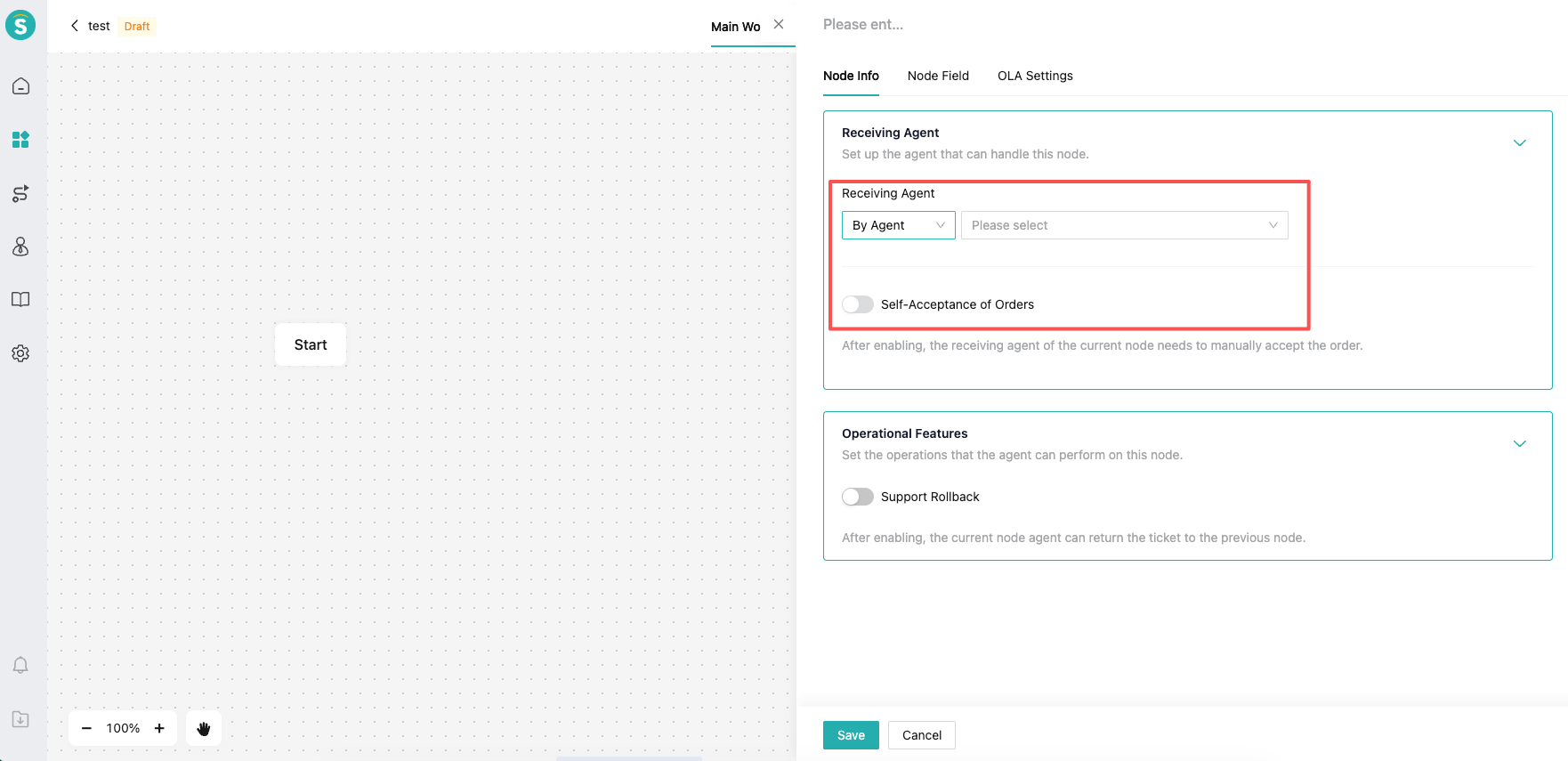
Specify receiving agent
You can specify the receiving agent or receiving agent group to handle this node. Agents outside this specified range (except administrators and super admins) cannot edit the field information of this node.
When you choose a receiving agent group to handle this node, you can set manual order acceptance or automatic assignment. You can also set the strategy for automatic assignment.
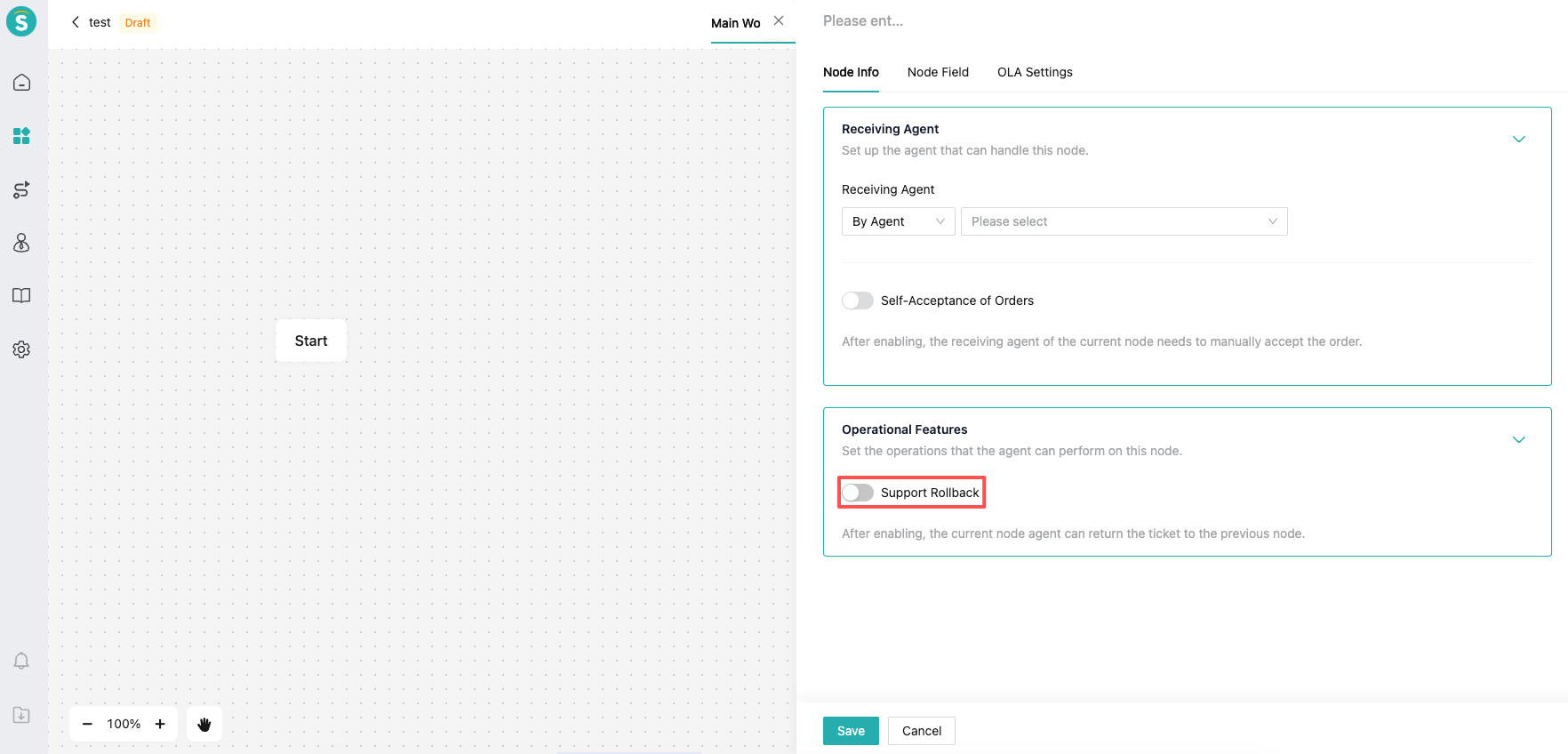
Rollback
You can set whether this node can roll back to the previous node.
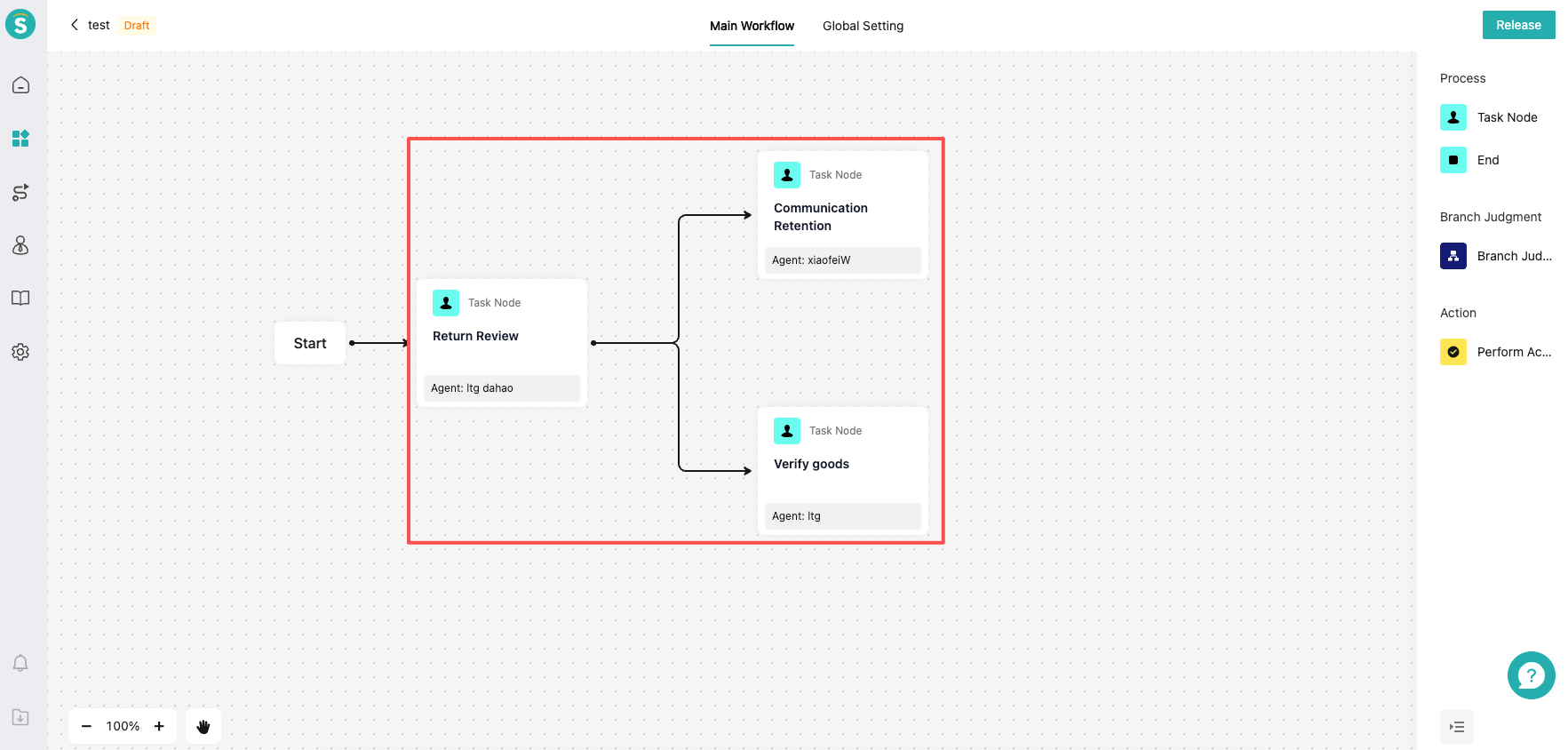
When the previous node is a start node, action execution node, decision node, or branch start node, rollback is not supported.
Taking the branch start node as an example, "Communication Retention" cannot be rolled back to "Return Review".
Node Fields You can define the fields required for this node. Fields that are not set will be invisible within this node. When a field is set as mandatory for the node, it must be filled in to complete the node; otherwise, the node cannot be completed.
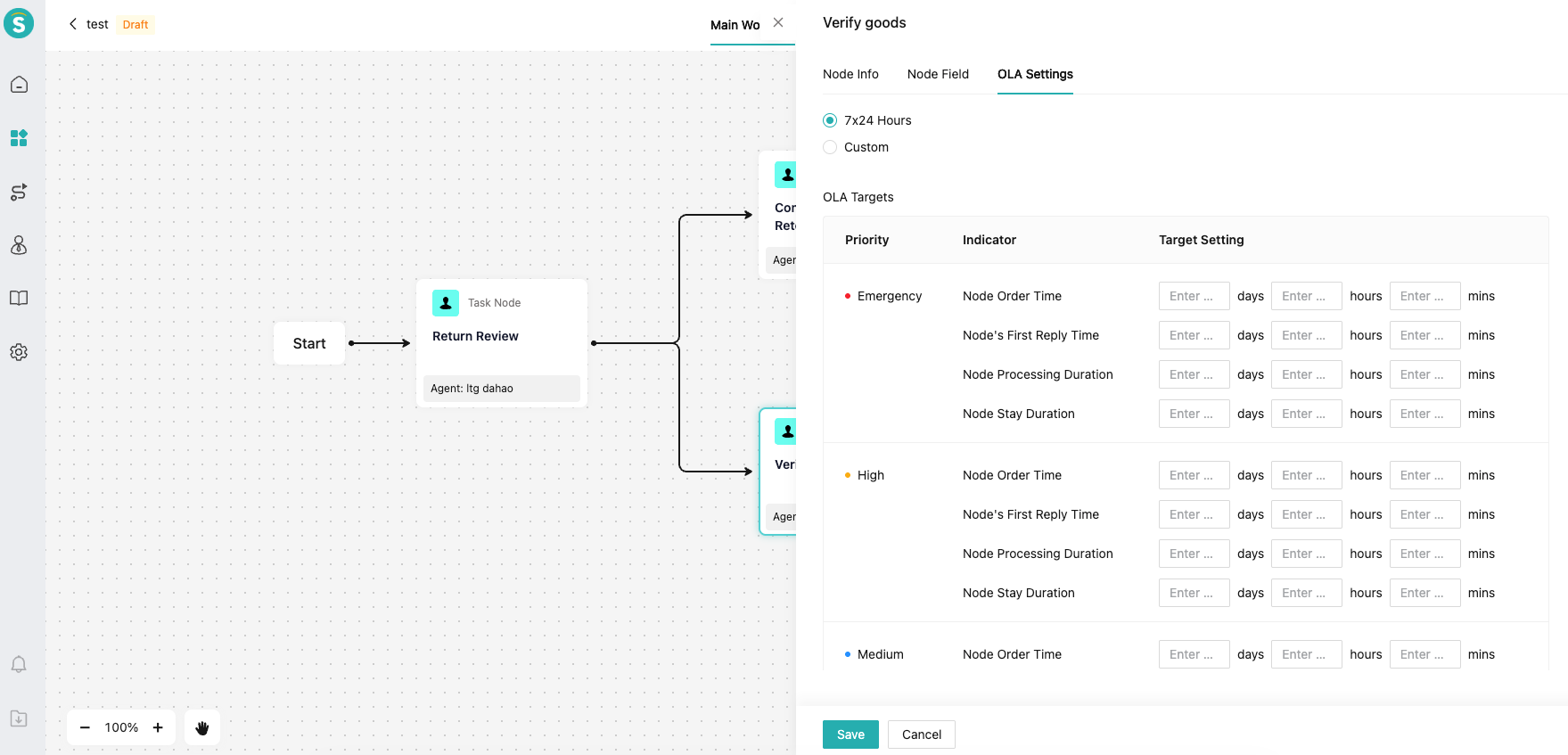
OLA Settings
OLA (Operational Level Agreement) is an indicator used to measure the handling efficiency between internal agents/agent groups and agents/agent groups.
When a ticket is reactivated or returned, causing the ticket to flow through the node again, the time for indicators other than the node acceptance time will be accumulated.
Node Order Time: This indicator takes effect when automatic order acceptance is enabled. It refers to the time period from entering the node until the agent manually accepts the order.
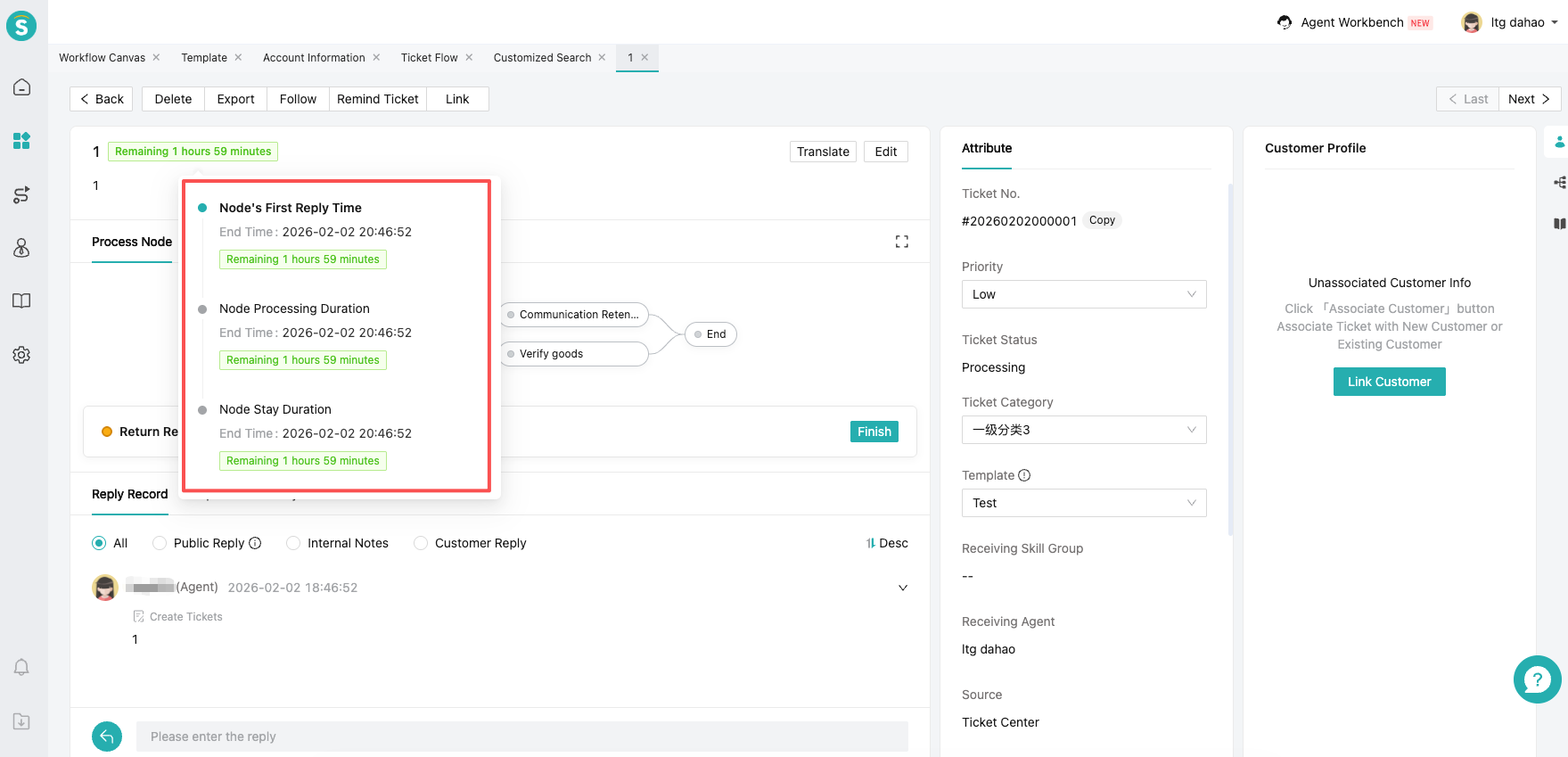
Node's First Reply Time: This refers to the time period from when the agent accepts or is assigned the order, until the agent makes the first public reply or internal note, excluding replies generated by automated tasks.
Node Processing Duration: This refers to the time period from when the agent accepts or is assigned the order, until the node is completed, excluding non-working hours.
Node Stay Duration: This refers to the time period from when the agent accepts or is assigned the order, until the node is completed, including non-working hours.
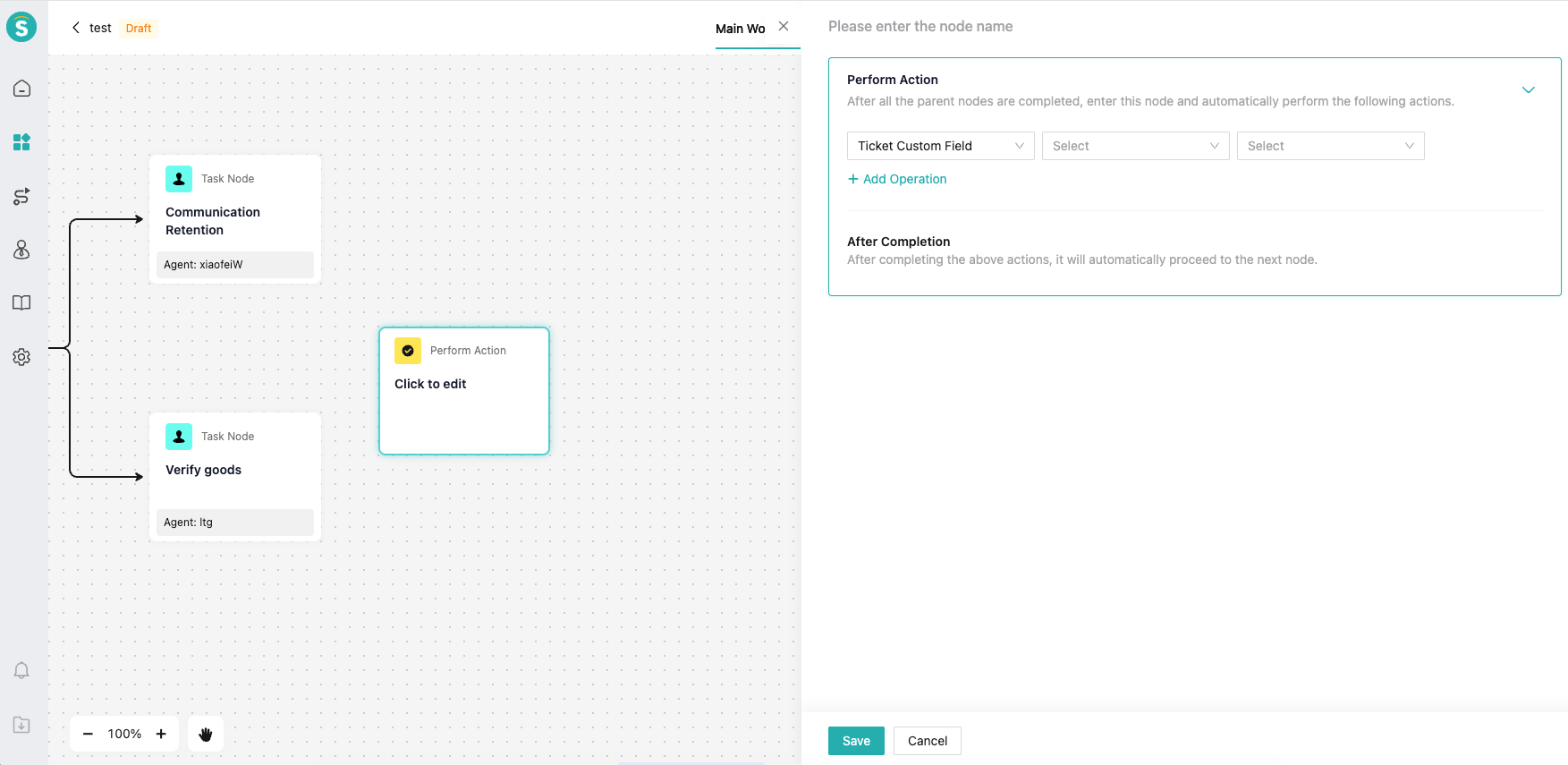
# ● Perform Action
No manual triggering or waiting is required. The system actively performs preset actions when conditions are met. One node can execute multiple actions. After the actions are completed, it will automatically move to the next node.
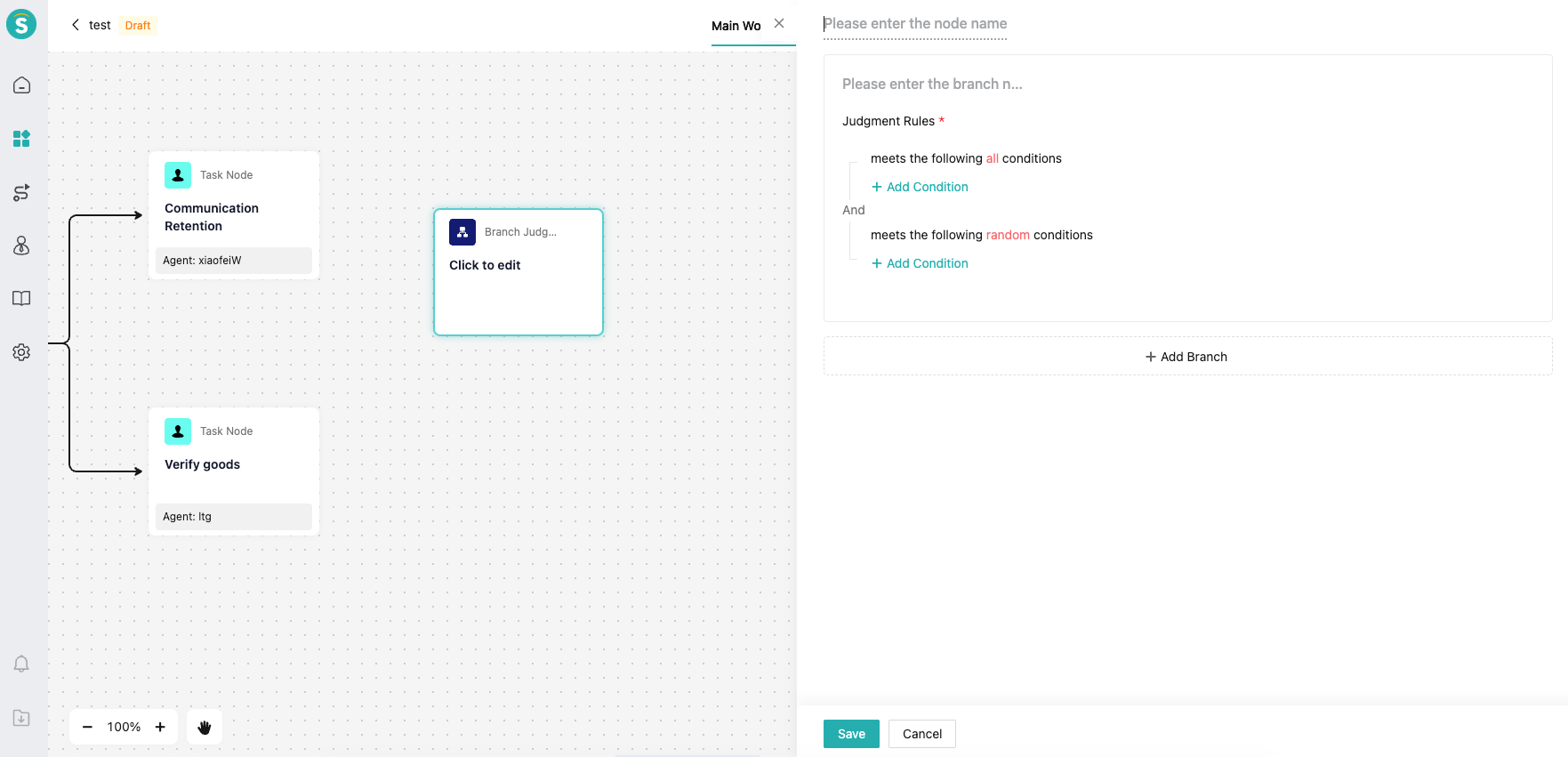
# ● Branch Judgment
Based on preset rules, judge the ticket data and automatically decide the ticket routing path. One node can set up 6 branch judgment condition combinations. Each condition combination can set conditions based on ticket field information, customer information, and other related attributes.
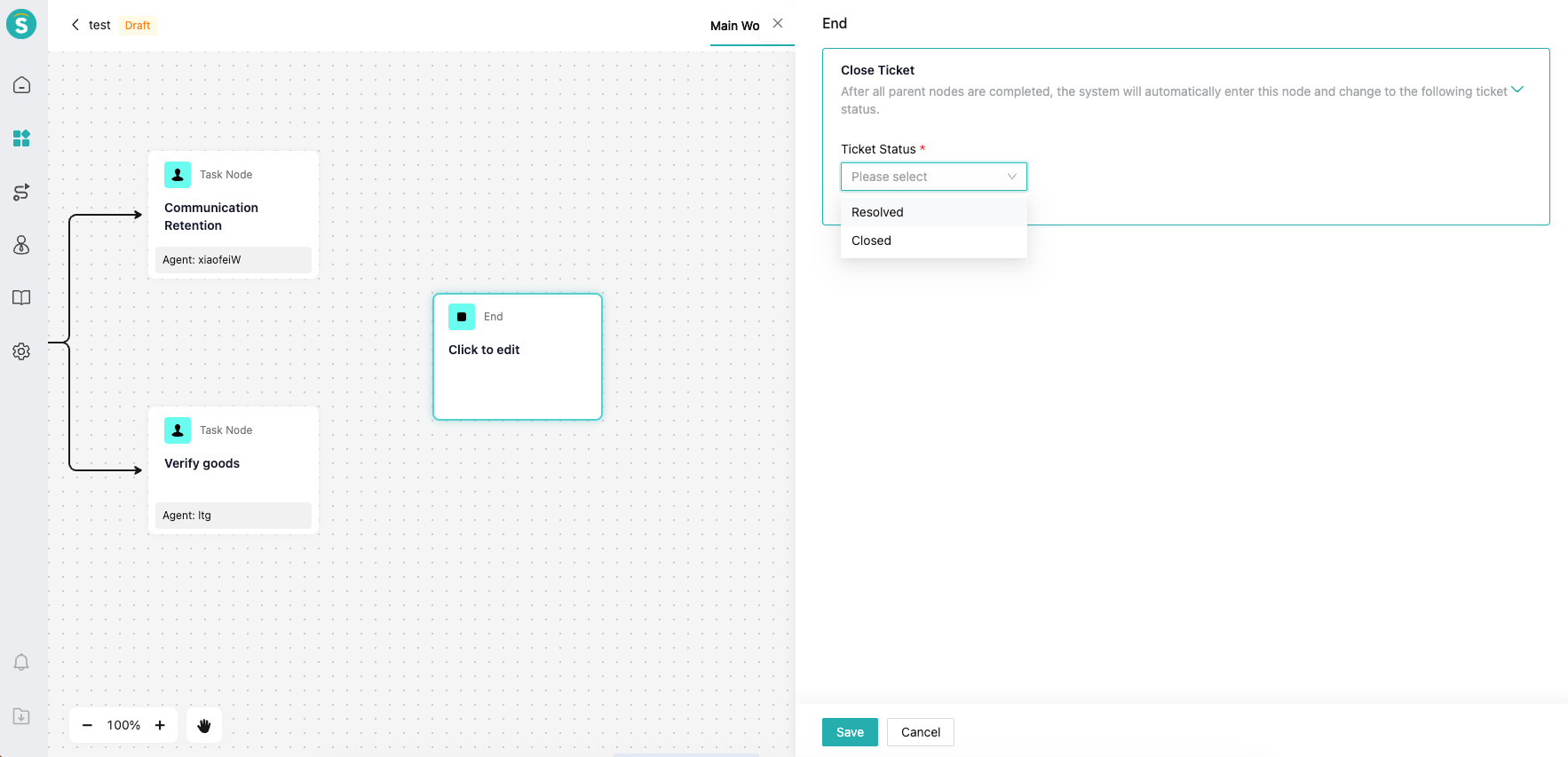
# ● End
At the end of the process, the ticket status must be "Resolved" or "Closed".
# Differences Between Workflow Tickets And Non-workflow Tickets
Read the following items carefully before use to avoid affecting your business due to incompatibility.
| Difference | Normal Ticket | Ticket Using Workflow Canvas | Description |
|---|---|---|---|
| Receiving Agent | Only one at the same time point | Multiple possible at the same time point | When a ticket is at a parallel node, there are multiple receiving agents. Based on this, please adapt the receiving agent field for the following APIs. Query Ticket List by Creation Time (opens new window) Query Ticket List by Update Time (opens new window) Query Ticket Details Page (opens new window) Ticket Message Forwarding (opens new window) |
| Ticket Custom Status | Does not support custom ticket status. During ticket processing, setting ticket status is not supported. A ticket has only four statuses: Not Accepted, In Progress, Resolved, and Closed. | Process tickets are "Not Accepted" when created, automatically change to "In Progress" after assigning an agent, and become "Resolved" or "Closed" after the process ends. | |
| Batch Edit, Excel Create Ticket, Excel Edit Ticket, API for Agent Modify Ticket, Execution Actions in Ticket Workflow Settings, Setting Ticket Status, Receiving Agent, Receiving Agent Group in Automation Tasks | Supported | Not Supported | |
| SLA | Both old and new versions are supported | Only the new version is supported | Before use, ensure your SLA has been upgraded to the latest version (If there is no upgrade button on the Business Process - Service Level Agreement page, it is the latest version), otherwise SLA statistics may be inaccurate. |
| Old Workbench, Agent APP, Feishu Mobile | Supported | Not Supported | Gradually adapting |
# Workflow Ticket Generation
The process is associated with the ticket template. When creating a ticket, if a template with a process canvas is used (agents can choose the ticket template when creating a ticket, and which ticket template customers use to create tickets is set by the administrator), the ticket will automatically follow the nodes set in the process. After the relationship between the nodes in the process canvas changes, it will only take effect for tickets created afterward.
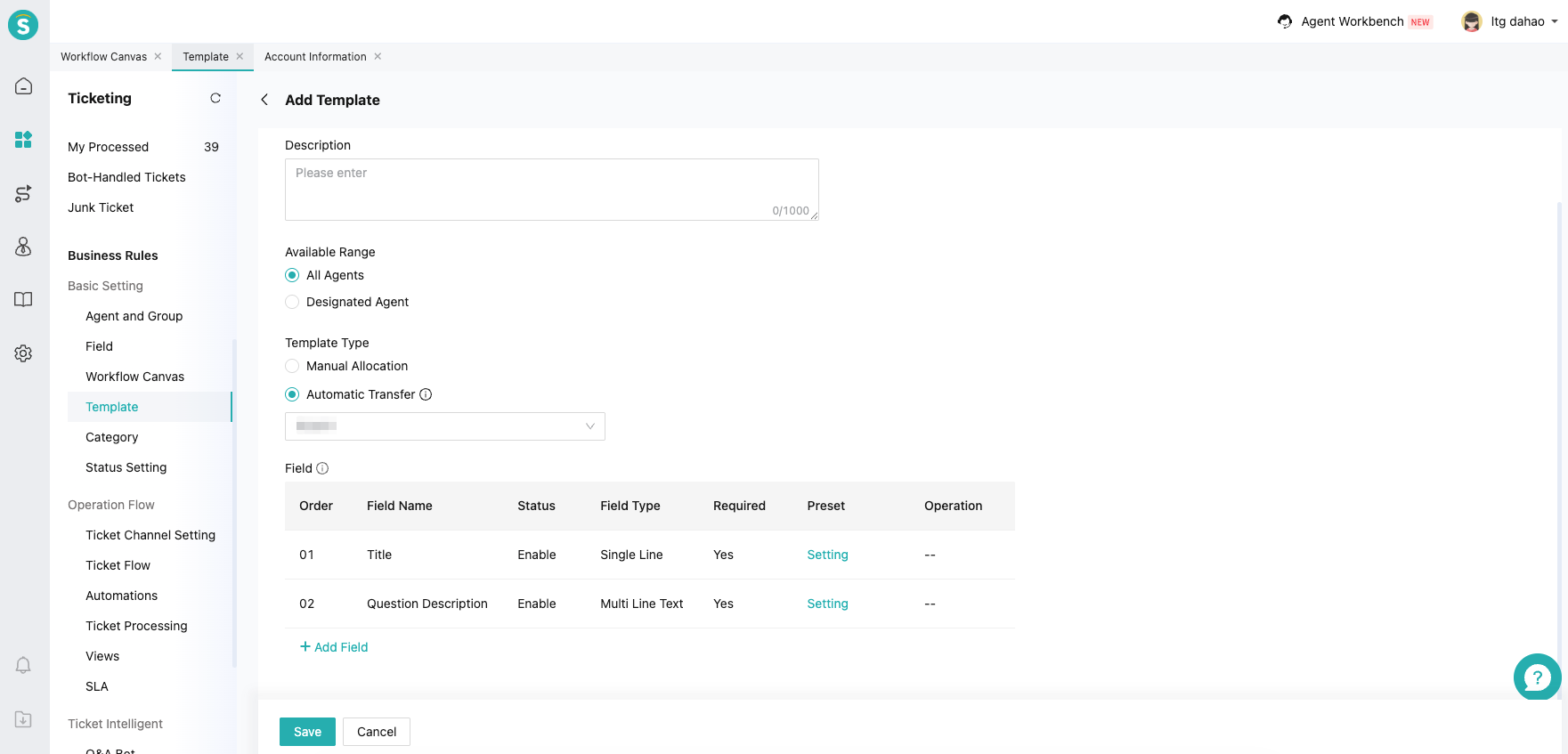
When creating a ticket template, select "Automatic Flow" as the template type and choose the corresponding process. One ticket template can only be associated with one process, but one process can be associated with multiple ticket templates.
# Process For Handling Tickets
# ● Processing Time
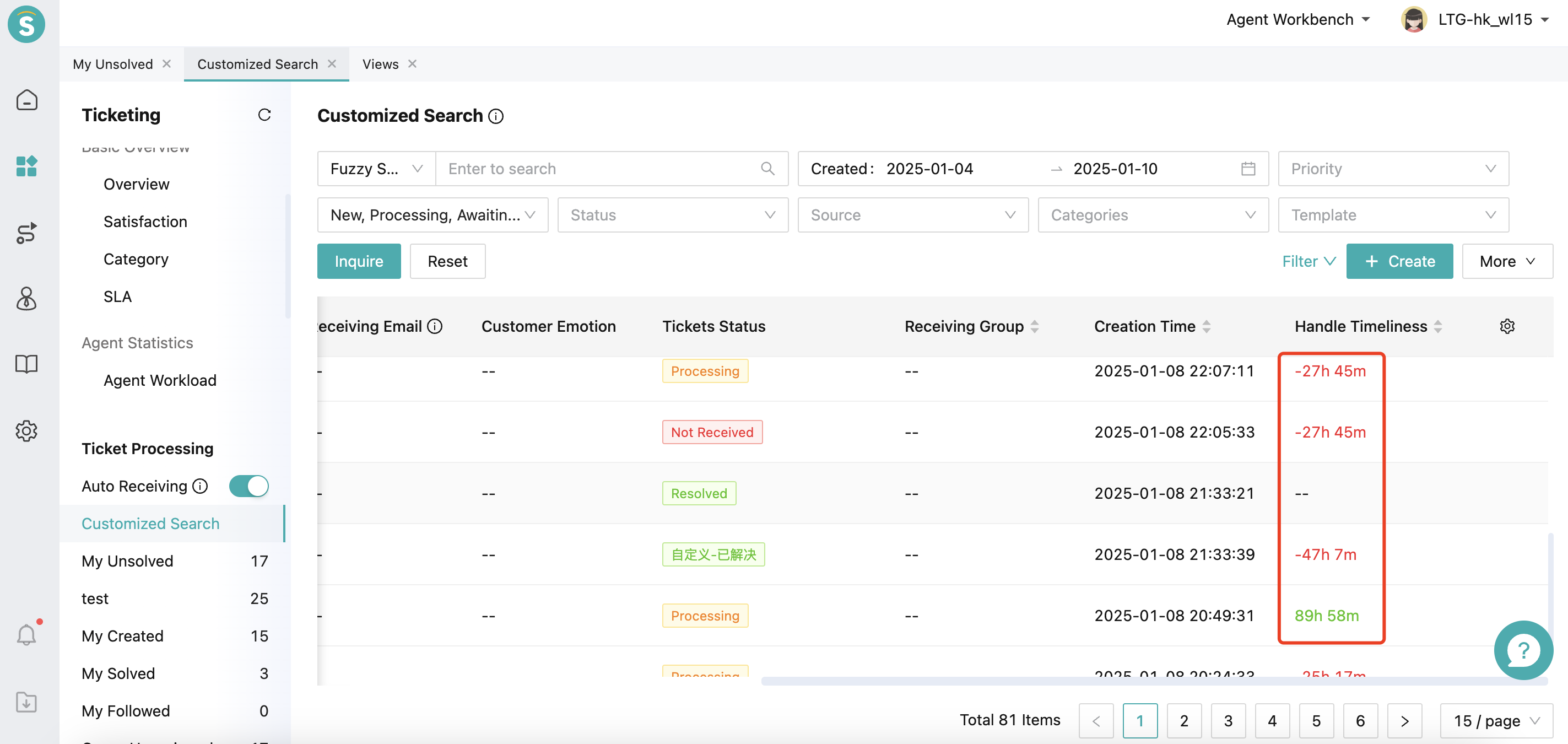
The processing time for the list will display the maximum value of all incomplete indicators for SLA + OLA. For the agent, neither SLA nor OLA can be overdue.
On the ticket detail page, it will display the details of all incomplete SLA+OLA indicators.
# ● Node Permissions
Only when the ticket process reaches this node and an agent accepts the ticket, can the agent, administrator, or super admin of this node handle this node.
Other agents can only view but cannot edit.
# ● Node Fields
Under this node, only the fields set for this node and non-template fields will be displayed. Other fields will not be shown.
Node fields must also follow the management relationship between fields and roles. If a field is not visible to an agent of a certain role, the agent will not see the field even if it exists under the node.
# ● Node Agent And Ticket Receiving Agent
Each node that is being processed or has been processed will have a node agent. The node agent can only be selected from the agents specified for that node. The ticket's receiving agent is all node agents processing the current node. Therefore, when the ticket is at a parallel node, the ticket has multiple receiving agents.
# ● Modify The Ticket Template
When there is a ticket modify template with a process, you can only select templates that are already associated with a process.
When there is no ticket modify template with a process, you can only select templates that are not associated with any process.
# ● Activation
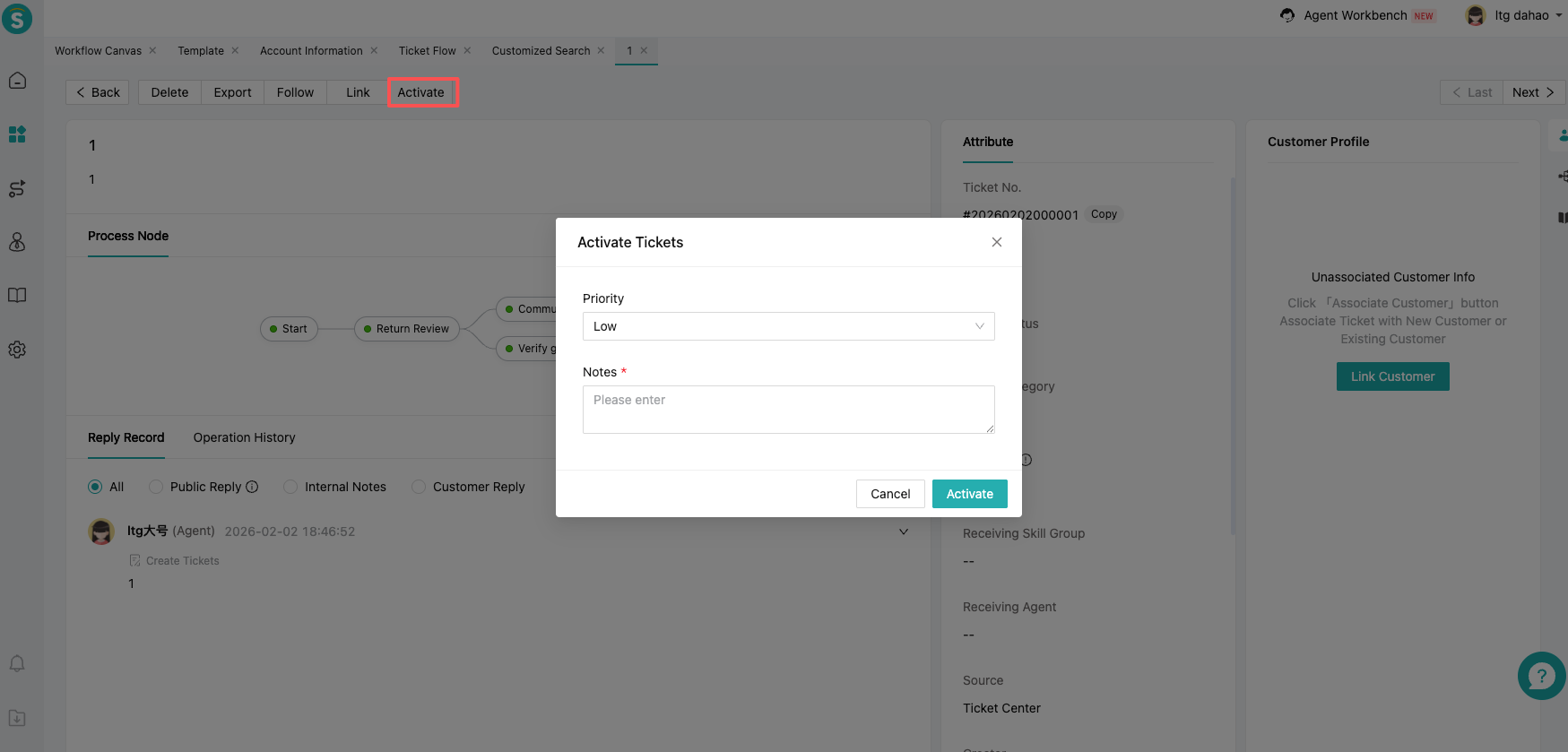
When the ticket flows to the end node, an activate button will appear. At this time, you can activate tickets.
# ● View
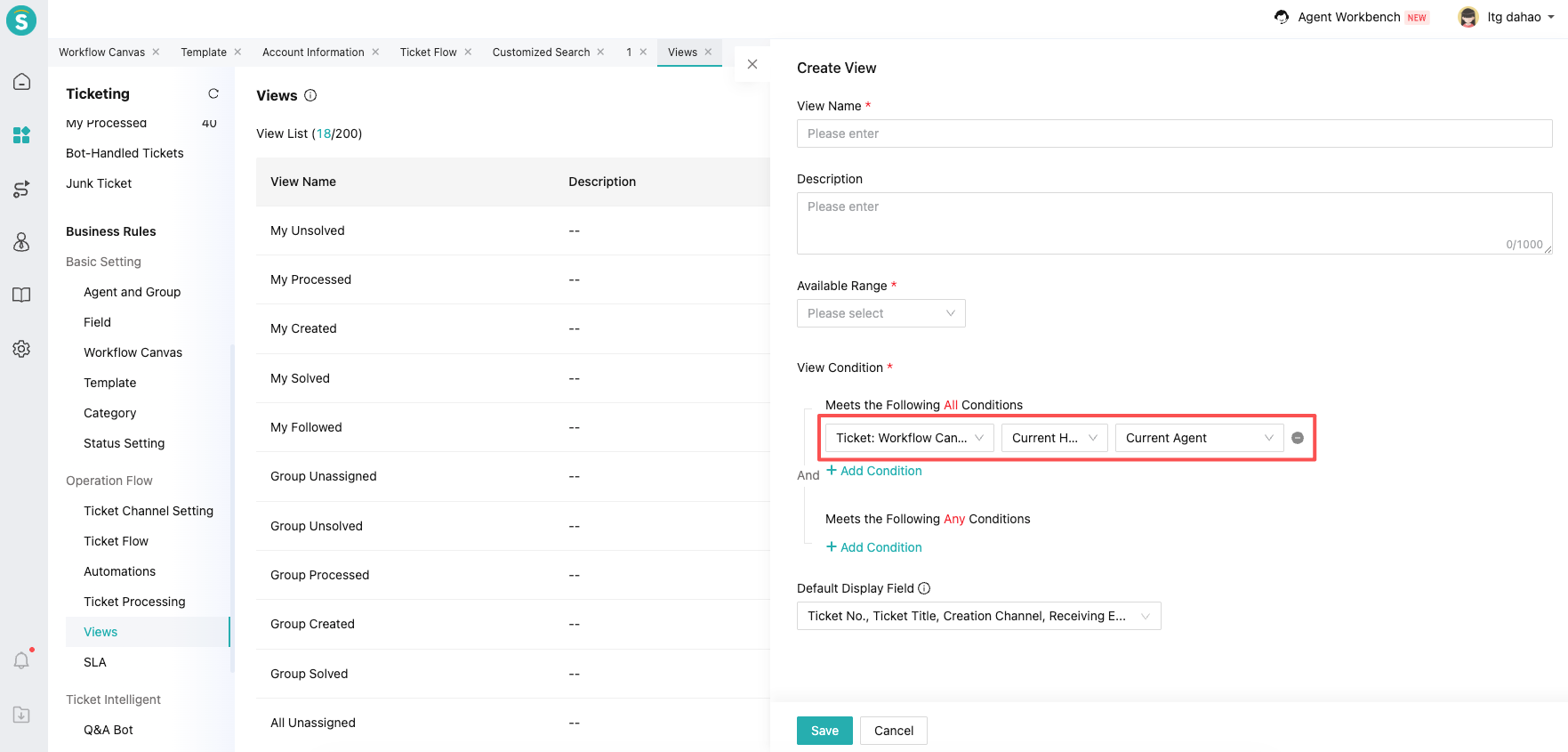
You can quickly locate the process ticket that needs your handling through the ticket process — current processing node — yes — current agent.
# Workflow Canvas Statistics
Through the Process Canvas statistics, you can achieve goals in two aspects:
Clearly see the OLA status of each node, continuously optimize OLA, and improve internal collaboration efficiency;
Understand the distribution of tickets at each decision node, grasp the flow of tickets, and allocate agents reasonably across different nodes.
# ● Flow Ticket Distribution Diagram
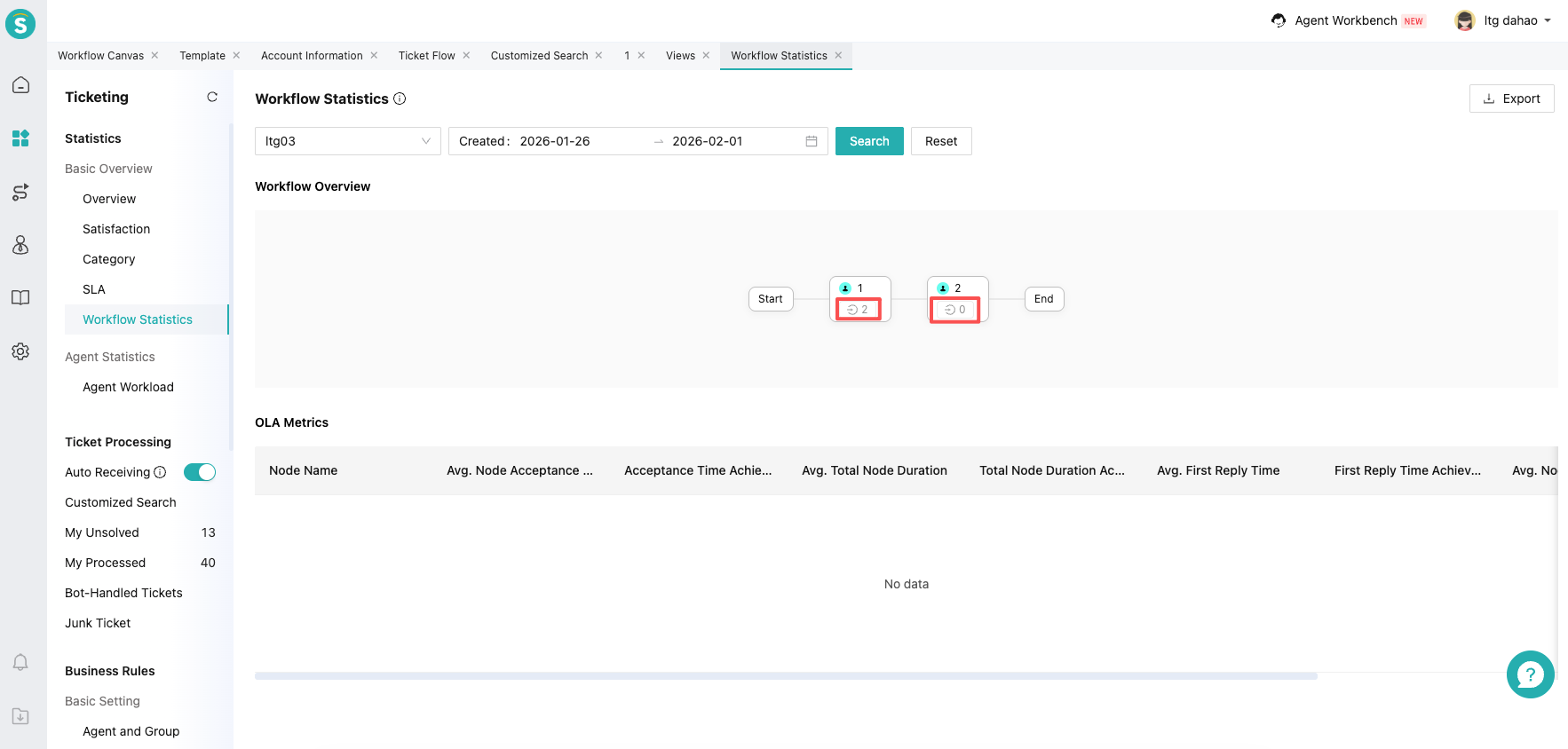
By looking at the number of tickets on the flow canvas lines, you can clearly see the distribution of tickets across various nodes, understand business priorities, and arrange agents for reception reasonably.
# ● Definition Of Indicator
Note: If the ticket modifies the process or the process has been edited, the ticket will only follow the latest process and process nodes for statistics. The following statistics all include the number of deleted tickets.
The indicator will only count tickets that have been completed.
Average node order acceptance time: Total time spent on accepting orders at this node for tickets that have entered this node / Number of order acceptances at this node.
Order acceptance compliance rate: Number of compliant order acceptances at this node / Total number of order acceptances at this node_100%.
Average total node duration: Total time spent at this node for tickets that have entered this node / Total number of tickets that have entered this node.
Total node duration compliance rate: Number of tickets with this indicator set and compliant / Total number of tickets that have entered this node_100%.
Average first response time: Total first response time for tickets that have entered this node / Total number of tickets that have entered this node.
First response time compliance rate: Number of tickets with this indicator set and compliant / Total number of tickets that have entered this node_100%.
Average node processing time: The total processing time of tickets that have entered this node / The total number of tickets that have entered this node.
Node processing time compliance rate: Number of tickets with this indicator set and compliant / Total number of tickets that have entered this node_100%.